UniConverter
UniConverter Online Free
Converter video, audio & image free
Free Try
Bulk Video Editor guide

Bulk Video Editing: How to Edit Multiple Videos Efficiently

A bulk video editor helps prepare several videos through one repeatable workflow, but “batch” can describe different abilities: loading multiple files, sharing a supported setting, or exporting a prepared queue. A tool that imports a folder does not automatically apply every edit to every clip. Start with the operation you need, then check how that operation handles mixed durations, framing, and content.

Quick Answer
  • Separate shared settings from per-clip edits and final batch export. They are different capabilities.
  • In UniConverter Video Editor, work through the selected clips and review their edits before the shared export stage.
  • For a repeated logo or text mark, use the separate Add Watermark workflow and its Apply to All control when one setup fits the collection.
UniConverter desktop:

UniConverter for Windows

UniConverter for Mac

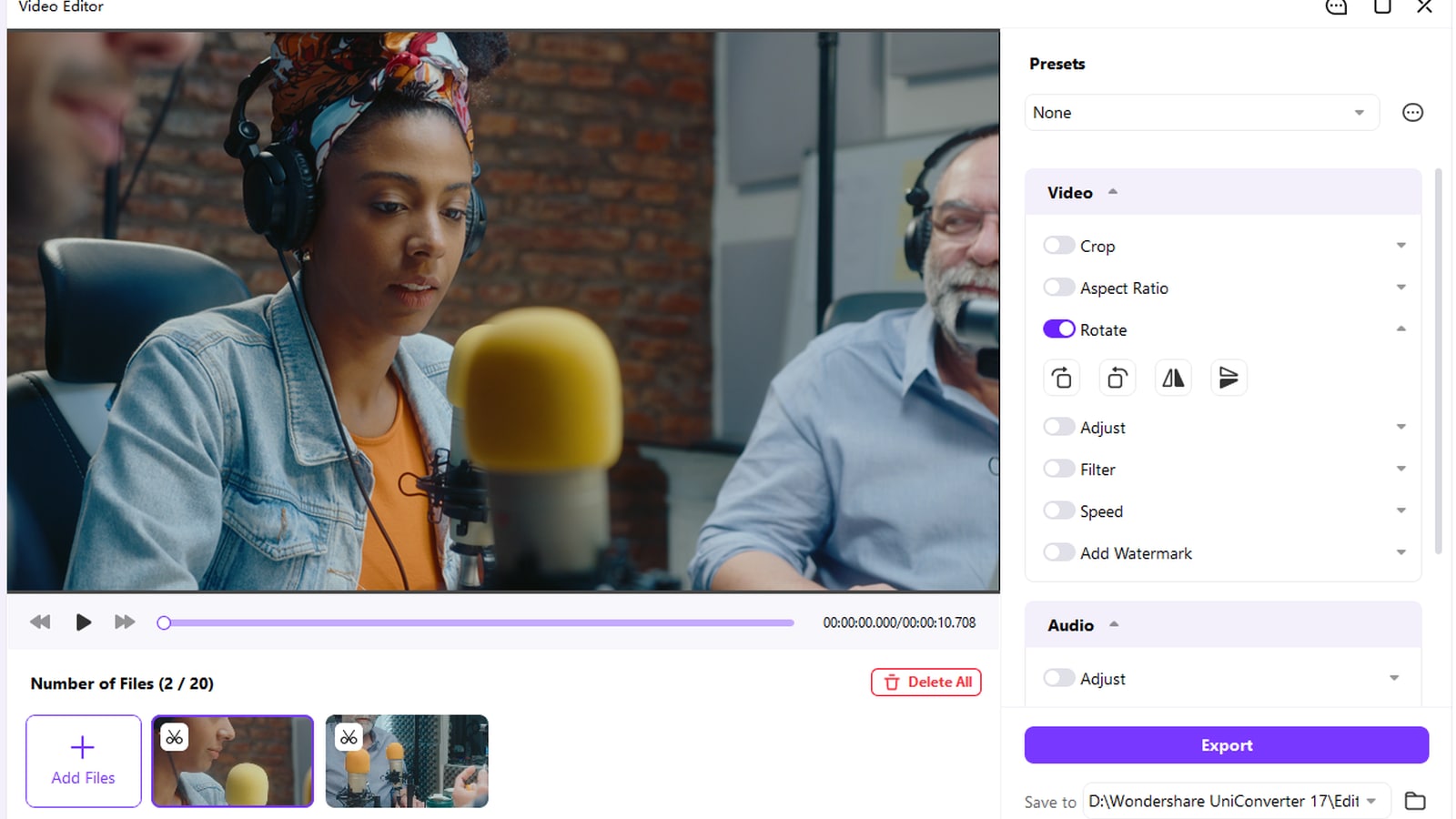
UniConverter Video Editor
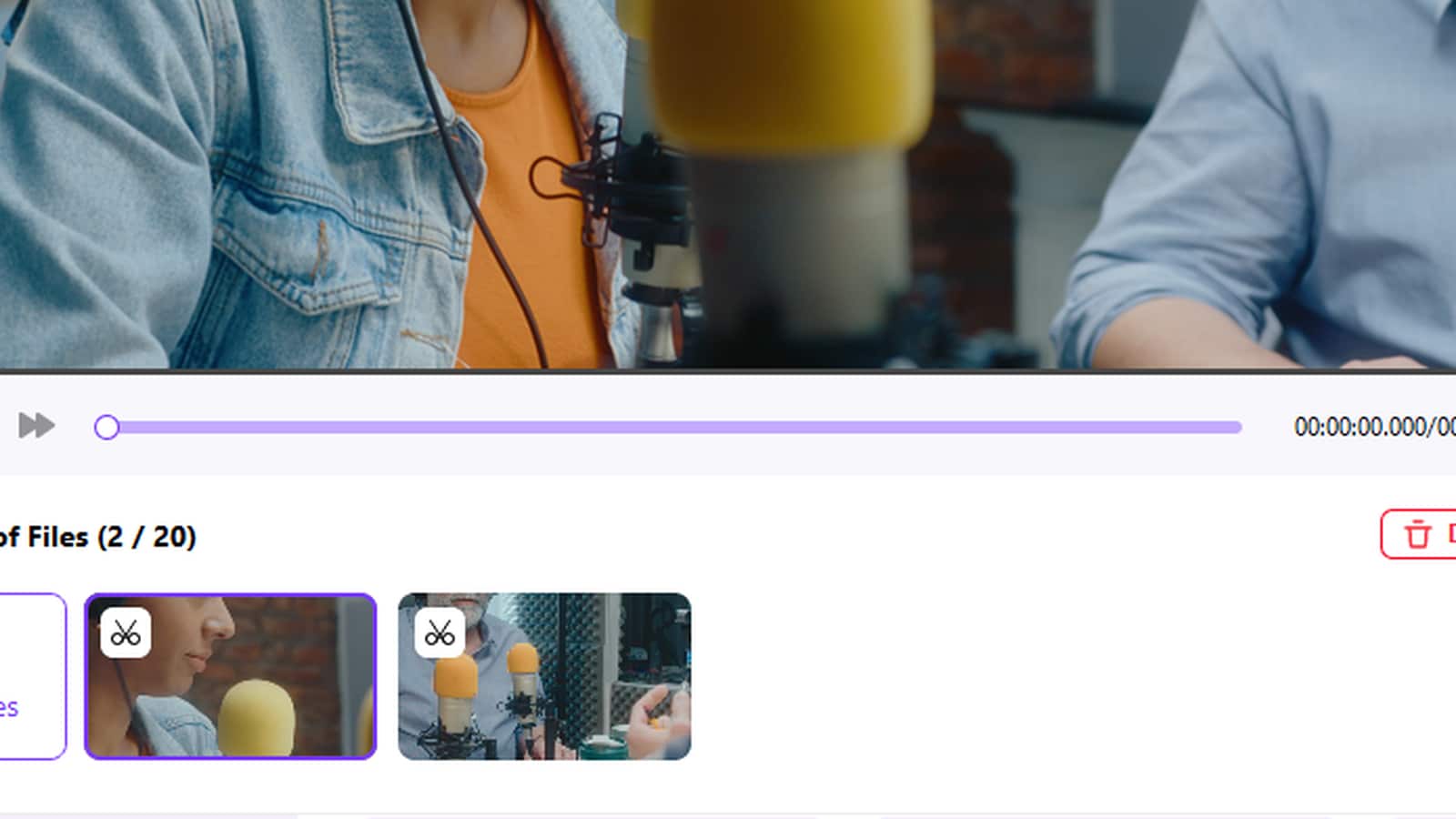
UniConverter Video Editor multi-file workspace
PlanDefine the delivery
TestInspect a sample
KeepRetain originals
ReviewCheck the outputs

Choose the Right Bulk Video Editor Workflow

Use the source, required operation, and delivery destination to choose the method. Shared setup is useful only when it matches the files in the collection.

Your task
Workflow choiceShared-settings workflow
Workflow choicePer-clip editing queue
Repeated branding
✓A logo or text treatment can be reused when the same placement fits the clips.
Review different aspect ratios and subject positions before export.
Trimming
✓A common delivery goal does not mean every source has the same useful start and end.
Set and review the cut boundaries for each recording.
Crop and orientation
✓A ratio, crop box, and rotation angle solve different problems.
Check framing and orientation per selected video.
Captions and transcripts
✓Caption content depends on each recording’s speech and timing.
Use the appropriate subtitle workflow; do not infer bulk subtitle addition from multi-file import.
Simple decision:
Choose the tool by the operation. Repeated branding, selected-clip preparation, and delivery-format conversion use different controls.
See the UniConverter Steps

What a Bulk Video Editor Should Actually Do

A useful batch workflow reduces repeated setup while preserving the decisions that depend on each video. Use the following criteria before choosing a tool or applying a preset.

Choose the Operation Before Choosing the Preset

List the changes the collection actually needs: trim, crop, rotation, branding, output format, or another specific treatment. Then decide which choices can be shared. A series of product demonstrations may share branding while needing different cuts, and a mixed phone-video folder may need different orientation corrections.

  • Split clips by destination and source problem.
  • Keep one-click shared operations separate from edits made to the selected clip.
  • Treat a multi-file queue as organization, not proof of universal Apply to All behavior.
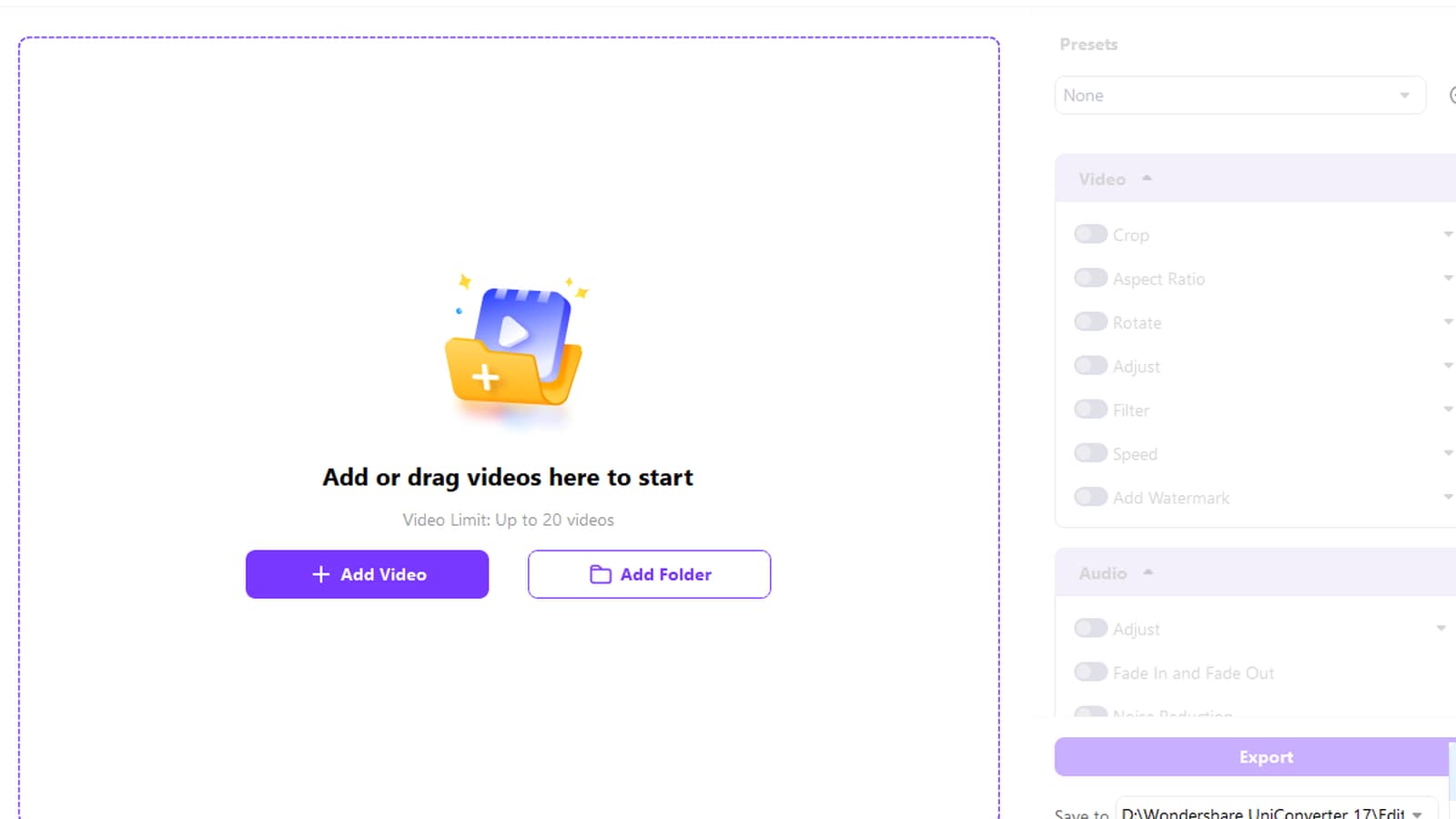
Add multiple videos to UniConverter Video Editor

Review Framing and Timing on Each Source

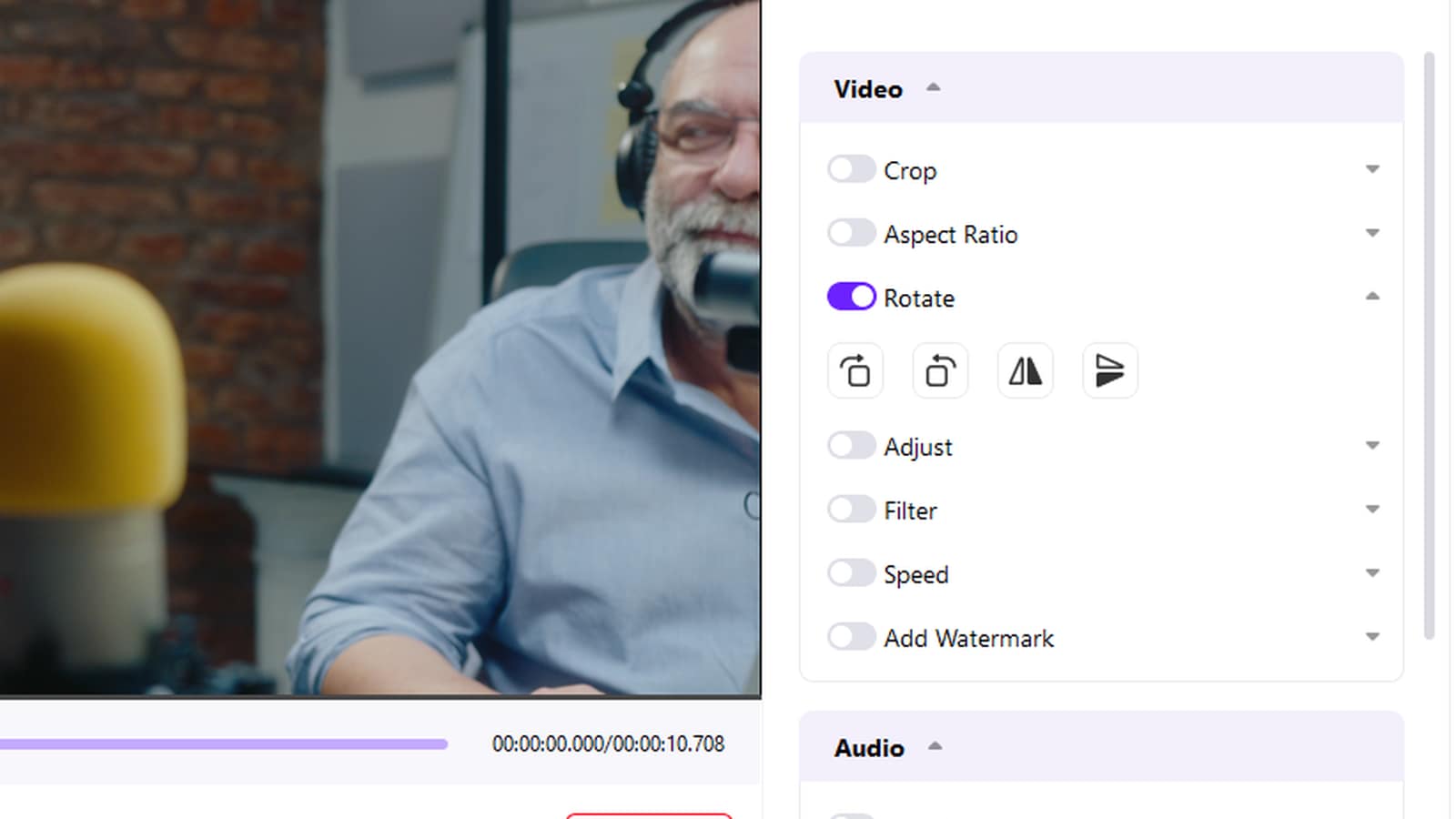
Open representative clips before processing the full collection. Check whether a crop would hide faces, a trim would remove useful speech, or a rotation would make an already-correct video sideways. Use the selected-file editing controls to handle exceptions.

  • Check portrait and landscape sources separately.
  • Choose trim points by content rather than copying one duration blindly.
  • Preview moving subjects and any existing on-screen text after a framing change.
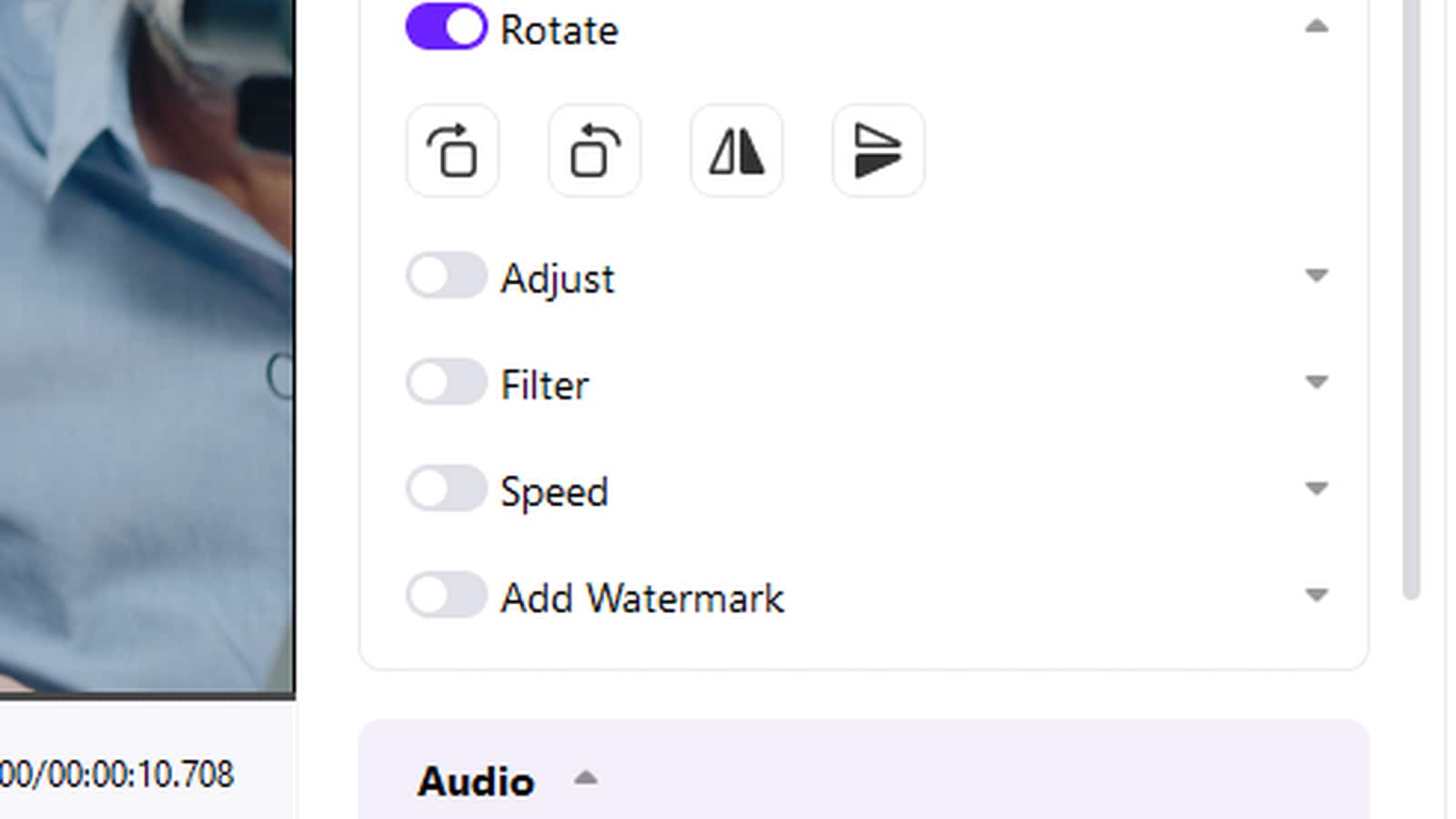
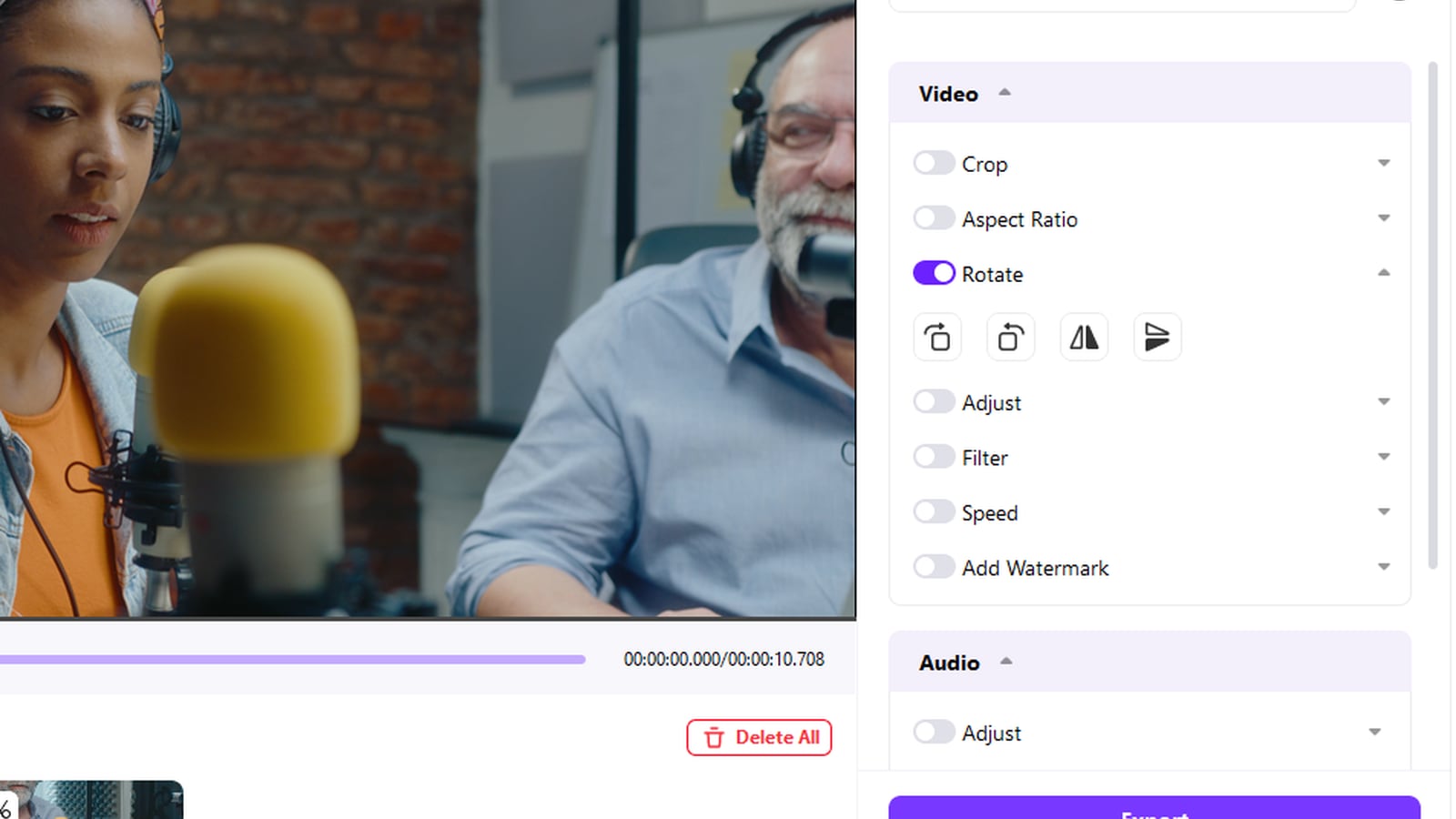
Preview selected-video orientation controls

Reuse Branding Through the Right UniConverter Tool

When the same logo or text mark belongs on multiple videos, open UniConverter Add Watermark. Load the videos, configure the image or text treatment, and use Apply to All only after checking its placement on the collection. The Rotate panel is a different workflow and does not provide the same sharing control.

  • Keep logos away from faces, subtitles, and important product details.
  • Review opacity on bright and dark scenes.
  • For changes that do not share a batch control, configure the selected clip and continue through the queue.

Review the timing and content per clip. A batch export does not guarantee identical useful cut points or reusable subtitle text.

Review different source videos before export

Keep the Prepared Collection in One UniConverter Workspace

UniConverter Video Editor lets you manage multiple source videos while retaining the changes that belong to each selected clip. For a different shared operation, choose the matching tool: Add Watermark for repeated branding or Converter for a common delivery format.

  • Keep source masters and work on delivery copies.
  • Preview different clip orientations and compositions.
  • Check the scope of the active control before reusing a setting.
  • Use the independent orientation-and-export example below as a concrete queue workflow.

Keep the source originals and use the exported files for the intended delivery. The independent tutorial below covers UniConverter Video Editor.

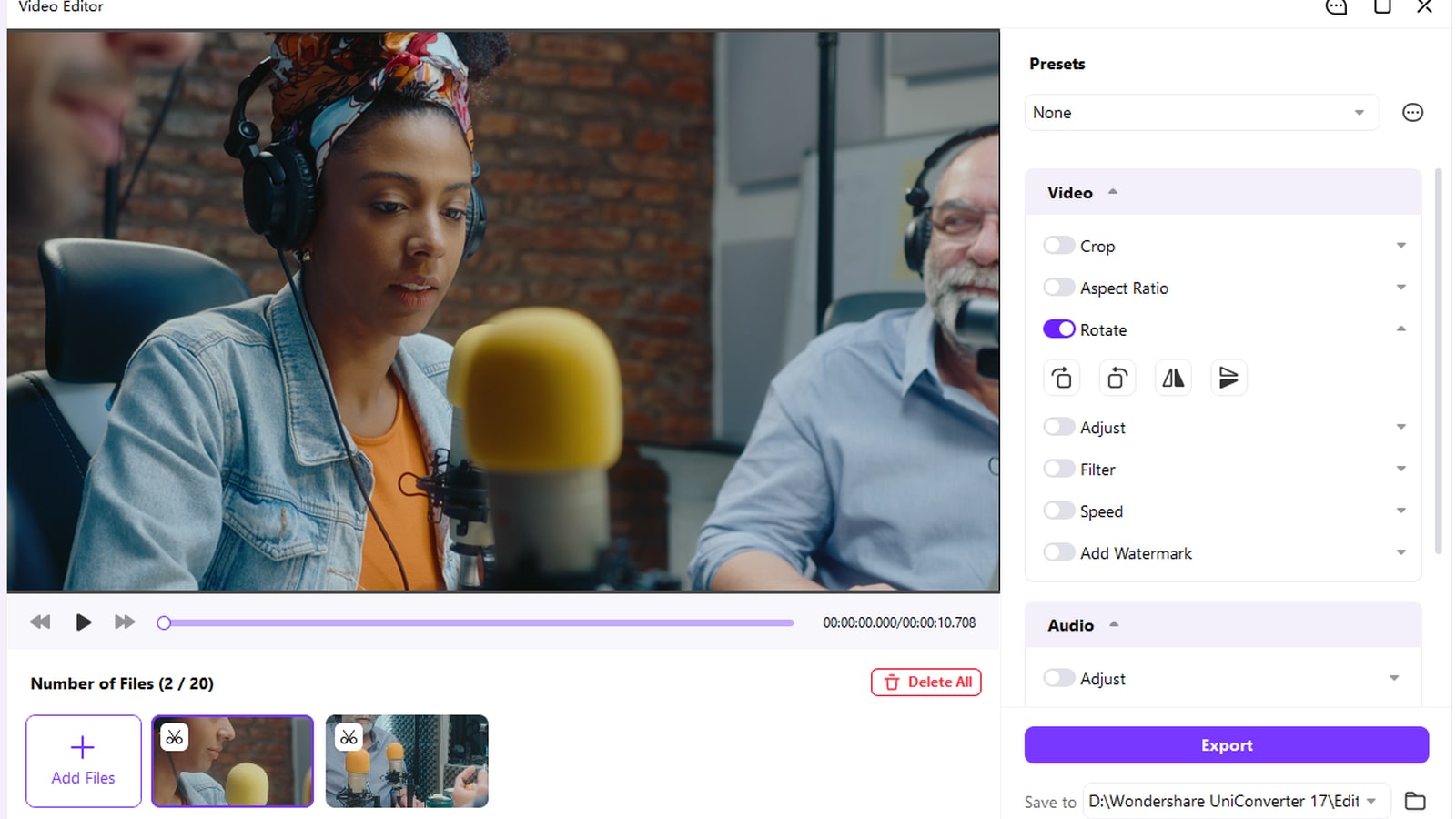
UniConverter selected-file editing and export controls

Key Settings and Decisions Before You Run the Batch

Review the settings that change the result rather than relying on the word batch. Keep the source collection and destination clearly separated while you test.

Bulk Video Editor Settings

Use these checks to keep the operation, selection scope, and output aligned.

Workflow settings and result checks
Setting or decisionWhat it controlsResult check
Import queueLoads the source collection.Remove duplicates and group clips by destination.
Selected-file editsChanges the active clip’s framing or orientation.Inspect each clip that differs from the rest.
Apply to All in Add WatermarkReuses that watermark setup on the loaded videos.Check placement across all source layouts.
Save to / ExportWrites the prepared Video Editor results.Confirm the destination and play sample outputs.

Technical references: UniConverter Video Editor workflow and UniConverter Add Watermark.

SetupOutputUse casesDelivery

Keep originals and inspect the result in the intended destination. A successful processing task is not proof that every source needed the same settings.

Practical Uses for This Batch Workflow

Choose a collection with a shared goal, then review the files that differ in source condition or delivery requirements.

Recurring product demos

Reuse a branding plan while retaining clip-specific cuts and framing decisions.

Phone-video cleanup

Review a collection of mixed orientations and correct only the clips that need it.

Training recordings

Keep lessons organized while checking introductions, endings, and existing text separately.

Social deliveries

Group by destination ratio and keep a source master for alternative crops or later edits.

Common Problems and How to Fix Them

Use a representative sample to isolate a wrong setting before rerunning the complete collection. Keep originals so the result remains reversible.

01

One setting produces inconsistent results

Inspect source dimensions, orientation, duration, and content. Split the collection into coherent groups instead of forcing a preset onto every clip.
Check 1Check 1
02

The tool loads many files but edits only one

Check whether the control affects the selected item, a shared setting, or the complete queue. These scopes are different and can coexist in one app.
Check 2Check 2
03

Caption or trim results do not match the speech

Review the timing and content per clip. A batch export does not guarantee identical useful cut points or reusable subtitle text.
Check 3Check 3

Use the native documentation for the original tool and the UniConverter guide for the separate product workflow.

Bulk Video Editor FAQs

01

What is the difference between bulk editing and bulk export?

Bulk editing repeats a supported operation across files. Bulk export processes an already-prepared collection. An app can support multi-file export while some edits still require per-clip configuration.
No universal sharing rule should be assumed. Use each tool’s available controls. Add Watermark has Apply to All, while rotation remains a per-selected-video decision in Video Editor.
Do not assume that from multi-file trimming. Set useful boundaries for each source and inspect the results; the same duration can remove different content from different clips.
Multi-file import is not proof of batch subtitle addition. Use the separate subtitle workflow and review the text, language, and timing for each recording.
Use a workflow that exports separate prepared files, and inspect the output count. Do not turn on a merge option when your delivery requires individual clips.
Use Video Editor for a queue needing clip-specific preparation, Add Watermark for repeated branding, and Converter when the main task is a common delivery format. Choose by the operation.
vc 16

Continue Your Batch Workflow with UniConverter

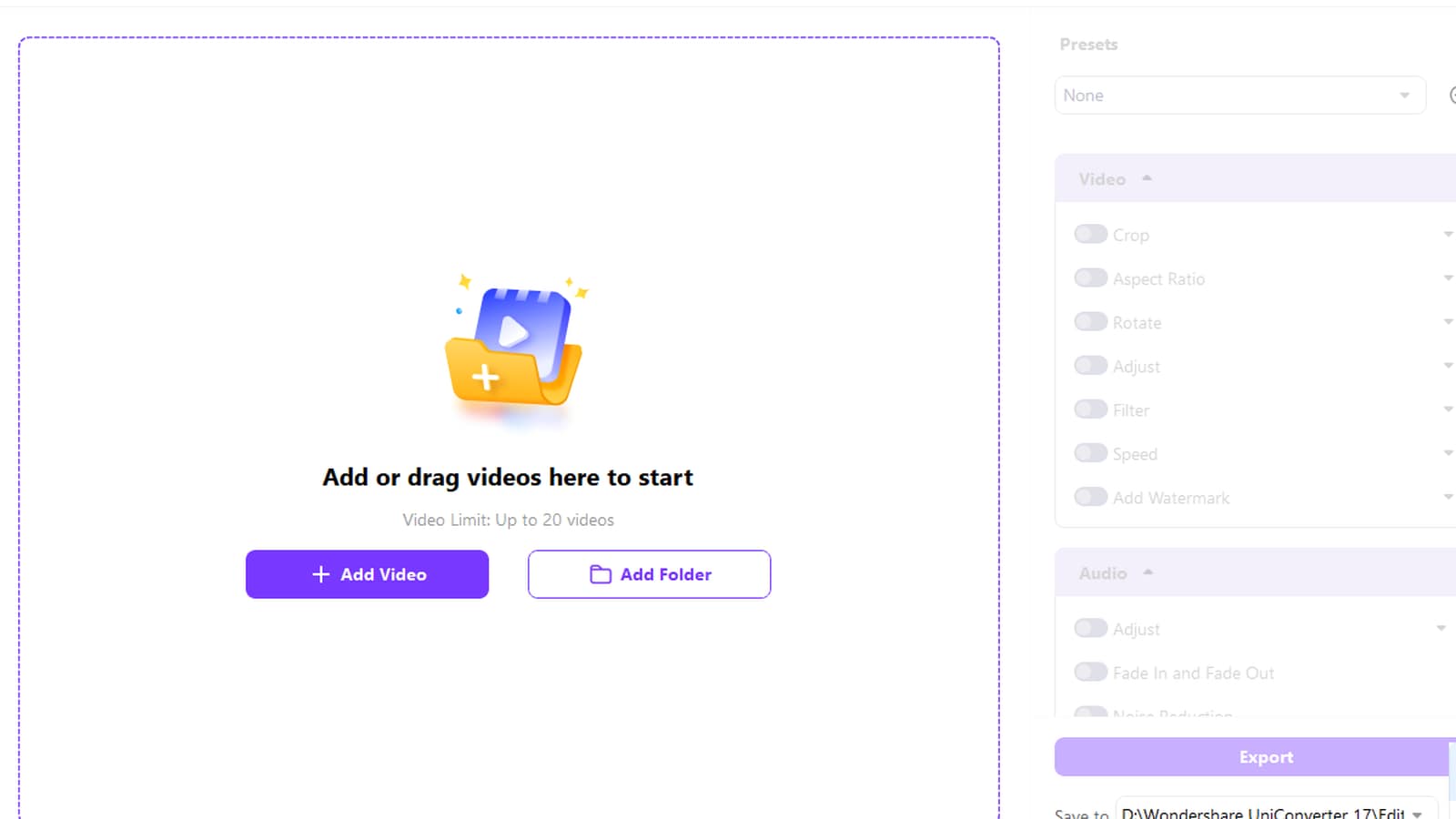
Use UniConverter Video Editor for the separate file-based workflow described above. Import the intended collection, choose the settings required by the destination, review a sample, and keep the original files while preparing the approved outputs.

UniConverter Video Editor export workspace