UniConverter
UniConverter Online Free
Converter video, audio & image free
Free Try
Wondershare UniConverter Video Editor

Batch Rotate Videos: Rotate Multiple Videos at Once

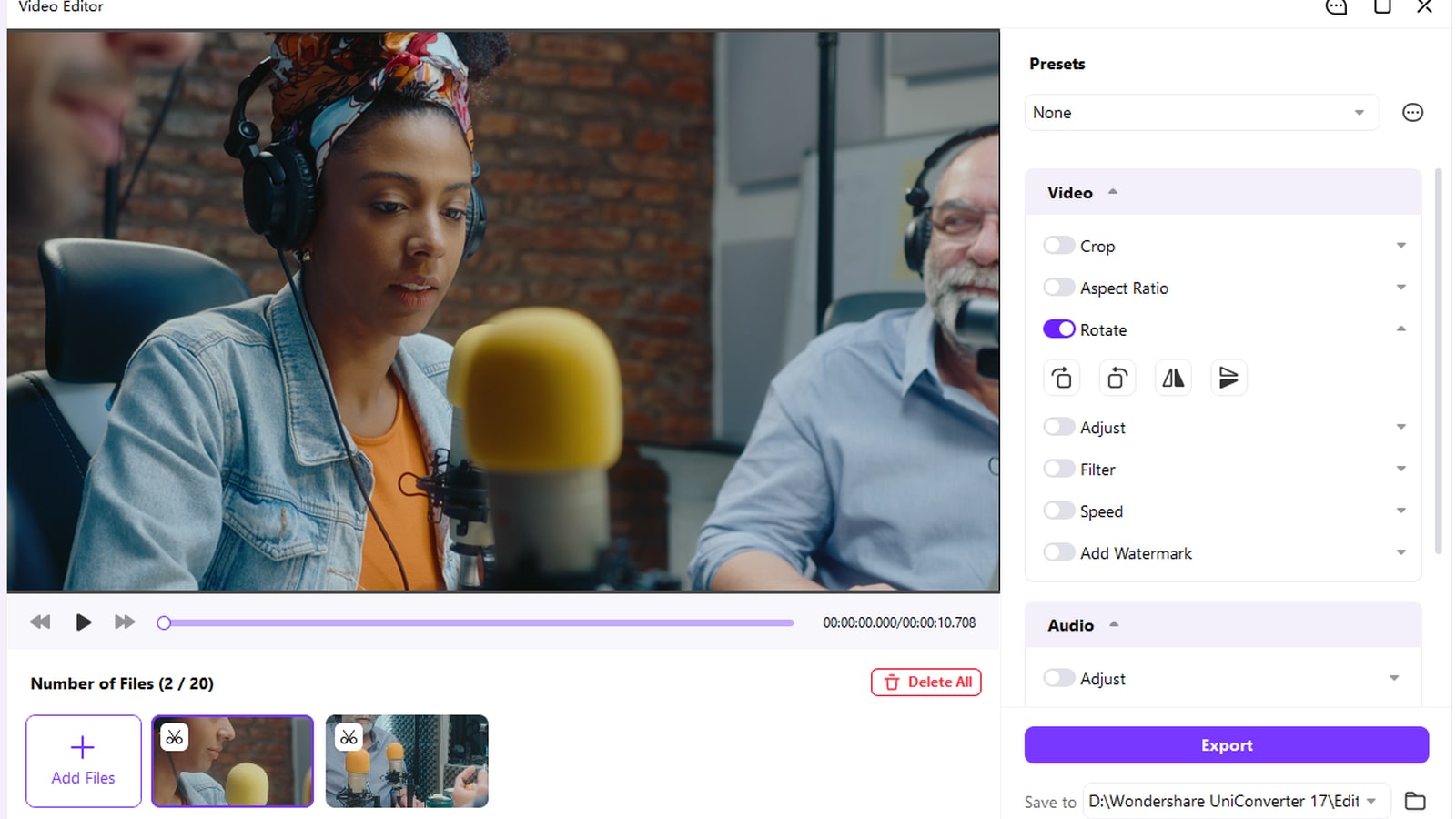
Correct sideways or mirrored clips in one UniConverter Video Editor workflow. The current desktop interface supports a queue of up to 20 videos, per-selected-file Rotate controls, preview, a shared Save to location, and one Export action after the videos are prepared.

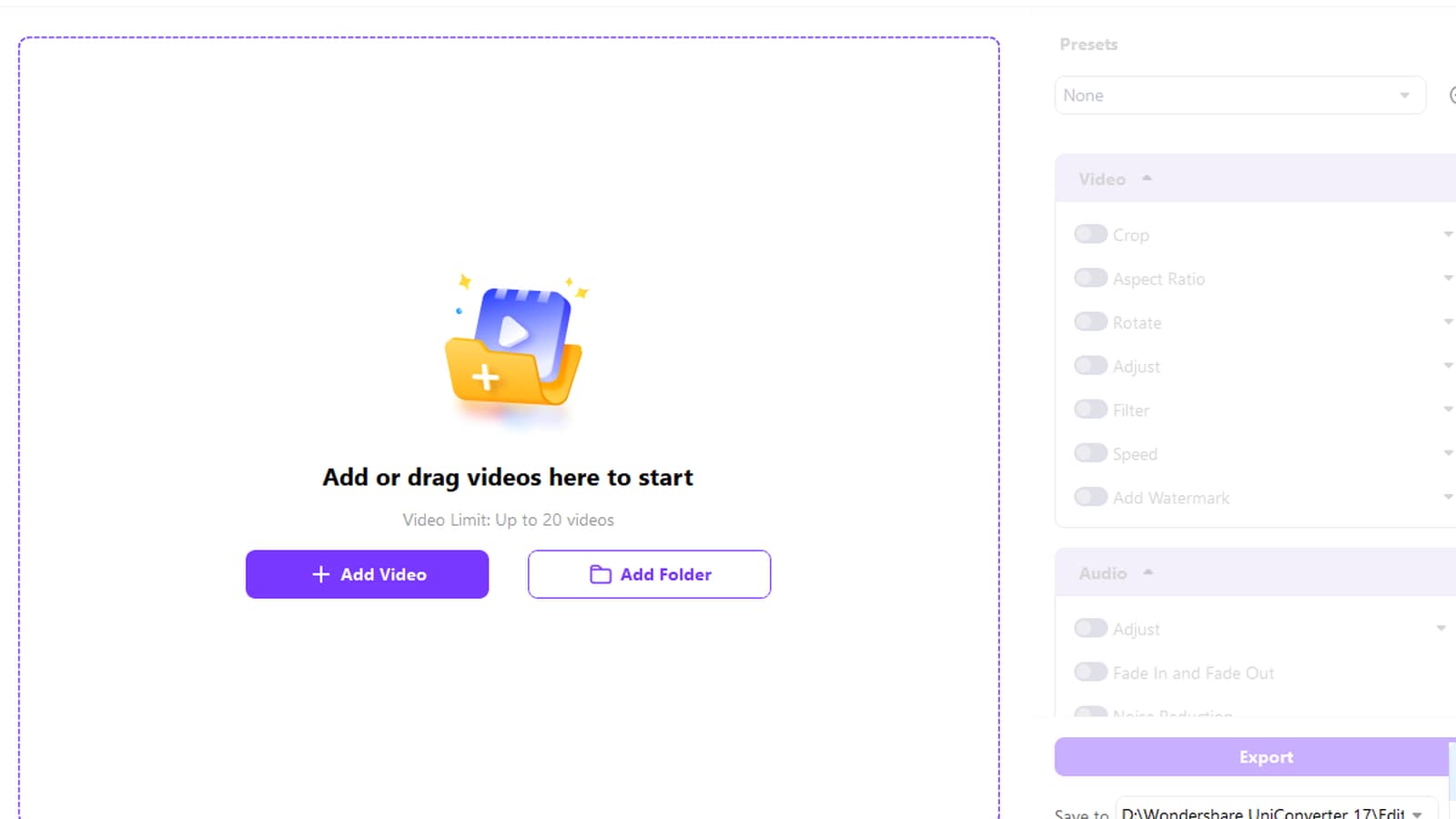
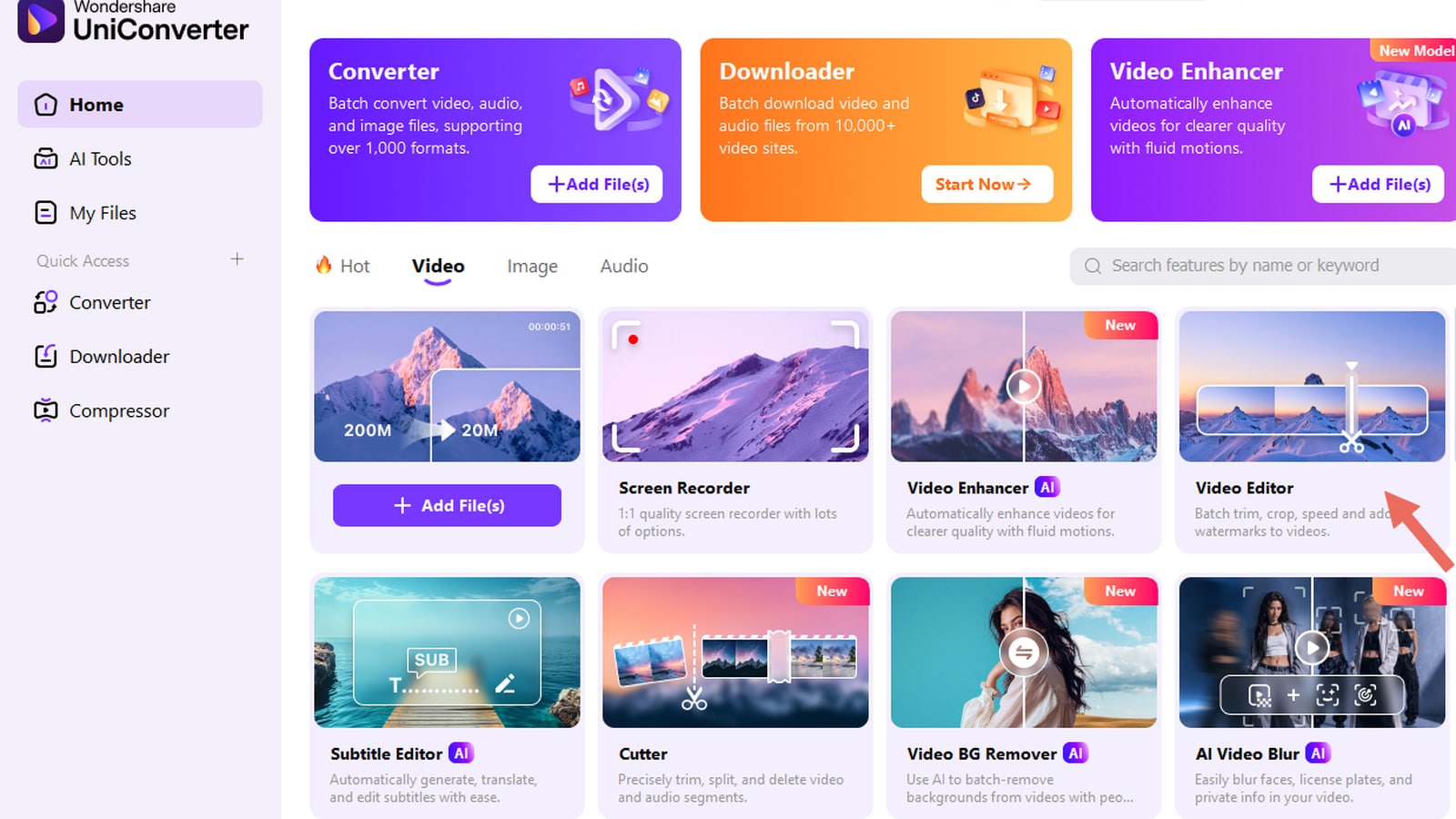
  • Add or drag videos into Video Editor, or use Add Video and Add Folder on the empty screen.
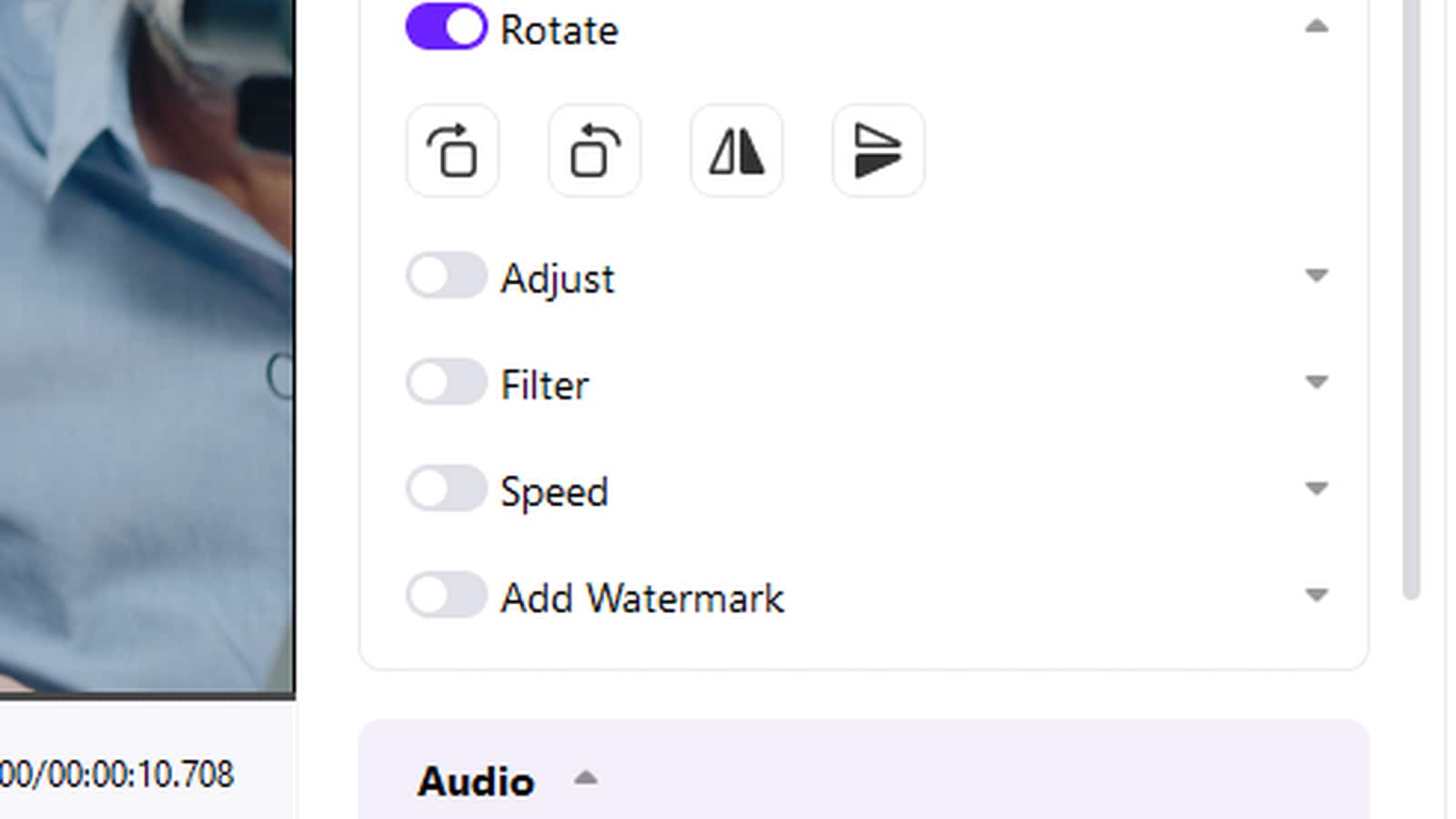
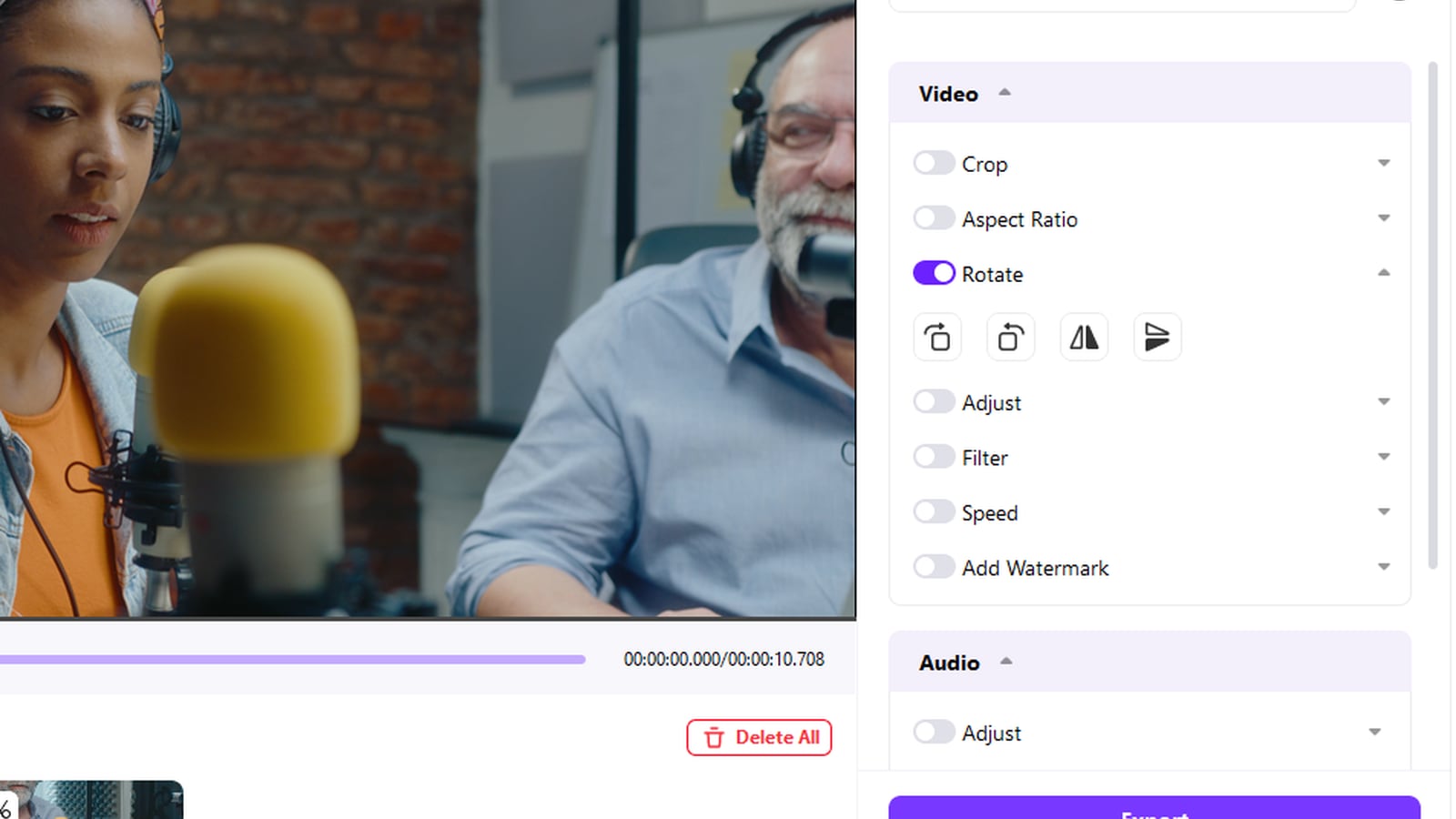
  • Select a video, enable Rotate, then use clockwise, counterclockwise, horizontal flip, or vertical flip.
  • Move through the file list, review each orientation, choose Save to, and click Export when the queue is ready.

Current UI evidence confirms Video Limit: Up to 20 videos, Add Video, Add Folder, Add Files, Rotate, Save to, and Export. The interface does not show an Apply to All control for Rotate.

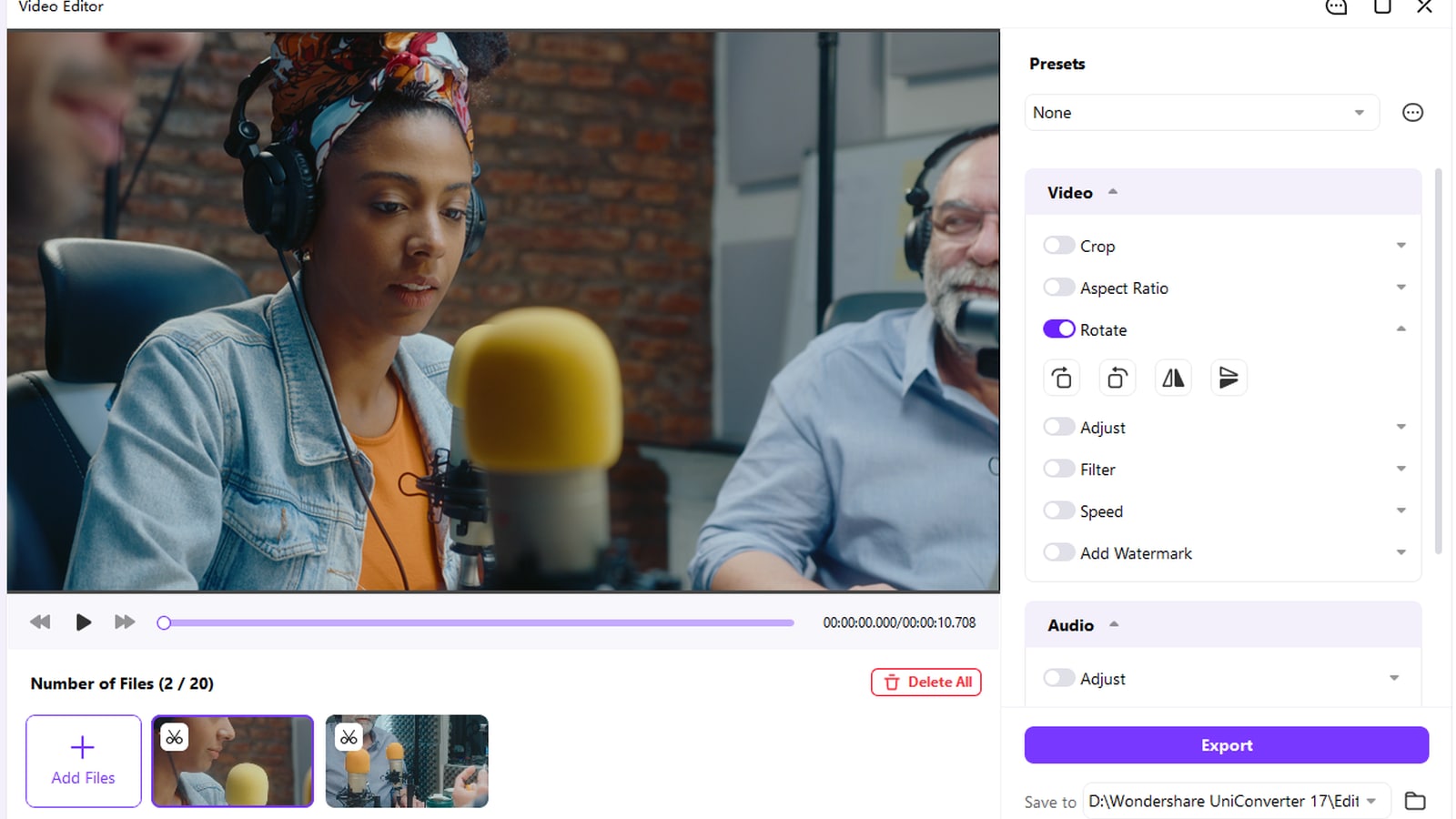
UniConverter Video Editor with Rotate enabled for a selected video
Quick Answer
  • Yes. UniConverter Video Editor can keep up to 20 videos in one current desktop editing queue, so you can rotate multiple videos without reopening the editor for every file.
  • Select a video from the file list, switch on Rotate, then use the four current controls for clockwise rotation, counterclockwise rotation, horizontal flip, or vertical flip.
  • Batch does not mean one rotation is automatically applied to every file. The current interface shows rotation controls for the selected video and does not show an Apply to All control for Rotate.
  • After each video is oriented correctly, choose Save to and click Export to process the prepared queue.
  • Crop and Aspect Ratio are separate controls. Use them only when the visible frame also needs reframing, not just orientation correction.

What Does Batch Rotation Mean in the Current Video Editor?

The batch value is one multi-video workspace: build the queue, correct the selected file, move to the next source, then export the prepared collection. Rotation remains a per-video decision.

Stage
Current UIWhat You Control
Batch valueWhy It Helps
Build the queue
Add or drag videos, use Add Video or Add Folder, and keep up to 20 videos in the Video Editor list.
Keep the whole orientation-fix job in one workspace instead of reopening a single-file editor.
Fix orientation
Select a file, enable Rotate, then rotate clockwise/counterclockwise or flip horizontally/vertically.
Different clips can receive the correction they actually need rather than forcing one angle across mixed sources.
Review and export
Preview the selected video, move through the file list, choose Save to, then use Export after the queue is ready.
Finish one organized batch after per-video orientation review.

Batch rule:
The current Rotate panel does not show Apply to All. Treat rotation and flipping as per-selected-file edits, then use the shared export stage for the prepared queue.
See the Current UI Workflow
Current rotation workflow

Rotate Multiple Videos Without Mixing Up Crop, Flip, or Aspect Ratio

The current Video Editor keeps orientation correction inside the Rotate control while Crop and Aspect Ratio remain separate. That distinction matters when several videos have different problems.

Add Up to 20 Videos to One Editing Queue

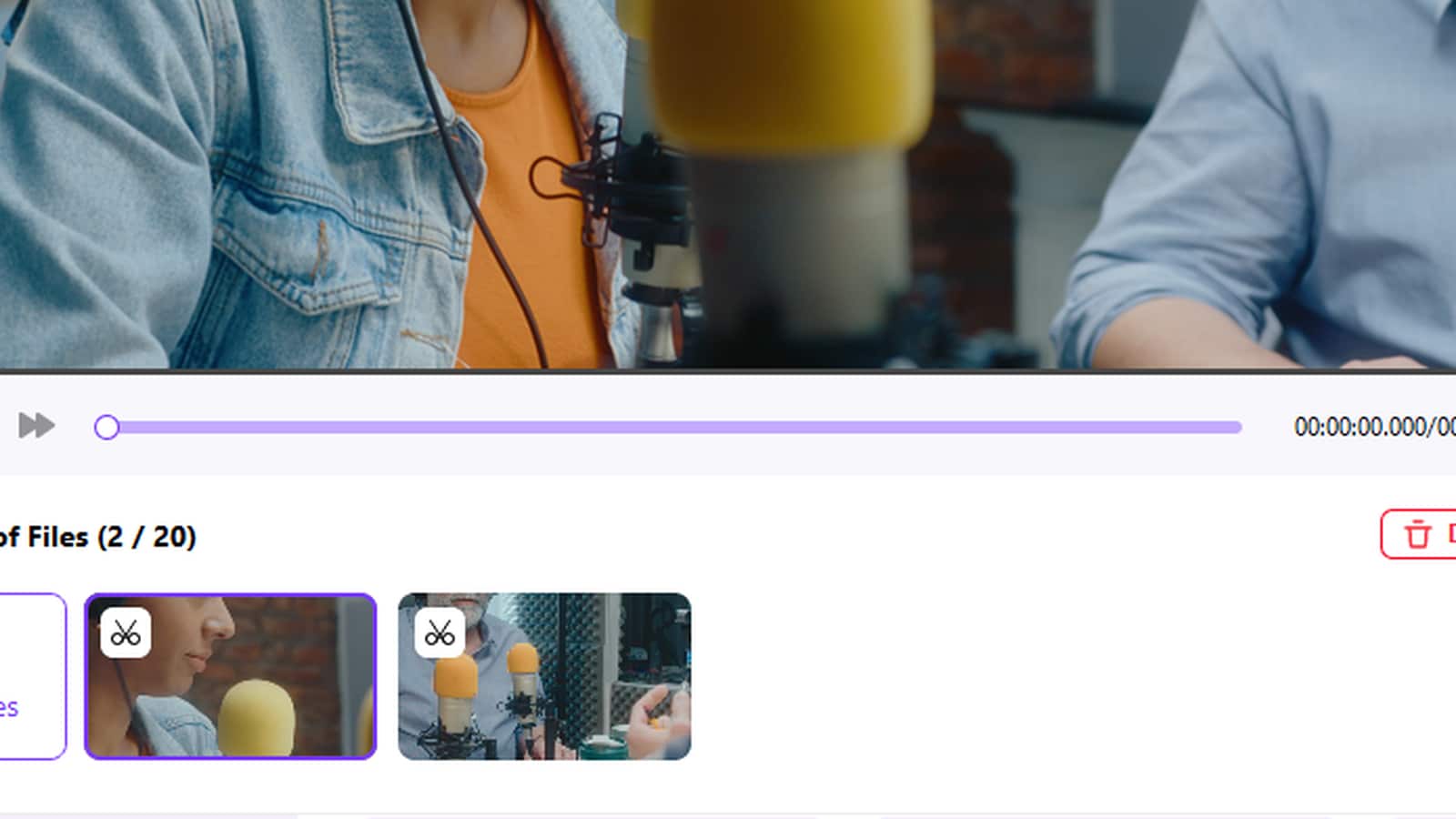
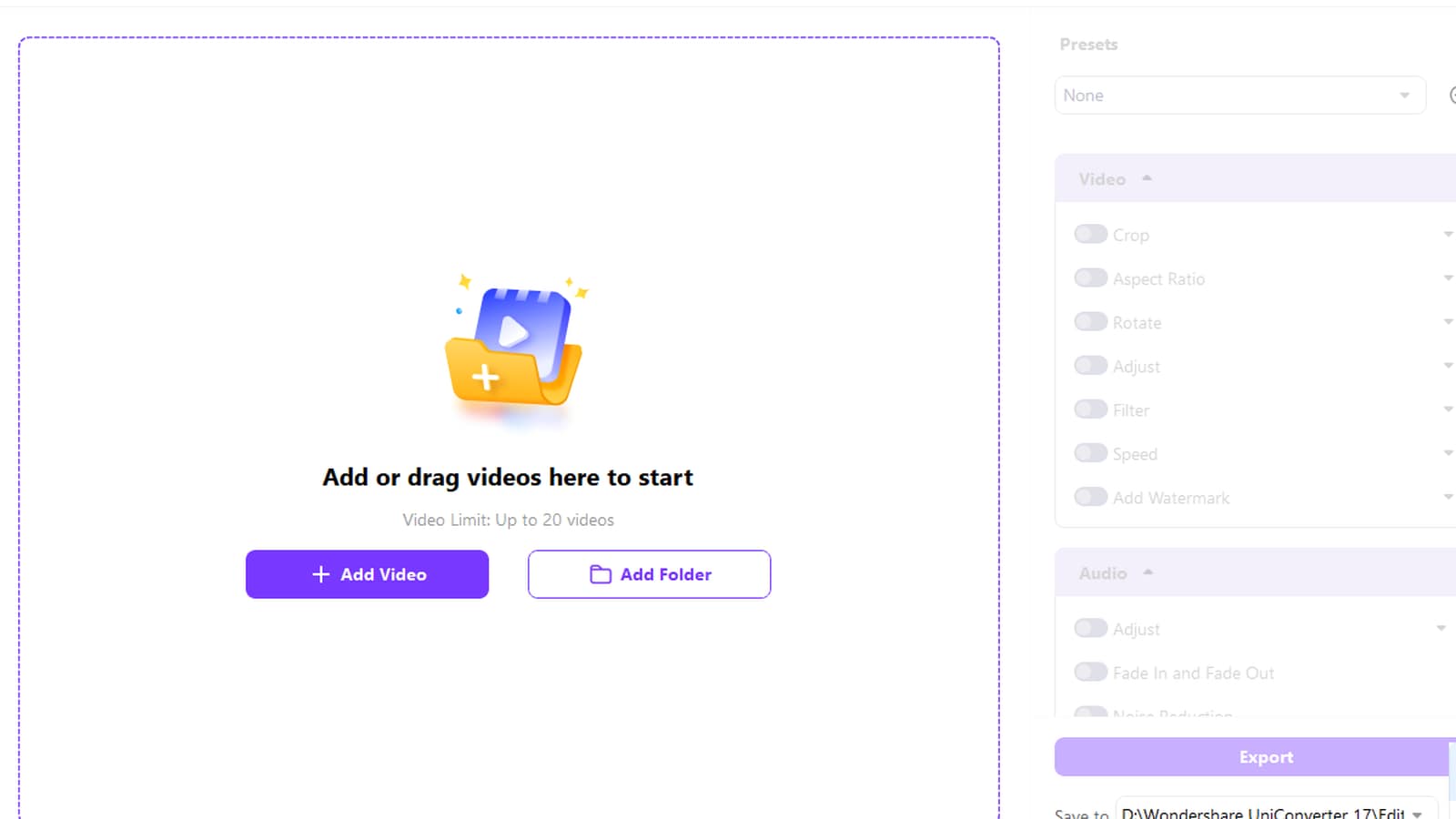
The empty Video Editor screen shows Video Limit: Up to 20 videos, together with Add Video, Add Folder, and drag-and-drop intake. After media is loaded, the current file area displays the count as Number of Files (2 / 20) in the supplied example.

  • Use Add Video for selected files.
  • Use Add Folder when a folder is the fastest way to build the job.
  • Use the Add Files tile after videos are already in the queue.
UniConverter Video Editor empty screen with Add Video Add Folder and up to 20 videos

Rotate the Selected Video Clockwise or Counterclockwise

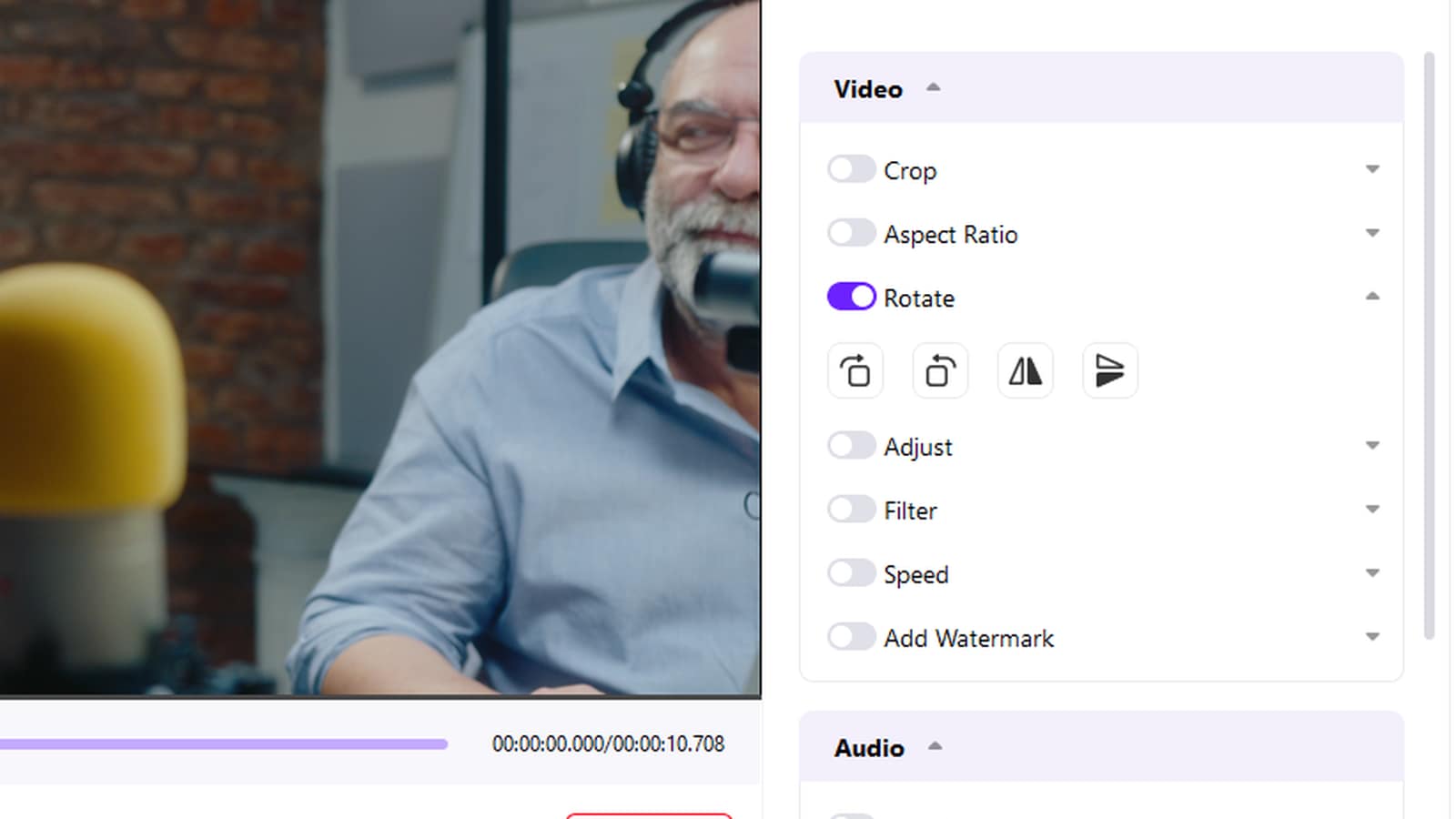
Select a video in the file list and switch on Rotate. The current panel provides the two standard 90-degree rotation controls described in the official UniConverter crop/rotate guide: clockwise and counterclockwise.

  • Use rotation when the clip is sideways or upside down.
  • Check the preview immediately after the orientation change.
  • Move to the next file and repeat only when that source needs its own correction.
Rotate controls in UniConverter Video Editor for the selected video

Use Horizontal or Vertical Flip Only for Mirrored Orientation

The same Rotate panel also includes horizontal and vertical flip controls. Flipping is different from rotating: it mirrors the image rather than turning the frame by 90 degrees.

  • Use horizontal flip for a left-right mirrored result.
  • Use vertical flip for a top-bottom mirrored result.
  • Check text, logos, signs, and faces carefully because a mistaken flip is easy to spot in those elements.
Multiple videos in UniConverter Video Editor ready for individual rotation or flipping

Keep Rotation Separate from Crop and Aspect Ratio

The current Video panel shows Crop, Aspect Ratio, and Rotate as separate switches. Rotation fixes orientation; it does not automatically reframe the shot or change the intended social-media ratio.

  • Use Rotate when the whole frame is turned the wrong way.
  • Use Crop when unwanted edges or framing need to change.
  • Use Aspect Ratio when the target frame shape must change.
  • After review, choose Save to and use Export.
UniConverter Video Editor showing Rotate Crop Aspect Ratio Save to and Export controls

Current Batch Rotate Controls at a Glance

These names and states come from the current desktop screenshots you supplied, with the four rotation/flip actions cross-checked against the current UniConverter crop/rotate guide.

What Each Control Does

Current UI controlWhat it doesBatch note
Video Limit: Up to 20 videosDefines the current queue limit shown on the empty Video Editor screen.Build one rotation job with up to 20 videos in the current interface.
Add Video / Add FolderAdds individual videos or a folder from the empty workspace.Useful for building a multi-video job without importing every file separately.
Number of Files (x / 20)Shows how many videos are currently loaded; the supplied example shows 2 / 20.Use the thumbnails to switch between videos and review each orientation.
RotateEnables orientation controls for the selected video.No Apply to All control is shown in the supplied Rotate panel.
Clockwise / CounterclockwiseTurns the selected video by 90 degrees in the chosen direction.Use per video when source orientation differs across the queue.
Horizontal / Vertical FlipMirrors the selected video left-right or top-bottom.Do not confuse mirroring with 90-degree rotation.
Crop / Aspect RatioSeparate controls for framing and frame shape.Use them only when orientation correction alone does not solve the visual problem.
Save toChooses the output location for the prepared videos.Set a clear destination so rotated outputs are easy to compare with originals.
ExportProcesses the prepared editing queue in the current UI.The current screenshot uses the label Export, so this page does not rename it Export All.

Current UI evidence is from the UniConverter desktop screenshots supplied on September 24, 2026. The current official guide also describes clockwise rotation, counterclockwise rotation, horizontal flip, and vertical flip.

When to Rotate Multiple Videos in One Queue

Use the batch workflow when several clips need orientation review, while still allowing each source to keep the correction that fits its own camera position and framing.

Sideways Phone Recordings

Correct several clips captured with the phone held in the wrong orientation without creating a separate editing job for each file.

Mixed Camera Orientation

Review portrait, landscape, and accidentally rotated camera files in one queue, then correct only the clips that need it.

Mirrored Webcam or Selfie Clips

Use horizontal or vertical flip for mirrored footage while keeping 90-degree rotation for genuinely sideways clips.

Training, Demo, and Social Source Sets

Prepare multiple source videos before the next editing or publishing step while keeping orientation correction separate from cropping and aspect-ratio changes.

Before export

Check the Orientation Before You Export the Full Queue

  • Portrait vs. landscape: confirm the selected video is turned the correct way and not simply using a different frame shape.
  • Mirrored text and logos: verify signs, captions, logos, or interface text are not backwards after a flip.
  • Per-video differences: mixed camera clips may need different rotation or flip choices; the current UI does not show Apply to All for Rotate.
  • Framing: if the orientation is correct but the visible frame still needs adjustment, use Crop or Aspect Ratio separately.
  • Output folder: confirm Save to points to the intended destination before clicking Export.
Rotate and Export controls to review before batch video export

FAQs About Batch Rotating Videos

01

Can I rotate multiple videos at once in UniConverter?

Yes. The current Video Editor can hold up to 20 videos in one queue. Select each file that needs orientation correction, use Rotate or Flip, review the result, and use Export after the prepared queue is ready.
Do not assume that. The current supplied Rotate interface does not show an Apply to All control. Rotation is shown for the selected file, so review and correct each video as needed before exporting the queue.
The current Rotate panel shows four actions. The current official guide identifies them as clockwise rotation, counterclockwise rotation, horizontal flip, and vertical flip.
You can use the batch rotation workflow for MP4 files that the current Video Editor accepts. The screenshots supplied for this page establish the multi-video Rotate workflow and its 20-video limit, but they do not provide a complete format-support matrix.
Rotate turns the video frame by 90 degrees clockwise or counterclockwise. Flip mirrors the image horizontally or vertically. Use rotation for sideways footage and flip for mirrored footage.
The current Video Editor treats Rotate and Aspect Ratio as separate controls. Use Rotate for orientation. If the final frame shape also needs to change, use Aspect Ratio separately and review the framing before export.
Yes. The current Video panel shows both Rotate and Crop as separate switches in the same workspace. Use Rotate for orientation and Crop only when the visible frame also needs to be reframed.
The empty current workspace shows editing controls and Export unavailable before media is loaded. Add or drag a video first; the editing controls become usable after a source file is in the queue.

Rotate Multiple Videos in One Desktop Workflow

Build a queue of up to 20 videos, correct the orientation of each selected file with Rotate or Flip, review the previews, choose Save to, and use Export when the prepared batch is ready.

UniConverter Video Editor ready to export rotated videos