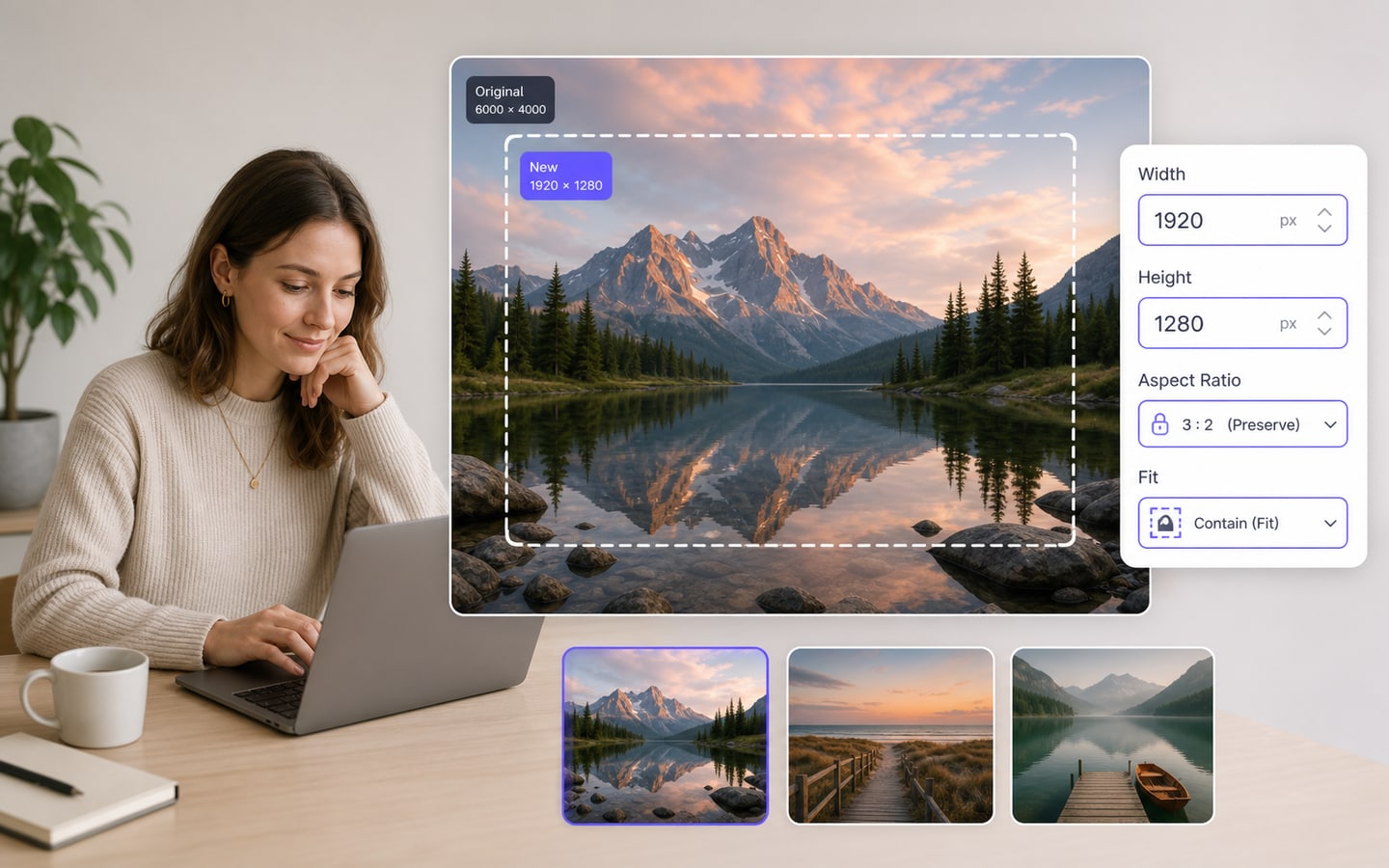
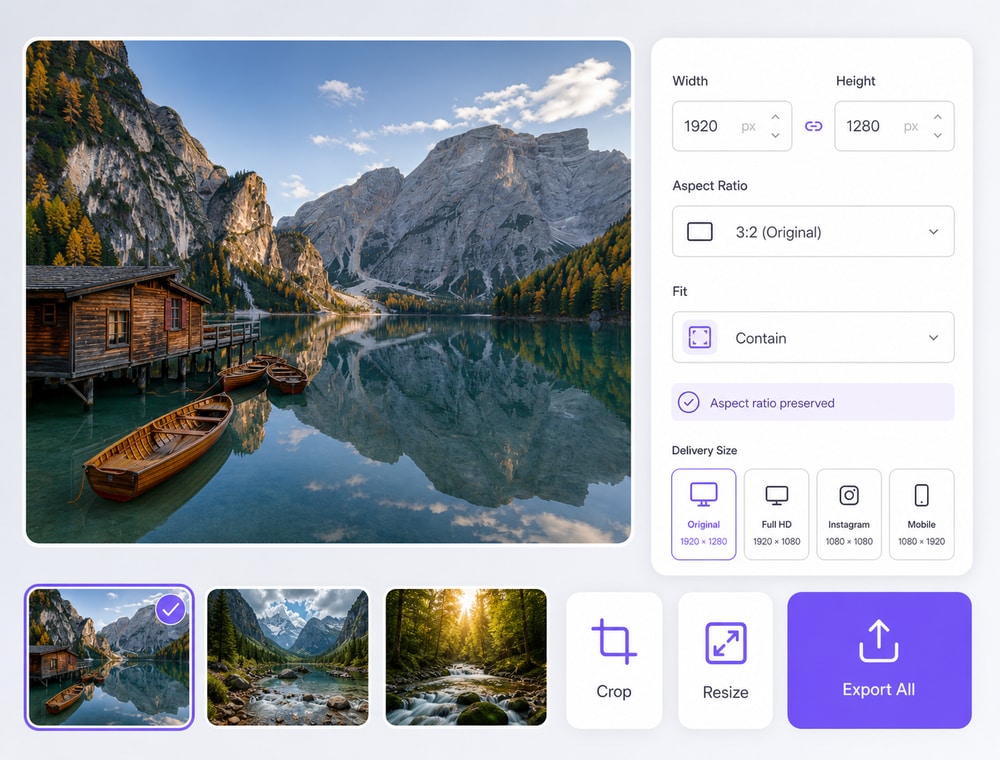
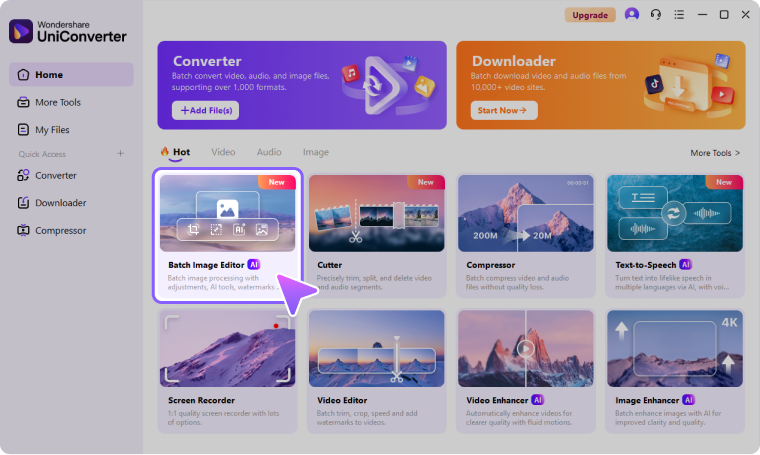
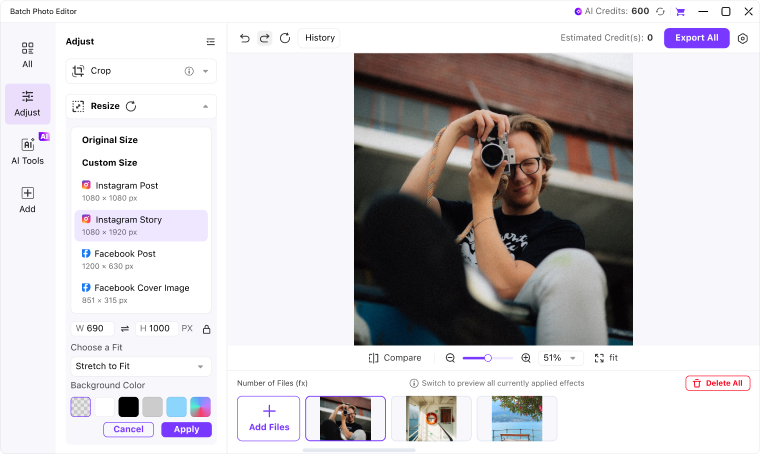
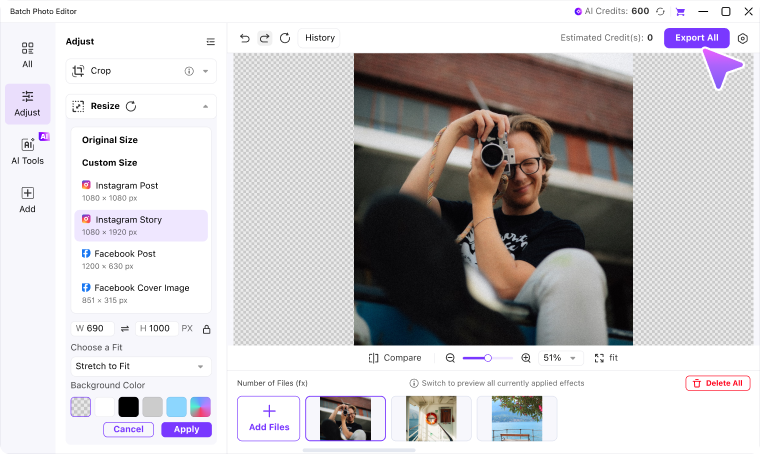
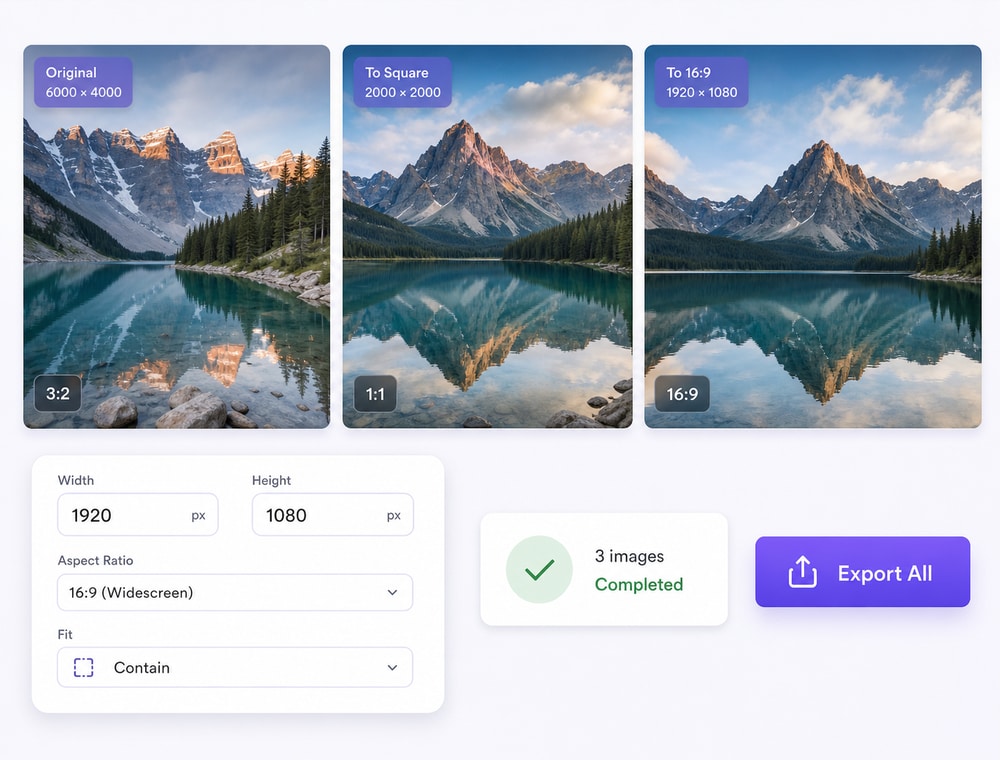
Resize multiple images at once in a dedicated Desktop workspace. Add supported images or folders, choose a custom size or available preset, decide how each image fits the target canvas, then review and export the collection.
Import supported image files or folders into one batch workspace.
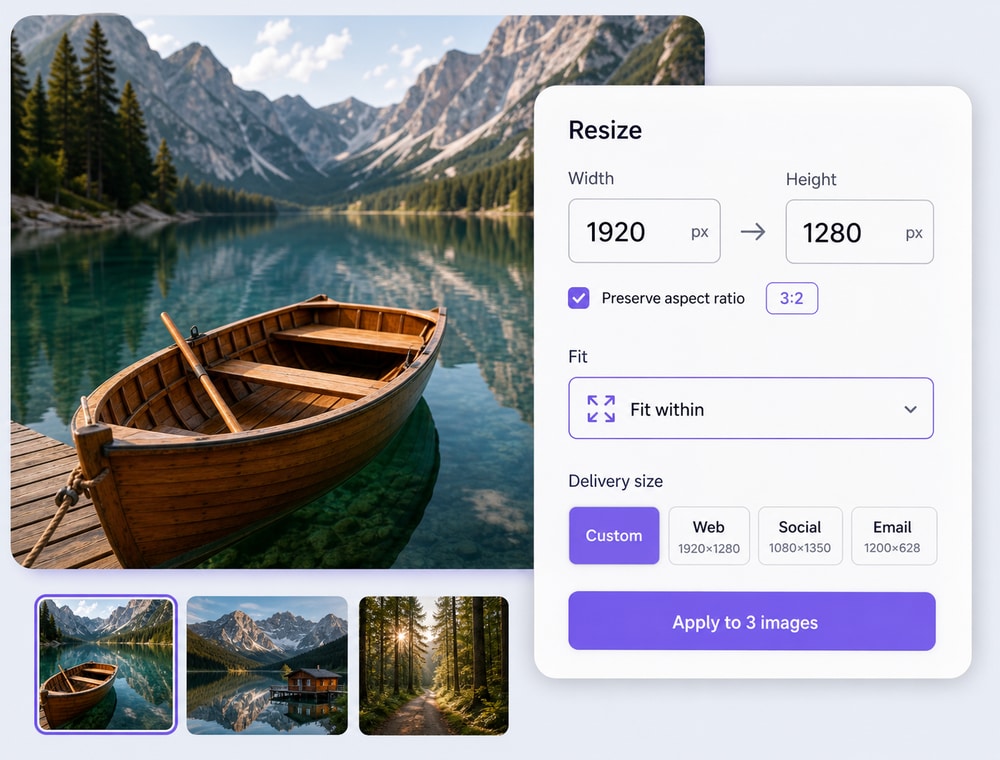
Choose Original Size, Custom Size, or available social, ecommerce, and presentation presets.
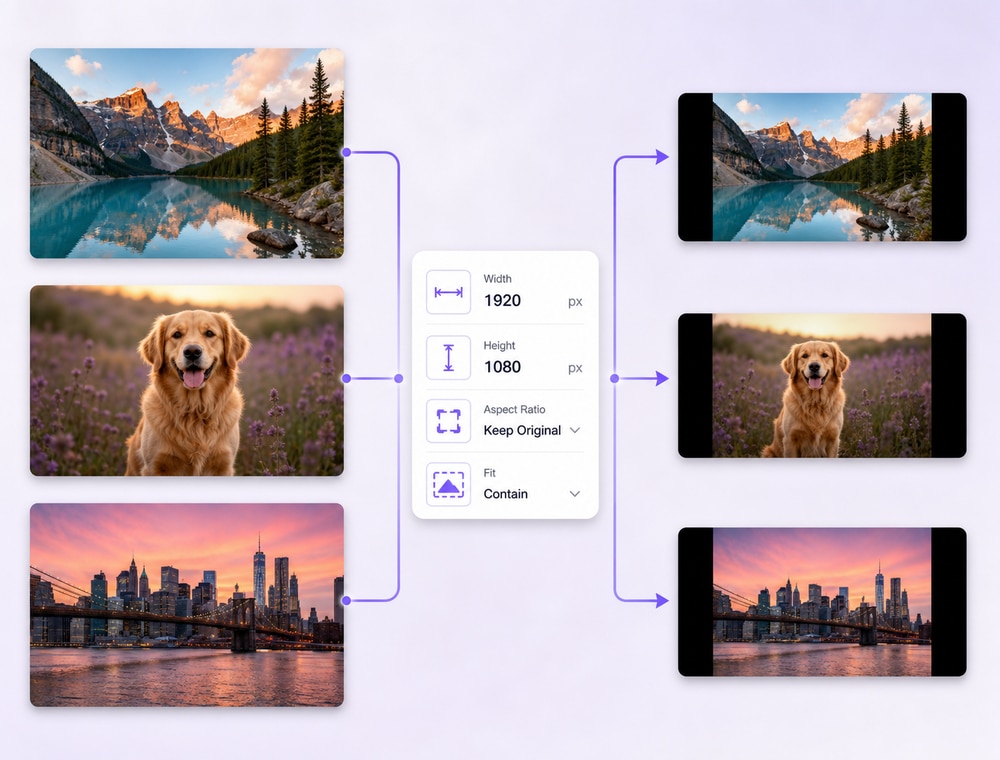
Use Fit with Background, Fill with Background, or Stretch to Fit for the target canvas.
Online batch editors can be useful for quick browser jobs. Compare how each option handles private local files, transfer stages, recurring bulk image resizing, and keeping a multi-step batch together from the first edit through export.
Compare the workflow
Recommended for larger jobsUniConverter Desktop
Convenient browser accessOnline Batch Tools
Private & Secure File Handling
✓Keep standard bulk image resizing private and secure by working directly with local social, ecommerce, presentation, or publishing image folders instead of uploading the full collection to a browser editor. Selected AI tools may still require cloud processing.
Images must be uploaded for browser-based processing. File handling, storage, retention, and deletion conditions depend on the selected provider.
Upload & Download
✓Start with local social, ecommerce, presentation, or publishing image folders and export the resized delivery set from the Desktop workspace without a browser upload and download stage for standard edits.
Total turnaround includes uploading source images, waiting for server-side processing, and downloading the completed files.
Recurring Production Batches
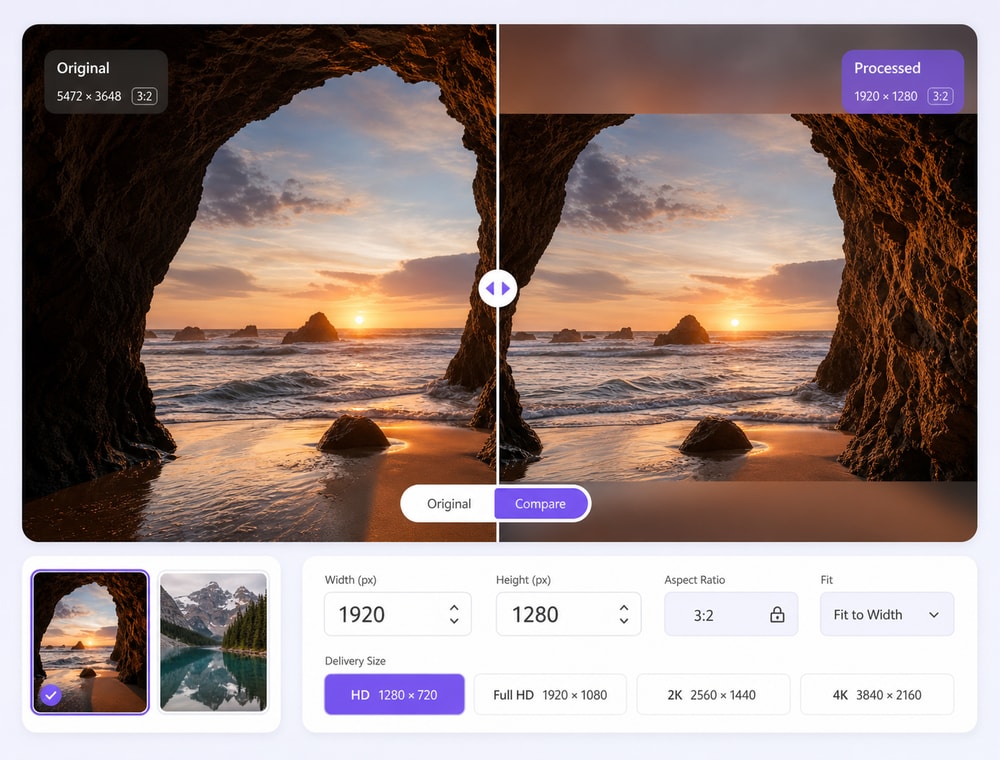
✓Manage a local queue, switch among images, preview or compare results, and use Export All after reviewing the collection.
Browser batch tools can support real multi-image jobs, while session limits, retained settings, transfer time, and repeat-job convenience vary by service and plan.
One Queue, Multiple Editing Steps
✓After completing bulk image resizing, keep the same imported collection in one Desktop queue to continue with available Crop, Resize, Basic Adjust, background, watermark, or selected AI operations, review individual files, and Export All without rebuilding the batch in another editor.
A browser editor may combine several edits or macros. If the next background, AI, watermark, or export step is unavailable in that service or plan, you may need to download the current results, open another tool, upload the collection again, and rebuild the batch.
Simple decision:
Choose Desktop when resizing is part of a recurring production workflow across local image folders, not only a one-time browser export.
Wondershare UniConverter Batch Image Editor gives you one Desktop workspace for bulk image resizing across local social, ecommerce, presentation, or publishing image folders, with queue review, Compare, relevant follow-up edits, and Export All for the completed set.
Prepare Every Image for Its Delivery Size
Resize a complete image set with custom dimensions or confirmed social, ecommerce, presentation, and publishing presets, then review fit and composition before exporting the delivery-ready batch.
What You Can Control in a Bulk Image Resize Workflow
UniConverter Batch Image Editor can resize multiple images with original or custom dimensions, confirmed social and ecommerce presets, and available fit or background choices. Presets and output behavior can vary by product version.
Controls and Conditions at a Glance
See what each control changes and which conditions should be reviewed before Export All.
Task controls and operating conditions in Batch Image Editor
Control
What It Does
Important Conditions
Size
Keep Original Size or enter custom width and height
Use aspect-ratio controls where available to avoid unintended distortion.
Delivery Presets
Choose confirmed social, ecommerce, presentation, and publishing dimensions
The visible preset list should not be presented as exhaustive.
Fit Mode
Use Fit with Background, Fill with Background, or Stretch to Fit
Review the preview because fit behavior affects composition and padding.
Next Operations
Continue with Crop, Basic Adjust, background tools, or watermarking before Export All
Selected AI tools may require cloud processing and AI Credits.
Technical references: and .
Common ImagesModern
& WebCamera RAWDesign &
Pro
Format availability may vary by operating system and UniConverter version. See the
UniConverter Tech Specs
for current image format support and system requirements.
How to Batch Resize Images in 3 Steps
Set the target dimensions once, inspect how different source images fit, and export the resized collection together.
Use bulk image resizing when a complete image collection needs a consistent, reviewed result rather than separate file-by-file edits.
Marketplace Product Image Sizes
Use bulk image resizing to prepare complete product collections for Amazon, eBay, Shopify, or marketplace delivery dimensions while reviewing fit and padding across different source compositions.
Social Media Publishing Batches
Resize multiple images for recurring posts, stories, covers, thumbnails, and campaign placements without rebuilding the delivery dimensions for every individual asset.
Presentation and Team Handoffs
Standardize campaign images, screenshots, or visual references for presentation slides and shared team folders before the assets move into a wider production workflow.
Website and Content Libraries
Use a batch image resizer to prepare article graphics, product imagery, and supporting web assets with repeatable dimensions for publishing and content maintenance.
What UniConverter Users Are Saying
These reviews describe users' experience with Wondershare UniConverter as a broader conversion and editing product, rather than feedback specifically limited to the Batch Image Editor. Review sources and publication dates are shown where available.
★★★★★
“Very configurable for the exact result you need.”
Its flexible conversion controls make it easier to prepare files for different output and delivery requirements.
Johnson
★★★★★
“The files can be used across IT platforms so easily!”
This kind of compatibility is useful when converted media needs to move between common systems and delivery workflows.
Williams
★★★★★
“Wondershare UniConverter is incredibly versatile.”
The broader conversion and editing toolkit supports users who need to complete more than one isolated media task.
Olivia
Explore UniConverter reviews and independent coverage across trusted software platforms.
How do I resize multiple images at once in Wondershare UniConverter?
Open Home > Image > Batch Image Editor, add supported image files or a folder, choose Resize, and select Original Size, Custom Size, or an available preset. Choose the appropriate canvas-fit method, review the images, and use Export All.
02
Can I batch resize photos without stretching them?
Batch Image Editor provides Fit with Background, Fill with Background, and Stretch to Fit. Use Fit or Fill when the target canvas needs a different treatment from stretching. Review the canvas preview because results depend on the source image, target dimensions, and selected option.
03
What is the difference between Fit with Background, Fill with Background, and Stretch to Fit?
They are separate Resize choices for placing an image into a target canvas. Fit with Background and Fill with Background use a background-based approach, while Stretch to Fit changes the image to match the target dimensions. Review the current preview because the result depends on the source image and selected settings.
04
Can I resize a folder of images in batch?
Batch Image Editor supports importing files and folders. Review the imported queue before processing, because supported file handling can vary by product version and platform.
05
Is there a limit to how many images I can resize at once?
Product documentation states that Batch Image Editor has no fixed batch-count limit. This does not mean unlimited formats, resolution, performance, or system capacity. Practical workload depends on the files, selected operations, device resources, and current release.
06
How many images can I edit at once?
UniConverter Batch Image Editor supports single-image, multi-image, and folder import, and its product documentation states that there is no fixed batch-count limit. For very large collections, processing time and responsiveness can still vary with image dimensions, file formats, available memory, selected operations, AI processing conditions, and the installed UniConverter version.
Resize Your Image Collection in One Desktop Workspace
Open Wondershare UniConverter Batch Image Editor to import supported images or folders, choose the resize approach that fits your target canvas, review the collection, and export it when ready.