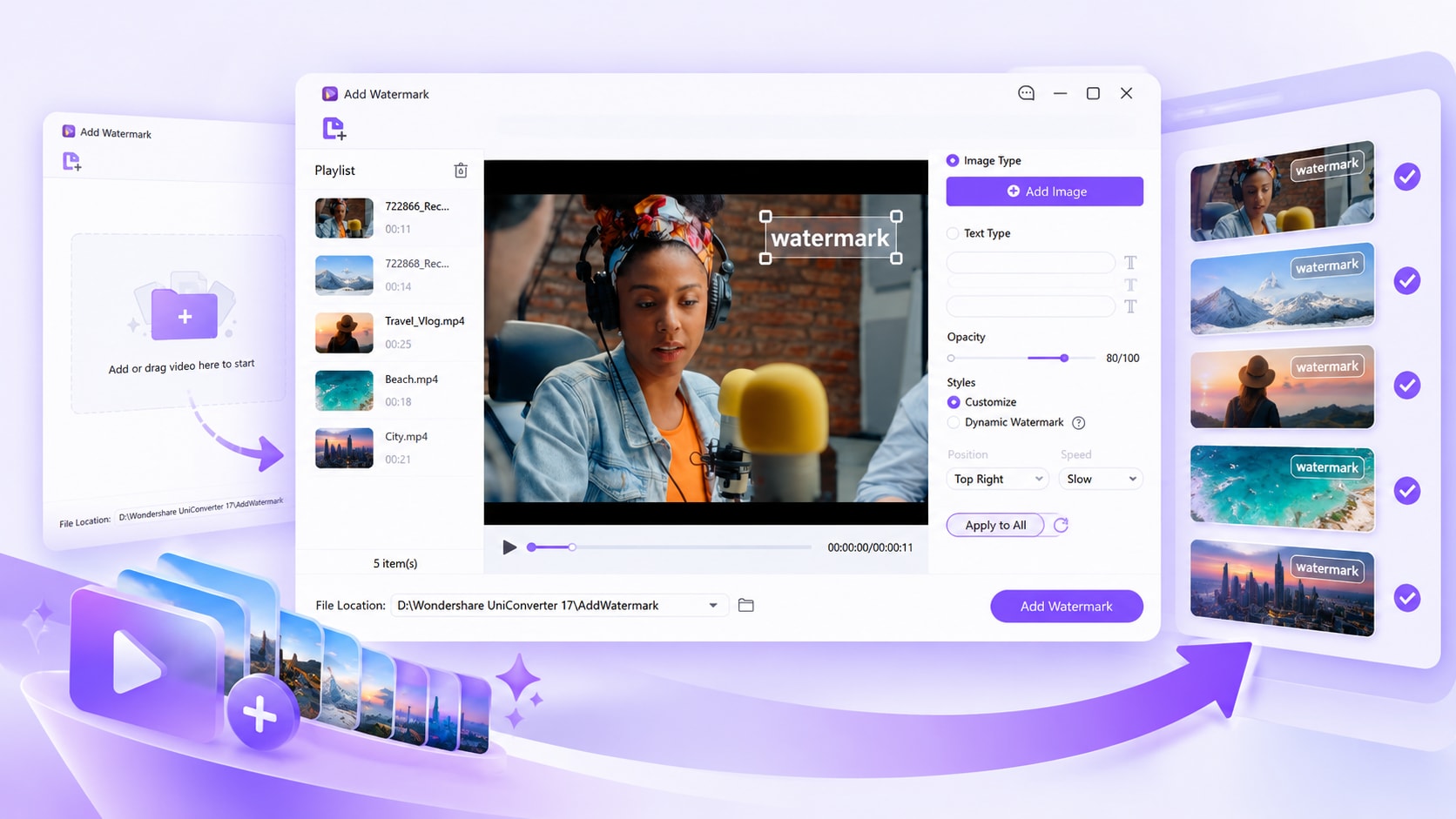
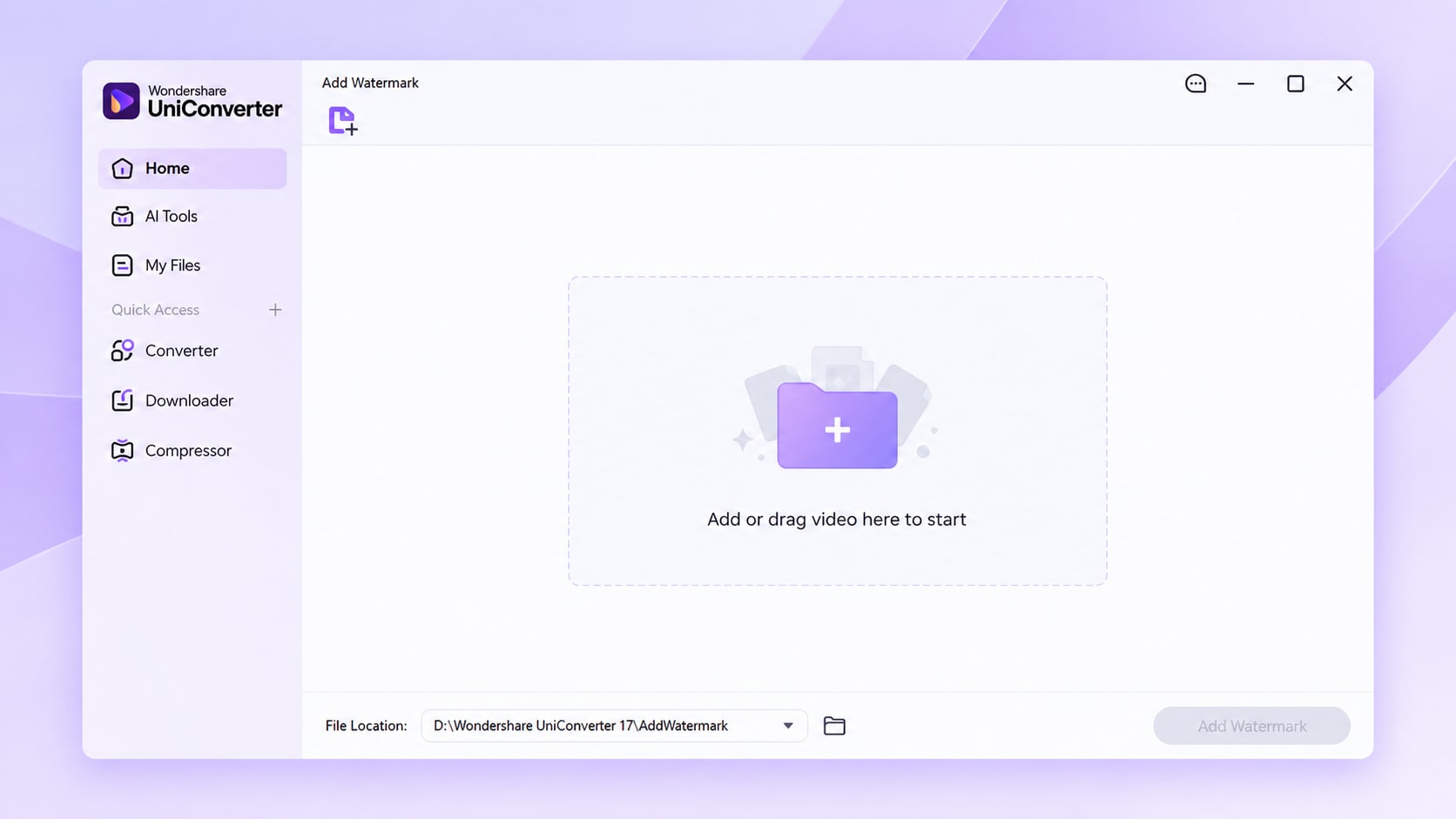
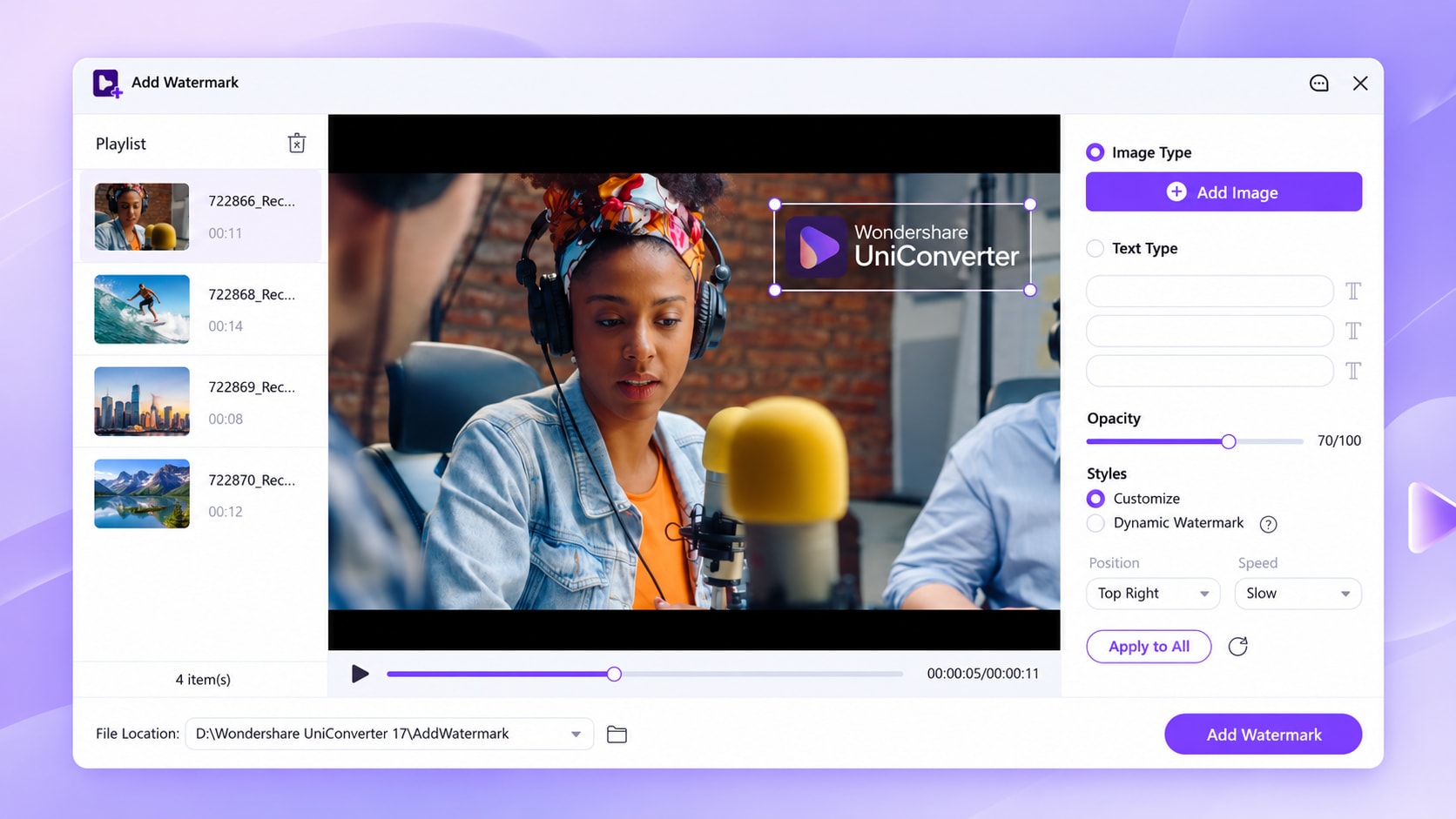
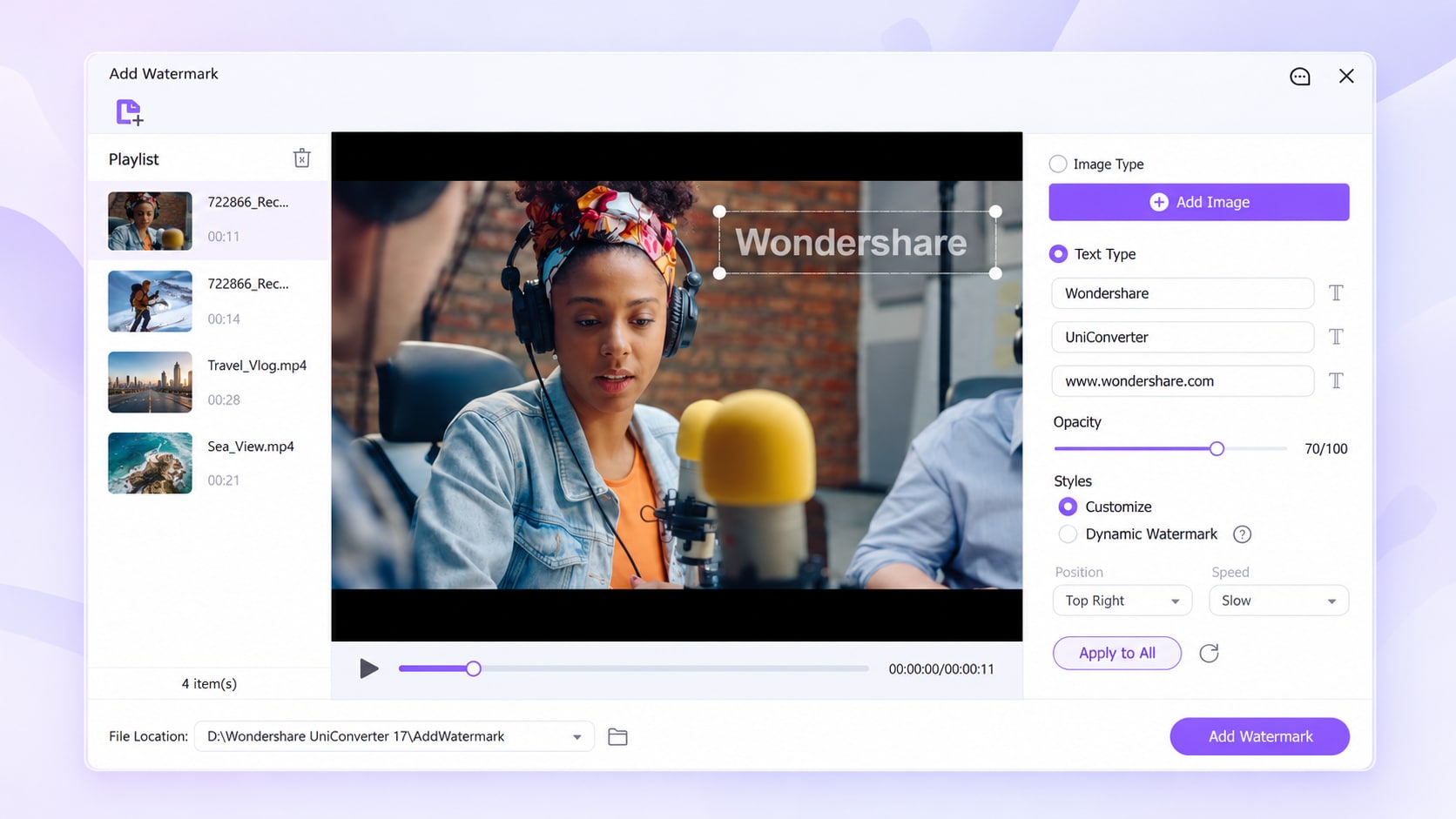
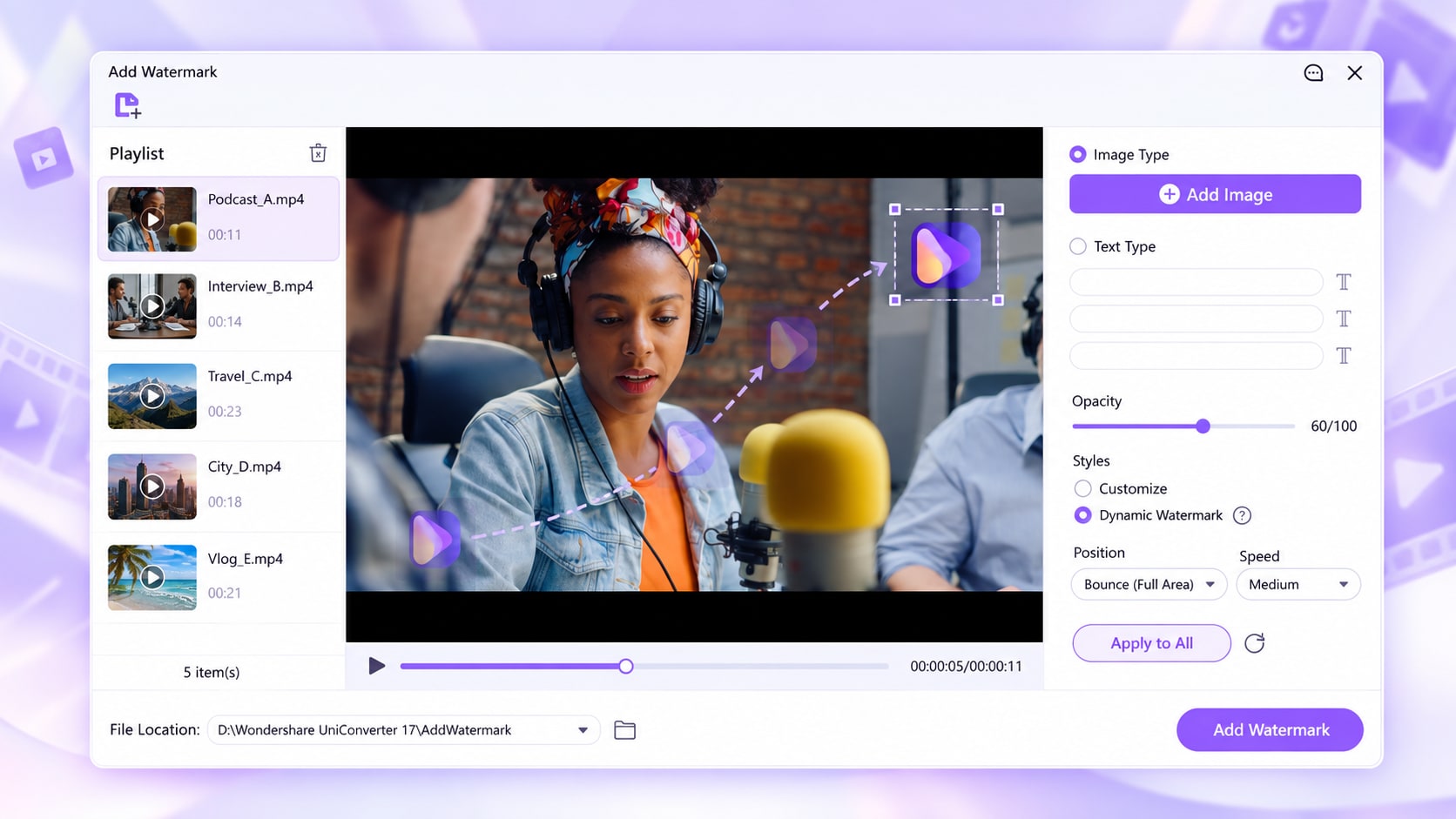
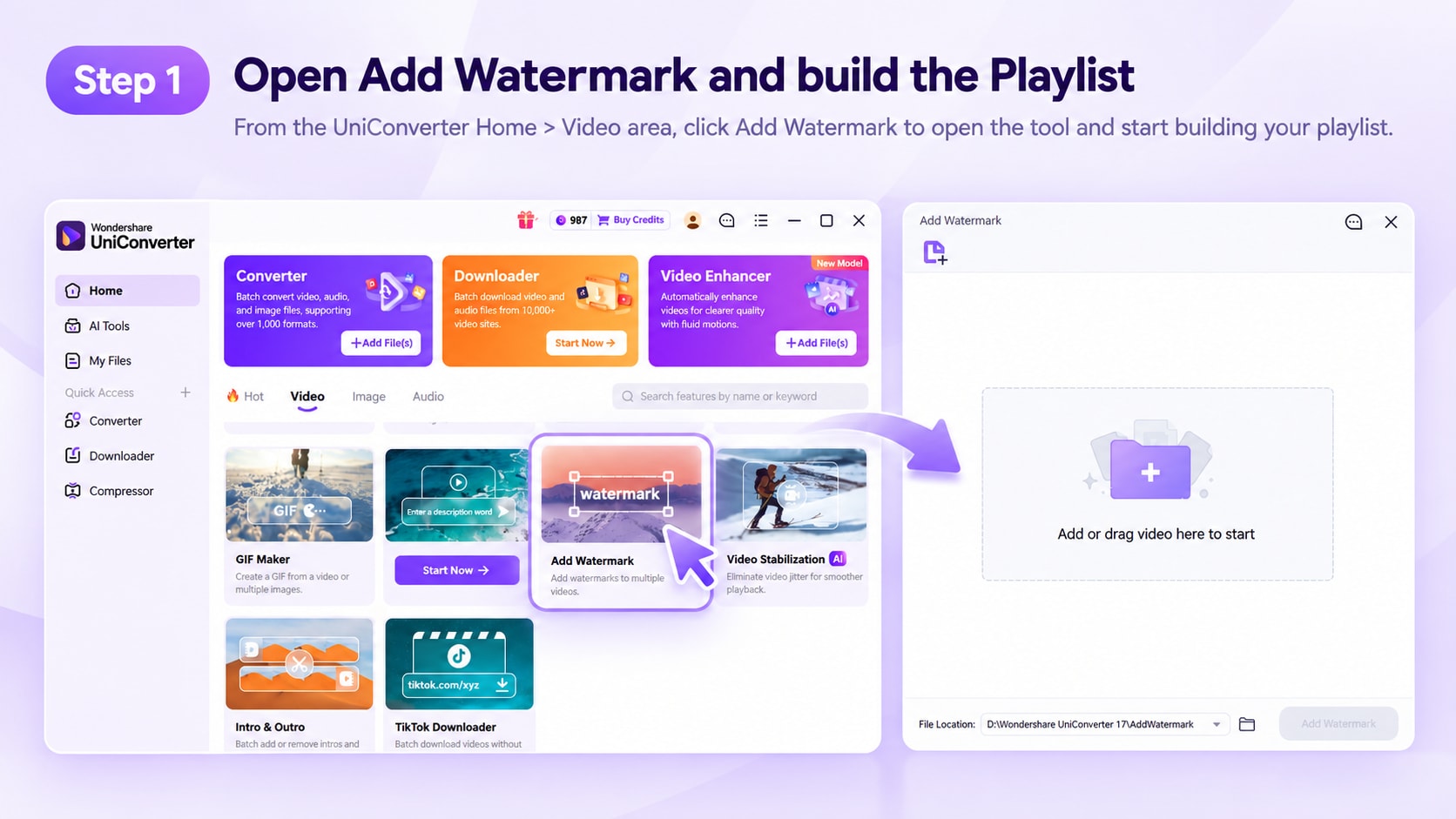
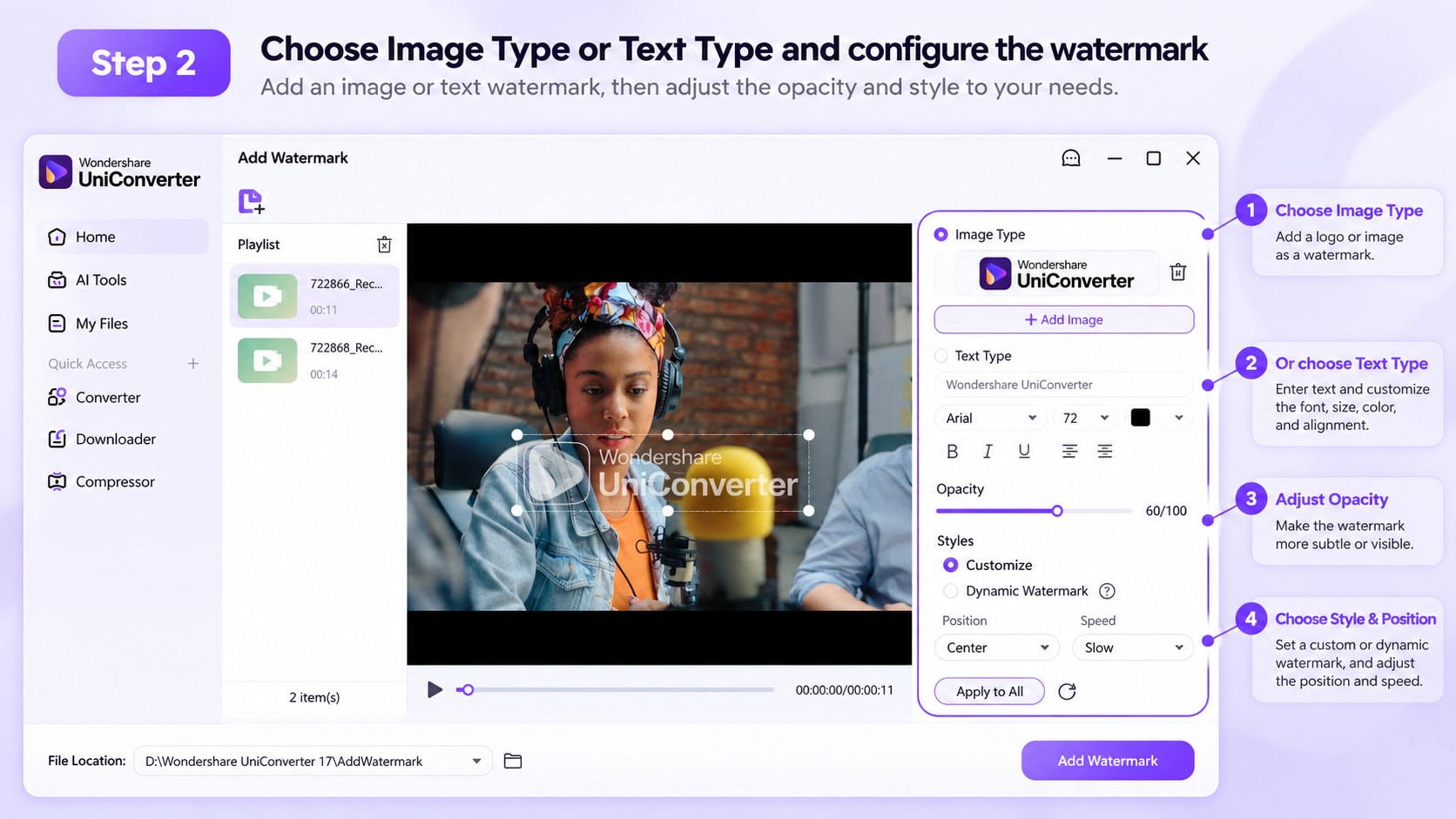
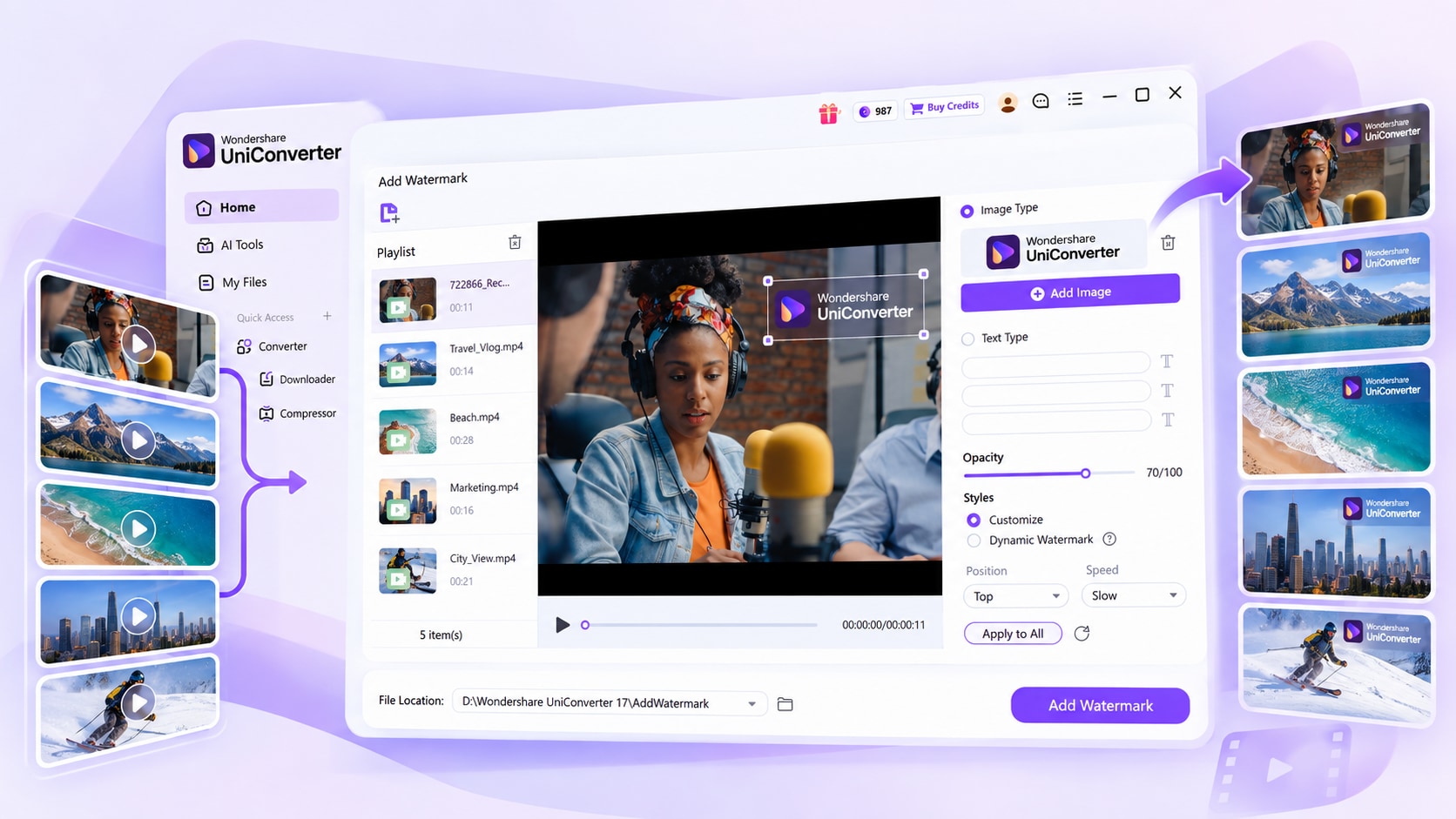
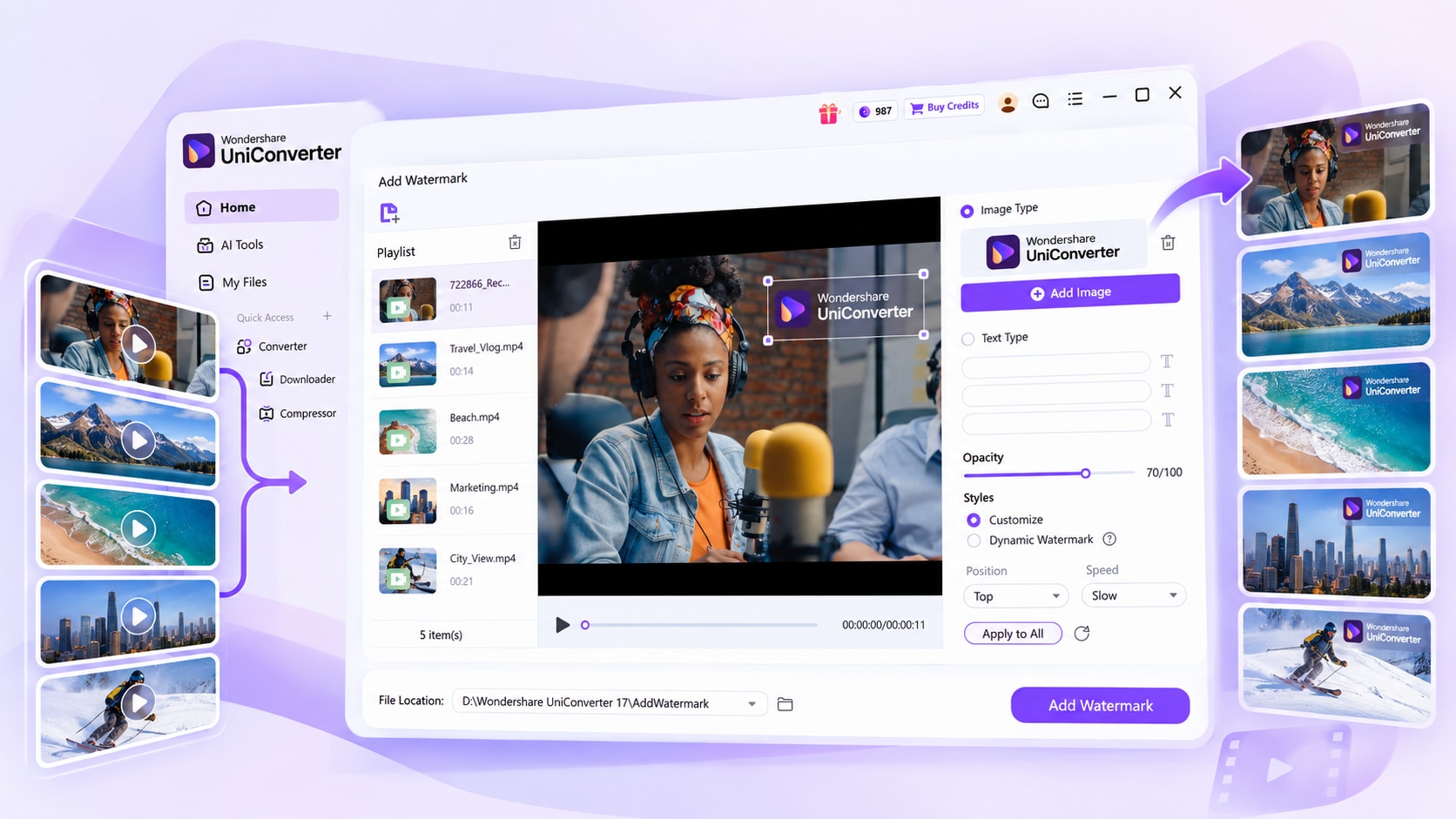
Current Add Watermark Controls at a Glance
UniConverter Desktop keeps the main batch watermark controls in one workspace,
including the Playlist, image and text watermark options, opacity, dynamic watermark
settings, Apply to All, output location, and processing controls.
What Each Control Does
| Current UI Control |
What It Does |
Batch Use |
| Playlist |
Keeps multiple loaded videos inside the same Add Watermark workspace. |
Switch between clips to check how the watermark looks on different framing and content. |
| Image Type + Add Image |
Adds an image-based watermark such as a logo or brand graphic. |
Useful when the same logo needs to appear across a group of videos. |
| Text Type |
Provides three text-entry fields in the current interface. |
Use them for copyright text, channel names, campaign labels, review marks, or other repeated text. |
| Opacity |
Adjusts how visible the watermark appears, using a 0–100 control. |
Preview both bright and dark scenes before reusing the same opacity across several videos. |
| Customize |
Uses a fixed watermark style and placement. |
A practical choice when one stationary watermark position works across the selected videos. |
| Dynamic Watermark |
Creates a moving watermark and enables the related Position and Speed controls. |
Preview the movement on representative clips before applying the setup across the Playlist. |
| Apply to All |
Reuses the current watermark setup across the loaded videos. |
Check videos with different aspect ratios or subject positions before applying one setup to the full batch. |
| File Location |
Sets the folder where processed videos will be saved. |
Choose a clear destination so the finished files can be checked against the originals. |
| Add Watermark |
Starts processing after videos have been loaded and the watermark has been configured. |
The button remains unavailable in the empty workspace until media is added. |
Current interface note: The September 2026 UniConverter Desktop
Add Watermark workspace supports image and text watermarks, fixed or dynamic styles,
multiple videos in one Playlist, and the Apply to All batch control.