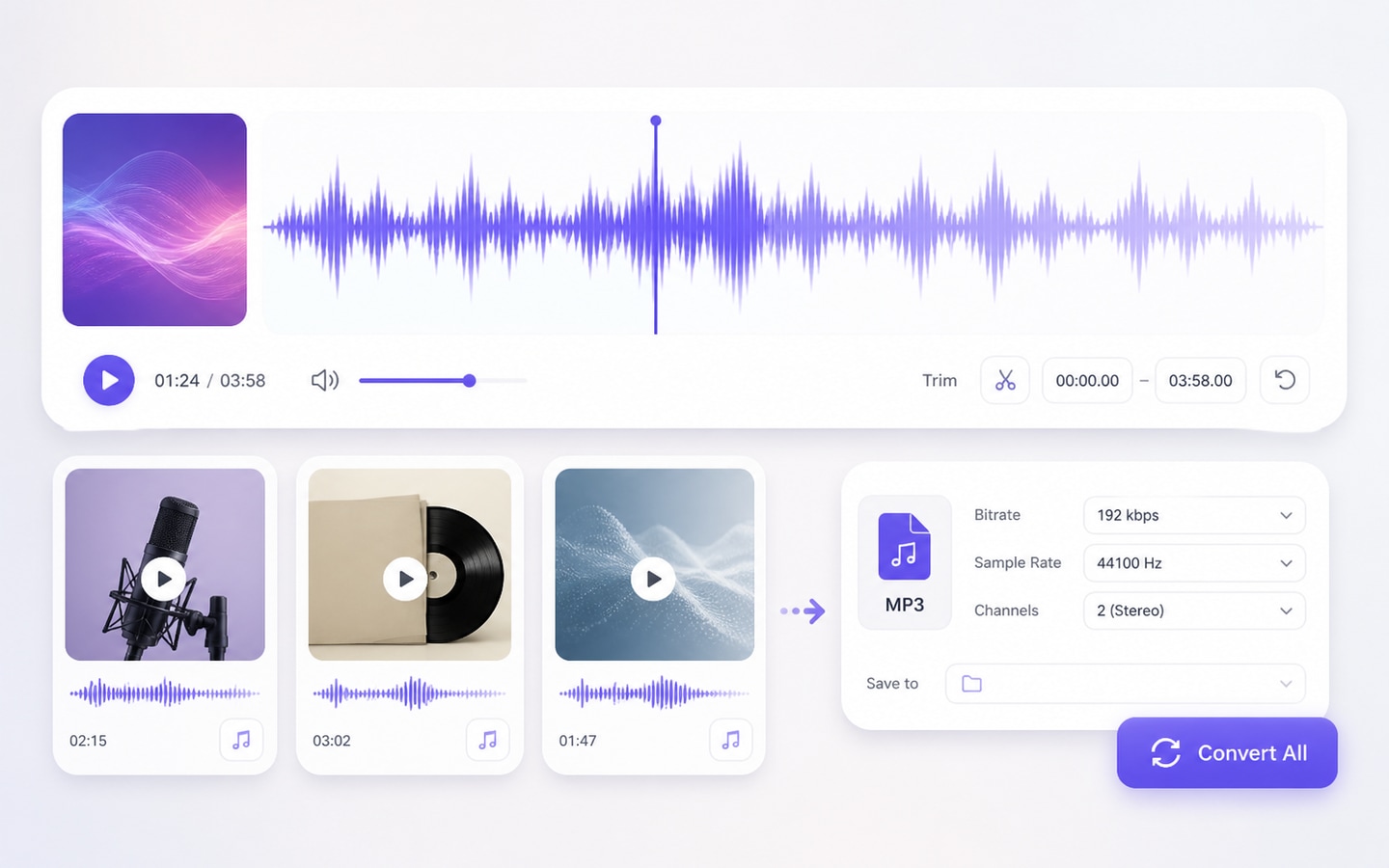
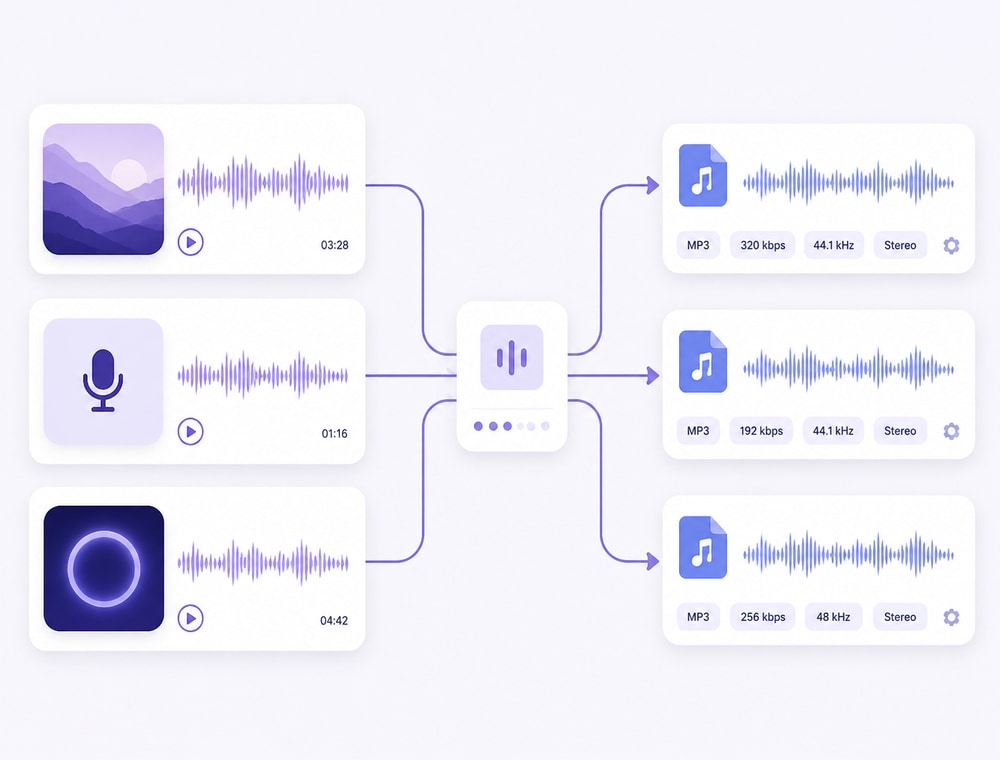
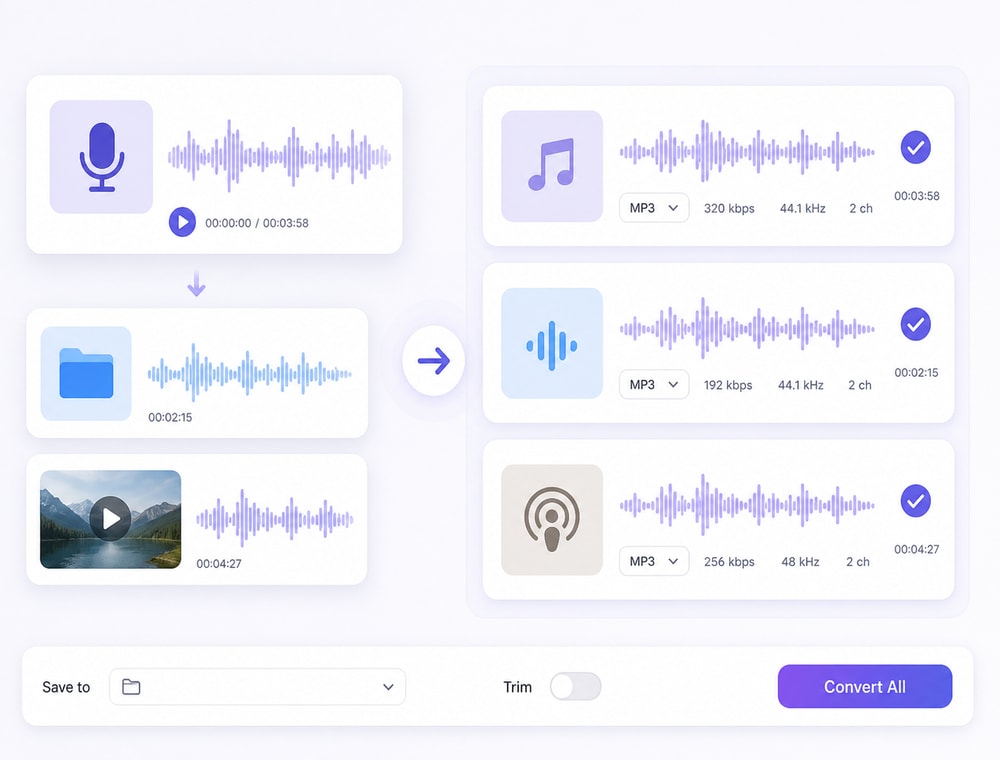
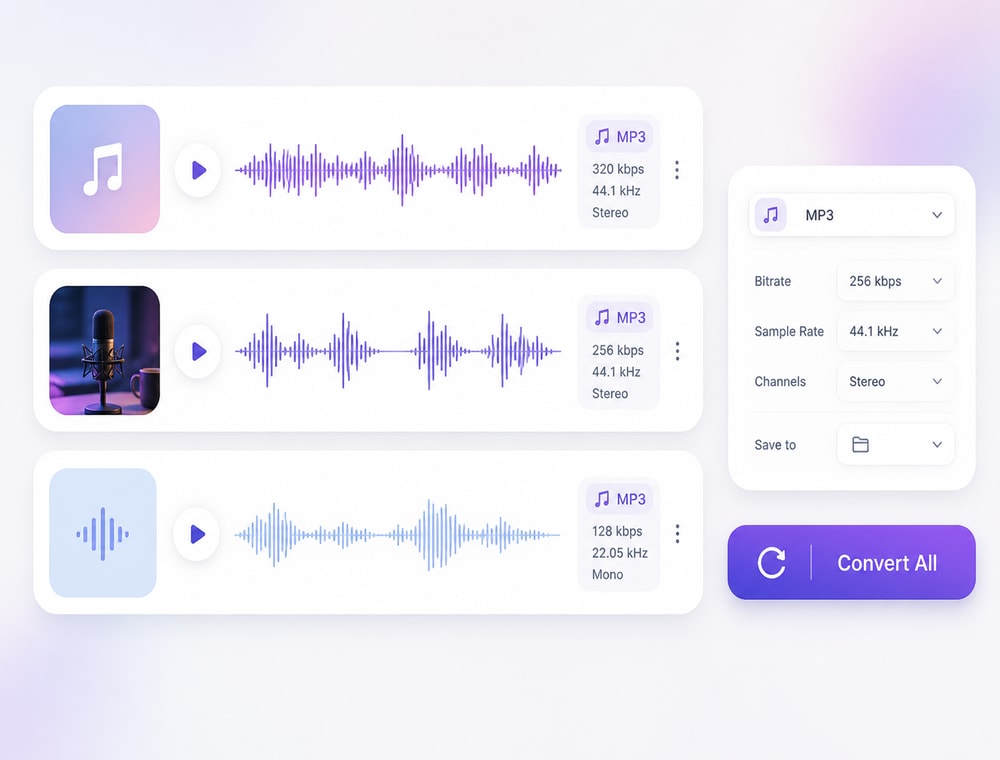
Bring music, voice recordings, podcasts, and supported video sound into a single Desktop workspace, then route each related collection toward the audio output it actually needs. Shared processing stays efficient while unusual files remain available for individual review.
Compare batch capacity, file handling, end-to-end turnaround, and workflow depth. Many online converters can process multiple files, while Desktop keeps recurring jobs local and connected from setup to delivery.
Compare the workflow
Recommended for larger jobsUniConverter Desktop
Convenient browser accessOnline Batch Tools
Batch Scale & Service Limits
✓Build recurring multi-file queues from local folders and keep the entire collection organized in one Desktop job.
Many cloud converters accept multiple files or batch uploads; available batch size and account features are set by each service.
File Location & Privacy
✓Keep standard conversion work on the computer and save results directly to the selected local folder without uploading the full collection through a browser.
Cloud conversion uploads files to the provider, making its storage, retention, deletion, and data-handling policy part of the workflow decision.
Total Turnaround
✓Skip browser transfer stages and move directly from local sources to locally saved results, helping repeated collection work keep moving.
Cloud processing can run several files, while upload time, remote processing, service queues, and download remain part of end-to-end turnaround.
Workflow Depth
✓Choose Desktop when recurring work needs broader format or profile coverage, richer output settings, queued-file preparation, compatible metadata review, organized local delivery, or continuity with adjacent tools.
Choose Online when browser access matters most and the service offers the formats, controls, and batch capacity required for the job.
Simple decision:
Desktop emphasizes local control and a deeper recurring workflow; Online emphasizes browser access and service-managed processing.
A general audio queue may contain archives, listening copies, editing sources, speech recordings, and sound extracted from video. Wondershare UniConverter Audio Converter helps separate those destinations without claiming that one profile fits every file.
Convert Multiple Audio Files at Once in One Queue
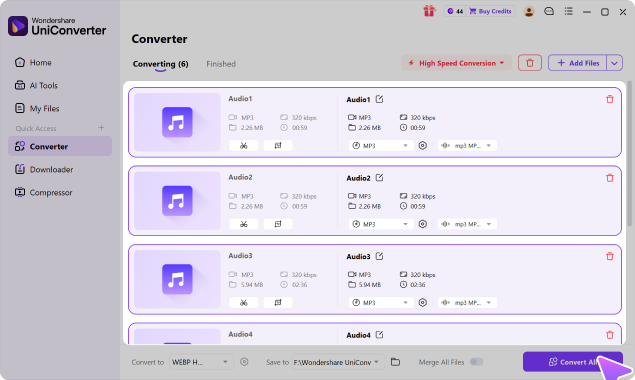
Divide incoming media by project, audience, or destination before choosing an output. A purposeful queue produces clearer decisions than a folder assembled only because every item contains audio.
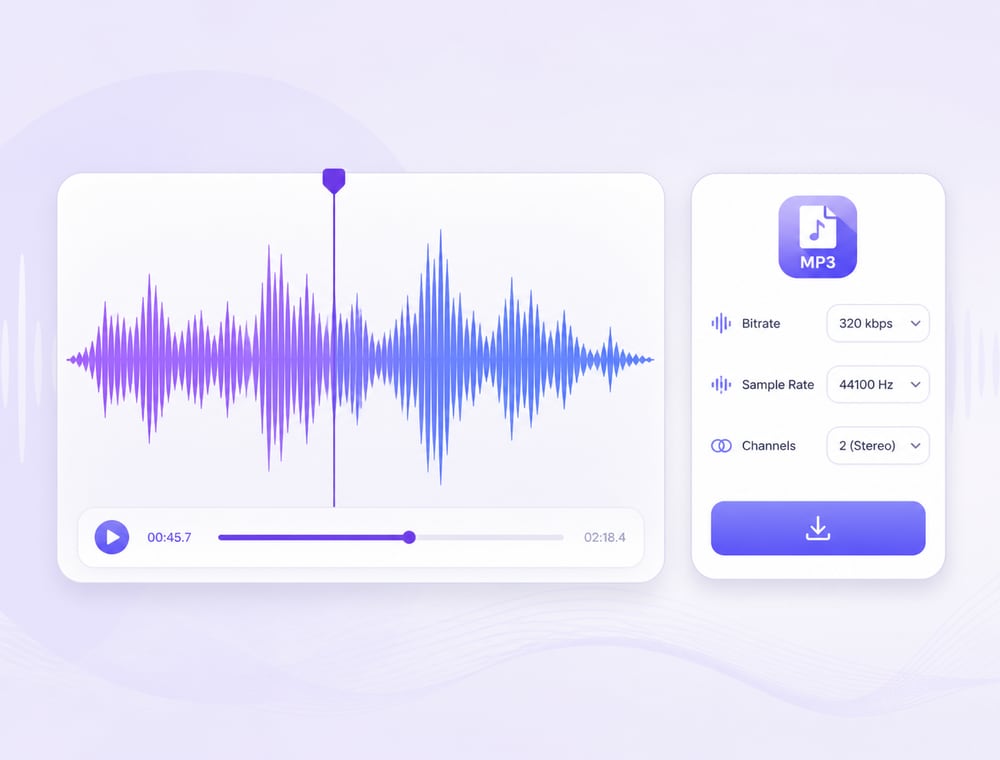
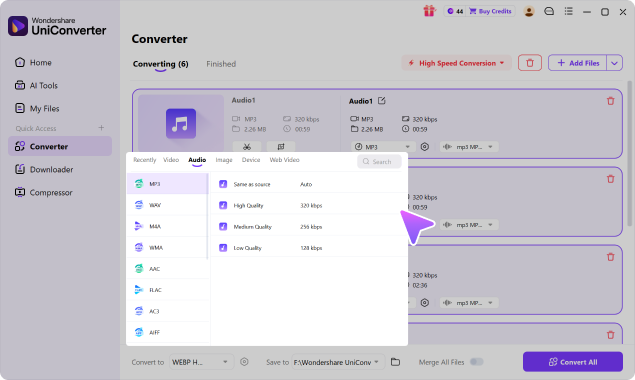
Choose supported profiles for playback, editing, storage, sharing, or extraction. Review available codec and quality controls for each destination instead of applying one universal preset.
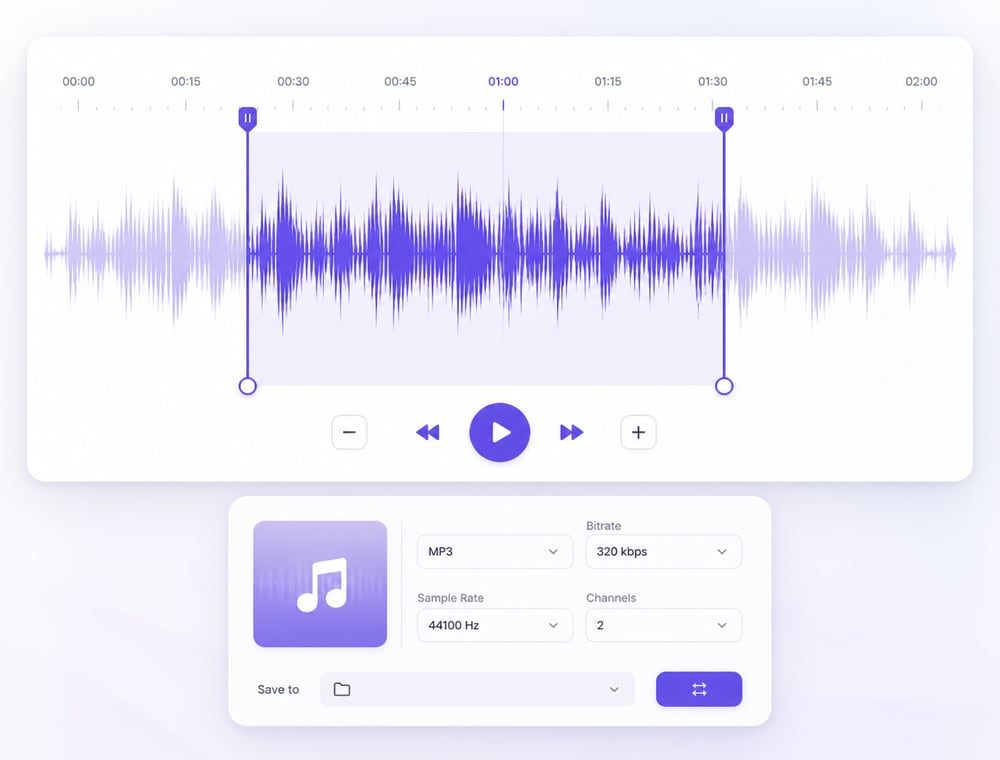
Open selected files for supported Trim, Audio, or Speed preparation when their content requires it. Preview exceptions and avoid applying a special correction across otherwise approved recordings.
Trim on a waveform timeline
Preview supported Audio and Speed changes
Apply shared changes only when suitable
Input support is broader than output support and can differ between
Windows, Mac, Online, and product versions.
Confirm representative results in target players and tools, review compatible metadata where applicable, and keep source media when exported audio is only one derivative of the collection.
Keep original source files available
Review representative outputs
Verify important fields in the receiving app
Avoid universal quality or metadata promises
Image Converter handles format conversion. These additional
operations
belong to Batch Image Editor.
The general workspace is most useful when several audio-oriented tasks need consistent local organization but should not be forced into one identical output decision.
Prepare Podcast and Interview Deliveries
Music libraries can create portable listening copies while retaining higher-quality or archival originals. Sample checks across several albums help confirm playback, tags, artwork, filenames, and folder organization in the destination library before the remaining collection is converted.
Standardize Voice Assets for Production
Podcast and voice teams can prepare review, transcription, or publishing files from related recordings. Individual Trim or supported Audio preparation remains available for exceptions without turning Converter into a full editing workspace or applying one correction to every episode.
Batch Music Converter for Personal and Licensed Libraries
Video collections can yield audio-first references for authorized lectures, interviews, meetings, and creator recordings. Source videos remain necessary whenever slides, gestures, chapters, visual evidence, or other container information still matters to the audience or archive.
Create Listening Copies from Recorded Video
Organizations can standardize recurring audio deliveries across teams, devices, and storage locations by separating each destination into a reviewed job instead of mixing incompatible goals, settings, naming rules, and source-retention decisions inside one queue.
What UniConverter Users Are Saying
These reviews describe users' experience with Wondershare UniConverter as a broader conversion and editing product, rather than feedback specifically limited to the Batch Audio Converter. Review sources and publication dates are shown where available.
★★★★★
“Very configurable for the exact result you need.”
Its flexible conversion controls make it easier to prepare files for different output and delivery requirements.
Johnson
★★★★★
“The files can be used across IT platforms so easily!”
This kind of compatibility is useful when converted media needs to move between common systems and delivery workflows.
Williams
★★★★★
“Wondershare UniConverter is incredibly versatile.”
The broader conversion and editing toolkit supports users who need to complete more than one isolated media task.
Olivia
Explore UniConverter reviews and independent coverage across trusted software platforms.
How do I batch convert supported audio and video to audio?
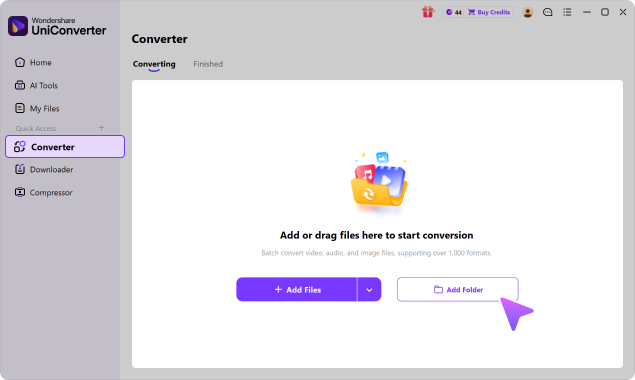
Open Wondershare UniConverter Audio Converter, add the related supported audio and video sources, choose an available audio profile, review representative files and the destination, then select Convert All.
02
When is Desktop better for mixed audio and supported video sources?
Use Desktop when mixed audio collections and recurring delivery work make the job recurring, folder-based, or easier to verify locally. Online remains useful for a small isolated file when upload and download stages are acceptable.
03
What should I check before creating audio for this workflow?
Review the output profile against mixed audio collections and recurring delivery work. Available codec, bitrate, sample rate, bit depth, channel, and quality choices vary with the source, audio, platform, and installed version.
04
Can I trim or prepare a file before conversion?
A queued file can expose Trim plus supported Audio and Speed preparation. This is pre-conversion work inside Converter rather than a full multi-track editing, mixing, or mastering workspace.
05
Will metadata transfer from supported audio and video to audio?
Compatible tags, metadata, and artwork may be retained or edited in supported audio-to-audio workflows. Verify the specific supported audio and video fields in the audio result and receiving application.
06
Does converting supported audio and video to audio improve audio quality?
No automatic improvement should be assumed. Converting supported audio and video to audio can change compression, size, compatibility, and workflow fit, but it cannot restore detail already missing from the source.
Finish the Mixed Audio Collection
Organize the next audio collection by destination, test the outputs that matter most, and complete each reviewed job from one local conversion workspace.