

Low-resolution footage, blurry recordings, and compressed downloads often lose detail when simply resized. In this AVCLabs Video Enhancer AI review, the focus is on how effectively the software restores and upscales video using deep learning models rather than basic interpolation. Developed by AVCLabs, the program targets HD, 4K, and 8K enhancement, noise reduction, face refinement, and motion smoothing.
The analysis below covers features, system requirements, pricing structure, free-versus-full version limitations, performance behavior across different hardware, and practical strengths and weaknesses to help determine whether it fits a serious restoration workflow.

Best Alternative to AVCLabs Video Enhancer AI
In this article
- Part 1: What Is AVCLabs Video Enhancer AI?
- Part 2: Key Features of AVCLabs Video Enhancer AI
- Part 3: How to Use AVCLabs Video Enhancer AI (Step-by-Step)?
- Part 4: AVCLabs Video Enhancer AI Pricing: Free vs. Full Version
- Part 5: Pros and Cons of AVCLabs Video Enhancer AI
- Part 6: AVCLabs Video Enhancer AI vs. Wondershare UniConverter Video Enhancer
- FAQs about AVCLabs Video Enhancer AI
- Conclusion
Part 1: What Is AVCLabs Video Enhancer AI?
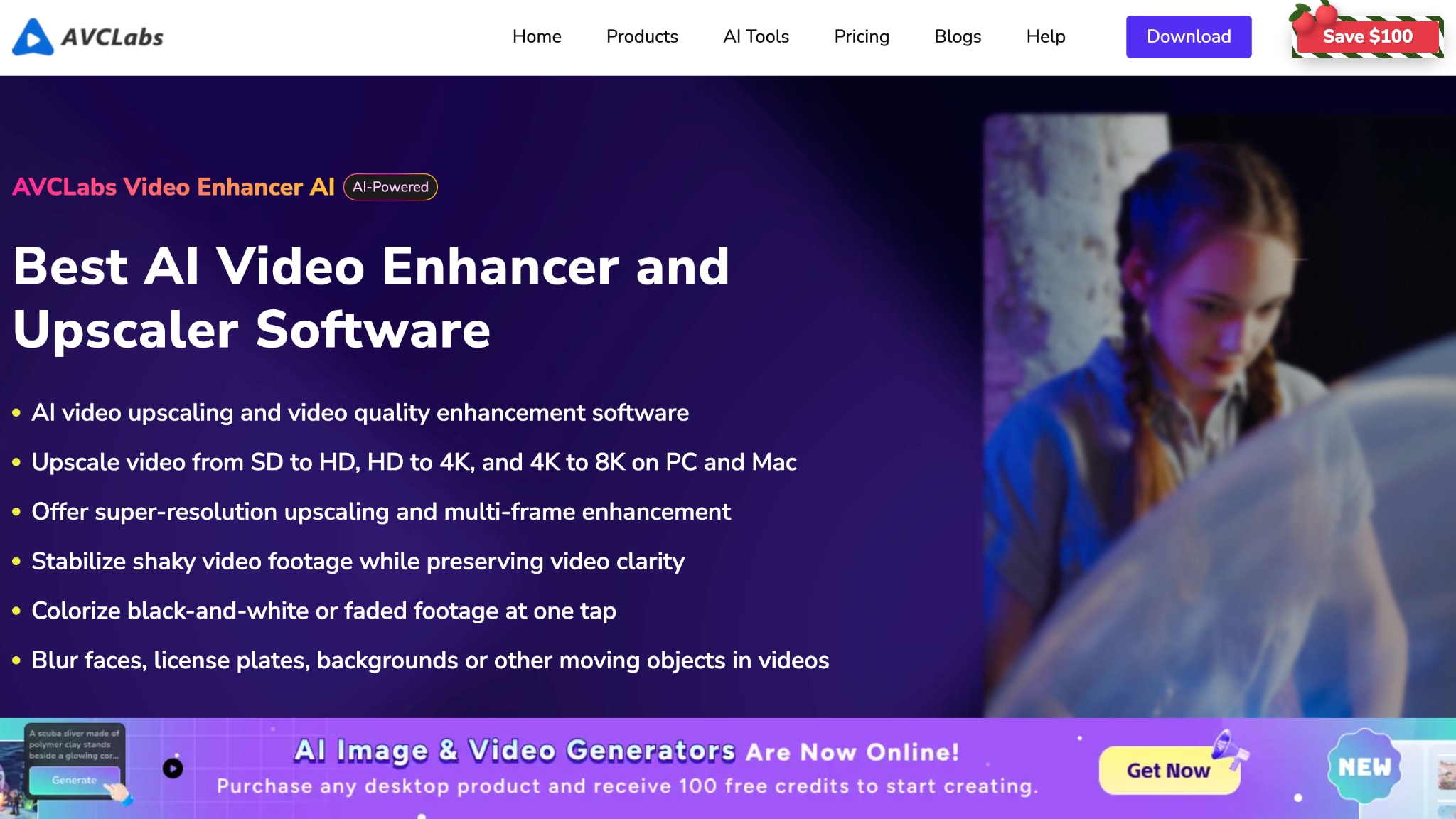
Overview of AVCLabs and Its AI Technology
AVCLabs Video Enhancer AI is a desktop software designed to upscale and restore low-quality videos using deep learning models. You can take old SD footage, blurry clips, or compressed downloads and enhance them to HD, 4K, or even 8K while also reducing noise and improving clarity.
Instead of simply stretching pixels like basic resize tools, its AI upscaling analyzes each frame, predicts missing details, and reconstructs texture. This helps your 480p or 720p videos look sharper and cleaner, rather than soft or blocky after enlargement.
Who Is AVCLabs Video Enhancer For?
If you create YouTube content, restore archival footage, work with old family recordings, or handle noisy low-light clips, AVCLabs Video Enhancer is built for you. It suits both casual users who want to improve personal videos and creators who regularly upscale or clean footage for modern screens.
Supported Platforms and System Requirements
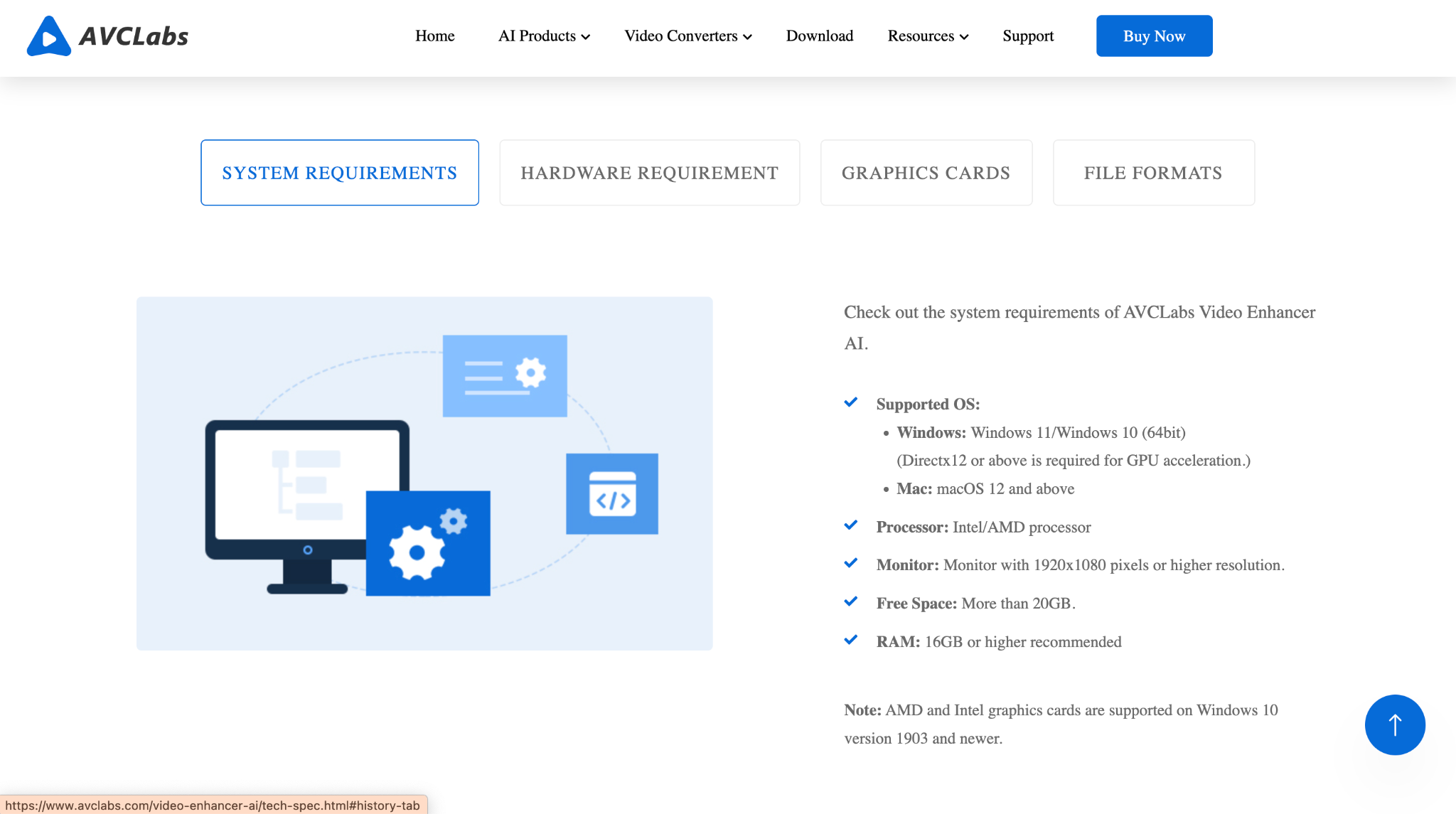
You can run AVCLabs Video Enhancer AI on:
- Windows 10 or 11 (64-bit)
- macOS 12 or later, including Apple M1 and M2 chips
For smoother performance, you should have at least 16 GB of RAM, an Intel or AMD CPU from around 2015 or newer, and a dedicated GPU with 4 GB of VRAM or more. Supported graphics include NVIDIA GTX 600 series and above, AMD Radeon HD 7000 series and above, and Intel Haswell-generation integrated graphics, though dedicated GPUs will deliver noticeably higher processing speeds.
AVCLabs Video Enhancer AI can run on older hardware, but processing will be significantly slower, especially with multi-frame or higher-quality models.
Part 2: Key Features of AVCLabs Video Enhancer AI
AI Video Upscaling to 4K and 8K
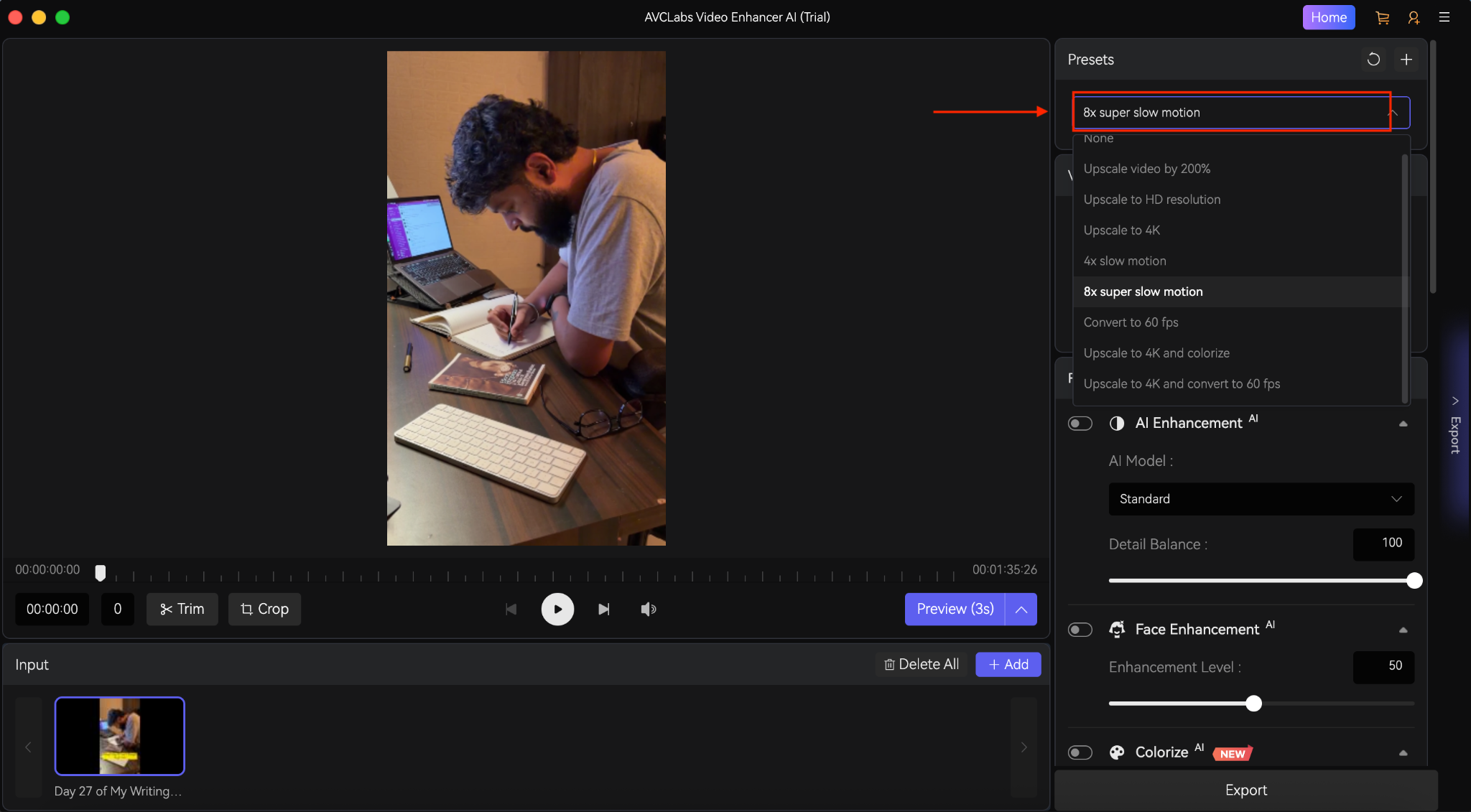
The core strength of AVCLabs Video Enhancer AI is resolution enhancement. You can upscale low-resolution footage, such as 240p, 480p, or 720p, to HD, 4K, and even 8K using dedicated AI models designed for different scenarios.
You get multiple enhancement options inside the AVCLabs video enhancer interface: Standard and Ultra models for single-frame processing, plus Standard Multi-Frame and Ultra Multi-Frame models that analyze multiple frames together to improve motion consistency.
There is also a Denoise model for grain-heavy clips and an Anime model tuned for line art. Single-frame modes are faster, while multi-frame modes deliver better detail but require stronger GPUs.
AVCLabs Video Blur AI and Noise Reduction
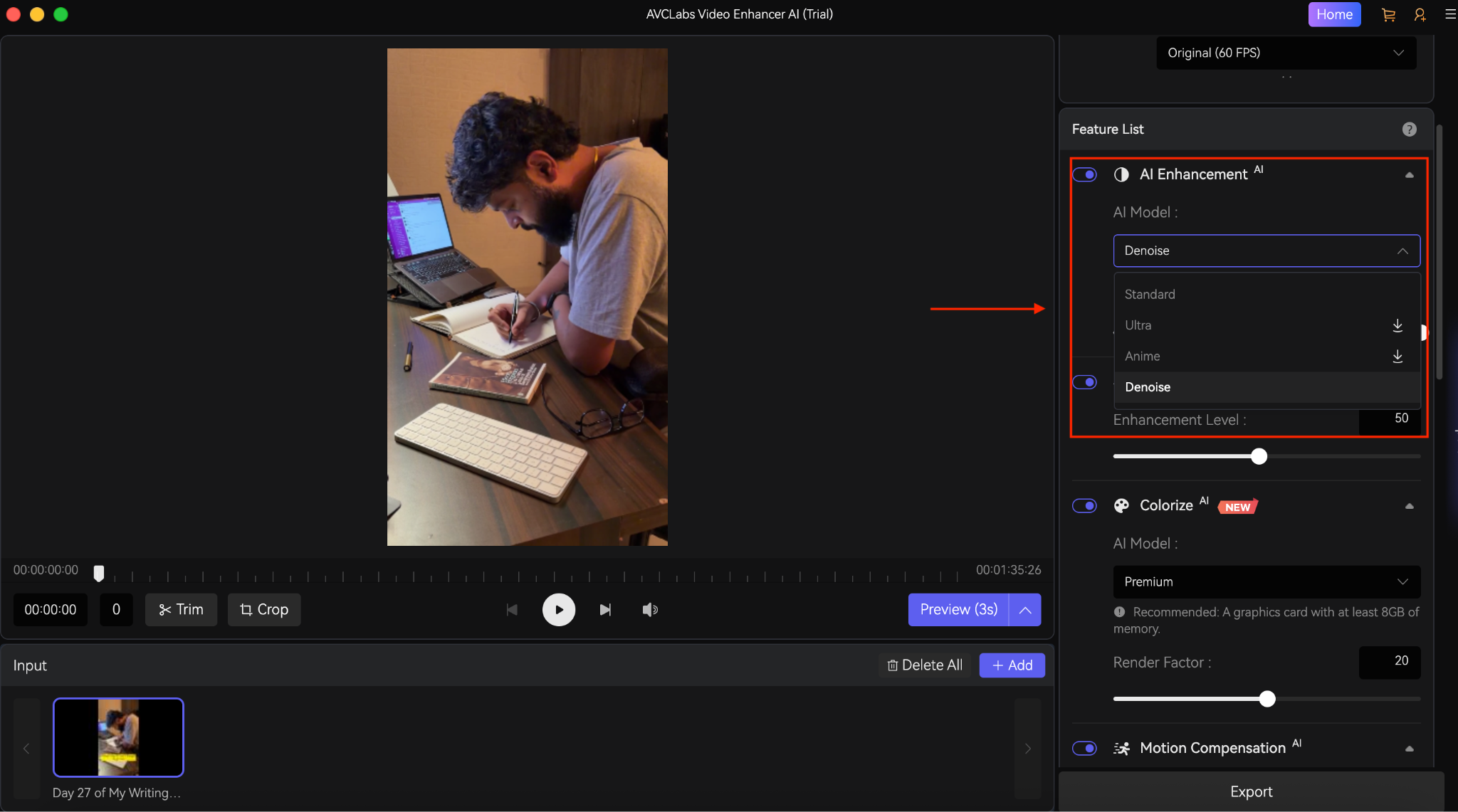
The AVCLabs video blur AI feature focuses on both removing unwanted blur and applying selective blur when needed. You can detect and blur faces, backgrounds, license plates, or moving objects for privacy. At the same time, the enhancement engine works to reduce camera shake, compression artifacts, and soft focus issues.
Noise reduction is handled through a dedicated Denoise model under AVCLabs AI enhancement. It cleans grain and digital noise without heavily smearing textures. Face Enhancement is particularly noticeable on portrait footage, where blurred facial details become clearer, although heavily damaged clips may still look slightly artificial.
Frame Interpolation and Motion Enhancement
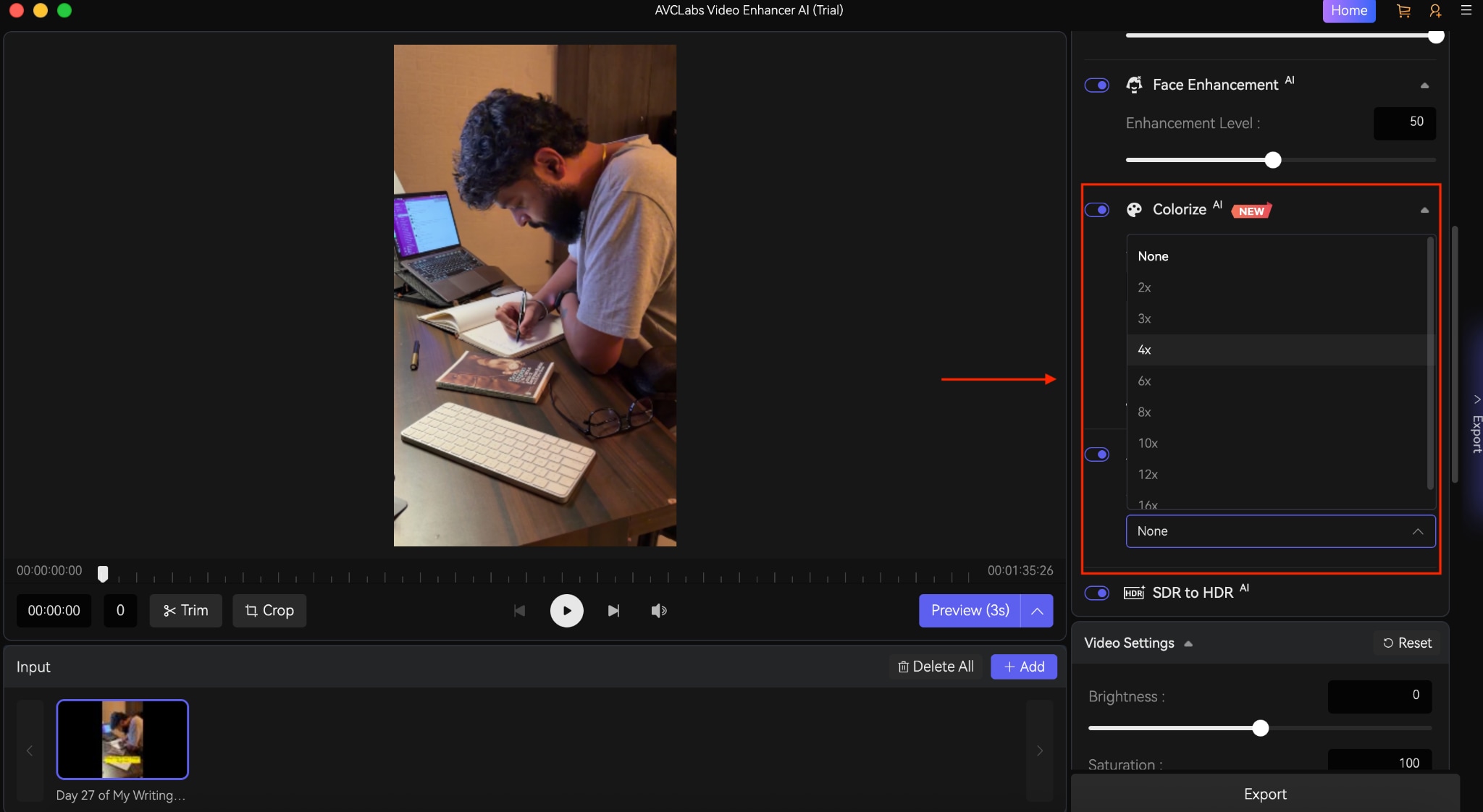
If your footage looks choppy, Motion Compensation increases the frame rate using AI-based interpolation. You can convert 24 fps or 30 fps clips into smoother playback for action scenes, gaming footage, or animation.
The tool analyzes motion between frames and inserts new intermediate frames to reduce judder. This can improve perceived smoothness, but it also increases processing time, so it makes sense to enable it only when smoother motion is necessary.
Batch Processing and Format Support
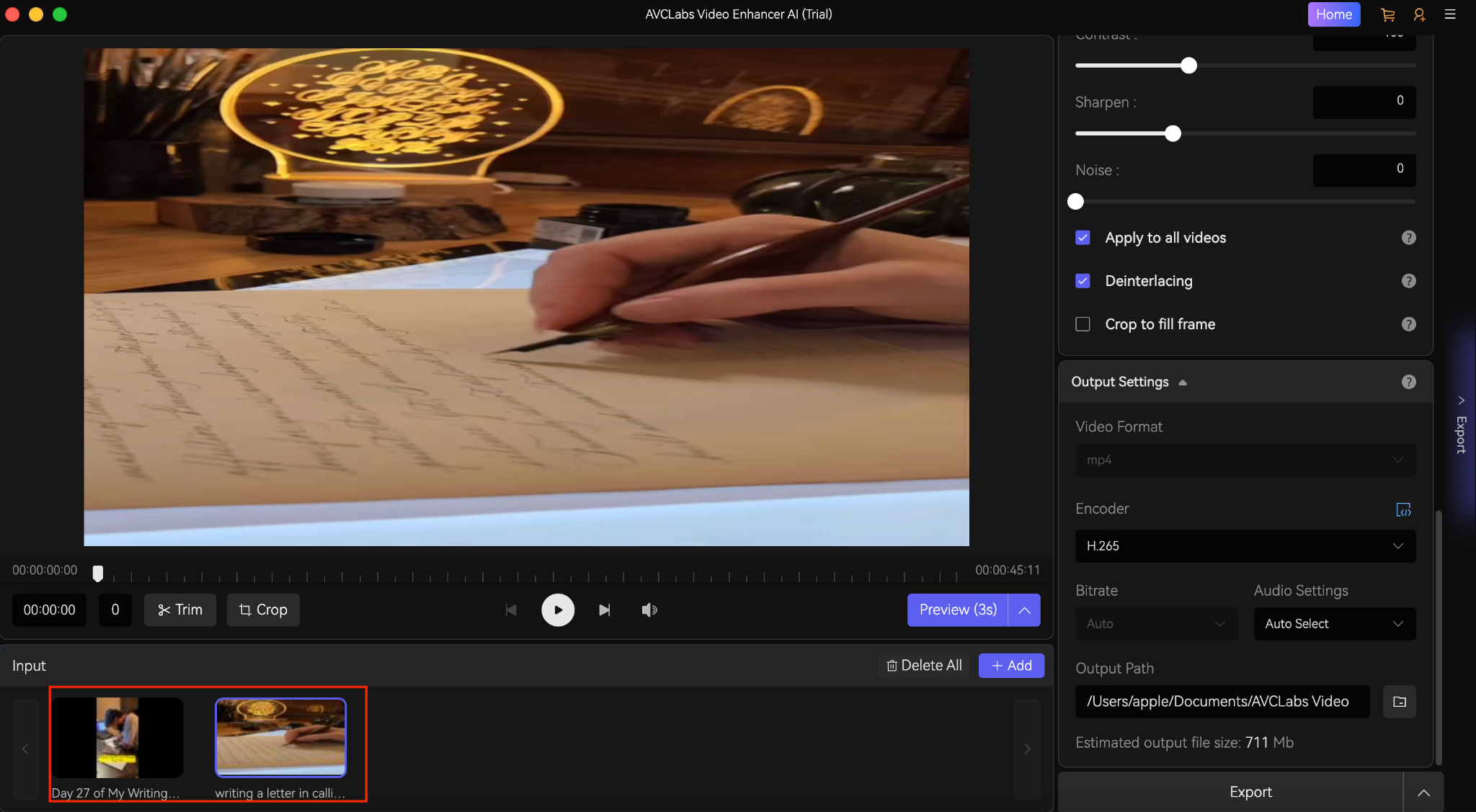
Workflow efficiency is practical and straightforward. You can drag and drop multiple clips and apply the same AI configuration across them using batch processing. This is helpful when restoring a series of old recordings or YouTube uploads.
Input support includes common and legacy formats such as MP4, MOV, AVI, MKV, MTS, WMV, FLV, and more. Output options include MP4, MKV, MOV, AVI, and WebM. Global settings let you standardize on encoder, bitrate, resolution, and output path, making the AVCLabs video enhancer suitable for larger editing pipelines.

Real-World Test Results
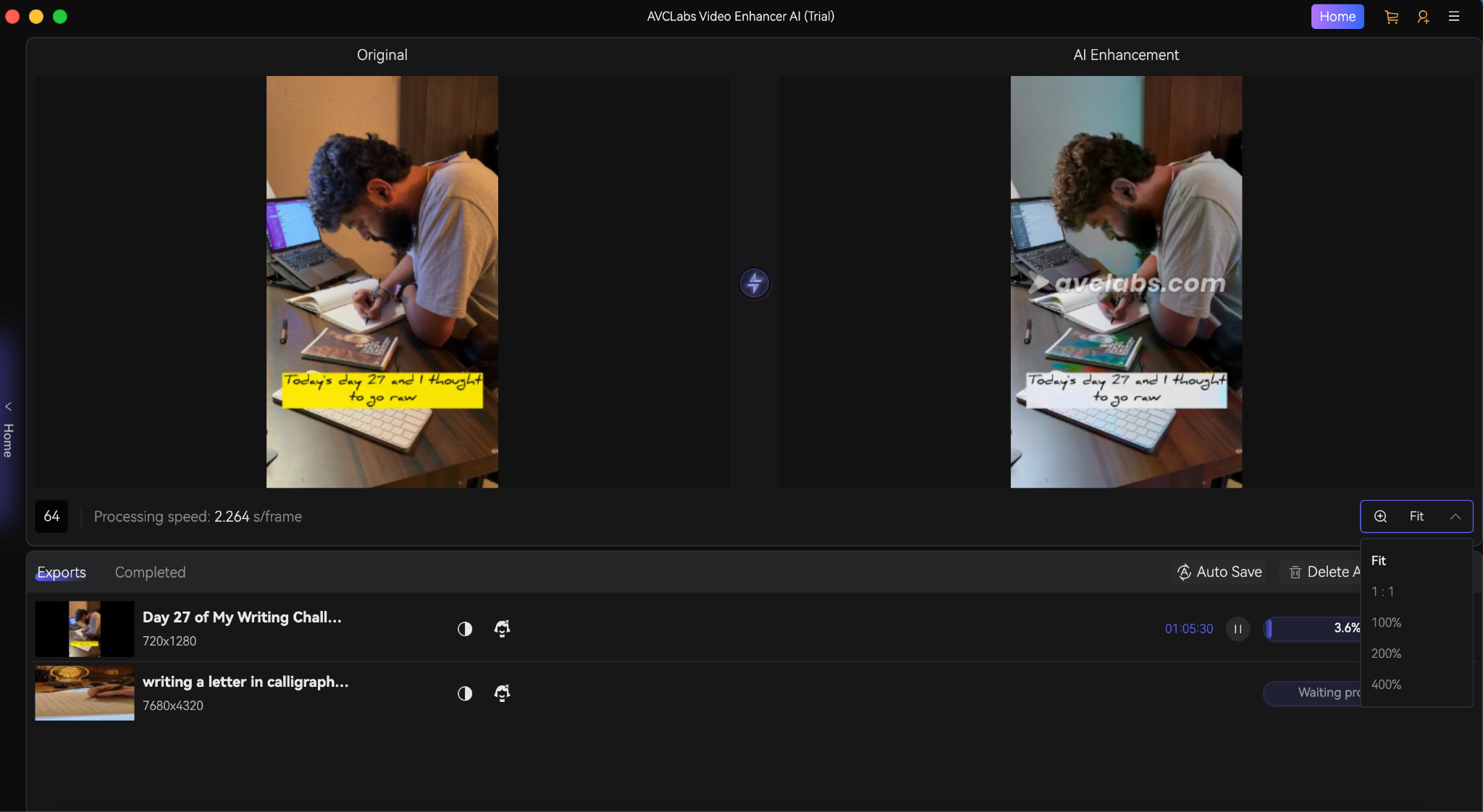
Based on documented tests and user feedback referenced in this AVCLabs Video Enhancer AI review, SD and early HD clips show noticeable improvements after upscaling. Textures become sharper, noise is reduced, and faces become clearer. Anime content generally retains line detail, though outlines can sometimes look slightly harsh. Extremely degraded footage improves, but results depend heavily on source quality.
Processing time varies significantly depending on hardware. On low-end systems with older CPUs, integrated graphics, or entry-level GPUs, rendering can be slow, especially when using Ultra Multi-Frame or Face Enhancement. These setups are better suited to short clips or overnight jobs.
On high-end PCs with modern Intel i7 or Ryzen 7 processors, 16 GB or more RAM, and NVIDIA RTX GPUs with TensorRT acceleration, performance improves substantially. Multi-frame models become more practical, and longer 1080p-to-4K upscales fit into regular workflows.
The performance gap is noticeable. The software can run on older supported hardware, but serious restoration work benefits from a modern RTX-class GPU.
Part 3: How to Use AVCLabs Video Enhancer AI (Step-by-Step)?
Follow this step-by-step guide to use AVCLabs Video Enhancer AI and get high-quality video output:
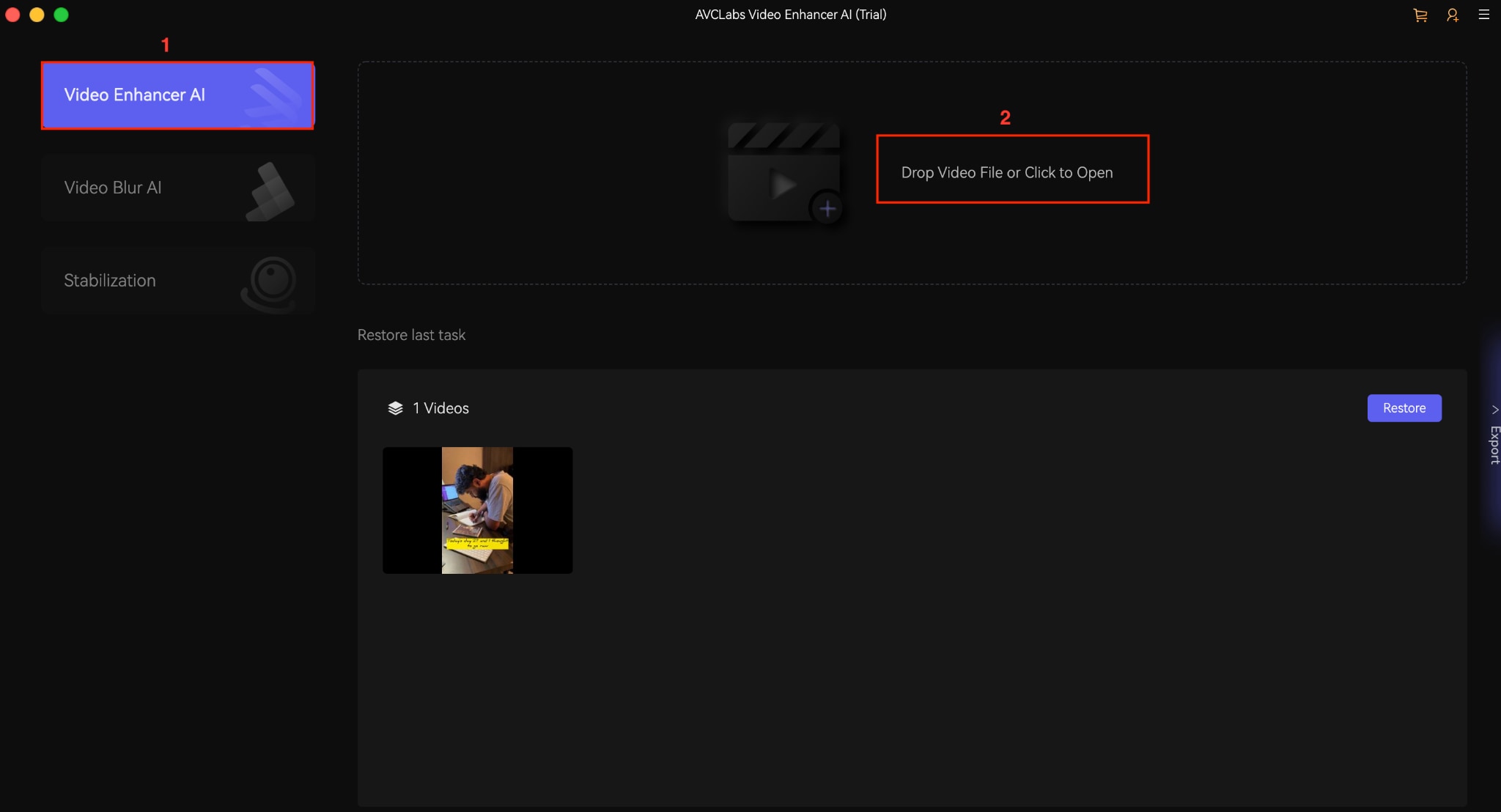
Step 1: Launch the app, select "Video Enhancer AI," then click to open the video file or drag and drop it.
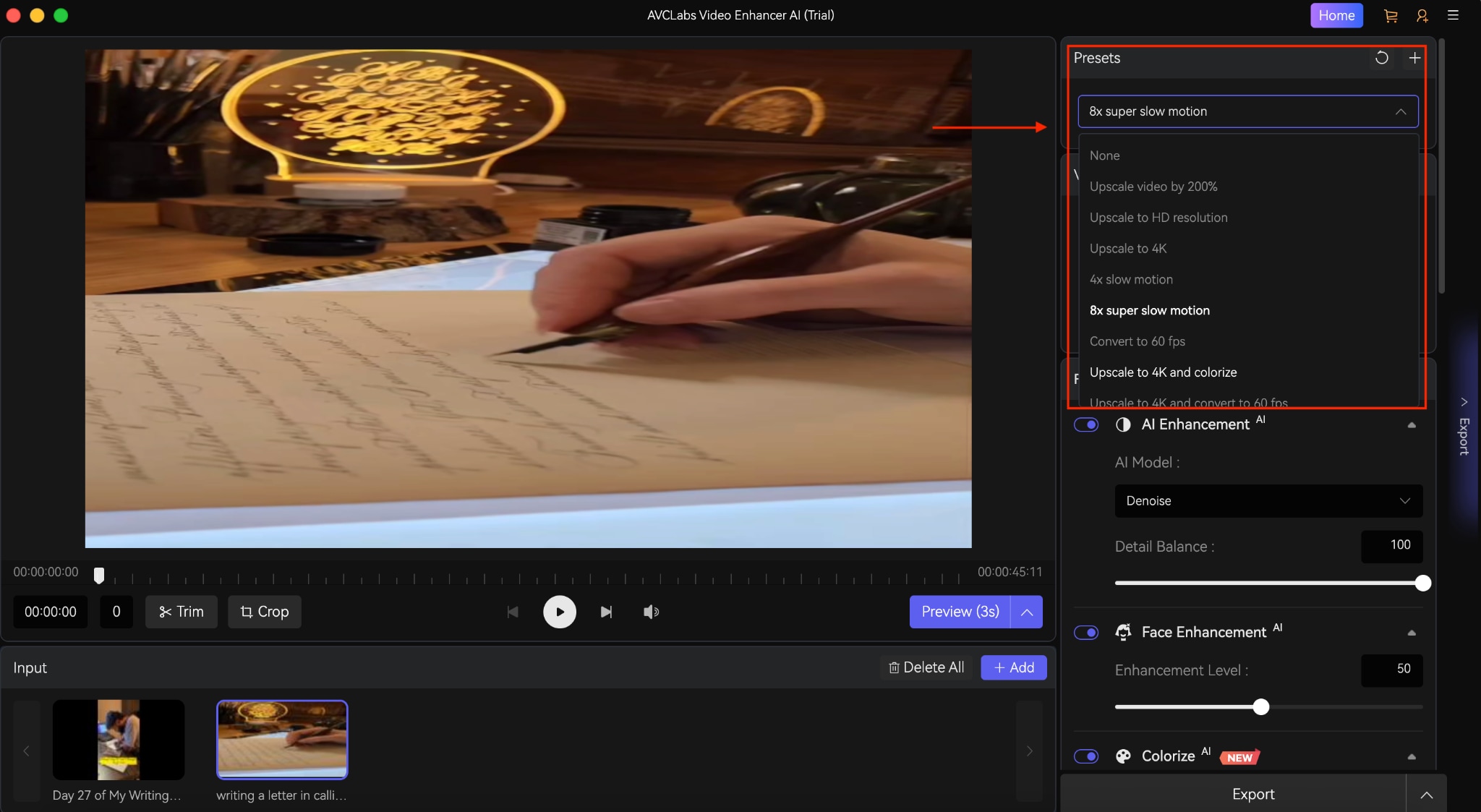
Step 2: Choose a resolution from "Presets."
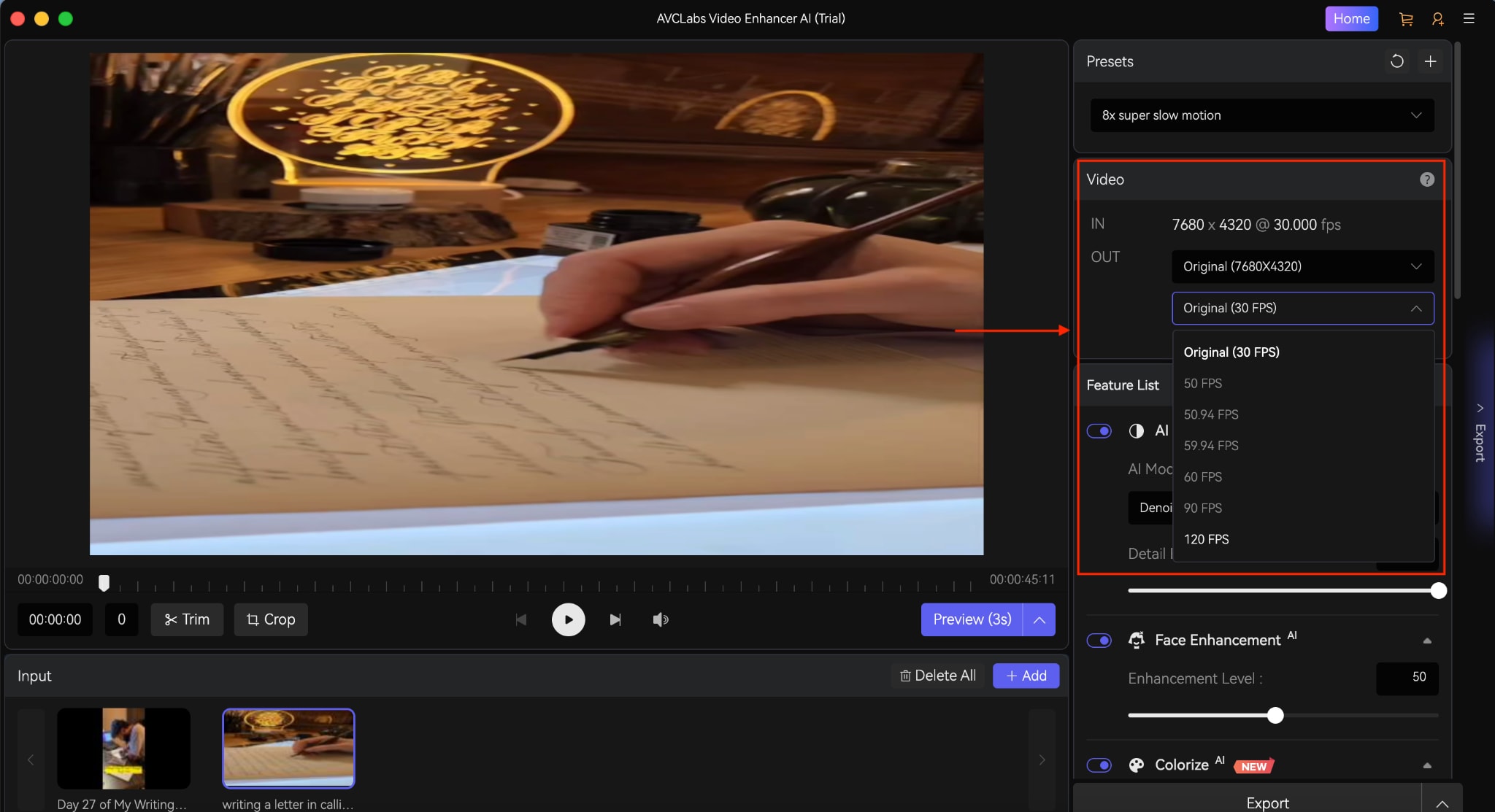
Step 3: Click the Video option, and here you can adjust output settings, such as Pixel, Scale, Aspect ratio, and more.
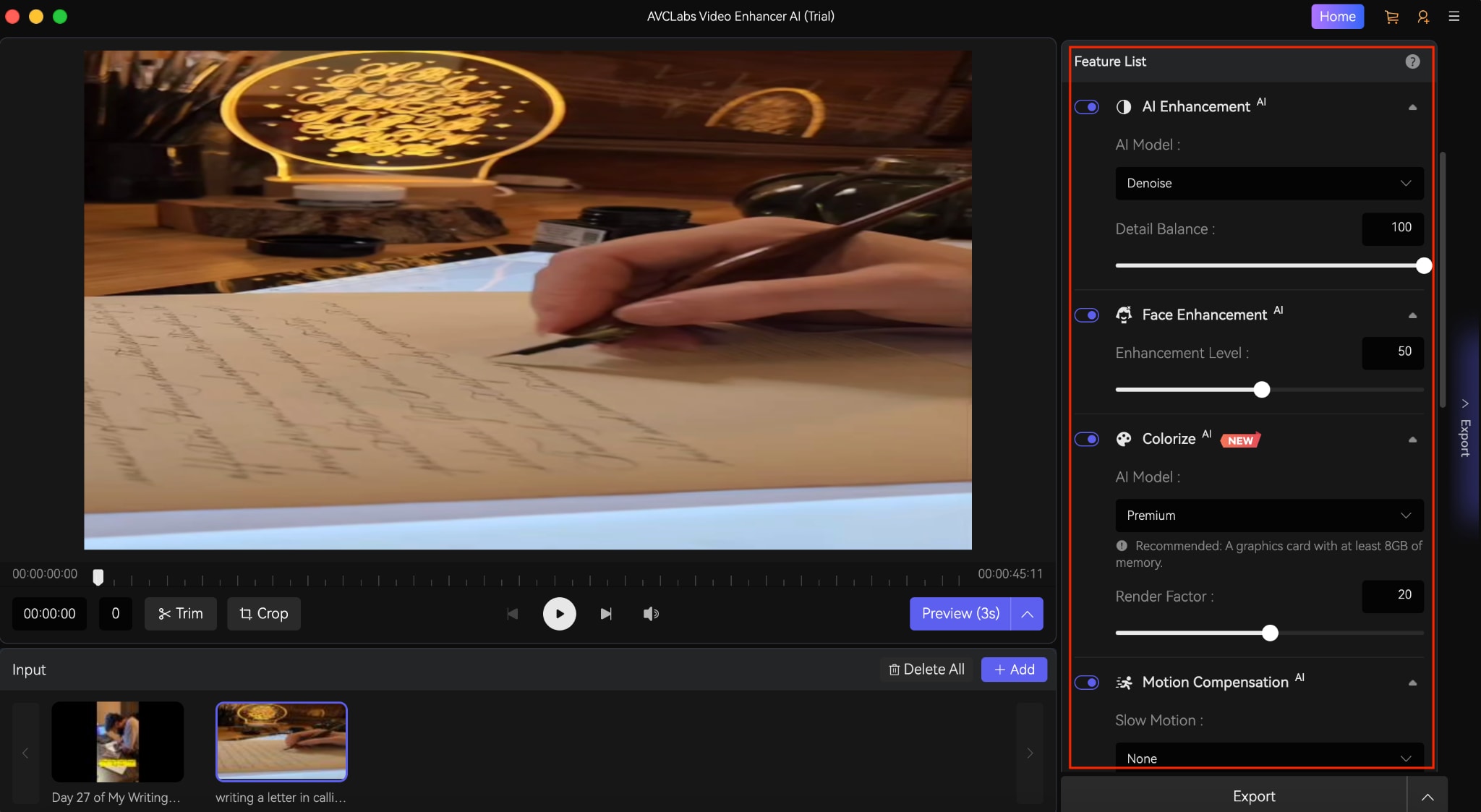
Step 4: From the "Feature List," you can choose AI enhancement tools like face enhancement, Colorize, SDR to HRD, and more.
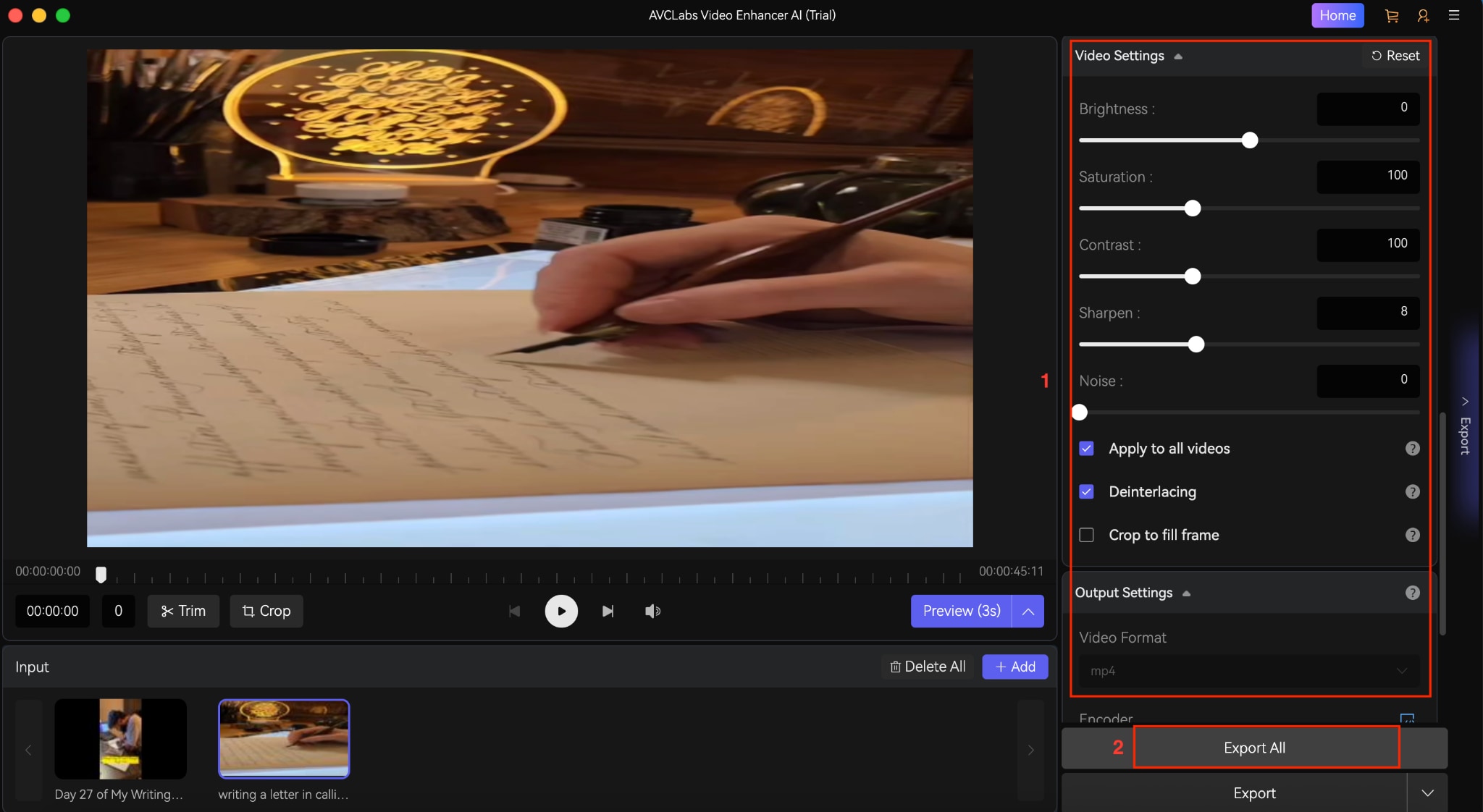
Step 5: Click on Video Settings and Output Settings to make further refinements to the video. You can preview the video before clicking "Export."
Part 4: AVCLabs Video Enhancer AI Pricing: Free vs. Full Version
Is AVCLabs Video Enhancer AI Free?
AVCLabs Video Enhancer AI offers a free trial, but it is not fully free software. You can download and test all AI models, including upscaling, denoising, face enhancement, and motion compensation.
However, in the trial version, exports are limited to 30 seconds per video. This restriction applies to both Windows and Mac. To remove the export limit and unlock unrestricted processing, you need to upgrade to the full version.
If you are searching for "AVCLabs Video Enhancer AI free," it refers to this trial version, not a permanently free plan.
AVCLabs Video Enhancer AI Full Version Pricing
The full version is available for both Windows and Mac at the same price. Each plan includes:
- 1 license for 1 PC
- Free updates
- 24/7 support
- Secure SSL payment processing
There are three purchase options:
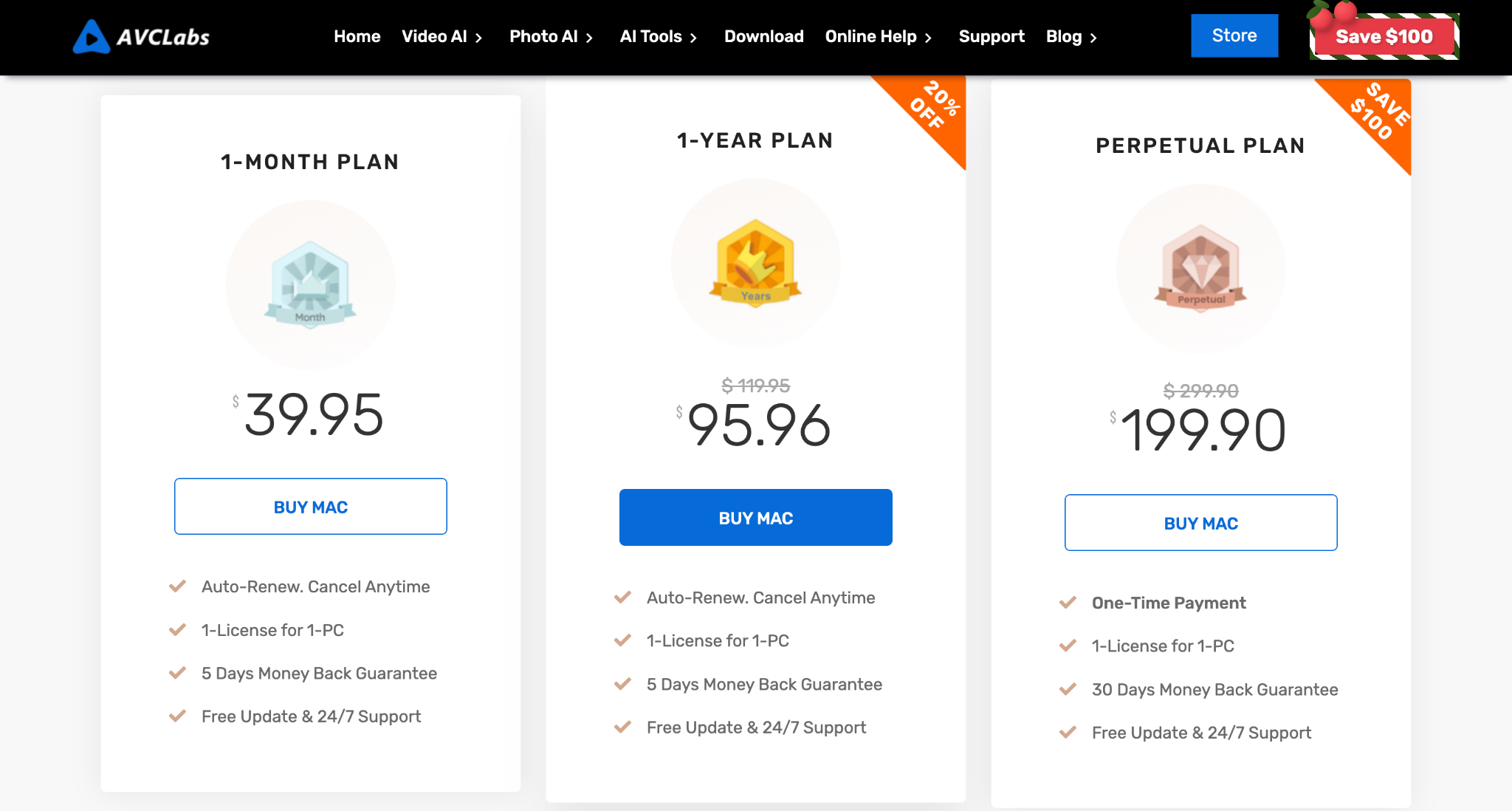
| Plan Type | Billing | Price | License | Refund Policy |
| 1-Month Plan | Auto-renew | $39.95 | 1 PC | 5-day money-back guarantee |
| 1-Year Plan | Auto-renew | $95.96 (discounted from $119.95) | 1 PC | 5-day money-back guarantee |
| Perpetual Plan | One-time payment | $199.90 (discounted from $299.90) | 1 PC | 30-day money-back guarantee |
The monthly and yearly plans renew automatically unless canceled. The perpetual plan is a one-time payment and does not auto-renew.
Both Mac and Windows versions follow the same pricing model under their respective purchase pages.
When you upgrade from the trial version, the 30-second export limit is removed, and you can process full-length videos without restriction. All AI enhancement models remain accessible, and your license includes free software updates along with 24/7 support. After purchasing, you can also request access to AVCLabs' online tools using your order information.
If you are comparing AVCLabs Video Enhancer AI full plans, the main difference between the subscription and lifetime options is the payment structure. A monthly plan suits short-term or occasional projects, while the lifetime license is generally more cost-effective if you plan to restore or upscale videos regularly.
Is the Portable Version Available?
No. If you are searching for "AVCLabs Video Enhancer AI portable," there is currently no official portable version available. AVCLabs Video Enhancer AI is distributed only through standard installers for Windows and macOS. The legitimate options are the full desktop installer and the free trial version, which includes all AI models but limits exports to 30 seconds.
AVCLabs has publicly warned against unofficial portable or cracked builds circulating online. These versions are not authorized and may expose your system to malware, unstable performance, corrupted outputs, or licensing issues. If you need something lightweight and don't want to install anything, the safer alternative is to use AVCLabs' official online tools rather than downloading third-party portable packages. For security and ongoing updates, it is recommended to download only from the official AVCLabs website.
Refund Policy and Customer Support Experience
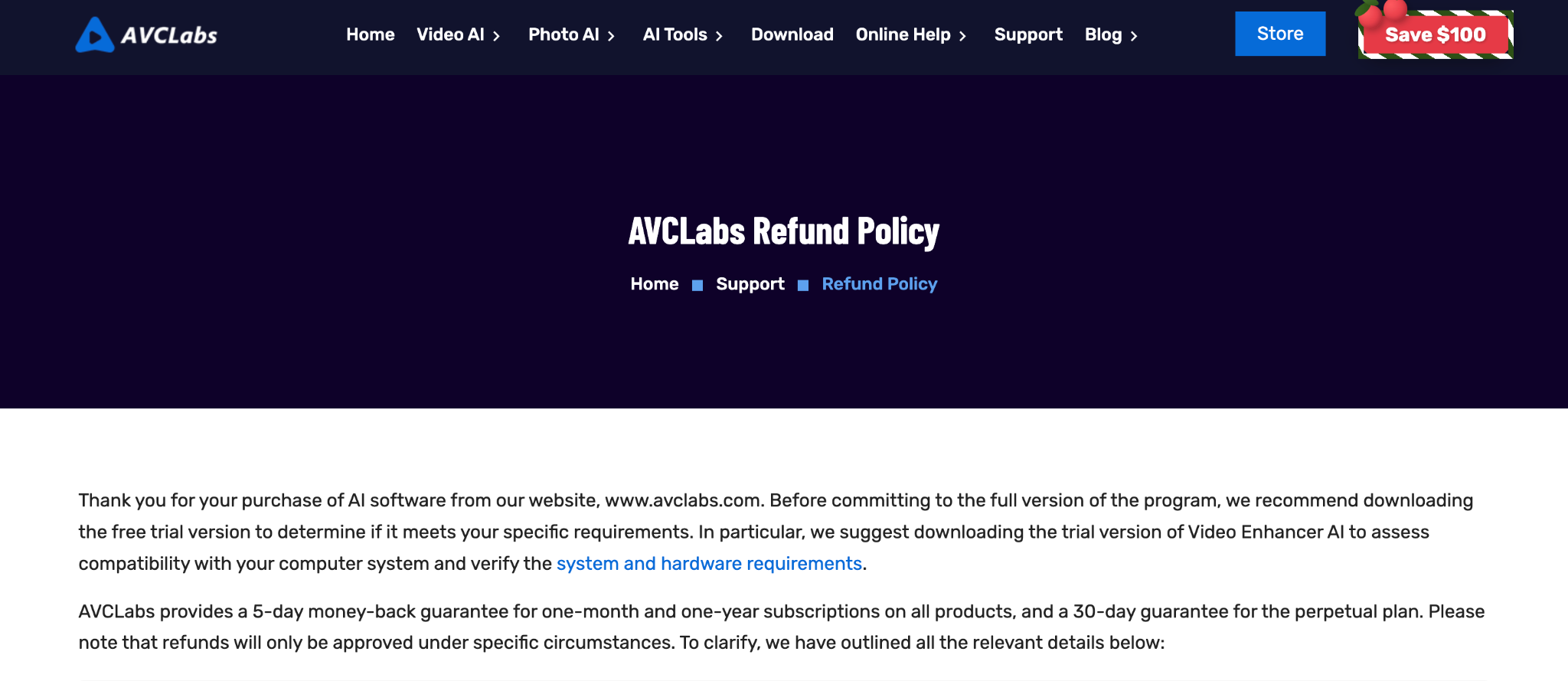
AVCLabs offers a clear refund policy based on the plan you purchase. Monthly and yearly subscription plans come with a 5-day money-back guarantee, while the perpetual lifetime license includes a 30-day money-back guarantee.
The company states that users are expected to test the free trial before purchasing, and that refunds are granted under specific conditions, such as unresolved technical issues or accidental purchases of the wrong product within the guarantee window.
Subscriptions renew automatically by default, but cancellation can be completed through the purchase email link or by contacting support. Each paid plan includes free updates and 24/7 customer support.
On Trustpilot, AVCLabs currently holds an overall rating of around 4.2 out of 5, indicating generally positive feedback but with some notable criticism. Many users praise the video enhancement quality and mention helpful support responses. However, negative reviews often focus on refund disputes, auto-renewal concerns, slow response times, and dissatisfaction with output quality on certain footage or lower-end hardware.
This mixed feedback suggests that while a majority of customers report good results, refund expectations and performance limitations can lead to frustration in specific cases. If you are considering a subscription, it is wise to test the trial carefully, review the refund terms in advance, and monitor renewal timelines closely.
Part 5: Pros and Cons of AVCLabs Video Enhancer AI
Here is a clear breakdown of where the software performs well and where you may face limitations.
Part 6: AVCLabs Video Enhancer AI vs. Wondershare UniConverter Video Enhancer
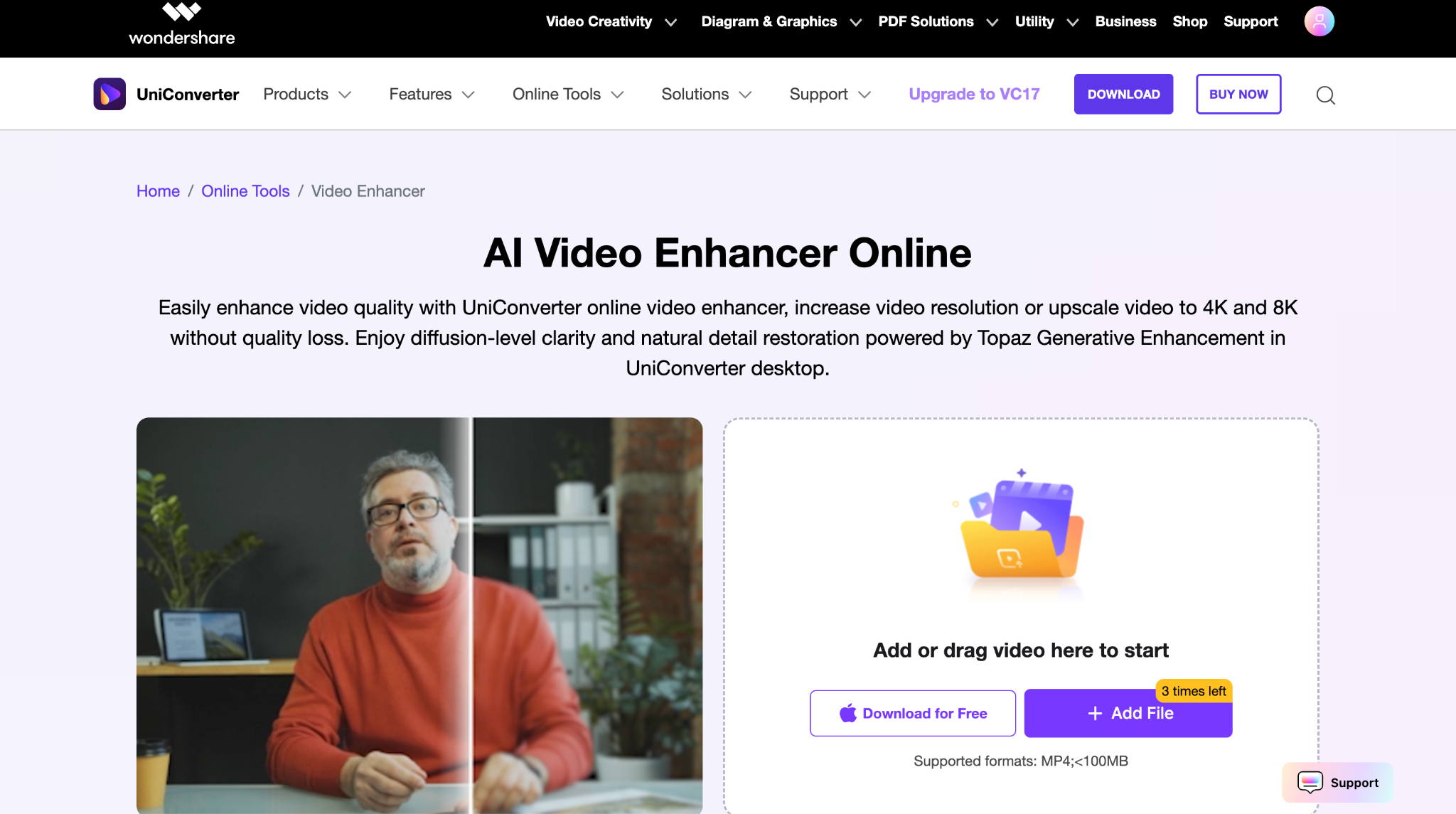
If you are comparing dedicated AVCLabs Video Enhancer AI restoration with an all-in-one video tool like Wondershare UniConverter, the differences become clear when you look at their quality focus, performance, pricing structure, and workflow design.
Best Alternative to AVCLabs Video Enhancer AI
Quality Comparison Between AVCLabs and Wondershare UniConverter
AVCLabs Video Enhancer AI is built specifically for restoration and upscaling. Its AI Enhancement, Face Enhancement, Denoise, Colorize, Motion Compensation, and stabilization tools are designed to improve low-resolution, noisy, or older footage. The multi-frame models are designed to preserve motion consistency, and face refinement is one of their strongest areas when working with portrait content.
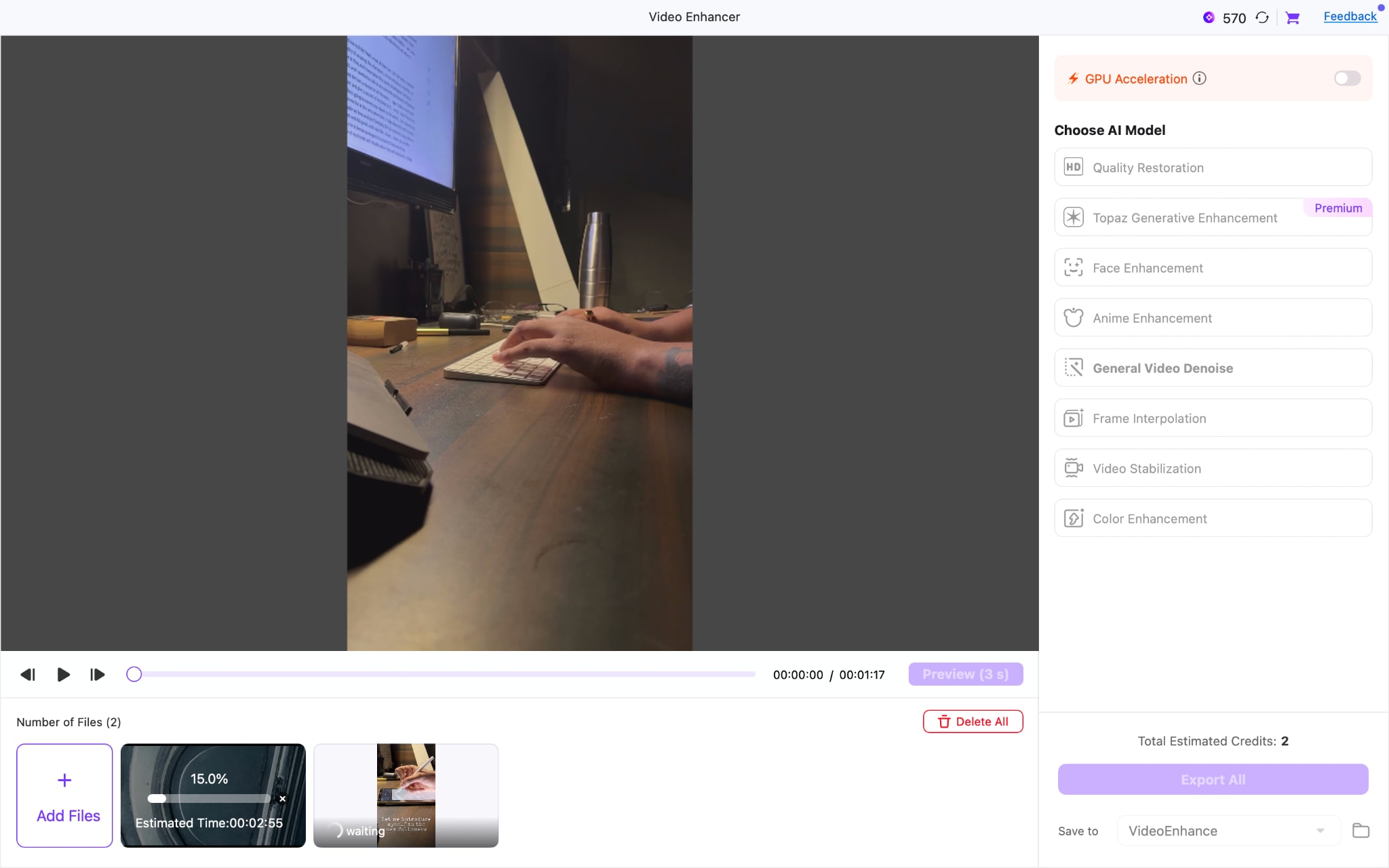
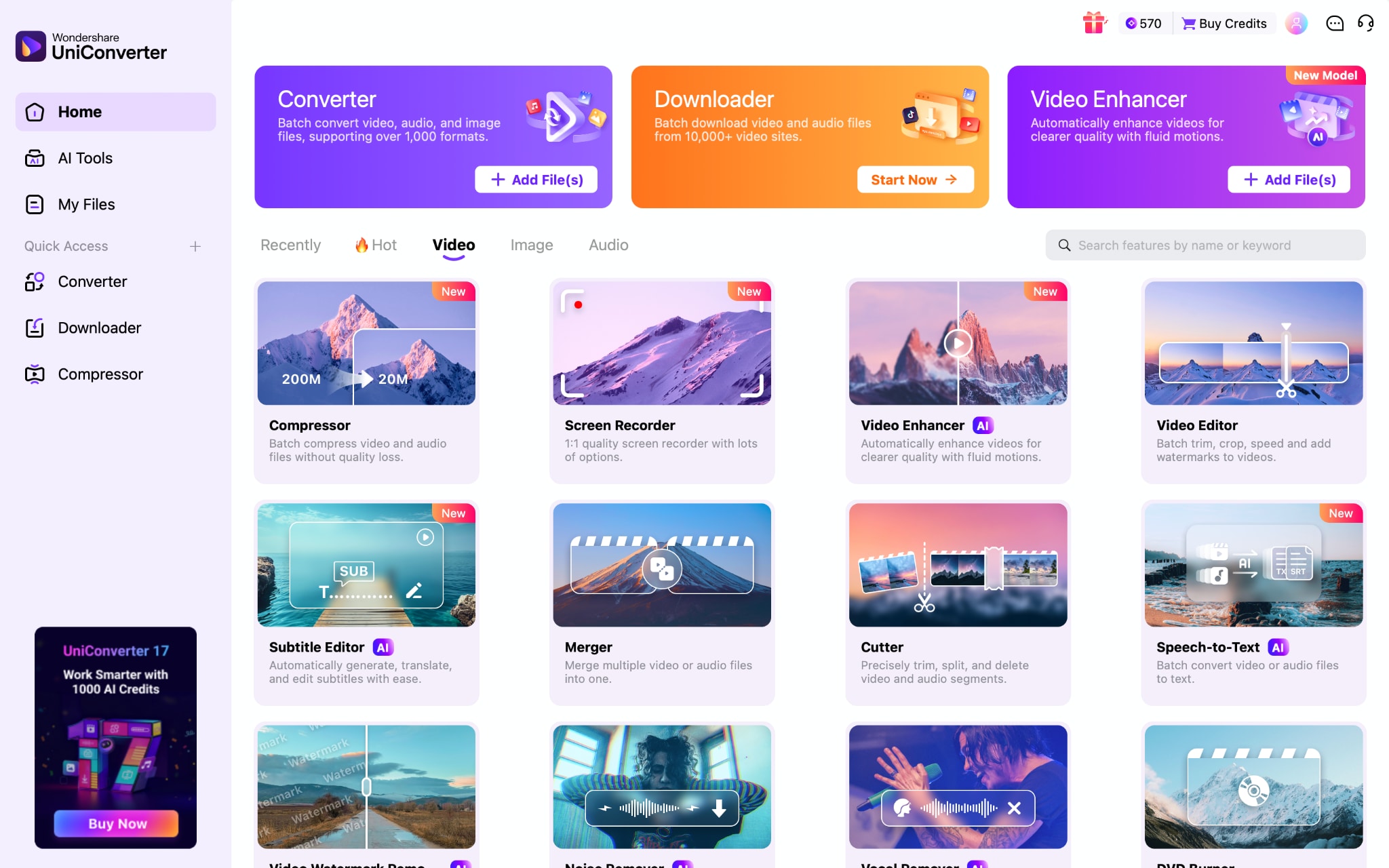
Wondershare UniConverter, on the other hand, is a broader media suite. It includes an AI Video Enhancer that supports 4K and 8K upscaling, denoise, anime enhancement, frame interpolation, and even Topaz-powered generative enhancement in premium mode. However, enhancement is one part of a much larger system that also handles conversion, compression, downloading, recording, subtitles, and more.
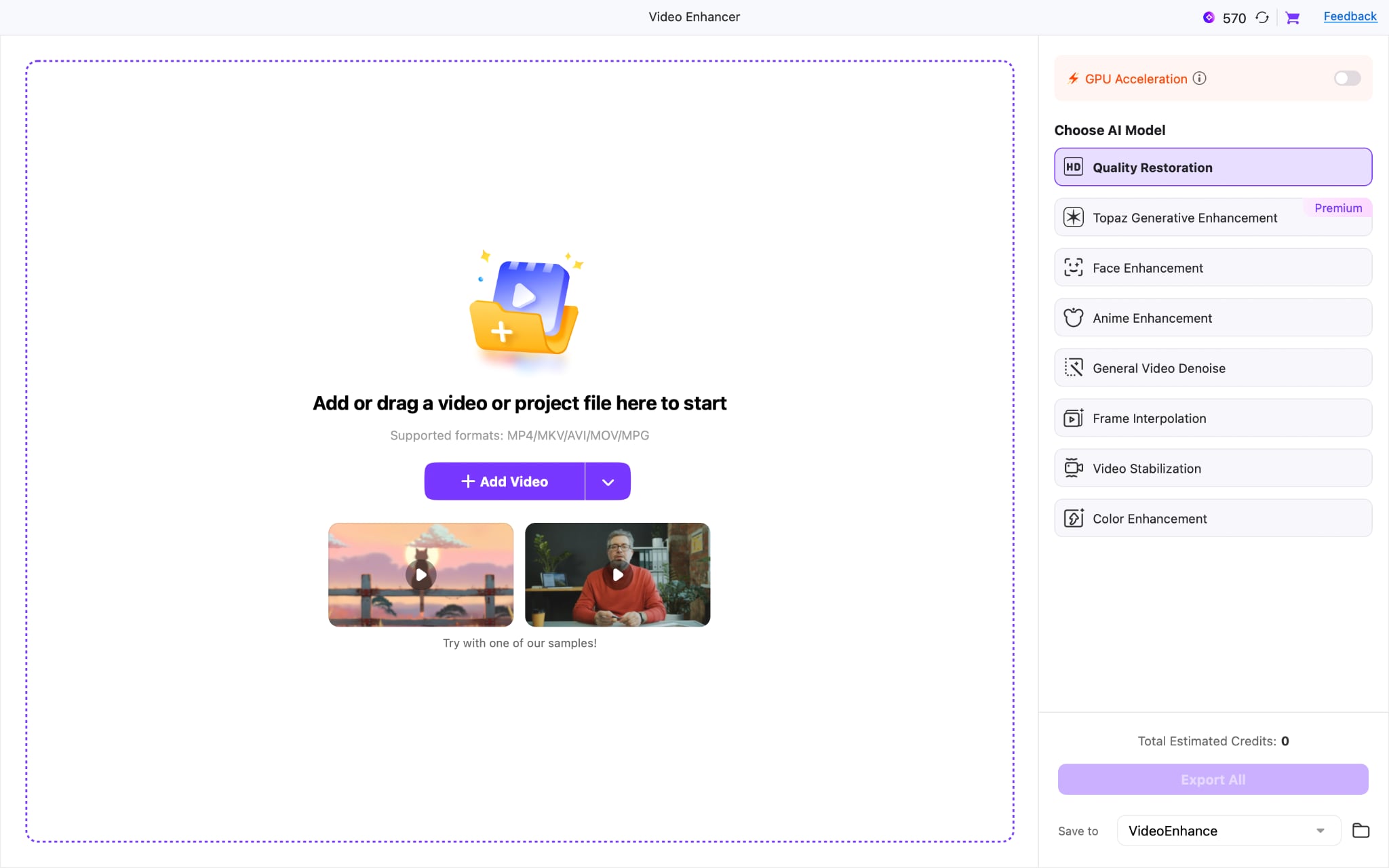
If your primary goal is deep restoration of old or damaged footage, AVCLabs feels more specialized. If you need a general improvement tool within a conversion and editing ecosystem, Wondershare UniConverter offers greater versatility in a single application.
Performance and Speed
AVCLabs is heavily optimized for NVIDIA GPUs. With TensorRT acceleration on RTX 20-series or newer cards, rendering speed improves significantly, especially in version 3.2 and above. Multi-Frame and Ultra models demand at least 6 GB of VRAM for stable performance, and systems without strong GPUs can experience long processing times. In testing, enhancing a 1-minute 1080p clip with multi-frame upscaling took approximately 5 to 10 minutes on mid-range hardware.
Wondershare UniConverter also supports GPU acceleration across NVIDIA, Intel, and AMD hardware. It promotes conversion speeds up to 130× faster for format changes and compression tasks. AI video enhancement operates on a credit system, and processing speed depends on the selected AI feature and available hardware. In comparison testing, enhancing and exporting a 3-minute video took up to 5 minutes under similar system conditions.
Price Comparison
AVCLabs follows a straightforward pricing structure:
- 1-Month Plan: $39.95 with auto-renewal
- 1-Year Plan: $95.96 discounted from $119.95 with auto-renewal
- Perpetual Plan: $199.90, discounted from $299.90 as a one-time payment
The monthly and yearly plans include a 5-day money-back guarantee, while the lifetime license includes a 30-day guarantee. All plans are licensed for one PC.
Wondershare UniConverter uses a hybrid model combining software access and AI credits:
- Yearly Plan: $49.99 per year
- 2-Year Plan: $69.99
- Perpetual Plan: $79.99 one-time
However, AI Video Enhancer features consume AI credits. Plans include a one-time credit allocation, such as 600 or 1000 credits, depending on tier. Enhancement minutes, photo enhancement counts, subtitle generation, and watermark-free exports are tied to these credits. Additional AI credits require a separate purchase.
In practice, AVCLabs provides unlimited AI processing once licensed. Wondershare UniConverter offers lower upfront software pricing, but ongoing AI enhancement depends on credit availability.
Best Alternative to AVCLabs Video Enhancer AI
Workflow Usability and Learning Curve
AVCLabs keeps nearly everything on one configuration screen. You import a clip, select the AI model, adjust resolution or frame rate, preview, and export. The interface feels focused and minimal, which makes restoration workflows straightforward.
Wondershare UniConverter organizes dozens of tools in a left-side panel and groups them into modules. You can convert, compress, edit, download, record, generate subtitles, and enhance within the same software. This flexibility is useful, but it requires more navigation and switching between panels.
If your workflow is mainly "restore and upscale," AVCLabs provides a simpler path. If you prefer having conversion, compression, subtitles, and enhancement in one ecosystem, Wondershare UniConverter offers a broader toolkit.
The choice depends on what matters more in your setup. AVCLabs prioritizes dedicated AI restoration with unlimited processing once licensed. Wondershare UniConverter prioritizes versatility and conversion efficiency, with AI enhancement operating within a credit-based system.
FAQs Related to AVCLabs Video Enhancer AI
Is AVCLabs Video Enhancer AI Safe to Use?
AVCLabs Video Enhancer AI is safe when downloaded from the official avclabs.com website, as it processes videos locally with no cloud uploads or data exposure risks. Avoid cracked or third-party versions, which may contain malware.
Does AVCLabs Add a Watermark?
Yes, the free trial adds a watermark and limits exports to 30 seconds per video, allowing full feature access for testing. Purchase removes these restrictions.
Why Is AVCLabs Processing So Slow?
Processing is slower on AMD, Intel, or Apple Silicon GPUs compared to NVIDIA RTX cards with TensorRT acceleration; Ultra Multi-Frame models take 3x longer than Standard. You should use compatible hardware for the best speed.
Can It Fix Very Old or VHS Videos?
It improves old analog footage like VHS by denoising grain, upscaling resolution, stabilizing shake, and colorizing black-and-white clips, but results vary, except for visible enhancements, not perfection on severely degraded sources.
Is AVCLabs Better Than Free AI Video Enhancers?
AVCLabs offers superior detail recovery, face enhancement, and denoising over free online tools like AVCLabs' own web enhancer or open-source options, with no upload limits, though free trials have watermarks and export caps.
Final Verdict: Is AVCLabs Video Enhancer AI Worth It?
Serious video restoration requires more than basic upscaling, and that is where AVCLabs positions itself. In this AVCLabs Video Enhancer AI review, the software stands out for dedicated multi-frame models, face enhancement, and strong denoise performance, particularly on SD and early HD footage. Processing speed depends heavily on hardware, especially NVIDIA RTX GPUs, and pricing is higher than that of many general editing tools.
In comparison, Wondershare UniConverter offers broader functionality with a credit-based AI system that suits mixed workflows. The better choice depends on whether the priority is deep restoration or an all-in-one media toolkit. Testing the free trial first is a practical way to evaluate results on real footage before committing to a paid plan.

