Identity
Faces & Bystanders
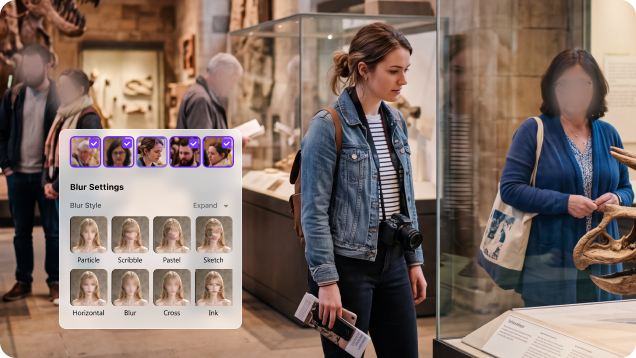
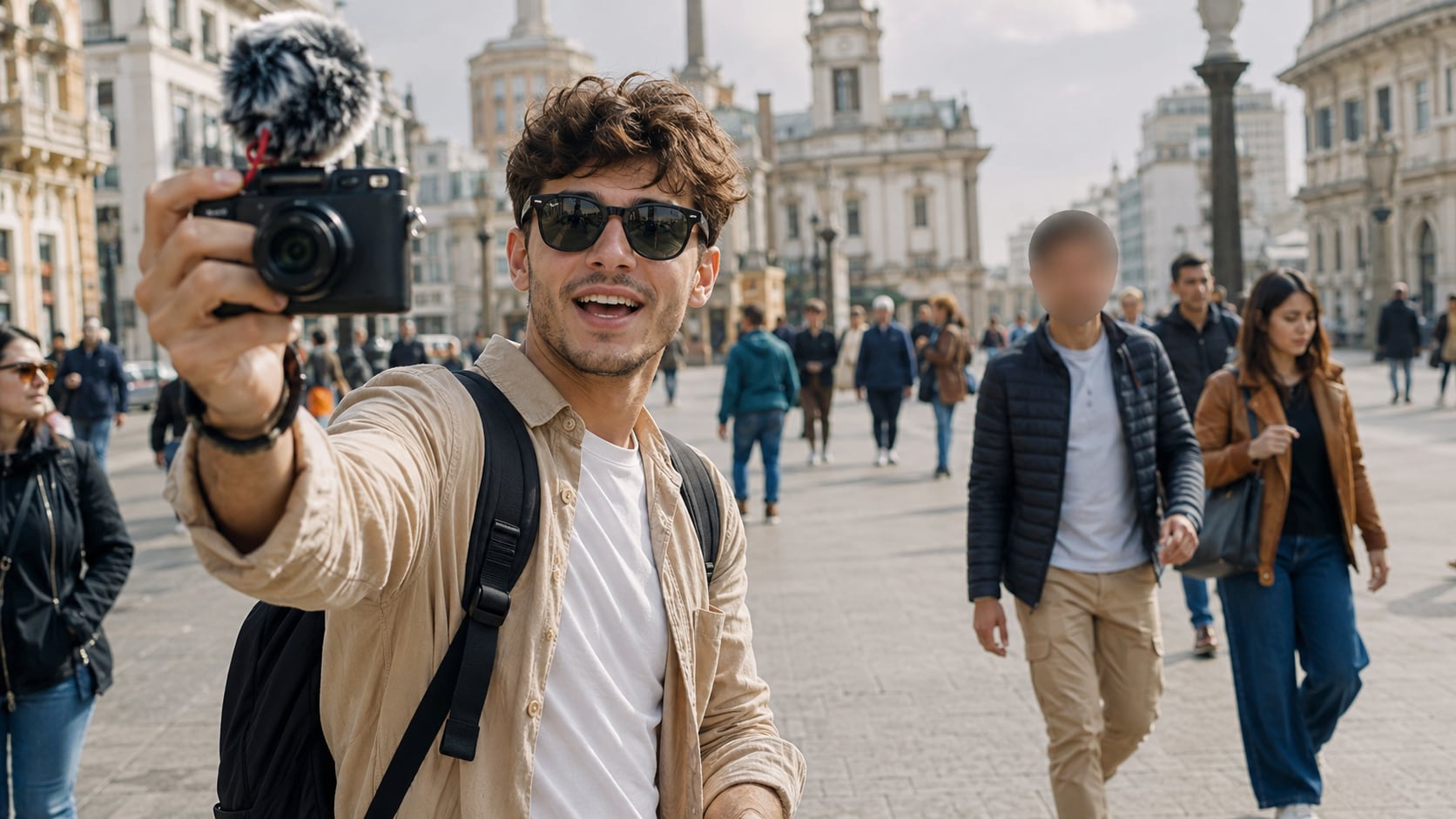
Detect people automatically, then censor a selected person, several people, or every detected face.
Choose only the person, object, text, or surrounding area that should be concealed. UniConverter combines automatic face detection with user-selected object tracking for different visual privacy tasks.
Detect people automatically, then censor a selected person, several people, or every detected face.
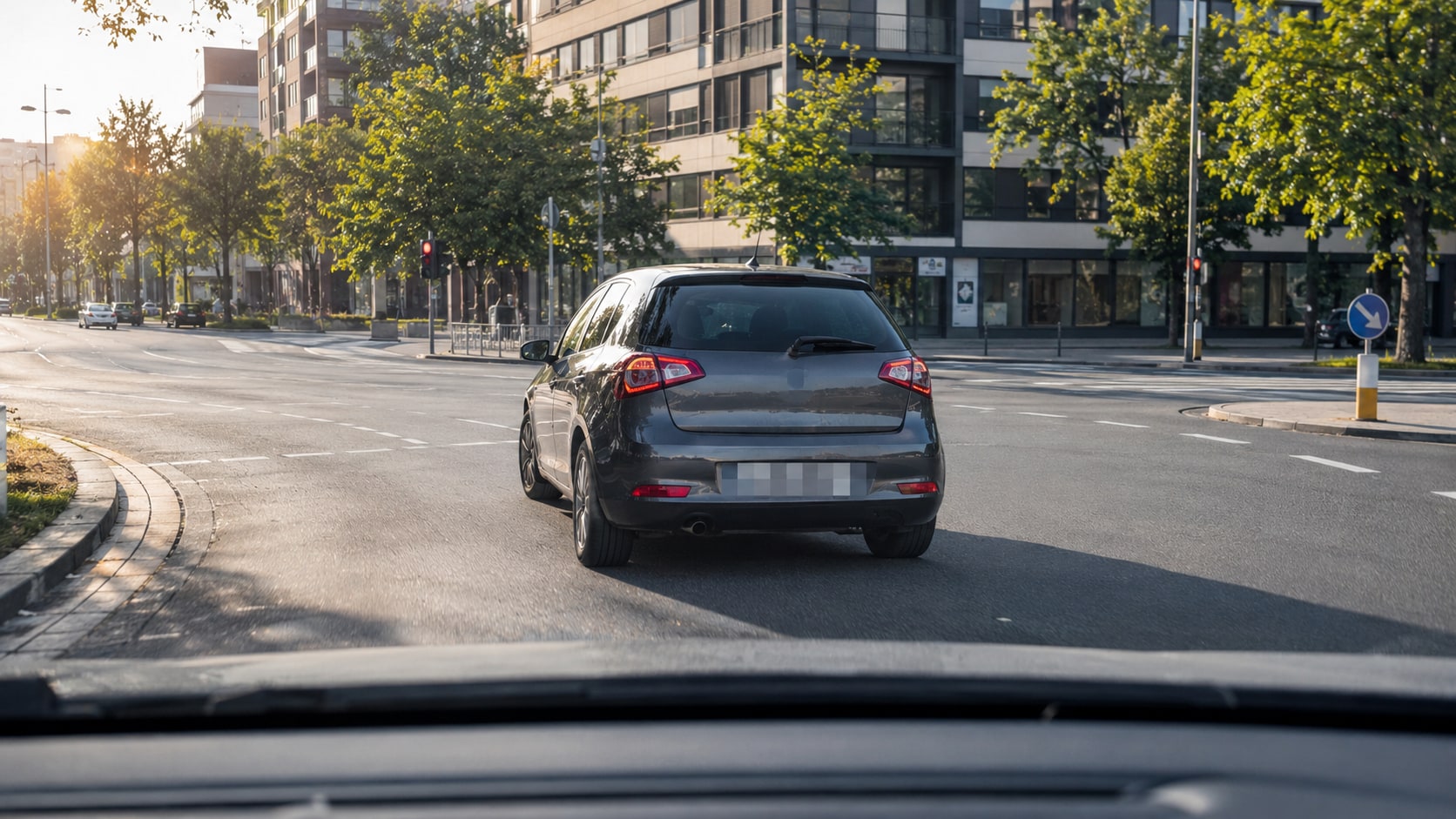
Draw a box around a plate and let object tracking keep the censor aligned while the vehicle moves.
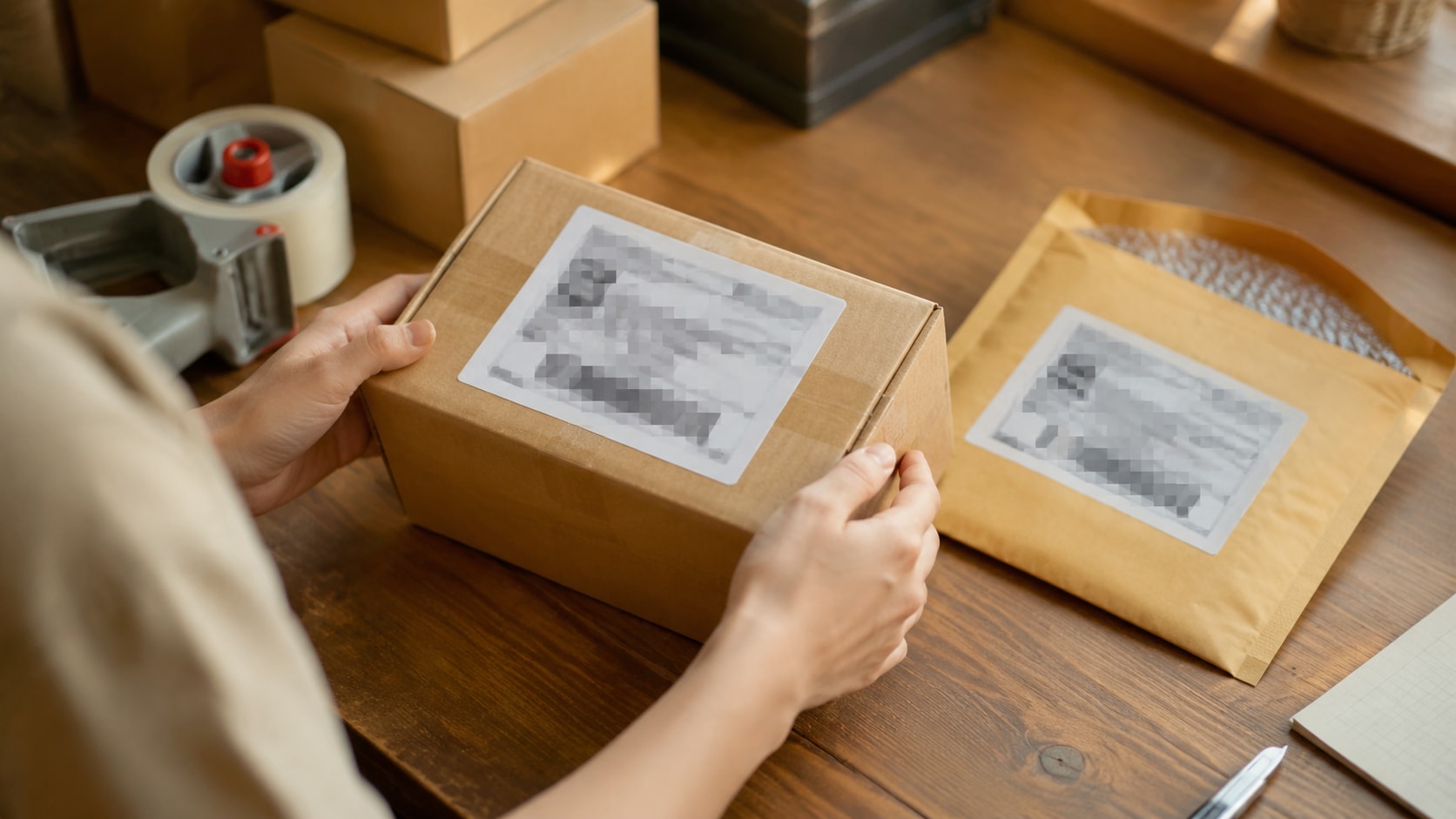
Conceal addresses, shipping labels, emails, account details, API keys, prices, or other readable information.
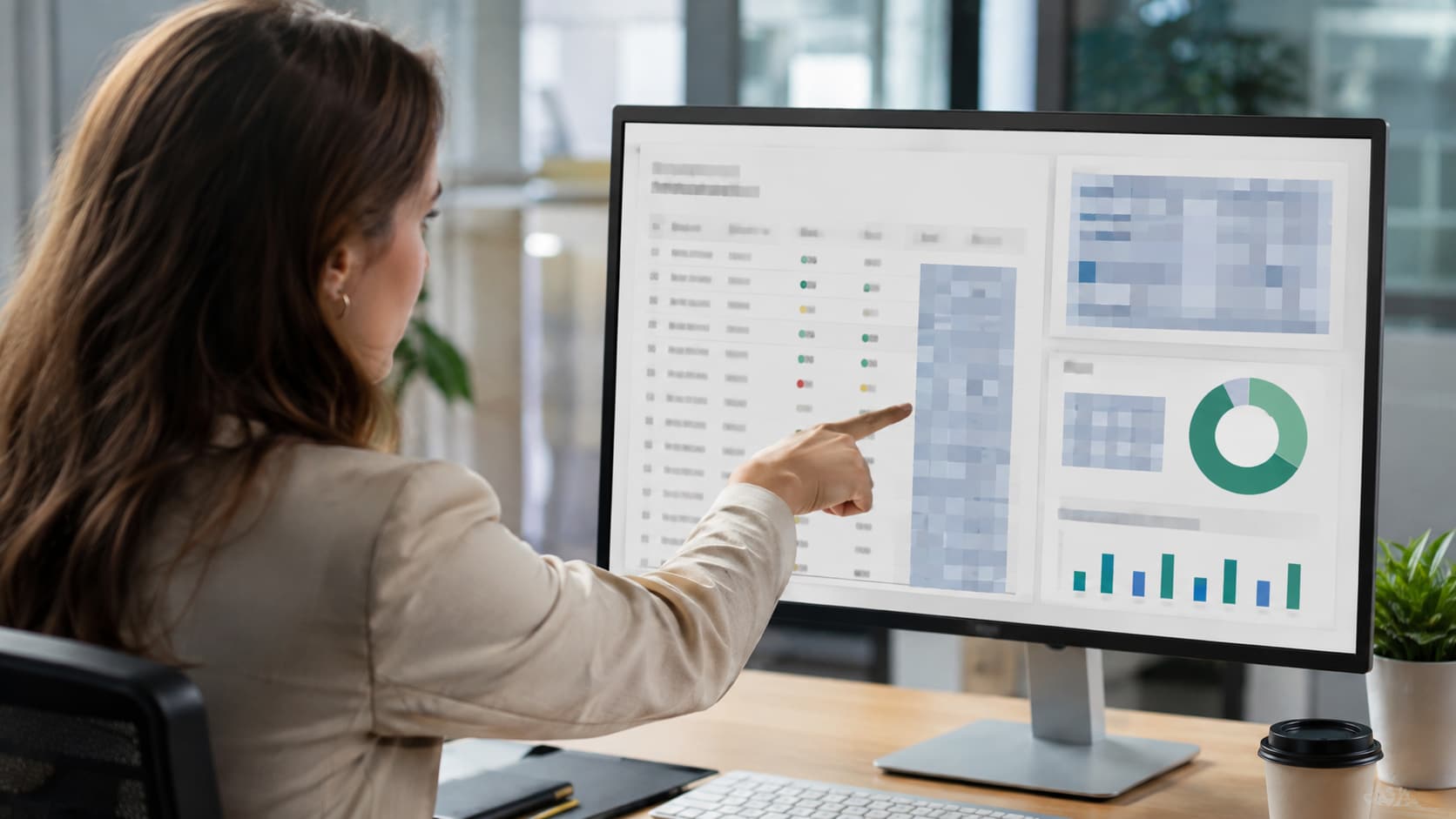
Cover computer screens, phones, dashboards, contracts, whiteboards, badges, or forms without recording again.
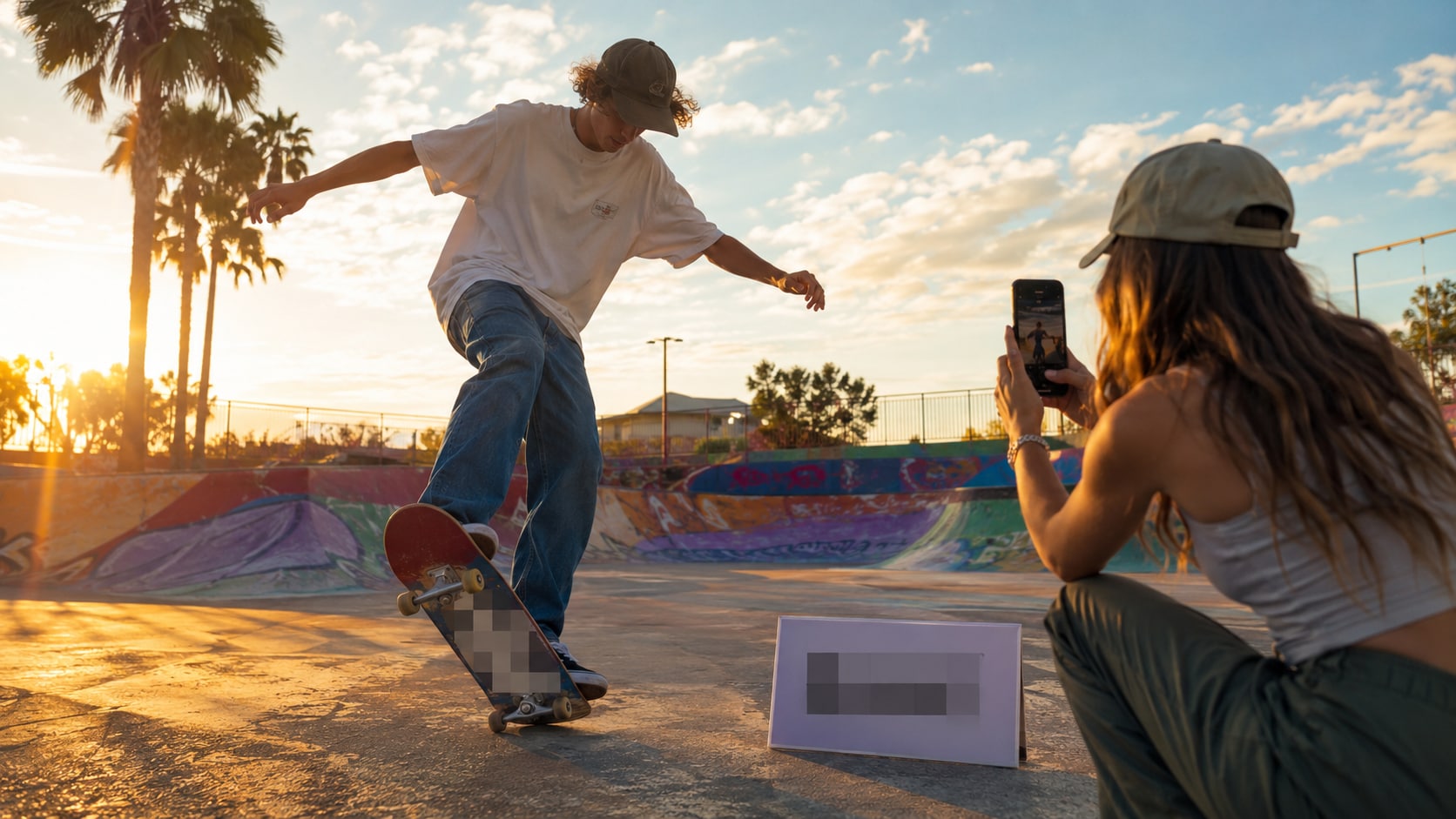
Hide platform handles, profile names, labels, brand marks, or other identifiers in reused footage.
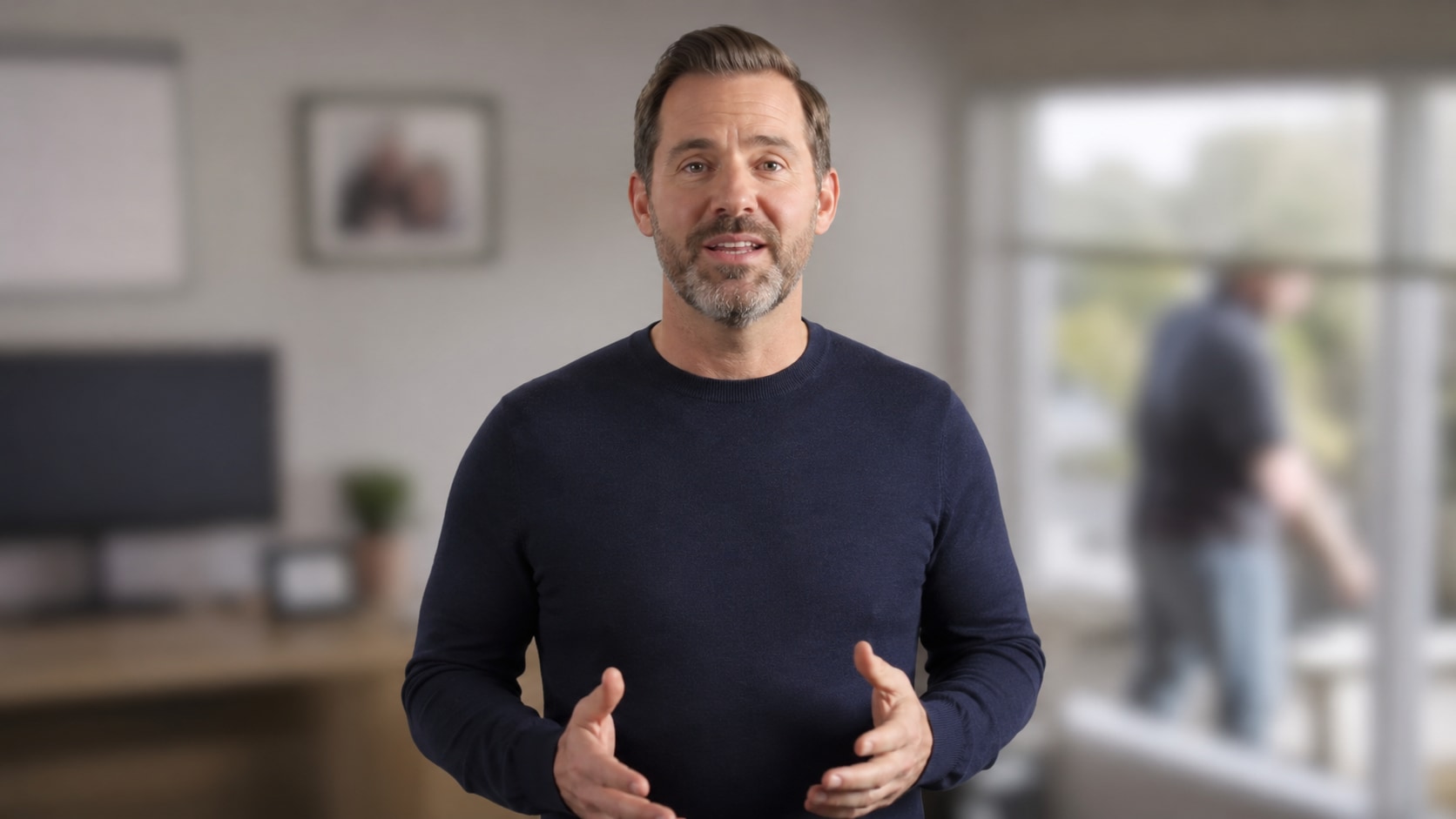
Use Reverse to keep the selected subject clear while hiding a room, address clues, monitors, or bystanders around it.
Automatic video censoring should reduce manual repositioning without removing the review step. Select the right mode, customize the effect, and confirm coverage before export.
AI scans the footage and shows detected face thumbnails. Choose one face, multiple faces, or all detected faces instead of locating the same person throughout the video by hand.
Draw a box around a plate, screen, label, username, document, badge, tattoo, or other target. AI follows the selected object so the censor area does not need to be repositioned frame by frame.
Choose from Particle, Smear, Pastel, Sketch, Horizontal, Blur, Cross, Ink, Mosaic, and Paint. Then adjust Strength, Feather, and Opacity to fit the sensitivity of the footage and the visual style of the edit.
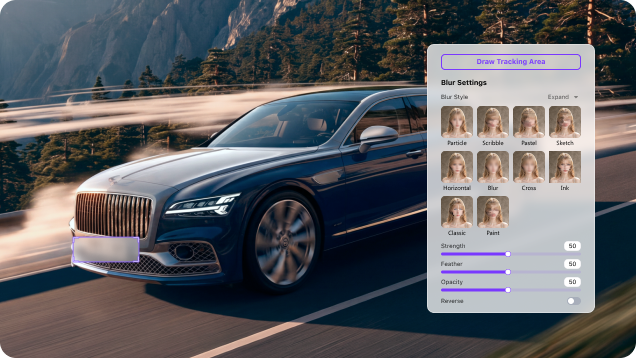
Add multiple files (coming soon in V18), review each clip, and export from the same desktop workflow. The original uncensored footage does not need to be uploaded to an unfamiliar online video censoring tool, and you can continue converting, compressing, trimming, or enhancing afterward.
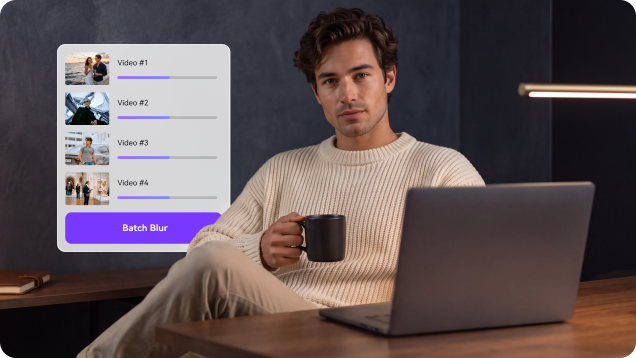
A useful censor video editor should match the effect to the target: a natural-looking blur, a clear broadcast-style mosaic, or a more creative cover. Always review small text and identifying details at the final export size.
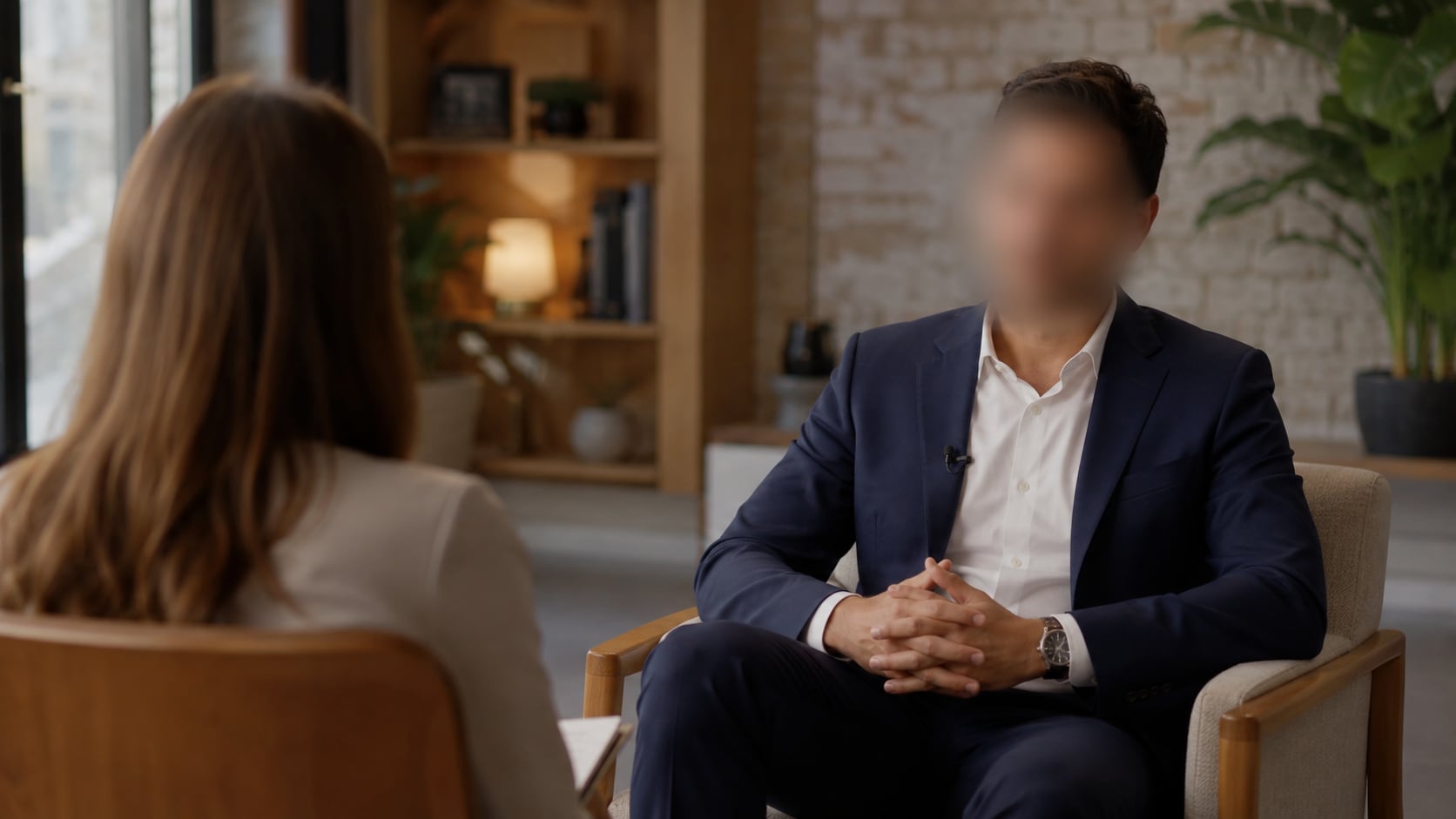
A softer option that blends into vlogs, interviews, tutorials, and professional footage without drawing as much attention to the covered area.
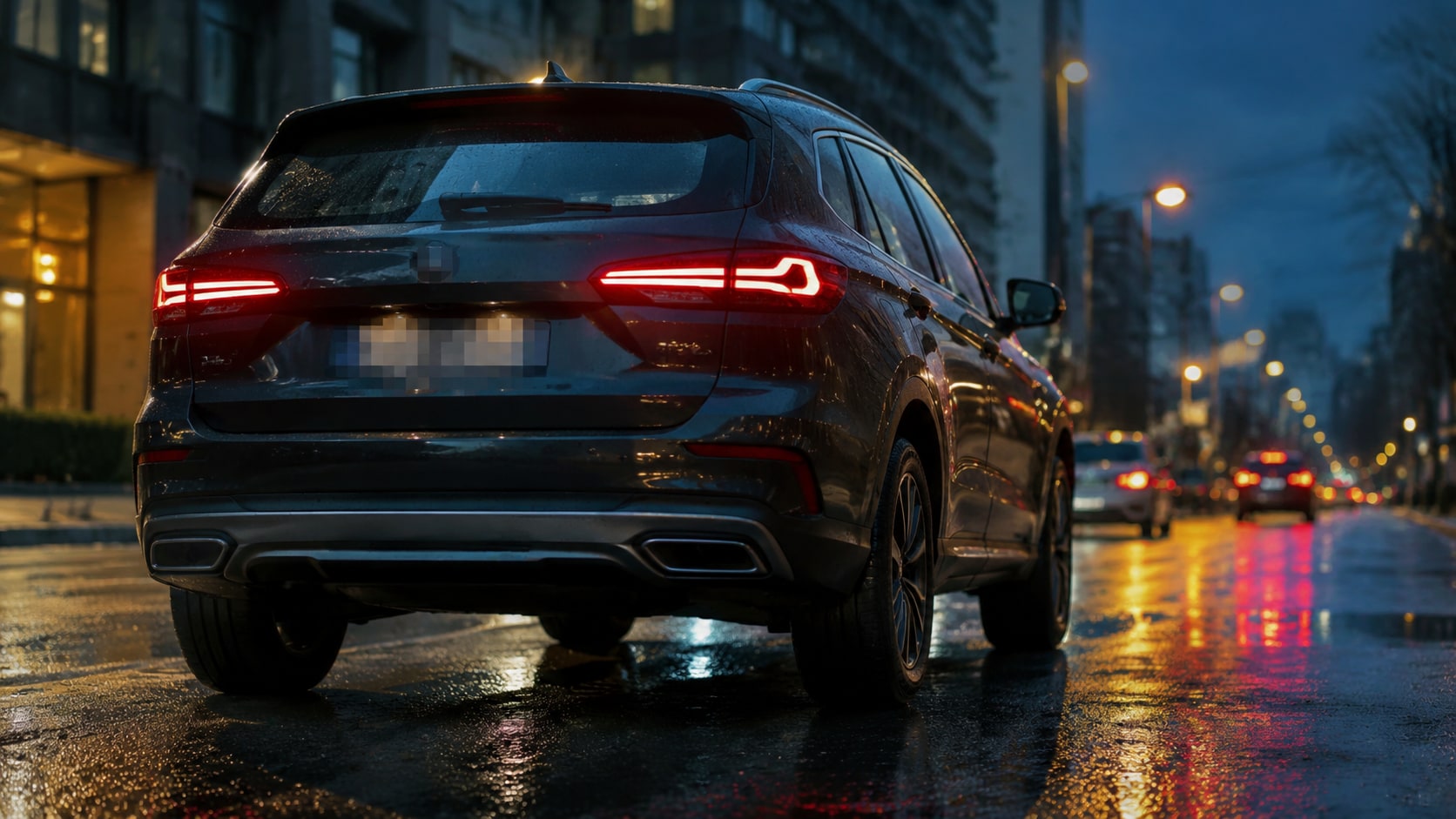
A visibly censored look commonly used for faces, license plates, text, and sensitive footage where the audience should immediately understand that content is hidden.
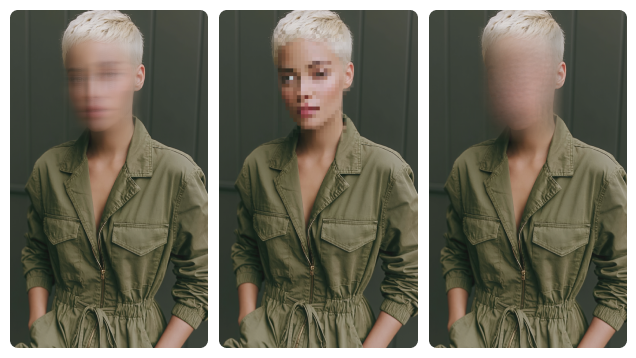
Particle, Smear, Pastel, Sketch, Horizontal, Cross, Ink, and Paint can make the covered area fit entertainment, social, or stylized content.
Important: A video censor effect obscures what viewers can see in the exported video; it does not remove the underlying detail from your original source file. Keep the uncensored original protected and verify the final export before publishing.
To add a censor to a video, use AI Face Blur mode when the target is a person. Use Object Tracking Blur mode when you need to censor another part of the video, such as a license plate, screen, label, username, or document.

Open AI Video Blur and import one video or add multiple clips to the file list.

Choose detected faces or box another target, then select a Blur Style and adjust Strength, Feather, and Opacity.

Check tracking and coverage, make any corrections, choose the save location, and export the censored video or batch.
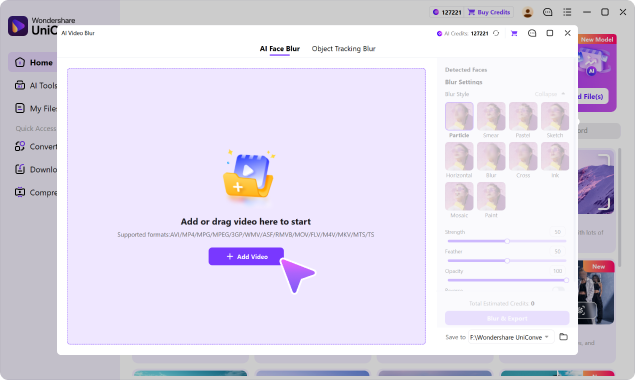
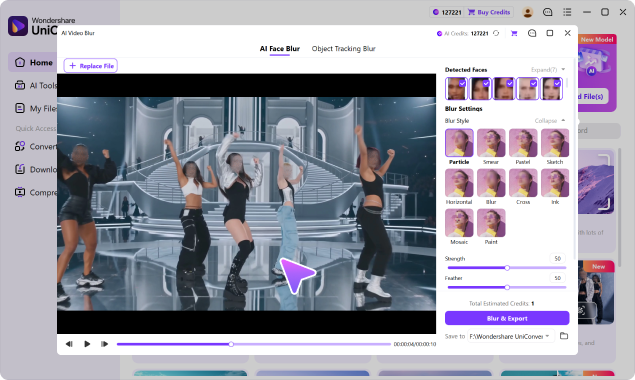
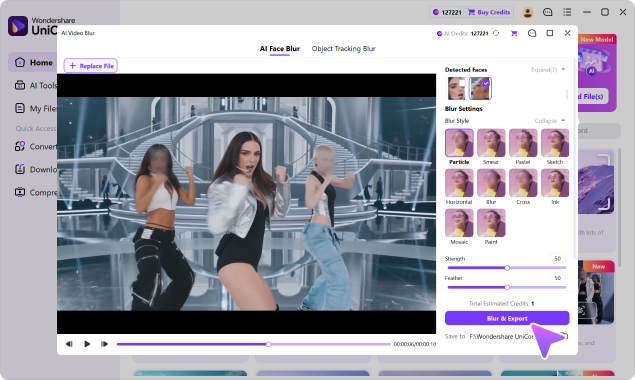
AI reduces repetitive masking, but the final privacy decision still belongs to the editor. Preview the processed clip and check the moments most likely to expose a target briefly.
Use visual censorship before footage is published, delivered, reviewed, or reused whenever the frame contains identities, records, locations, or details that should not be exposed.
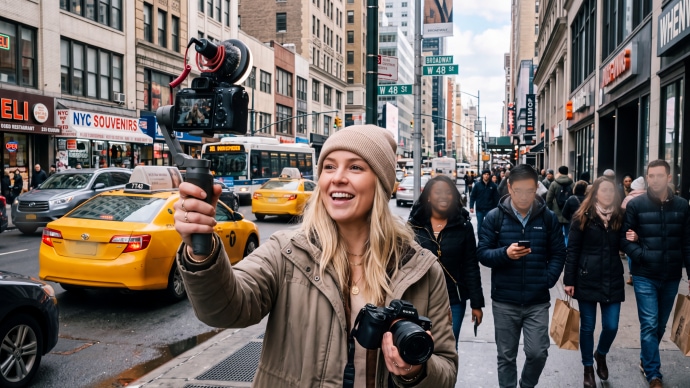
Censor bystanders, children, usernames, plates, or recognizable location details before posting public-space footage.
Choose the workflow based on what must be hidden, whether the target moves, how sensitive the original footage is, and how much manual masking you want to do.
| Visual Censoring Capability | UniConverter AI Video Blur | Typical Online Censor Tool | Traditional Video Editor |
|---|---|---|---|
| Automatic face detection | ✓ Select one, multiple, or all faces | Varies by tool | Often feature or plugin dependent |
| Keep censor on a moving object | ✓ AI tracks the selected target | Available in some tools | Possible with tracking setup or keyframes |
| Censor faces, plates, screens, text & custom targets | ✓ Face detection plus user-selected objects | Target support varies | ✓ Possible with masks |
| Effect and edge control | ✓ 10 Blur Styles, Strength, Feather, Opacity | Often limited; varies by tool | ✓ Usually flexible |
| Process uncensored source footage without browser upload | ✓ Local desktop workflow | Usually requires an upload; handling varies | ✓ With desktop editors |
| Work through multiple video files | ✓ Multi-file workflow | Often limited by file count, size, or plan | Depends on the editor and setup |
| Preview coverage before export | ✓ Built into the workflow | Commonly available | ✓ Available |
| Continue converting, compressing, trimming, or enhancing | ✓ In the same application | Usually focused on browser editing | ✓ Editing-focused workflow |
| Automatic profanity or bleep detection | Not part of AI Video Blur | Available in some audio-focused tools | Possible manually or with separate tools |
“Typical Online Censor Tool” describes common browser-based workflows; detection, tracking, file limits, privacy handling, and export rules vary by provider.
“Censor video” can describe two different jobs: hiding something viewers can see or masking something they can hear. UniConverter AI Video Blur is built for visual censoring—placing an effect over a face, object, text, or area and tracking the selected target when it moves.
Hide faces, plates, addresses, screens, documents, usernames, logos, and selected moving objects. UniConverter's AI Video Blur is designed for this workflow.
Supported by AI Video BlurMute spoken words or cover them with a bleep. AI Video Blur does not automatically detect profanity or censor speech, so use an audio-editing workflow when the problem is in the soundtrack.
Different workflow requiredThese are the supported capabilities relevant to this page. Exact processing time and tracking results depend on the footage, motion, target visibility, and computer.
Sticker is planned for V18. AI Video Blur is a visual masking feature; it does not automatically detect profanity, explicit content, or policy violations.
Direct answers about how to censor a video, automatically track moving targets, choose visual effects, review coverage, and understand what AI Video Blur does not censor.
Import the video, choose the face or area that should be hidden, apply a blur or mosaic effect, preview the coverage, and export. In UniConverter, use AI Face Blur mode for detected faces or Object Tracking Blur mode for another selected target.
It can automate visual censoring in two ways: AI detects faces for you to select, and object tracking follows another target after you draw a box around it. It does not automatically decide which content violates a policy.
Not in AI Video Blur. This feature censors visual details such as faces, plates, screens, and text. It does not automatically detect or bleep profanity in the audio track.
Select a detected face or draw a box around the specific part you need to conceal. The rest of the frame remains visible. Use Reverse only when you want to keep the selected subject clear and blur the surrounding background.
Use Object Tracking Blur mode, draw a box around the moving target, and let AI follow it through the clip. Preview moments with fast movement, overlap, or changes in angle before exporting.
Yes. AI detects multiple faces and lets you select one person, several people, or all detected faces for censorship.
You can select license plates, usernames, logos, screens, documents, badges, addresses, labels, tattoos, whiteboards, and other moving or stationary visual details.
No. Face detection and selected-object tracking reduce frame-by-frame repositioning. You should still preview the output and correct any moment where the target is not fully covered.
Yes. Add multiple videos to the UniConverter desktop workflow on Windows or macOS, review each clip, and export locally without sending the uncensored source files to an unfamiliar online censor site.
Use Blur for a softer and less distracting cover, Mosaic for a clearly censored look, or one of the creative Blur Styles for social or entertainment content. Increase Strength when identifying details need stronger concealment and always verify the final export.

Detect faces, track selected moving objects, adjust the censor effect, review coverage, and export a share-ready copy in one local desktop workflow.