UniConverter
UniConverter Online Free
Converter video, audio & image free
Free Try
Wondershare UniConverter AI Video Blur

Mosaic Video Editor: Add Mosaic to Faces & Moving Objects

Add a mosaic effect to faces, license plates, screens, usernames, logos, and other private details. UniConverter detects faces or tracks a target you select, keeping the mosaic aligned as it moves—without frame-by-frame keyframing.

  • Automatically detect one, multiple, or all faces
  • Track selected moving objects with a mosaic effect
  • Adjust style, strength, feather, and opacity before export
Available on:WM

For Windows 11/10/8/7

For macOS 10.13 or later

4.7Rated on Trustpilot
Quick Answer

What Is a Mosaic Video Editor?

A mosaic video editor covers a selected part of a video with visible pixel blocks. It is commonly used to hide faces, license plates, addresses, screens, documents, usernames, and other identifying details before a video is shared.

How UniConverter Creates a Video Mosaic

Open UniConverter AI Video Blur. Use AI Face Blur mode to detect faces automatically, or Object Tracking Blur mode to draw a box around another target. Choose a Mosaic style, review how it follows the subject, and export the censored copy.

Mosaic Effect, Not a Multi-Clip Collage

On this page, “mosaic video” means pixelating part of a video for privacy or visual censorship. If you want to arrange many clips into a tiled collage, that is a different video mosaic workflow.

Selective Video Mosaic

Add Mosaic to the Part of a Video You Need to Hide

Create a focused video mosaic without pixelating the entire frame. Select faces automatically or mark any other private area for AI-assisted tracking.

Mosaic Faces in Video

Detect people in the footage and apply mosaic to a selected face, several faces, or every detected face.

Mosaic a Moving Object

Draw a box around an object once and let AI keep the mosaic aligned as the target moves.

Mosaic License Plates

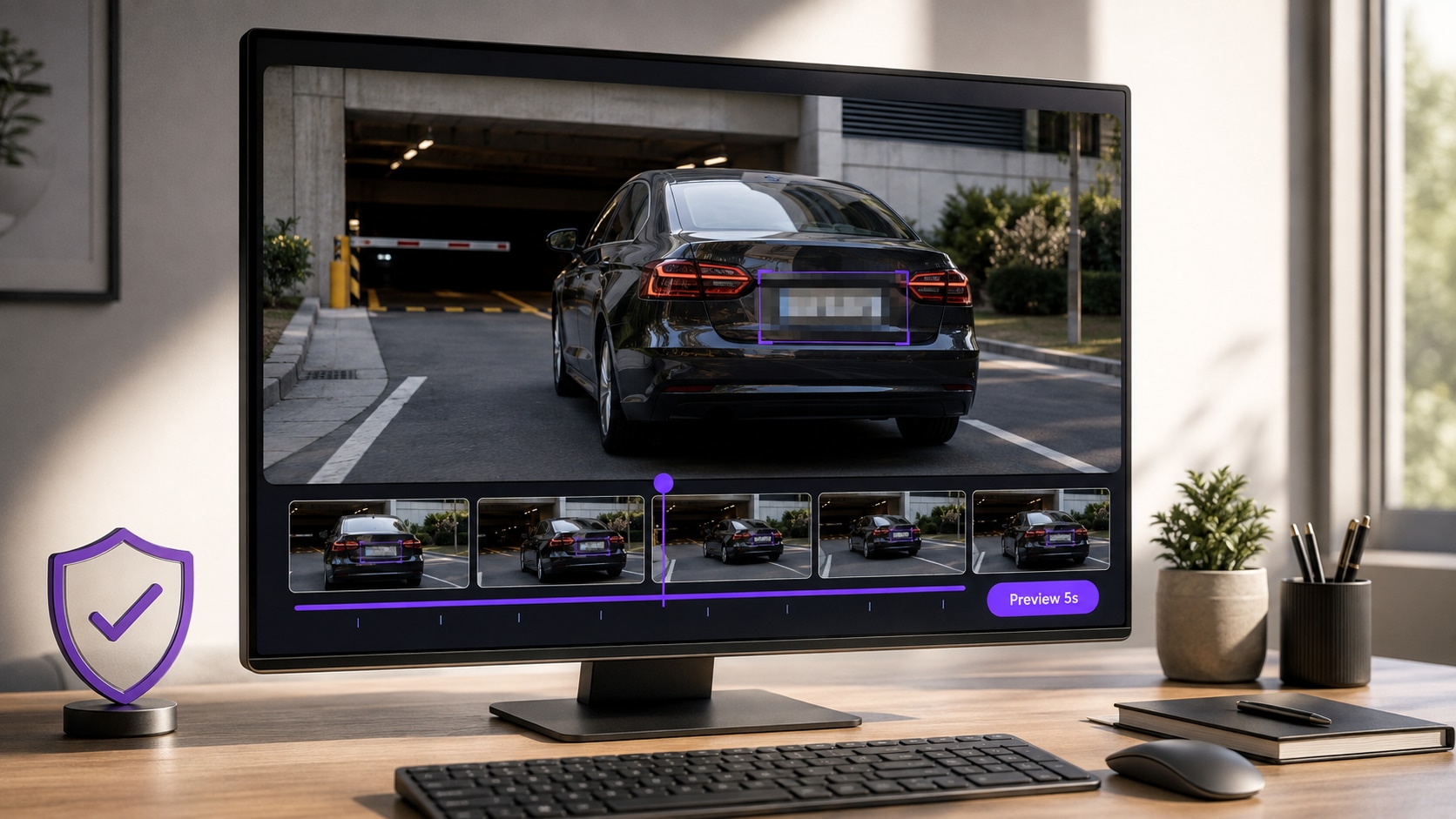
Hide a car or motorcycle plate in dashcam, street, dealership, accident, or travel footage.

Mosaic Text & Screens

Cover emails, addresses, API keys, order data, dashboards, documents, and on-screen messages.

Mosaic Logos & Usernames

Hide platform handles, brand marks, badges, labels, and outdated identifiers before republishing.

Mosaic the Background

Use Reverse to keep the selected subject clear while applying the effect to the surrounding scene.

AI Mosaic Video Software

Create a Video Mosaic Without Manual Keyframing

Traditional video editor mosaic workflows often require masks, timelines, and repeated position adjustments. UniConverter combines automatic face detection, selected-object tracking, and adjustable mosaic styles in a simpler desktop workflow.

Automatically Find Faces to Mosaic

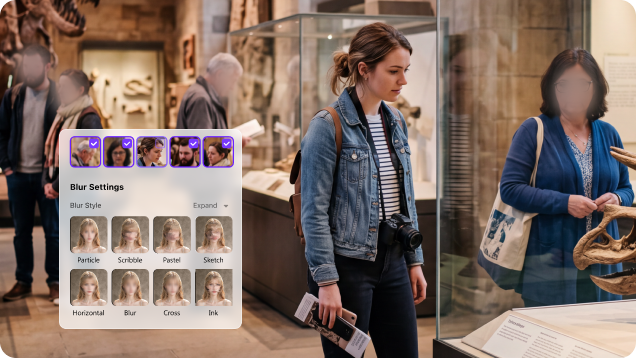
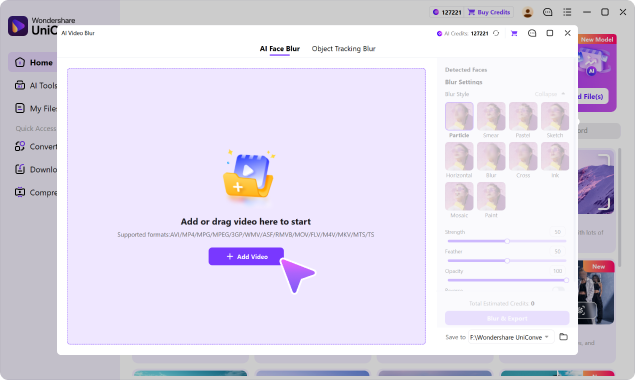
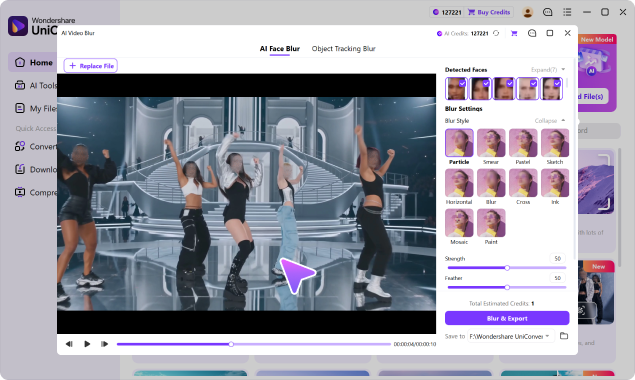
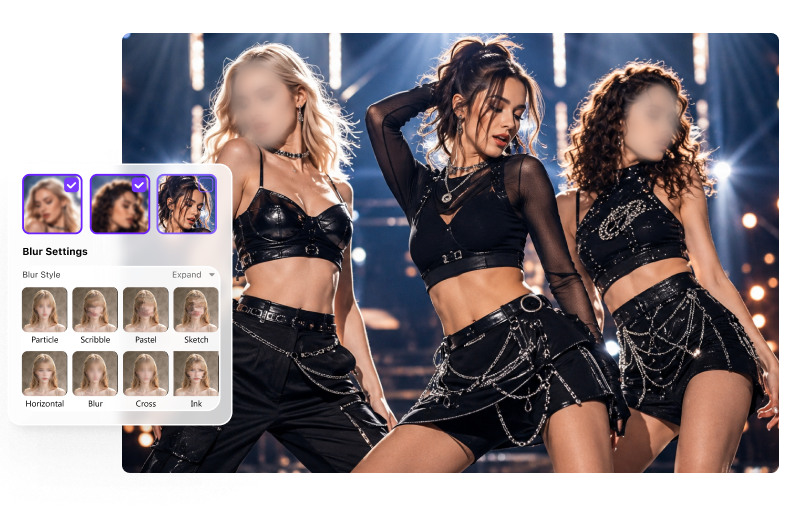
AI Face Blur mode scans the video and displays detected face thumbnails. Choose the people who need privacy or apply mosaic to all detected faces.

  • Handle one person, multiple people, or a crowd.
  • Keep the effect attached as selected faces move.
  • Useful for bystanders, children, customers, employees, and interviewees.
automatic face detection in a mosaic video editor

Track Any Selected Object with Mosaic

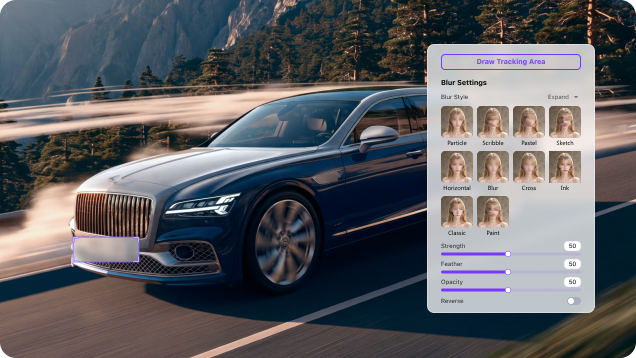
Object Tracking Blur mode lets you mark a plate, screen, logo, document, sign, label, badge, or other target. AI analyzes its movement and moves the mosaic area with it.

  • No need to reposition the mosaic on every frame.
  • Works with selected moving or stationary details.
  • Preview difficult turns, overlaps, and fast motion before export.
AI tracking a selected object with mosaic in video

Control How the Mosaic Looks

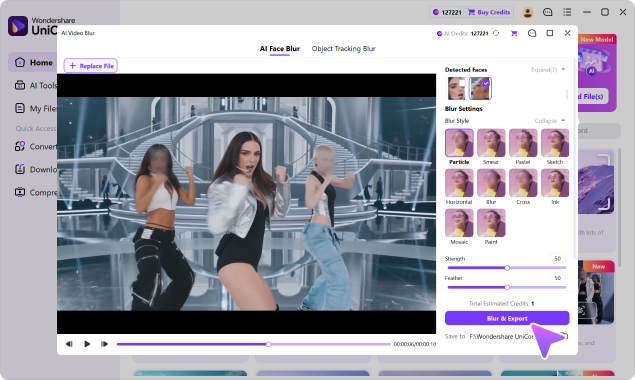
Select a Mosaic option from the available Blur Styles, then adjust the coverage instead of accepting a fixed preset. You can also switch to Pixel, Soft Blur, Sticker, or another available style when the content calls for a different look.

  • Strength controls how heavily the target is obscured.
  • Feather softens the boundary around the selected area.
  • Opacity adjusts how visible the masking effect appears.
  • Reverse applies the effect outside the selected subject.
mosaic video effect strength feather and opacity controls

Keep Sensitive Source Videos on Your Desktop

UniConverter is desktop mosaic video software for Windows and macOS. Process original footage locally instead of uploading an uncensored copy to an unfamiliar browser tool.

  • Better suited to school, company, customer, dashcam, and interview footage.
  • Review mosaic coverage before the sensitive copy leaves your computer.
  • Continue trimming, converting, compressing, or enhancing in the same app.
local desktop mosaic video processing in UniConverter
Effect Guide

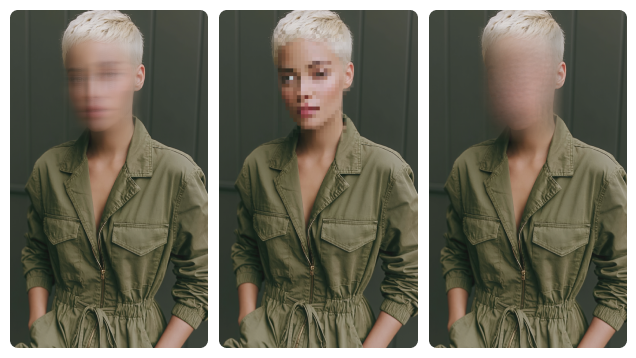
Mosaic vs. Pixel vs. Soft Blur for Video

These effects can all conceal part of a frame, but they create different visual results. Choose based on how obvious the censorship should look and how naturally it needs to blend into the scene.

EffectVisual ResultBest Used ForAvailable Controls
MosaicDistinct square blocksFaces, license plates, text, IDs, addressesStyle, strength, feather, opacity
PixelDeliberately pixelated censorshipSocial videos, creative edits, obvious anonymizationStyle, strength, feather, opacity
Soft BlurSmooth loss of detailBackground cleanup and subtler concealmentStyle, strength, feather, opacity
StickerGraphic cover placed over a targetCasual, family, entertainment, and social contentStyle selection and placement

Always preview the full sequence. A strong effect is only useful when it continues covering the target throughout the video.

Real-World Uses

Where a Mosaic Video Editor Saves Time

Use visible pixel-block censorship for public footage, screen recordings, education, business videos, social clips, and other content that contains identifying information.

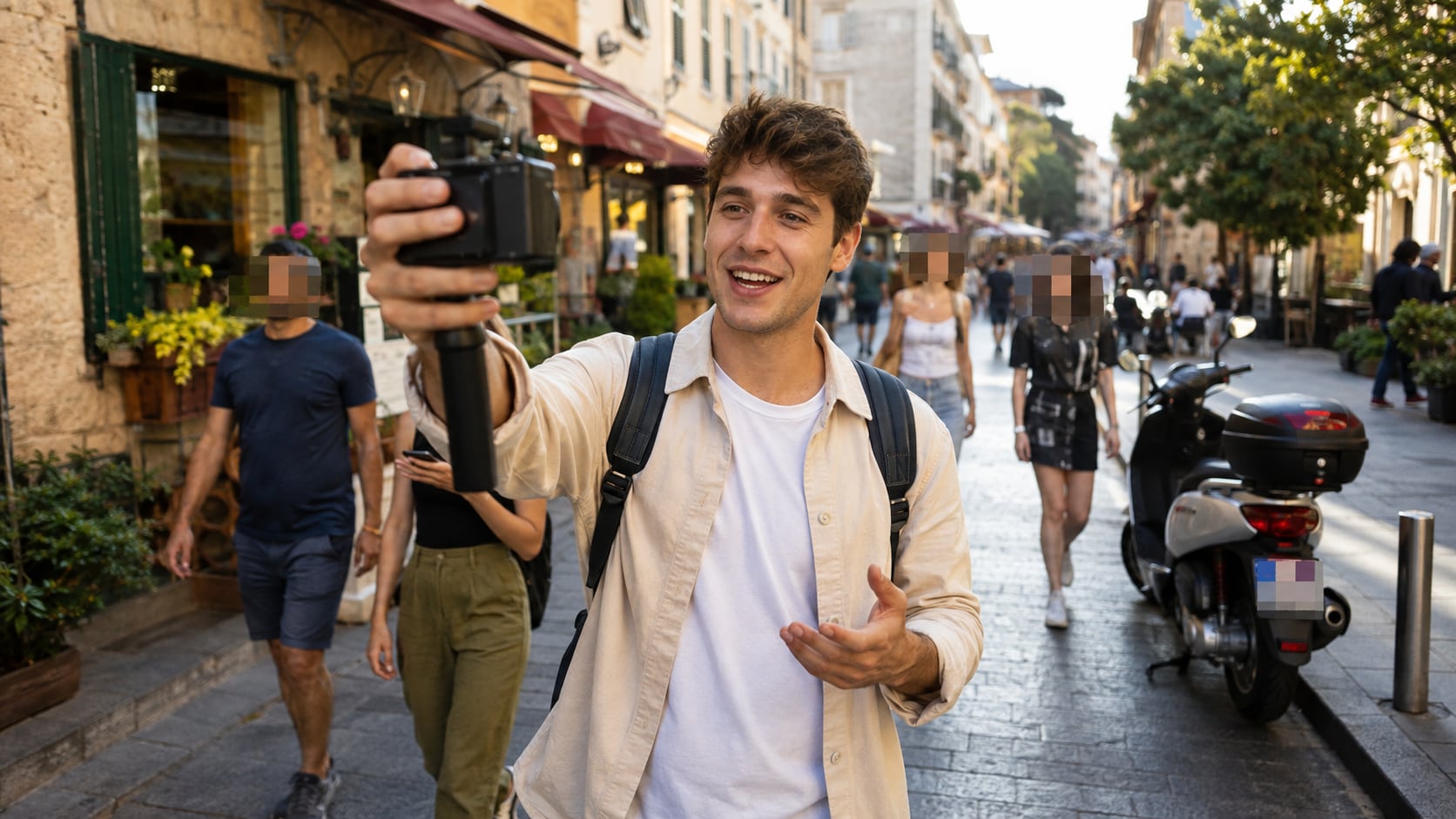
mosaic hiding bystanders in a vlog

Vlogs & Social Videos

Mosaic bystanders, children, usernames, plates, or recognizable details before publishing to YouTube, TikTok, Instagram, or Facebook.

Choose the Right Workflow

UniConverter Mosaic Video Software vs. Other Editors

Compare AI-assisted desktop mosaicing with a typical online mosaic editor and a traditional timeline-based video editor.

CapabilityUniConverterTypical Online Mosaic EditorTraditional Video Editor
Automatic face detection✓ AI Face Blur modeVaries by toolOften feature or plugin dependent
Mosaic follows a selected moving object✓ AI object trackingAvailable in some toolsPossible with tracking or keyframes
Mosaic faces, plates, screens, logos & text✓ Faces plus selected objectsVaries by tool✓ Possible with masks
Adjust the masking result✓ Style, strength, feather, opacity, ReverseOften limited controls✓ Usually extensive controls
Keep uncensored source footage off browser upload✓ Local desktop workflowUsually requires upload or in-browser processing✓ Desktop editors can process locally
Work with multiple videos✓ Multi-file workflowOften limited by file count, size, or planDepends on project setup
Continue video processing afterward✓ Convert, compress, trim, edit, enhanceUsually a focused browser task✓ Full editing workflow
Setup for a quick privacy mosaicLowLowMedium to high

Online capabilities and limits vary by provider. Check upload handling, tracking, file restrictions, export quality, and plan limits before using a browser tool for sensitive footage.

Best fit: Choose UniConverter when the mosaic needs to follow faces or moving objects, the original footage is sensitive, or you want a faster workflow than building and keyframing masks manually.
Supported Workflow

Make a Share-Ready Mosaic Video on Windows or Mac

Use common video formats, review the effect before export, and continue working in UniConverter after private details are covered.

Common Video Formats

Work with MP4, MOV, AVI, MKV, M4V, WMV, FLV, MTS, TS, 3GP, and other commonly used formats supported by the feature.

MP4MOVAVIMKVM4VWMVFLVMTSTS3GP

From Original Footage to Mosaic Video

Keep the original file as your master, apply and preview the mosaic on a working copy, then continue converting, compressing, trimming, editing, or enhancing before final export.

ImportSelect TargetAdd MosaicPreviewProcessExport
Mosaic Video FAQ

Frequently Asked Questions

Direct answers about adding mosaic to videos, tracking moving subjects, choosing effects, and processing sensitive footage.

Open UniConverter AI Video Blur, import the video, choose AI Face Blur mode or Object Tracking Blur mode, select the target, choose a Mosaic style, preview the coverage, and export the processed video.

Yes. UniConverter tracks a selected face or boxed object so the mosaic moves with it. Review the preview carefully when a target turns, overlaps another subject, or leaves the frame.

Yes. AI Face Blur mode detects multiple faces. You can choose specific people or apply mosaic to all detected faces.

Yes. Select only the face, plate, screen, text, logo, or other region you want to hide. The rest of the frame remains visible.

Mosaic uses visible square blocks, while Soft Blur smooths details into a softer area. UniConverter also offers Pixel, Sticker, and other Blur Styles, with controls for strength, feather, and opacity.

Yes. In Object Tracking Blur mode, draw a box around a license plate, email, address, order detail, API key, logo, username, or another target. AI then tracks the selected area.

No browser upload is required for the AI Video Blur desktop workflow. The original video is processed locally on your Windows PC or Mac.

Yes. Choose an available Mosaic style and adjust strength, feather, and opacity. You can also use Reverse to apply the effect outside the selected subject.

Not on this page. Here, a video mosaic means applying a pixel-block censorship effect to part of a video. A tiled composition made from many clips is a separate collage workflow.

Add Mosaic to Video Without Frame-by-Frame Editing

Detect faces, track selected moving objects, customize the mosaic effect, and preview the coverage before exporting with UniConverter.

UniConverter mosaic video software interface