UniConverter
UniConverter Online Free
Converter video, audio & image free
Free Try
Shopify Bulk Edit Images guide

How to Bulk Edit Shopify Product Images

Shopify bulk image editing can mean changing the picture itself, replacing product media, or updating image information such as alt text. These are different jobs. Shopify’s media editor handles edits to an opened image, while product bulk editing, product CSVs, and installed image apps address other parts of the catalog workflow. Choose the route before processing a whole store.

Quick Answer
  • Use Shopify’s media editor for an opened image; do not treat the product spreadsheet-style bulk editor as a universal bulk crop tool.
  • For catalog-scale visual changes, use an appropriate image app or prepare the source files in a separate batch editor, then upload and associate the results.
  • UniConverter Batch Image Editor prepares local image files. It does not log in to Shopify, update product records, or upload the results to your store.
UniConverter desktop:

UniConverter for Windows

UniConverter for Mac

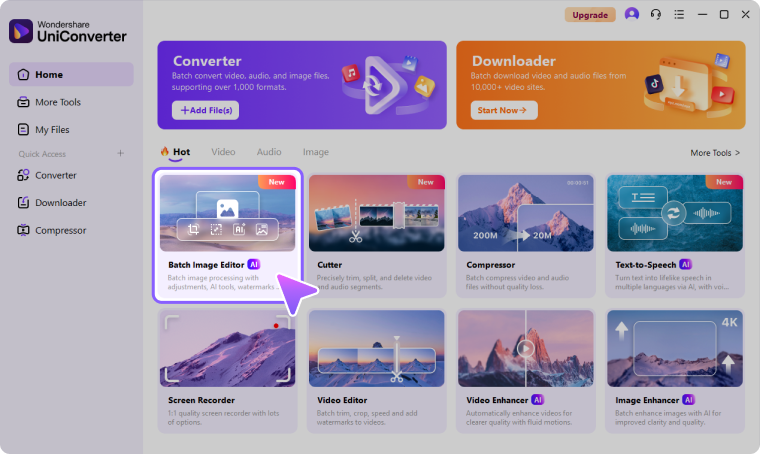
UniConverter Batch Image Editor
Shopify Files page with an image URL action
PlanDefine the delivery
TestInspect a sample
KeepRetain originals
ReviewCheck the outputs

Choose the Right Shopify Bulk Edit Images Workflow

Use the source, required operation, and delivery destination to choose the method. Shared setup is useful only when it matches the files in the collection.

Your task
Workflow choiceShopify admin or app
Workflow choiceLocal image preparation
Crop or resize
✓Open an image in the media editor; app-based bulk behavior depends on the installed app.
Prepare a coherent local collection in a batch image workspace.
Alt text
✓Edit image information through the relevant admin or supported CSV workflow.
Pixel editing does not generate or synchronize Shopify alt-text fields.
Image replacement
✓Upload or reference the new images and associate them with the correct products.
Export filenames and folders that make the product mapping easy to review.
Ongoing automation
✓Review an app’s permissions, supported actions, and rollback options.
Use a controlled export-and-upload process for an occasional catalog refresh.
Simple decision:
Complete any native or cloud-library preparation first. Use UniConverter for the local image-editing collection, then upload or associate outputs separately.
See the UniConverter Steps

Choose the Right Shopify Bulk Image Editing Route

Separate pixel changes from catalog data. A successful local resize still needs a deliberate product-media update in Shopify.

Identify the Job: Pixels, Media Links, or Alt Text

Audit a small product sample before changing the entire catalog. Record the product, variant, image order, source filename, and required edit. Resizing a photograph changes its pixels; replacing an image changes the media associated with a product; alt text describes the image for accessibility and context.

  • Do not overwrite every image’s alt text with one generic phrase.
  • Keep a mapping between product or variant and the new output file.
  • Decide whether the work is a one-time refresh or requires an installed automation app.
Shopify CSV product-handle mapping example

Use the Native Media Editor for Individual Corrections

Open the relevant product media or Content > Files item, then open the image editor. Use the available crop, resize, orientation, or background tools for that image and save the result. Consistent aspect ratios help collection cards align, but they do not guarantee that products have equal visible scale.

  • Review the product’s margins and framing, not just the overall pixel count.
  • Check the storefront theme on desktop and mobile after the change.
  • Use native edits for exceptions even when most files were prepared as a batch.
Shopify Files page for uploaded product-image management

Choose an App or a Controlled CSV and Upload Workflow

For repeated store-wide changes, an image app can connect visual operations with your catalog. Review the exact scope before applying a rule. Product CSVs can manage supported image URL and alt-text information, but a CSV entry does not crop or resize the underlying pixels. Use an exported sample and keep product identifiers intact.

  • Use publicly accessible image URLs where the CSV import requires them.
  • Confirm product associations and image order in a small import first.
  • Keep a backup of catalog data and source photos before replacing media across products.

Review identifiers, image URLs, order, and variant relationships on a small sample. Correct the mapping before repeating the import or replacement process.

Shopify product CSV Image Src references

Use UniConverter to Batch Edit the Local Image Files

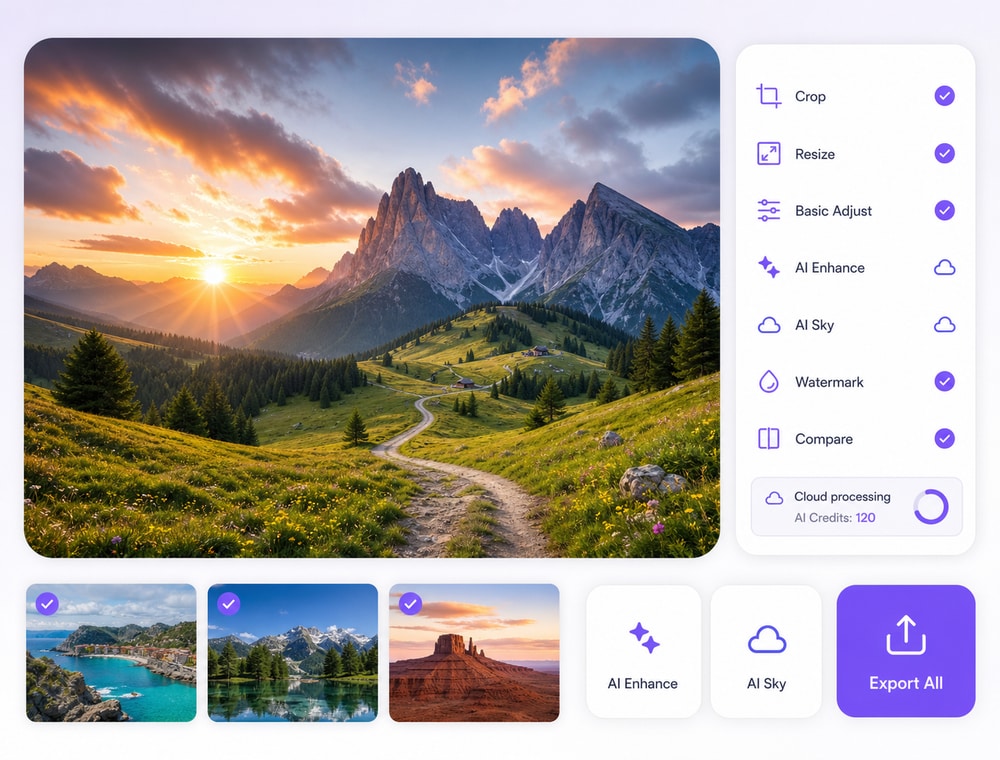
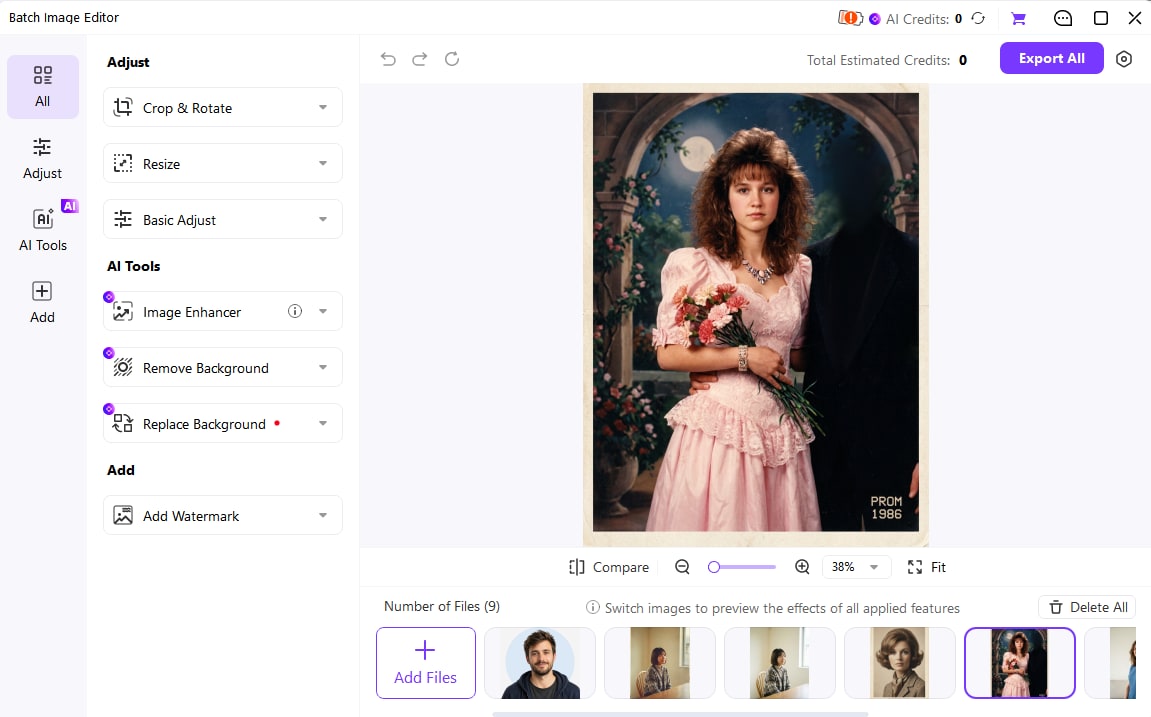
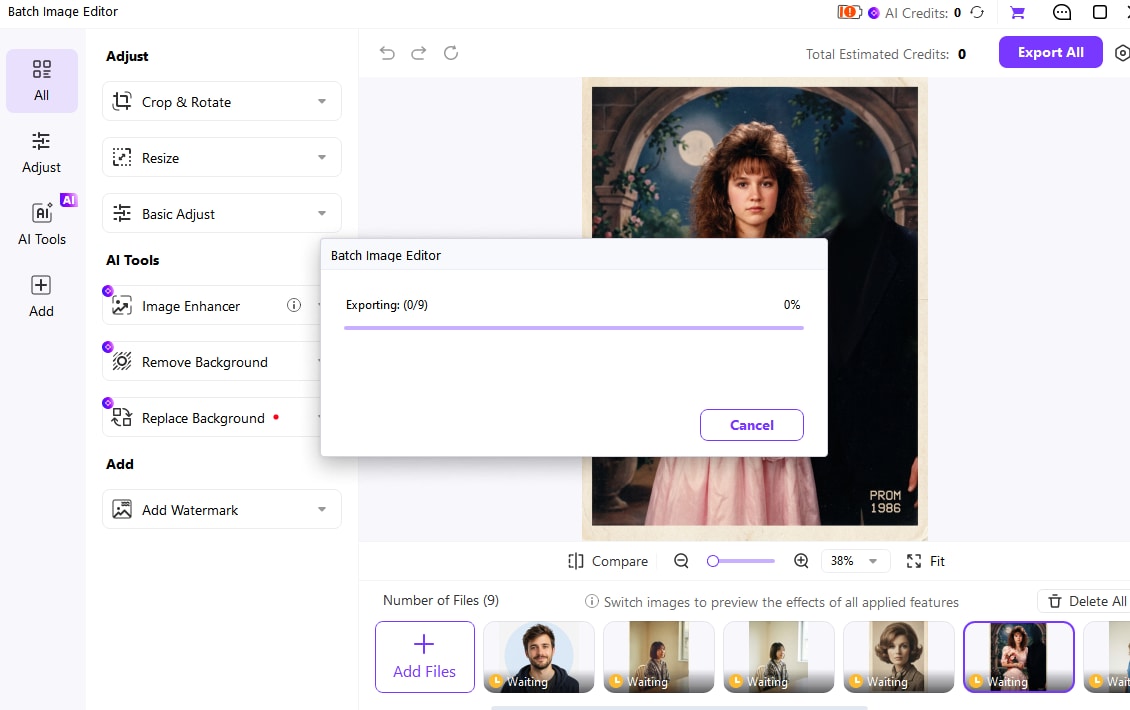
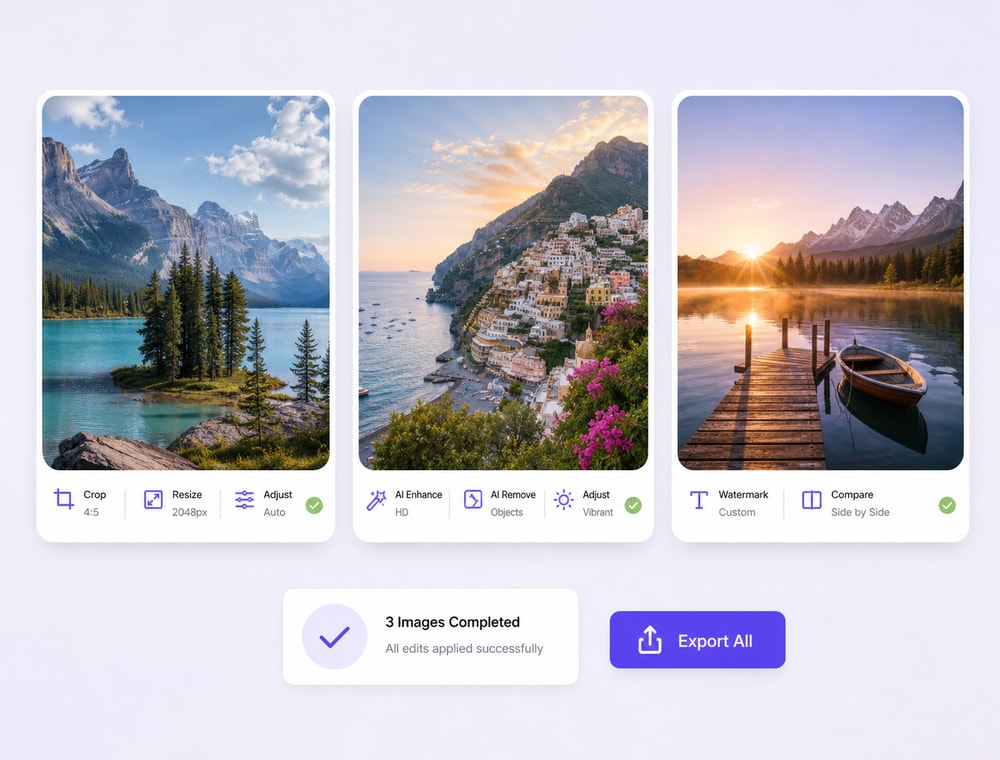
UniConverter Batch Image Editor provides a separate workspace for supported local images. Import the collection, choose the delivery edits, review exceptions, and Export All. Keep cloud-library management, product associations, or presentation insertion as separate actions after the image files are ready.

  • Bring related files or a folder into one project.
  • Choose only the edits needed by the destination.
  • Inspect portrait, landscape, and small-source exceptions.
  • Follow the independent UniConverter tutorial below and keep the original files.

Keep the source originals and use the exported files for the intended delivery. The independent tutorial below covers UniConverter Batch Image Editor.

UniConverter Batch Image Editor for local delivery files

Key Settings and Decisions Before You Run the Batch

Review the settings that change the result rather than relying on the word batch. Keep the source collection and destination clearly separated while you test.

Shopify Bulk Edit Images Settings

Use these checks to keep the operation, selection scope, and output aligned.

Workflow settings and result checks
Setting or decisionWhat it controlsResult check
Aspect ratioDefines the image’s shape.Match the collection layout and protect product edges.
Pixel dimensionsDetermine the actual image size.Avoid enlarging small sources merely to match a large number.
Image URL and associationConnects an image to catalog records.Check the product or variant mapping after upload/import.
Alt textDescribes image content.Use meaningful descriptions and review them independently of pixel edits.

Technical references: Shopify media editor and Shopify product CSV guide.

SetupOutputUse casesDelivery

Keep originals and inspect the result in the intended destination. A successful processing task is not proof that every source needed the same settings.

Practical Uses for This Batch Workflow

Choose a collection with a shared goal, then review the files that differ in source condition or delivery requirements.

Catalog refresh

Prepare a consistent local image set, then review product mapping and storefront results.

Variant photography

Keep color and angle images associated with the correct variants during replacement.

Collection-card alignment

Choose a shared ratio and consistent margins; inspect the theme’s own cropping behavior.

Seasonal branding

Work on copies and check whether any watermark or background treatment suits every product.

Common Problems and How to Fix Them

Use a representative sample to isolate a wrong setting before rerunning the complete collection. Keep originals so the result remains reversible.

01

The local images look right but the store still looks inconsistent

Check the theme’s image-fit settings, focal points, product proportions, and cached presentation. Matching file dimensions alone does not control every storefront crop.
Check 1Check 1
02

A CSV update changed data but not the picture’s appearance

CSV image fields manage references and information. Perform the actual crop, resize, or background edit on the image file or through an app that provides that operation.
Check 2Check 2
03

Images are attached to the wrong products

Review identifiers, image URLs, order, and variant relationships on a small sample. Correct the mapping before repeating the import or replacement process.
Check 3Check 3

Use the native documentation for the original tool and the UniConverter guide for the separate product workflow.

Shopify Bulk Edit Images FAQs

01

Can I bulk resize product images in Shopify’s product bulk editor?

The product bulk editor changes supported product and variant fields; it is not a universal image-pixel editor. Use the media editor for individual images, a suitable image app, or a separate local batch workflow.
No. A CSV can update supported product and image information or references, but it does not perform a pixel crop. Prepare the image files first or use an image-editing app.
Use a supported catalog-data workflow, such as the relevant product CSV image alt-text field, and review product associations. Alt text should describe each image rather than repeat one generic store-wide sentence.
Choose dimensions and a ratio appropriate to your theme and destination. Consistent ratios and framing often matter more than forcing different source photos into the same stretched rectangle.
The workflow here prepares local image files. It does not authenticate to Shopify or update the catalog automatically. Upload or associate the approved outputs through Shopify afterward.
Keep originals and catalog backups, test a small product group, maintain filename-to-product mapping, and inspect desktop and mobile storefront layouts before expanding the change.
vc 16

Continue Your Batch Workflow with UniConverter

Use UniConverter Batch Image Editor for the separate file-based workflow described above. Import the intended collection, choose the settings required by the destination, review a sample, and keep the original files while preparing the approved outputs.

Export a local image collection in UniConverter