UniConverter
UniConverter Online Free
Converter video, audio & image free
Free Try
Google Photos Batch Edit guide

Can You Batch Edit Photos in Google Photos?

Google Photos multi-select is useful for library actions, but it is not a general command to apply every photo adjustment to an entire selection. On the desktop web experience, Copy edits and Paste edits can help reuse supported adjustments between photos; you still need to review and save the destination photos. For a larger local editing job, download the images and use a dedicated batch workspace.

Quick Answer
  • Selecting many library thumbnails does not automatically apply one filter or crop to the complete selection.
  • On desktop, use Copy edits and Paste edits where those commands are available, then review and save each destination photo. Mobile editing features and menus differ.
  • UniConverter Batch Image Editor works on downloaded local files. Exported results do not automatically replace images in Google Photos.
UniConverter desktop:

UniConverter for Windows

UniConverter for Mac

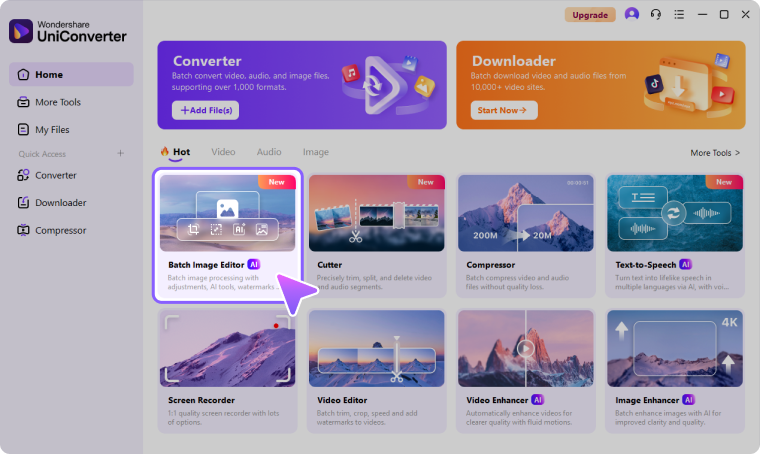
UniConverter Batch Image Editor
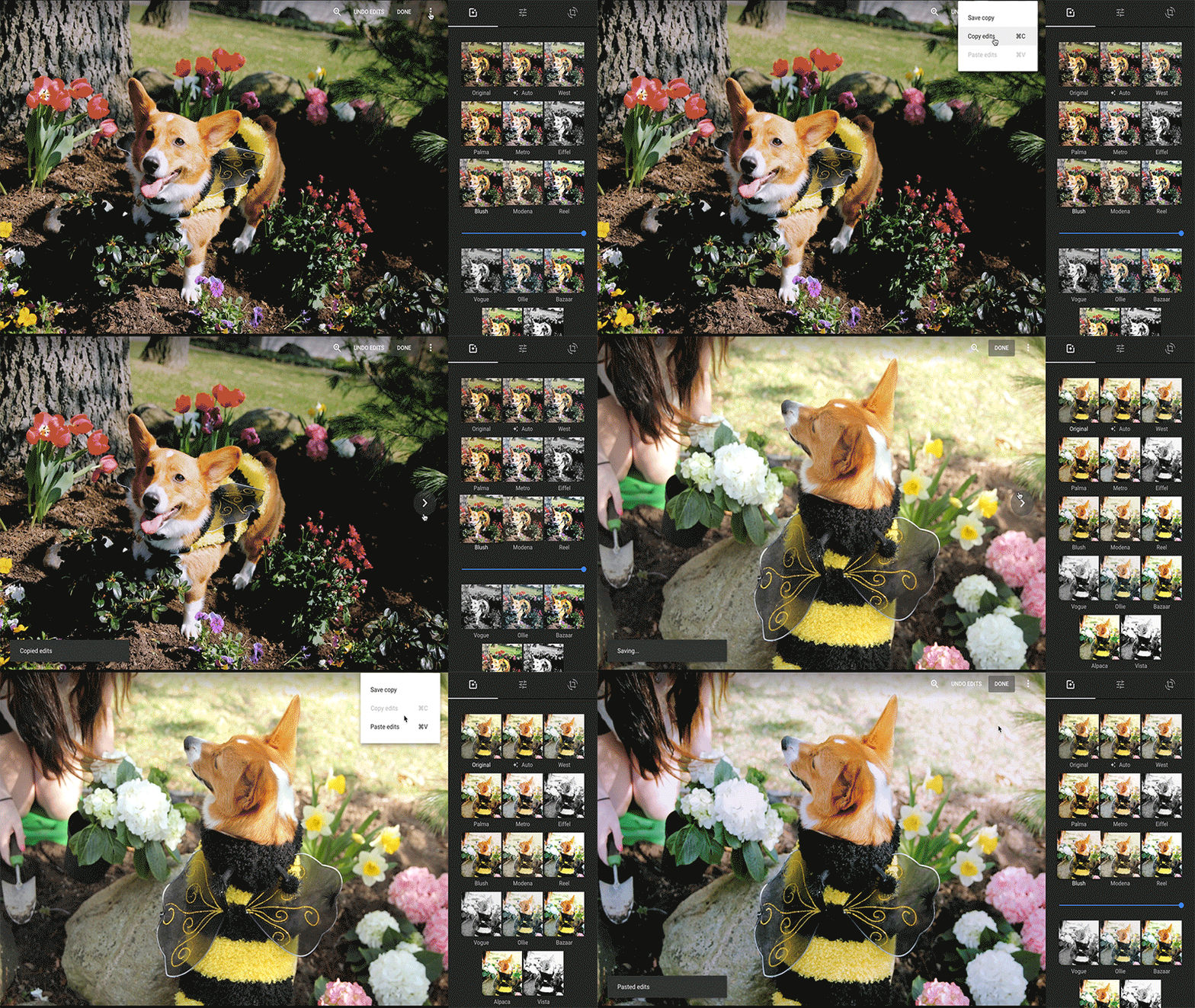
Google Photos official copy-and-paste editing example
PlanDefine the delivery
TestInspect a sample
KeepRetain originals
ReviewCheck the outputs

Choose the Right Google Photos Batch Edit Workflow

Use the source, required operation, and delivery destination to choose the method. Shared setup is useful only when it matches the files in the collection.

Your task
Workflow choiceGoogle Photos editing
Workflow choiceDedicated local batch workflow
Library selection
✓Select photos for supported library actions such as organizing or downloading.
Import the downloaded images into an editing queue.
Repeated adjustments
✓Desktop copy/paste can reuse supported edits between photos.
Configure available edits and review exceptions within one workspace.
Mobile differences
✓Use the Android or iOS app’s available controls; do not assume desktop shortcuts exist.
Use desktop software for the local collection described here.
Saving
✓Review how each edit is saved or reverted in the photo library.
Export new image files, then upload them separately if they belong in the cloud library.
Simple decision:
Complete any native or cloud-library preparation first. Use UniConverter for the local image-editing collection, then upload or associate outputs separately.
See the UniConverter Steps

What Google Photos Can and Cannot Batch Edit

Keep organization actions separate from pixel editing, and distinguish a reusable adjustment from a complete one-click batch operation.

Edit One Photo and Identify the Changes Worth Reusing

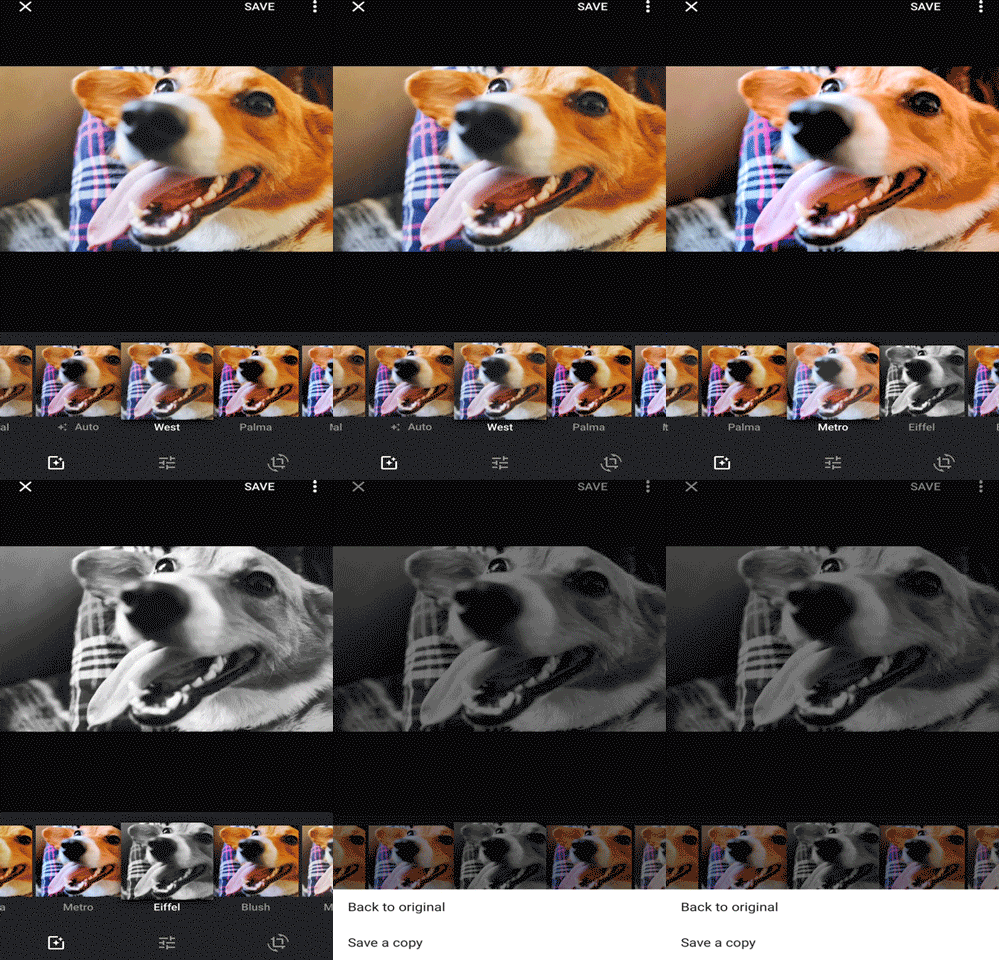
Open a representative image in Google Photos and enter Edit. Apply a useful starting adjustment, then compare it with the original before saving. Group photos by lighting and content so an edit intended for one scene does not become an unwanted correction on another.

  • Check exposure, color, and skin tones on the reference image.
  • Keep crops tied to composition rather than assuming every photo has the same subject position.
  • Do not confuse a suggested edit for one photo with a batch command for the album.
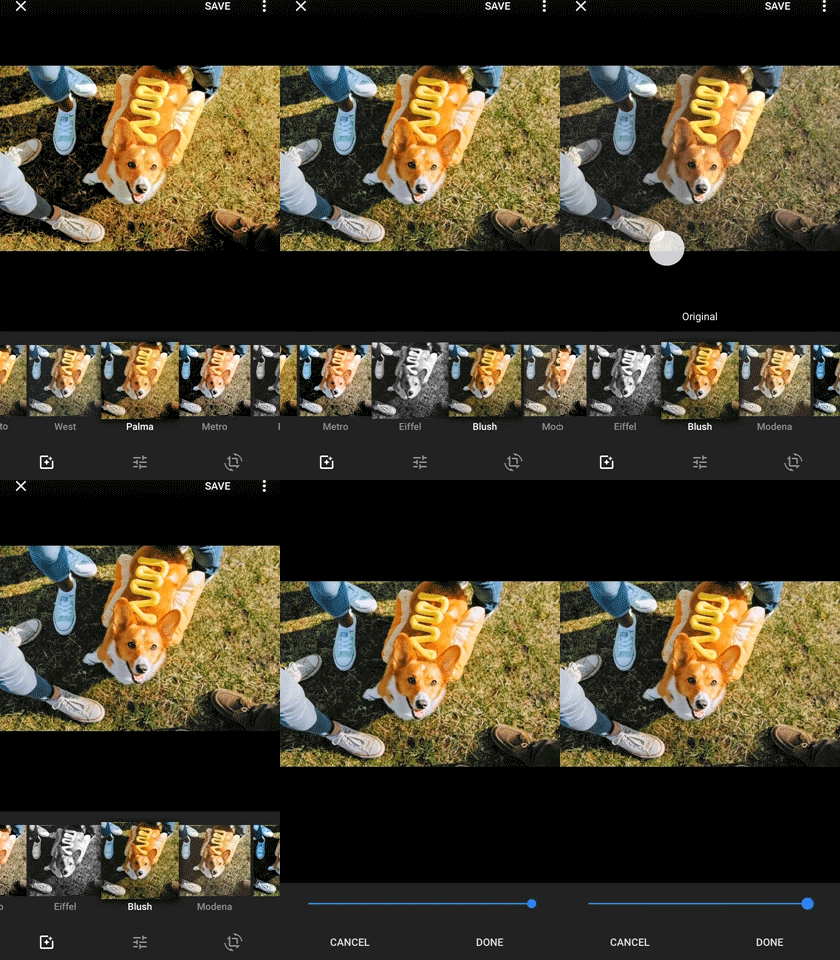
Google Photos official editing comparison example

Use Desktop Copy/Paste Edits with Individual Review

In the desktop web editor, use Copy edits from the available menu or the supported keyboard shortcut, then open the next photo and paste the edits. Review the destination and save it before continuing. If the commands are absent or unavailable in your current editor, use individual edits or move the collection to a dedicated batch tool.

  • Copy the reference edits again if another clipboard action replaced them.
  • Do not assume all AI tools, crops, or local corrections transfer in the same way.
  • This is an aid to repeated editing, not a promise of one-click processing for every selected thumbnail.
Google Photos official copy-edit demonstration

Keep Mobile, Web, and Cloud Saving Behavior Clear

Google Photos editing tools vary between the desktop web experience and the mobile apps. Follow the controls in the app you are using rather than trying desktop shortcuts on mobile. When you need a larger local workflow, download the intended originals or available copies and keep a clear source folder.

  • Check which version was downloaded before editing locally.
  • Retain a copy if you may need to revert or compare later.
  • After a local export, upload the approved results separately and organize them to avoid confusing duplicates.

Local processing does not update the Google Photos library automatically. Upload the approved outputs and organize them deliberately, keeping track of original and edited versions.

Google Photos official save-copy example

Use UniConverter to Batch Edit the Local Image Files

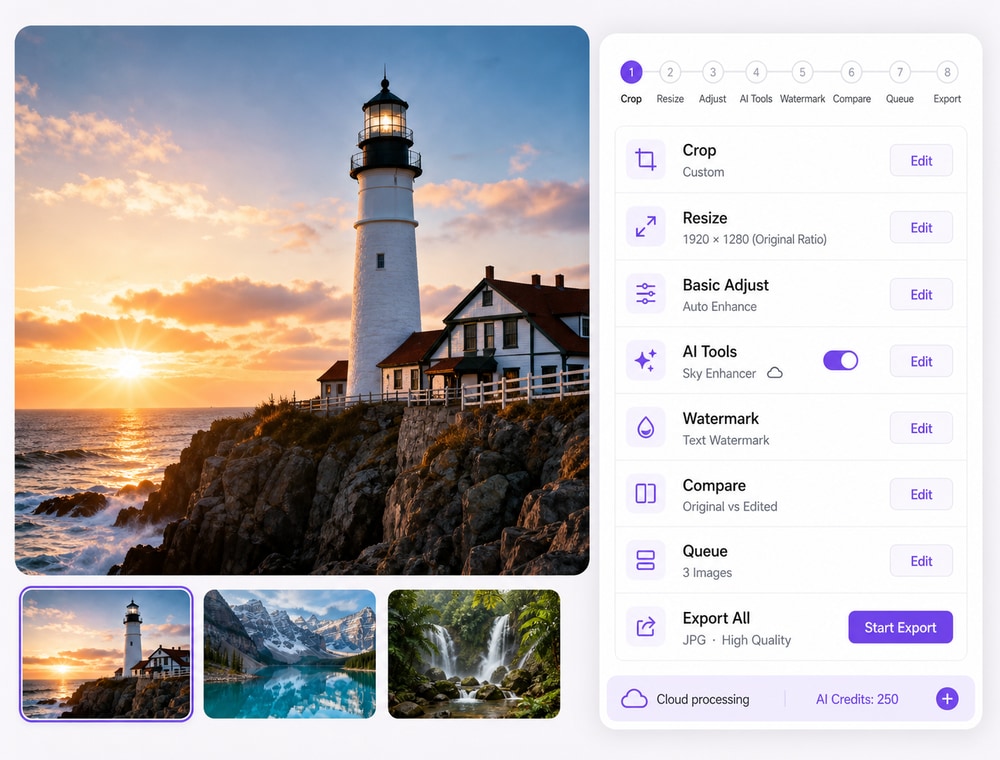
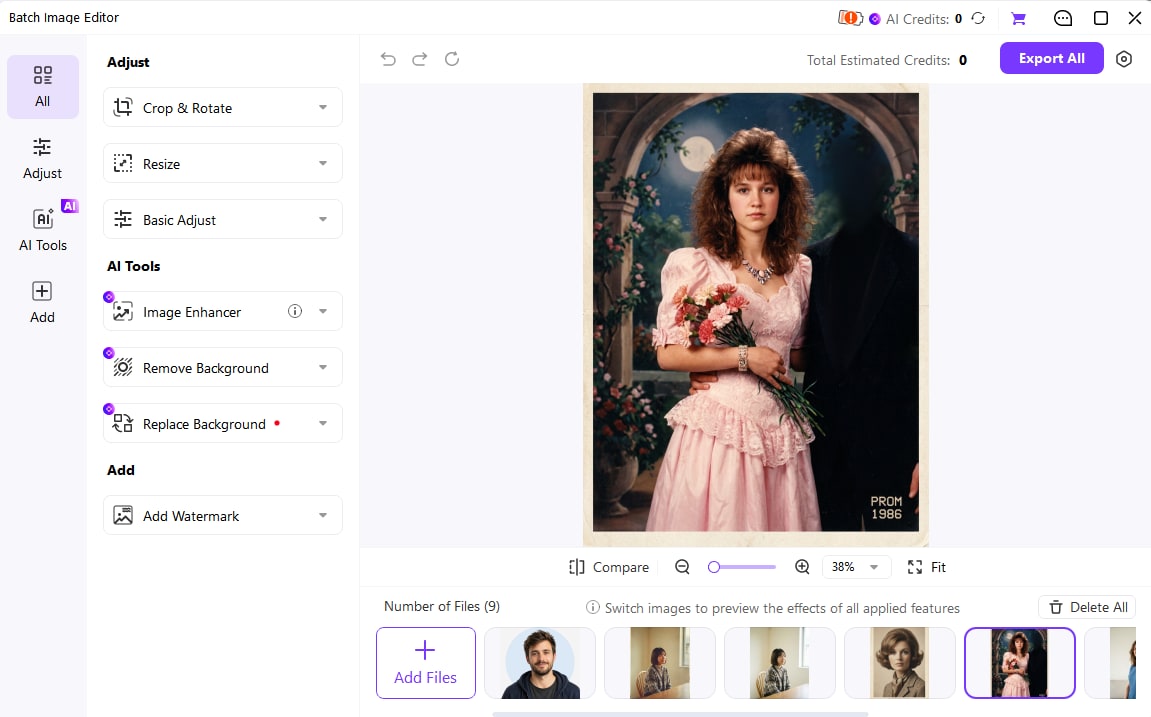
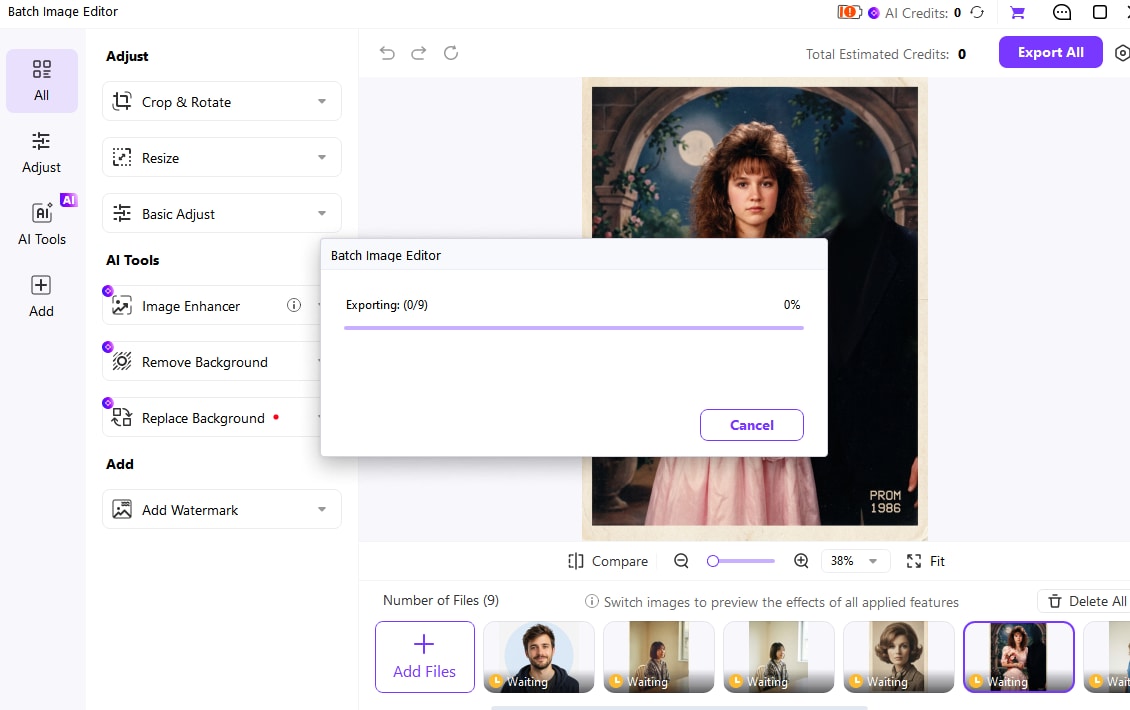
UniConverter Batch Image Editor provides a separate workspace for supported local images. Import the collection, choose the delivery edits, review exceptions, and Export All. Keep cloud-library management, product associations, or presentation insertion as separate actions after the image files are ready.

  • Bring related files or a folder into one project.
  • Choose only the edits needed by the destination.
  • Inspect portrait, landscape, and small-source exceptions.
  • Follow the independent UniConverter tutorial below and keep the original files.

Keep the source originals and use the exported files for the intended delivery. The independent tutorial below covers UniConverter Batch Image Editor.

UniConverter alternative for downloaded local images

Key Settings and Decisions Before You Run the Batch

Review the settings that change the result rather than relying on the word batch. Keep the source collection and destination clearly separated while you test.

Google Photos Batch Edit Settings

Use these checks to keep the operation, selection scope, and output aligned.

Workflow settings and result checks
Setting or decisionWhat it controlsResult check
Multi-selectChooses several library items.Do not infer that every editing tool acts on the selection.
Copy edits / Paste editsReuses supported adjustments in the desktop workflow.Review each destination before saving.
Save or revertControls the edited photo’s result in the library.Inspect the saved version rather than relying on a preview alone.
Download and local exportCreates a separate file-based workflow.Cloud replacement or re-upload is a separate action.

Technical references: Google Photos Help and Google Photos editing tips.

SetupOutputUse casesDelivery

Keep originals and inspect the result in the intended destination. A successful processing task is not proof that every source needed the same settings.

Practical Uses for This Batch Workflow

Choose a collection with a shared goal, then review the files that differ in source condition or delivery requirements.

Similar travel scenes

Reuse an appropriate starting adjustment while checking different lighting conditions.

Portrait groups

Inspect skin tones and individual framing rather than forcing a universal crop.

Local campaign assets

Download the required images and prepare dimensions or watermarks in one desktop project.

Archive organization

Keep original downloads and edited exports in separate folders before uploading any results.

Common Problems and How to Fix Them

Use a representative sample to isolate a wrong setting before rerunning the complete collection. Keep originals so the result remains reversible.

01

Copy or Paste edits is missing

The available editor controls can differ by platform and rollout. Use the current individual-edit tools or download the collection for a dedicated local workflow; do not assume a mobile command exists because desktop instructions mention it.
Check 1Check 1
02

An edit looks wrong on the next image

The photos may have different exposure, white balance, or composition. Revert the unsuitable adjustment and split the group by source condition.
Check 2Check 2
03

Local exports do not appear in the cloud album

Local processing does not update the Google Photos library automatically. Upload the approved outputs and organize them deliberately, keeping track of original and edited versions.
Check 3Check 3

Use the native documentation for the original tool and the UniConverter guide for the separate product workflow.

Google Photos Batch Edit FAQs

01

Can I apply one filter to every selected Google Photos image?

Do not treat the library multi-select toolbar as a universal batch filter control. Edit individual images, use supported desktop copy/paste edits for repeated adjustments, or use a local batch editor.
Desktop Google Photos has offered Copy edits and Paste edits for reusing supported adjustments. Use those commands when available, then inspect and save each destination image. Availability and behavior can differ by editor and platform.
No general editing rule follows from selecting an album. Library organization and photo adjustment are separate actions. Check the scope of the specific command you are using.
Mobile apps have their own tools and menus. Do not assume a desktop keyboard shortcut or editing feature is available on either mobile platform.
No synchronization is part of this workflow. Download the files, edit and export them locally, then upload the approved results separately if you want them in the library.
For a coherent local job, keep original downloads, group images by editing requirement, use a batch workspace, and inspect representative results before export and any later cloud upload.
vc 16

Continue Your Batch Workflow with UniConverter

Use UniConverter Batch Image Editor for the separate file-based workflow described above. Import the intended collection, choose the settings required by the destination, review a sample, and keep the original files while preparing the approved outputs.

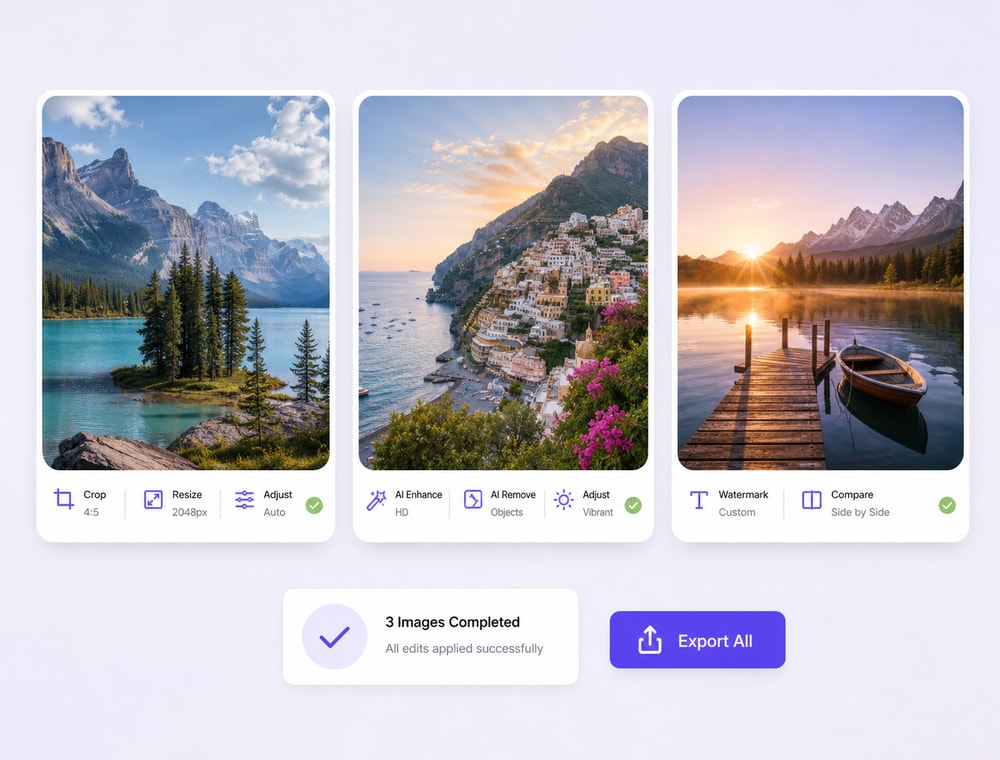
UniConverter Batch Image Editor exported images