UniConverter
UniConverter Online Free
Converter video, audio & image free
Free Try
Wondershare UniConverter Video Enhancer

Batch Enhance Multiple Videos with AI

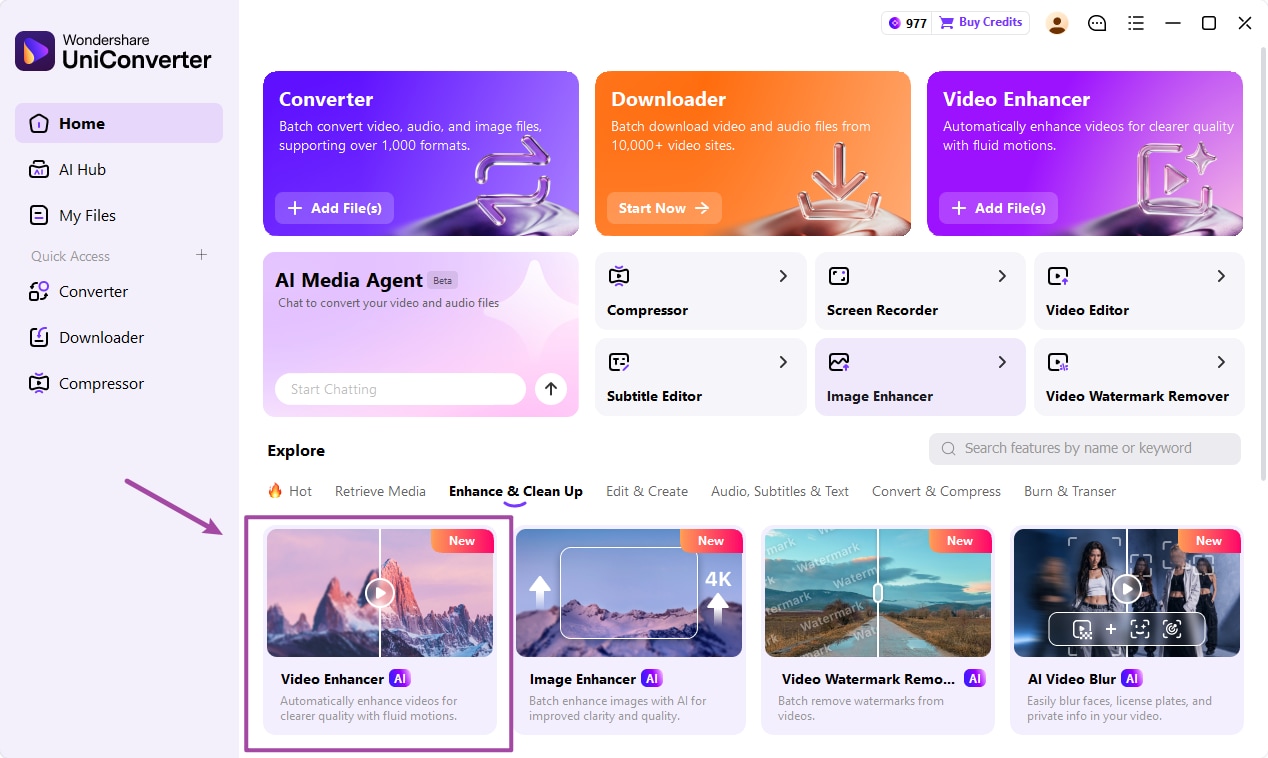
A batch video enhancer helps you process several clips without rebuilding a separate job for every file. In UniConverter Desktop, add videos to Video Enhancer, choose the model that fits the source problem, preview representative results, and run Enhance All & Export. Group similar footage together so the selected treatment has a clear purpose.

  • Bring multiple local videos into one enhancement queue.
  • Choose enhancement for clarity, faces, noise, or other source problems.
  • Preview motion and detail before committing the full batch.

Desktop provides the multi-video workflow described here. The browser enhancer is a separate option for a quick single-video task; its models and limits differ.

UniConverter Video Enhancer import workspace
Quick Answer
  • Use UniConverter Desktop Video Enhancer to batch enhance videos: add the files, choose the appropriate enhancement model and output settings, preview the result, then select Enhance All & Export.
  • Group clips by the problem you are fixing. Face softness, grain, low light, camera shake, and low resolution do not all call for the same treatment.
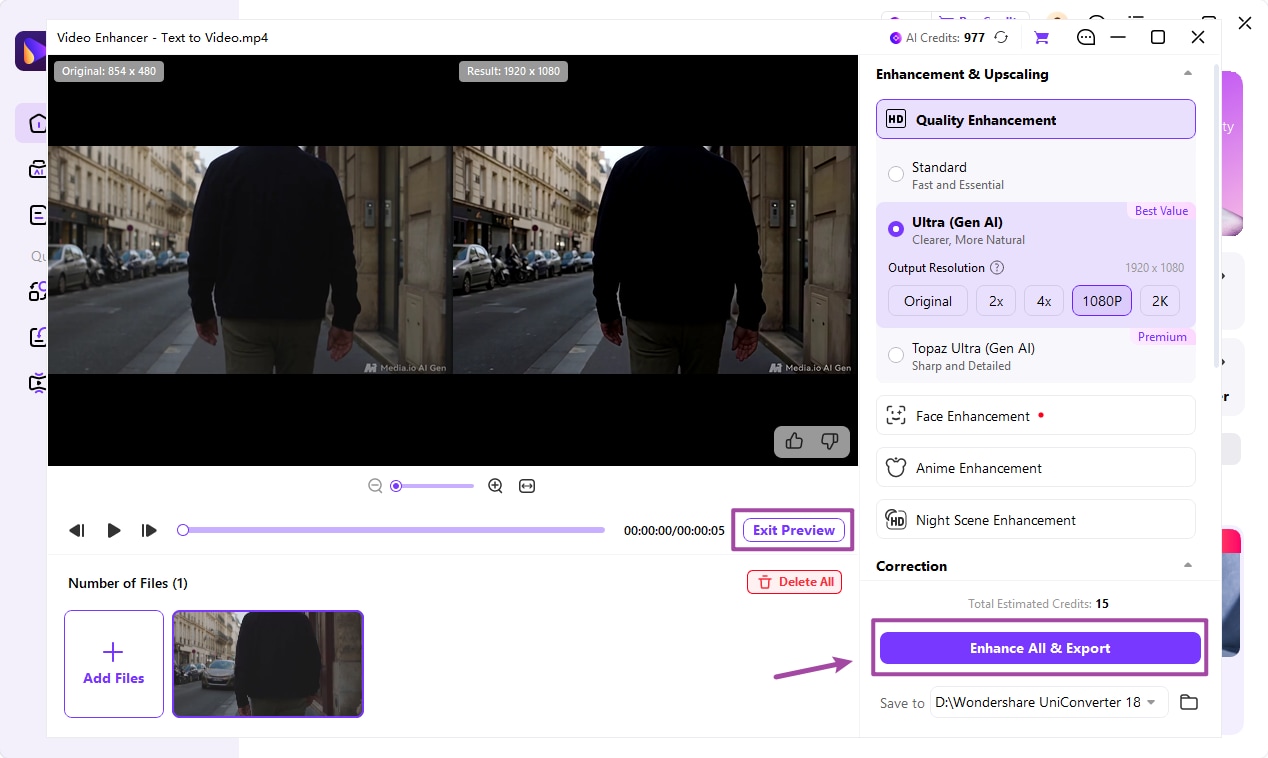
  • Use Preview (3 s), compare Original and Result, and inspect motion as well as a paused frame before processing a large collection.
  • Review Total Estimated Credits, output resolution, and the Save to location before export. Available models and export access depend on the installed version and license.
  • If higher resolution is your only goal, use the related Batch Video Resizer workflow to focus on AI upscaling.

Choose Desktop for a Managed Video Enhancement Batch

Choose the processing route by the size of the job and the controls it needs. Keep the desktop and online workflows distinct.

Decision
WorkflowUniConverter Desktop
WorkflowOnline enhancer
Number of videos
✓Add multiple local videos to a queue and prepare an enhancement job.
Useful for trying quality restoration on one video through a browser.
Treatment
✓Choose from the available desktop quality, content-specific, correction, or motion tools.
Use the options provided by the online tool rather than assuming desktop models are included.
Preview and output
✓Compare a preview, review task estimates, choose Save to, and export the prepared batch.
Review the browser result and download within the tool’s available allowance.
Batch rule:
Match the treatment to the source problem before scaling up the job. A larger output resolution is not, by itself, proof of better detail or more natural motion.
See the Three-Step Workflow
Import, choose, preview, export

Make the Batch About the Problem You Need to Fix

UniConverter’s desktop Video Enhancer brings model selection, preview, task estimates, and export into one workflow. Use these controls to avoid repeating an unsuitable treatment across many clips.

Build a Queue of Related Source Videos

Open Video Enhancer and add the clips you want to process. A useful batch often shares capture conditions or a delivery goal: interview clips from one setup, similar older footage, or product videos from a single session.

  • Keep the original videos in a separate location.
  • Separate noisy night footage from clean daytime clips.
  • Check that each source opens before starting the full job.
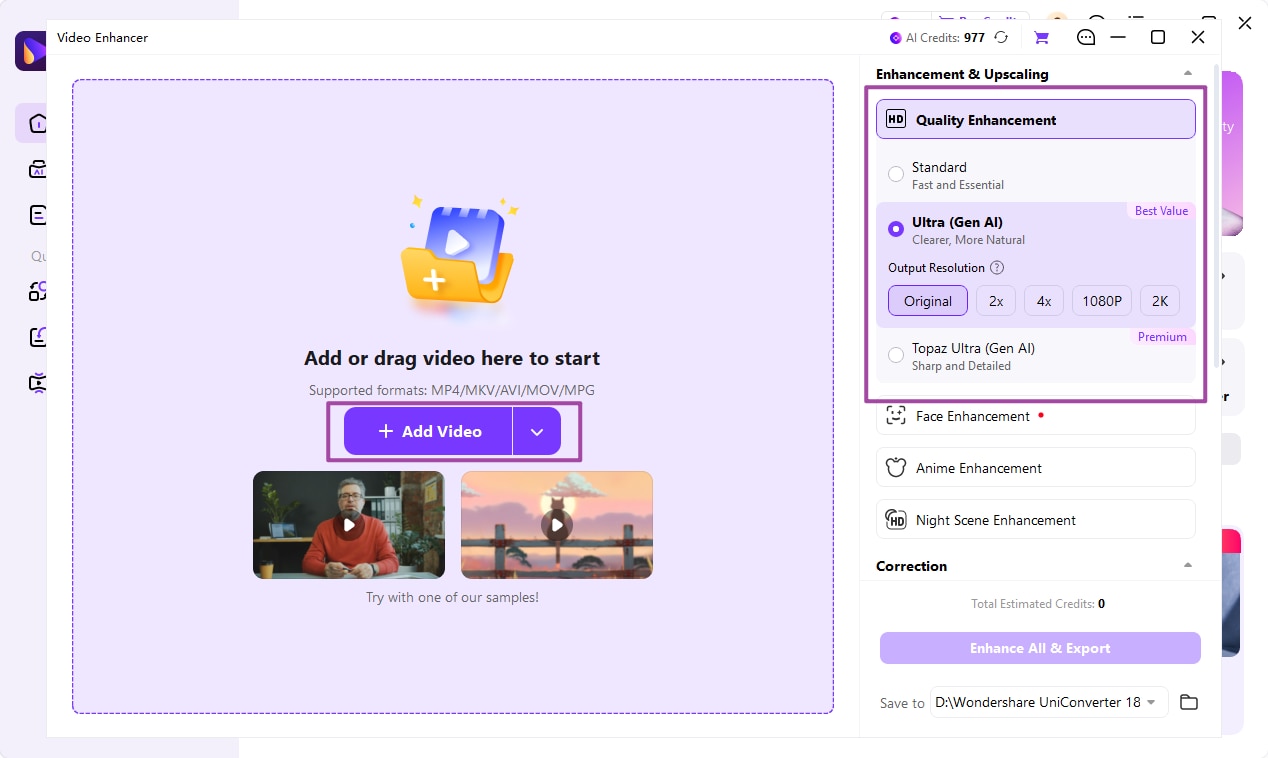
UniConverter Video Enhancer quality mode choices

Select the Model for the Actual Defect

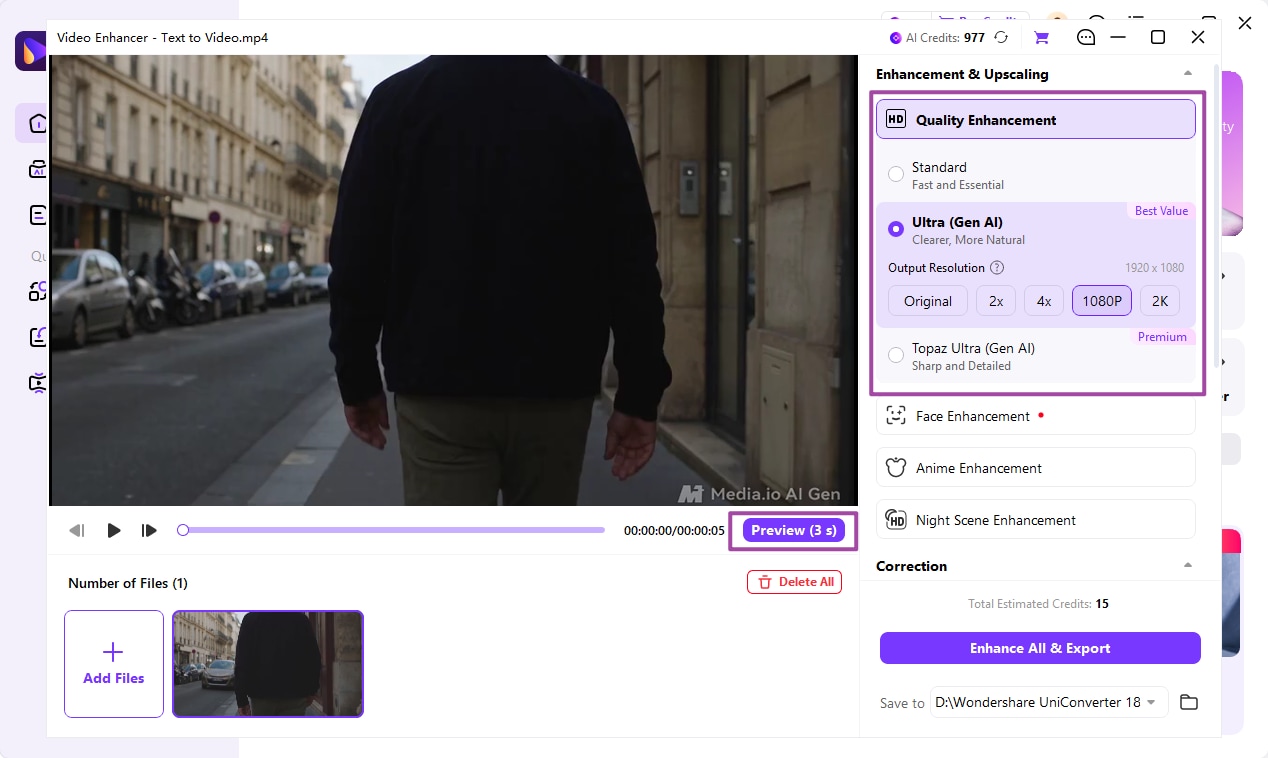
Use Quality Enhancement for general clarity problems and Face Enhancement when facial detail is the priority. The desktop toolset also includes dedicated choices for other content and motion problems. Start with the relevant tool rather than treating every defect as an upscaling task.

  • Compare the available quality modes on the same source.
  • Use a face-focused treatment for portrait detail rather than camera shake.
  • Treat frame interpolation, stabilization, and denoising as different jobs.

AI enhancement can reconstruct plausible detail. It cannot guarantee recovery of exactly what the camera failed to record.

UniConverter Video Enhancer resolution and preview controls

Preview Detail and Motion Before Processing

Use Preview (3 s), then compare Original and Result at the same displayed size. Watch moving faces, fine textures, edges, and scene changes. A sharper paused frame can still look unnatural during playback.

  • Inspect skin and hair for overprocessed textures.
  • Check moving objects for shimmer or invented detail.
  • Reduce the treatment or change the model when the result looks less natural.
UniConverter Original and Result preview comparison

Review the Task and Export the Prepared Batch

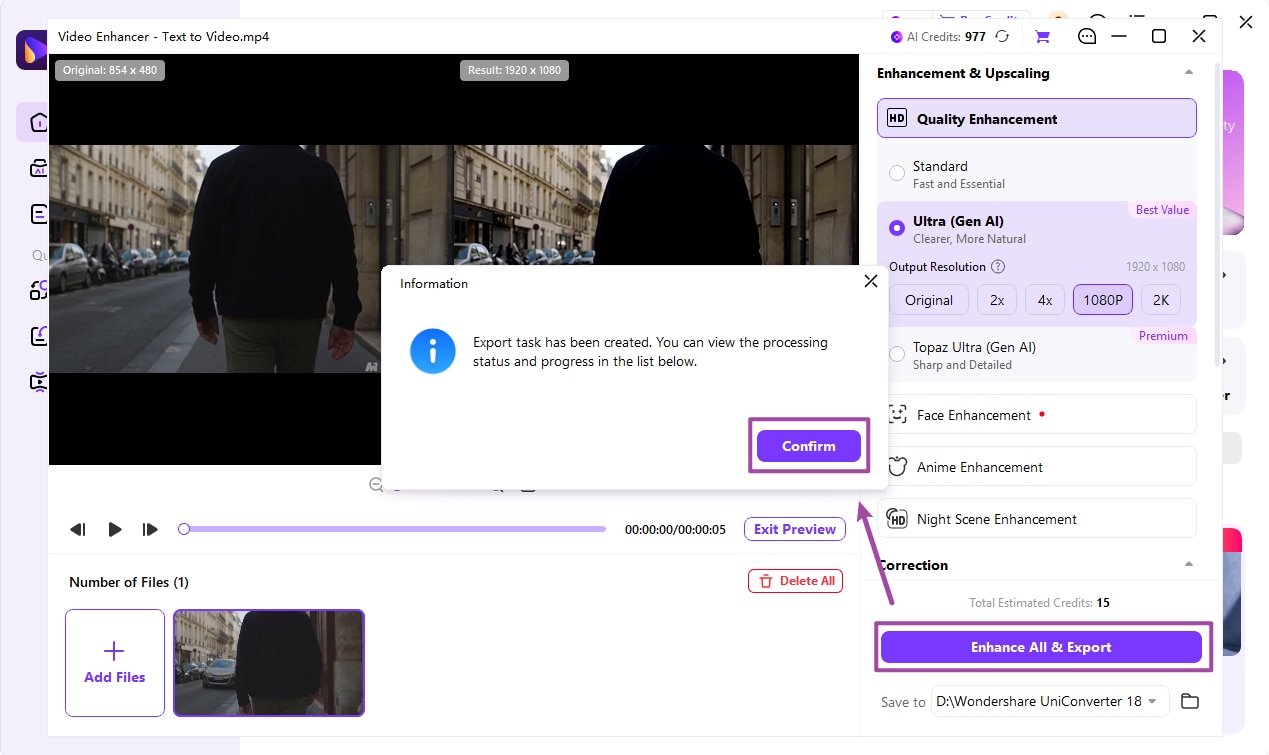
Review output choices and Total Estimated Credits before starting. Choose a clear Save to destination, then use Enhance All & Export. Inspect the finished files rather than judging success only from the preview.

  • Budget for the duration and output settings of the job.
  • Leave enough storage for the processed collection.
  • Keep the originals so results can be compared or reprocessed.
UniConverter enhancement export task settings

Batch Video Enhancement Controls at a Glance

These choices affect processing time, output size, and whether the result solves the original visual problem.

What Each Control Does

Control or choice What it changes Batch decision
Add Files Loads source videos into Video Enhancer. Group similar footage and remove unintended inputs.
Quality Enhancement Targets general clarity and detail problems. Compare modes on representative clips before using them broadly.
Face Enhancement Prioritizes facial detail. Review identity, skin texture, and moving faces.
General Video Denoise Targets visible image noise. Check that texture is not smoothed away with the grain.
Frame Interpolation Creates intermediate frames for smoother motion. Inspect motion artifacts; it is not a fix for missed focus.
Output Resolution Sets the available output scale or target resolution. Choose an appropriate delivery size rather than automatically maximizing it.
Preview (3 s) Creates a short enhanced preview. Review a section that contains the defect you need to fix.
Total Estimated Credits Shows the task’s estimated AI-credit requirement. Review it before committing the collection.
Save to / Enhance All & Export Defines the destination and begins processing. Check the location and open finished files after export.

Before the full batch: Model and resolution options vary by source and mode. Choose among the options available for the selected job; do not assume every model offers the same output sizes.

Where a Batch AI Video Enhancer Fits

Start with a clear improvement goal for the collection and keep expectations tied to the available source detail.

Interview and Portrait Collections

Use a face-focused workflow when facial softness is the main problem. Review expressions and movement carefully so the processed clips retain a natural appearance.

Older Video Libraries

Group similar recordings and test a restrained enhancement before processing a long archive. Preserve the original files because reconstruction may change fine detail.

Product and Training Videos

Improve a related set of clips before delivery, with special attention to text, product edges, and repeatable lighting. Keep readable detail ahead of exaggerated sharpness.

Noisy or Low-Light Footage

Choose an appropriate noise or night-scene treatment for the actual source. Brightening a dark picture alone does not remove grain or recreate detail lost in deep shadows.

Judge the Finished Video, Not Just Its Resolution

Use the same display size and playback section when comparing the original with the enhanced output.

Natural detailInspect skin, hair, fabric, buildings, and product edges for artificial patterns.
MotionWatch faces, camera movement, and scene changes for shimmer, warping, or frame artifacts.
Problem solvedConfirm that the selected treatment improved the original defect instead of merely changing the look.
Output settingsCheck dimensions, playback compatibility, duration, and the audio track.
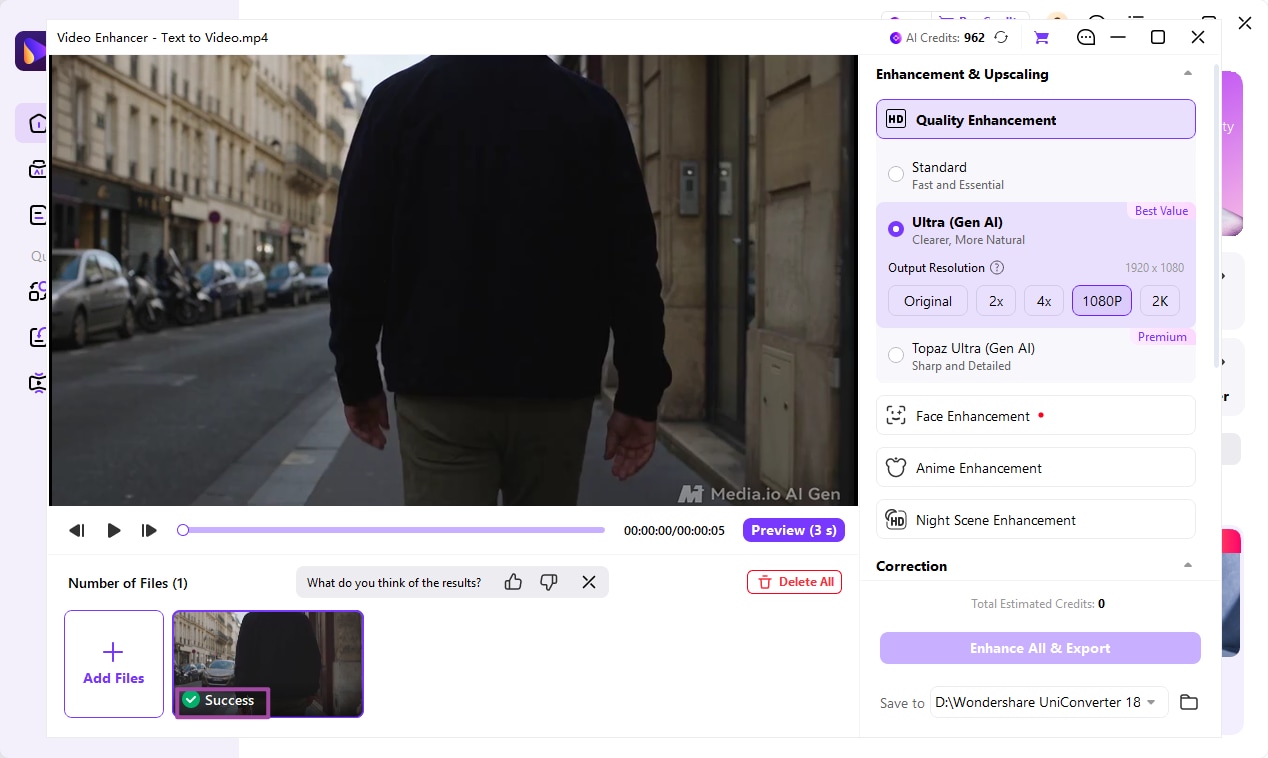
Batch deliveryOpen representative exports and confirm that no intended video was missed.

Batch Video Enhancer FAQs

01

Can I enhance multiple videos at once?

Yes. UniConverter Desktop Video Enhancer supports a multi-video workflow. Add the related files, choose the relevant enhancement options, preview representative results, and use Enhance All & Export for the prepared job.
Upscaling increases resolution. Enhancement can address clarity, noise, faces, lighting, or other quality problems. Choose the treatment by the source defect; use a dedicated upscaling workflow when resolution is the sole goal.
No. The online enhancer and desktop app provide different workflows and model availability. Use the desktop app for the multi-video and dedicated-model procedure described on this page.
Split clips into groups by the problem you need to fix. A treatment suited to a noisy night scene may be inappropriate for a clean portrait or an animation clip. Preview each group before export.
No. AI can improve visible quality and reconstruct plausible details, but it cannot guarantee exact recovery of information that was never captured. Review faces, text, and other detail-sensitive areas.
Choose the resolution required for delivery and compare the result. A larger frame can increase processing time and file size without guaranteeing a more natural or more informative image.
Model access and full exports can depend on a license or AI credits. Review the job’s Total Estimated Credits and the in-app requirements before starting the full collection.
Play representative outputs and inspect detail, motion, dimensions, duration, audio, and file size. Keep the original videos so unexpected artifacts can be compared and the task can be revised.

Enhance the Collection with a Clear Quality Goal and Review the Results

Add related videos to UniConverter Desktop, choose the treatment for the source problem, compare a preview, and review task estimates before exporting. Keep the original footage and judge the finished batch in motion.

UniConverter Video Enhancer completed results