
Add Multiple Videos or a Folder
Build one compression queue from multiple local video files or add a supported folder when the job contains a larger collection.
- Add multiple local videos
- Add a folder when needed
- Keep the compression job in one queue

Compress multiple local video files in one UniConverter desktop queue. Add videos or a folder, adjust file size, compression mode, format, resolution, bitrate, and other available settings, then preview representative results and run Compress All.
For Windows 11/10/8/7
For macOS 10.13 or later, including macOS 26 Tahoe

An online compressor can suit a quick single-file task. UniConverter Desktop is better suited to multiple local videos that need a managed queue, repeatable settings, preview, and batch export.
Wondershare UniConverter Video Compressor lets you add multiple videos or a folder, control the target file size and output settings, preview the result, and process the complete queue with Compress All.
Build one compression queue from multiple local video files or add a supported folder when the job contains a larger collection.
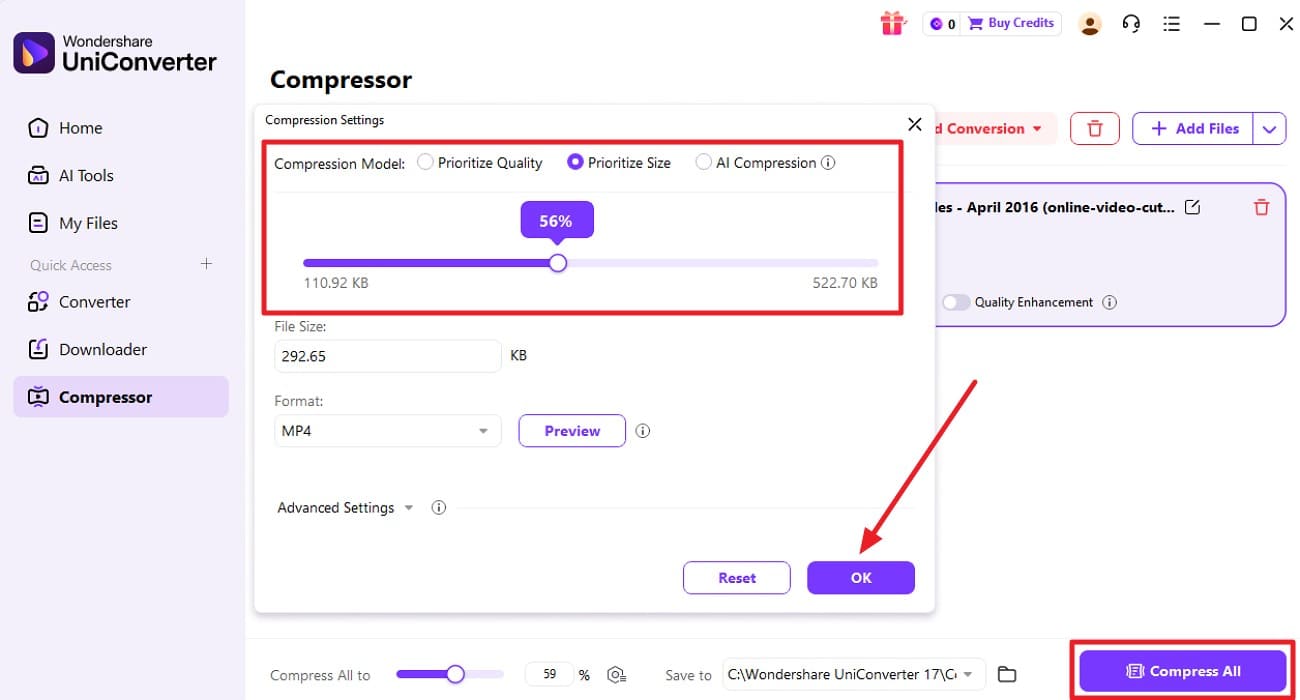
Choose the available target file size, compression mode, export format, and advanced settings for the output you need.

Apply the same compression settings across the queue when the files have a common goal, or customize individual videos when they need different handling.

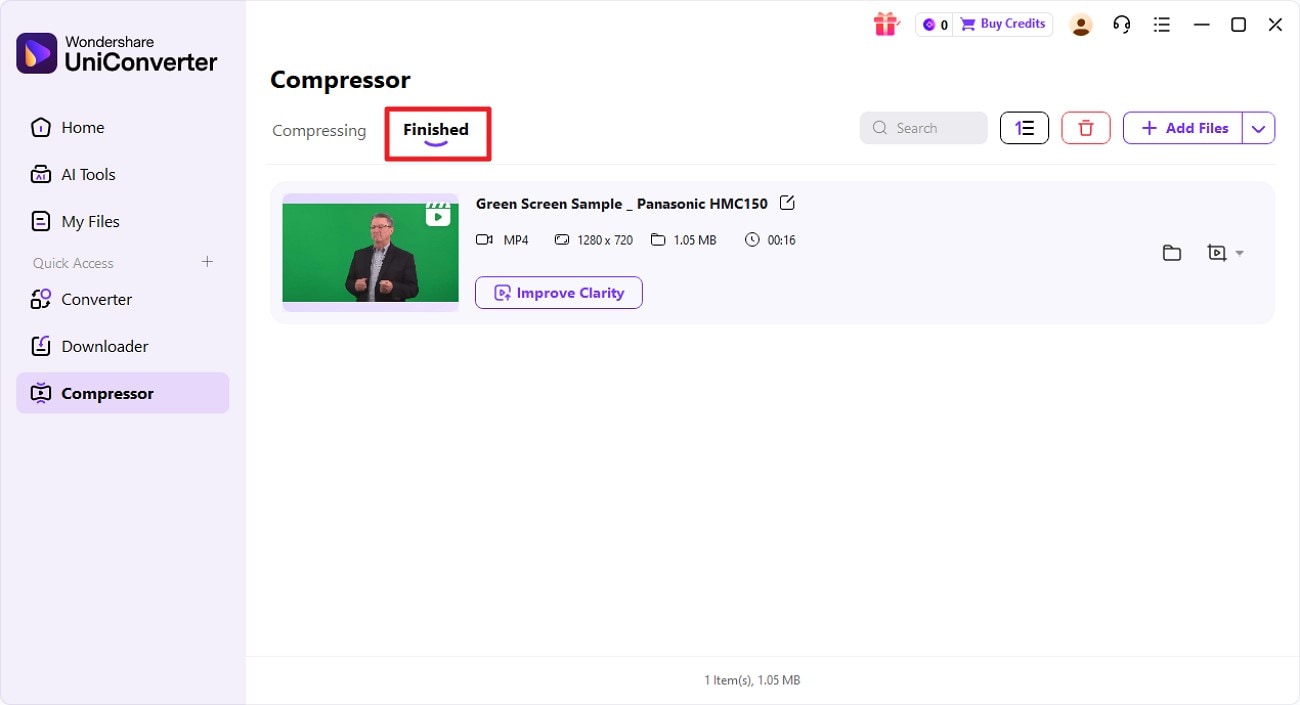
Preview a representative result, choose the Save to location, and use Compress All to process the video queue. Completed files are available from the Finished tab.

The UniConverter Video Compressor queue lets you control target file size, compression mode, output format, resolution, bitrate, encoder, save location, and shared or per-file settings. Available controls can vary by source, operating system, and installed UniConverter version.
Review the settings that affect file size and output quality before running the full compression queue.
| Compression Control | What You Can Do | Important Conditions |
|---|---|---|
| Queue & Batch Settings | Add multiple videos or a supported folder, use shared compression settings across the queue, or adjust files individually where supported. | Mixed sources may need different settings when resolution, duration, codec, or quality differs. |
| File Size & Compression Mode | Choose a target file size and use the available Basic or AI compression mode for the selected media. | Greater size reduction can involve quality tradeoffs, so preview representative files before the full batch. |
| Format & Advanced Settings | Choose an available export format and review advanced settings such as bitrate, video or audio encoder, and resolution. | Available options depend on the selected format, source media, operating system, and product version. |
| Preview, Save & Compress All | Preview the compressed result, choose the Save to location, then use Compress All to process the queue. | Completed videos can be checked from the Finished tab after processing. |
Technical references: UniConverter Video Compressor, Video Compressor User Guide, UniConverter Tech Specs.
Compression controls and format availability may vary by operating system and UniConverter version. See the UniConverter Tech Specs for current support and system requirements.
Add multiple videos, choose the compression settings, preview the result, and run Compress All.

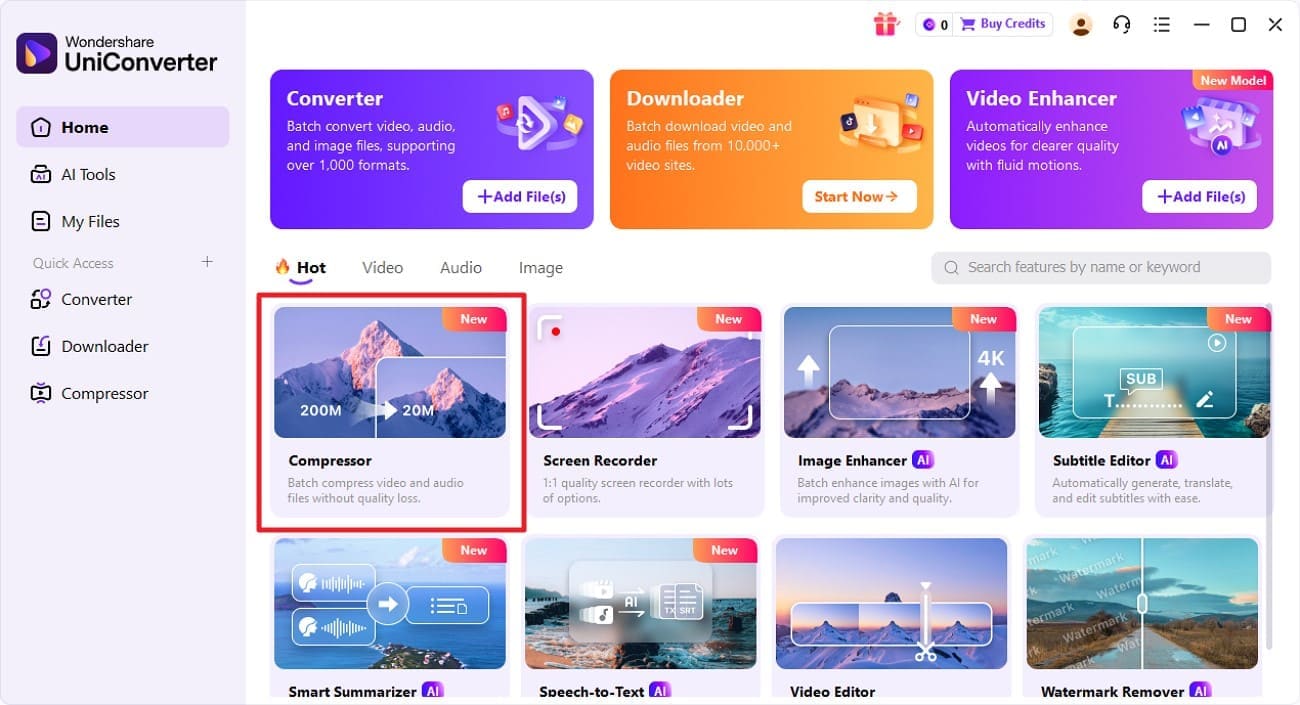
Open Video Compressor in Wondershare UniConverter, then add multiple local videos or a supported folder to the compression queue.

Choose the target file size, compression mode, export format, and available advanced settings such as bitrate, encoder, and resolution. Preview a representative result before processing the full queue.

After the compression is completed successfully, locate the file under the “Finished” section of the tool.
Batch compression is useful when several videos need smaller file sizes, consistent output settings, or a more manageable delivery package.
Reduce the size of multiple local videos in one queue instead of configuring and processing every file separately.
Create smaller delivery copies when a group of videos needs to be easier to upload, transfer, or share.
Compress large HD or 4K source files with output settings chosen around the next playback, storage, or delivery task.
Prepare a lighter set of review videos for colleagues, clients, or internal feedback while keeping the original source files separately.
These reviews describe users' experience with Wondershare UniConverter as a broader media conversion and editing product rather than feedback limited to Batch Video Compressor.
“Very configurable for the exact result you need.”
 Johnson
“The files can be used across IT platforms so easily!”
 Williams
“Wondershare UniConverter is incredibly versatile.”
 Olivia
Explore UniConverter reviews and independent coverage across trusted software platforms.

Add the video collection, choose the compression settings, preview the output, and run Compress All in Wondershare UniConverter.


