UniConverter
UniConverter Online Free
Converter video, audio & image free
Free Try
Enlarge an image collection with a reviewed AI workflow

How to Batch Upscale Images with AI

Quick Answer
  • To batch upscale images, add multiple files or a folder to an AI upscaler, choose an enlargement factor, preview representative images, and export the prepared collection.
  • UniConverter Desktop supports up to 200 JPG, JPEG, PNG, or BMP images in its Image Enhancer batch workflow. Use Image Upscaler for 2X, 4X, or 8X enlargement rather than format conversion or basic resizing.
  • For a free desktop option, use Upscayl on compatible hardware. For browser-based batch work, compare Pixelcut and Picsart; free single-image access does not establish free full-batch exports.

Batch upscaling increases the pixel dimensions of multiple images in one job. An AI upscaler can also infer sharper-looking edges and texture, while ordinary resizing mainly resamples existing pixels. Choose a tool around the number of files, output size, budget, and review controls—not only an “enhance” button.

UniConverter desktop:

UniConverter for Windows

UniConverter for Mac

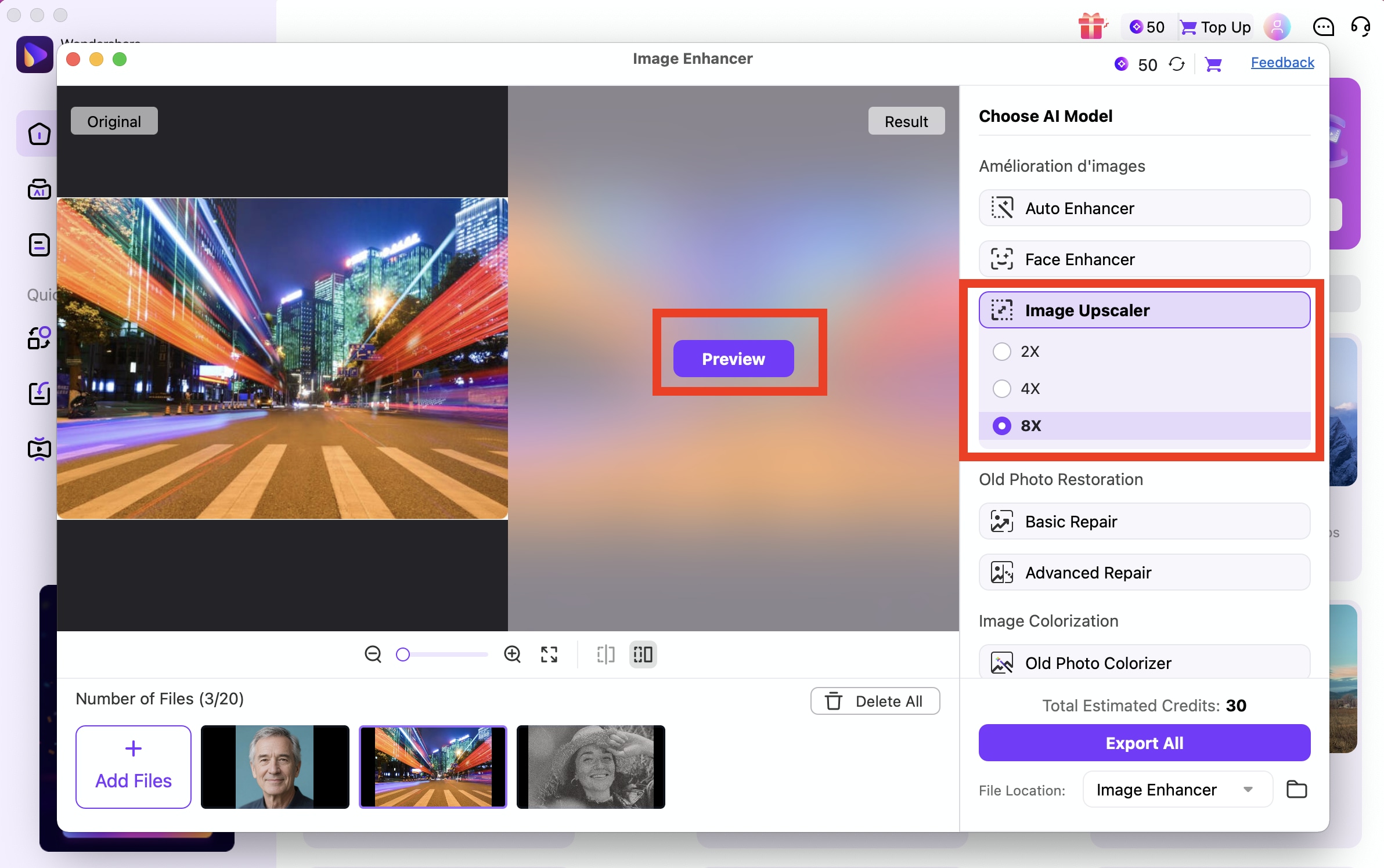
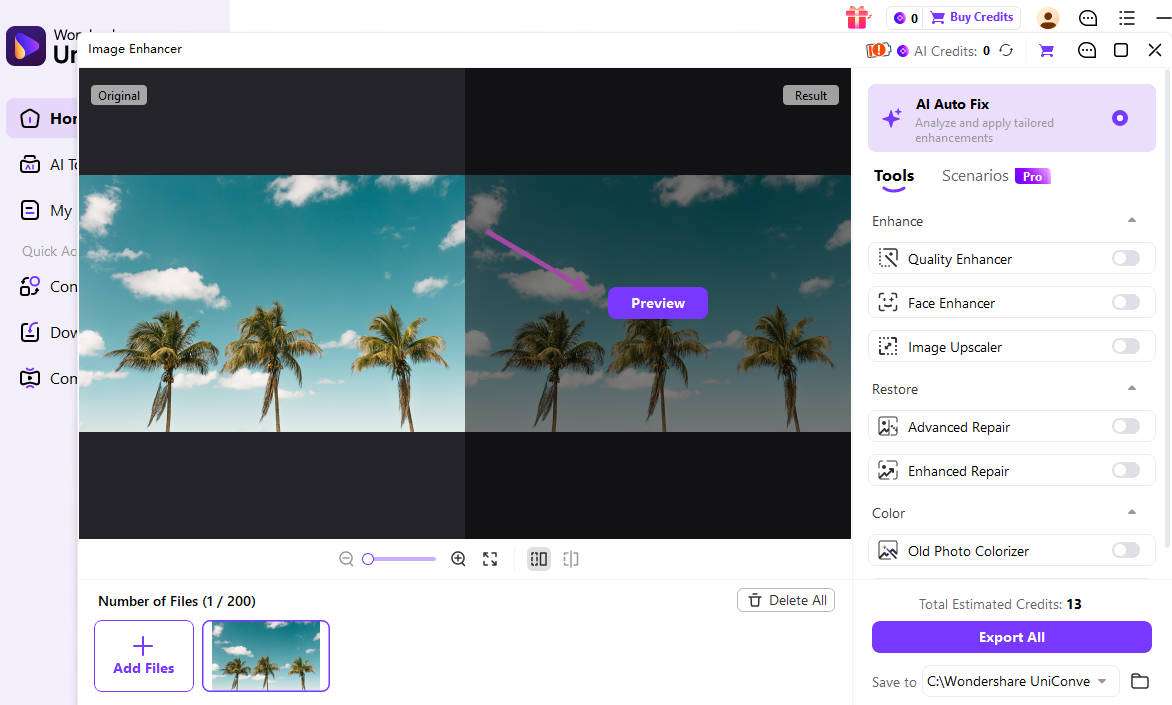
UniConverter Image Enhancer with image queue, preview, Image Upscaler tool, and Export All
ImportBuild one image queue
ScaleChoose a useful factor
PreviewInspect actual detail
ExportVerify the collection

Desktop or Online: Which Batch Upscaling Method Fits?

Choose the processing environment first, then compare tools. A desktop app can suit repeated local-folder work; a browser tool can suit a quick shared workflow without installing another editor.

Your requirement
Recurring folder workDesktop AI upscaler
Browser-based editingOnline bulk upscaler
Tool examples
✓UniConverter or the free, open-source Upscayl desktop app.
Pixelcut or Picsart bulk image tools.
Setup
✓Install the app; check hardware requirements for the chosen tool.
Upload supported images and choose the offered batch options.
Free access
✓Upscayl provides a free desktop route; UniConverter offers a desktop trial.
Free testing, batch processing, and full-resolution export can have different access conditions.
Result review
✓Inspect representative sources and the batch destination.
Inspect previews and confirm the complete download, including any ZIP contents.
Simple decision:
Use UniConverter for a guided image queue with targeted enhancement tools, Upscayl for a free desktop route, or a browser tool when online batch editing suits the job.
Follow the UniConverter Steps

Practical Ways to Upscale Multiple Images at Once

Prepare a small representative set before committing a folder. Include a detailed image, a face or product, and the weakest source so the test reflects the actual collection.

Method 1: Batch Upscale Images with UniConverter Desktop

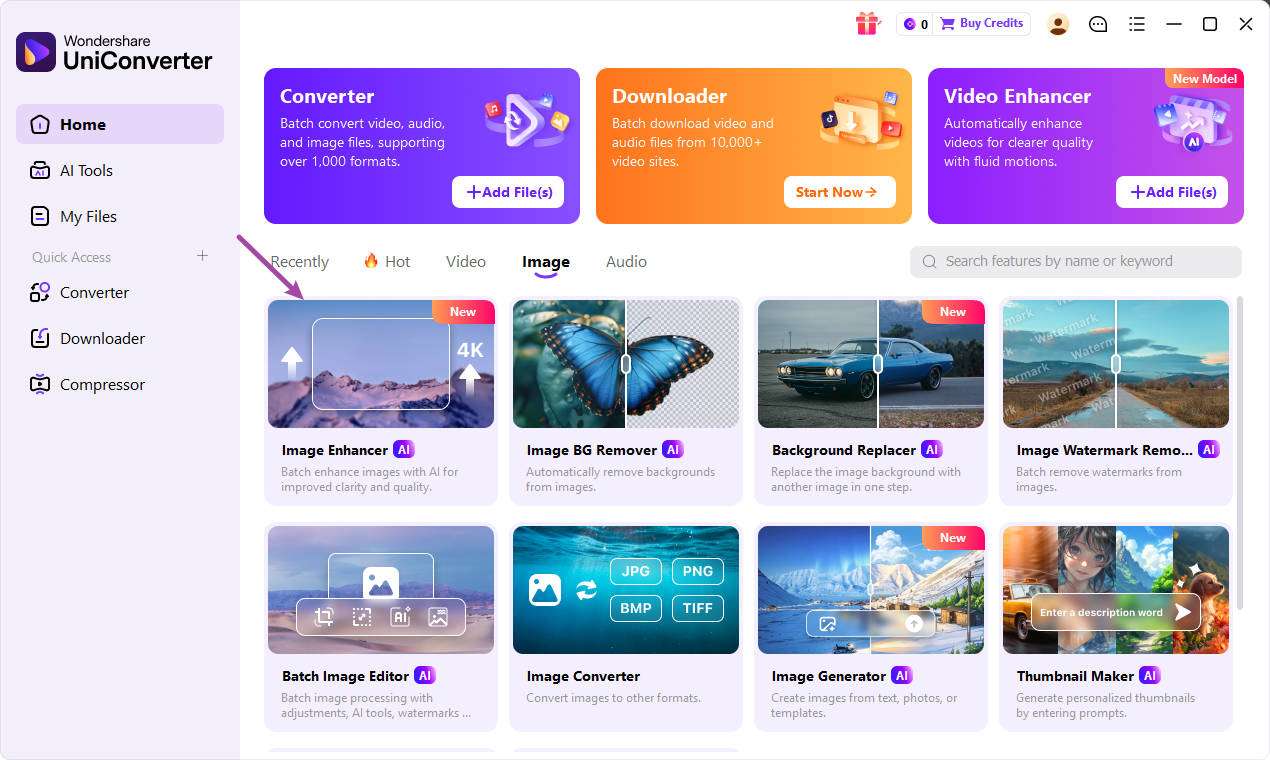
Open Image Enhancer, add supported images or a folder, and choose Image Upscaler in the Tools area. The desktop workflow combines a file queue, scale selection, preview, and Export All. It fits collections where resolution is the main requirement and some sources also need separate quality treatment.

  • Group photographs, artwork, and text-heavy graphics when their quality problems differ.
  • Use the dedicated upscaling tool for enlargement; choose a face, noise, or repair tool only for a separate source problem.
  • Preview important results, review the displayed credit estimate, and export to a separate folder.
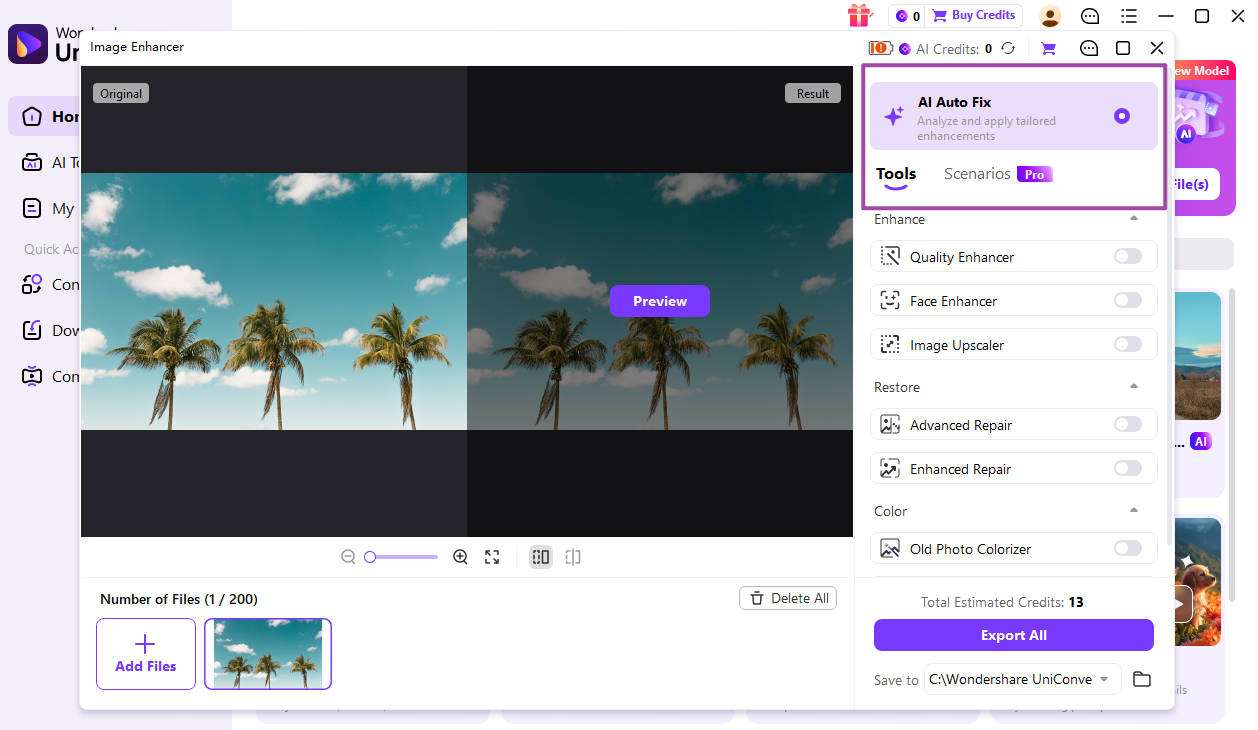
UniConverter desktop Tools area and image queue for preparing a batch

Choose 2X, 4X, or 8X from the Required Pixel Size

An enlargement factor multiplies both width and height. A 1000 × 750 image becomes 2000 × 1500 at 2X, 4000 × 3000 at 4X, or 8000 × 6000 at 8X. These are dimension calculations, not a promise that every output contains that much authentic new detail.

  • Start with the smallest available factor that meets the delivery requirement.
  • A 4X enlargement creates 16 times the pixel count; an 8X enlargement creates 64 times the pixel count. File size and processing time do not necessarily grow by the same ratio.
  • A 4K target is not identical for every aspect ratio: 4X does not automatically mean a 3840 × 2160 output.
UniConverter Mac Image Upscaler showing 2X, 4X, and 8X choices

Method 2: Batch Upscale Images Free with Upscayl

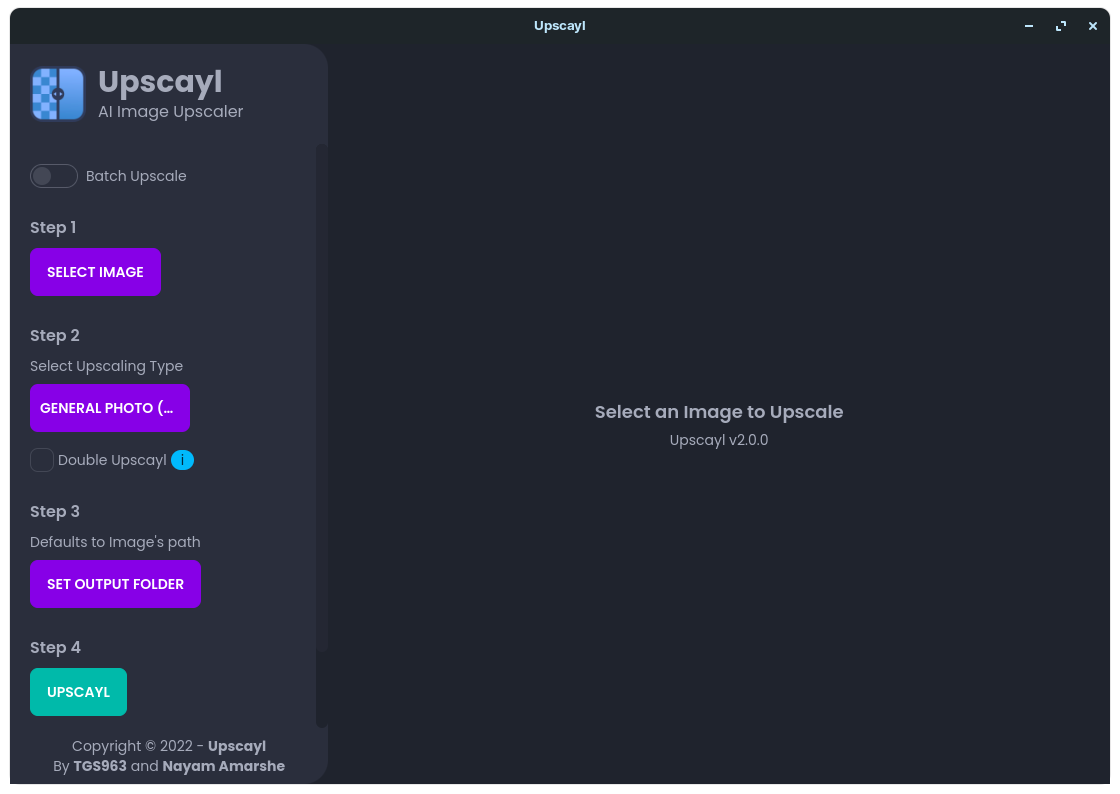
Upscayl is a free, open-source desktop application for Windows, macOS, and Linux. Enable Batch Upscale, select the input folder, choose a suitable model, set an output folder, and start Upscayl. Its standard desktop workflow needs a Vulkan-compatible GPU, so test a few images before relying on it for a large collection.

  • Download through the official project or its linked release page.
  • Choose a model suited to the source and compare fine edges, faces, and textures.
  • Let the batch finish before judging output format or final dimensions; some processing occurs after the initial enlargement.

AI can infer plausible detail, including incorrect texture or lettering. Inspect faces, labels, logos, and repeated patterns against the original before approving the batch.

Official Upscayl project interface with Batch Upscale and output-folder controls

Method 3: Batch Upscale Images Online with Pixelcut or Picsart

Pixelcut’s bulk workflow uploads a collection, selects 2X or 4X enlargement, and downloads the results individually or as a ZIP. Picsart’s bulk enhancer accepts up to 50 images and provides before-and-after review. These are real multi-image routes, rather than instructions to repeat a single-image tool manually.

  • Pixelcut advertises batches of up to 10,000 images; its help center places 4X and enhanced-detail access in Pro.
  • Picsart lets you select a photo collection and inspect the enhanced results before export.
  • Run a representative sample before uploading the full set, especially when the images contain small text or important product details.
  • Separate a free preview or trial from the access needed for the full batch and final-resolution downloads.

Upscaling increases pixel dimensions. A batch image quality enhancer may instead address noise, lighting, or blur; choose the operation that matches the source problem.

Picsart product illustration of bulk image enhancement

Which Bulk Image Upscaler Should You Choose?

Use this task-based comparison rather than treating one tool as the best for every collection. Batch capacity is not a speed or quality benchmark.

Batch AI image upscalers: workflow and access comparison

Choose the action from the source problem, then use the final column to review the result.

Batch AI image upscalers: workflow and access comparison
ToolBest-fit batch workflowImportant condition
UniConverter DesktopUp to 200 supported images; Image Upscaler with 2X, 4X, or 8X choices.JPG, JPEG, PNG, and BMP inputs; review the preview and displayed AI-credit estimate.
Upscayl DesktopA free, open-source folder-based upscaling route.Check the Vulkan-compatible GPU requirement and test the selected model.
PixelcutOnline bulk upscaling with 2X/4X selection and batch downloads.Up to 10,000 images advertised; 4X and enhanced details require Pro access.
PicsartOnline enhancement and upscaling of up to 50 images with visual review.Before-and-after preview; inspect fine detail for reconstruction artifacts.

Official sources, checked October 26, 2026: UniConverter Image Upscaler and Desktop batch enhancement guide.

2X enlargement4X enlargement8X enlargementQuality checks
1000 × 7501000 × 750 checkBecomes 2000 × 1500 pixels.
Pixel countPixel count checkFour times the source pixel count.

Preview a representative sample, check exceptions, and keep the original files for revisions. Interface labels can vary between platforms and versions.

Match the Upscaling Workflow to the Image Collection

Different sources need different acceptance checks even when they share the same enlargement factor.

Product-photo collections

Inspect packaging, labels, stitching, and material texture. A more detailed-looking result is unsuitable if it changes what the product actually shows.

Portrait collections

Check facial features, hair, skin texture, and accessories. Use a separate face-enhancement treatment only when the portrait needs it.

Artwork and graphics

Compare line edges, repeated patterns, and transparency where relevant. Test the intended export format before processing the collection.

Larger web or print assets

Calculate the needed pixel dimensions first. For print, use the receiving workflow’s size and PPI requirement; changing PPI metadata alone does not add pixels.

Fix Common Batch Image Upscaling Problems

Compare the affected output with its source and review the selected file’s settings. Test the correction on a representative sample before repeating the job.

01

The output is larger but still looks soft

Compare the result at the intended display size and at 100%. Severe defocus or missing source detail can remain limiting. Try a more suitable model or a better original rather than repeating a stronger upscale blindly.
Check 1Source detail
02

A large batch stops or runs out of resources

Retry a small representative group, use a lower useful scale, and check available memory and disk space. For Upscayl, verify GPU compatibility. Resume with smaller groups after confirming a successful output.
Check 2Batch resources
03

AI changes letters, faces, or product texture

Compare those regions with the original. Use a gentler treatment, exclude the affected file, or prefer conventional resizing when faithful content matters more than synthesized detail.
Check 3Content fidelity

Consult the official guides for the relevant controls and keep separate tools’ instructions separate.

Batch Upscale Images FAQs

01

How do I upscale multiple images at once?

Use a batch AI image upscaler: import several images or a folder, select a model and enlargement factor, preview representative results, and export the collection. In UniConverter Desktop, use Image Enhancer > Image Upscaler and Export All.
Choose by the job. UniConverter suits a guided desktop queue with targeted image tools. Upscayl is a free desktop option on compatible hardware. Pixelcut and Picsart provide online batch workflows. Compare output fidelity, export access, and the actual collection size before choosing.
Yes. Upscayl’s open-source desktop app provides a free batch route, subject to compatible hardware. Enable Batch Upscale, choose the source folder and model, set an output folder, and run a small test before the full collection.
Some services provide a free test or entry-level access, but free single-image use does not guarantee free bulk processing or full-resolution exports. Pixelcut offers a free sample upscaler, while its help center places 4X and enhanced details in Pro. Evaluate the actual batch and export access.
Identify the defect first. Use upscaling for insufficient pixel dimensions, noise reduction for grain, and appropriate face or repair tools for those specific problems. General enhancement can change appearance without producing the required larger dimensions.
No. The output width and height depend on the source dimensions. A 1000 × 750 image at 4X becomes 4000 × 3000, while a 1920 × 1080 image at 2X becomes 3840 × 2160. Keep the intended aspect ratio and verify the exported dimensions.
Wondershare UniConverter

Batch Upscale Images with a Clear Output Goal

Add your image collection to UniConverter Desktop, choose Image Upscaler, preview a useful scale, and Export All after reviewing important detail. Keep the original files and verify the delivered dimensions.

UniConverter desktop batch image workflow with preview and Export All