UniConverter
UniConverter Online Free
Converter video, audio & image free
Free Try
Wondershare UniConverter Batch Image Enhancer

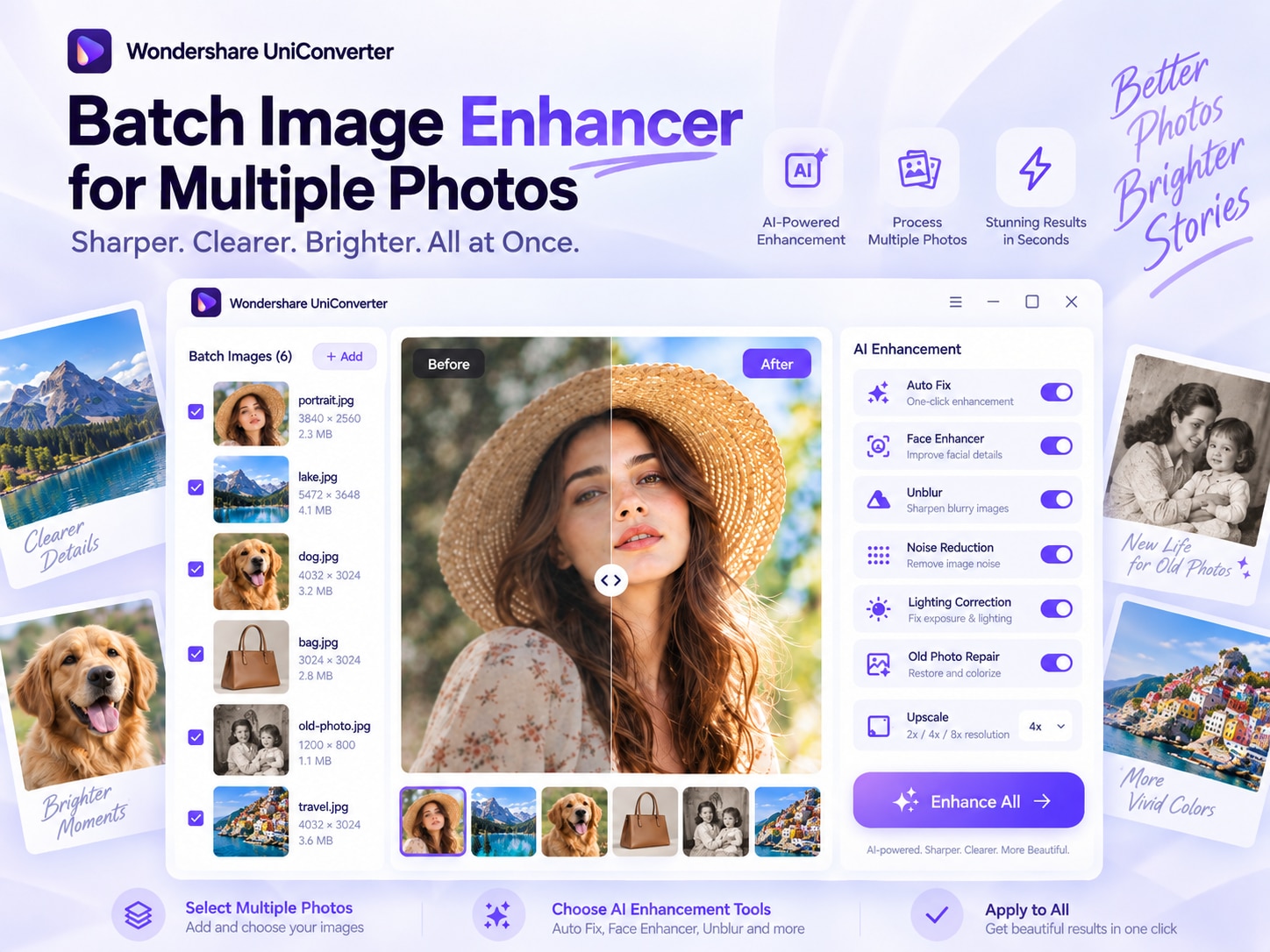
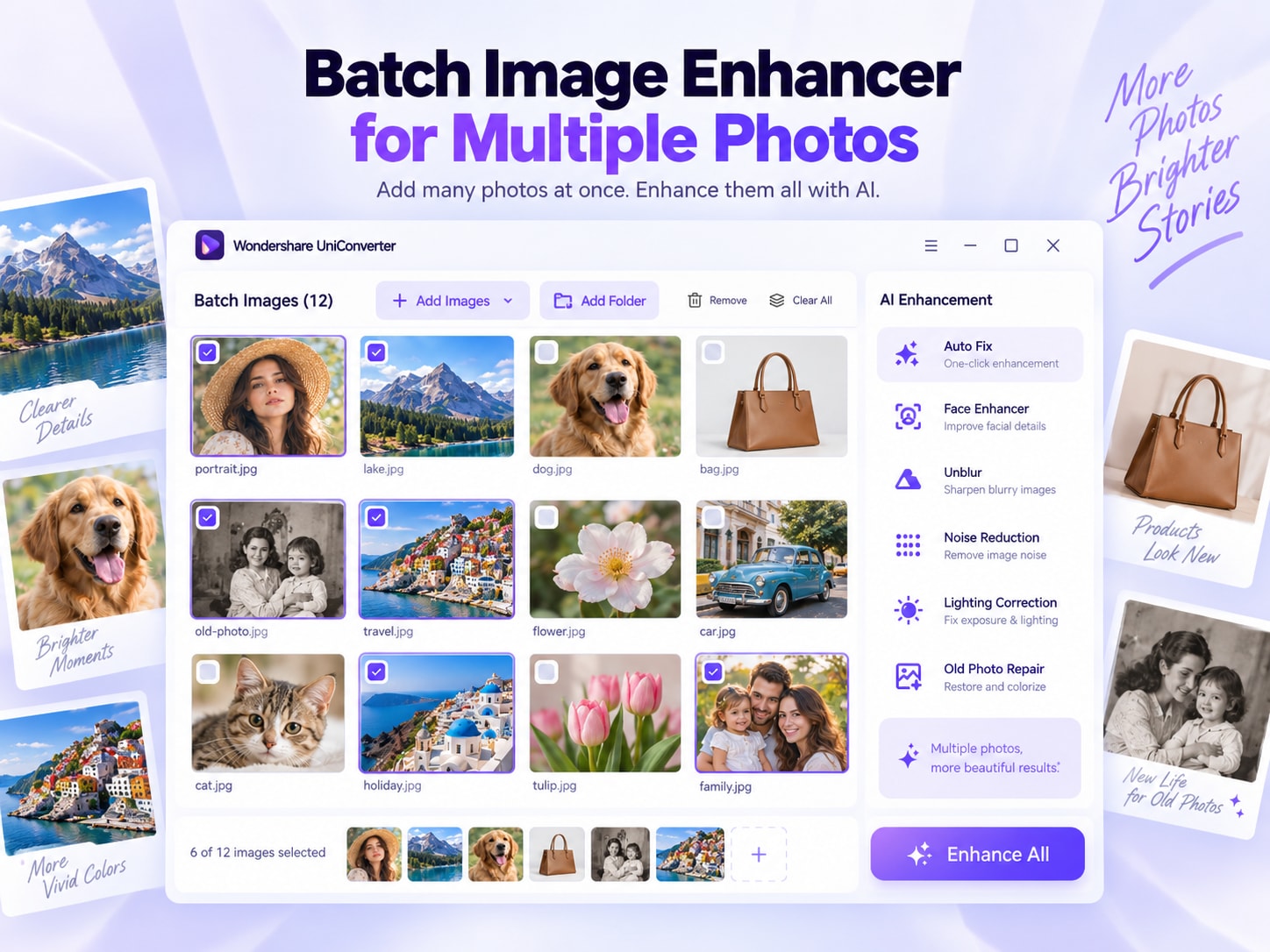
Batch Image Enhancer for Multiple Photos

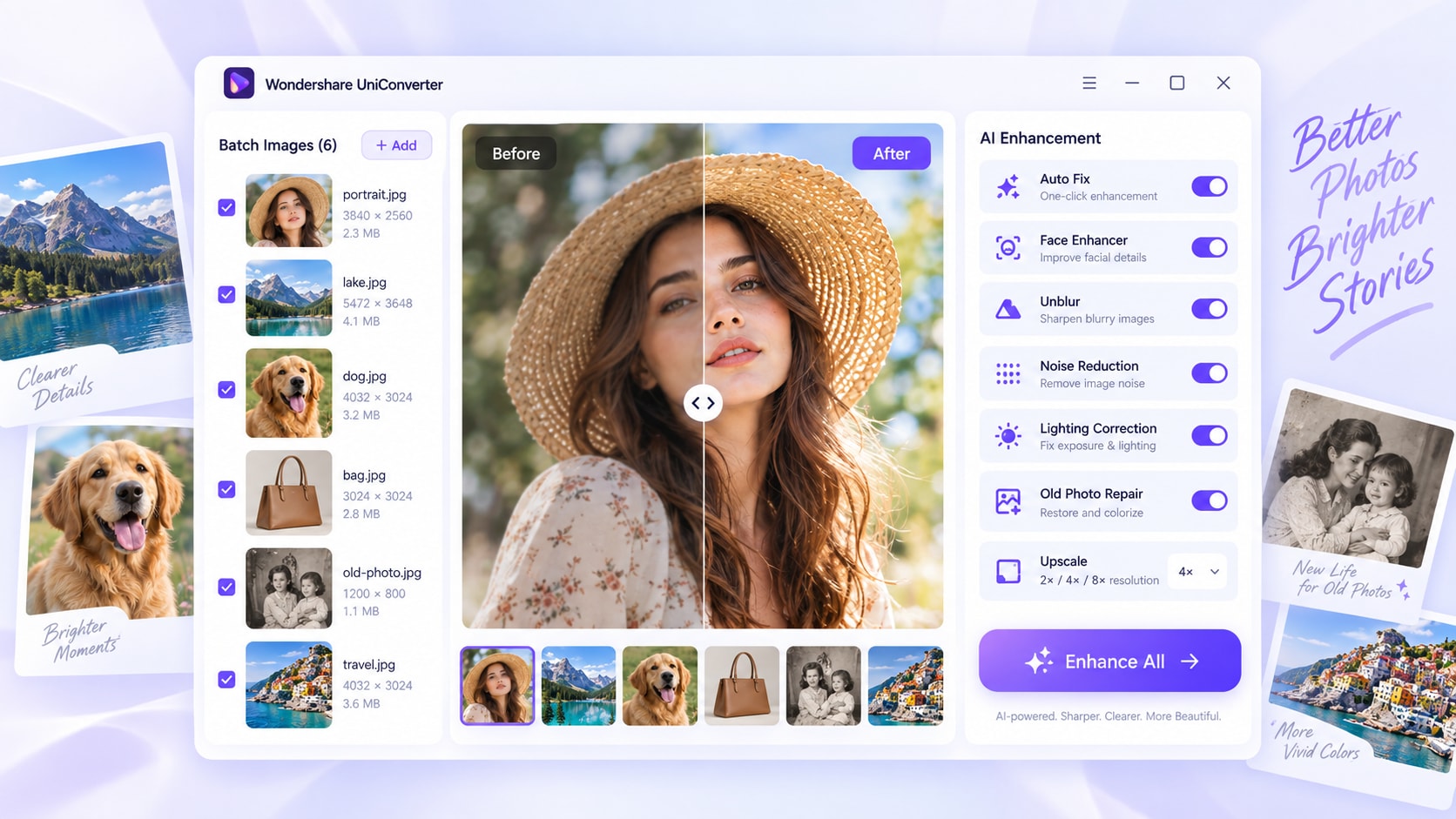
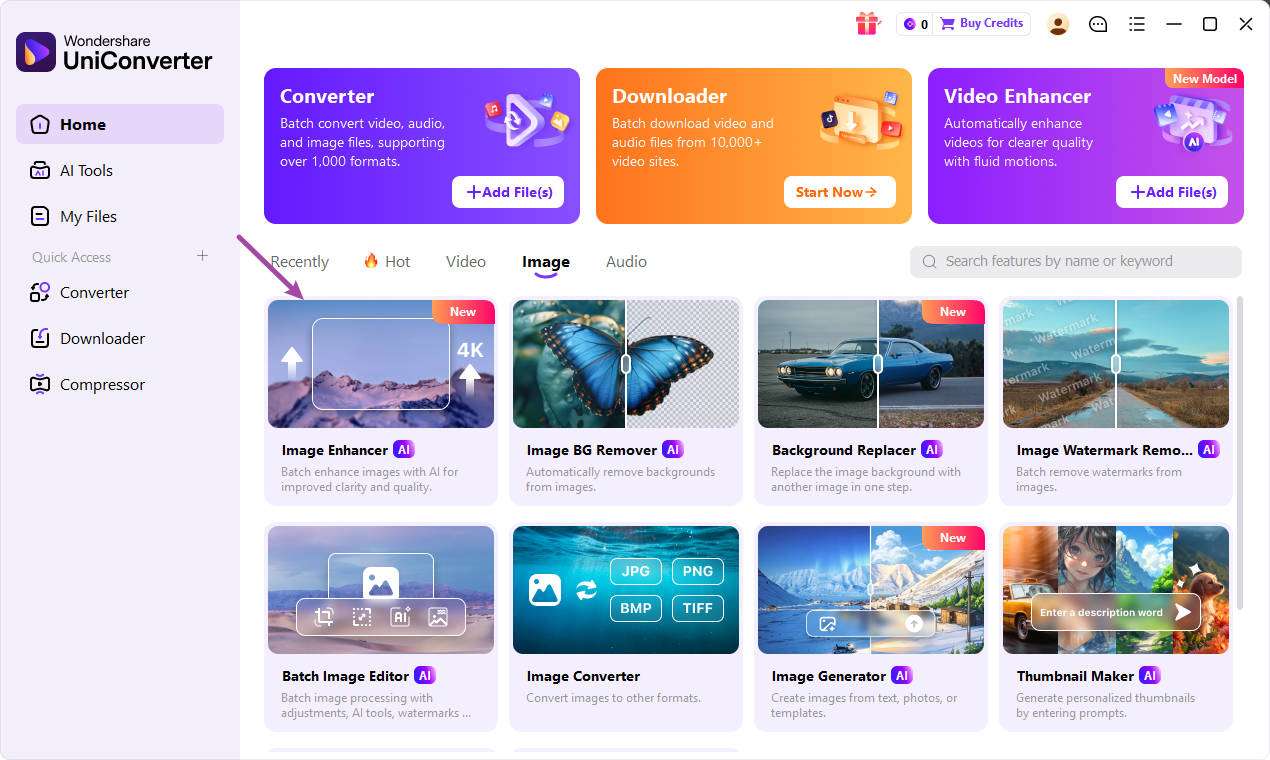
Enhance multiple photos at once with Wondershare UniConverter AI Image Enhancer. Import individual files, select multiple images, or add a folder, then use AI Auto Fix or targeted tools for faces, blur, noise, lighting, old photos, text, glare, and other quality problems. The desktop app supports JPG, JPEG, PNG, and BMP files and can process up to 200 images in one batch.

  • Enhance up to 200 JPG, JPEG, PNG, or BMP images in one batch.
  • Use AI Auto Fix or targeted enhancement tools for different image problems.
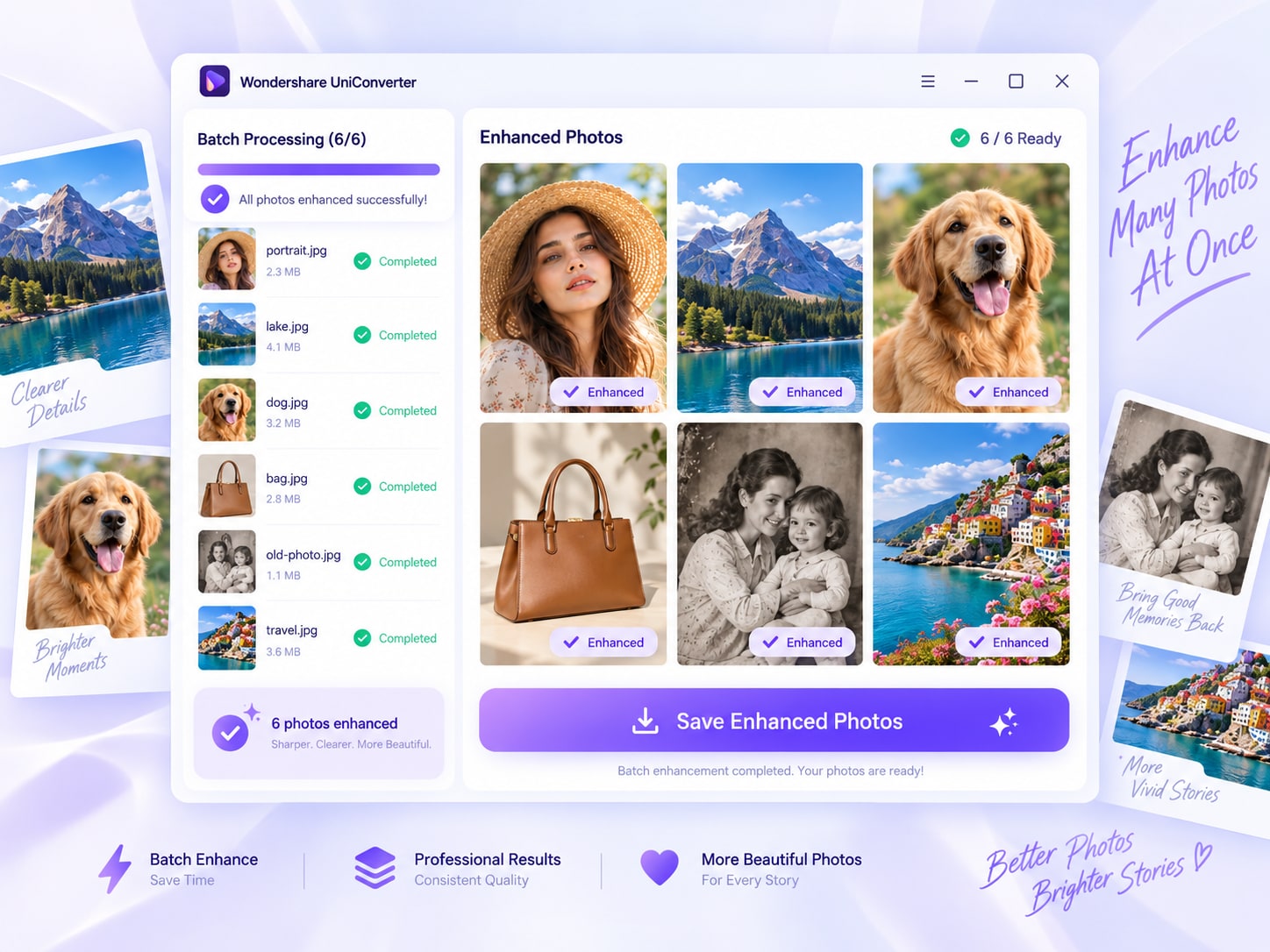
  • Preview important results and export the enhanced collection from one desktop workflow.
Available on:

For Windows 11/10/8/7

For macOS 10.13 or later, including macOS 26 Tahoe

4.7Rated on Trustpilot
Batch Image Enhancer for Multiple Photos
120+Countries
7M+Satisfied Users
1.4M+Subscribers
21M+Downloads

Quick Answer: Can You Enhance Multiple Images at Once?

Yes. Wondershare UniConverter Desktop can import individual files, multiple images, or a folder into AI Image Enhancer and process up to 200 JPG, JPEG, PNG, or BMP images in one batch.

Use AI Auto Fix for automatic analysis, or choose targeted tools and scenarios such as Face Enhancer, Unblur, Noise Reduction, Lighting Correction, Advanced Repair, Old Photo Colorizer, Text Enhancement, and Remove Glare. When resolution is the main goal, the desktop Image Upscaler also provides 2X, 4X, and 8X upscaling.

Desktop vs. Online for AI Image Enhancement

Use the online enhancer for a quick photo. Choose UniConverter Desktop when you need larger, repeated, or specialized enhancement jobs across an image collection.

Compare the workflow
Recommended for batch jobsUniConverter Desktop
Fast browser accessOnline Image Enhancer
Batch Processing
Import up to 200 images at a time, including by folder.
Designed for quick enhancement of a small number of images.
Supported Inputs
JPG, JPEG, PNG, and BMP for the current desktop AI Image Enhancer.
JPG, JPEG, and PNG; each online file must be under the current 50MB limit.
Enhancement Modes
AI Auto Fix plus targeted Tools and Scenarios for specific quality problems.
Quality Enhancer for fast browser-based improvement.
Specialized Processing
Face, repair, color, unblur, text, noise, lighting, glare, old-photo, and related workflows.
Best suited to a quick general enhancement rather than the full desktop toolset.
Image Upscaling
Use the AI Image Upscaler at 2X, 4X, or 8X when higher resolution is required.
The current online Image Enhancer comparison does not include the desktop 2X/4X/8X upscaling workflow.

Simple decision:
Choose Desktop when you need batch enhancement, specialized AI tools, or repeated work across a larger image collection.
Download UniConverter for Desktop

Why Use Wondershare UniConverter as a Batch Image Enhancer?

Batch enhancement is useful when many photos need quality improvement without opening and processing each image separately. UniConverter Desktop combines high-volume import, automatic analysis, targeted enhancement tools, preview, and batch export in one AI Image Enhancer workflow.

Enhance Up to 200 Images in One Batch

Add individual files, select multiple photos, or import a folder into AI Image Enhancer. The current desktop workflow supports up to 200 JPG, JPEG, PNG, or BMP images in one batch.

  • Build one enhancement queue instead of reopening the tool for every photo.
  • Useful for product catalogs, content libraries, old-photo digitization, and recurring creative work.
  • Review representative images before exporting the complete collection.
Enhance up to 200 images in one batch

Let AI Auto Fix Analyze Each Photo

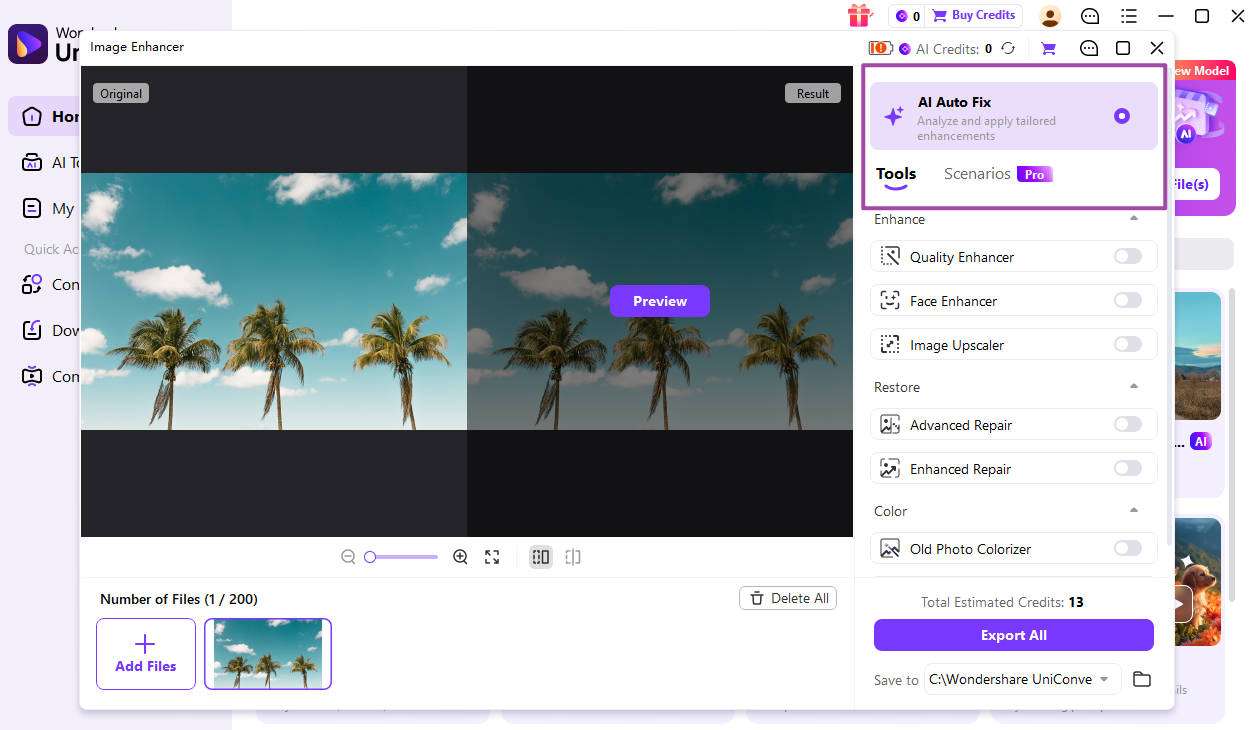
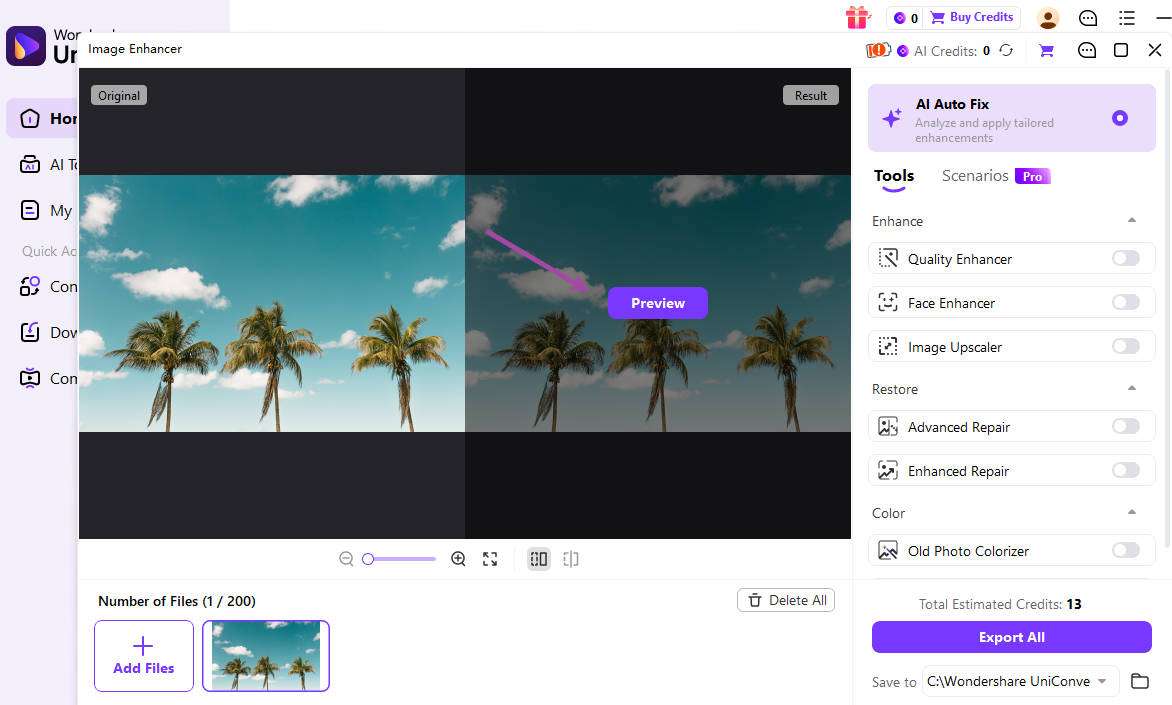
AI Auto Fix analyzes the image type, subject, and visible quality problems, then applies a suitable enhancement approach automatically. This is useful when a batch contains photos that do not all need the same manual adjustment.

  • Reduce repetitive decision-making across large collections.
  • Use Gentle processing when preserving a natural photographic look is the priority.
  • Use Detail-focused GenAI processing when a visibly degraded source needs stronger reconstruction.
AI Auto Fix analyzes and enhances photos

Choose a Tool for the Actual Image Problem

General enhancement is only one option. UniConverter Desktop also provides targeted tools and scenarios for common photo-quality problems.

  • Face Enhancer for portraits and facial detail.
  • Unblur and Noise Reduction for softness or visible image noise.
  • Lighting Correction, Remove Glare, and Cloudy Photo Enhancer for scene-specific problems.
  • Advanced Repair, Enhanced Repair, Old Photo Colorizer, Old Photo Scan Correction, and Text Enhancement for specialized sources.
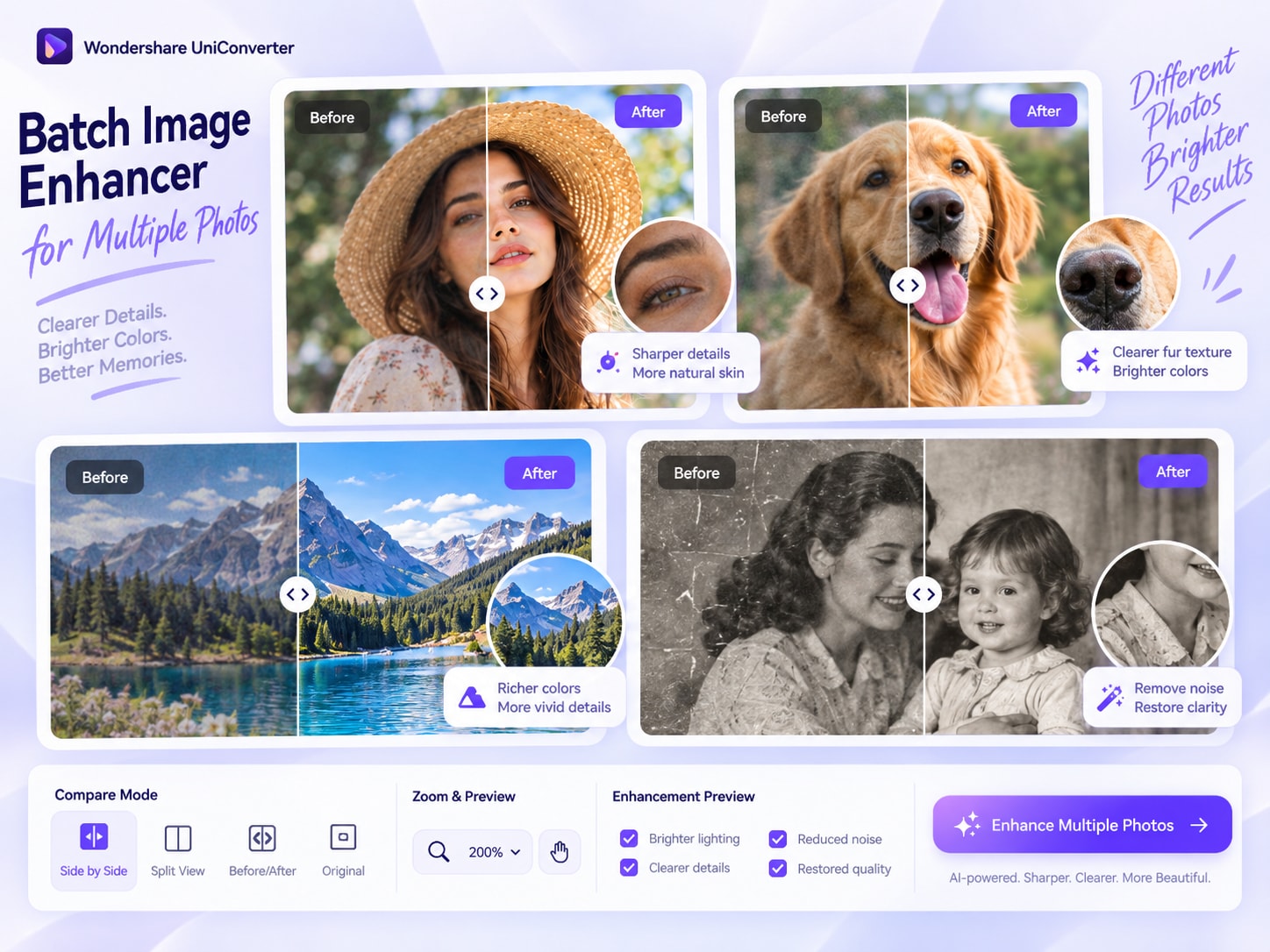
Targeted AI image enhancement tools for different photo problems

Upscale Only When Higher Resolution Is the Goal

The desktop AI Image Upscaler is available inside the broader enhancement experience and can increase image resolution by 2X, 4X, or 8X. Upscaling is one enhancement mode—not the same task as general quality improvement, resizing, or format conversion.

  • Use Image Upscaler when the main requirement is a larger, higher-resolution output.
  • Use Batch Image Resizer when exact width and height are the main requirement.
  • Use Batch Image Converter when the main requirement is changing file format.
AI Image Upscaler with 2X 4X and 8X options

Batch Image Enhancer vs. Upscaler vs. Resizer vs. Converter

These image workflows solve different problems. Choose the one that matches the result you need instead of treating enhancement, upscaling, resizing, and format conversion as interchangeable.

Choose the Right Image Workflow

Use Batch Image Enhancer when the main goal is visual quality improvement. Use the related tools when the main requirement is resolution, exact dimensions, framing, or file format.

Differences between UniConverter image enhancement, upscaling, resizing, and conversion workflows
Workflow Main purpose Typical controls or output
Batch Image Enhancer Improve visible image quality across a collection AI Auto Fix, face, repair, color, unblur, text, noise, lighting, glare, and related AI tools
AI Image Upscaler Increase image resolution 2X, 4X, or 8X upscaling with AI-assisted detail reconstruction
Batch Image Resizer Change pixel dimensions or delivery size Custom width and height, presets, and canvas-fit options
Batch Image Converter Change file format Shared output format, save folder, and available per-file format or size options

Related UniConverter workflows: AI Image Enhancer, Image Upscaler, Batch Image Resizer, and Batch Image Converter.

What Can Batch AI Image Enhancement Improve?

Different source problems need different tools. AI enhancement can improve many visible defects, but results remain source-dependent and stronger generative repair can reconstruct plausible detail rather than recover information that was never captured.

Common image problems and UniConverter AI Image Enhancer tools
Image problemRelevant tool or modeWhat to review
General low qualityAI Auto Fix / Gentle / DetailNaturalness, textures, and whether stronger reconstruction is appropriate
Soft or blurry imageUnblurEdges, faces, text, and oversharpening artifacts
Visible grain or noiseNoise ReductionFine texture and detail retention
Portrait or face detailFace EnhancerIdentity, skin texture, and natural facial detail
Old or damaged photoAdvanced Repair / Enhanced Repair / Old Photo Scan CorrectionScratches, fading, reconstruction artifacts, and source fidelity
Black-and-white photoOld Photo ColorizerColor plausibility and historical accuracy
Poor lighting or glareLighting Correction / Remove GlareHighlights, shadows, and color balance
Unclear textText EnhancementCharacter legibility and invented or altered text

Who Can Use
Batch Image Enhancement?

Batch image enhancement is useful when a collection needs faster quality improvement before publishing, sharing, archiving, or reuse. Choose the enhancement mode that matches the source problem and spot-check important results before delivery.

Photographers and event teams

Process event, portrait, or client-photo collections with AI Auto Fix, Face Enhancer, Unblur, or other relevant tools before review and delivery. Spot-check important images because enhancement results remain source-dependent.

Ecommerce and product-content teams

Enhance product-photo collections affected by soft detail, noise, lighting problems, or inconsistent clarity. Continue to Batch Image Editor when marketplace delivery also requires exact dimensions, crops, backgrounds, or watermarks.

Content and marketing teams

Improve campaign images, screenshots, AI-generated artwork, or social assets before reuse. Use a separate resize or conversion workflow when the destination also requires exact dimensions or a specific file format.

Archives and personal photo collections

Process old-photo scans with repair, color, and enhancement tools before sharing or digitization. Keep the originals and review stronger repair or generative results for reconstruction artifacts.

What UniConverter Users Are Saying

These comments describe users' experience with Wondershare UniConverter overall rather than feedback limited specifically to Batch Image Enhancer.

★★★★★

“Very configurable for the exact result you need.”

The broader UniConverter workflow combines conversion, enhancement, and editing tools for users who handle multiple media tasks.
JohnsonJohnson
★★★★★

“The files can be used across IT platforms so easily!”

This kind of compatibility is useful when converted media needs to move between common systems and delivery workflows.
WilliamsWilliams
★★★★★

“Wondershare UniConverter is incredibly versatile.”

The broader conversion and editing toolkit supports users who need to complete more than one isolated media task.
OliviaOlivia

Explore UniConverter reviews and independent coverage across trusted software platforms.

FAQs About Batch Image Enhancement

01

What is a batch image enhancer?

A batch image enhancer improves the visual quality of multiple images in one workflow instead of processing every photo separately. UniConverter Desktop can apply AI Auto Fix or targeted enhancement tools across a supported image collection and then export the processed results.
Yes. UniConverter Desktop AI Image Enhancer can import individual files, multiple images, or a folder and process up to 200 images in one batch.
The current UniConverter Desktop AI Image Enhancer supports JPG, JPEG, PNG, and BMP input. Format support can change with product updates, so check the current Image Enhancer or Tech Specs before a production job.
The desktop toolset includes AI Auto Fix plus tools and scenarios for faces, repair, color, blur, text, noise, lighting, glare, old photos, and related image-quality problems. Choose the tool that matches the source problem and review important results before delivery.
Yes, the desktop AI Image Enhancer includes an Image Upscaler with 2X, 4X, and 8X options. Upscaling is one enhancement mode focused on increasing resolution; general enhancement also includes tools for clarity, faces, noise, lighting, repair, color, and other quality problems.
No. AI can improve visible quality and, in stronger generative modes, reconstruct plausible detail, but it cannot guarantee recovery of information that was never captured in the source. Review faces, text, historical photos, and other detail-sensitive images carefully.
Image enhancement improves visible quality. AI upscaling increases resolution. Resizing changes pixel dimensions or canvas size. Image conversion changes file format. UniConverter provides separate workflows for these tasks so you can choose the tool that matches the intended result.
Wondershare UniConverter

Enhance Multiple Photos with UniConverter AI

Add multiple images or a folder, choose AI Auto Fix or a targeted enhancement tool, preview important results, and export the enhanced collection. Use the related Upscaler, Resizer, Editor, or Converter when the next requirement is resolution, dimensions, framing, or file format.

Improve a Supported Image Collection with Wondershare UniConverter