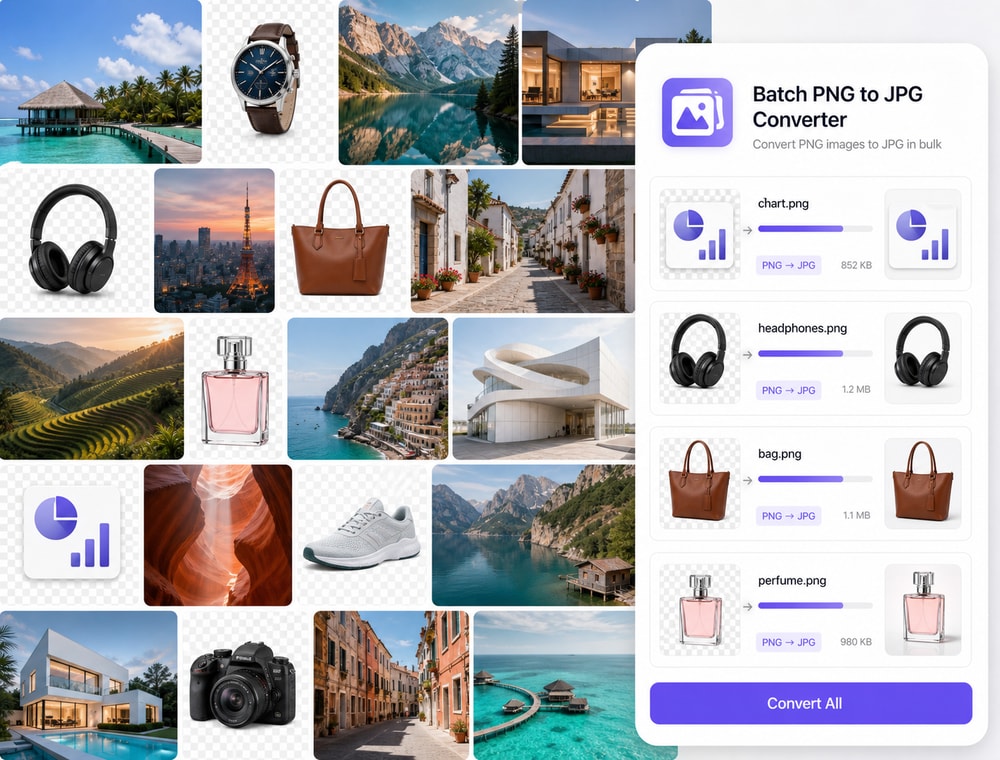
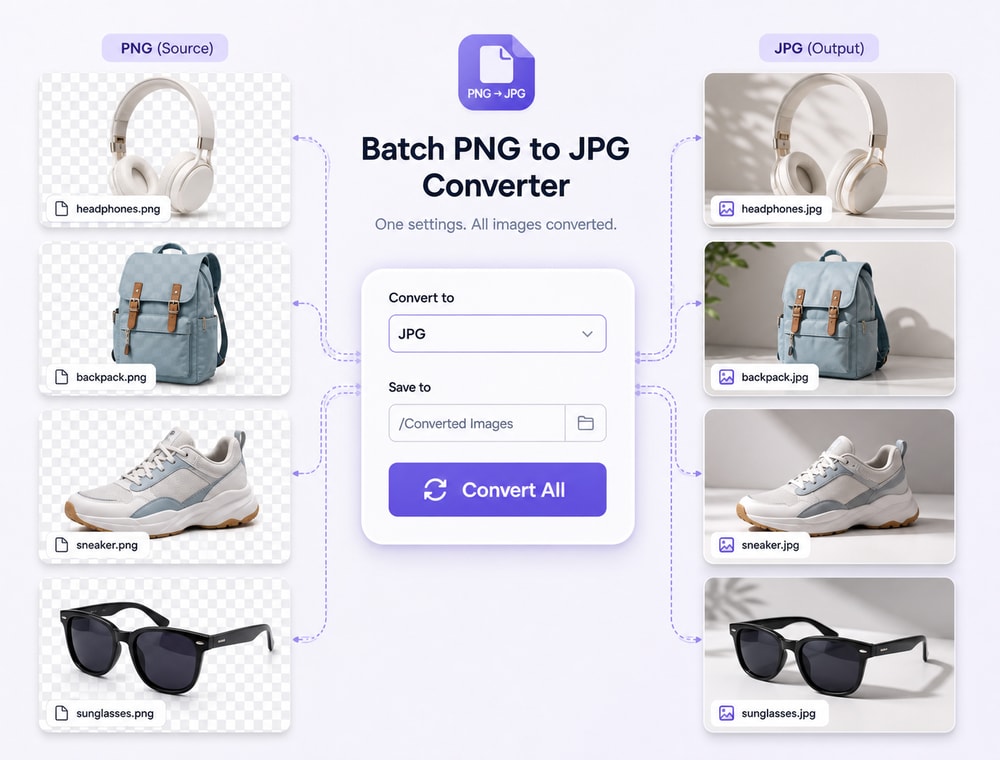
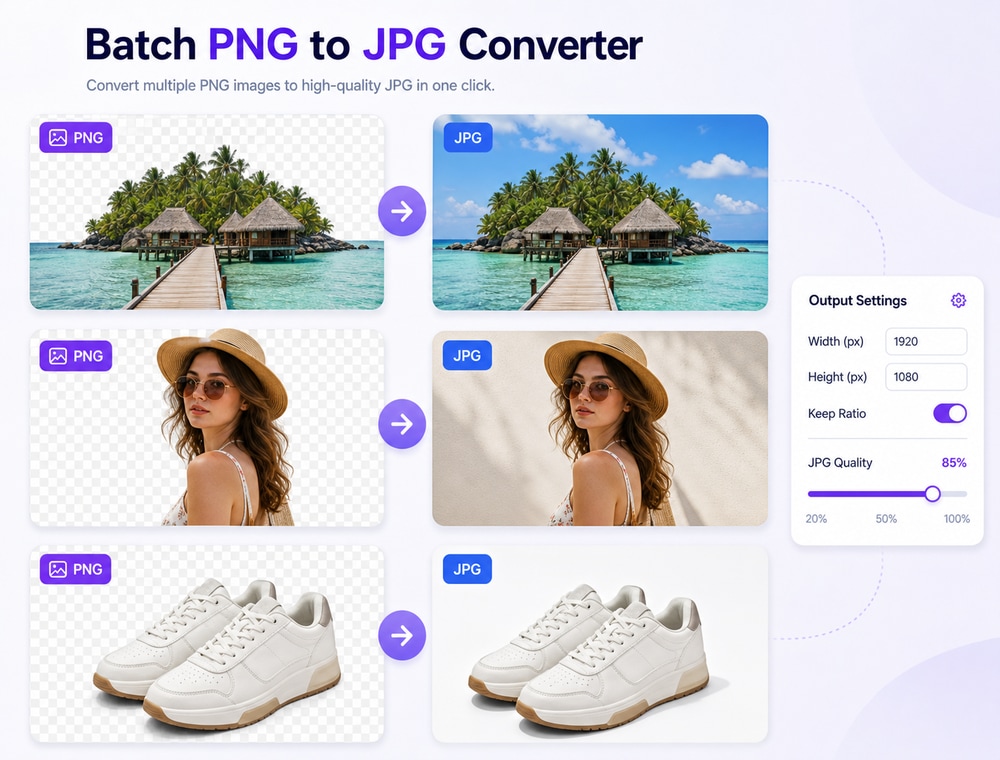
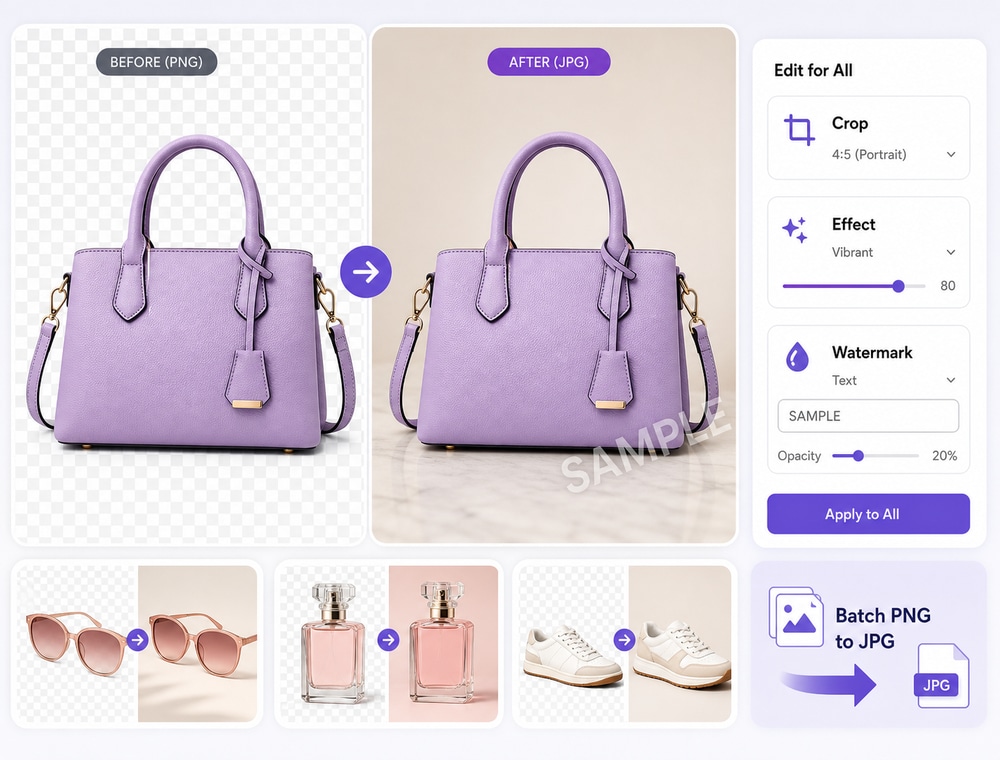
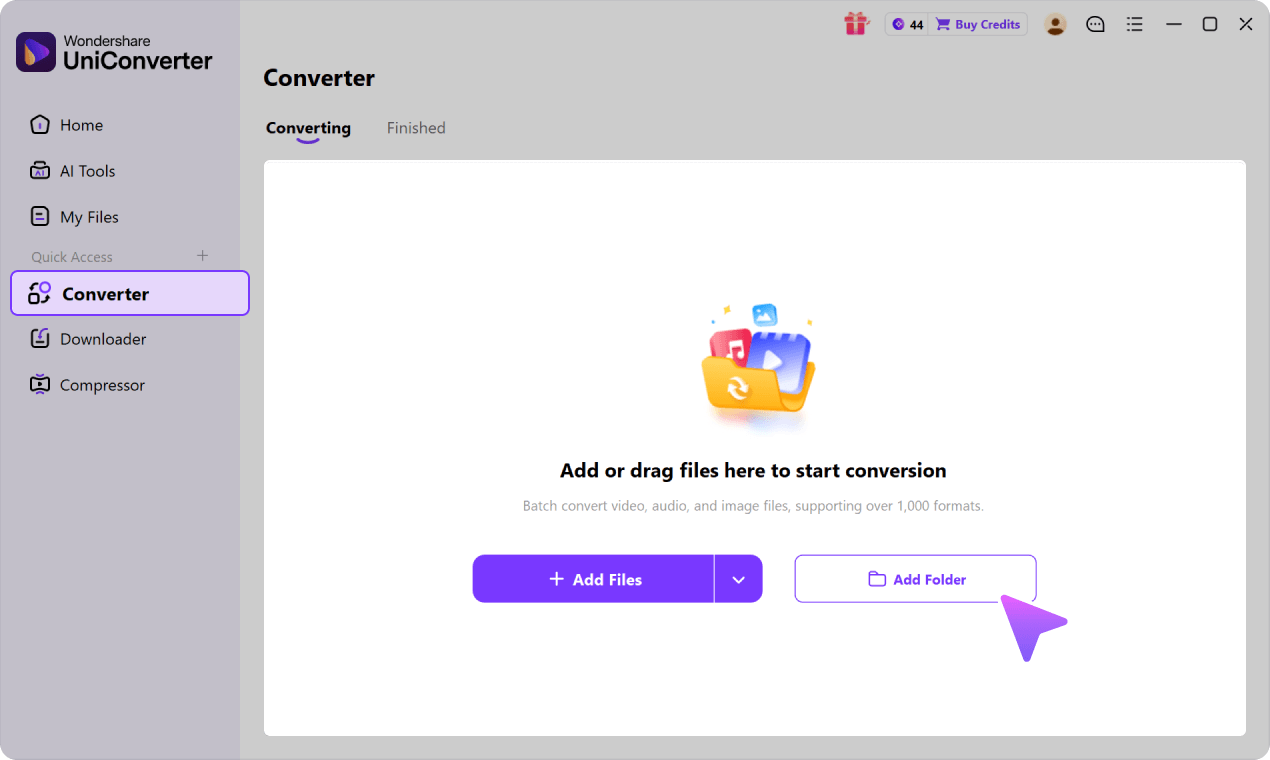
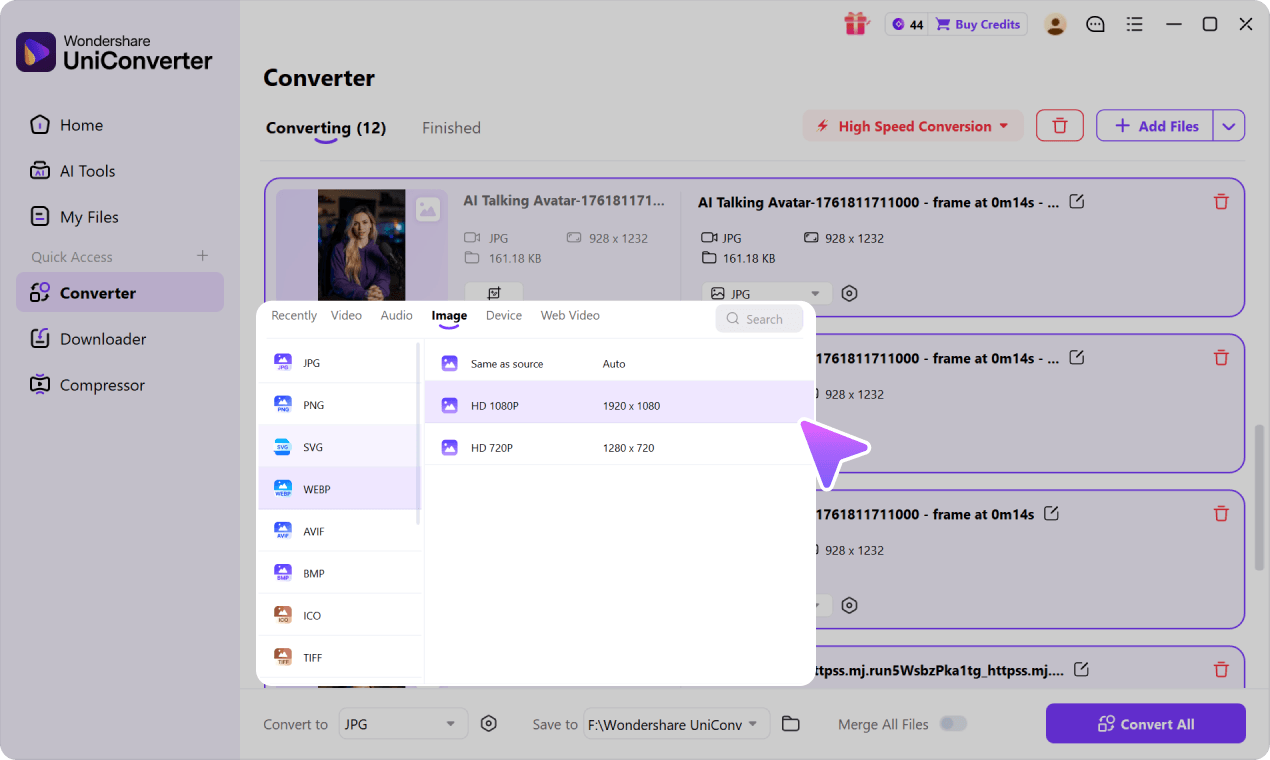
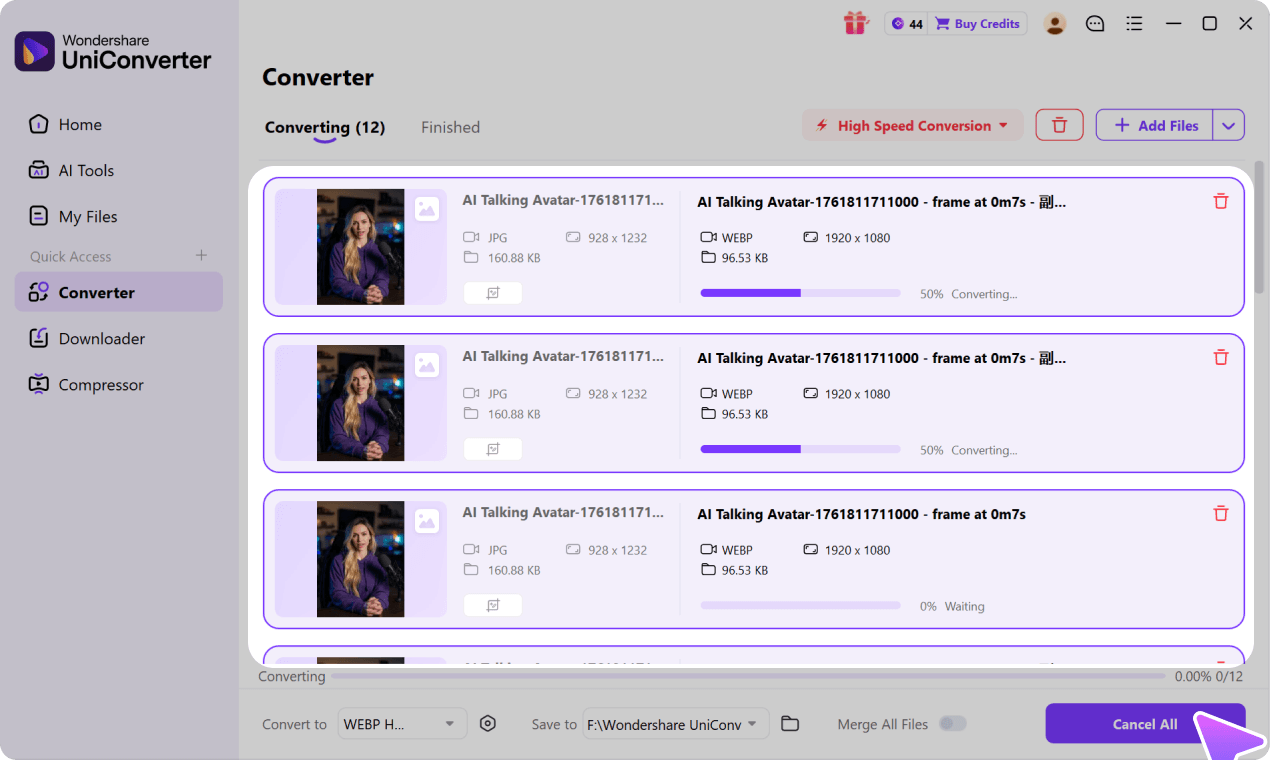
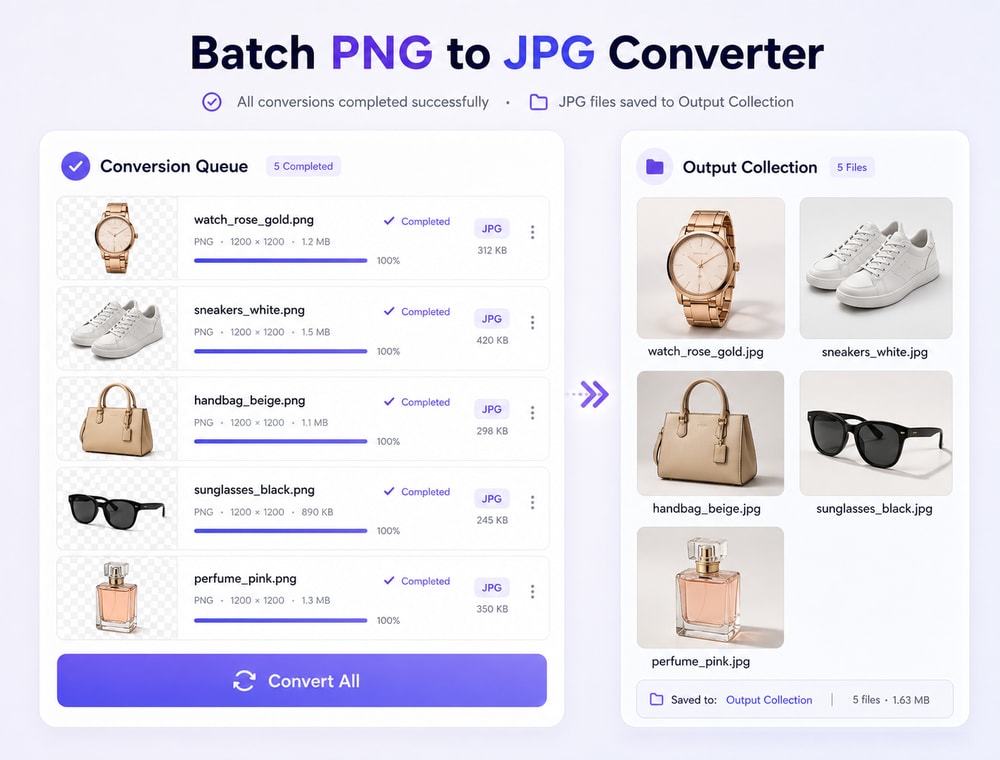
Convert multiple supported PNG images to JPG copies in one organized desktop queue. Add files or folders, choose a shared JPG output and destination folder, then use available per-file settings for images that need different handling.
Desktop vs. Online for PNG-to-JPG Production Batches
PNG-to-JPG conversion is often part of a web, ecommerce, or campaign delivery workflow rather than a one-time format change. Compare how each option handles production assets, transfer time, repeat jobs, and supported local acceleration.
Compare the workflow
Recommended for larger jobsUniConverter Desktop
Convenient browser accessOnline Batch Tools
Web Production Assets
✓Manage PNG product images, interface graphics, and publishing assets in one Desktop queue when the final delivery set needs JPG copies.
A browser tool can work for a small one-off export, but every selected asset must enter that service's upload and download flow.
Upload & Download
✓Start with local PNG asset folders and export the JPG results directly to a chosen destination without uploading the full collection first.
Total turnaround includes uploading the PNG sources, waiting for server processing, and downloading the JPG results.
Repeatable Batch Setup
✓Use the Desktop queue for catalog updates, campaign batches, and recurring website exports that need a consistent JPG delivery workflow.
Queue size, per-job limits, retained settings, and repeat-job convenience for PNG-to-JPG conversion vary by service and plan.
Local Acceleration
✓Use Ultra-fast Speed and available GPU acceleration for supported PNG-to-JPG conversion when compatible local hardware is detected.
Browser processing depends on connection speed, server load, and the provider's current processing conditions.
Simple decision:
Choose Desktop when PNG graphics are part of a recurring production pipeline, not just a one-time file conversion.
Set Up a PNG-to-JPG Batch Without Repeating the Same Work
Wondershare UniConverter Image Converter lets desktop users place a local PNG collection into one conversion queue, set a shared JPG output and save location, and process the queue together. Add supported PNG files or folders, then use available per-file controls when a specific output needs different dimensions or JPG quality. PNG input, JPG/JPEG output, and settings depend on the installed version and operating system.
Bring one PNG collection into one queue
Start with the files already on your computer instead of opening and converting each image separately.
Add multiple supported PNG image files
Add a supported folder for collection-based work
Review and organize images in the conversion queue
PNG and JPG use different compression approaches. JPG is lossy, so review quality-sensitive outputs and retain original PNG files when transparency or exact graphic detail matters.
JPG quality adjustment is available in the current verified UI
Output appearance depends on the source image and selected settings
Review logos, text, screenshots, and sharp-edged graphics closely
Check transparent PNG results because JPG does not support transparency
Image Converter handles format conversion. These additional
operations
belong to Batch Image Editor.
Set one shared supported JPG/JPEG output format and one destination folder for the queue, then use available per-file output-format, dimension, aspect-ratio, and JPG quality choices where needed. JPG quality adjustment is available in the current verified UniConverter 17 UI; supported input and output formats, controls, and Windows or Mac availability can differ by product version and operating system.
Common ImagesModern
& WebCamera RAWDesign &
Pro
Format availability may vary by operating system and UniConverter version. See the
UniConverter Tech Specs
for current image format support and system requirements.
How to Batch Convert PNG to JPG in Wondershare UniConverter
Use this desktop workflow to convert multiple supported PNG files to JPG copies while keeping the original PNG source files available for future use.
A bulk PNG to JPG workflow is useful when a recipient, publishing process, or upload destination requests JPG copies. Review the output when the PNG sources contain transparency, text, logos, screenshots, or other sharp graphic details.
Prepare a PNG photo collection for sharing
Convert supported PNG photo exports into JPG copies when a recipient or channel requests JPG files. Resulting appearance and file size depend on the source images and selected JPG settings.
Create JPG copies for website-content handoff
Standardize selected supported PNG assets to JPG when a content handoff specifies JPG. Review graphics with text or sharp edges because JPG compression can affect them differently from photographic images.
Organize a local folder for distribution
Process a group of supported PNG files from one local folder into a selected JPG destination. The JPG outputs are copies, not a reason to discard the original PNG source assets.
Meet a JPG upload requirement
Create JPG copies for a platform or delivery workflow that requires or prefers JPG. Check that destination's separate rules for dimensions, file size, color, and uploads.
What UniConverter Users Are Saying
These reviews describe users' experience with Wondershare UniConverter as a broader conversion and editing product, rather than feedback specifically limited to the Batch Image Converter. Review sources and publication dates are shown where available.
★★★★★
“Very configurable for the exact result you need.”
Feedback theme: Flexible controls for users who need conversion settings tailored to a specific output requirement.
Johnson
★★★★★
“The files can be used across IT platforms so easily!”
Feedback theme: Practical file compatibility when converted media needs to move between common systems and workflows.
Williams
★★★★★
“Wondershare UniConverter is incredibly versatile.”
Feedback theme: A broader conversion and editing toolkit that supports more than one isolated media task.
Olivia
Explore UniConverter reviews and independent coverage across trusted software platforms.
How do I batch convert PNG to JPG in Wondershare UniConverter?
Open Wondershare UniConverter Image Converter, add multiple supported PNG images or a supported folder, and review the desktop queue. Select a supported JPG/JPEG output and save location, adjust available per-file settings if needed, then process the batch. Supported formats and controls can vary by UniConverter version and operating system.
02
Can I convert multiple PNG files to JPG at once?
Yes. Wondershare UniConverter Image Converter uses a multi-file desktop queue for supported images. You can add a collection of supported PNG files or a supported folder, select shared output settings, and process the queue without converting each source image one at a time.
03
Can I set one JPG format and save folder for all PNG files?
The current Wondershare UniConverter workflow includes shared Convert to and Save to controls that can apply one supported output choice and one destination folder across the queue. Confirm JPG/JPEG output availability in the installed version and operating system you use.
04
Can I use different JPG settings for individual images in the batch?
Yes. The current workflow provides an individual output-format selection and per-image Quality Setting options for queued images. Available Quality Setting controls include original or custom dimensions, aspect-ratio control, and a quality control for JPG.
05
Will converting PNG to JPG keep the same quality?
PNG and JPG use different compression approaches, and JPG is lossy. The result depends on the source image, target format, and selected settings, so identical quality cannot be guaranteed. Keep original PNG files when you may need future editing, transparency, or exact graphic detail.
06
What happens to transparent PNG backgrounds when converted to JPG?
JPG does not support transparency. When converting transparent PNG files to JPG in bulk, review the converted images before delivery or upload, especially for logos, graphics, and assets with transparent areas. If transparency is required, consider a PNG output workflow instead.
Convert Your PNG Collection to JPG on Desktop
Use Wondershare UniConverter Image Converter to place supported PNG files or folders into one queue, choose a shared JPG output and destination, and review available per-file settings when exceptions matter.