UniConverter
UniConverter Online Free
Converter video, audio & image free
Free Try
Compress Multiple Audio Files in One Desktop Queue

Batch Audio Compressor

Compress multiple local audio files in one UniConverter desktop workflow. Add supported audio files or a folder, adjust the available file-size, quality, and format settings, choose where to save the results, and process the batch without handling every file one by one.

  • Add multiple audio files or a folder to one batch
  • Adjust available file-size, quality, and format settings
  • Save compressed audio copies to a selected local folder
Available on:

For Windows 11/10/8/7

For macOS 10.13 or later, including macOS 26 Tahoe

4.7Rated on Trustpilot
Batch Audio Compressor for multiple audio files
120+Countries
7M+Satisfied Users
1.4M+Subscribers
21M+Downloads

Desktop or Online for Compressing Multiple Audio Files?

An online audio compressor can work for a quick single-file task. UniConverter Desktop is better suited to larger local audio collections that need batch processing, repeatable settings, and local output management.

Compare the workflow
Recommended for larger jobsUniConverter Desktop
Best for a quick single fileOnline Audio Compressor
Compression Scope
Add multiple supported audio files or a folder and keep the compression job in one desktop workflow.
Upload one audio file when a browser-based task is enough.
File Handling
Read local source files and save compressed copies directly to a selected local folder.
Upload the source file for remote processing, then save the compressed result after the job finishes.
Batch Workflow
Process multiple files together instead of rebuilding the compression task for each individual audio file.
Repeat the upload and setup steps as additional files are processed; limits depend on the service.
Best Fit
Choose Desktop for multiple audio files, recurring compression work, or local file handling.
Choose Online for a small one-off audio file when a batch queue is unnecessary.
Simple decision:
Use Online for a quick single audio file. Use UniConverter Desktop when multiple files need local batch compression and organized output in one workflow.
Download UniConverter for Desktop

Batch Compress Multiple Audio Files for Smaller, Easier-to-Manage Copies

Wondershare UniConverter supports batch compression for video and audio files. For audio-focused jobs, use the Compressor workflow to reduce multiple local files in one batch while keeping size, quality, format, and output requirements in view.

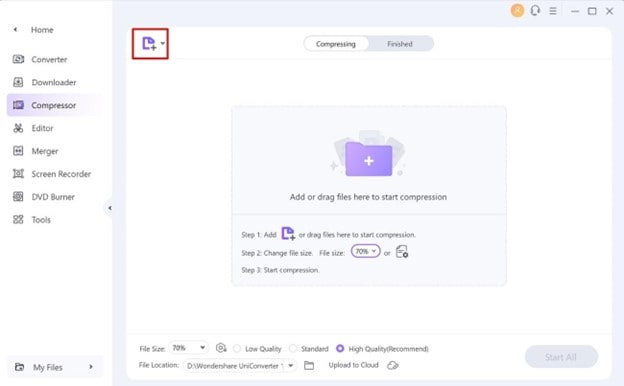
Add Multiple Audio Files or a Folder

Bring the supported audio files for one job into the same compression workflow instead of processing them one at a time.

  • Add multiple local audio files
  • Add a folder when the workflow supports it
  • Keep one audio batch together
Add Multiple Audio Files or a Folder

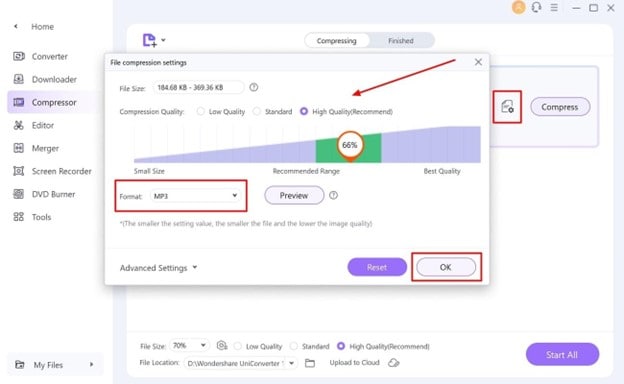
Adjust File Size, Quality, and Format

Use the compression controls available for the selected audio files to reduce size while keeping the output suitable for playback, storage, or sharing.

  • Adjust the available file-size control
  • Review compression quality
  • Choose a supported output format
Adjust File Size, Quality, and Format

Fine-Tune Audio Settings When Needed

For audio workflows that expose advanced output controls, settings such as bitrate, sample rate, channel, and encoder can be used to balance file size and playback needs.

  • Lower bitrate when a smaller file is more important
  • Review sample rate and channel settings
  • Keep source quality in mind before re-encoding
Fine-Tune Audio Settings When Needed

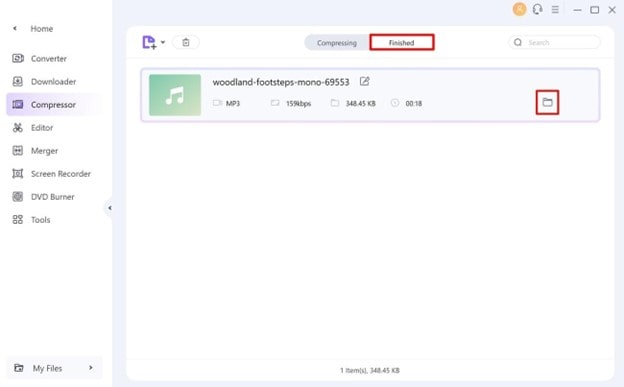
Choose the Output Folder and Run the Batch

Save the compressed copies to a clear local destination, process the audio collection, and check representative results before using them in the next workflow.

  • Choose a local save location
  • Process the complete audio batch
  • Check playback and file size after compression
Choose the Output Folder and Run the Batch

What You Can Control in the Batch Audio Compressor Queue

The UniConverter batch audio compression workflow lets you manage multiple supported audio files, adjust the available file-size, quality, and format settings, choose a save location, and use more detailed audio parameters when the selected output workflow exposes them.

Batch Audio Compression Controls at a Glance

Focus on the controls that change file size and listening quality, then check representative files before using the output.

Batch Audio Compressor controls and workflow considerations
Compression ControlWhat You Can DoWhy It Matters
Batch IntakeAdd multiple supported audio files to one workflow and add a folder where the current interface supports it.Keeps a multi-file compression task together instead of repeating the setup for every file.
File Size & QualityAdjust the available file-size and compression-quality controls for the selected audio workflow.Smaller output can involve a quality tradeoff, so the right setting depends on how the audio will be used.
Output FormatChoose a supported audio format when the compression workflow exposes format selection.Format choice affects compatibility, compression behavior, and the settings available for the output.
Advanced Audio SettingsIn audio output workflows that expose them, review bitrate, sample rate, channel, and encoder settings.These parameters can change file size and playback quality, especially when audio is re-encoded.
Save & Batch ExportChoose a local output location, start the batch, and check representative compressed files after processing.A quick playback and size check helps confirm that the result fits the intended storage, sharing, or playback need.

Technical references: UniConverter Audio Compressor, UniConverter plan features, UniConverter Tech Specs.

Audio compression controls and format availability can vary by source, operating system, and UniConverter version. See the UniConverter Tech Specs for current support.

When to Batch Compress Multiple Audio Files

Batch audio compression is useful when several files need smaller sizes for sharing, storage, playback, or review.

Podcast and Voice Recording Batches

Reduce the size of multiple podcast episodes, interviews, lectures, or voice recordings before sharing or archiving them.

Music Libraries and Listening Copies

Create smaller listening copies from a group of supported audio files while keeping higher-quality source files separately when needed.

Meeting and Training Recordings

Compress long speech-heavy recordings in a batch when smaller files are easier to move between teams, devices, or storage locations.

Mobile and Storage-Limited Playback

Prepare smaller audio files for devices or local libraries where storage space matters, then check the result on the intended player.

What UniConverter Users Are Saying

These reviews describe users' experience with Wondershare UniConverter as a broader media conversion and editing product, rather than feedback limited specifically to Batch Audio Compressor.

★★★★★

“Very configurable for the exact result you need.”

Its flexible conversion controls make it easier to prepare files for different output and delivery requirements.
JohnsonJohnson
★★★★★

“The files can be used across IT platforms so easily!”

This kind of compatibility is useful when converted media needs to move between common systems and delivery workflows.
WilliamsWilliams
★★★★★

“Wondershare UniConverter is incredibly versatile.”

The broader conversion and editing toolkit supports users who need to complete more than one isolated media task.
OliviaOlivia

Explore UniConverter reviews and independent coverage across trusted software platforms.

Batch Audio Compression FAQs

01

How do I compress multiple audio files at once in UniConverter?

Open Wondershare UniConverter Compressor, add the supported audio files for the batch, choose the available file-size, quality, and output settings, select a local save location, and start batch compression.
Depending on the selected audio workflow, file size can be influenced by compression quality, output format, bitrate, sample rate, channel, encoder, and other available output settings.
It can. Greater size reduction may require more aggressive compression or re-encoding, so check representative files and choose settings that fit the intended listening or sharing use.
UniConverter supports many common audio formats, including MP3, WAV, and M4A. Exact input, output, and compression options can vary by format and product version, so check the current UniConverter Tech Specs for the workflow you need.
Batch audio compression focuses on reducing file size, while batch audio conversion focuses on changing files from one audio format or profile to another. Some workflows can involve both, but they are different goals.
Yes. UniConverter desktop workflows provide a local output location so completed audio files can be saved to a selected folder on the computer.
vc 16

Compress Multiple Audio Files in One Desktop Workflow

Add the audio batch, choose the size and quality settings that fit the job, and save the compressed copies locally with Wondershare UniConverter.

Compress multiple audio files in one UniConverter batch workflow