UniConverter
UniConverter Online Free
Converter video, audio & image free
Free Try
Audacity Batch Convert Audio guide

How to Batch Convert Audio in Audacity with Macros

Audacity batch conversion uses a Macro with an export command. Create or choose the Macro, add only the processing you need, then apply it to Files rather than the current Project. This keeps a collection of separate recordings as separate exported files. Use the native procedure below for Audacity automation, or follow the independent UniConverter tutorial when the task is straightforward audio-format delivery.

Quick Answer
  • Open Audacity’s Macro Manager from Tools; some versions label it Macros. Choose or create a Macro and include the export command for the destination format.
  • Use Apply Macro to: Files to run the sequence on existing audio files. Applying it to the current Project is a different operation.
  • Keep original recordings, test the export settings, and check the Macro output location before running a large collection.
UniConverter desktop:

UniConverter for Windows

UniConverter for Mac

UniConverter Audio Converter
Audacity Macro Manager with command sequence
PlanDefine the delivery
TestInspect a sample
KeepRetain originals
ReviewCheck the outputs

Choose the Right Audacity Batch Convert Audio Workflow

Use the source, required operation, and delivery destination to choose the method. Shared setup is useful only when it matches the files in the collection.

Your task
Workflow choiceAudacity Macros
Workflow choiceUniConverter Audio Converter
Repeated processing
✓Apply the selected effect chain and export command to the input files.
Use a separate conversion queue when you only need another audio format.
WAV or FLAC to MP3
✓Include Export as MP3 and check the export configuration with a sample.
Choose an MP3 output and quality for the collection.
AUP3 projects
✓Open and render the project in Audacity before treating its output as an audio file.
Import the rendered audio, not the Audacity project document.
Result review
✓Find the Macro exports and listen for the intended processing.
Inspect the output folder after Convert All and keep the source masters.
Simple decision:
Keep editing and project work in the original audio app. Use UniConverter for a separate conversion of approved audio renders.
See the UniConverter Steps

How to Set Up Audacity Batch Conversion

A Macro is an ordered sequence, so a useful conversion Macro starts with a defined output requirement. Skip effects unless you intend to change the sound.

Create the Macro and Add an Export Command

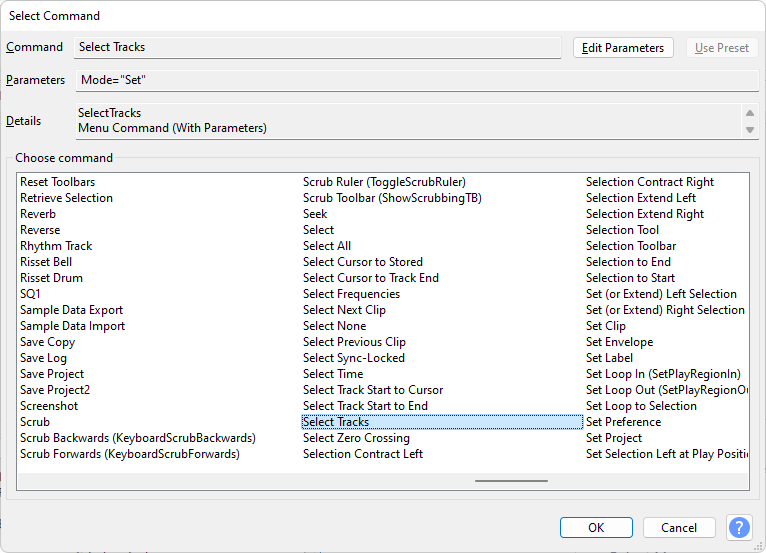
Open the Macro Manager from Tools and choose the built-in MP3 conversion Macro or create a new one. Insert the required Export command, such as Export as MP3 or Export as WAV. An effect-only Macro can process audio without producing the delivery files you expected.

  • For a pure format change, keep unnecessary effects out of the command list.
  • Check command order: processing must happen before the export.
  • Use the export command matching the actual delivery format; changing a filename extension is not conversion.
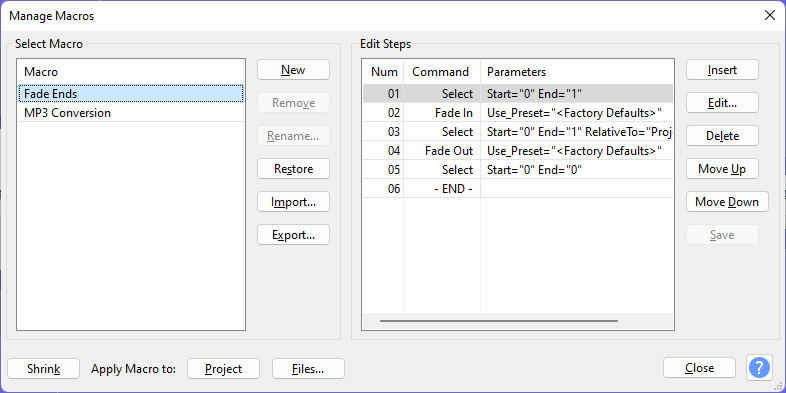
Audacity Macro setup

Configure a Representative Export First

Test with one or two recordings that represent the collection. Review the export format’s configuration in your installed Audacity version and confirm the result by opening the exported file. A sample is especially important when switching between lossless masters and compressed listening copies.

  • For WAV to MP3 or FLAC to MP3, compare file size and audible artifacts.
  • For MP3 to WAV, expect a larger decoded file without recovered missing detail.
  • Avoid changing channel layout or sample rate unless the destination requires it.
Audacity export-command selection

Apply the Macro to Files and Locate the Outputs

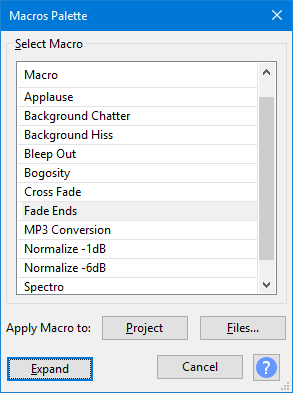
Choose Apply Macro to: Files and select the source recordings. Audacity runs the sequence on the selected files and exports according to the Macro. Check Directories Preferences for the Macro output location; default output handling can place files in a macro-output folder.

  • Use Files for a collection of existing recordings; Project applies the sequence to the open project.
  • Keep unrelated recordings out of the selection and split jobs that need different processing.
  • Open several exports and compare duration, channels, and sound before delivering the folder.

Confirm that you chose Files rather than Project, and inspect the selected recordings. A project operation can include the open tracks instead of the external collection.

Audacity Macros Palette with Files and Project choices

Use UniConverter for a Separate Audio Delivery Queue

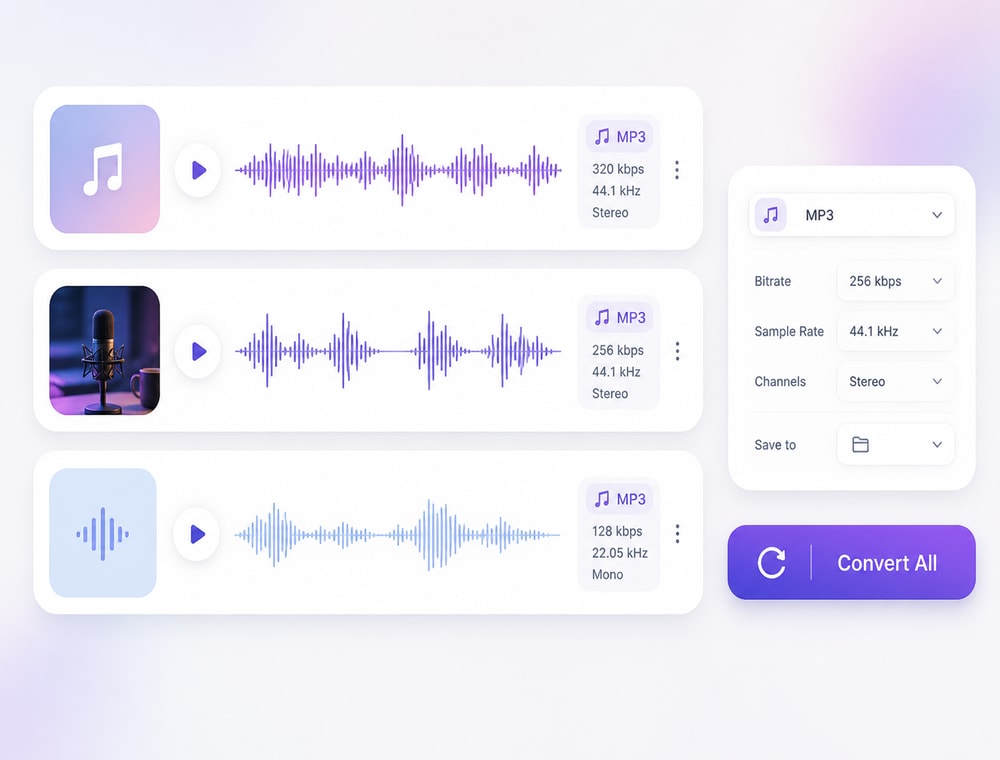
When the source edits are approved, UniConverter provides an alternative file-conversion workflow. Import the finished audio, choose the target format and quality, and Convert All. It handles the delivery-format step without requiring you to rebuild a native editing Macro, Favorite, or session workflow.

  • Start from the best available master render.
  • Choose the destination’s required format rather than converting by habit.
  • Keep delivery copies separate from project documents and masters.
  • Follow the independent three-step tutorial below, then inspect sample results.

Keep the source originals and use the exported files for the intended delivery. The independent tutorial below covers UniConverter Audio Converter.

UniConverter alternative audio-output selection

Key Settings and Decisions Before You Run the Batch

Review the settings that change the result rather than relying on the word batch. Keep the source collection and destination clearly separated while you test.

Audacity Batch Convert Audio Settings

Use these checks to keep the operation, selection scope, and output aligned.

Workflow settings and result checks
Setting or decisionWhat it controlsResult check
Macro ManagerBuilds and edits the command sequence.Include an export command when delivery files are required.
Files vs. ProjectChooses external batch inputs or the current project.Use Files to convert separate recordings individually.
Export commandDefines the target file type.Check the resulting format and quality with a test export.
Directories PreferencesControls the Macro output location.Find the destination before running the full collection.

Technical references: Audacity Macro documentation and Audacity Macro Manager.

SetupOutputUse casesDelivery

Keep originals and inspect the result in the intended destination. A successful processing task is not proof that every source needed the same settings.

Practical Uses for This Batch Workflow

Choose a collection with a shared goal, then review the files that differ in source condition or delivery requirements.

Podcast delivery

Create listening copies from approved episode masters without reopening each export dialog.

Sound libraries

Convert a related collection to the receiving application’s required audio format.

Voice recordings

Use a tested processing Macro only when the recordings share a similar problem and recording level.

Archive copies

Keep the original WAV or FLAC masters and put compressed delivery versions in a separate folder.

Common Problems and How to Fix Them

Use a representative sample to isolate a wrong setting before rerunning the complete collection. Keep originals so the result remains reversible.

01

The Macro runs but no delivery file appears

Check that the sequence includes the intended Export command and inspect the configured Macro output folder. An effects-only sequence does not establish an export destination.
Check 1Check 1
02

The export sounds different from the source

Review every effect in the Macro, the channel layout, and the output quality. Remove unneeded processing before repeating the test.
Check 2Check 2
03

The wrong audio is processed

Confirm that you chose Files rather than Project, and inspect the selected recordings. A project operation can include the open tracks instead of the external collection.
Check 3Check 3

Use the native documentation for the original tool and the UniConverter guide for the separate product workflow.

Audacity Batch Convert Audio FAQs

01

How do I batch convert WAV to MP3 in Audacity?

Choose or create an MP3-export Macro, test its output settings, then use Apply Macro to: Files and select the WAV recordings. Inspect the exported MP3s in the Macro output location.
Yes, when Audacity can import the source files. Use an MP3 export command and review a sample for quality. Keep the lossless FLAC originals as masters.
No. Those effects change the audio. Add them only when the recordings need that treatment; a format-only job can use an export command without an effects chain.
Check the Macro output setting in Directories Preferences and look for the macro-output folder used by the default workflow. Also confirm that the Macro includes an export command.
No. WAV stores the decoded audio without another MP3 encoding step, but it does not recreate information discarded by the original lossy compression.
Use UniConverter for converting existing rendered audio when you do not need Audacity effects or project editing. Import the audio, select an Audio output and quality, and Convert All.
vc 16

Continue Your Batch Workflow with UniConverter

Use UniConverter Audio Converter for the separate file-based workflow described above. Import the intended collection, choose the settings required by the destination, review a sample, and keep the original files while preparing the approved outputs.

UniConverter batch audio conversion workflow