UniConverter
UniConverter Online Free
Converter video, audio & image free
Free Try
Adobe Bridge Batch Resize Images guide

How to Batch Resize Images in Adobe Bridge

Adobe Bridge can batch resize selected images through its Export panel. Choose the source assets, open a custom export or preset, set Image Size, and start the export. Tools > Photoshop > Image Processor is another route when Photoshop is installed and integrated. The two methods share a delivery goal but use different interfaces and dependencies.

Quick Answer
  • In Bridge, select the images and open Window > Export Panel. Choose Custom Export or a saved preset.
  • Use Image Size to define Scale or Resize to, then choose a Fit or Fill strategy that suits your target dimensions.
  • For Tools > Photoshop > Image Processor, Photoshop must be available. Use the independent UniConverter tutorial below for an alternative local resize workflow.
UniConverter desktop:

UniConverter for Windows

UniConverter for Mac

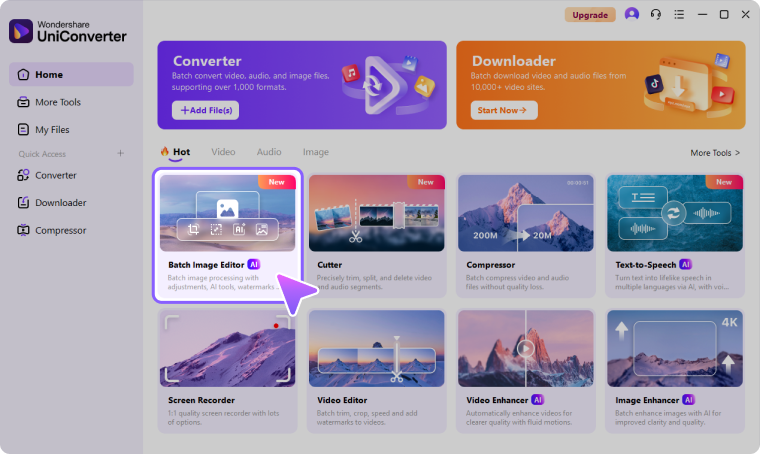
UniConverter Batch Image Editor
Adobe Bridge Custom Export dialog
PlanDefine the delivery
TestInspect a sample
KeepRetain originals
ReviewCheck the outputs

Choose the Right Adobe Bridge Batch Resize Images Workflow

Use the source, required operation, and delivery destination to choose the method. Shared setup is useful only when it matches the files in the collection.

Your task
Workflow choiceBridge Export panel
Workflow choicePhotoshop Image Processor
Starting point
✓Select assets in Bridge and choose Custom Export or a preset.
Select assets in Bridge, then use Tools > Photoshop > Image Processor.
Dimensions
✓Set Scale or Resize to, choosing Fit or Fill as appropriate.
Use Resize to Fit to constrain the image within width and height limits.
Extra app
✓Configure the export through Bridge’s Export panel.
Requires Photoshop and its Bridge integration to be available.
Delivery review
✓Check the destination, format, and export progress.
Run the Image Processor job and inspect its output folder.
Simple decision:
Use the native export route when it fits your Adobe workflow. Use UniConverter for a separate local resize and review job.
See the UniConverter Steps

How to Resize Multiple Images in Adobe Bridge

Use the Export panel for a Bridge-centered job. Use Image Processor when the Photoshop workflow fits your editing setup and output requirements.

Select the Images and Open Custom Export

In Bridge, use the Content panel to select the intended files. Open Window > Export Panel if the panel is hidden. Drag the selection to Custom Export, or use the available Export to > Custom Export command. Use a saved preset when you already have an approved specification.

  • Check the selection count before exporting.
  • Group portrait and landscape sources when their output rules differ.
  • Choose a separate destination so the resize task produces delivery copies.
Open and configure a custom Adobe Bridge export

Set Image Size, Fit, and the Target Dimensions

In the export settings, choose the image format and open Image Size. Scale applies a percentage. Resize to can fit or fill a target area, with long-edge, short-edge, or width/height choices depending on the mode. Fit preserves the whole image within the target; Fill can crop edges to occupy the target rectangle.

  • Use a long-edge rule when both portrait and landscape images should share a maximum extent.
  • Check Don’t enlarge when small sources should stay below the target size.
  • Inspect the dimension preview before starting, especially for mixed aspect ratios.
Adobe Bridge Resize to Fit controls

Save the Preset and Start the Export

Review Saving Options, conflict handling, format settings, image size, and metadata. Save a preset if the configuration will be reused, then choose Start Export. Inspect completed files before using the same preset for the rest of the collection. Alternatively, run Photoshop Image Processor from Tools > Photoshop when that route is available.

  • Check whether collisions create unique names, skip files, or overwrite existing outputs.
  • For the Photoshop route, enable Resize to Fit and choose the destination format.
  • Changing print resolution alone is not a substitute for checking the final pixel dimensions.

Inspect the Don’t enlarge option. Keeping small sources at their original dimensions can be intentional rather than an export failure.

Adobe Bridge Export Progress dialog

Use UniConverter to Batch Resize the Local Image Files

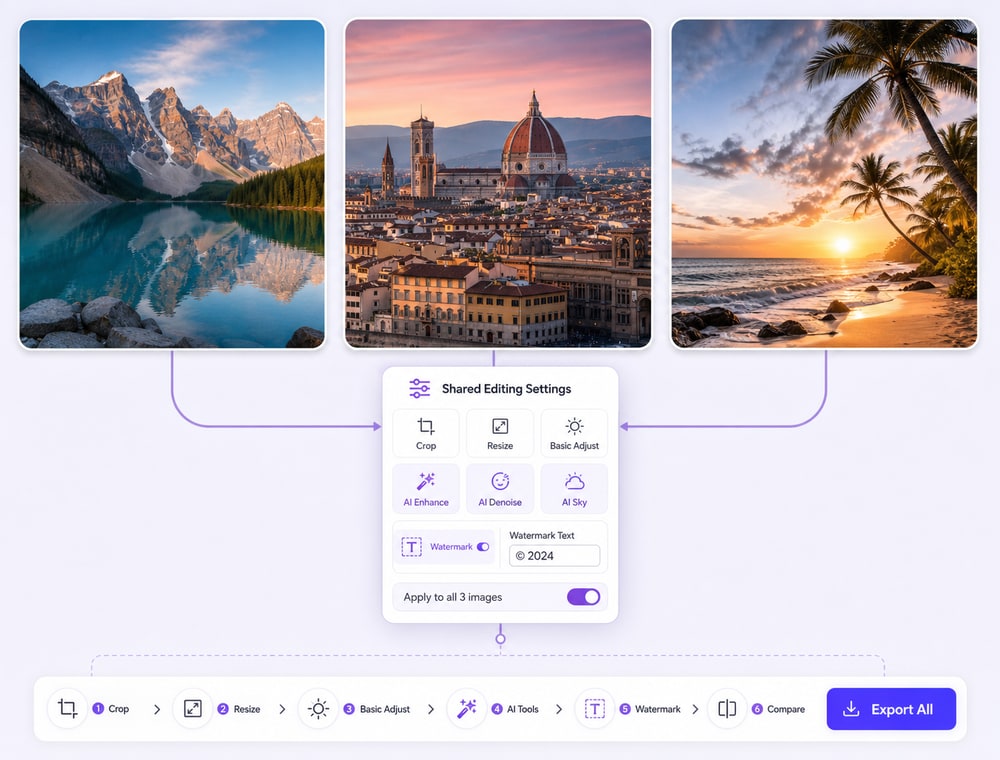
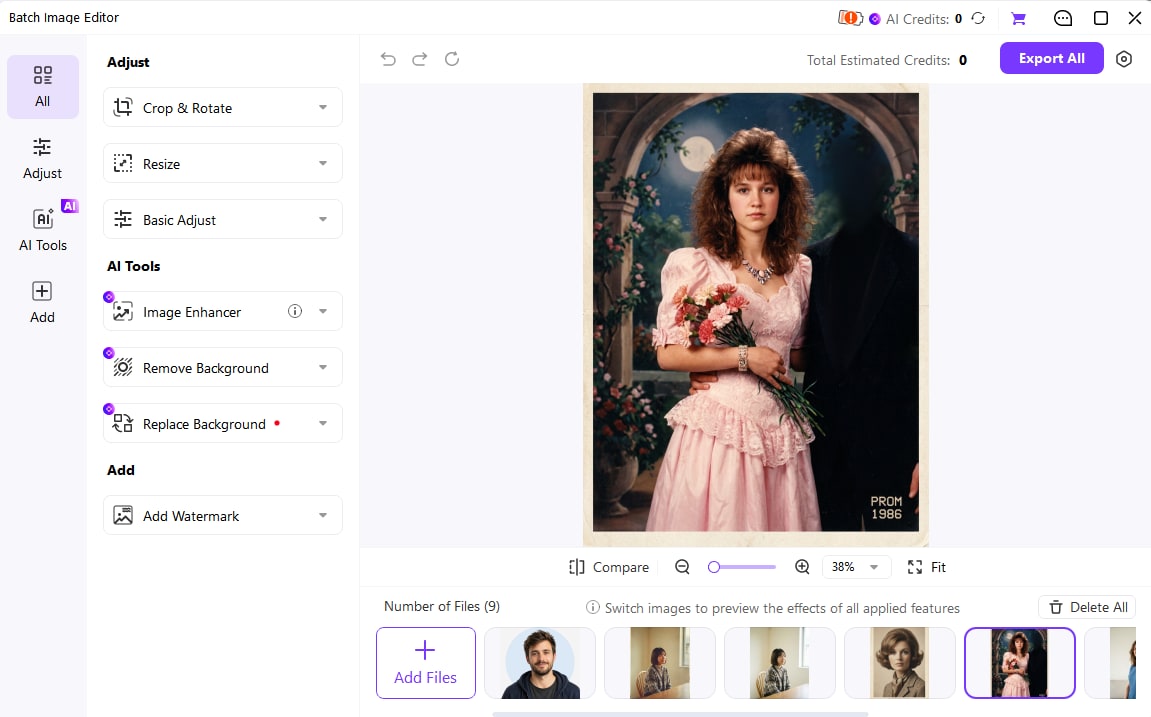
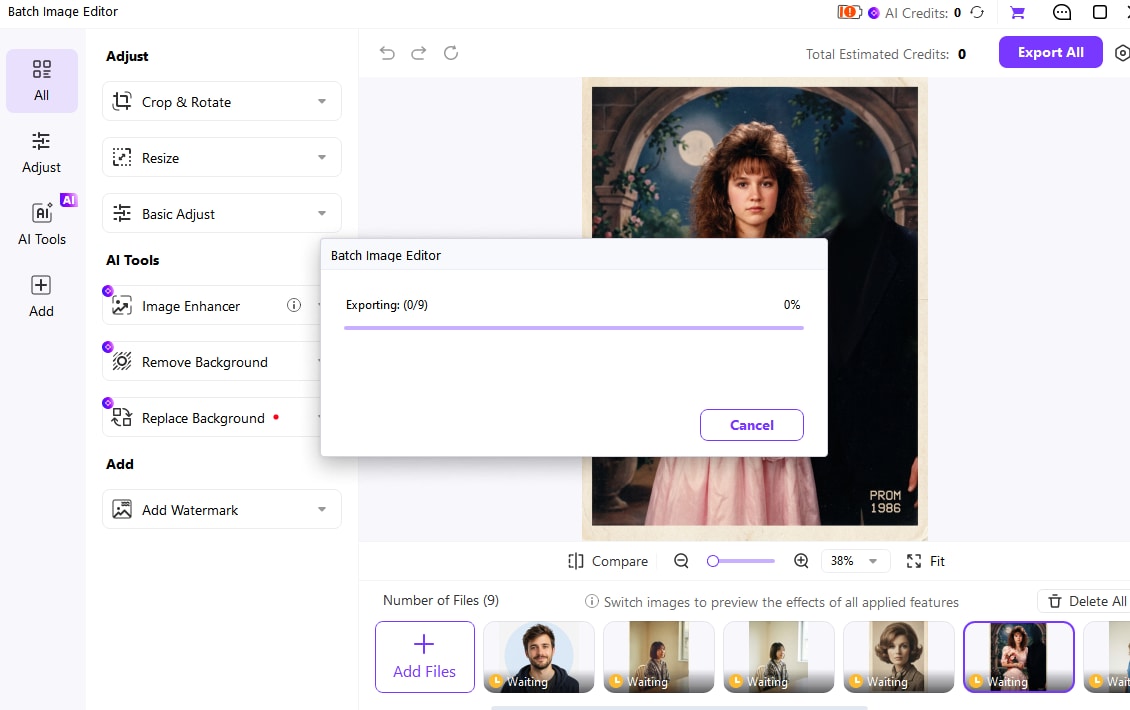
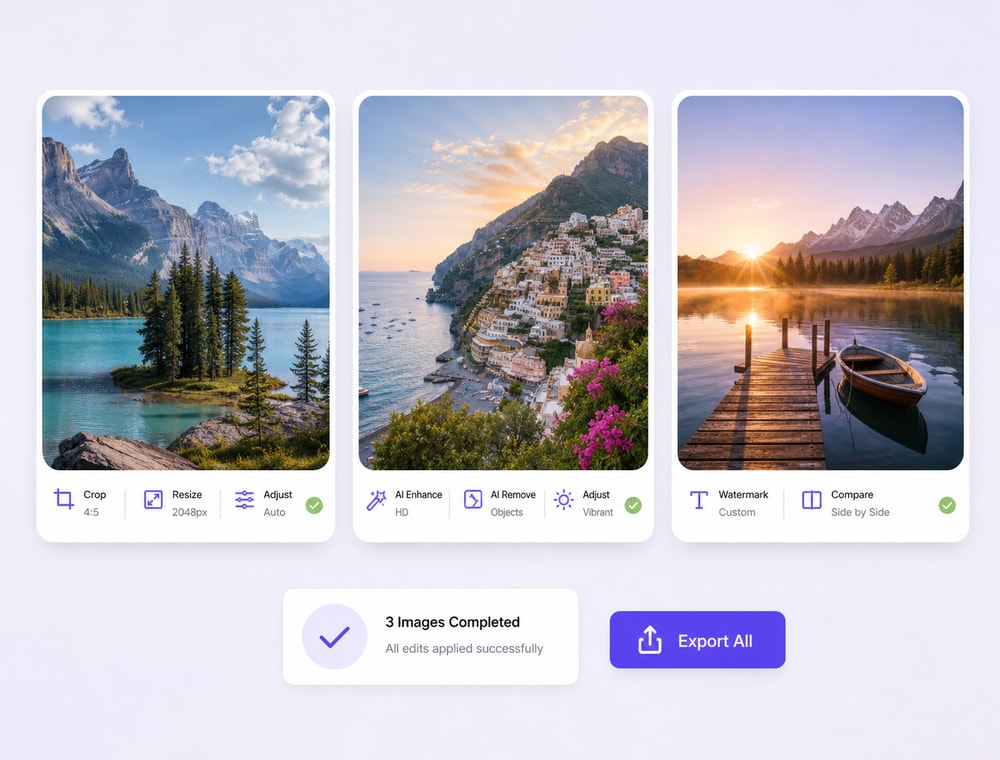
UniConverter Batch Image Editor provides a separate workspace for supported local images. Import the collection, choose the delivery edits, review exceptions, and Export All. Keep cloud-library management, product associations, or presentation insertion as separate actions after the image files are ready.

  • Bring related files or a folder into one project.
  • Choose only the edits needed by the destination.
  • Inspect portrait, landscape, and small-source exceptions.
  • Follow the independent UniConverter tutorial below and keep the original files.

Keep the source originals and use the exported files for the intended delivery. The independent tutorial below covers UniConverter Batch Image Editor.

UniConverter alternative image-resize workflow

Key Settings and Decisions Before You Run the Batch

Review the settings that change the result rather than relying on the word batch. Keep the source collection and destination clearly separated while you test.

Adobe Bridge Batch Resize Images Settings

Use these checks to keep the operation, selection scope, and output aligned.

Workflow settings and result checks
Setting or decisionWhat it controlsResult check
Source selectionDefines the assets included in the export.Inspect the Content panel selection first.
Scale vs. Resize toUses a percentage or target-size rule.Choose the option matching the delivery specification.
Fit vs. FillKeeps the whole image or fills the target rectangle.Review edge cropping when using Fill.
Saving Options / Start ExportControls destination, conflicts, and processing.Check the finished files rather than only the progress state.

Technical references: Adobe Bridge Export guide and UniConverter Batch Image Editor.

SetupOutputUse casesDelivery

Keep originals and inspect the result in the intended destination. A successful processing task is not proof that every source needed the same settings.

Practical Uses for This Batch Workflow

Choose a collection with a shared goal, then review the files that differ in source condition or delivery requirements.

Photographer proofs

Use a long-edge delivery rule while keeping original camera files and full-size edits.

Catalog layouts

Use a consistent frame or fit strategy and check product edges before publishing.

Website handoffs

Create a named export preset for the dimensions and format needed by the web team.

Mixed orientations

Use Fit for complete-image delivery, or split the batch when a shared Fill crop hides important subjects.

Common Problems and How to Fix Them

Use a representative sample to isolate a wrong setting before rerunning the complete collection. Keep originals so the result remains reversible.

01

Tools > Photoshop is missing

Use Bridge’s Export panel for its supported resize/export workflow, or restore the Photoshop integration when you specifically need Image Processor. They are different routes.
Check 1Check 1
02

Images have the right ratio but wrong pixel dimensions

Check the actual resize rule and the width/height or edge limit. An aspect ratio does not by itself establish the required output size.
Check 2Check 2
03

Small images did not grow to the target

Inspect the Don’t enlarge option. Keeping small sources at their original dimensions can be intentional rather than an export failure.
Check 3Check 3

Use the native documentation for the original tool and the UniConverter guide for the separate product workflow.

Adobe Bridge Batch Resize Images FAQs

01

Can Adobe Bridge resize images without opening Photoshop?

Bridge’s Export panel provides image-size settings for its export workflow. Select assets, configure Custom Export or a preset, choose the dimensions, and Start Export.
When Photoshop integration is available, use Tools > Photoshop > Image Processor. That route relies on Photoshop; it is separate from Bridge’s native Export panel.
Fit keeps the image inside the target area without cropping away parts of the composition. Fill occupies the target rectangle and can crop edges. Inspect the preview for each source group.
Use a long-edge rule for a mixed-orientation collection that shares a maximum extent. Use width/height when a specific target rectangle is required, then decide how differing ratios should fit.
A print-resolution setting and pixel dimensions are different. Check the actual output pixels. Enlarging a small source does not guarantee additional captured detail.
Use Batch Image Editor when your local images need a separate resize workflow, perhaps followed by crop, basic adjustment, or watermarking. Review the images and Export All.
vc 16

Continue Your Batch Workflow with UniConverter

Use UniConverter Batch Image Editor for the separate file-based workflow described above. Import the intended collection, choose the settings required by the destination, review a sample, and keep the original files while preparing the approved outputs.

UniConverter Batch Image Editor output collection