
UniConverter
UniConverter Online Free
Converter video, audio & image free
Free Try

Upscale 720p Video to a 4K UHD Delivery

A 720p to 4K converter enlarges a 1280 × 720 HD frame to 3840 × 2160 UHD. That is three times the width and height, so noise, compression blocks and artificial edges deserve careful review. Use an AI enhancement preview to decide whether a 4K copy adds value to your footage.

Choose the workflow that fits your source and output:

  • Create a 4K delivery from an existing 720p recording
  • Compare faces and moving details in a preview
  • Keep source motion separate from output resolution
  • Review both recorded and generated HD footage
Quick Answer
  • 720p to 4K creates nine times as many pixels for a standard 16:9 frame.
  • An AI upscaler can improve perceived detail, but it cannot guarantee a native-4K appearance.
  • Use the dedicated online 4K tool for MP4 files below 100 MB; it provides three free conversions per user.
  • For AI-generated clips, inspect faces and moving textures so enhancement does not amplify generation artifacts.
Platforms
Windows macOS Online
User reviews Rated on Trustpilot
Independent review and software platforms: G2 Crowd, CNET, Capterra, Uptodown, Software Advice, and Trustpilot

How to Upscale 720p to 4K Online

Workflow step 1: Open the dedicated 4K workspace
Step 1

Open the dedicated 4K workspace

Open UniConverter’s online 4K converter and add your 720p MP4 below 100 MB. Use the cleanest version of the clip, avoiding an intermediate compressed social-media copy when you have the original.

Workflow step 2: Choose a model and preview movement
Step 2

Choose a model and preview movement

Select a model suited to the main defect and preview a representative section. Compare people, foliage, textures and edges during movement. For an AI-generated video, look for changes in identity or unstable patterns as well as simple sharpness.

Workflow step 3: Export and review the UHD delivery
Step 3

Export and review the UHD delivery

Export the 4K result, then play it at the intended screen size. Retain the original 720p file. The online workflow offers three free conversions; a larger collection can use the separate desktop enhancement workspace.

720p HD vs a 4K Upscaled Output

720p source
4K UHD result
16:9 dimensions1280 × 7203840 × 2160
Pixel countAbout 0.92 millionAbout 8.3 million
Linear enlargementOriginal width and heightThree times the width and height
Image detailCaptured or generated in HDEnhanced or interpolated from HD
Source defectsBlur, noise or generation artifacts may existMay become easier to notice when enlarged
Frame rateOriginal motion samplesNot automatically increased
Delivery containerFor example MP4May remain MP4
Review priorityFind a representative source segmentCompare moving faces, textures and audio

Practical Choices for 720p to 4K Converter

Start from the clean HD source

A 720p master can look better after processing than a heavily compressed 1080p copy. Use the highest-quality available version of the actual content, not merely the file with the largest resolution number.

Treat AI-generated clips as a specific case

A generated HD clip can already contain unstable facial details or changing textures. Enhancement may emphasize those defects. Review a moving preview and choose natural consistency instead of seeking maximum sharpness in one frame.

Choose a suitable AI model

The dedicated 4K tool offers a model-based approach to quality problems. Select the model for the footage rather than treating every source as the same defect. Different models are alternatives, not a promise that all processes are stacked in one pass.

Preserve the original motion rate

A 24 fps, 25 fps or 30 fps source does not need a new motion rate merely because it is enlarged. Frame interpolation is a separate operation. Keep the existing frame rate for a straightforward 4K delivery.

Use Desktop for a local collection

UniConverter Desktop Video Enhancer provides a dedicated import, preview and export workspace. Its Windows guide shows how to compare Original and Result before processing. Keep the best source files and export into a separate destination.

Choose 1080p when it is enough

A Full HD delivery can be a more useful compromise for older hardware or a strongly compressed source. The final decision should reflect screen size, visible artifacts and the receiving project rather than a larger number alone.

FAQs About 720p to 4K Converter

Yes. A resolution converter can create a 3840 × 2160 frame, while an AI upscaler also estimates visual detail. The resulting file is still limited by the information and defects in the original HD source.
For 16:9 video, 3840 × 2160 is three times the width and height of 1280 × 720, giving nine times the total pixel count.
The dedicated UniConverter 4K tool offers three free conversions per user for MP4 files below 100 MB. It is separate from the desktop app and its trial terms.
There is no guarantee. A source may contain structural or temporal errors that simple enhancement cannot correct. Compare a moving preview and avoid a result that makes identity changes or artifacts more noticeable.
No. Increasing resolution changes pixel dimensions. A smoother-motion task requires a separate frame-rate or interpolation decision.
Yes. Keep it as the original reference and export the enhanced delivery separately. That avoids losing the source if later processing introduces unwanted texture or compression.

“Wondershare Video Converter is hands down one of the best tools I’ve added to my creative toolkit. It’s fast, easy to use, and incredibly powerful. Whether I need to convert large video files into different formats, compress them without losing quality, or even edit and trim clips, this software handles it all with ease.”

— TG

“I have been using Wondershare UniConverter for many years. It has been one of the best ways to download, screen capture and convert videos. It has been my go to for video download and conversion.”

— Alan Horner

“Wondershare has so many assets, not just for downloading media. You can convert to other formats. You can create GIFs and clean up videos. There are way too many assets you can use with WonderShare UniConverter that it's a MUST for any video editor or graphics designer. It's worth every penny.”

— P.rajotte

“Simple to use, music, pic, video, all can edit or convert, Make my work faster and easy”

— gyn

“Over the years, Wondershare Uniconverter has really transformed into a powerhouse of tools. You can download, convert, crop, compress, enhance the quality, remove the background and do ton of other useful ops. We can do it for Video, Audio, and images, either individually or in batches.”

— Sura Mukkavilli

“Wondershare UniConverter has completely exceeded my expectations! The software is incredibly fast, easy to use, and supports a wide range of file formats. I was able to convert large videos in just minutes without losing quality. The interface is clean and intuitive, making it beginner-friendly while still offering advanced features for power users. ”

— CHEUNG SIN LIM

“Wondershare Video Converter is hands down one of the best tools I’ve added to my creative toolkit. It’s fast, easy to use, and incredibly powerful. Whether I need to convert large video files into different formats, compress them without losing quality, or even edit and trim clips, this software handles it all with ease.”

— TG

“I have been using Wondershare UniConverter for many years. It has been one of the best ways to download, screen capture and convert videos. It has been my go to for video download and conversion.”

— Alan Horner

What Users Say About UniConverter Video Workflows

Customer reviews cover UniConverter’s broader media workflows.

★ ★ ★ ★ ★
Read user reviews

Make a Useful 4K Copy of Your HD Clip
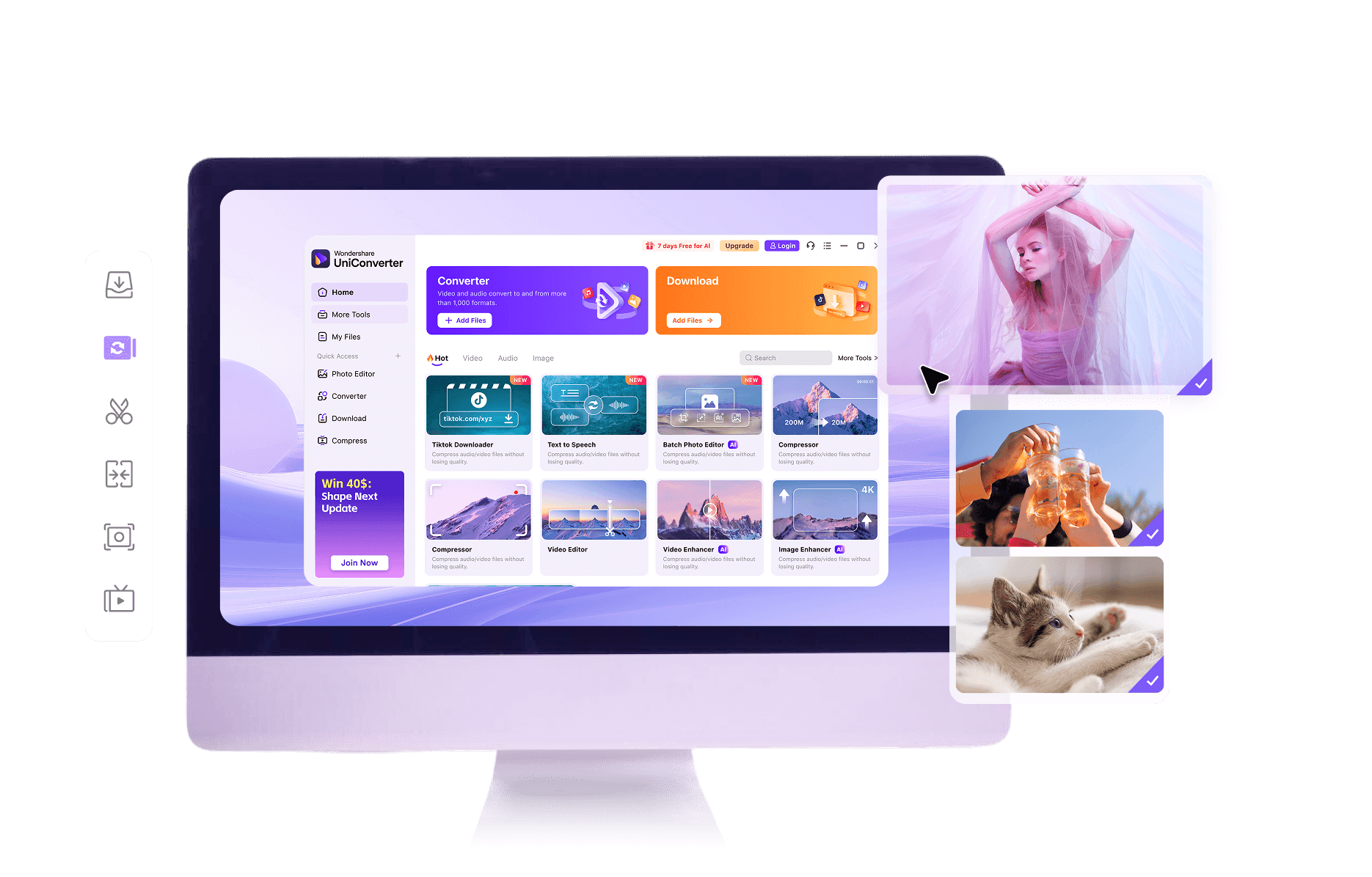
Compare motion and detail before exporting. Keep the original 720p file and choose the delivery size that suits your project.
Wondershare UniConverter media processing

