UniConverter
UniConverter Online Free
Converter video, audio & image free
Free Try
Practical batch workflows

How to Batch Convert Audio in Studio One

Studio One Audio Batch Converter processes existing audio files in a queue. Add your files, choose any required processing, set the output format and destination, then run the batch. Use this workflow for format conversion or repeatable file processing; export a Song mixdown or stems separately when your source is still a Studio One project. For another way to convert finished audio renders, follow the independent UniConverter tutorial below.

  • Convert a collection of existing audio files with one output plan.
  • Use the Process Rack only when the audio needs processing.
  • Preview a sample and write delivery copies to a separate folder.

Audio Batch Converter availability depends on your Studio One installation and license. The download buttons here are for UniConverter, an alternative for converting already-exported audio files.

Studio One Audio Batch Converter interface overview
Quick Answer
  • To batch convert audio in Studio One, open Audio Batch Converter, add files or a folder, choose the output settings and location, then click Process.
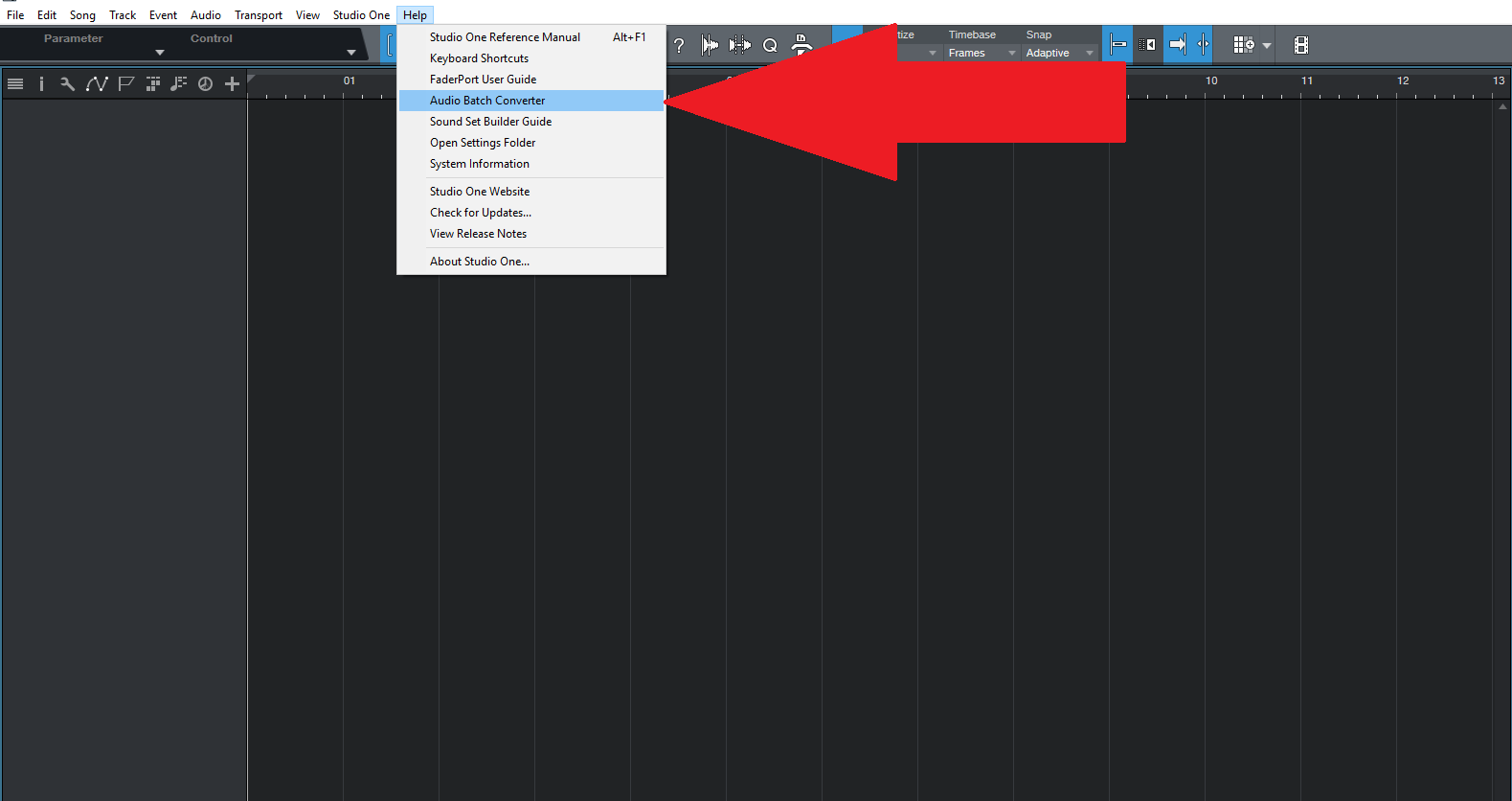
  • Open the converter from the Studio One application menu when the component is available. You can also send files from the Browser to Audio Batch Converter.
  • Leave unnecessary processing out of the Process Rack. Format conversion alone does not require EQ, compression, or other effects.
  • A Song project is not an ordinary audio file. Export the mixdown or stems before using a standalone audio conversion queue.
  • For converting already-rendered Studio One audio, use the separate UniConverter Audio Converter workflow below.

Audio Conversion, Mixdown, or Stems: Choose the Right Job

The word export can refer to several different tasks. Identify your input before choosing the batch tool.

Your task
WorkflowStudio One Audio Batch Converter
WorkflowWhat to check
Existing audio files
✓Add the files to Audio Batch Converter and choose the required output.
Check duration, format, sample rate, and channels on a representative result.
A Song mix or stems
✓Use the appropriate Song export command before file conversion.
Confirm the export range, routing, effects, and intended stem boundaries.
A separate media library
✓UniConverter can convert already-rendered audio in its Audio Converter workflow.
Keep the original renders and avoid unnecessary repeated lossy encoding.
Batch rule:
Use Audio Batch Converter for files. Use Song export for the session’s mix or stems, then convert those renders only if another delivery format is needed.
See the Three-Step Workflow
Native workflow and the UniConverter alternative

How to Use Studio One Audio Batch Converter

Use the native converter for existing audio files when it is available in your Studio One installation. The first three stages explain that workflow; the UniConverter alternative follows separately.

Open Audio Batch Converter and Add the Files

When the component is installed and available, open Studio One > Audio Batch Converter. Use Add Files, Add Folder, or drag and drop to build the Source Files list. You can also send files from the Studio One Browser to Audio Batch Converter. Add rendered audio files rather than Song project documents.

  • Group files with the same delivery requirement.
  • Remove duplicates or unwanted takes.
  • Keep the source folder available for comparison.
Send selected audio files to Audio Batch Converter from the Studio One Browser

Configure Processing and Preview the Audio

Leave the Process Rack empty for a simple format change, or add only the processes and effects the task requires. They run in order, so review the chain and use the Preview Player and FX comparison to hear the result before processing the collection.

  • Skip effects for a straightforward format change.
  • Listen for clipping, pumping, or unexpected tonal changes.
  • Treat normalization and sample-rate conversion as separate decisions.

Changing a file format does not restore quality already lost to compression. Keep an uncompressed master when one is available.

Studio One Audio Batch Converter process rack and output format settings

Set the Output and Click Process

In Output Format, choose the required Type and enable Resolution, Sample Rate, or Channels overrides only when those properties need to change. Leave unnecessary overrides unchecked to preserve the source properties. Choose a separate Output Location, click Process, inspect the Result Files list, and listen to representative outputs.

  • Match the recipient’s specification.
  • Avoid reducing stereo to mono accidentally.
  • Check available storage before a large job.
Studio One Audio Batch Converter output format options

Use UniConverter for Already-Exported Audio

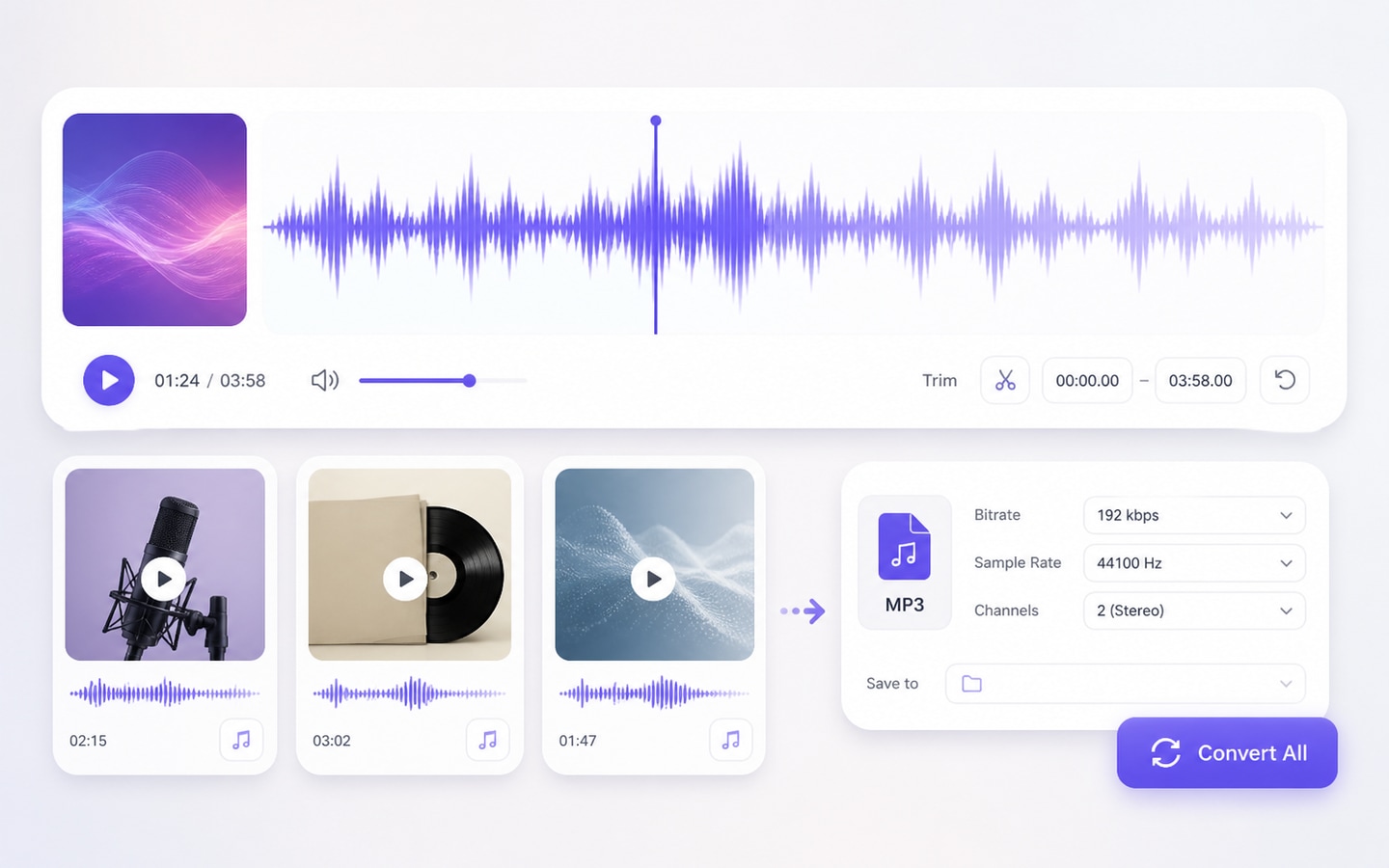
If the files are ready and you only need another audio format, UniConverter provides a separate Audio Converter workflow. Import the renders, choose the target audio format, set the destination, and convert the collection. It does not replace Studio One session editing or stem routing.

  • Start with the best available source render.
  • Preview a converted sample before the full collection.
  • Keep file naming clear between masters and delivery copies.
UniConverter Audio Converter alternative for rendered audio

Studio One Audio Batch Converter Controls

These controls describe the native file-processing workflow. Their availability and interface can depend on the installed component.

What Each Control Does

Control or choice Purpose Recommended check
Source Files Lists the audio queued for processing. Confirm the file list before changing settings.
Add Files / Add Folder Imports individual files or a source directory. Check whether the selected folder contains only the intended files.
Process Rack Applies selected processes and effects. Keep only the processing the task requires.
Process order Determines the order in which treatments run. Preview the combined result.
Type Chooses the target audio file format. Use the recipient’s required format.
Resolution Overrides output resolution where supported. Do not assume a higher setting recovers missing information.
Sample Rate / Channels Overrides these source properties when enabled. Avoid unwanted resampling or channel changes.
Output Location Chooses where processed copies are saved. Use a clearly named destination folder.
Process / Result Files Runs the task and lists the results. Listen to outputs and investigate errors.

Before the full batch: Unchecked format-property overrides preserve the corresponding source settings in the native workflow. Review the component’s manual for the behavior of your installed version.

Where This Batch Workflow Helps

Choose a group with a shared output requirement. Separate files that need different handling before applying one configuration.

Client preview copies

Create a consistent set of smaller listening copies from approved renders. Keep the master exports for later revisions.

Sound-effect libraries

Standardize a collection to the sample rate and channel layout required by the receiving project.

Podcast handoffs

Prepare delivery copies after the final edit, with consistent settings and a clear episode naming scheme.

Exported stems

Convert already-rendered stems only after checking routing, timing, and alignment in the original Song export.

Check the Finished Batch Before Delivery

Processing a collection is only complete when its outputs are usable. Inspect a small sample from each source group.

Listen through transitionsCheck beginnings, endings, fades, and loud passages.
Compare durationConfirm that the output has not been trimmed or rendered unexpectedly.
Check channel layoutVerify mono or stereo and listen for missing channels.
Inspect file propertiesConfirm type, sample rate, and any required resolution settings.
Preserve the masterKeep source renders and the original Song project available.

Frequently Asked Questions

01

How do I batch convert audio in Studio One?

Open Audio Batch Converter when available in your installation, add the audio files, choose any required processing and output settings, select the destination, and click Process. Review the resulting files before delivery.
Do not assume it is. Availability and activation depend on the version, installed components, and license. Check your installation and account before relying on this workflow.
A Song document contains session information, not a finished audio mix. Export the mixdown or stems first, then use a file-conversion workflow if additional delivery formats are required.
No. Use effects only when the task calls for processing. For a simple format change, omit unnecessary effects and inspect the format settings.
In the native converter, leave the Sample Rate override unchecked when you want to retain the source value. Check the output properties to confirm the intended result.
No. WAV can avoid another lossy encoding step, but it cannot recover detail previously discarded by MP3 compression. Use the best original render when possible.
No. UniConverter can convert existing audio files, but the Song’s routing, mixdown, and stem export decisions belong in Studio One. Render the required files first.
Review errors, then listen to representative outputs. Check duration, channel layout, sample rate, naming, and the destination folder. Keep the original renders.

Batch Convert Your Studio One Audio in UniConverter

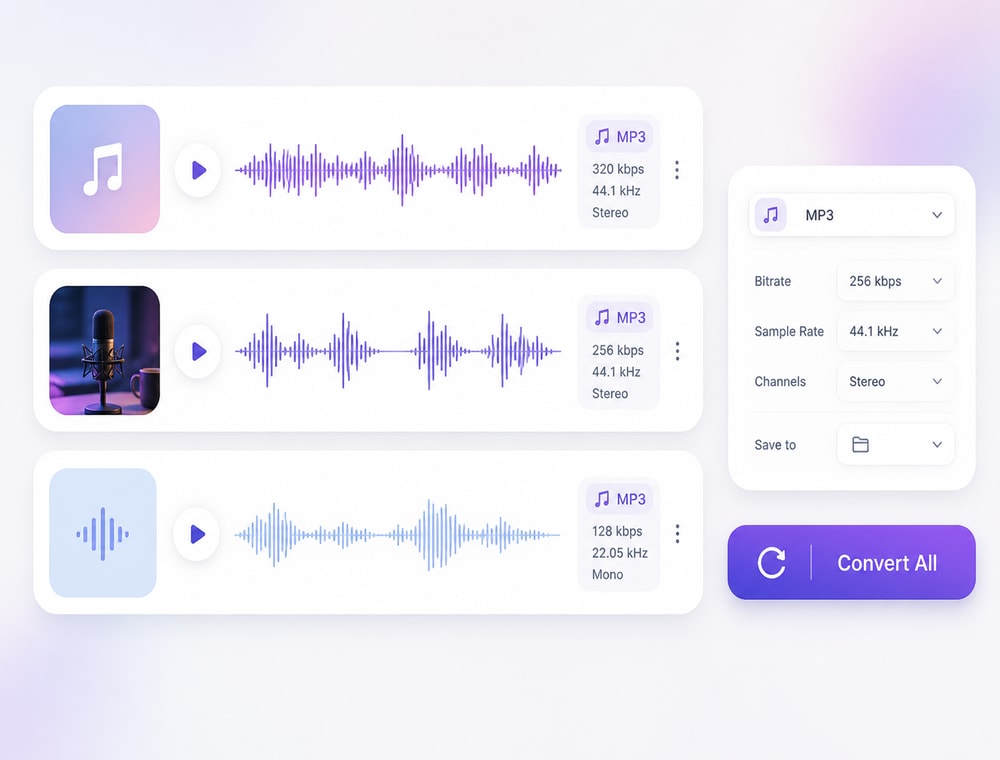
Add finished Studio One renders to UniConverter, choose the audio format and quality your recipient needs, and Convert All. Review the delivery copies while keeping your original masters.

UniConverter batch audio delivery