UniConverter
UniConverter Online Free
Converter video, audio & image free
Free Try
Batch Video Watermark Removal Workflow

How to Remove Watermarks from Multiple Videos

Quick Answer
  • In UniConverter 18, open Video Watermark Remover, choose Fixed Area > Ultra AI > Whole Area, select the watermark region, and preview the result.
  • Add more videos, review each file’s removal area, select the intended files, and click Remove & Export. On Windows, Video Eraser supports importing up to 20 videos.
  • AI estimates replacement pixels. Use a clean original when available, and inspect movement and detailed backgrounds for visible artifacts.

A batch video watermark remover processes a collection of videos while keeping the removal decision tied to each source. A logo in the same corner can cover a plain wall in one clip and a face in another. UniConverter 18 Video Eraser combines area selection, a short preview, and multi-video processing so the queue can be reviewed before delivery.

UniConverter desktop:

UniConverter for Windows

UniConverter for Mac

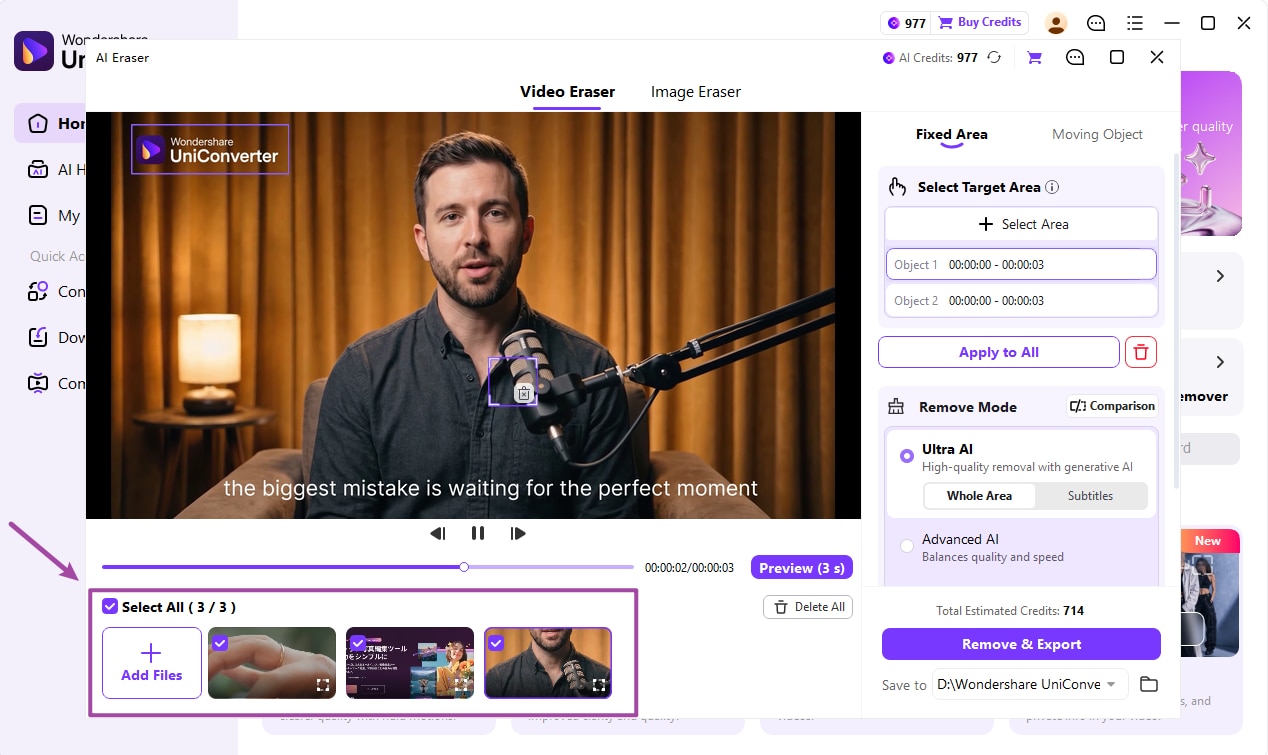
Select multiple videos for batch watermark removal
ChooseMatch the method
PrepareReview source files
PreviewCheck the result
SaveKeep useful copies

Remove, Crop, Cover, or Return to the Clean Source?

The best choice depends on where the mark sits and whether the underlying content must be preserved.

Your requirement
Preserve the frameAI area removal
Avoid reconstructionClean source or a simpler edit
A fixed corner mark
✓Select a tight area and preview background reconstruction.
Use a clean export if the project or original file is available.
An expendable border
✓Removal may be unnecessary.
Crop only if the changed framing is acceptable.
A mark over fine detail
✓Inspect texture, faces, and movement carefully.
Prefer an unmarked source when the detail matters.
Many source videos
✓Review each area before batch export.
Do not assume one rectangle fits mixed resolutions and layouts.
Simple decision:
Use the clean original first when possible. Use AI removal for authorized sources that need reconstruction, with a separate area and result check for each video.
Follow the UniConverter Steps

A Practical Batch Video Watermark Removal Workflow

A batch video watermark remover processes a collection of videos while keeping the removal decision tied to each source. A logo in the same corner can cover a plain wall in one clip and a face in another. UniConverter 18 Video Eraser combines area selection, a short preview, and multi-video processing so the queue can be reviewed before delivery.

Sort the Videos by Watermark and Frame Layout

Separate fixed corner logos from moving overlays and separate landscape from portrait footage. The useful batch is a collection with manageable removal decisions, not simply every watermarked file on the drive.

  • Keep the source versions before starting removal.
  • Check whether a clean export can replace the watermarked copy.
  • Include difficult motion and detailed backgrounds in the test group.
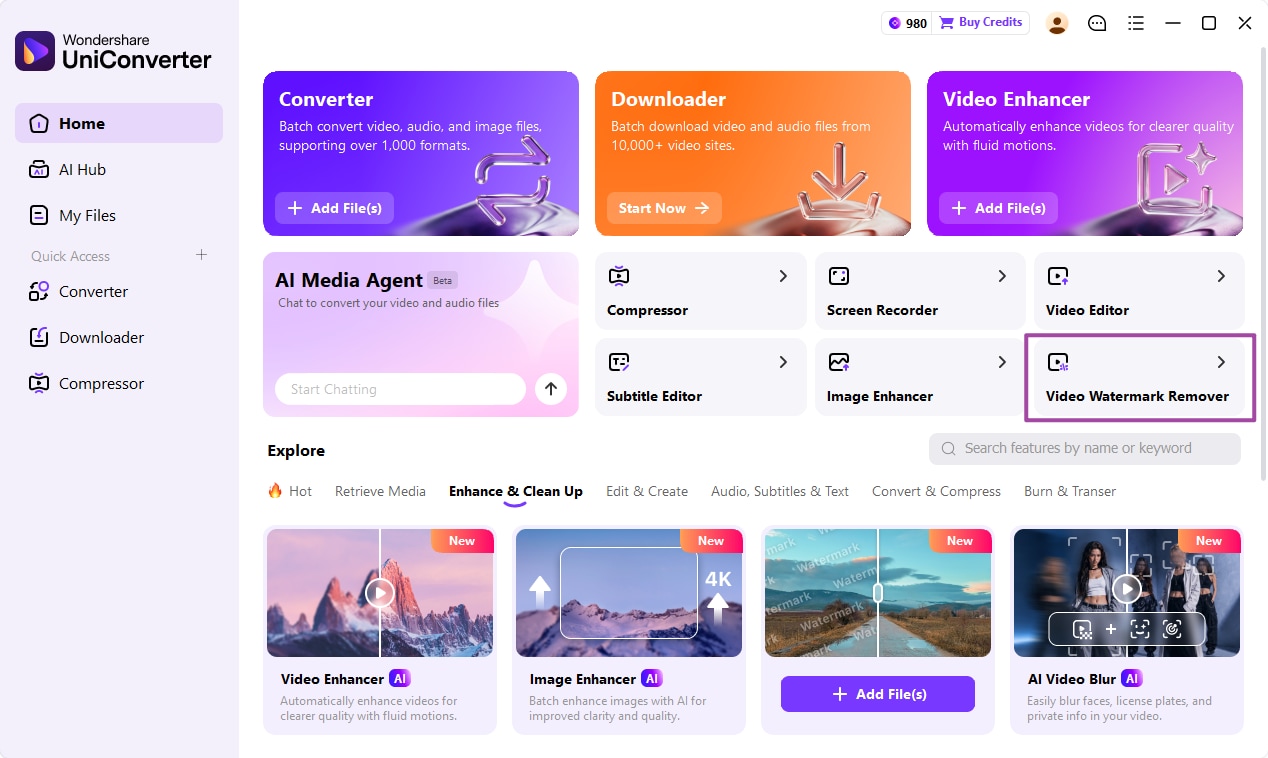
Open Video Watermark Remover in Wondershare UniConverter 18

Mark a Fixed Watermark with Ultra AI Whole Area

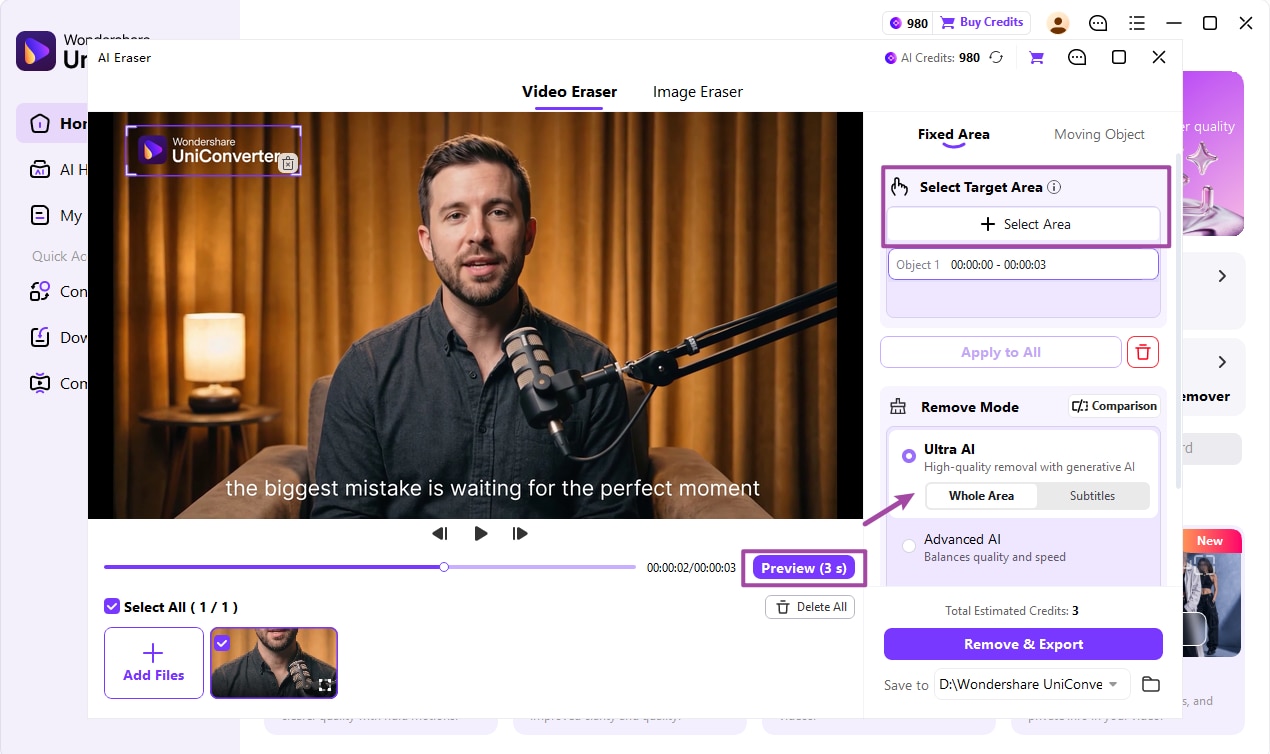
Open Video Watermark Remover to enter Video Eraser. Add a video, choose Fixed Area and Ultra AI, and keep Whole Area selected. Use Select Area to draw a box covering the complete watermark with limited surrounding content.

  • Include soft logo edges or shadows that belong to the mark.
  • Avoid unnecessarily selecting faces, product text, or other useful detail.
  • Treat moving marks separately rather than assuming a fixed area follows them.
Select a fixed watermark using Ultra AI Whole Area mode

Preview Before Preparing the Full Queue

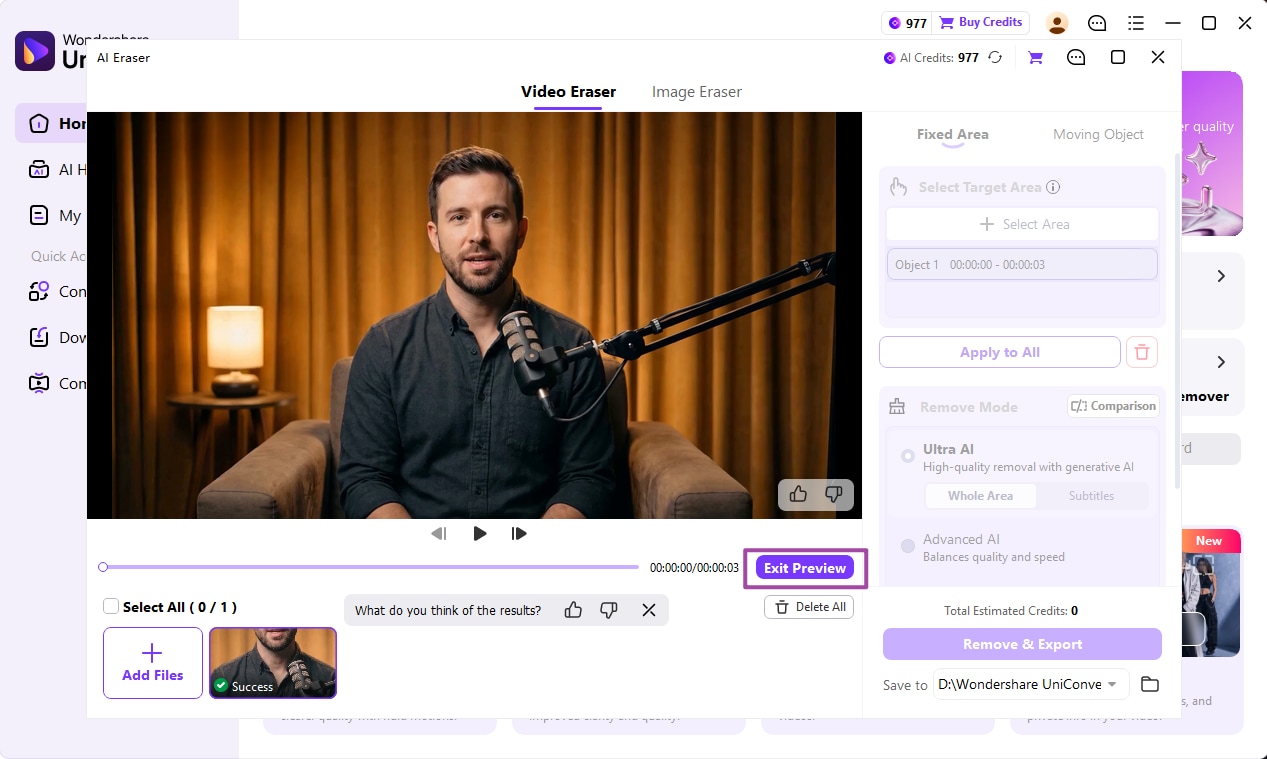
Use Preview (3 s) to inspect a sample of the removal. If the result leaves text fragments or damages the background, refine the selected region and preview again. Check the displayed AI-credit estimate before committing to the larger job.

  • A preview processes a sample; it does not validate every frame.
  • Look for wobbling texture, smears, ghosted logo edges, or changes to nearby content.
  • Test an additional difficult point when the background changes during the clip.

A shared logo position does not establish that the same pixel rectangle fits every source resolution. Review the selected region for each video.

Preview video watermark removal with Ultra AI

Select the Prepared Videos and Remove & Export

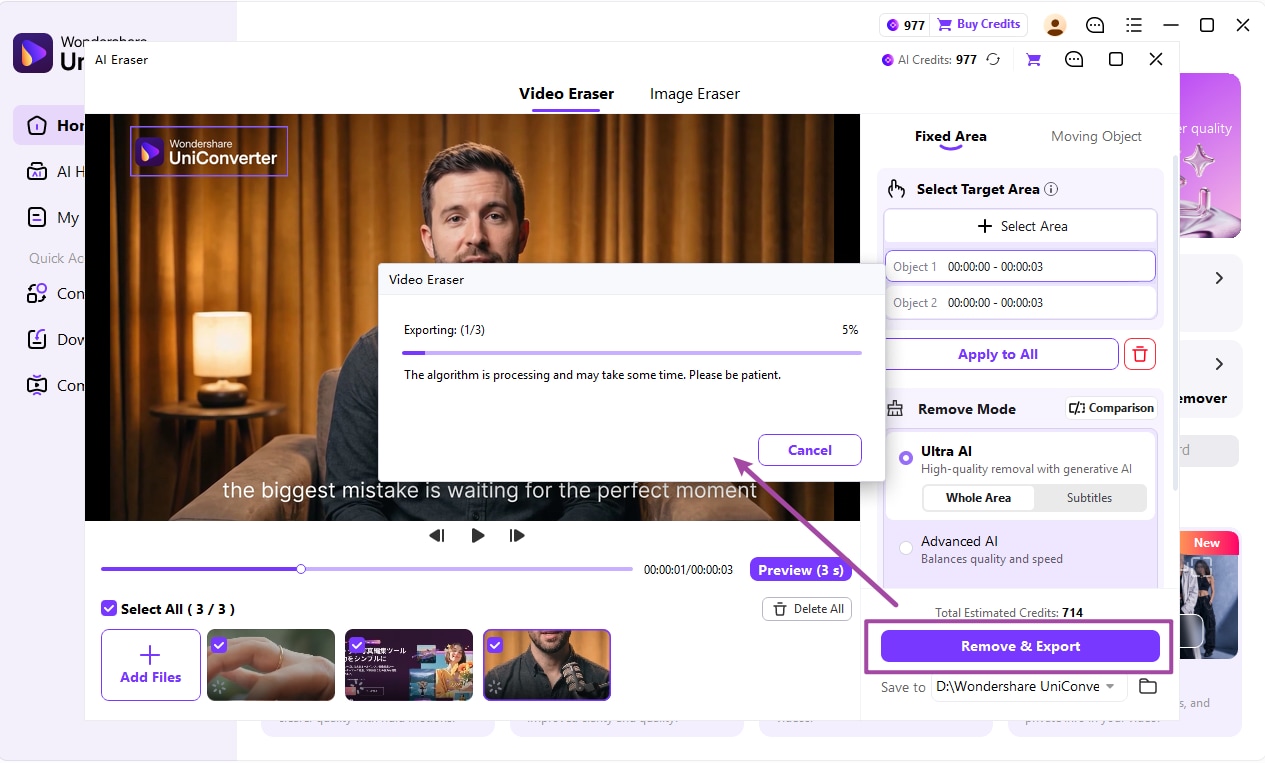
Use Add Files for additional videos and inspect each file’s removal settings. Choose the intended files with their checkboxes or Select All, set Save to, and click Remove & Export. Review completed outputs before delivery.

  • Use Select All only after each included video has suitable settings.
  • Compare a start, middle, and end section on representative outputs.
  • Check sound and synchronization as well as the edited picture.
  • Keep unsuccessful clips outside the approved delivery folder.

A reconstructed area can be plausible without matching the hidden original pixels. Prefer a clean source for evidence-sensitive or detail-critical work.

Select multiple videos for batch watermark removal

Select the Removal Method from the Watermark Behavior

Use the table to choose the correct action, then check the delivered files against the final column.

Watermark removal decisions and visual checks

Choose the action from the source problem, then use the final column to review the result.

Watermark removal decisions and visual checks
Source conditionActionCheck
Fixed logo or watermarkFixed Area > Ultra AI > Whole Area.Selection covers the entire mark without excess content.
Text that appears intermittentlyEvaluate the dedicated Subtitles mode when the target is a subtitle.Text timing and the selected region match the subtitle behavior.
Moving unwanted objectUse the separate moving-object workflow when appropriate.Do not assume a fixed rectangle tracks the object.
Different video sizesPrepare the selected region for each source.The mark remains inside the area on every included file.

Technical references: UniConverter 18 Video Eraser guide and Video watermark feature.

SelectionPreviewBatch scopeOutput review
Tight regionTight region checkCover the mark and its visible edges.
ContextContext checkProtect nearby useful detail.

Preview a representative sample, check exceptions, and keep the original files for revisions. Interface labels can vary between platforms and versions.

Useful Multi-Video Watermark Cleanup Jobs

Choose the example that matches the source files and the intended delivery.

Your own older logo exports

Prefer re-exporting from the project when available. Use removal when the clean original cannot be recovered and the reconstructed result is acceptable.

Authorized partner assets

Check whether the partner can supply clean masters before repairing delivery copies.

Repeated screen overlays

Group files by resolution and overlay position, then verify selections rather than copying coordinates blindly.

A mixed archive

Separate fixed logos, subtitle regions, and moving targets so each gets the appropriate workflow.

Fix Batch Video Watermark Removal Problems

Compare the affected output with its source and review the selected file’s settings. Test the correction on a representative sample before repeating the job.

01

The watermark leaves faint edges

Inspect the selected boundary and include the mark’s visible shadow or outline without expanding farther than needed. Preview again before rerunning the collection.
Check 1Incomplete selection
02

The area shimmers during movement

The reconstruction may struggle with the changing background. Check a difficult passage, reduce unnecessary selected content, and seek a clean original if the result remains distracting.
Check 2Temporal artifacts
03

Some videos erase the wrong part of the frame

Review each file’s resolution and selected area. A queue-level batch export does not validate the region for every source.
Check 3Per-file setup

Consult the official guides for the relevant controls and keep separate tools’ instructions separate.

Batch Video Watermark Removal Workflow FAQs

01

Can UniConverter remove watermarks from multiple videos?

Yes. UniConverter 18 Video Eraser on Windows supports multi-video processing. Add files, inspect each removal setup, select the intended videos, and click Remove & Export.
Do not assume that identical placement on screen means identical source coordinates. Check each video’s resolution, orientation, and watermark region before including it in the batch.
Use Fixed Area > Ultra AI > Whole Area in UniConverter 18 on Windows, then draw the selected region around the complete watermark.
The Ultra AI preview processes a 3-second sample. Review other difficult moments and the final export rather than treating one preview as proof of the whole result.
No. AI estimates replacement content where the mark covered the picture. The result can contain artifacts and does not guarantee recovery of the original hidden pixels.
Cropping can be suitable when the mark sits in a dispensable border and the changed composition is acceptable. Use a clean original whenever it solves the problem without reconstruction.
Wondershare UniConverter

Review and Process a Video Watermark Batch

Open UniConverter Video Watermark Remover, prepare each selected region, preview difficult footage, and Remove & Export the reviewed collection.

Select multiple videos for batch watermark removal