UniConverter
UniConverter Online Free
Converter video, audio & image free
Free Try
UniConverter AI Object Tracking Blur

How to Blur an Object in a Video with AI Tracking

Blur a moving license plate, logo, screen, label, badge, or other sensitive detail without adding keyframes frame by frame. Select the object once, and UniConverter automatically tracks it through the video so the blur stays in place.

  • Automatically track the selected object as it moves
  • Choose from 10 Blur Styles and adjust Strength, Feather, and Opacity
  • Preview and process sensitive footage locally on Windows or Mac
Available on:

For Windows 11/10/8/7

For macOS 10.13 or later

4.7Rated on Trustpilot
Quick Answer

How Do You Blur an Object in a Video?

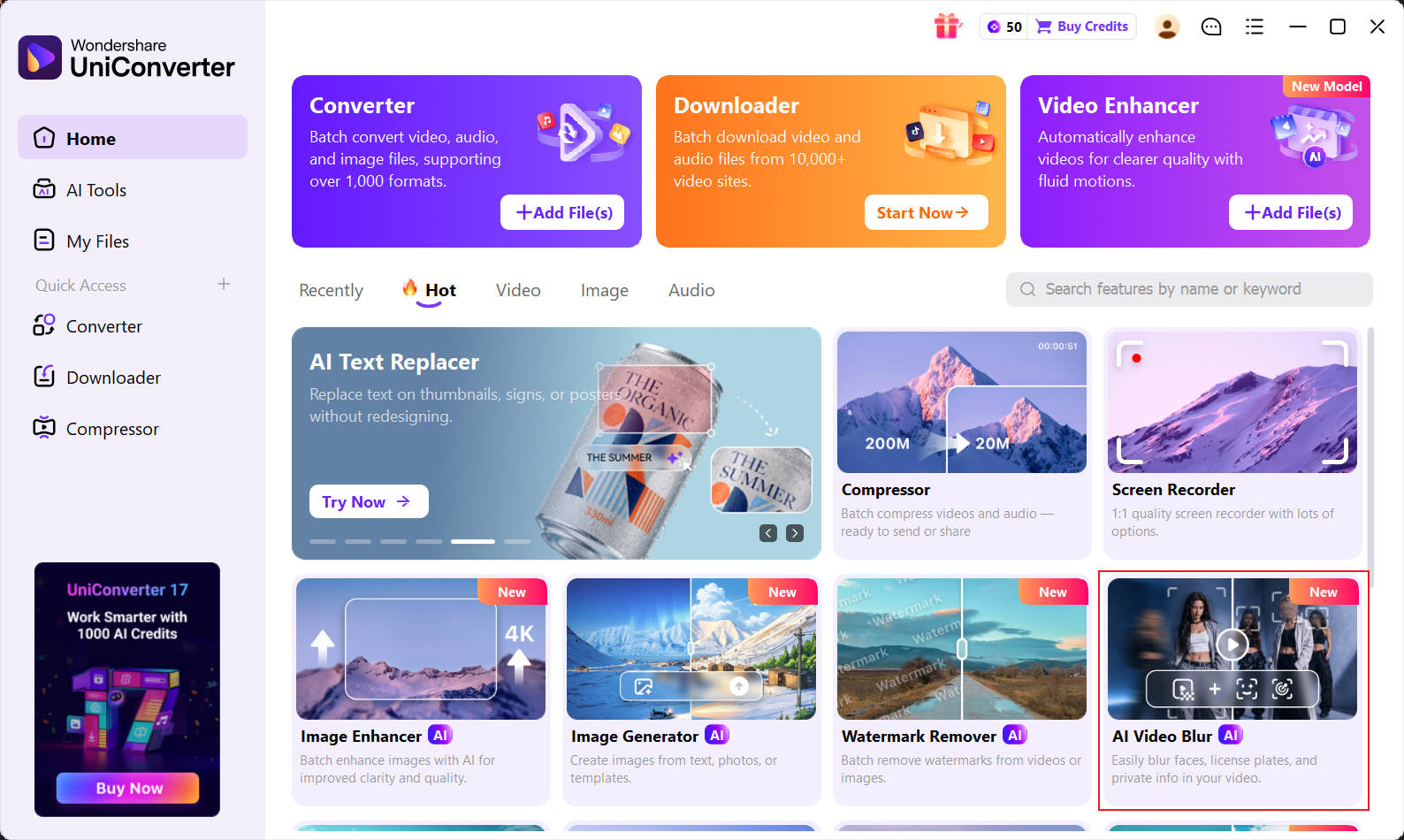
UniConverter AI Video Blur provides two modes: AI Face Blur mode automatically detects faces, while Object Tracking Blur mode follows an object you select manually.

Use Object Tracking Blur for Selected Objects

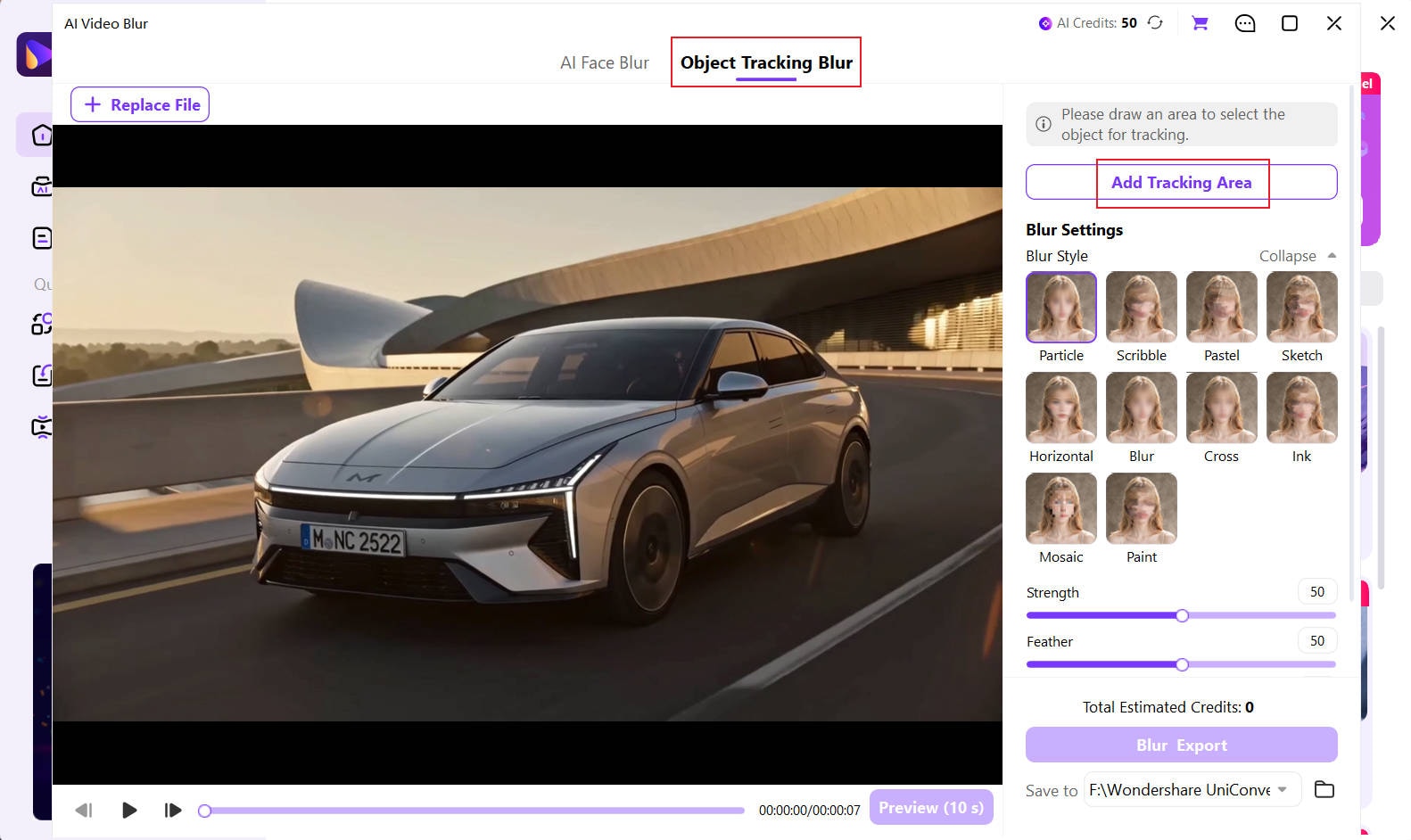
Open UniConverter AI Video Blur and choose Object Tracking Blur mode. Draw a box around the license plate, logo, screen, label, badge, or other target. AI follows the selection as it moves, so the blur stays aligned without frame-by-frame keyframing. Choose a Blur Style, preview the coverage, and export.

Use AI Face Blur for People

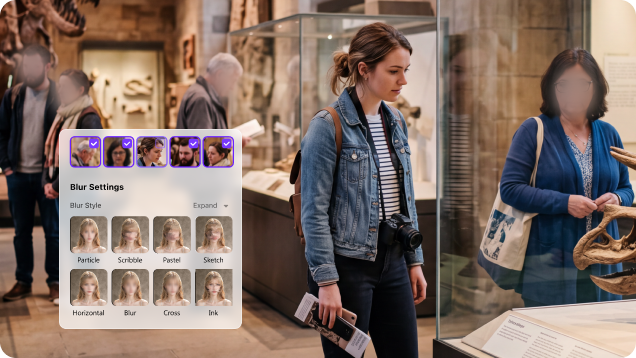
If the target is a person, choose AI Face Blur mode instead. UniConverter scans the video, generates face thumbnails, and lets you select one, multiple, or all detected people to conceal. See the dedicated guide to blur a face in video.

Motion tracking blur follows and conceals a selected target. It is different from a cinematic motion blur effect, which adds visual streaks to movement.

Select the Detail

What Objects Can You Blur in a Video?

Hide only the sensitive detail while leaving the rest of the frame clear. Object Tracking Blur works with moving or stationary items that you select manually. For a fixed region or several separate areas, see how to blur part of a video.

License Plates

Select the plate and keep the blur attached while a car, motorcycle, or camera moves.

Logos and Watermarks

Conceal a selected brand mark, platform graphic, or source identifier as it changes position.

Screens and Usernames

Hide moving windows, account names, emails, order details, API keys, or dashboard data.

Blur tracking a document held by a moving person

Documents and Labels

Blur contracts, shipping labels, forms, presentation text, or other readable details.

Motion tracking blur covering an employee ID badge

Badges and Addresses

Protect employee IDs, building numbers, street signs, door labels, and location clues.

Tracked blur concealing a product label in a demonstration video

Products and Spoilers

Hide unreleased designs, product labels, prices, tattoos, or other identifying details.

Why AI Tracking

Keep the Blur on a Moving Object

Adding blur to one frame is easy. Keeping it over the same detail while the object or camera moves is the real challenge. UniConverter combines a simple selection with AI tracking, so the blur follows the target through the clip.

Select Once and Let AI Follow the Object

Draw a box around the target in Object Tracking Blur mode. AI analyzes its movement and keeps the blur aligned through the video, so you do not have to reposition a mask whenever the target changes position.

  • Track moving objects or stationary details in a moving shot.
  • Skip manual frame-by-frame keyframing for normal tracked movement.
  • Use one workflow for plates, screens, logos, labels, signs, badges, and documents.
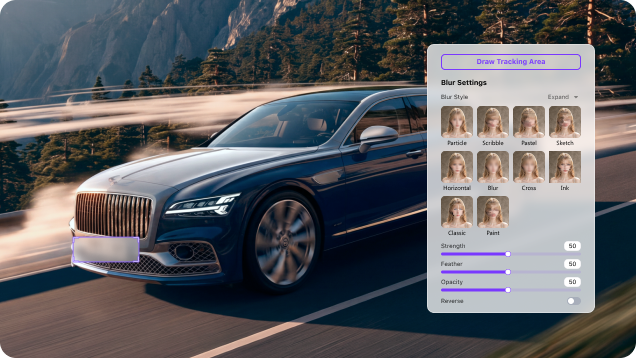
AI motion tracking blur following a selected moving object

Choose the Right Look and Level of Coverage

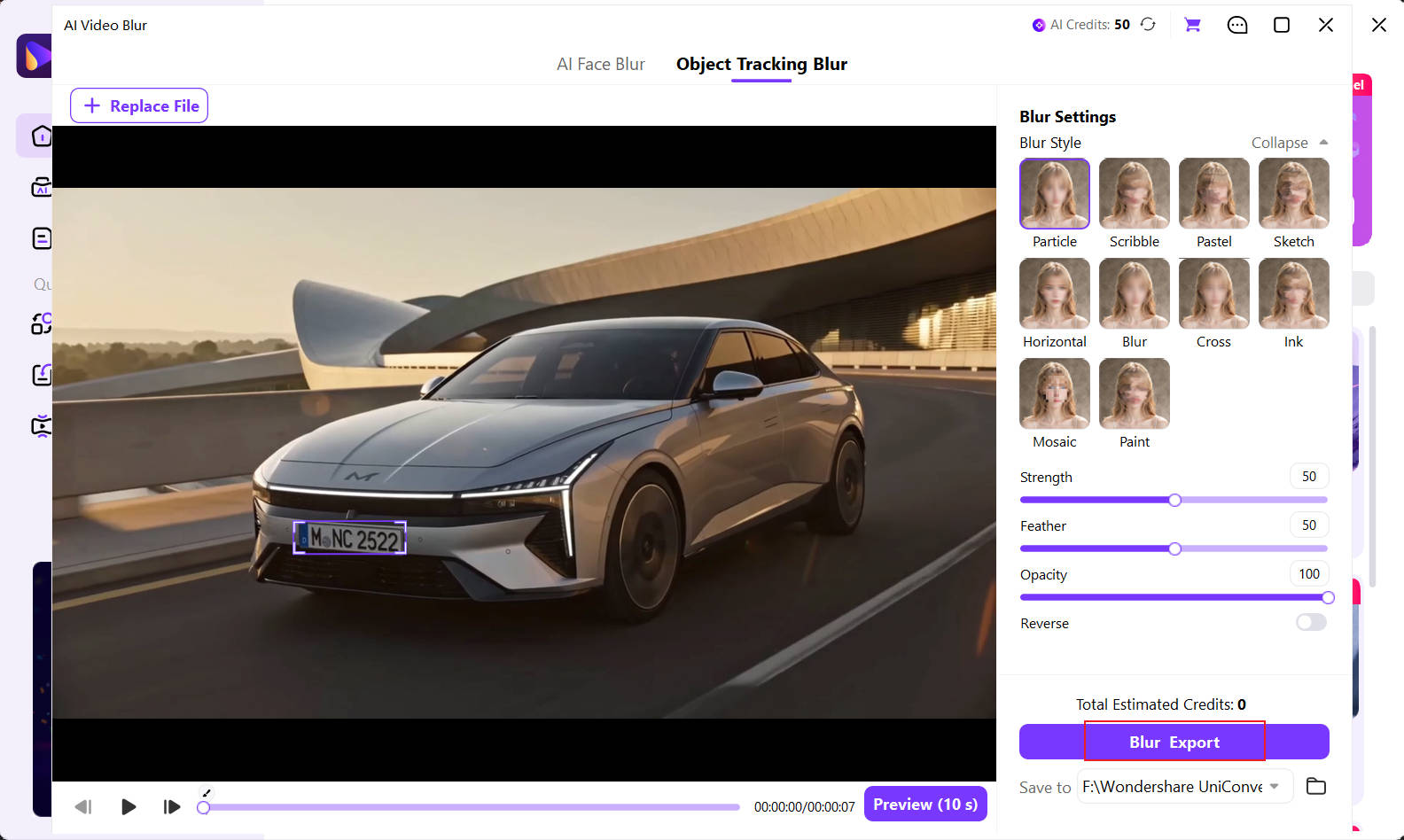
Use Blur or Mosaic for familiar privacy masking, or choose Particle, Smear, Pastel, Sketch, Horizontal, Cross, Ink, or Paint for a more stylized result. Then fine-tune how the effect covers the target.

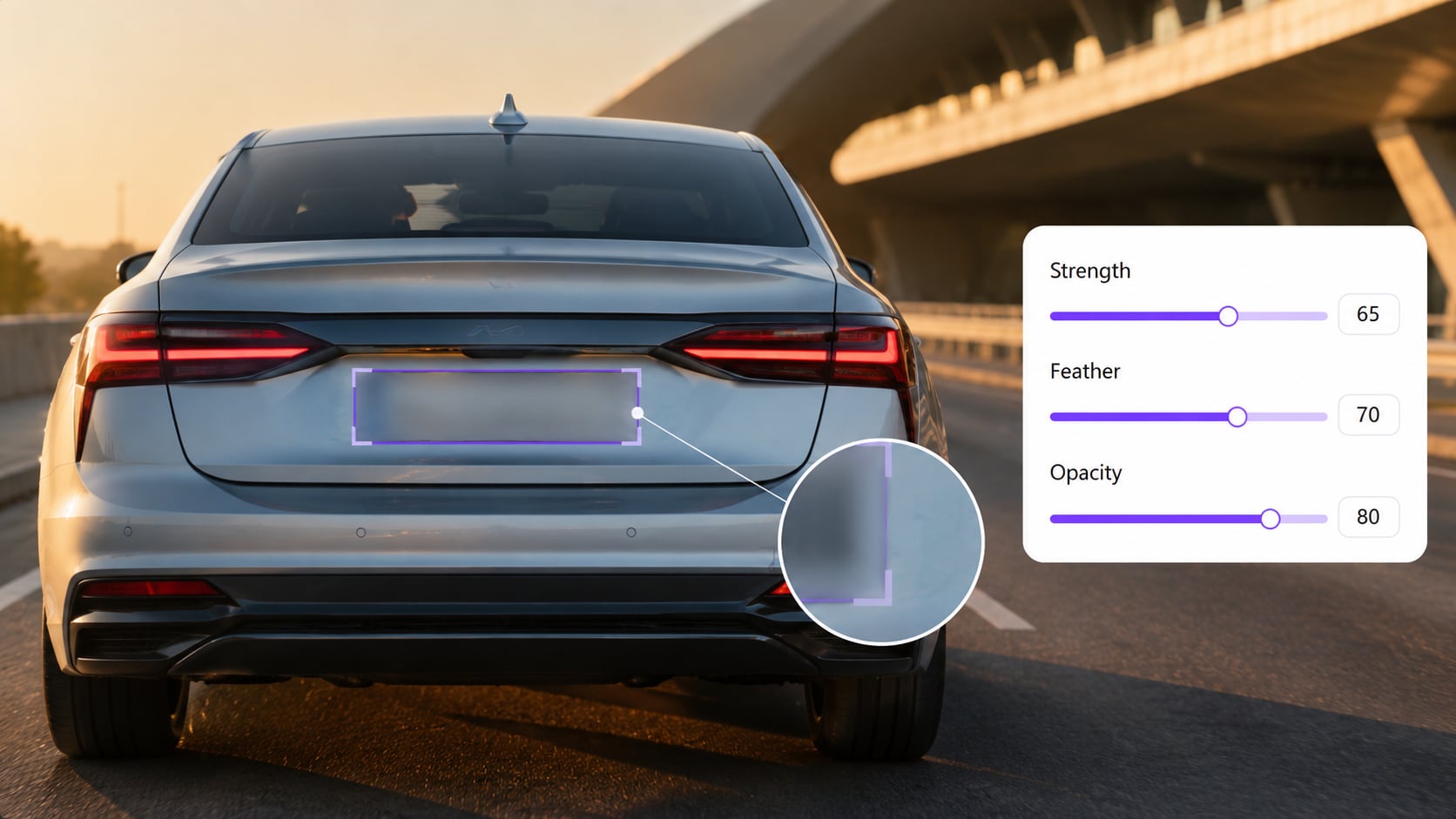
  • Increase Strength when the detail needs stronger concealment.
  • Use Feather to create softer, less distracting edges.
  • Adjust Opacity to control how much of the target remains visible.
Blur Style, Strength, Feather, and Opacity controls for a tracked object

Check the Full Clip Before You Export

Preview the result to confirm that the selected detail remains covered from beginning to end. Pay extra attention when the target moves quickly, changes size, passes behind something, leaves the frame, or appears after a shot change.

  • Make sure the blur covers the complete target, not only its center.
  • Check the frames immediately before and after an obstruction.
  • Reselect the target or increase coverage if any detail remains visible.
Previewing motion tracking blur coverage before video export

Keep Sensitive Footage in a Local Desktop Workflow

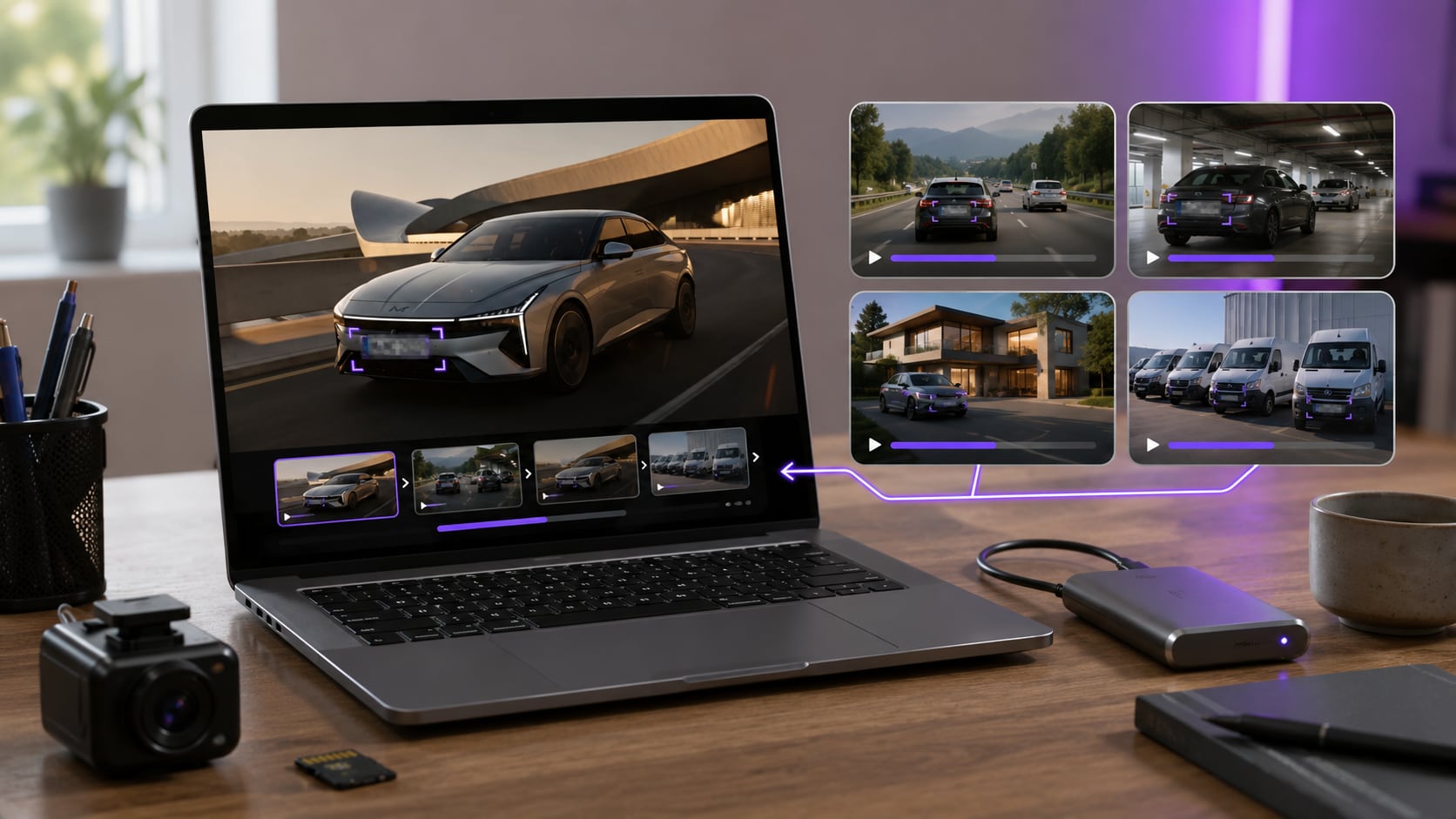
Process the original video in UniConverter instead of uploading the unblurred file to an unfamiliar browser tool. You can also add multiple videos and continue converting, compressing, trimming, editing, or enhancing them in the same app.

  • Keep privacy-sensitive source footage in a desktop workflow.
  • Reduce repeated setup when several videos need object blur.
  • Continue common post-production tasks without switching apps.
Local desktop workflow for blurring sensitive objects in video
Tracking Checklist

Get Cleaner, More Reliable Blur Coverage

A clear starting selection helps AI follow the right detail, while a final preview helps you catch the moments when coverage is most likely to slip.

Start With a Clear Selection

  • Choose a frame where the full target is visible and reasonably sharp.
  • Draw the selection around the whole detail, with a small safety margin.
  • Avoid starting while the target is heavily blurred or partly hidden.
  • Use Object Tracking Blur for selected items and AI Face Blur for detected people.

Check the Moments Most Likely to Slip

  • Watch fast movement, size changes, camera shake, and shot transitions.
  • Inspect moments when another person or object passes in front of the target.
  • Check whether the target leaves the frame and later reappears.
  • Increase the selection or blur strength if identifying detail remains visible.
Real-World Uses

Where Object Tracking Blur Helps Most

Use object tracking whenever a private, distracting, or unreleased detail moves within the frame, changes size, or shifts because the camera moves.

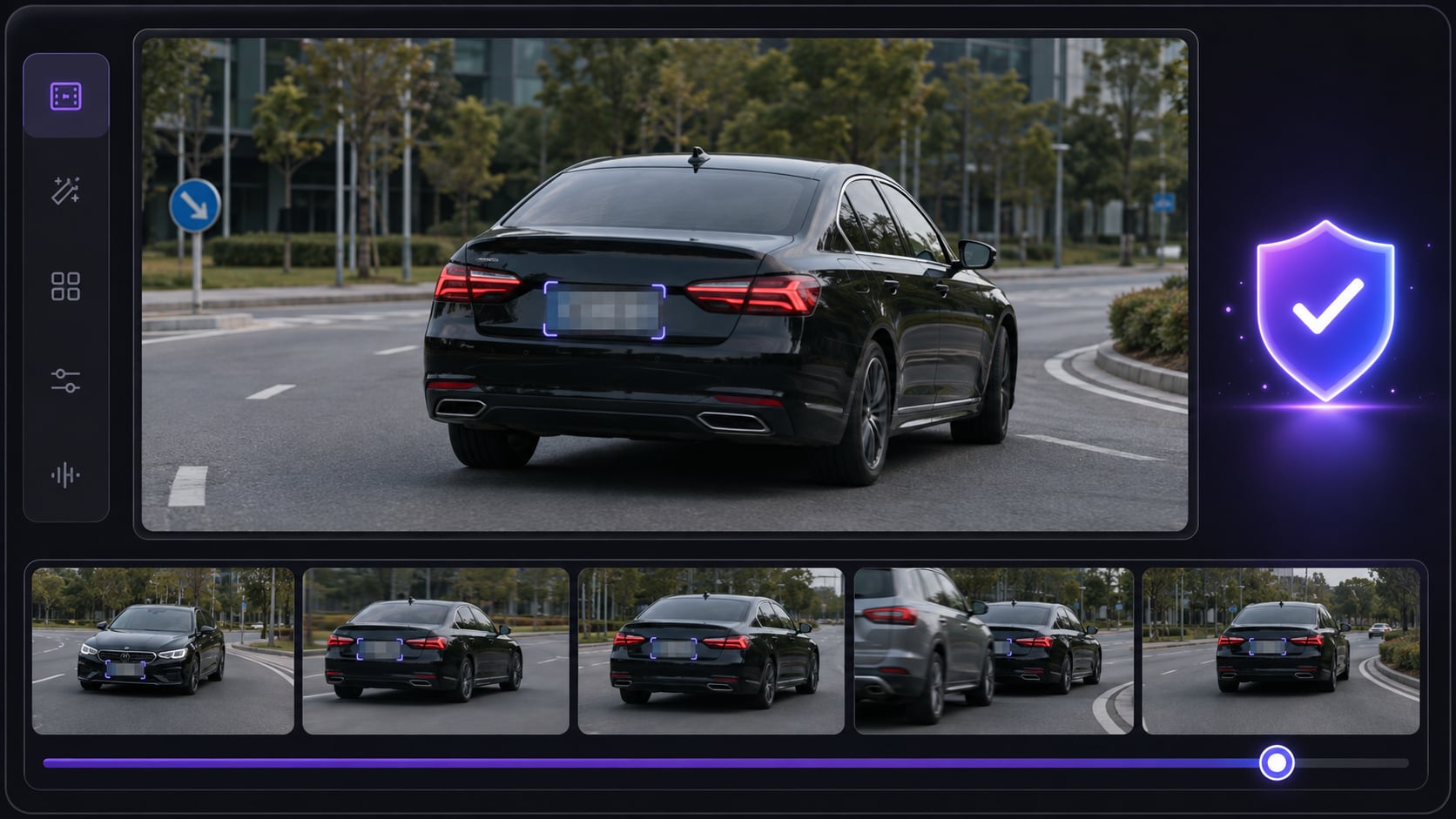
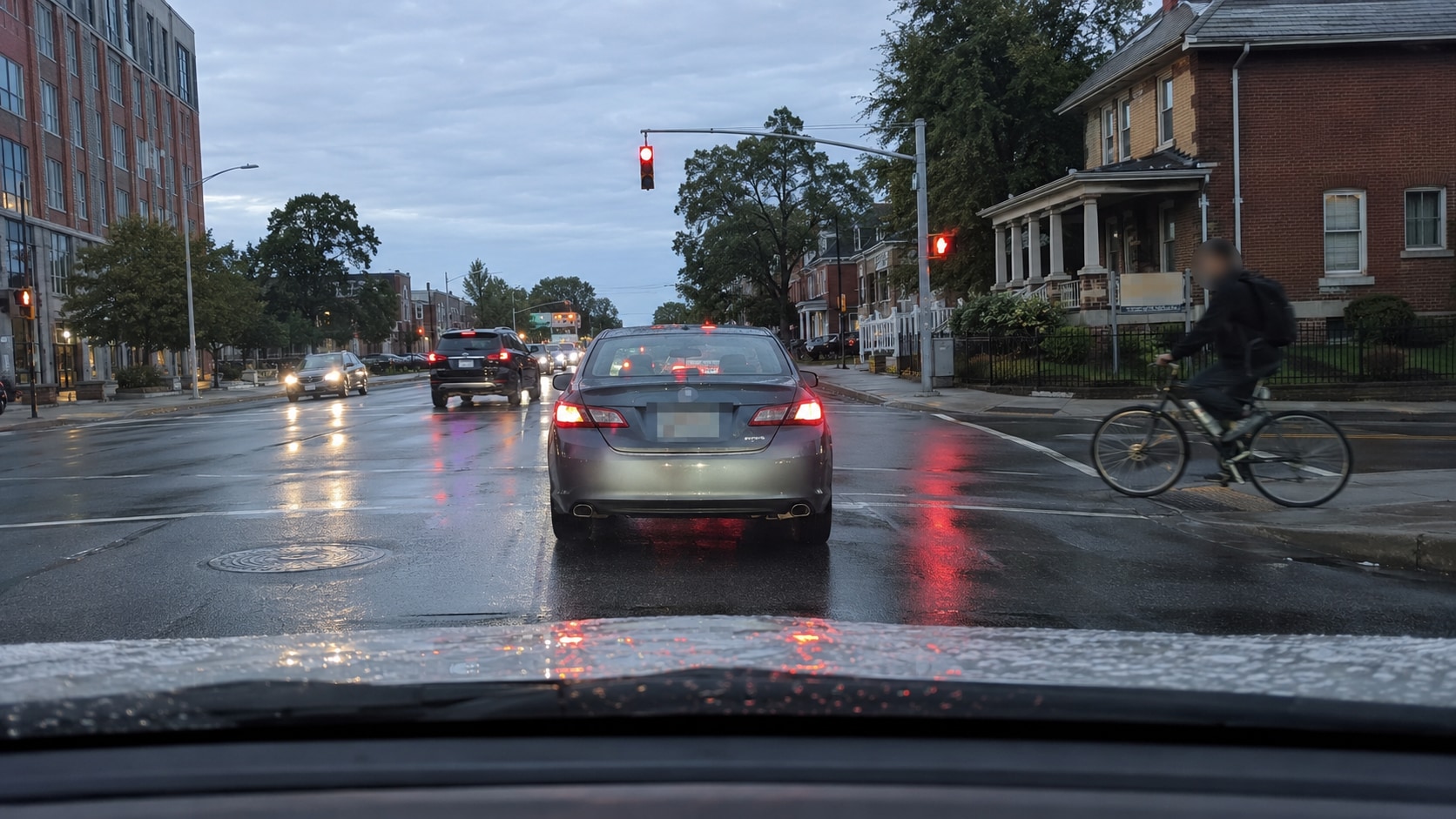
Motion tracking blur hiding a license plate in dashcam footage

Dashcam and Traffic Footage

Blur license plates, road signs, addresses, or identifying vehicle details before sharing accident, travel, cycling, or street footage.

Choose the Workflow

Choose the Right Way to Blur a Moving Object

Use a static blur when the detail never changes position. Use manual keyframes when a difficult shot needs detailed correction. Choose AI object tracking when you want the blur to follow a selected target with less setup.

Workflow NeedUniConverter Object Tracking BlurManual Mask and KeyframesStatic Blur Overlay
Keep blur on a moving targetAI tracks the selected objectReposition or correct the mask over timeDoes not follow movement
Initial setupDraw a box around the targetCreate a mask and timeline keyframesPlace one fixed blur area
Best useMoving plates, logos, screens, labels, badges, and other detailsComplex shots that require detailed manual interventionStationary details in locked-off footage
Effect controls10 Blur Styles plus Strength, Feather, and OpacityDepends on the editor and applied effectUsually limited to the overlay settings
Frame-by-frame keyframingNot required for normal tracked movementCommonly required for position or shape correctionsNot used, but the blur remains fixed
Sensitive source footageProcessed in a local desktop workflowLocal when using a desktop editorDepends on the chosen desktop or online tool
Multiple source videosBatch video workflowUsually set up by project or sequenceDepends on the tool

Best fit: Choose UniConverter when the target moves and you want a faster alternative to building a mask and adjusting keyframes across the timeline. Preview the result before publishing, especially after fast motion, obstruction, re-entry, or a shot change.

Supported Workflow

Blur, Review, and Finish the Video in One App

Protecting one detail does not have to become a separate upload and download task. Complete the object blur, then continue the rest of your video workflow in UniConverter.

Common Video Formats

Work with MP4, MOV, AVI, MKV, M4V, WMV, FLV, MTS, TS, 3GP, and other commonly used formats supported by the feature.

MP4MOVAVIMKVM4VWMVFLVMTSTS3GP

From Source Footage to Final Export

Trim or prepare the source, apply object tracking blur, preview the full clip, and continue converting, compressing, editing, or enhancing it with the broader video blur editor workflow.

ImportTrim / ConvertTrack and BlurPreviewCompress / EnhanceExport
Object Blur FAQ

Frequently Asked Questions

Direct answers about selecting, tracking, blurring, checking, and exporting moving-object footage.

Open UniConverter AI Video Blur, choose Object Tracking Blur mode, draw a box around the object, select a Blur Style, and let AI track it. Preview the coverage, adjust Strength, Feather, or Opacity if needed, then export.

Select the object on a frame where it is clearly visible and use motion tracking blur. The tracker analyzes the target's movement and keeps the concealed region aligned as the object moves through the clip.

Motion tracking blur combines a selected region with tracking data so the blur follows a person or object over time. It is different from cinematic motion blur, which creates streaking to make movement look smoother or faster.

UniConverter automatically scans for faces in AI Face Blur mode. For license plates, logos, screens, documents, labels, and other non-face targets, you select the object first and AI tracks that selection afterward.

No. For normal tracked movement, AI follows the selected target without requiring you to create and reposition keyframes throughout the clip. You should still preview the result before export.

Yes. Object Tracking Blur can cover moving or stationary visible details. Tracking is especially useful when the camera moves because the selected detail can change position within the frame even if the real-world object does not move.

Inspect fast movement, camera shake, low contrast, obstruction, exits and re-entry, and shot changes. Start from a clearer frame, include the whole target in the selection, reselect it when needed, and preview again before export.

You can choose Particle, Smear, Pastel, Sketch, Horizontal, Blur, Cross, Ink, Mosaic, or Paint, then adjust Strength, Feather, and Opacity. Sticker is planned for the V18 release.

No. UniConverter AI Video Blur runs in the Windows or macOS desktop application, so the unblurred source can remain in a local workflow instead of being uploaded to an unfamiliar online blur site.

Yes. Add multiple videos, switch between the clips to review their targets and settings, then process and export them in the same batch workflow.

Blur Moving Objects Without Manual Keyframes

Select a plate, logo, screen, label, or other detail once. Let AI follow it through the clip, customize the coverage, preview the result, and export from your desktop.

UniConverter applying motion tracking blur to a selected moving object