
Why UniConverter Is a Reliable Voice Memo Transcriber
Convert Apple Voice Memos, iPhone recordings, and common audio files into editable transcripts with AI transcription, timestamps, speaker labels, export options, and 20+ language support.
AI Transcription for Clear Voice Notes
Convert voice memos to text with an AI transcription engine designed for everyday recordings. UniConverter helps you turn interviews, ideas, lectures, and quick voice notes into editable text without manual typing. It works well when your audio is clear, your speaker is close to the microphone, and your recording has limited background noise.
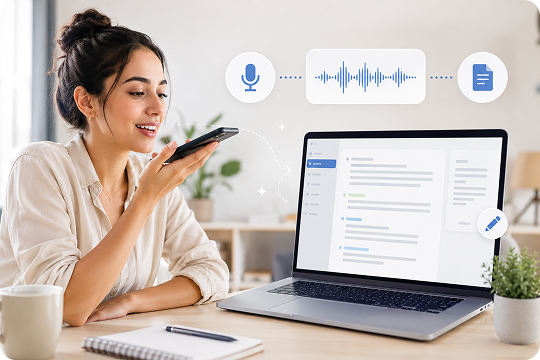
Built-In Support for Apple and iPhone M4A Voice Memos
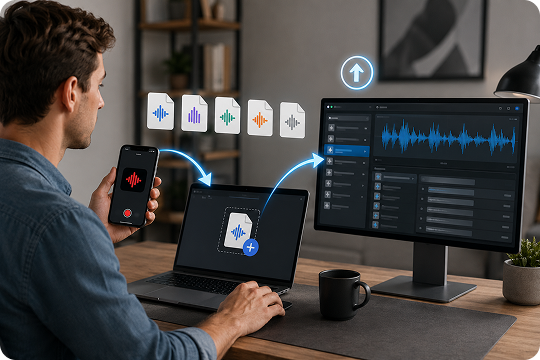
Apple Voice Memos usually saves recordings as M4A files. UniConverter can import iPhone voice memos, Apple recordings, and common audio formats such as MP3, WAV, CAF, and AIFF. You can move a file from your iPhone or Mac, upload it, and convert the voice memo to text in a few guided steps.
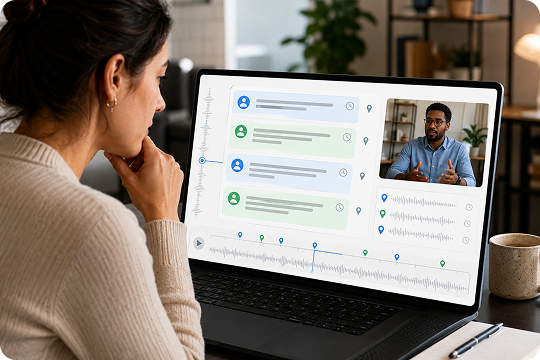
Speaker Labels and Timestamps for Easier Review
Long voice recordings are easier to review when the transcript keeps its structure. UniConverter can transcribe voice memos with timestamps, so you can jump back to key moments in the audio. Speaker labels help organize interviews, meeting notes, and discussions when more than one person appears in the same recording.
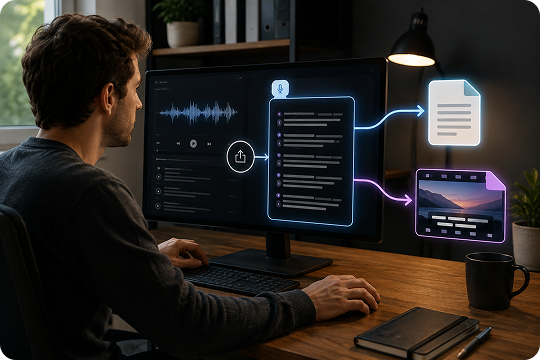
Export Voice Memo Transcripts to TXT or SRT
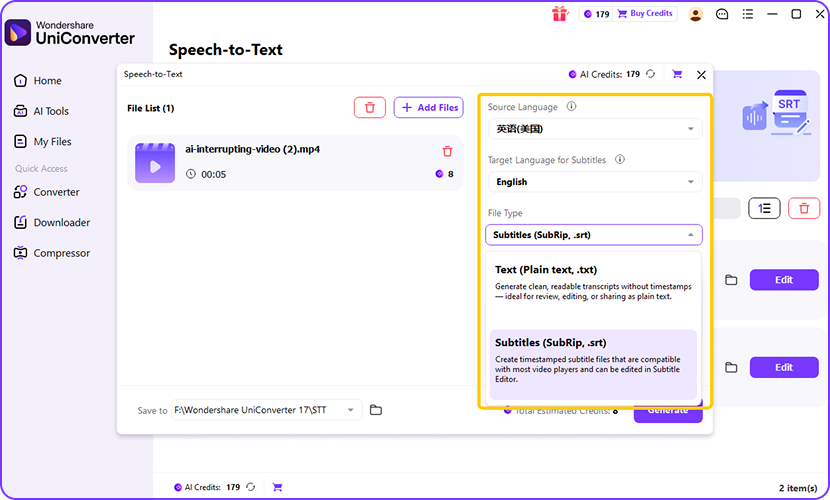
After transcription, you can export your voice memo transcript as TXT or SRT. Use TXT when you need editable notes, meeting records, interview text, or study material. Choose SRT when you want to turn a voice memo or audio recording into timed subtitles for video content. This keeps your transcription workflow simple and easy to manage.
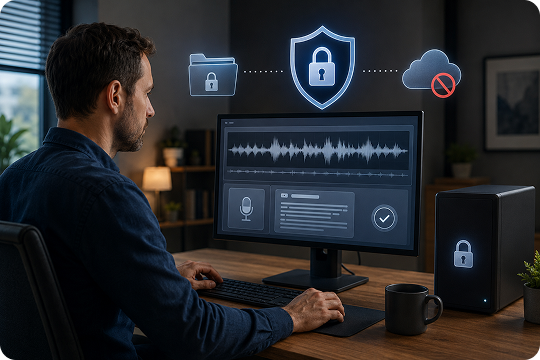
Local Desktop Processing for Private Recordings
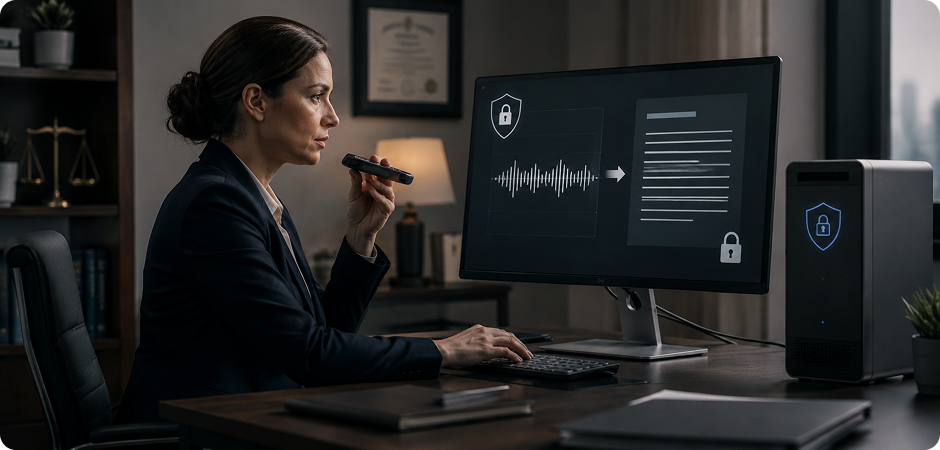
Some voice memos include personal ideas, client details, or internal meeting notes. With the UniConverter desktop app, you can process sensitive recordings on your computer instead of relying only on an online voice memo to text converter. This gives you more control when you transcribe business, legal, medical, or research audio.
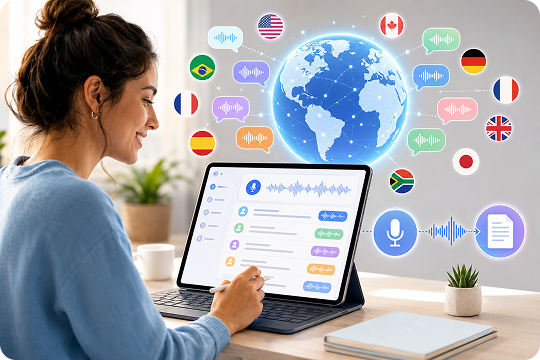
20+ Languages for Multilingual Voice Memo Transcription
UniConverter supports voice memo transcription in 20+ languages, including English, Spanish, Chinese, Japanese, Korean, and French. You can convert audio recordings to text for global teams, language learning, interviews, and cross-border projects. Select the language before processing to help the AI transcription result match your recording more closely and reduce cleanup.
How to Transcribe Voice Memos to Text in 3 Steps
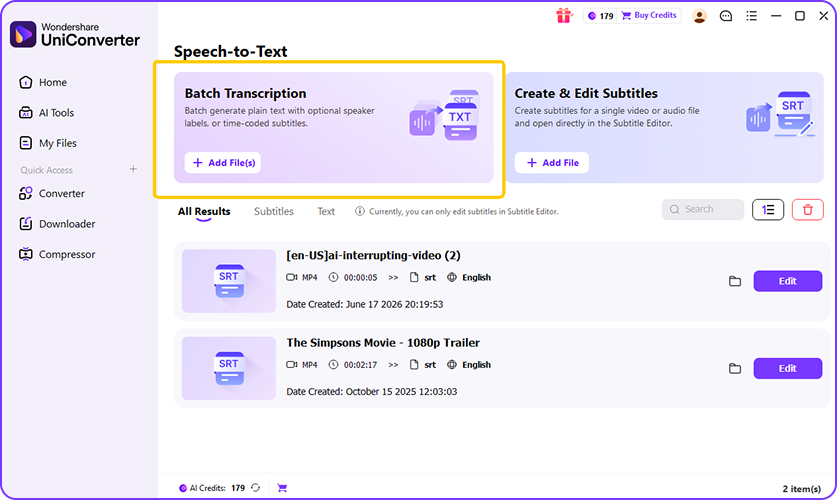
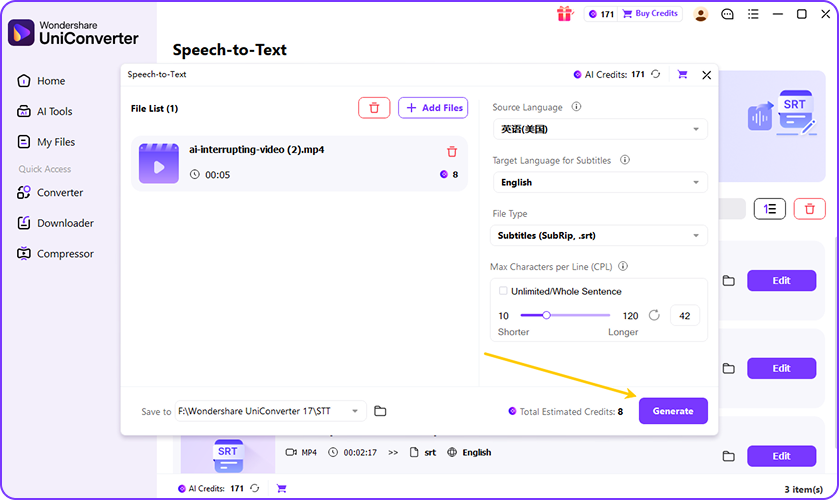
You can transcribe a voice memo in UniConverter without complex settings. Import your recording, choose the language, and export the transcript in the format you need.

Open UniConverter and add your voice memo file. You can drag and drop an Apple Voice Memos recording from your iPhone folder, iCloud Drive, or Mac. UniConverter supports common audio formats, including M4A, MP3, WAV, CAF, and AIFF.

Choose the spoken language in your voice memo. Then select the output format that fits your workflow. Use TXT for readable transcript text, or choose SRT when you need subtitle timing for video projects.

Click to start the voice memo transcription. Review the generated text, check timestamps, and make light edits if needed. Then export your transcript as a TXT file for notes or an SRT file for subtitles.
Online vs. Desktop: Choose the Right Voice Memo Transcription Tool
Need to transcribe one short memo? Start with the free online tool. Need to convert long recordings, batch files, or private audio? Use the UniConverter desktop app for a more complete voice memo transcription workflow.
| Feature | Online Tool | Desktop App |
|---|---|---|
| Best for | Quick single voice memos | Batch transcription and long recordings |
| Max file size | Up to 50 MB | Designed for larger local files |
| Batch processing | Not available | Process multiple voice memos together |
| Offline or private workflow | Requires upload | Process files on your computer |
| Export formats | TXT | TXT, SRT |
| Built-in editor | Basic transcript review | Full editing and subtitle workflow |
| Ideal use case | Free voice memo to text conversion | Pro voice memo transcription app workflow |
Who Uses UniConverter to Transcribe Voice Memos
Voice memo transcription helps writers, students, business teams, creators, legal and medical teams, and multilingual teams turn spoken notes into searchable text.

Transcribe Interviews and Field Recordings
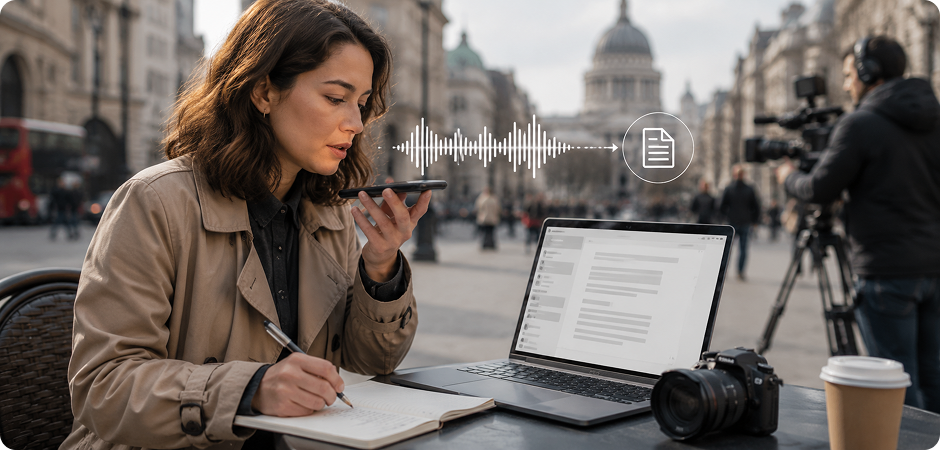
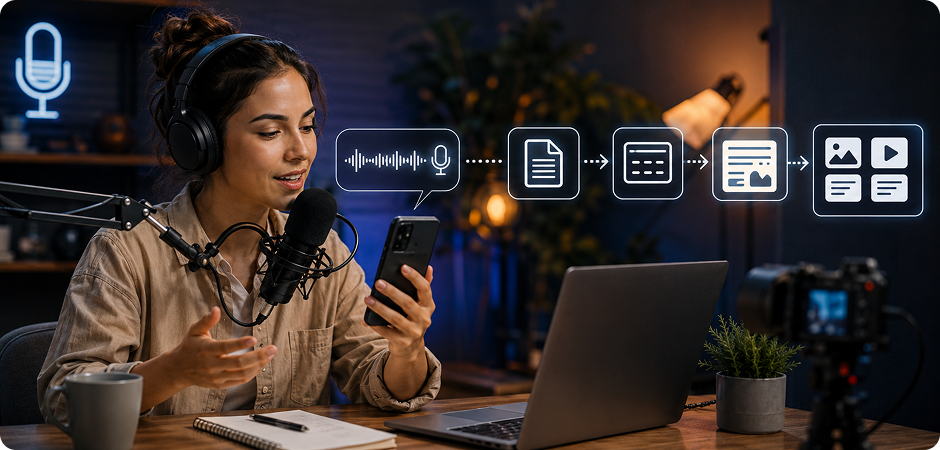
Writers and journalists often collect ideas while moving between interviews, events, and field work. UniConverter helps you transcribe voice memos into searchable text, so quotes and observations are easier to find later. You can convert M4A voice memos to TXT for drafting, research, or quick note review. Timestamps also make it easier to check the original recording before publishing, especially when you need to confirm exact wording in your notes.
Turn Lecture Voice Memos into Study Notes
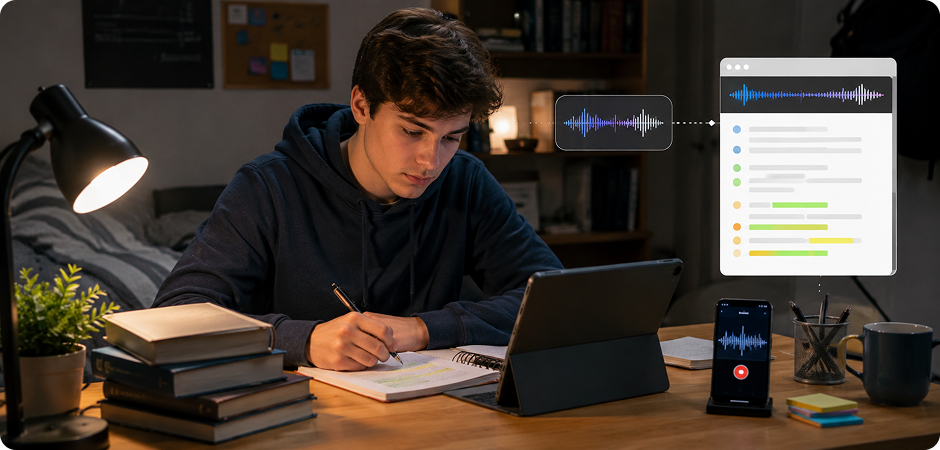
Students can record lectures, seminars, and group discussions with the iPhone Voice Memos app. UniConverter turns those voice recordings into text you can review, highlight, and organize. You can convert voice memo to text after class, then export the transcript as TXT for study folders. This is useful when you need clear notes but do not want to replay a long lecture, or when you missed a key detail.
Convert Meeting Voice Notes to Minutes
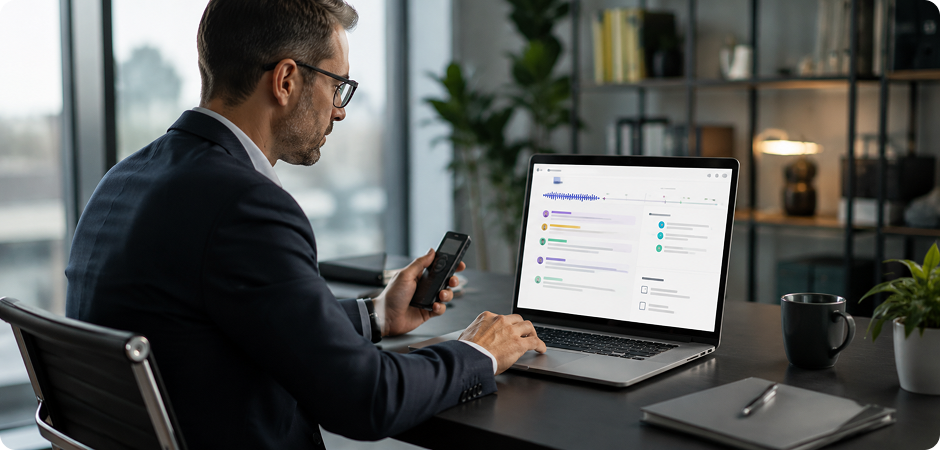
Business teams often use quick voice notes to capture ideas after calls, client meetings, or project reviews. UniConverter helps convert audio recordings to text, so action items, decisions, and follow-ups are easier to document. The desktop app is helpful for batch transcription when you have several meeting voice memos. Speaker labels and timestamps also help teams review who said what and turn spoken updates into clear meeting minutes after each discussion.
Repurpose Voice Memos into Scripts
Podcasters and content creators may use voice memos to capture raw thoughts, episode ideas, or short interviews. UniConverter can transcribe voice memos to text and turn those recordings into scripts, captions, blog outlines, or social posts. Export SRT when you need subtitle files, or use TXT when you want to polish the transcript before publishing. This keeps your creative workflow moving from recording to content faster every week.
Review Sensitive Voice Recordings
Legal and medical teams often handle recordings that need careful review and controlled storage. UniConverter desktop gives you a private way to transcribe voice memos on your computer for case notes, patient summaries, consultations, or internal records. You can export TXT transcripts for documentation and review. Always follow your organization’s privacy rules before uploading, sharing, or storing sensitive audio, especially when records include personal information or confidential details.
Transcribe Voice Notes in 20+ Languages
Global teams may receive voice notes in different languages from clients, partners, or regional offices. UniConverter supports voice memo transcription in 20+ languages, helping you turn spoken updates into readable text. Teams can use transcripts for project notes, localization planning, training material, or meeting follow-ups. Select the correct language before transcription to improve readability, reduce manual cleanup, and make shared notes easier for everyone to review across regions and time zones.
FAQs about Voice Memo Transcription
Can you transcribe a voice memo?
How do I transcribe a voice memo on iPhone?
Can I transcribe voice memos for free?
What is a good app to transcribe voice memos?
How do I convert an M4A voice memo to text?
Does Apple Voice Memos auto-transcribe?
Can UniConverter transcribe voice memos in languages other than English?
Is my voice memo data secure when transcribing online?



Start Transcribing Your Voice Memos Free Today
Turn iPhone voice memos, Apple recordings, and M4A audio files into editable text. Start with the free online tool for quick transcription, or use the UniConverter desktop app for batch processing and private workflows.
