How to Convert SRT to VTT Online
Online method: HappyScribe SRT to VTT. This is a separate service from UniConverter Desktop.

Load the SRT caption file
Open HappyScribe’s SRT-to-VTT converter and select the .srt file. If the text is unreadable, fix the source encoding first. Use captions made for the same video version that will be published.

Select WebVTT output
Choose WebVTT (.vtt) and convert. A proper conversion adds the header and rewrites timestamp separators. Keep the original SRT and avoid changing cue times unless a separate synchronization correction is intended.

Save and test in the web player
Save the VTT and load it with the intended video. Check that captions can be enabled, that non-English text displays correctly, and that the first and final cues appear at the right times. A successful file conversion does not configure website hosting.
Local FFmpeg conversion example
ffmpeg -i input.srt -map 0:s:0 -c:s webvtt output.vtt
Run this on a local caption file. It changes the subtitle format, not the language or synchronization. Keep the original and compare the output text and cue times.
Review the SRT Source Before Creating WebVTT
Follow the official UniConverter desktop workflow. These illustrations show desktop controls; sample files and selected formats may differ from this task.
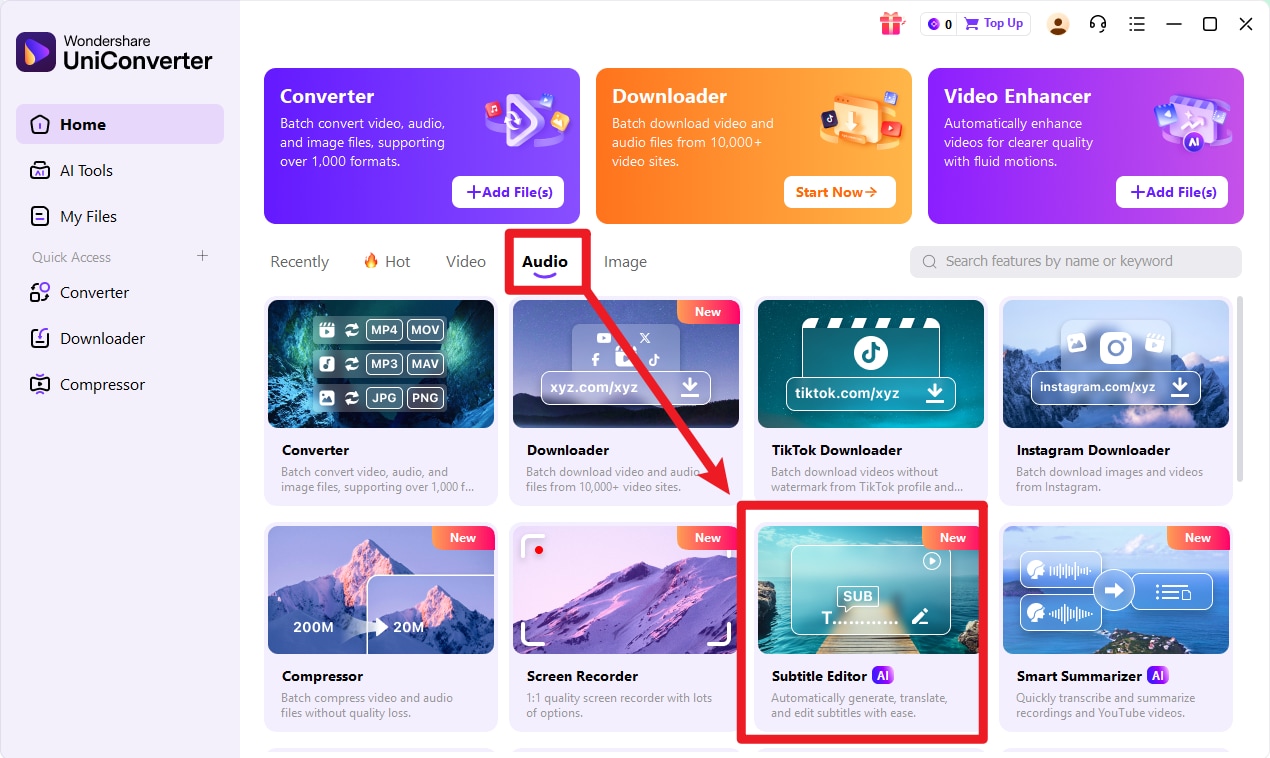
Open the matching video
Open UniConverter Subtitle Editor and add the local video that matches the SRT. Review any existing cut or timing differences before editing captions.
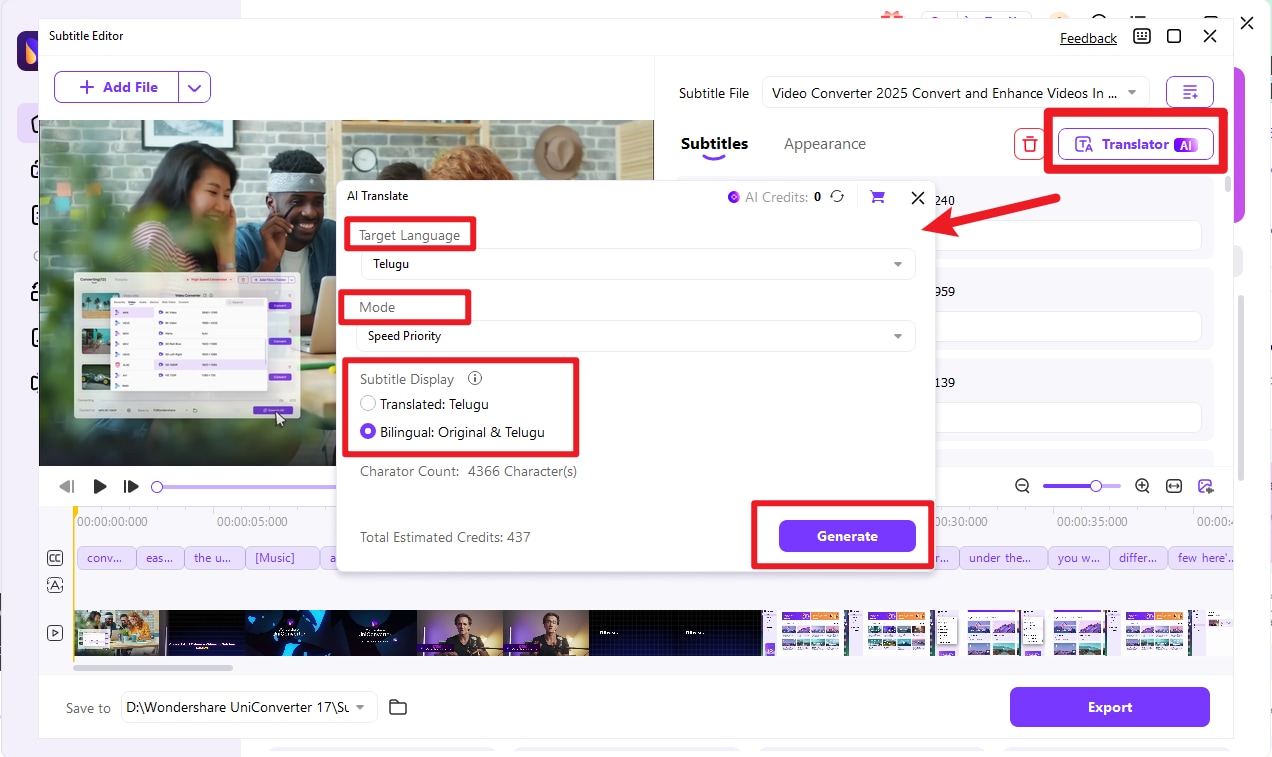
Import and correct the SRT
Import the SRT and preview the cues against speech. Correct wording, reading intervals, and timing where needed. Keep this task separate from the later WebVTT syntax conversion.
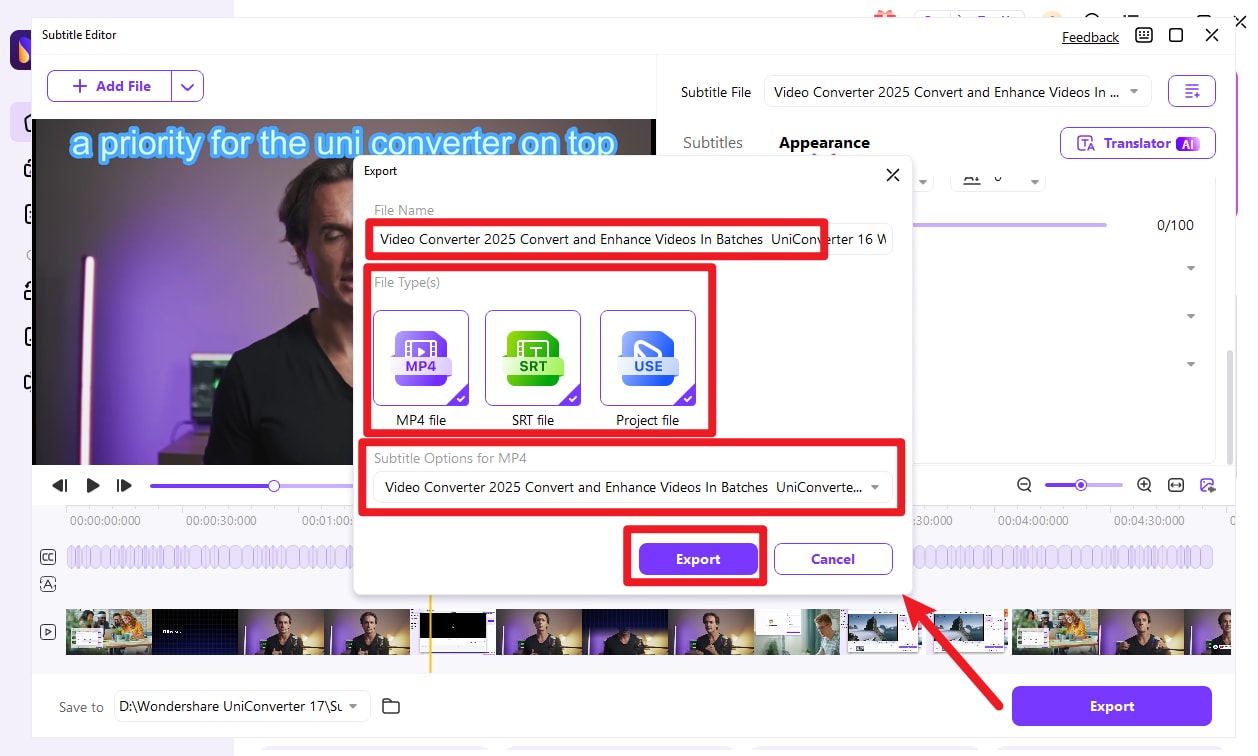
Save the reviewed captions
Save the intended subtitle output, then use the SRT-to-VTT conversion method for the web delivery copy. Keep an editable original and test the VTT in the website player.
SRT to VTT: Required Changes and Output Checks
| What changes | SRT | VTT |
|---|---|---|
| Extension | .srt | .vtt |
| File start | Cue data without a WebVTT header | WEBVTT followed by a blank line |
| Example start time | 00:00:01,250 | 00:00:01.250 |
| Cue labels | Conventionally numbered cues | Optional cue identifiers |
| Typical destination | Editing tools and media players | HTML video text tracks |
| Conversion scope | Existing words and timing | A new syntax, not translation or transcription |
References: HappyScribe SRT to VTT · WebVTT specification · Subtitle Editor guide · VTT to SRT guide
Practical Answers for SRT to VTT
Use WebVTT for the destination that needs it
WebVTT is the normal external text-track format for HTML video. SRT remains useful for many editing and desktop-player workflows. Keep both when you need to hand captions to an editor and publish them on a website, rather than repeatedly converting one delivery file back and forth.
Make the required syntax changes
For a basic conversion, add WEBVTT followed by a blank line and change timestamp milliseconds from commas to periods. Cue identifiers are optional in WebVTT. Preserve blank lines between cues. Use a parser for large or irregular files instead of a global punctuation replacement.
Add the VTT as a separate track
A website typically references a VTT file through a video track element. The subtitle language, label, and path must match the actual asset. A caption file does not need to be burned into the video for a browser player to display it as a selectable track.
Separate hosting errors from conversion errors
If captions do not appear, check the track URL, text/vtt content type, player caption controls, and any cross-origin configuration. A VTT that works locally can fail when the server returns HTML, a missing-file response, or an inaccessible resource instead of the caption text.
Correct source captions before final export
If words or times need editing, use UniConverter Subtitle Editor with the related video and local SRT. Review the source captions there, save the intended subtitle file, and then convert the reviewed text to WebVTT. Generating new captions is unnecessary when a usable SRT already exists.
Keep accessibility content in the text
A format change preserves existing caption content but cannot add missing speaker identification or meaningful sound descriptions. Review those details before publishing. Use captions or subtitles appropriately in your player, and test the actual reading experience on desktop and mobile.
SRT to VTT FAQs
How do I convert SRT to VTT for free?
Can I rename SRT to VTT?
How do I convert SRT to VTT with FFmpeg?
Does SRT to VTT conversion preserve timing?
Do I need to remove the SRT cue numbers?
Why are my VTT subtitles not showing in HTML video?
Will converting SRT to VTT translate or transcribe the captions?
Should I burn VTT captions into the video?
What Customers Say About UniConverter
Related Media Workflows
Tools and Reference Guides

Review the SRT Source Before Creating WebVTT