CloudConvert Review: Features, Pricing, Limits & Best Alternative
CloudConvert is a browser-based file conversion platform with broad format coverage, API access, and a credit-based pricing model. This review examines its features, free-tier limits, cloud-processing trade-offs, and how it compares with UniConverter for recurring media work.
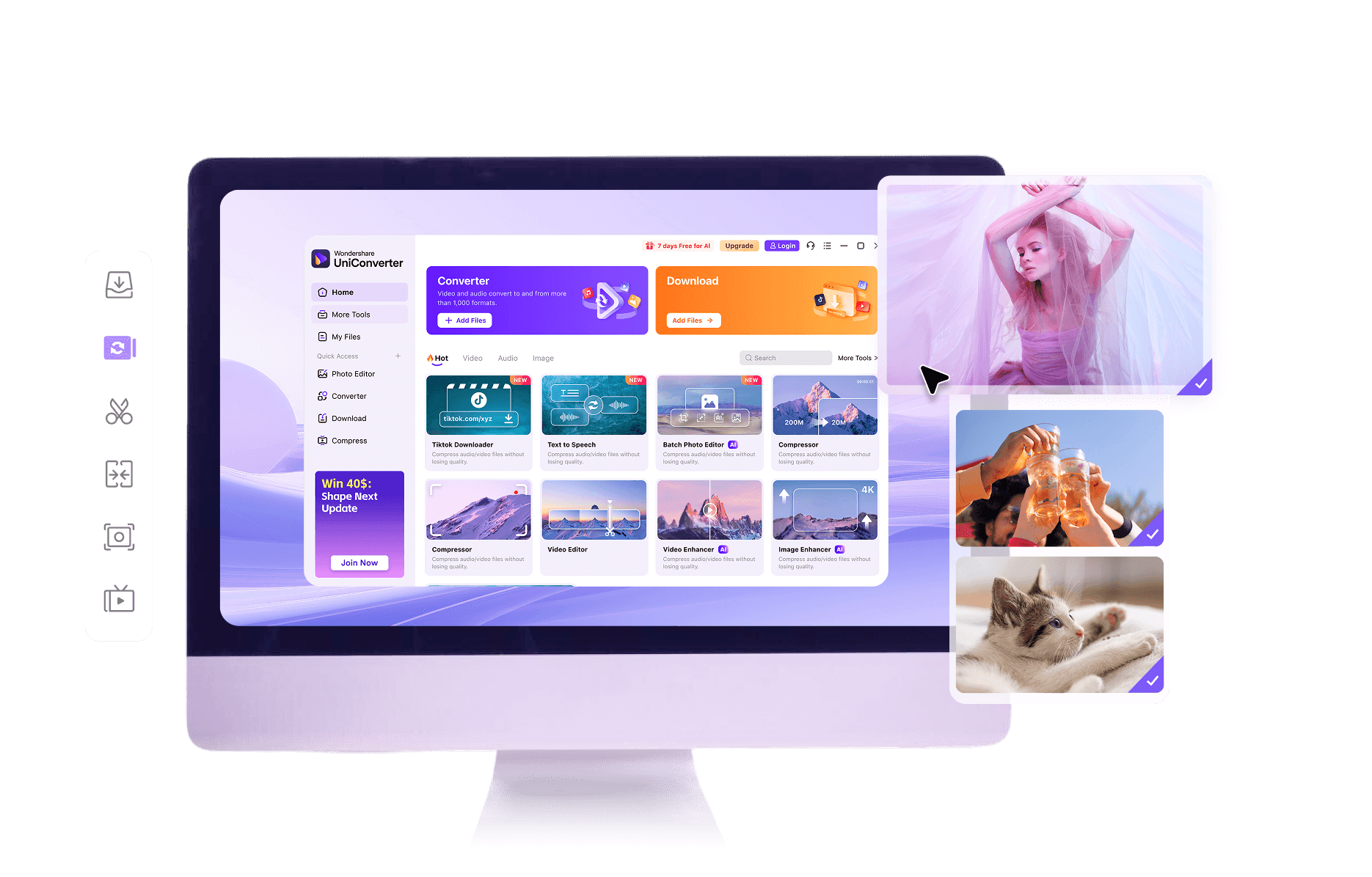
CloudConvert is convenient when the job is occasional and cloud-based. UniConverter becomes more useful when you need a repeatable media workflow:
Keep recurring video, audio, and image jobs in a local Desktop queue
Avoid repeating cloud upload and download steps for local files
Continue from conversion into supported editing, compression, and enhancement tools
Choose Online for quick tasks or Desktop when control and repeatability matter
CloudConvert is an online file conversion platform from Lunaweb GmbH. It supports more than 200 formats across video, audio, image, document, ebook, archive, and other categories. It also exposes API and integration options, which makes it more than a simple browser-only converter for some users.
CloudConvert uses an upload → cloud processing → download flow. Its credit system and task limits are therefore part of the buying decision. For recurring media work, UniConverter offers a different path: online conversion for quick jobs and Desktop processing for supported local workflows.
Disclosure: this comparison guide is published by Wondershare UniConverter. This page is not the official CloudConvert website, and CloudConvert is not affiliated with or endorsed by Wondershare.
CloudConvert Features Reviewed
This CloudConvert review focuses on the capabilities that shape the real user experience: format breadth, cloud/API access, job controls, and the limits attached to free usage.
200+ formats across media and document categories
CloudConvert supports more than 200 formats across video, audio, image, document, ebook, archive, and other categories. That breadth is helpful when a workflow crosses media and non-media file types.
Convert video, audio, images, documents, ebooks, and archives online.
Look up the exact input/output pair before starting a job.
Use format-specific options when the selected conversion supports them.
Credit-based conversion with a free daily allowance
CloudConvert uses credits rather than a simple unlimited-free promise. The current pricing page lists 10 free credits per day, while paid packages and subscriptions provide higher allowances.
Test a supported conversion from the browser before committing to a larger workflow.
Check the selected plan and format-specific output conditions for the exact job.
Paid credits and plans are more relevant when conversions become frequent or need automation.
Browser, API, and integration workflows
CloudConvert combines a browser interface with API, integration, and cloud-storage options. That makes it relevant to developers and teams connecting conversion to another process, not only to one-off users.
Use the browser interface from common desktop operating systems.
Connect supported storage or automation workflows where appropriate.
Remember that source files must be uploaded for cloud processing.
The free tier currently lists a 1 GB maximum file size, 5 minutes maximum processing time, and up to 5 concurrent tasks.
CloudConvert Pros and Limitations
Pros
Broad format coverage for occasional browser-based jobs.
More than 200 formats across media, documents, ebooks, archives, and other categories.
No desktop installation is required for a quick conversion.
API, integrations, and format-specific options support structured workflows.
Publishes security and privacy information that can be reviewed before uploading files.
Limitations
Every file is uploaded for cloud processing, so large jobs depend on connection speed, queue time, and plan limits.
It does not replace a local Desktop media queue for repeated video, audio, or image jobs.
It is mainly a conversion and automation service, not an all-in-one desktop media toolkit.
Sensitive files require a careful review of cloud processing, privacy terms, and retention conditions.
Free and paid limits differ; check the current pricing page before larger or recurring jobs.
Is CloudConvert Safe to Use?
CloudConvert describes SSL-encrypted transfers, isolated containers, and an ISO 27001-certified information-security management system. Its privacy policy says uploaded files are temporarily stored for service delivery and automatically deleted at the latest after 24 hours, with earlier manual deletion available. Review the current CloudConvert privacy policy before uploading sensitive material.
As with any online converter, files leave your device for server-side processing. That is convenient for ordinary files, but confidential business media, unreleased projects, or recurring local libraries may be better suited to a Desktop workflow that keeps supported conversion jobs local.
Practical takeaway: use an online converter for low-risk, occasional files, and consider a local Desktop workflow when privacy, repeatability, or file volume matters more.
CloudConvert vs. UniConverter
CloudConvert and UniConverter overlap on quick conversion, but their strengths differ: CloudConvert emphasizes broad cloud/API workflows, while UniConverter connects media conversion with local Desktop processing and finishing tools.
Compare the two tools
Online + Desktop media workflowUniConverter
Browser, API, and cloud workflowCloudConvert
Price
✓Free Online tools plus paid Desktop capabilities, subject to product conditions
Credit-based usage with a free daily allowance; paid plans and packages are available
Supported Formats
✓1,000+ video, audio, and image formats across the product
More than 200 formats across media, documents, ebooks, archives, and other categories
Quick One-off Conversion
✓Online entry points for quick supported media conversions
Browser access is convenient for one-off jobs, but files are uploaded for cloud processing
Batch Conversion
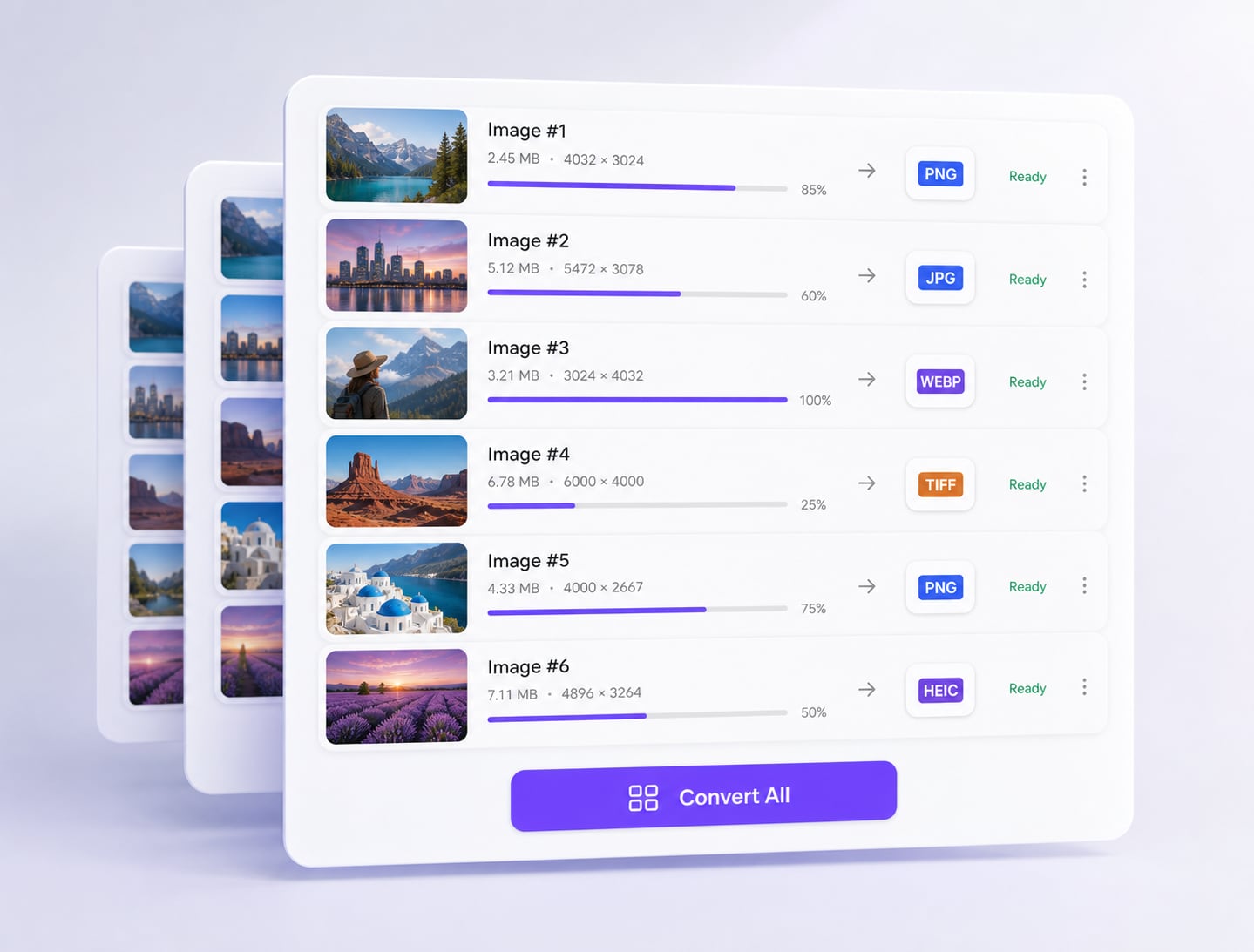
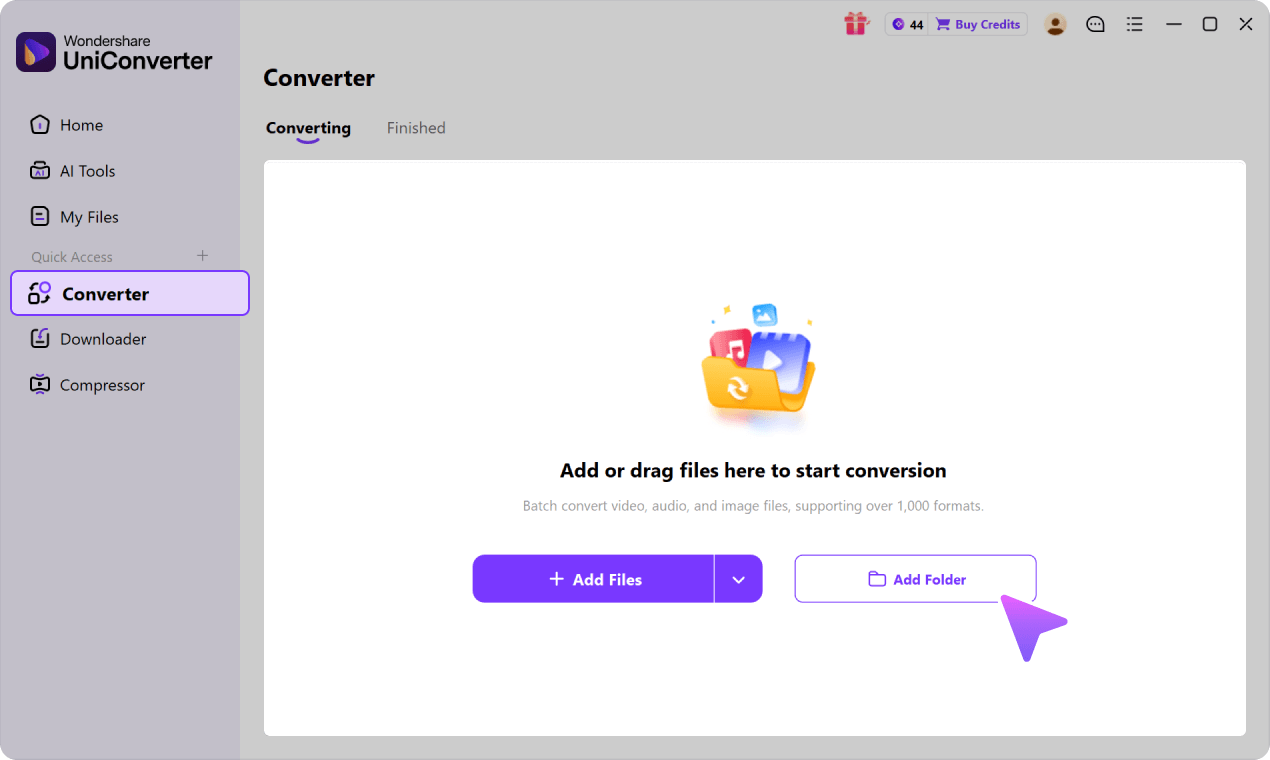
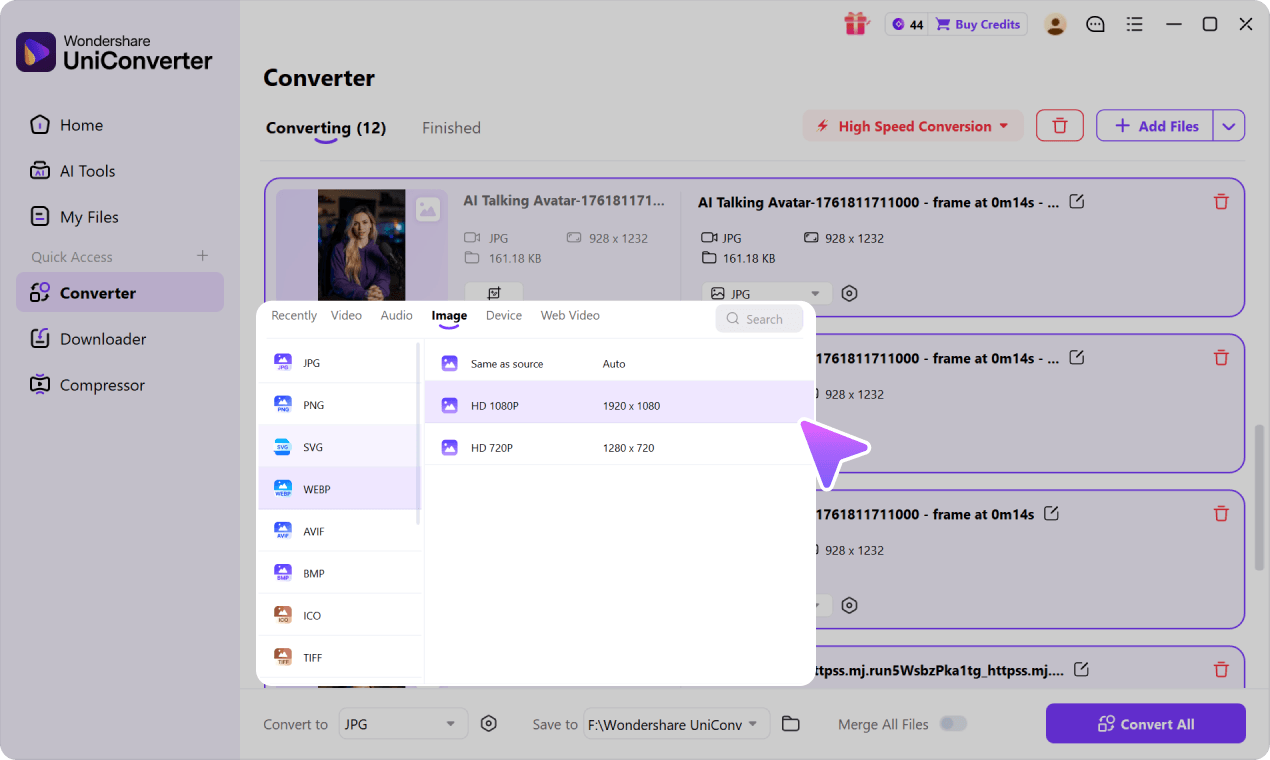
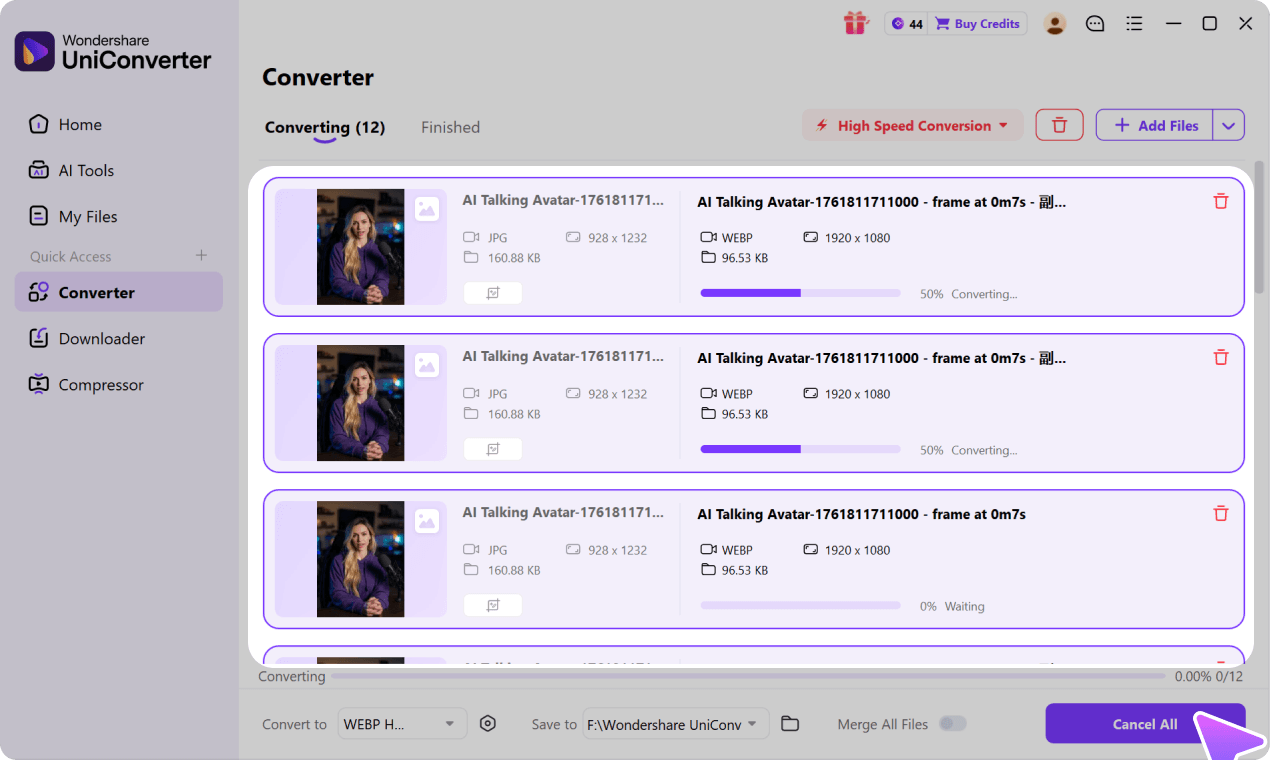
✓Desktop batch queue with shared output settings for whole folders
Cloud/API task workflows; limits vary by plan and job
Speed and Large Files
✓Local Desktop processing with hardware acceleration in supported workflows
Server-based; total time includes upload, queue, processing, and download
Editing and AI Tools
✓All-in-one toolkit: editing, compression, AI enhancement, watermark removal, and more
Conversion-focused, without a surrounding editing or AI toolkit
Privacy for Sensitive Files
✓Desktop mode processes files locally - nothing leaves your device
Files are uploaded for cloud processing; review the current privacy policy and retention terms
Why Choose UniConverter as a CloudConvert Alternative?
Use the browser for a quick conversion, then switch to Desktop when the work becomes recurring, local, or more than a format change.
Online conversion for quick supported media jobs
UniConverter Online is useful for quick supported media conversions, while UniConverter Desktop is designed for larger and repeatable local media workflows.
Desktop batch processing and local speed
When a job becomes larger or more repetitive, UniConverter Desktop provides a managed local batch queue and supported hardware acceleration, reducing repeated browser upload and download steps.
Conversion plus editing, compression, and AI media tools
UniConverter extends media conversion with supported editing, compression, AI Video Enhancer, watermark removal, and related tools - useful when conversion is only one step in the workflow.
“Wondershare Video Converter is hands down one of the best tools I’ve added to my creative
toolkit. It’s fast, easy to use, and incredibly powerful. Whether I need to convert large video
files into different formats, compress them without losing quality, or even edit and trim clips,
this software handles it all with ease.”
— TG
“I have been using Wondershare UniConverter for many years. It has been one of the best ways to
download, screen capture and convert videos. It has been my go to for video download and
conversion.”
— Alan Horner
“Wondershare has so many assets, not just for downloading media. You can convert to other
formats.
You can create GIFs and clean up videos. There are way too many assets you can use with
WonderShare UniConverter that it's a MUST for any video editor or graphics designer. It's worth
every penny.”
— P.rajotte
“Simple to use, music, pic, video, all can edit or convert, Make my work faster and easy”
— gyn
“Over the years, Wondershare Uniconverter has really transformed into a powerhouse of tools. You
can download, convert, crop, compress, enhance the quality, remove the background and do ton of
other useful ops. We can do it for Video, Audio, and images, either individually or in batches.”
—
Sura Mukkavilli
“Wondershare UniConverter has completely exceeded my expectations! The software is incredibly
fast, easy to use, and supports a wide range of file formats. I was able to convert large videos
in just minutes without losing quality. The interface is clean and intuitive, making it
beginner-friendly while still offering advanced features for power users. ”
— CHEUNG SIN LIM
“Wondershare Video Converter is hands down one of the best tools I’ve added to my creative
toolkit. It’s fast, easy to use, and incredibly powerful. Whether I need to convert large video
files into different formats, compress them without losing quality, or even edit and trim clips,
this software handles it all with ease.”
— TG
“I have been using Wondershare UniConverter for many years. It has been one of the best ways to
download, screen capture and convert videos. It has been my go to for video download and
conversion.”
— Alan Horner
What Users Say About UniConverter
These customer comments describe the broader UniConverter product and do not represent reviews of CloudConvert or this comparison page.
★ ★ ★ ★ ★
Rated 4.7/5
Final Verdict: Is CloudConvert Worth Using?
CloudConvert and UniConverter overlap on quick conversion, but they are optimized for different patterns. CloudConvert is more attractive for broad cloud/API workflows; UniConverter is more attractive when media conversion connects to a repeatable local workflow.
Choose CloudConvert When
You need broad browser and API-based file conversion
You occasionally convert files without installing software.
You work across mixed categories such as documents, ebooks, images, audio, video, or archives.
You are comfortable uploading files for cloud processing and checking current plan limits.
Choose UniConverter When
You need a repeatable video, audio, and image workflow
You want a managed Desktop batch queue for recurring local jobs.
You need richer output controls and supported hardware acceleration.
You also use editing, compression, enhancement, or other media tools.
CloudConvert is convenient for occasional browser conversion across broad file categories and can be useful when API or cloud-storage integrations matter. UniConverter is the more complete option for recurring media workflows that benefit from Desktop batch processing, local file handling, and additional video, audio, and image tools.
CloudConvert is a browser-based file conversion service supporting more than 200 formats across video, audio, image, document, ebook, archive, and other categories. It also offers API and integration options.
02
Is CloudConvert free to use?
CloudConvert uses credits rather than a simple unlimited-free promise. The current pricing page lists 10 free credits per day, while paid packages and subscriptions provide higher allowances. UniConverter likewise provides free online conversion tools, plus a Desktop app for larger and recurring media workloads.
03
Is CloudConvert safe?
CloudConvert publishes security and privacy measures, including encrypted transfers and automatic deletion language. Because files are uploaded for processing, check the current policy before using confidential material.
04
Does CloudConvert add a watermark to converted files?
CloudConvert output conditions depend on the selected workflow and current terms. Check the exact format and plan details rather than assuming every conversion has identical conditions.
05
What is the best CloudConvert alternative?
UniConverter is a practical CloudConvert alternative when you need local batch processing, conversion combined with editing or compression, or a broader media workflow beyond browser-based file conversion.
06
Can I batch convert files with CloudConvert?
CloudConvert supports multi-file and automation-oriented workflows, but current task, credit, and concurrency limits depend on the selected plan. UniConverter Desktop is the stronger fit for a dedicated local queue and recurring media jobs.
Try UniConverter - A CloudConvert Alternative
Start with a supported online media conversion, or choose UniConverter Desktop for local files, repeatable queues, and a broader media workflow.