UniConverter
UniConverter Online Free
Converter video, audio & image free
Free Try
Photoshop Image Processor and batch conversion

How to Batch Convert Images in Photoshop

To batch convert images to JPG in Photoshop, open File > Scripts > Image Processor, select the source folder and destination, enable Save as JPEG, and click Run. No Action is needed for this route. Use Actions with File > Automate > Batch for a recorded editing or saving sequence, including a PNG output workflow. A separate UniConverter tutorial below covers conversion of exported standard images.

Quick Answer
  • Use Image Processor for JPEG, PSD, or TIFF output; its standard output list does not include PNG.
  • For RAW to JPEG, prepare the Camera Raw adjustments first; for PNG to JPG, choose the intended background because JPEG does not preserve transparency.
  • Use UniConverter Image Converter for a separate batch of standard image copies when you do not need Photoshop editing or Actions.
UniConverter desktop:

UniConverter for Windows

UniConverter for Mac

UniConverter Image Converter Guide
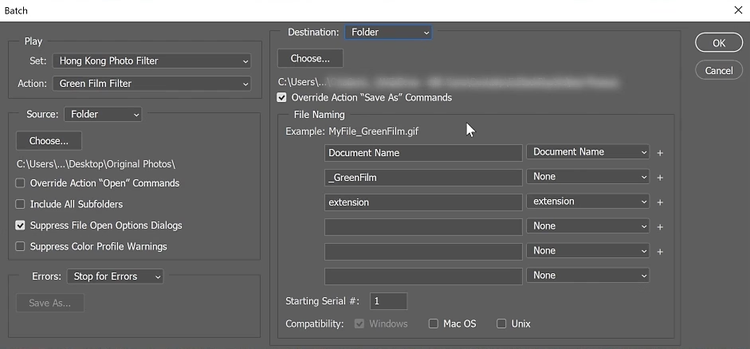
Photoshop Batch dialog with source, destination, and save-command controls
JPEGDelivery copies
PSDEditable masters
TIFFImage output
ActionsCustom workflows

Image Processor or Actions: Which Photoshop Method Do You Need?

Start with the output requirement. Image Processor handles routine conversion without recording an Action; Actions handle a sequence you want Photoshop to repeat. UniConverter is a separate option for standard image files after the Photoshop work is finished.

Your requirement
No recorded Action neededImage Processor
Record and replayActions + Batch
JPG copies
✓Choose Save as JPEG for a collection Photoshop can open.
Useful when a repeated edit must accompany the conversion.
Output formats
✓The built-in outputs are JPEG, PSD, and TIFF.
Record the required saving operation for a different output, such as PNG.
Source-specific edits
✓Prepare RAW adjustments and check each source group before export.
Repeat recorded steps, while allowing for documents with different layers or dimensions.
Saving and naming
✓Select the destination; output files are grouped by format.
Use a separate Folder destination and review the recorded save step and naming rules.
Simple decision:
Choose Image Processor for ordinary JPG copies. Use Actions for a recorded Photoshop sequence. For standard images that only need another format, see the independent UniConverter tutorial.
See the UniConverter Steps

How to Batch Convert Images in Photoshop

The native instructions below cover Image Processor, common JPG conversions, and Actions. Keep originals and run a small representative group before committing a large collection.

Method 1: Batch Convert to JPG with Image Processor

Open File > Scripts > Image Processor in Photoshop. This is the simplest built-in route when you want JPEG copies without first recording an Action. You can process a source folder or images already open in Photoshop.

  • Choose the source in section 1 and a separate destination in section 2. Include subfolders only when they belong in the job.
  • In File Type, enable Save as JPEG and choose Quality. Enable Resize to Fit only when smaller delivery dimensions are required; leave it off to avoid an unnecessary size change.
  • For web delivery, consider Convert Profile to sRGB and Include ICC Profile. Click Run, then inspect the JPEG output folder for color, dimensions, and compression.
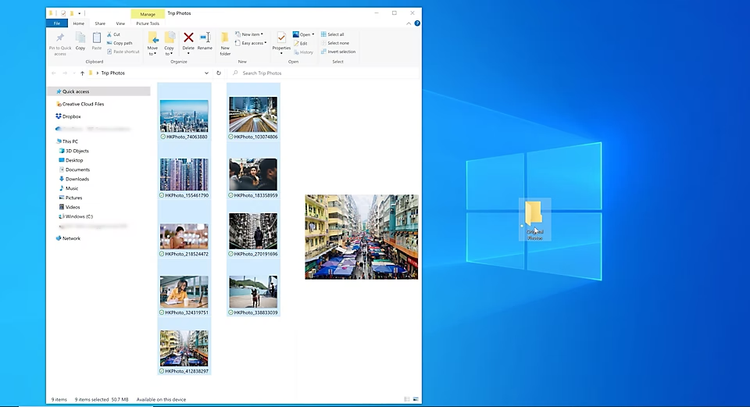
Source image folder preparation for Photoshop batch processing

PNG, PSD, and RAW to JPG: Prepare the Source First

The Image Processor route stays the same, but the source determines what to inspect before conversion. A JPG delivery copy cannot replace every property of the original.

  • PNG to JPG: JPEG has no alpha transparency. For a specific background, prepare that background in Photoshop or in a tested Action before making the JPG copies.
  • PSD to JPG: confirm the visible layers and final composition before processing the folder. Keep the layered PSD documents because JPG copies do not retain editable layers.
  • RAW to JPEG: use files supported by your installed Camera Raw version, review exposure and white balance, then process the collection. Keep RAW originals for later development changes.
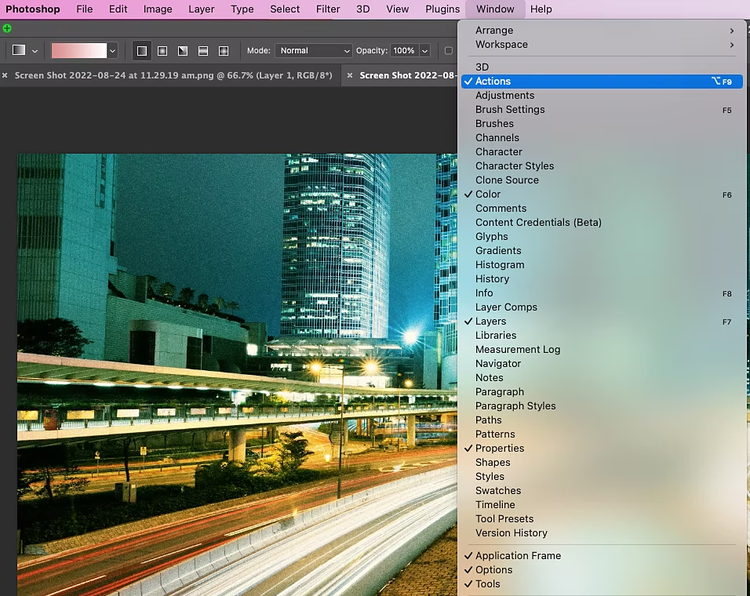
Photoshop editing workspace and Actions panel menu

Method 2: Use Actions and File > Automate > Batch

Use an Action when the job needs repeated Photoshop edits or an output such as PNG that is not offered by the standard Image Processor. Record the sequence on a test copy first, including the intended saving operation and Close when needed.

  • Open Window > Actions, create a new Action, record the required edit and save operation, and stop recording. Check that it works on a second representative image.
  • Choose File > Automate > Batch, select the Set and Action, choose the source, and use a separate Folder destination. Choose a naming rule that keeps every output unique.
  • If the Action contains Save As, use Override Action “Save As” Commands when the Batch destination should control the filename and folder. The override requires a recorded Save As step; it does not create one.

Save and Close in Photoshop Batch can overwrite originals. Use a separate output folder while testing.

Photoshop Batch dialog for a recorded Action and output folder

When UniConverter Is a Useful Alternative

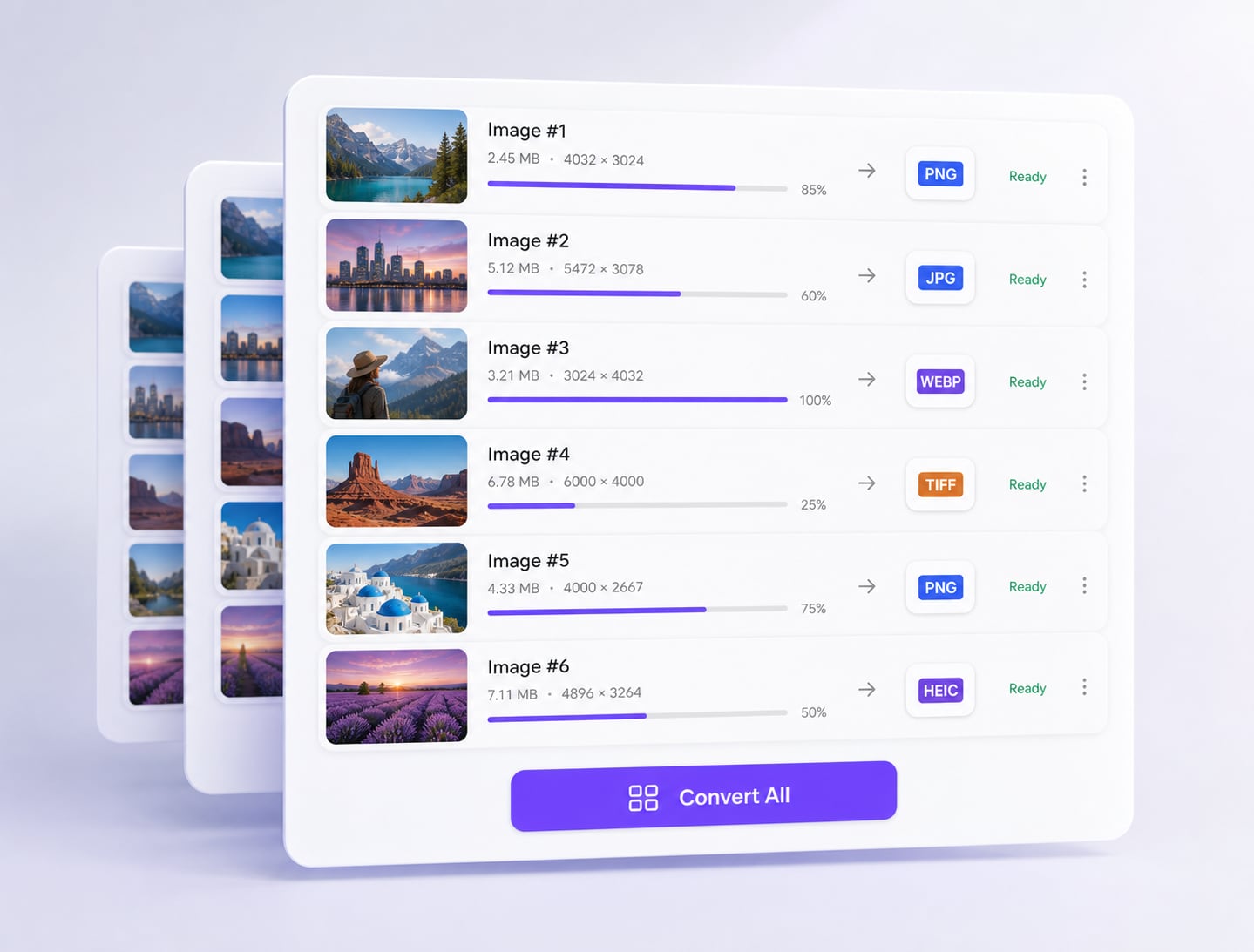
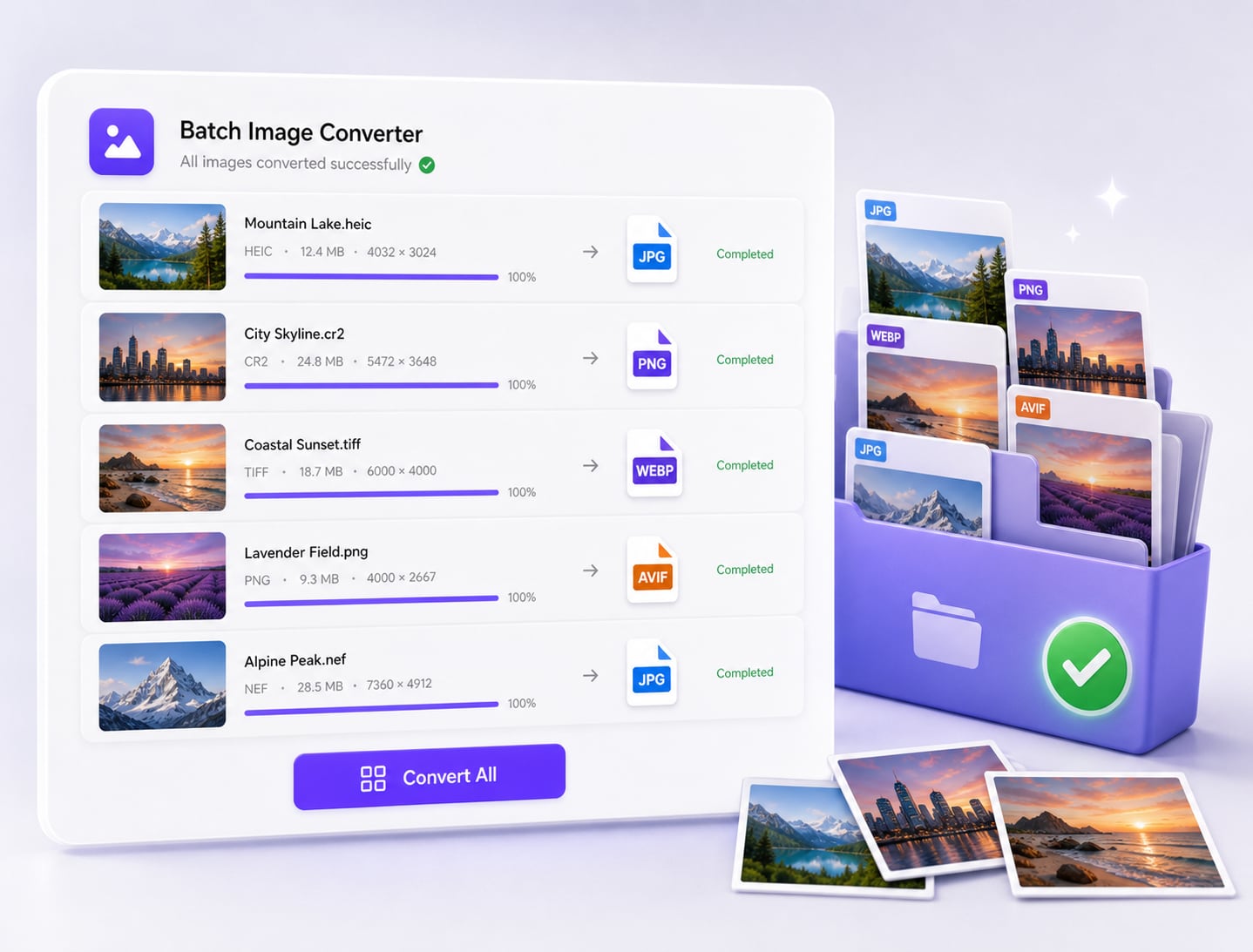
If the Photoshop edits are complete and you only need another image format, use UniConverter Image Converter for the exported standard-image copies. Add the collection, select the output format and destination, and convert it without creating a Photoshop Action.

  • Use this route for supported image copies such as exported JPG or PNG files.
  • Keep document editing, layer decisions, and RAW development in Photoshop, then bring the approved exports into the conversion queue.
  • Follow the independent UniConverter steps below; use Batch Image Editor separately when the next task is resizing, cropping, or watermarking.
  • Open representative converted files before delivering the final folder.

A format change does not replace Photoshop edits. Convert the approved image copies and retain the editable masters.

UniConverter Image Converter alternative for standard image files

Photoshop Batch Conversion Settings That Matter

Match the setting to the delivery requirement. A conversion can succeed while producing the wrong dimensions, background, color appearance, or output location.

Image Processor vs. Actions: Output and Saving

Use these differences to choose the native Photoshop route before starting the job.

Photoshop Image Processor and Actions batch conversion comparison
SettingImage ProcessorActions + Batch
Output choiceJPEG, PSD, or TIFF; more than one type can be selected.The recorded save operation defines the output type.
Image dimensionsResize to Fit keeps the original proportions within a width/height limit.Recorded size or crop steps must suit all files in the batch.
Color and appearancesRGB conversion and ICC profile options help define JPEG delivery.A recorded edit changes the output; test different source conditions.
Saving safelyA chosen destination contains format-specific output folders.Folder saves separately; Save and Close can overwrite originals.

Technical references: Adobe Image Processor guide and Adobe Batch options.

JPG & PNGWeb deliveryCamera RAWPSD & TIFF

The examples below describe source-image tasks. For standard image conversion after editing, follow the UniConverter tutorial; preserve PSD and RAW masters for future revisions.

Choose the Workflow for Your Image Collection

The source document and required output determine whether to stay in Photoshop or use a separate conversion queue.

Layered PSD to JPG proofs

Use Image Processor to make JPEG review copies from approved PSD compositions. Check visible layers and keep the editable documents for revisions.

RAW photo delivery

Review Camera Raw adjustments first, then make JPEG proofs. Separate images with different lighting so one shared treatment does not become an unwanted correction.

PNG graphics to JPG

Set the intended background before conversion and inspect text or graphic edges afterward. Keep the original PNG when transparency will be needed again.

Approved exports to another format

Use UniConverter Image Converter when the Photoshop editing is complete and the exported standard images need a different delivery format. Follow the independent three-step workflow above.

Fix Common Photoshop Batch Conversion Problems

A stopped batch or a missing output is often caused by the saved Action, destination, or output format. Test the failing step on a small set before rerunning the collection.

01

PNG is missing from Image Processor

That is expected: the standard tool outputs JPEG, PSD, and TIFF. Use a recorded Action and Batch for PNG instead of searching for a PNG checkbox in Image Processor.
Check 1Output format
02

Files go to the wrong folder or overwrite one another

Inspect the Action’s recorded Save As step and the Batch destination. Use Override Action “Save As” Commands when appropriate, and include a unique filename element. Do not assume the override creates a missing save step.
Check 2Save path
03

The batch stops at an opening dialog

Inspect the Action’s recorded Open command and its override setting. For RAW opening prompts, review the conversion settings before using Suppress File Open Options Dialogs; suppression uses existing or default settings.
Check 3Open settings

Read the official instructions for Image Processor, Actions, saving behavior, and the separate UniConverter workflow.

Photoshop Batch Conversion FAQs

01

How do I batch convert images to JPG in Photoshop?

Open File > Scripts > Image Processor, choose the source images and destination, enable Save as JPEG, review quality and any resizing or color-profile options, then click Run. Check the JPEG output folder before delivering the collection.
The standard Image Processor outputs JPEG, PSD, and TIFF, not PNG. For PNG output, record a suitable saving Action and run it with File > Automate > Batch. Test the Action’s destination and naming behavior on a few files.
Use Image Processor with Save as JPEG. For transparent PNGs, prepare the intended background first because JPEG does not preserve alpha transparency. For PSDs, check the visible composition and keep the layered originals.
Use RAW files supported by your Camera Raw installation, review their development settings, and process the collection with Image Processor. Keep the originals and avoid applying one development treatment blindly across different lighting conditions.
A recorded Save As step can retain its original folder or filename. Inspect that step, choose a separate Folder destination in Batch, and use Override Action “Save As” Commands when that destination should control saving. The option requires a recorded Save As command.
Use UniConverter Image Converter for a supported standard-image conversion task that does not need Photoshop edits, layers, or Actions. Export the approved standard images from Photoshop first when necessary, then follow the independent UniConverter tutorial on this page.
vc 16

Convert Your Approved Image Exports with UniConverter

Photoshop editing finished? Add the supported standard image copies to UniConverter Image Converter, choose the delivery format and destination, and convert the collection. Keep your editable PSD and RAW originals for later revisions.

UniConverter Image Converter alternative for standard image files