UniConverter
UniConverter Online Free
Converter video, audio & image free
Free Try
Batch Remove Burned-In Subtitles from Videos

How to Remove Burned-In Subtitles from Multiple Videos

Quick Answer
  • First check whether turning subtitles off in the player removes the text. If it does, the subtitle is a separate track and does not need burned-in text reconstruction.
  • For burned-in text in UniConverter 18, open Video Subtitle Remover, choose Fixed Area > Ultra AI > Subtitles, select the subtitle region, and preview the result.
  • Prepare the intended videos and their text regions before batch export. Subtitles mode suits text in a consistent position; moving or highly stylized captions need closer review.

A batch subtitle remover should start with one question: are the captions a separate track or part of the picture? Separate subtitle tracks can often be disabled without repairing the image. Burned-in subtitles require an image-editing process that reconstructs the covered area. UniConverter 18 provides an Ultra AI Subtitles mode for that second task.

UniConverter desktop:

UniConverter for Windows

UniConverter for Mac

Select the burned-in subtitle area for precise removal
ChooseMatch the method
PrepareReview source files
PreviewCheck the result
SaveKeep useful copies

Soft Subtitle Tracks or Burned-In Text?

Removing a subtitle stream and reconstructing a text-covered picture are fundamentally different operations.

Your requirement
Text is a separate streamDisable or omit the subtitle track
Text is part of the imageAI subtitle-area removal
Quick diagnosis
✓Text disappears when the subtitle track is turned off.
Text remains visible with player subtitles disabled.
Picture treatment
✓No image reconstruction is needed.
The covered picture area must be estimated.
Batch planning
✓Choose a track-handling workflow for supported files.
Review each video’s text position and longest caption.
Best source
✓Keep the clean picture and choose the required tracks.
Use an unsubtitled master when it is available.
Simple decision:
Avoid AI reconstruction when the subtitles are a removable track. For burned-in text, use a reviewed subtitle-area workflow and keep a clean master whenever possible.
Follow the UniConverter Steps

Prepare a Batch for Burned-In Subtitle Removal

A batch subtitle remover should start with one question: are the captions a separate track or part of the picture? Separate subtitle tracks can often be disabled without repairing the image. Burned-in subtitles require an image-editing process that reconstructs the covered area. UniConverter 18 provides an Ultra AI Subtitles mode for that second task.

Identify Which Files Actually Need Pixel Reconstruction

Test the subtitle controls in a player. Some containers hold one or more subtitle streams; other files have text permanently rendered into their frames. Separate these sources before building the batch.

  • Do not process a clean picture merely to remove a subtitle stream.
  • Check for both soft tracks and burned-in text in the same file.
  • Keep any available unsubtitled source or original editing project.
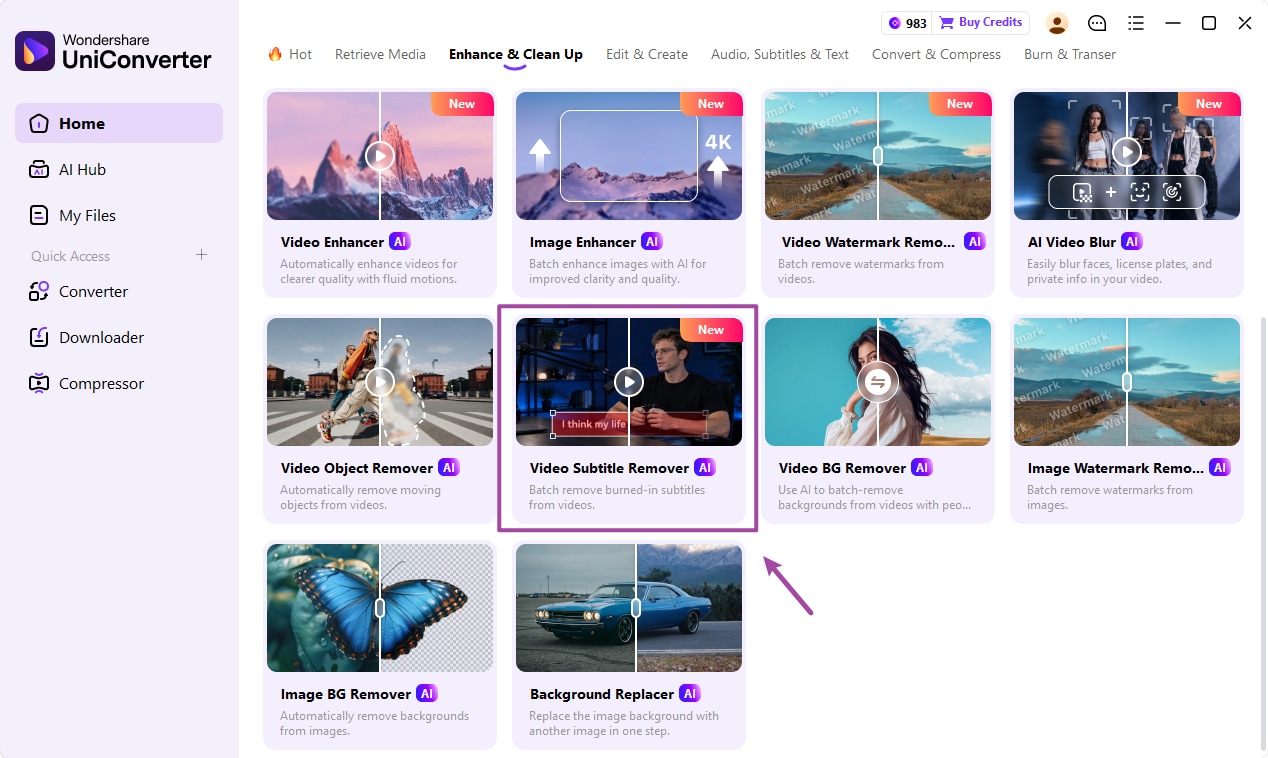
Select Video Subtitle Remover in UniConverter 18

Choose Ultra AI Subtitles Instead of Whole Area

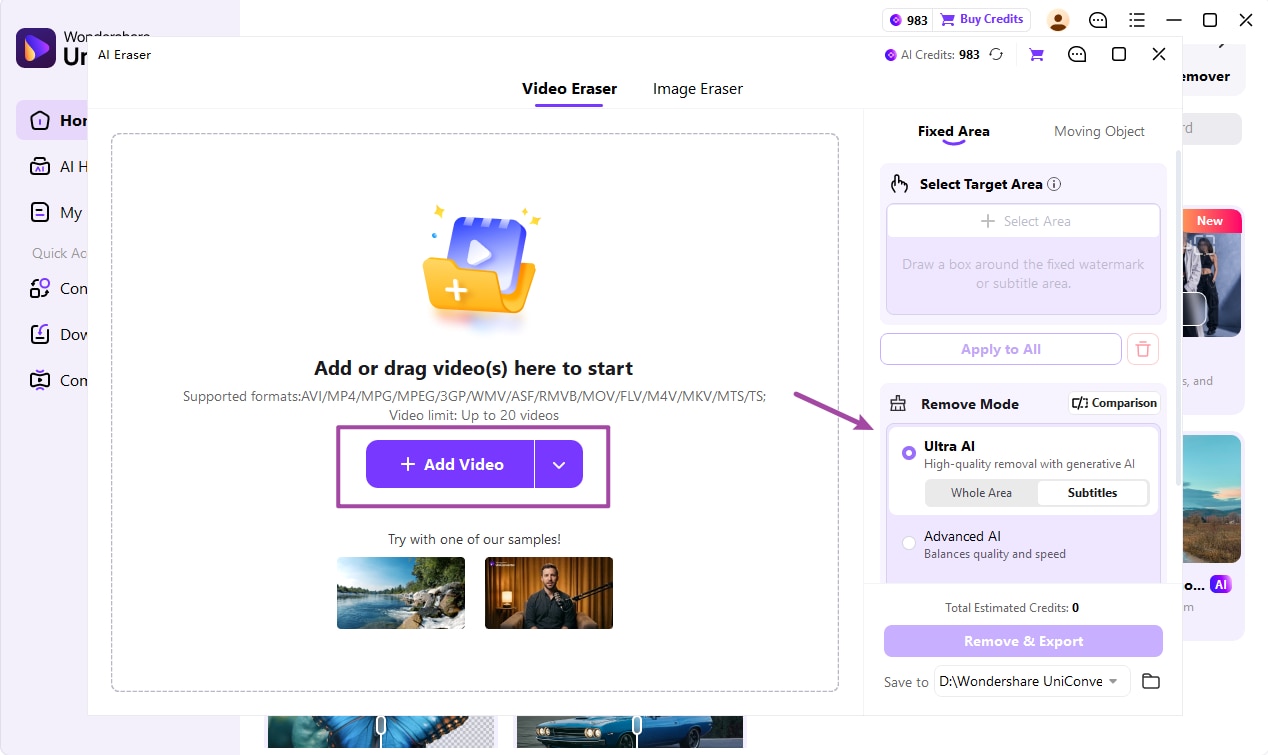
In UniConverter 18 on Windows, open Video Subtitle Remover to enter Video Eraser. Add the video, choose Fixed Area and Ultra AI, and select Subtitles. The mode targets detected text in the selected region when the subtitles appear.

  • Move to a frame where the longest or widest caption is visible.
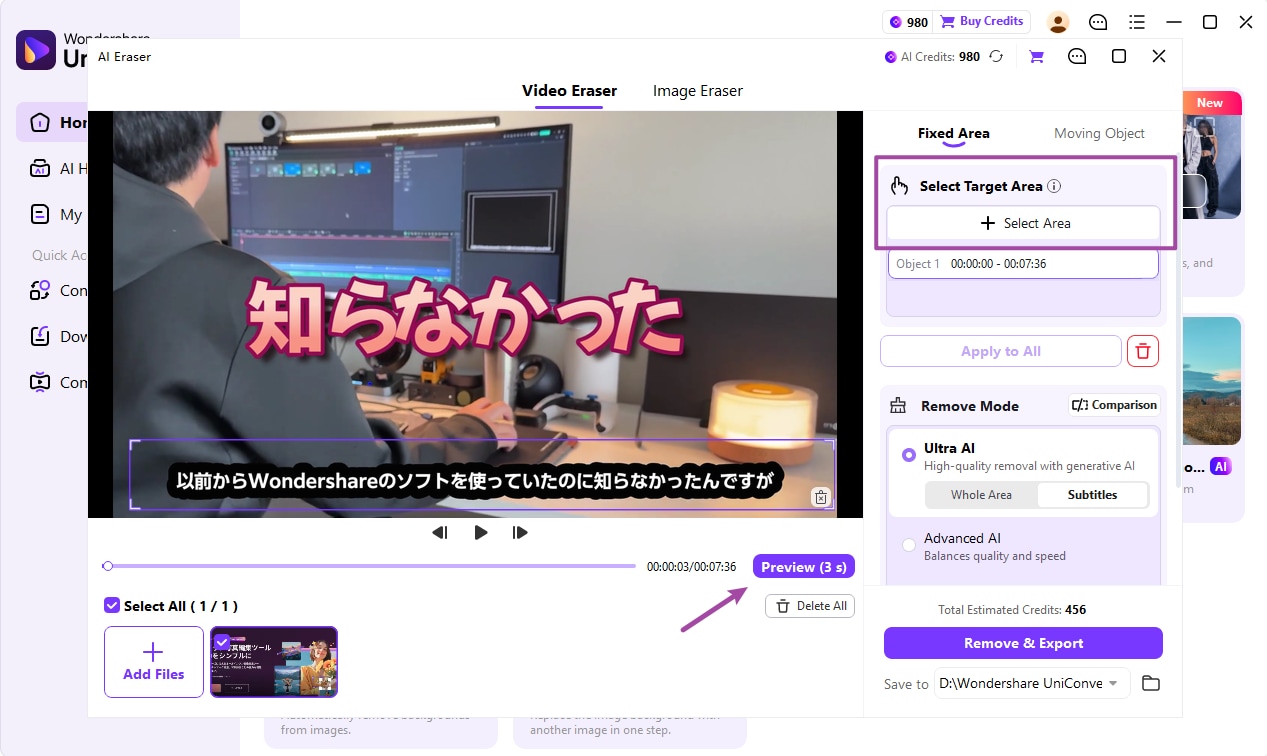
  • Use Select Area and cover the subtitle region without selecting an unnecessary part of the picture.
  • Check multi-line captions and changes in placement before accepting the region.
Import a video and select Ultra AI Subtitles mode

Preview Text Appearance and Clean Intervals

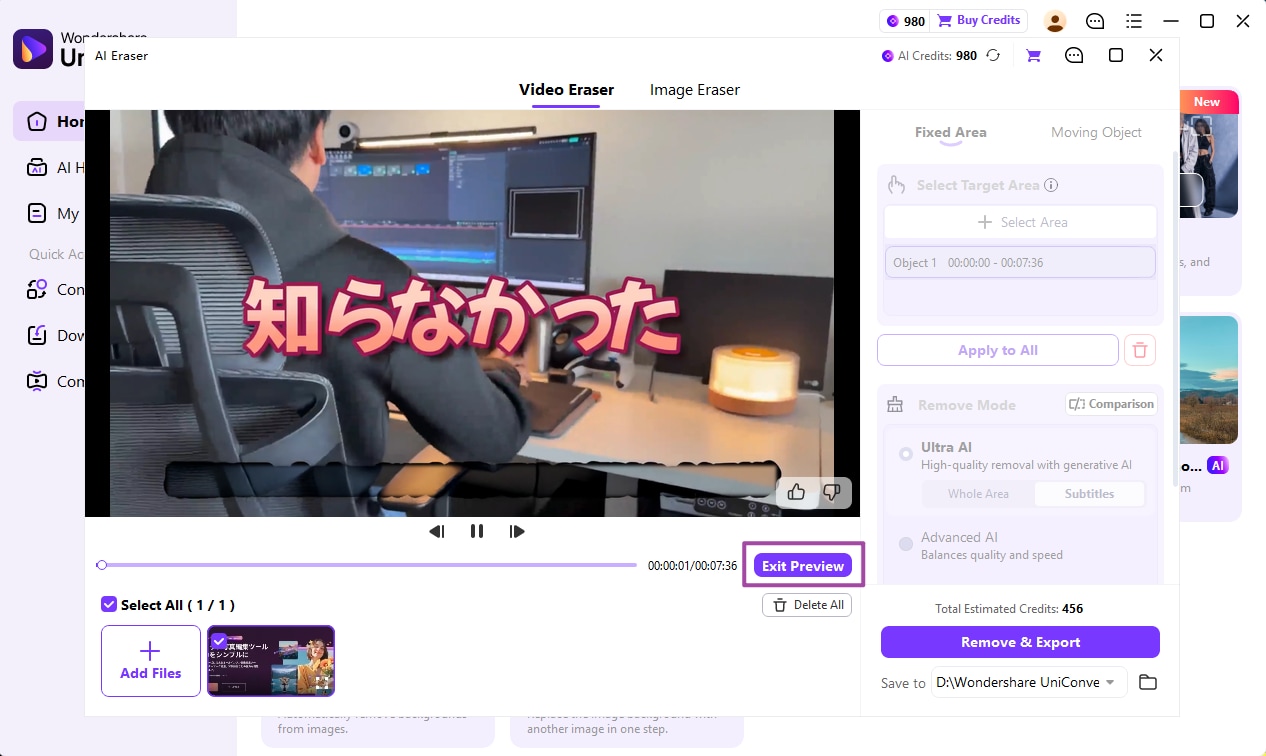
Use Preview (3 s) to inspect a short processed section. Check whether text is removed while nearby content remains acceptable. Also inspect sections where the subtitle is absent, because the selected band can contain useful picture detail.

  • Look at faces, hands, product labels, and moving edges near the subtitle band.
  • Refine the selected region if part of a caption remains.
  • Review the displayed AI-credit estimate; Ultra AI preview processing also uses credits.

Subtitles mode works best with consistent text positions. Moving, decorative, or highly stylized captions can leave artifacts or need another source.

Preview burned-in subtitle removal in UniConverter 18

Prepare the Remaining Videos and Review the Batch

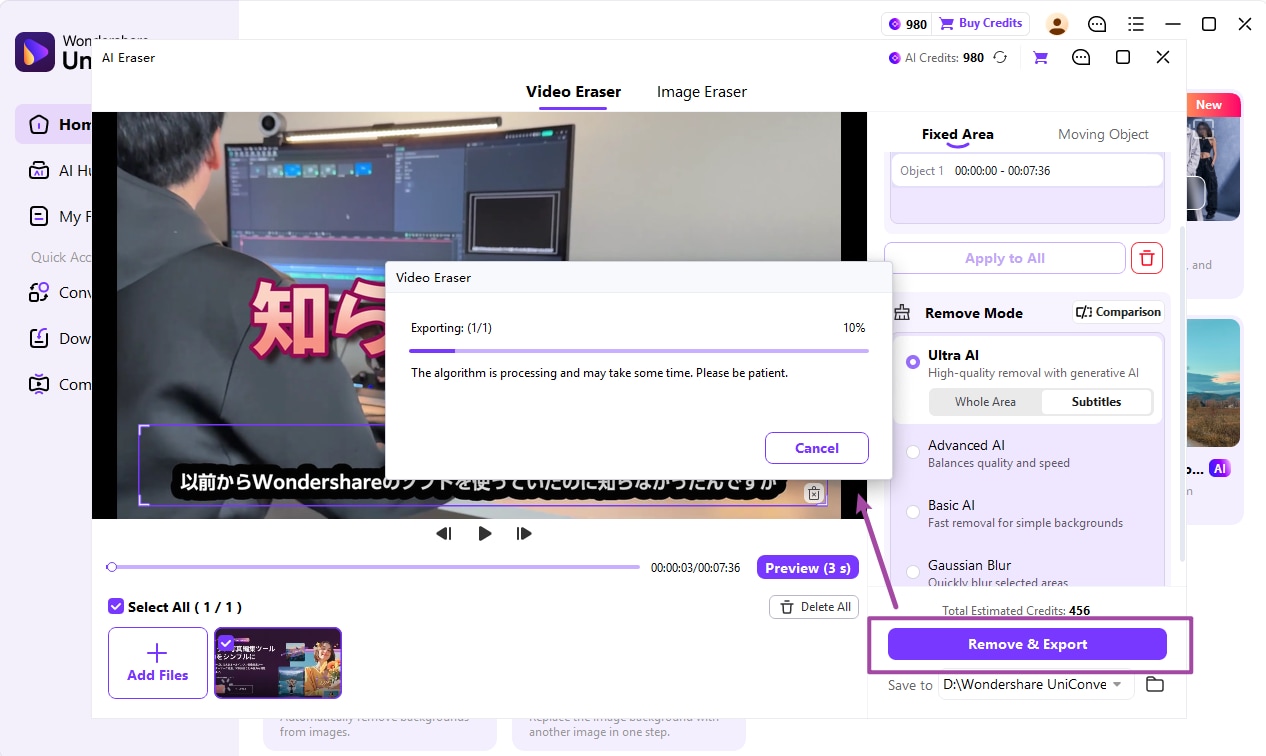
Import the other intended videos into the supported desktop batch workflow, inspect their subtitle regions, and choose the prepared files. Set Save to and use Remove & Export. Review outputs before adding any replacement captions.

  • Group clips with similar text layout to make checking easier.
  • Treat vertical clips and multi-line styles as separate exceptions.
  • Check final words, brief captions, and scene changes in the saved videos.
  • Keep replacement-subtitle creation as a separate later task.

The process estimates the picture behind the text. It does not recover the exact original pixels or automatically translate and replace the subtitles.

Export the video after removing burned-in subtitles

Subtitle Removal Choices That Matter

Use the table to choose the correct action, then check the delivered files against the final column.

Text behavior, method, and result checks

Choose the action from the source problem, then use the final column to review the result.

Text behavior, method, and result checks
Text typeChooseCheck
Separate subtitle streamA track-disable or track-removal workflow.The picture remains unchanged and the intended text is absent.
Fixed-position burned-in captionsUltra AI Subtitles and a suitable selected region.Long and multi-line captions fit inside the region.
Intermittent subtitle textCheck detection during both text and clean intervals.Useful picture detail is not unnecessarily altered.
Moving or stylized captionsTest difficult examples before batching.Residual text and reconstruction artifacts are acceptable.

Technical references: UniConverter 18 Subtitles mode guide and Subtitle removal feature.

DiagnosisText regionPreviewBatch review
Soft trackSoft track checkCheck whether player controls hide the text.
Burned-inBurned-in checkVisible text remains part of the picture.

Preview a representative sample, check exceptions, and keep the original files for revisions. Interface labels can vary between platforms and versions.

Common Burned-In Subtitle Cleanup Jobs

Choose the example that matches the source files and the intended delivery.

Localized training assets

Request a clean master first. If it is unavailable, remove approved burned-in text and inspect the picture before creating new captions.

A product-demo series

Check labels and interface text near the caption band so useful screen content is preserved.

Mixed vertical and horizontal clips

Group by layout and set each region from the actual source frame.

An older captioned archive

Keep originals and review fonts, outlines, and multi-line captions before processing the full collection.

Fix Batch Subtitle Removal Problems

Compare the affected output with its source and review the selected file’s settings. Test the correction on a representative sample before repeating the job.

01

Subtitles disappear in the player but remain in another app

The file may have a separate subtitle stream or a different playback default. Identify the track behavior before applying image reconstruction.
Check 1Track diagnosis
02

Long captions leave fragments

The selected region may not cover the longest line or full multi-line height. Inspect representative frames and refine the region.
Check 2Region size
03

The cleaned area flickers

Inspect movement and scene changes. Highly stylized or moving text can be difficult; use a clean master when reconstruction remains distracting.
Check 3Difficult captions

Consult the official guides for the relevant controls and keep separate tools’ instructions separate.

Batch Remove Burned-In Subtitles from Videos FAQs

01

Can I remove subtitles from multiple videos?

Use the method that matches the subtitle type. For burned-in text, UniConverter Desktop supports a multi-video removal workflow. Prepare each text region, preview difficult clips, and export the selected collection.
Turn subtitle playback off in a player that exposes the file’s subtitle tracks. Text that remains in the picture is likely burned in; also check whether another overlay or a second subtitle source is active.
On Windows, choose Video Subtitle Remover > Fixed Area > Ultra AI > Subtitles. Select the text region and preview before Remove & Export.
Subtitles mode detects text within the selected region. Choose the region deliberately so unrelated picture content is not unnecessarily included.
No. Moving or highly stylized subtitles can be less consistent. Preview representative cases and inspect the final video for residual text and artifacts.
This tutorial removes burned-in text. Translation and adding replacement captions are separate tasks and should happen after the cleaned picture has been reviewed.
Wondershare UniConverter

Prepare a Reviewed Subtitle-Removal Batch

Use UniConverter 18 Subtitles mode for burned-in text, select each source’s caption region, preview difficult clips, and export the prepared collection.

Preview burned-in subtitle removal in UniConverter 18