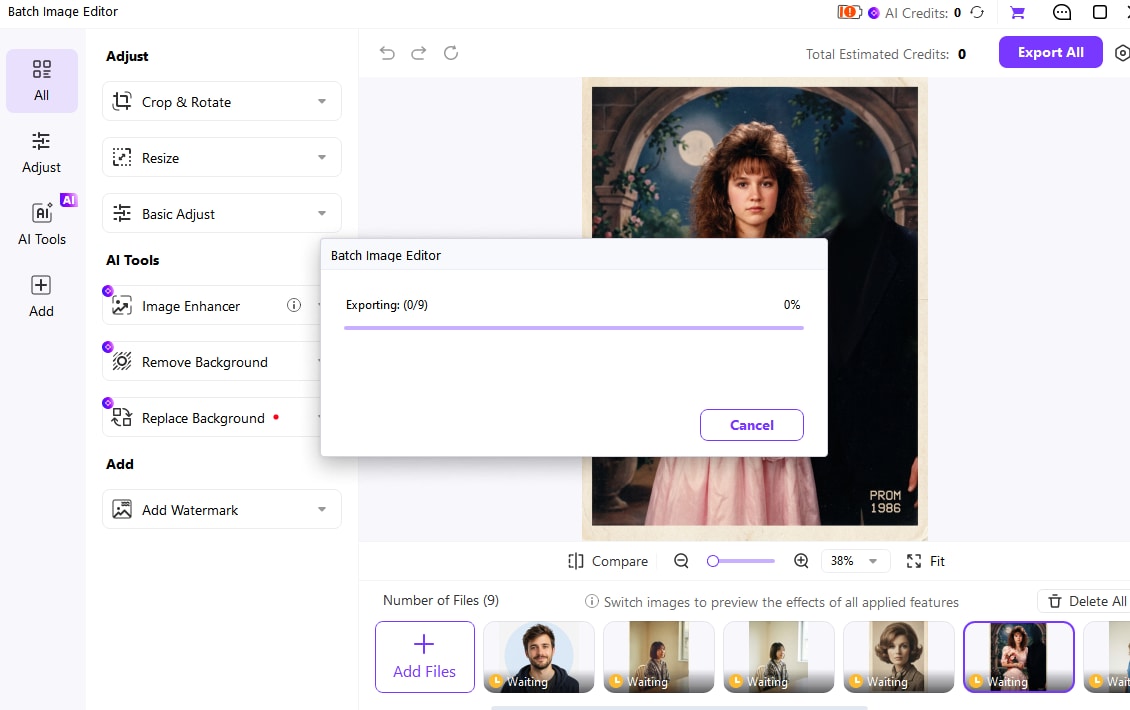
Remove backgrounds from multiple photos in Wondershare UniConverter Batch Image Editor. Add images or a folder, use Remove Background, choose transparency or a solid color, and inspect each cutout before Export All. Keep product photos, portraits, and campaign assets in one reviewed workflow.
Add multiple images or a local folder
Create transparent cutouts or solid-color backgrounds
Desktop vs. Online for Bulk Image Background Removal
Desktop apps and browser tools can both remove backgrounds in bulk. Compare the processing method, full-resolution output, transparent downloads, batch limits, and review controls rather than assuming every browser tool uploads files or every desktop AI tool works offline.
Compare the workflow
Recommended for larger jobsUniConverter Desktop
Convenient browser accessOnline Batch Tools
Private & Secure File Handling
✓Import local image files or folders into one workspace. AI background removal can require network access or cloud processing; local import is not an offline guarantee.
Some browser tools process locally; others upload photos to servers. Check the chosen provider’s processing, storage, and deletion policies.
Upload & Download
✓Review the collection in the desktop canvas and save the outputs from the editor. Processing time varies with the images, selected AI operations, device, and network conditions.
Cloud tools include upload and download stages. Local browser tools depend on device resources and the browser’s supported features.
Recurring Production Batches
✓Switch among the images, use Compare and zoom, check difficult cutouts, and export the reviewed queue together.
Many browser tools support real batches. Check current file counts, output resolution, transparent downloads, and paid-plan requirements.
One Queue, Multiple Editing Steps
✓Continue with relevant Crop, Resize, or watermark controls in the same workspace, then check the final composition before Export All.
A browser editor may also combine background removal with other edits. Confirm that the required next step is available before rebuilding the job in another tool.
Simple decision:
Choose UniConverter when background removal belongs to a recurring photo-folder workflow with individual review and further editing. Choose a browser tool when its batch controls, output quality, and processing policy meet your needs.
Use UniConverter’s Batch Image Editor when a collection needs more than a quick cutout. Keep the files together, remove their backgrounds, review different subjects, and prepare consistent delivery copies. Background removal extracts the subject; it does not automatically retouch the product, restore blurred detail, or generate a new scene.
Remove Background from Multiple Images in One Queue
Use Remove Background to isolate subjects in product photos, portraits, and campaign images. Start with representative files, then review thin handles, hair, fur, and areas where subject and background have similar colors before exporting the collection.
Choose Transparent or White Backgrounds for the Batch
Use transparent cutouts for layouts that need different backdrops, or a solid white background for a consistent catalog. Removing an existing white background and adding a new white background are different tasks; choose the intended result before processing.
Switch through the queue and use Compare and zoom to inspect each selected result. Check the cutout against contrasting backgrounds when possible. A good result on one photo does not guarantee clean edges throughout a mixed collection.
Review different source images
Compare original and processed results
Catch placement or composition issues
Input support is broader than output support and can differ between
Windows, Mac, Online, and product versions.
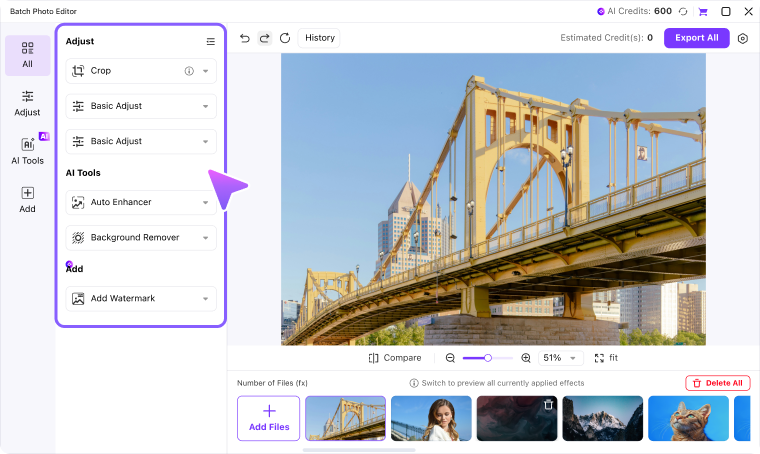
After background removal, use relevant Resize or Crop controls if the destination also requires consistent dimensions. Add a watermark only when it belongs in the delivered asset. Check the final canvas and estimated AI Credits before Export All.
Keep related edits in one workspace
Use only the operations relevant to the task
Review AI processing and credit conditions
Export the completed collection together
Image Converter handles format conversion. These additional
operations
belong to Batch Image Editor.
What You Can Control in a Bulk Background Removal Workflow
UniConverter Image BG Remover inside Batch Image Editor can extract subjects and preview transparent, solid-color, preset, or custom-background results across an image queue.
Choose the Background Result You Need
Removing, recoloring, and generating a background are different operations. Match the output to the delivery task before you process a large collection.
Goal
Use this workflow
Important check
Transparent subject cutouts
Use Remove Background and retain the transparent result.
Save in a format that supports transparency, such as PNG. Reopen the file in the receiving app; a white preview alone does not prove transparency was lost.
Remove white backgrounds in bulk
Extract the subject instead of simply changing the file format.
Inspect white products, pale hair, and highlights. A remover may confuse parts of a light subject with the background.
White-background product images
Remove the original background, then choose a solid white background.
Check that all subjects remain intact and that framing and dimensions fit the destination. A white background alone does not guarantee marketplace compliance.
A preset or an existing background image
Use the available background assets or Custom background option inside the remover workflow.
Review placement and edges. This is different from generating a new AI scene.
An AI-generated scene
Use the separate Background Replacer workflow when generation is the objective.
Generated scenes can reinterpret details and vary between runs. This is not the transparent-output path.
A large production batch
Review a small sample first, then inspect the remaining queue and Total Estimated Credits.
AI processing may require credits and a network connection. There is no promise of unlimited free AI processing or identical results across images.
Format availability may vary by operating system and UniConverter version. See the
UniConverter Tech Specs
for current image format support and system requirements.
How to Batch Remove Backgrounds from Images
Test a few representative photos first: one easy subject, one fine-edged subject, and one image close in color to its background. Use copies and retain your originals.
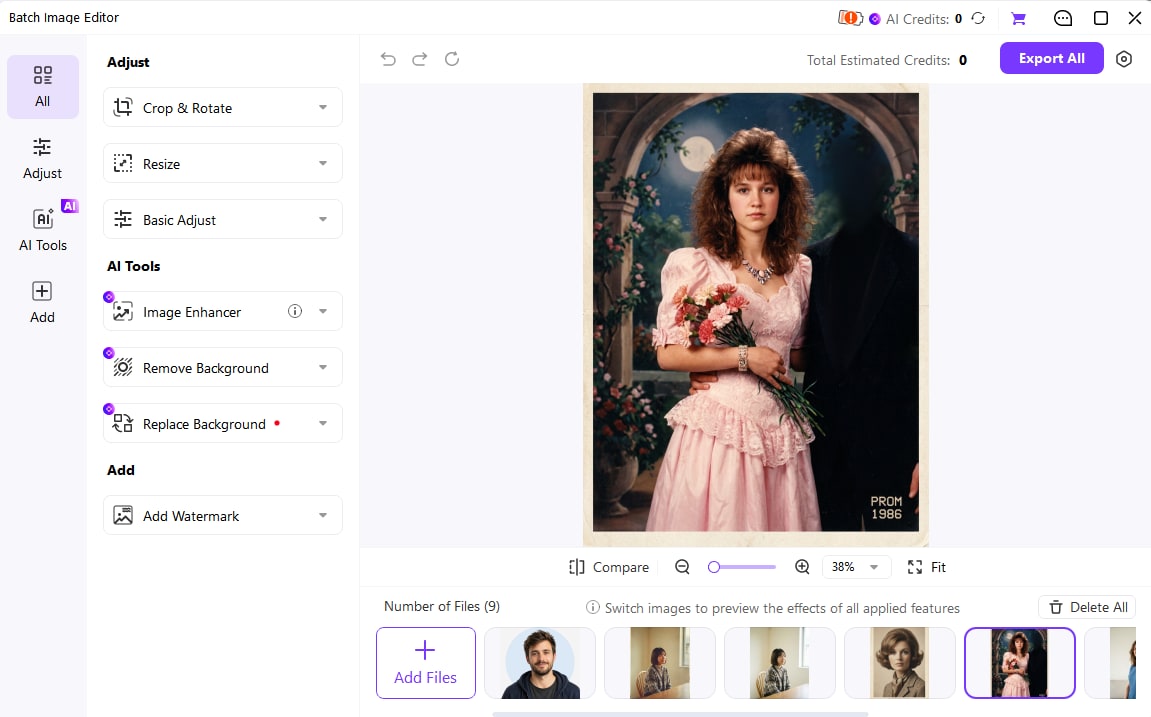
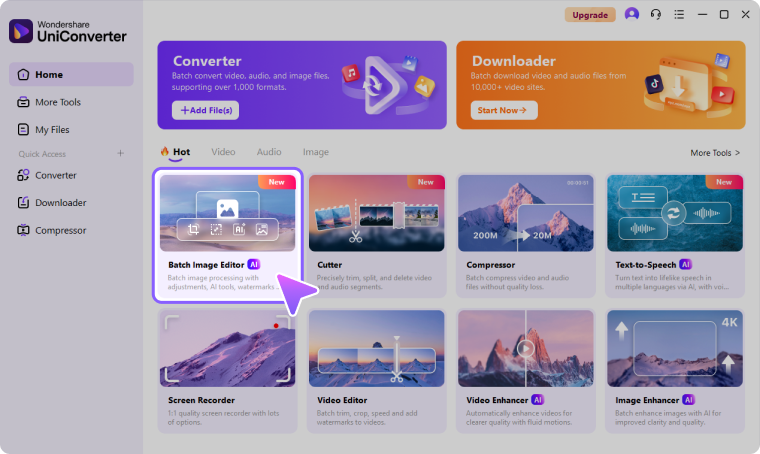
Official interface examples show the editor entry, review controls, and batch export. The review example shows the workspace before removal; it is not a background-removal test result. Controls can vary by platform and version.
Check Difficult Edges Before Batch Export
Automatic background removal needs a visual check. Inspect the exported file as well as the editor preview, especially when one collection contains different subjects.
What you notice
Likely issue
Practical next step
Hair or fur looks clipped
Fine strands can blend into the original background.
Zoom in and compare with the original. If automatic extraction is unacceptable, use a manual mask editor for the affected files instead of assuming a perfect batch result.
White halos or missing product edges
Low contrast, reflections, or old background colors can affect extraction.
Inspect the cutout on both light and dark backgrounds. Retry from a sharper original or finish the difficult edge in a mask editor.
A bag handle or a chair opening remains filled
The remover may miss background regions enclosed by the subject.
Check internal gaps as well as the outer silhouette; separate failed images for individual correction.
A transparent cutout appears white after export
The output may be flattened, or the viewing app may display transparency on white.
Check the file format and reopen it over a colored layer in a compatible editor. Renaming a JPG to PNG cannot recover transparency.
Before delivery: compare the file count, subject completeness, background choice, dimensions, and real output format. Keep the originals and retry only the problem files. If processing stops, check the shown error, network connection, available AI Credits, and destination storage.
When to Use Bulk Image Background Removal
Use bulk image background removal when a complete image collection needs a consistent, reviewed result rather than separate file-by-file edits.
Bulk Photo Background Remover for Ecommerce Catalogs
Prepare a set of product cutouts for a store catalog or client handoff. Check thin handles, holes, reflective edges, and product color before using a white background. Review the destination’s current requirements for dimensions, framing, shadows, and file format separately.
Bulk Portrait and Profile Cutouts
Create reusable portrait cutouts for team pages, speaker cards, or profile layouts. Check hair, glasses, clothing edges, and spaces around shoulders. Keep a portrait with poor extraction out of the final delivery until its edge has been corrected.
Campaign and Social Creative Assets
Export transparent cutouts so the same subject can be placed in different campaign layouts. Verify transparency in the design app, then check that the cutout still has enough pixels for the intended composition. Background removal does not upscale the source.
Logo, Object, and Catalog Libraries
Remove backgrounds from photographed objects or raster logo assets for a reusable library. Inspect fine lettering and gaps between shapes. If an original vector logo is available, use that source rather than expecting AI extraction to recreate vector paths.
What UniConverter Users Are Saying
These reviews describe users' experience with Wondershare UniConverter as a broader conversion and editing product, rather than feedback specifically limited to the Batch Image Editor. Review sources and publication dates are shown where available.
★★★★★
“Very configurable for the exact result you need.”
Its flexible conversion controls make it easier to prepare files for different output and delivery requirements.
Johnson
★★★★★
“The files can be used across IT platforms so easily!”
This kind of compatibility is useful when converted media needs to move between common systems and delivery workflows.
Williams
★★★★★
“Wondershare UniConverter is incredibly versatile.”
The broader conversion and editing toolkit supports users who need to complete more than one isolated media task.
Olivia
Explore UniConverter reviews and independent coverage across trusted software platforms.
Can You Batch Remove Backgrounds Online or in Photoshop?
Choose a method around the output and review work you need. Free trials, download resolution, and transparent exports can have different limits.
Method
When it fits
What to verify
UniConverter Batch Image Editor
A photo-folder workflow with per-image review, further editing, and Export All.
Review the AI Credits and access conditions shown for your account. A free installer does not mean unlimited free background removal.
Canva bulk background remover
A batch that will continue into Canva designs.
Canva’s official page lists up to 50 images per batch, transparent PNG downloads, and a Pro or Business subscription requirement.
Photoshop Actions and Batch
A workflow that needs repeatable automation and manual mask corrections on difficult files.
Prepare and test the removal action, configure the Batch source and destination, and inspect the resulting masks. Complex subjects can still need individual work.
Other browser removers
An occasional batch when the service’s output and processing policy fit.
Check free-use limits, full-resolution downloads, transparent output, account requirements, and whether processing happens locally or on a server.
How do I remove backgrounds from multiple images at once?
Open UniConverter Batch Image Editor, add the photos or a folder, open Remove Background, and enable removal. Choose transparency or an available background option, review individual results with Compare and zoom, check the estimated AI Credits, then click Export All.
02
Can I batch remove backgrounds online for free?
Some browser removers offer free batch processing, but file count, resolution, transparent downloads, and commercial-use conditions vary. Check the current offer before processing a full collection. UniConverter Desktop is a separate installed workflow, and its AI background removal can require AI Credits.
03
How do I keep the exported background transparent?
Retain the transparent result and use an output format that supports alpha transparency, such as PNG. JPG cannot store transparency. Reopen the export over a colored layer in a compatible editor; a white viewer background alone does not prove that transparency is missing.
04
Can I batch remove white backgrounds or make backgrounds white?
These are different results. To remove white backgrounds, extract the subjects and keep transparency. To create white-background images, remove the originals and choose a solid white background. Inspect light-colored subjects carefully so that highlights or white product edges are not removed.
05
Can I batch remove backgrounds in Photoshop or Canva?
Yes. Photoshop can apply a tested action to a batch, with manual mask correction for difficult images. Canva provides a dedicated bulk background remover; its official page lists up to 50 images per batch and a Pro or Business subscription requirement. Check each tool’s current conditions.
06
How many images can UniConverter process, and does it work offline?
The documented Batch Image Editor workflow has no fixed import-count limit, but practical capacity depends on the images, memory, selected operations, and version. This does not mean unlimited free AI processing. Background-removal and other AI operations may need network access, cloud processing, and AI Credits.
Remove Backgrounds in Bulk, Then Check the Collection
Bring your photos into UniConverter Batch Image Editor, choose transparent cutouts or a solid background, review the edges, and export the prepared batch. Check the AI Credits and account conditions before a large run.