UniConverter
UniConverter Online Free
Converter video, audio & image free
Free Try
Wondershare UniConverter Edit Media Metadata

Batch Metadata Editor for Multiple Media Files

Edit metadata across a supported video or audio collection without opening every file in a separate tool. Build a batch of up to 50 files, search metadata, correct fields, reuse selected information where it truly matches, and control how the edited files are saved.

  • Process up to 50 supported video or audio files in one metadata list.
  • Search the current file or the full batch before making corrections.
  • Apply shared fields carefully and save new copies or update the reviewed files.

The current metadata editor is a desktop workflow for supported video and audio files.

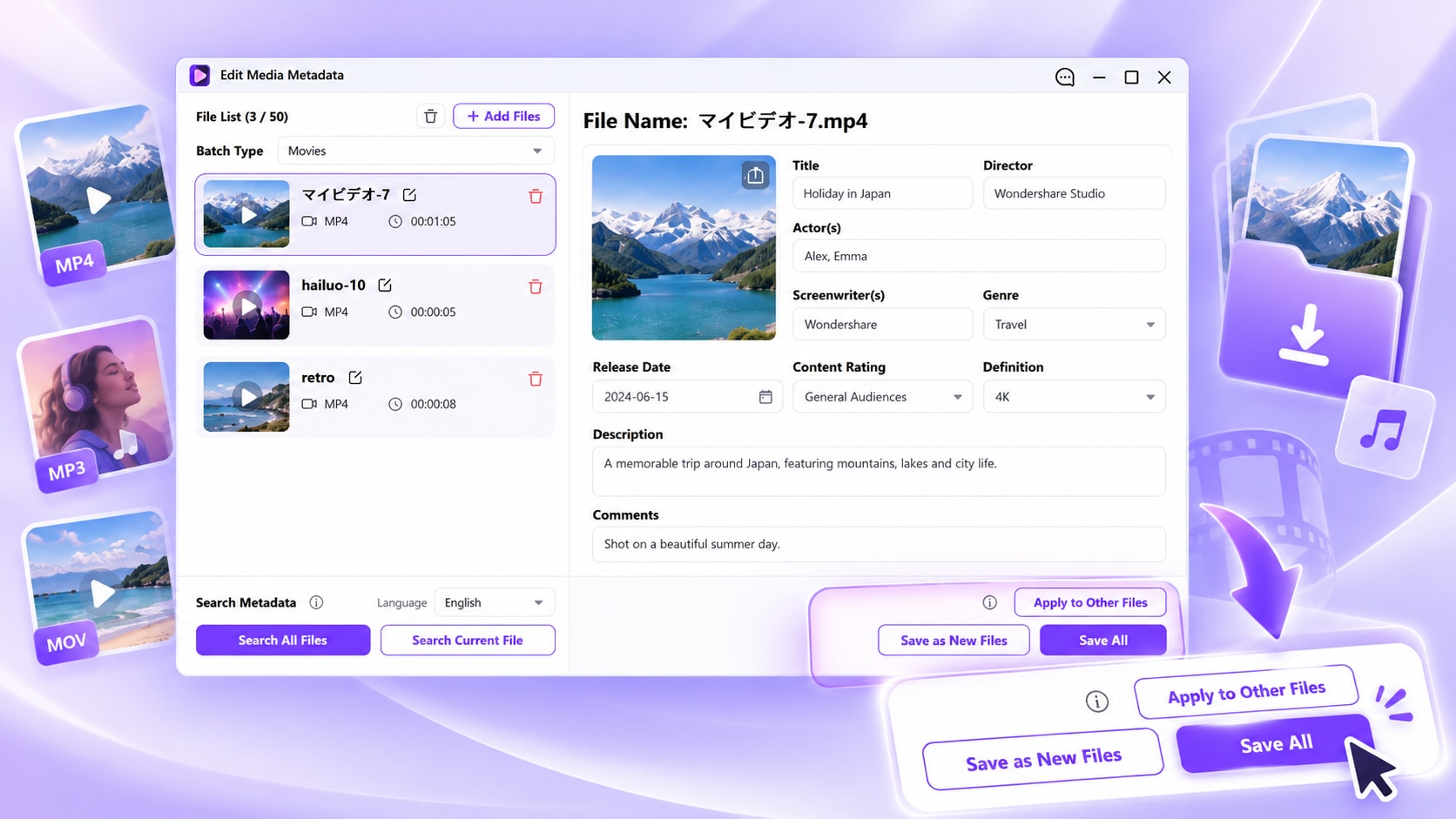
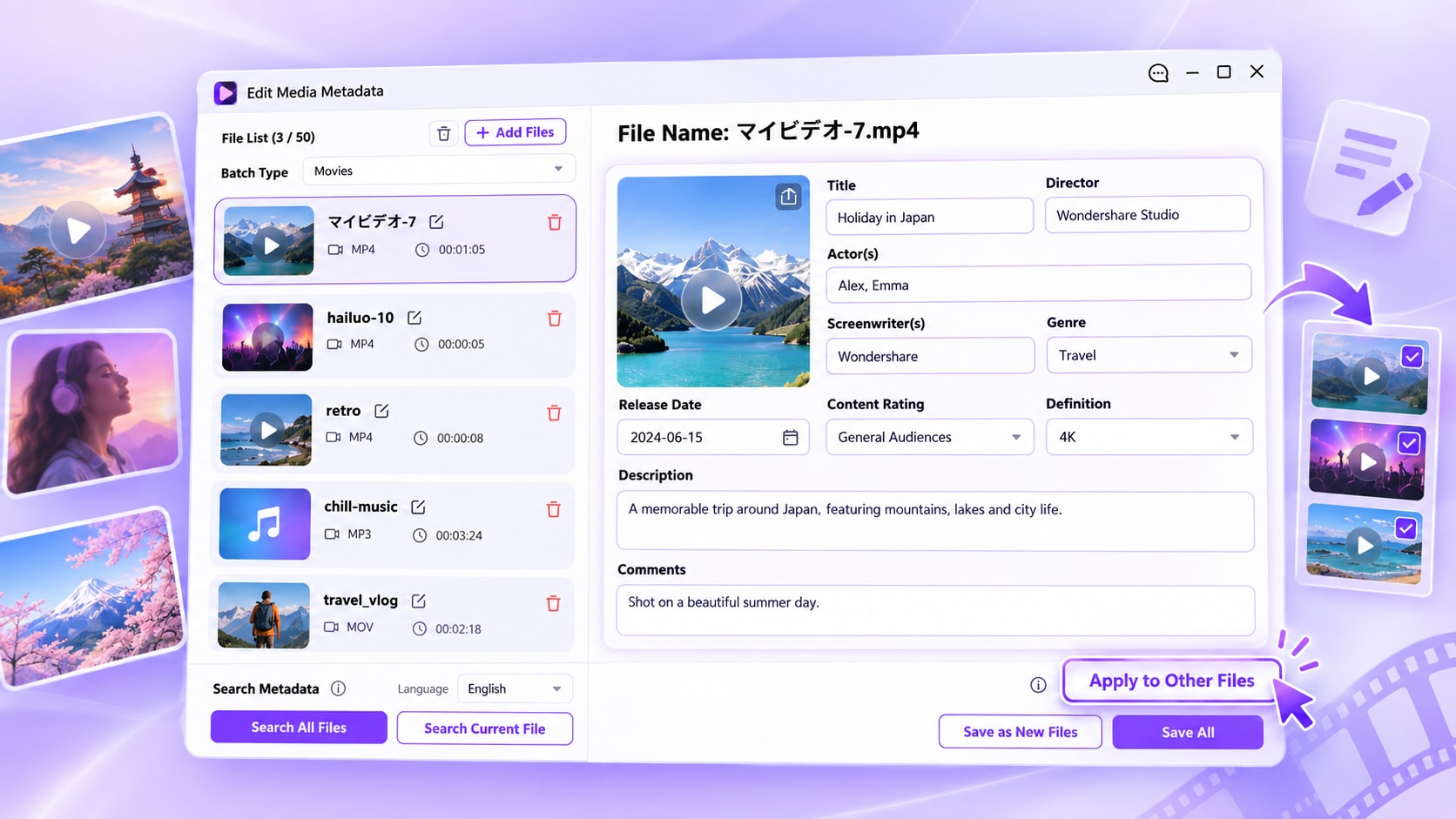
UniConverter Batch Metadata Editor with multiple media files
120+Countries
7M+Satisfied Users
1.4M+Subscribers
21M+Downloads
Quick Answer
  • UniConverter Edit Media Metadata can manage up to 50 supported video or audio files in one batch.
  • For searchable media types, metadata lookup uses the Search Name, selected Batch Type, and Language; use Search Current File or Search All Files, then review the returned fields.
  • You can skip search completely and edit metadata manually. If no suitable result is found, keep editing the current file instead of relying on automatic matching.
  • Use Apply to Other Files only for information that is genuinely shared, then review the list before using Save All or Save as New Files.

Batch Metadata Editor vs. Editing Files One by One

A single-file editor is fine for an occasional correction. A batch metadata editor is better when a media library needs repeated lookup, shared fields, and one review-and-save workflow across many files.

Compare the workflow
Recommended for media collectionsBatch Metadata Editor
Fine for occasional fixesOne-by-One Editing
Number of files
Up to 50 supported files in the current UniConverter metadata workspace.
Best when only one or two files need changes.
Metadata search
Search the current file or run Search All Files across the list.
Repeat lookup work for each file separately.
Shared metadata
Apply selected shared information to other files when it genuinely matches.
Re-enter repeated information manually.
Save strategy
Choose Save as New Files or Save All after reviewing the batch.
Save each edited file independently.
Simple decision:
Use batch metadata editing when the collection shares repeatable tasks, but keep titles, dates, episode details, and other unique fields file-specific unless they truly match.
See the Batch Workflow

Why Use UniConverter as a Batch Metadata Editor?

Edit Media Metadata combines file intake, content-type classification, metadata search, manual correction, cross-file reuse, and batch saving in one desktop workspace.

Build a Metadata List of Up to 50 Media Files

Add supported video or audio files by file selection, folder intake, or drag and drop, then keep the collection visible in one File List while you work.

  • The current interface states Upload up to 50 files.
  • Current import examples include MP4, MOV, MKV, AVI, WMV, M4V, MP3, WAV, M4A, FLAC, WMA, OGG, and M4B.
  • Use the Batch Type that matches the collection before searching or applying shared metadata.
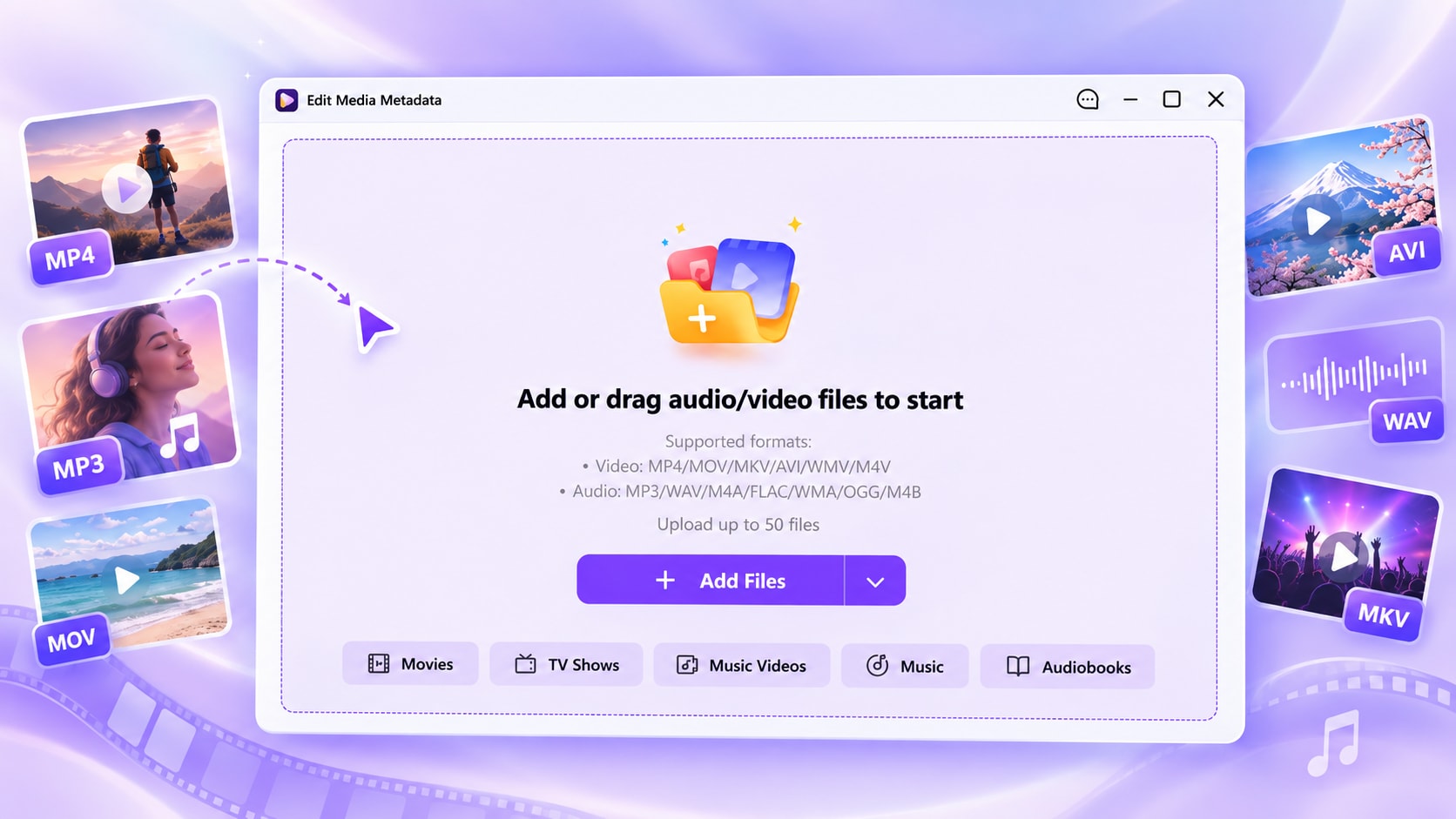
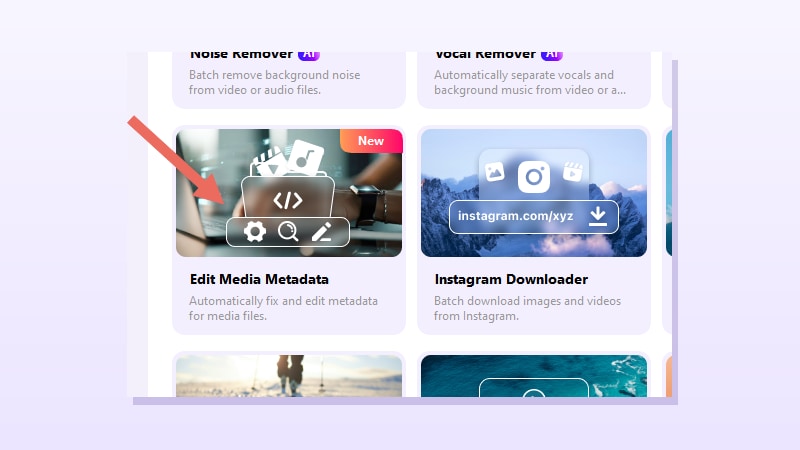
Add supported video or audio files to UniConverter Edit Media Metadata

Search by Name, Media Type, and Language

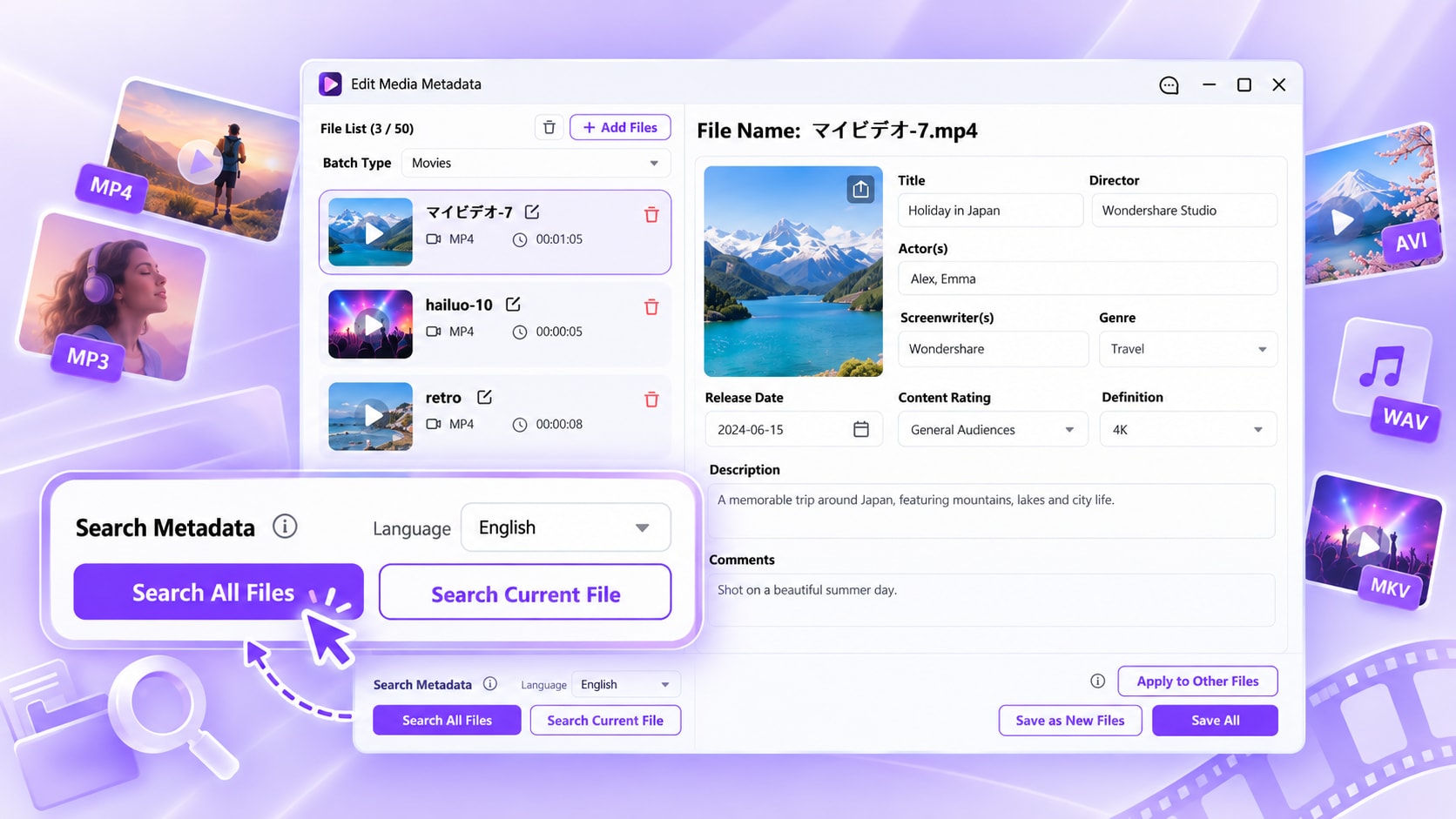
Metadata lookup is based on the file's Search Name, the selected Batch Type, and the Language used for metadata search. Run a lookup for one file first or search the whole supported list.

  • Search Current File is useful for checking one item or testing a revised Search Name.
  • Search All Files runs metadata search across the current searchable list.
  • If there is no suitable match, continue with manual editing instead of treating the search result as mandatory.
Search Current File and Search All Files in UniConverter metadata editor

Edit Different Metadata for Movies and Music

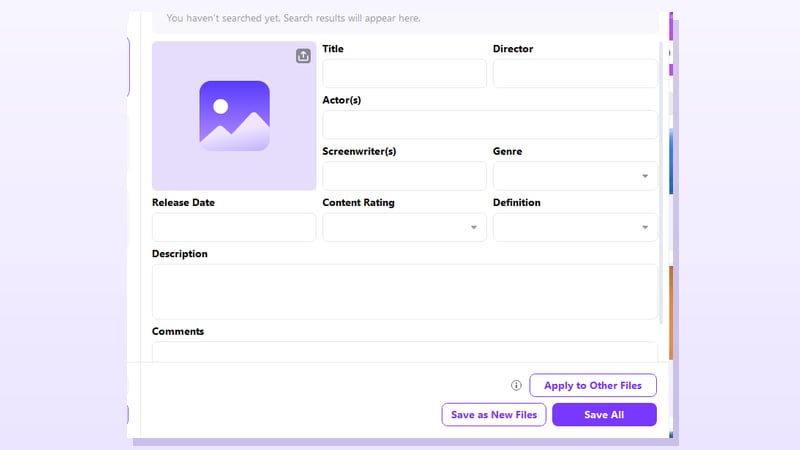
The fields change with the media category. In the current Movies view, the editor shows fields such as Title, Director, Actor(s), Screenwriter(s), Genre, Release Date, Content Rating, Definition, Description, Comments, and artwork. In the current Music view, confirmed fields include Title, Artist, Album, Album Artist, Year, Composer, Track, Genre, Release Date, Disc Number, Comments, and Cover / Artwork.

  • Use the broader workspace for video and audio metadata, not only MP3 tags.
  • Bitrate is displayed in the current Music panel, but the available evidence does not confirm that it is editable.
  • TV Shows, Music Videos, and Audiobooks are available Batch Types; only describe detailed fields that the current UI or verified guide actually confirms.
Movie and music metadata fields in UniConverter Edit Media Metadata

Reuse Shared Metadata, Then Review Before Saving

Apply to Other Files is useful when several items truly share the same metadata. Keep titles, episode information, tracks, dates, actors, artists, and other file-specific fields separate when they differ.

  • Use Apply to Other Files only after checking which values belong to the target files.
  • Save All completes the current batch after review.
  • Save as New Files provides a separate-output option when you want to preserve a safer review path.
Apply to Other Files and save options in UniConverter metadata editor

Supported Media, Batch Types, and Metadata Fields

UniConverter Edit Media Metadata is built for media-file metadata rather than photo EXIF. The current import view supports both video and audio, while the available fields change with the selected Batch Type.

MoviesTV ShowsMusic VideosMusicAudiobooksHome Videos*
ScopeCurrent examplesWhat the page can safely claim
Video inputMP4, MOV, MKV, AVI, WMV, M4VThe current import screen explicitly lists these video formats for Edit Media Metadata.
Audio inputMP3, WAV, M4A, FLAC, WMA, OGG, M4BThe same workspace supports audio metadata, so this is broader than an MP3-only tag editor.
Movies fieldsTitle, Director, Actor(s), Screenwriter(s), Genre, Release Date, Content Rating, Definition, Description, Comments, Cover / ArtworkThese fields are confirmed in the current Movies interface.
Music fieldsTitle, Artist, Album, Album Artist, Year, Composer, Track, Genre, Release Date, Disc Number, Comments, Cover / ArtworkThese fields are confirmed in the current Music interface. Bitrate is visible, but editability is not confirmed.
Batch capacityUp to 50 filesFile List and the import view both show a 50-file limit for the current workflow.

*Home Videos: the current knowledge base documents a manual metadata path for private/home footage. Home Videos does not use automatic metadata search and refill; add or edit its metadata manually.

Practical Uses for Batch Metadata Editing

Use the batch workflow when a media collection needs consistent information, faster lookup, or structured cleanup without forcing every field to be identical.

Movie & Video Libraries

Search or correct titles, directors, actors, genre, release details, descriptions, artwork, and other supported movie metadata before importing files into a local media library.

Music & Tag Cleanup

Organize MP3, FLAC, M4A, WAV, and other supported audio with title, artist, album, track, genre, artwork, and related music metadata where the selected file exposes those fields.

TV & Series Organization

Keep reusable series information consistent while reviewing episode-specific titles, season/episode details from supported workflows, release dates, and other unique fields separately.

Archive & Content-Team Cleanup

Add descriptions, comments, dates, credits, or artwork to locally managed assets. For private Home Videos, use the manual editing path rather than expecting automatic metadata search.

What UniConverter Users Are Saying

These reviews describe users' broader experience with Wondershare UniConverter. They are not specific reviews of the Batch Metadata Editor, so use them as general product context rather than metadata-feature evidence.

★★★★★

“Very configurable for the exact result you need.”

Its flexible conversion controls make it easier to prepare files for different output and delivery requirements.
JohnsonJohnson
★★★★★

“The files can be used across IT platforms so easily!”

This kind of compatibility is useful when converted media needs to move between common systems and delivery workflows.
WilliamsWilliams
★★★★★

“Wondershare UniConverter is incredibly versatile.”

The broader conversion and editing toolkit supports users who need to complete more than one isolated media task.
OliviaOlivia

Explore UniConverter reviews and independent coverage across trusted software platforms.

Batch Metadata Editor FAQs

01

What is a batch metadata editor?

A batch metadata editor lets you organize and update metadata for multiple media files in one workflow. UniConverter Edit Media Metadata currently supports a list of up to 50 supported video or audio files, with search, manual editing, cross-file reuse, and batch save controls.
For searchable media types, metadata lookup uses the Search Name, selected Batch Type, and Search Metadata language. Use Search Current File for one item or Search All Files for the current searchable list, then review the returned fields before saving.
Search is optional. If no suitable result is found, correct the Search Name and try again or edit the metadata manually. Home Videos use the manual editing path rather than automatic metadata search and refill.
The current Edit Media Metadata interface states Upload up to 50 files and shows the current count in the File List.
For supported music files such as MP3, the current Music view includes fields such as Title, Artist, Album, Album Artist, Year, Composer, Track, Genre, Release Date, Disc Number, Comments, and Cover / Artwork. The same workspace also handles supported video metadata, so the page is broader than an MP3-only ID3 tag editor.
The current knowledge base lists English, French, Italian, Portuguese, Spanish, German, and Japanese for metadata search. This Search Metadata language is separate from a media file's own language field, such as the Language metadata used for an audiobook.
The current editor includes Apply to Other Files. Use it for metadata that truly belongs to several files, and review titles, episode details, artists, tracks, actors, dates, and other file-specific values before saving.
The interface provides both actions. Save All completes the reviewed batch, while Save as New Files provides a separate-output path. When working with an important library, review representative results before replacing or reorganizing the originals.
Wondershare UniConverter

Edit Metadata in Batch Without Repeating the Same Work

Build a supported video or audio list of up to 50 files, search or edit metadata, reuse shared fields where appropriate, and choose whether to save new copies or update the reviewed files.

Open Edit Media Metadata in UniConverter