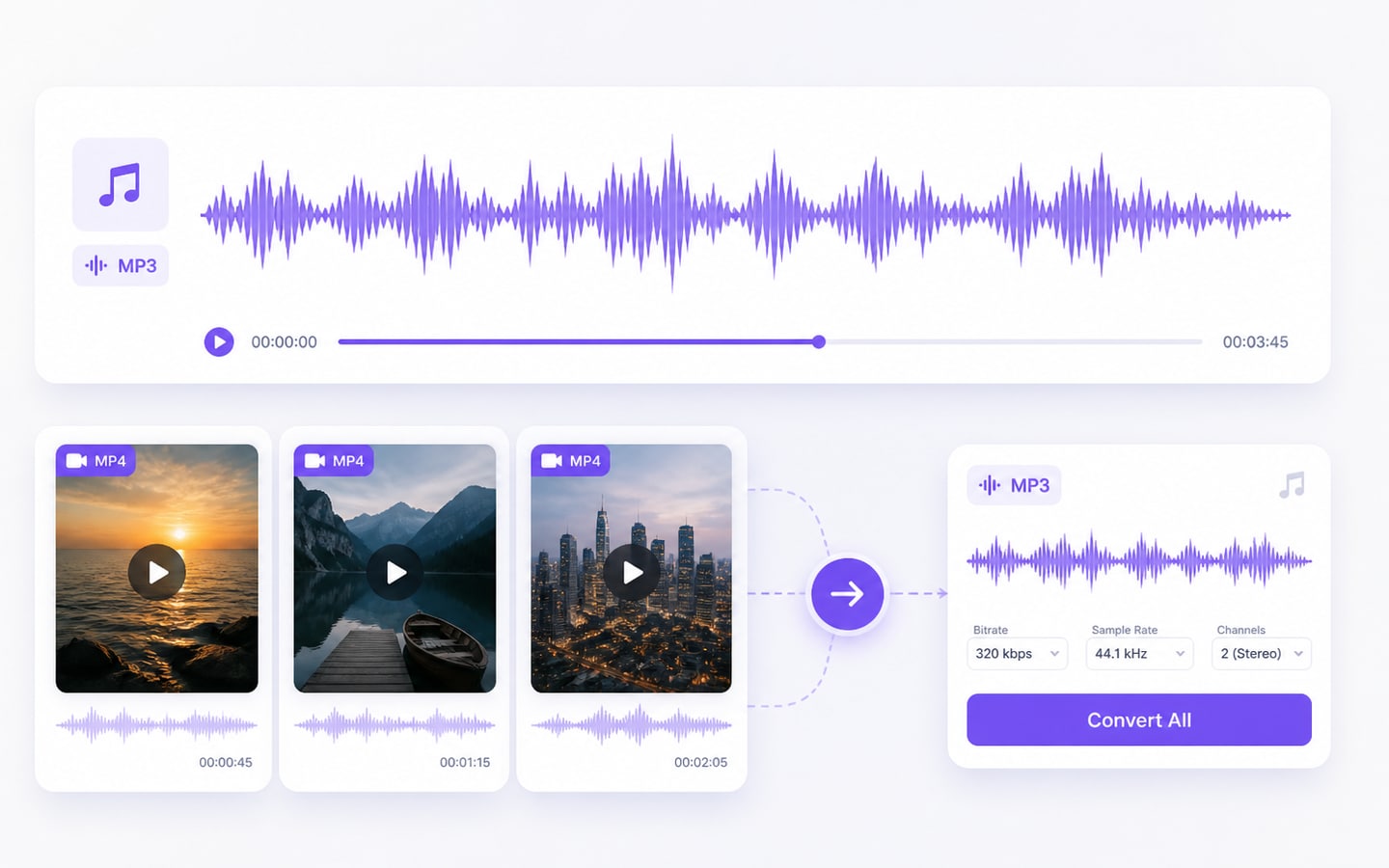
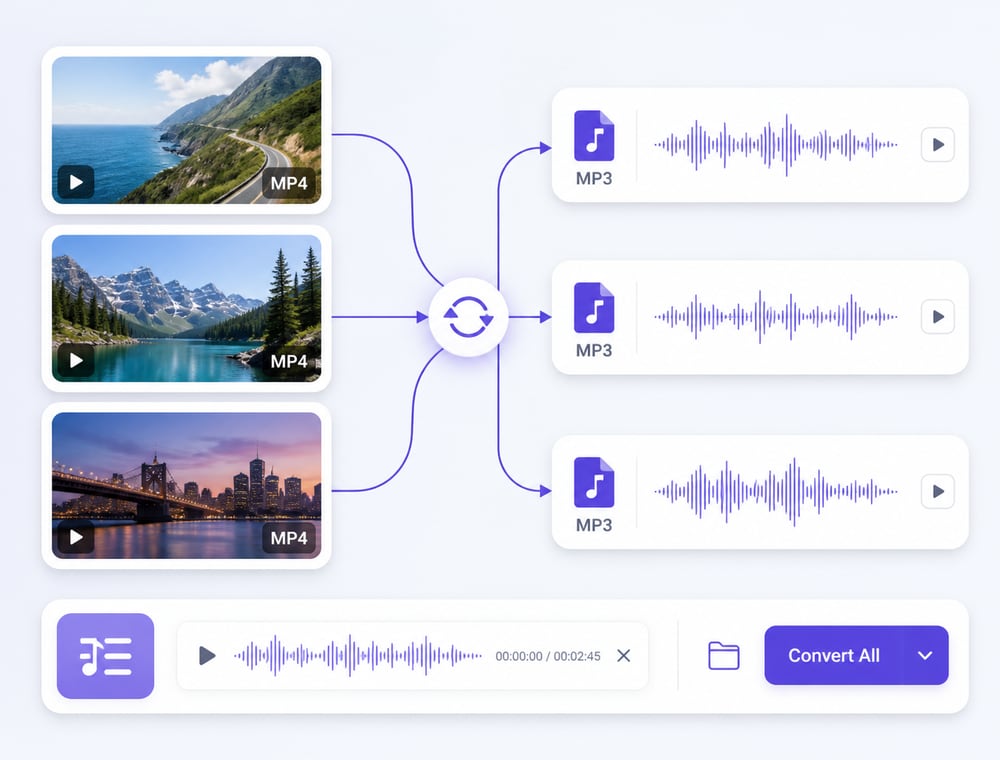
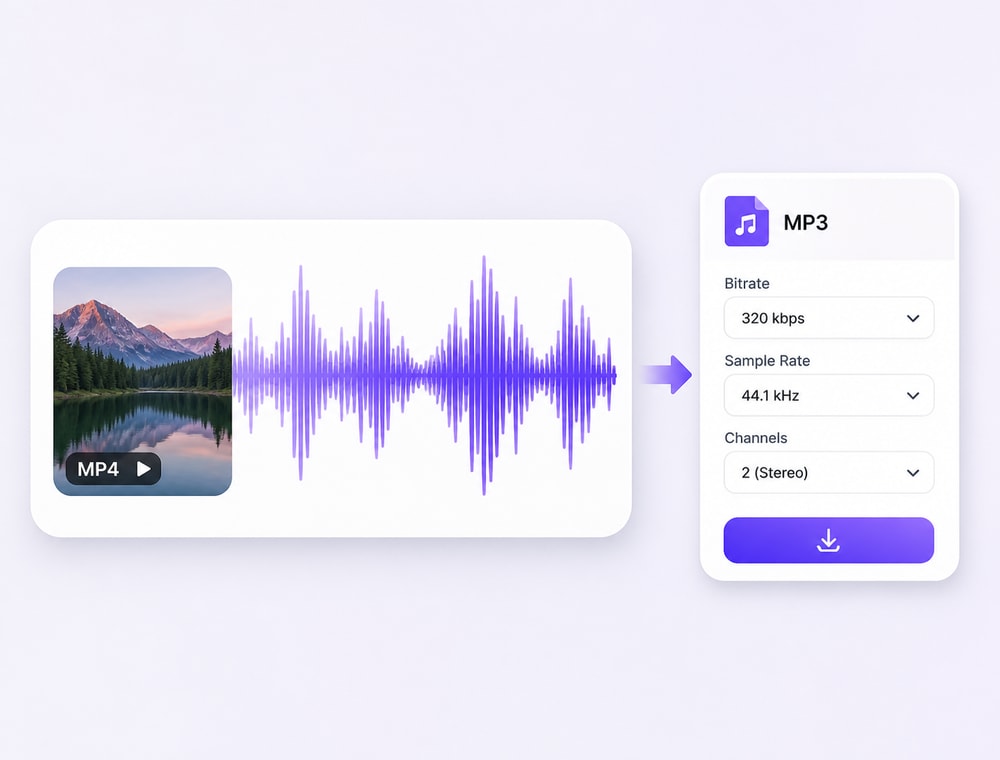
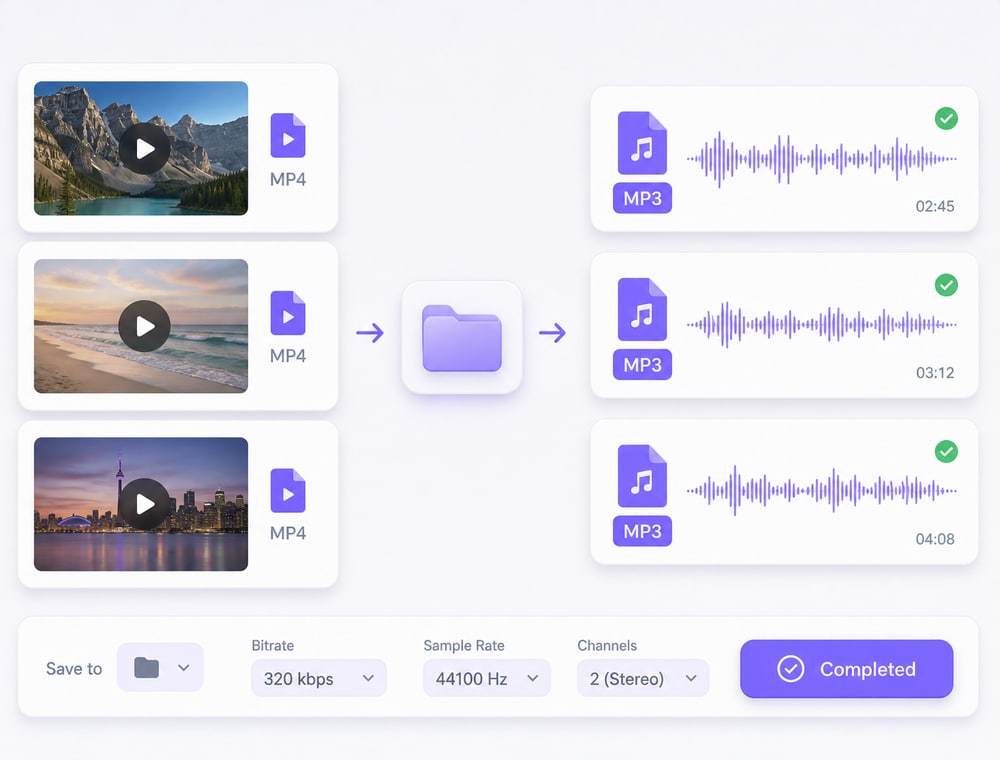
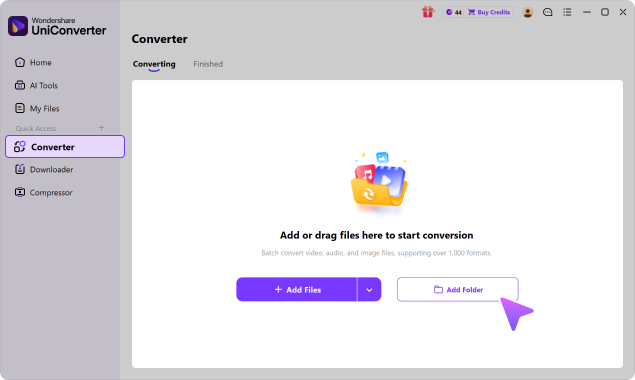
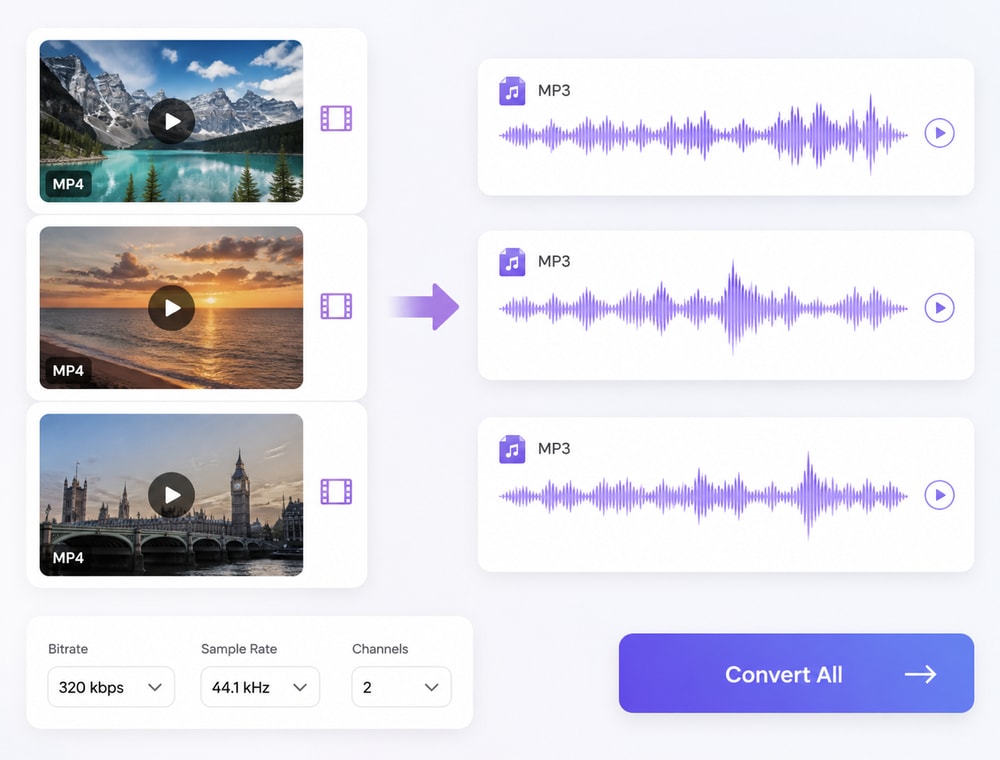
Batch convert MP4 to MP3 on Windows or Mac with Wondershare UniConverter. Add multiple local videos to Converter, choose MP3 in the Audio output category, set the save folder, and click Convert All. Create separate listening copies for lectures, interviews, or recordings while keeping the original videos.
Desktop software and browser converters can both handle multiple videos. Choose based on local processing, available MP3 settings, batch controls, and whether installation fits your workflow.
Compare the workflow
Recommended for larger jobsUniConverter Desktop
Check each tool’s batch controlsOnline Batch Tools
Batch Scale & Service Limits
✓Build recurring multi-file queues from local folders and keep the entire collection organized in one Desktop job.
Some browser tools support batch conversion; check the current file-count, size, and account limits.
File Location & Privacy
✓Keep standard conversion work on the computer and save results directly to the selected local folder without uploading the full collection through a browser.
Cloud tools upload files; other converters process locally in the browser. Check the tool’s stated processing and privacy policies.
Total Turnaround
✓Skip browser transfer stages and move directly from local sources to locally saved results, helping repeated collection work keep moving.
Cloud processing includes transfer time. Local browser processing depends on your device and browser resources.
Workflow Depth
✓Choose Desktop when recurring work needs broader format or profile coverage, richer output settings, queued-file preparation, compatible metadata review, organized local delivery, or continuity with adjacent tools.
Choose a browser tool when it supports the required MP3 output and batch size without an installation.
Simple decision:
Choose Desktop for a managed local queue with MP3 output settings and a save folder. A browser tool is also an option; verify whether it uses server uploads or local processing.
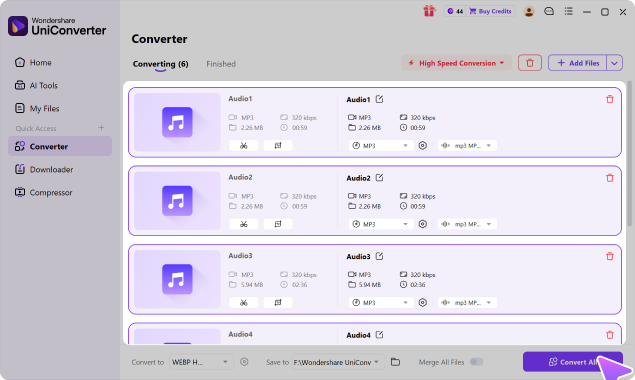
Use Converter to create an audio copy of each selected video. One shared MP3 profile keeps the batch consistent, while individual files can be reviewed before conversion. The MP4 originals retain slides, demonstrations, and other visual context that the MP3 copies cannot contain.
Bulk Convert MP4 to MP3 in One Queue
Choose the lectures, interviews, meetings, tutorials, or approved archive recordings that genuinely benefit from audio-only access. Keep unrelated visual material outside the extraction queue.
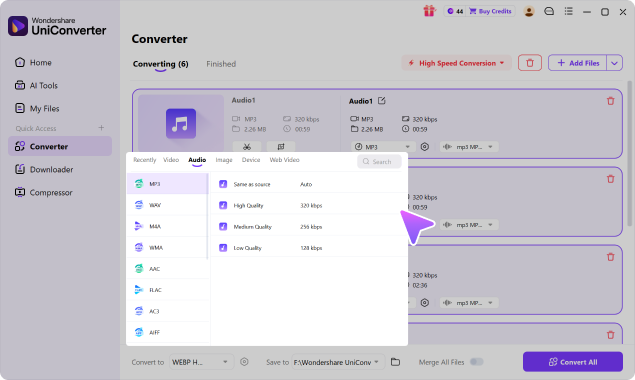
Choose Convert to > Audio > MP3 and select an available quality preset. Base the choice on speech or music, the listening device, and file size. A higher output bitrate cannot recover detail already missing from the source track.
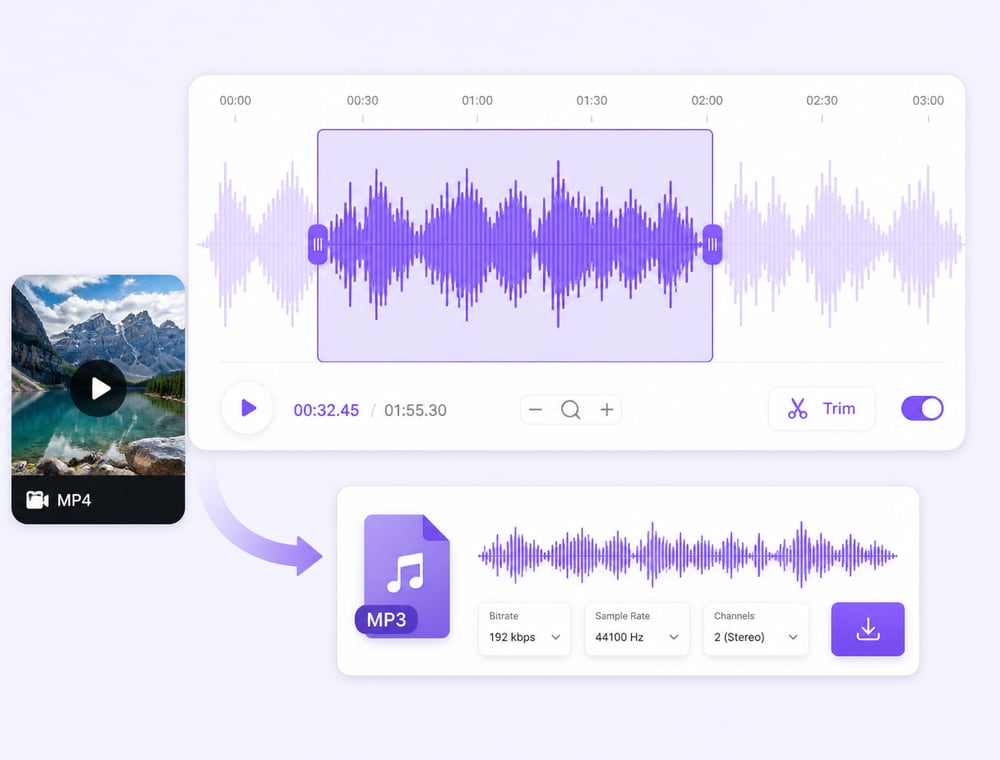
Open Trim on a selected video if you need to remove an introduction or unwanted ending. Review its timeline and confirm the retained section before conversion. Test any audio or speed adjustment on one recording before using it across a collection.
Trim the selected video on its timeline
Preview supported Audio and Speed changes
Apply shared changes only when suitable
Input support is broader than output support and can differ between
Windows, Mac, Online, and product versions.
Store the audio results beside a clearly retained video archive. Chapters, artwork, visual evidence, and container metadata should not be assumed to transfer automatically into the listening files.
Keep original source files available
Review representative outputs
Verify important fields in the receiving app
Avoid universal quality or metadata promises
Image Converter handles format conversion. These additional
operations
belong to Batch Image Editor.
Use the source-versus-output view to align storage, quality expectations, compatibility, and metadata checks with how the MP3 files will be used.
MP4 vs. MP3: What Changes During Batch Audio Conversion?
Compare the source role, output destination, quality expectations, and metadata boundary before converting MP4 to MP3. The format change serves a workflow goal; it does not automatically improve the source.
Workflow controls and value
MP4
MP3
Media role
MP4 can contain video plus one or more audio tracks
MP3 is an audio-only result used for portable listening and broad playback
What remains
The original file keeps its visual track and source context
The result contains the selected audio output and does not retain the video track
Quality setup
Source audio quality is limited by the recording and embedded track
Available settings shape delivery but cannot restore missing source detail
Metadata
The video container may hold fields that do not map to an audio file
Do not assume video metadata, chapters, artwork, or every field transfers to the audio result
Common AudioListening & WebLossless & StudioVideo Audio Sources
Explore current audio inputs, outputs, codecs, and quality options in the UniConverter Tech Specs.
How to Batch Convert MP4 to MP3
Use one shared MP3 output profile for the batch. The Windows guide uses Converter, Convert to, Save to, Convert All, and Finished; placement can vary by installed Mac version.
Interface examples show the shared Converter controls with sample audio files. For this task, add MP4 videos and select Audio > MP3; review each output row before conversion.
Check the MP3 Batch Before You Finish
Test one representative recording before converting a large collection. These checks also help when only part of a batch succeeds.
Problem
Check first
Next action
The MP3 is silent
Play the original MP4 and check whether it contains audible sound.
If the original is silent, conversion cannot create the missing audio. If the source plays correctly, review the file’s audio/output settings and retry that file.
Only one MP3 was produced
Check whether Merge All Files was enabled.
Disable merging for a separate output per video, and check each queued file’s output choice.
Some outputs are missing or incomplete
Compare the source list with Finished and the save folder.
Check the affected file’s error, source playback, and available disk space; retry a small subset rather than repeating successful files.
Audio sounds worse or has the wrong content
Compare the output with the same section of its source.
Review the selected MP3 profile, trim settings, and source recording. Preserve the MP4 if another audio track or visual context is needed.
Use audio extraction when access, portability, or focused listening matters more than the picture, but the original recording still needs to remain available for context.
Turn Course Videos into Listening Material
Students and training teams can turn authorized lecture recordings into listening files for commuting, revision, or accessibility. The source videos remain available whenever slides, demonstrations, or other visual context are required.
Prepare Interviews and Meeting Archives
Researchers and journalists can create audio references from recorded interviews or meetings, making repeated listening easier while preserving the videos for identity checks, gestures, screen content, and source verification.
Build Audio Copies of Creator Recordings
Creators can prepare audio copies of tutorials, commentary, livestreams, or video essays for review and approved reuse. Rights and distribution decisions still apply independently of the extraction workflow.
Extract Reference Audio from Video Libraries
Media archivists can generate lightweight listening references for a video collection without discarding the visual masters. Clear naming connects every extracted file to the recording used for compliance, editing, and future delivery.
What UniConverter Users Are Saying
These reviews describe users' experience with Wondershare UniConverter as a broader conversion and editing product, rather than feedback specifically limited to the Batch Audio Converter. Review sources and publication dates are shown where available.
★★★★★
“Very configurable for the exact result you need.”
Its flexible conversion controls make it easier to prepare files for different output and delivery requirements.
Johnson
★★★★★
“The files can be used across IT platforms so easily!”
This kind of compatibility is useful when converted media needs to move between common systems and delivery workflows.
Williams
★★★★★
“Wondershare UniConverter is incredibly versatile.”
The broader conversion and editing toolkit supports users who need to complete more than one isolated media task.
Olivia
Explore UniConverter reviews and independent coverage across trusted software platforms.
Open Converter, add multiple MP4 files or a folder, choose Convert to > Audio > MP3, select Save to, and click Convert All. Keep merging disabled if you need one MP3 per source video, then review the results in Finished.
02
Can I batch convert MP4 to MP3 on Windows and Mac?
UniConverter Desktop supports MP4 input and MP3 output on Windows and Mac. Add the videos to the conversion queue, choose MP3 as the output, and process the batch. The position and wording of controls can vary by platform and installed version.
03
Can I batch convert MP4 to MP3 online for free?
Some browser converters offer free batch conversion. Check their current file limits, supported MP3 settings, and whether processing happens locally or through uploads. UniConverter Desktop requires installation; a free download does not mean unrestricted free conversion.
04
Will each MP4 become a separate MP3?
For separate outputs, leave Merge All Files off and choose MP3 for the queued videos. After conversion, compare the output count with the source list and check filenames in the save folder.
05
Will MP4 chapters, artwork, and metadata transfer to MP3?
Do not assume every field will transfer. MP4 and MP3 store metadata differently, and the audio-only result does not retain the video. Check important titles, artwork, and other fields in the receiving player and keep the original MP4 files.
06
Does converting MP4 to MP3 improve audio quality?
No. MP3 uses lossy compression, and converting cannot restore missing source detail. Choose an available profile that fits the listening task, compare a sample with the source, and avoid repeated lossy conversions.
Convert Your MP4 Folder into Separate MP3 Files
Add the MP4 recordings, choose a shared MP3 profile and save folder, and convert the batch. Check the listening copies before sharing and retain the videos for visual context.