UniConverter
UniConverter Online Free
Converter video, audio & image free
Free Try
UniConverter AI Video Redaction

AI Video Redaction Software for Faces & Private Details

Use UniConverter AI Video Blur to redact faces, license plates, screens, documents, and other visible sensitive details before sharing. AI detects faces or tracks a target you select, while unredacted source footage stays in a local desktop workflow.

  • Automatically detect and redact selected or all faces
  • Track user-selected plates, screens, badges, and documents
  • Review multiple videos locally before exporting redacted copies
Available on:

For Windows 11/10/8/7

For macOS 10.13 or later

4.7Rated on Trustpilot
Quick Answer

What Does Video Redaction Software Do?

A practical definition and the exact scope of UniConverter's AI video redaction workflow.

Video Redaction, Explained

Video redaction is the process of visually concealing identifying or sensitive content in footage before a copy is shared, published, presented, or released. Common targets include faces, vehicle plates, screens, names, addresses, badges, documents, and location clues.

The effect must stay on the target for every frame in which it appears. That is why face detection, object tracking, preview, and human review matter more than placing one stationary blur box.

What UniConverter's AI Does

UniConverter automatically detects faces in a video. For a license plate, screen, document, badge, or another non-face detail, draw a box around the target first; AI then tracks that selection as it moves.

Scope note: AI Video Blur handles visual redaction. It is not an evidence-management platform and does not claim audio-PII detection, case management, audit logs, or chain-of-custody controls.

Visual Information

What Can You Redact from a Video?

Use automatic face detection or selected-object tracking to cover the visible details that should not appear in the shareable copy.

Faces & Identities

Detect faces automatically, then redact a specific person, several people, or every detected face.

License Plates

Select a visible plate and let AI tracking keep the redaction aligned as the vehicle or camera moves.

Screens & Account Data

Cover emails, usernames, dashboards, orders, API keys, messages, and internal interface details.

Documents & Text

Redact forms, contracts, shipping labels, whiteboards, ID cards, and printed names visible in footage.

Addresses & Locations

Hide house numbers, street signs, room details, monitors, family photos, and other location clues.

Badges, Logos & Marks

Track employee badges, uniforms, tattoos, product labels, platform marks, or other identifying visuals.

AI-Assisted Redaction

How AI Video Redaction Software Reduces Manual Work

Let AI handle detection or motion tracking, then keep a person in control of target selection, effect strength, and the final export.

Face Redaction Software That Finds People First

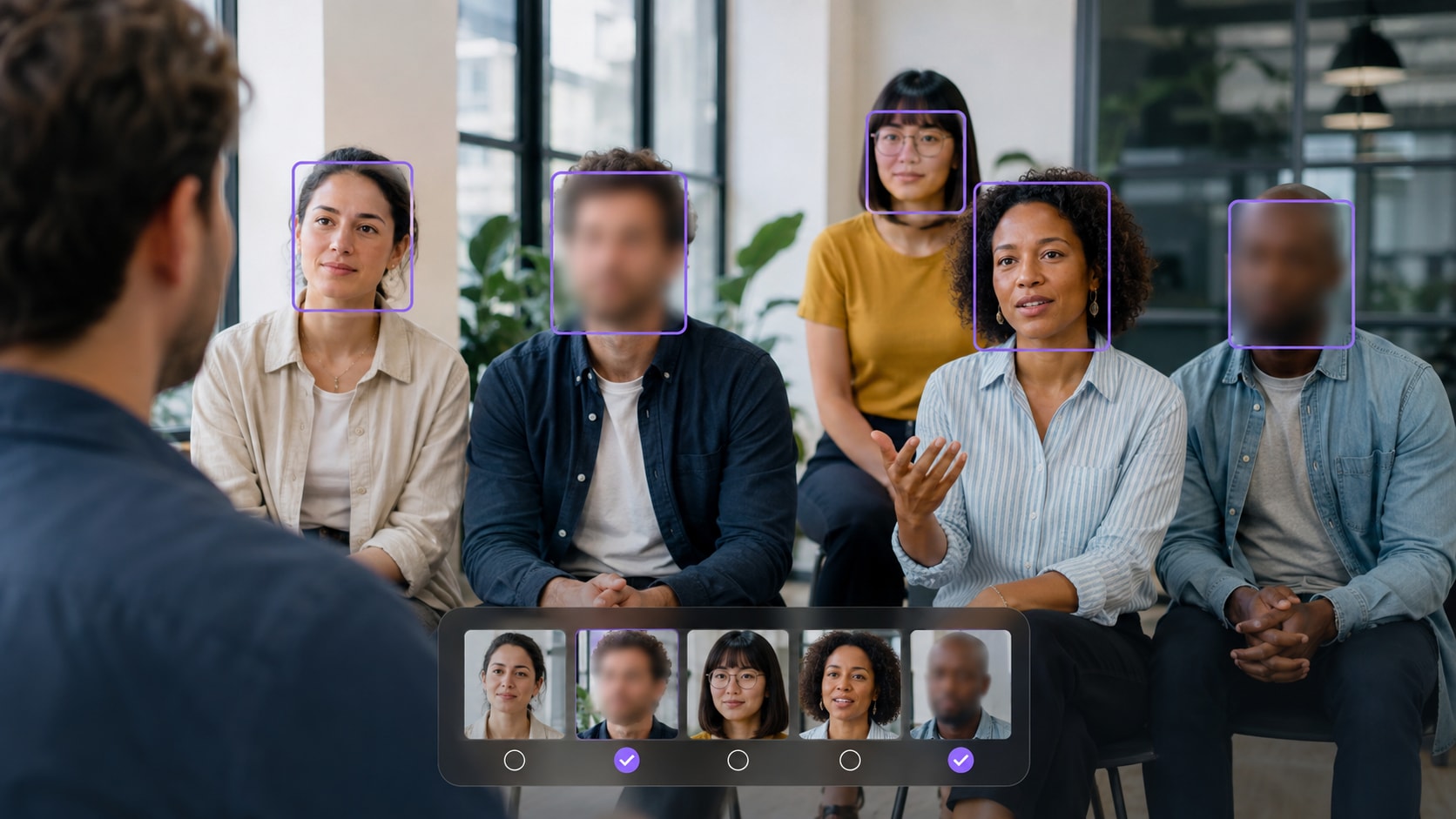
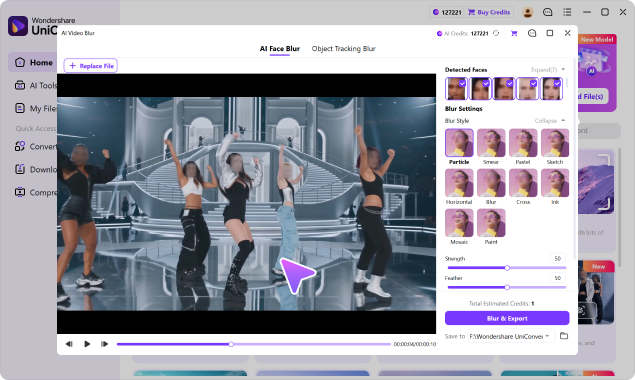
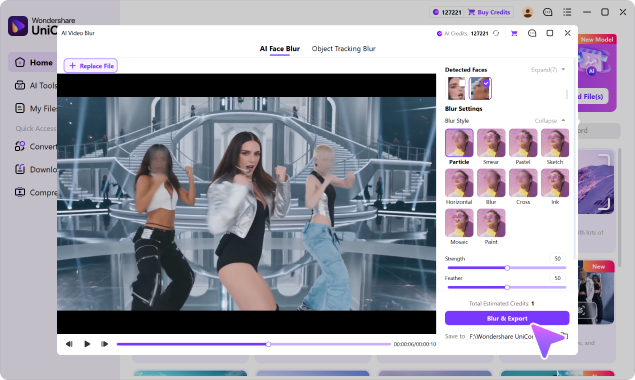
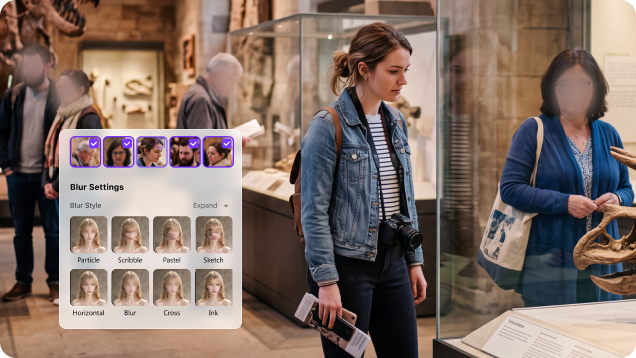
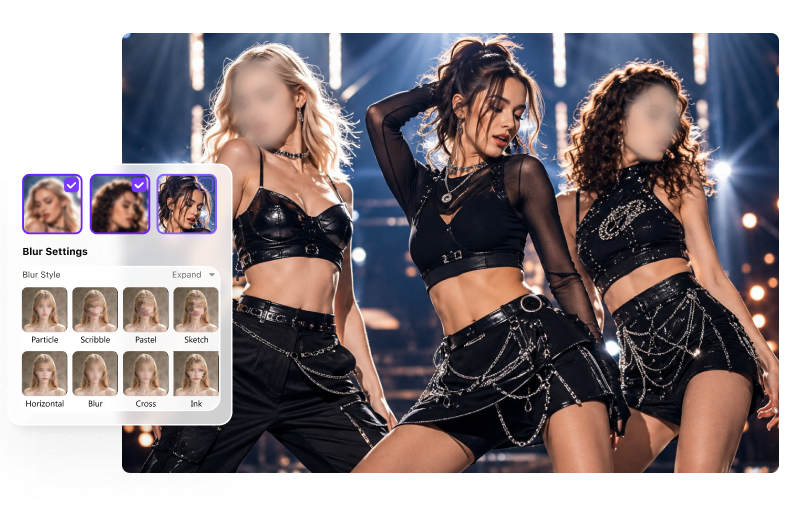
This face redaction software workflow lets UniConverter scan the footage for faces first. Review the generated face thumbnails and choose who should be concealed.

  • Redact one person, several people, or all detected faces.
  • Keep the effect attached as selected people move through the scene.
  • Useful for bystanders, children, interviewees, customers, and employees.
AI face redaction software detecting and concealing selected people

Track a Selected Object Through the Video

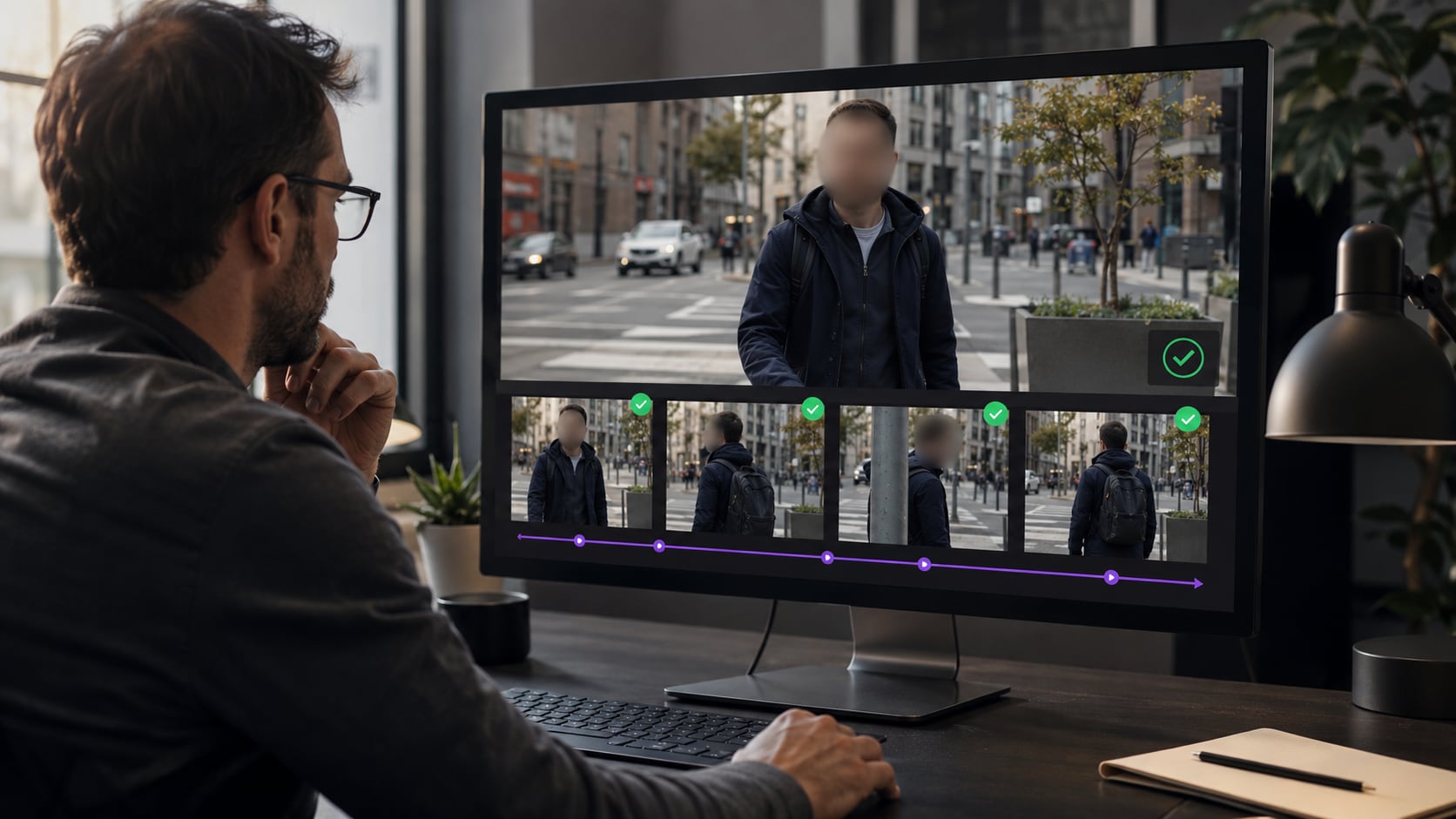
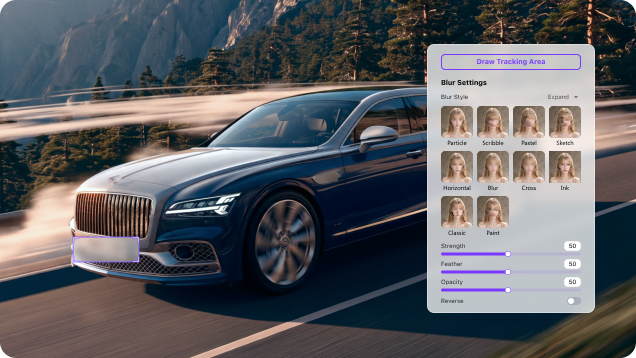
Use Object Tracking Blur mode for non-face details. Draw a box around a plate, screen, badge, document, sign, or other target and let AI follow the selection.

  • Avoid repositioning the redaction box on every frame.
  • Apply redaction to moving or stationary visible details.
  • For plates, follow the dedicated guide to redact a moving license plate.
AI video redaction tracking a selected sensitive object

Preview the Redacted Copy Before Export

AI can reduce repetitive work, but it does not remove the need for review. Watch the target enter and leave the frame, change size, turn, overlap, or become temporarily hidden.

  • Check whether every selected target stays covered.
  • Increase Strength or resize the selected area if details remain recognizable.
  • Keep the original file separate and export a new redacted copy.
Reviewer checking AI video redaction coverage before export
Redaction Controls

Choose How Sensitive Details Are Concealed

The video redaction software provides Blur, Mosaic, Strength, Feather, and Opacity controls for different privacy needs. Match the effect to the footage, then check whether the underlying information is still recognizable.

Use Blur or Mosaic for Clear Visual Redaction

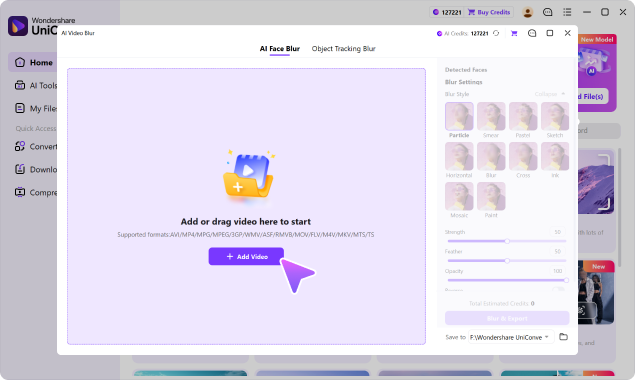
Blur creates a softer cover, while Mosaic produces an obvious block-style censorship effect. UniConverter also includes Particle, Smear, Pastel, Sketch, Horizontal, Cross, Ink, and Paint.

  • Choose a stronger effect for readable text, IDs, or plate characters.
  • Use a softer edge when the redaction should blend into edited content.
  • Keep the effect area large enough for movement and size changes.
Blur and mosaic styles used for visual video redaction

Adjust Strength, Feather, and Opacity

Strength changes how heavily the target is obscured, Feather softens the effect boundary, and Opacity controls how visible the applied style appears.

  • Pause and zoom in to check whether identifying details remain visible.
  • Recheck the result after changing the selected area or effect controls.
  • Use Reverse when you need to keep a chosen subject clear and obscure its surroundings.
Controls for video redaction strength feather and opacity

Process Multiple Videos in a Local Desktop Workflow

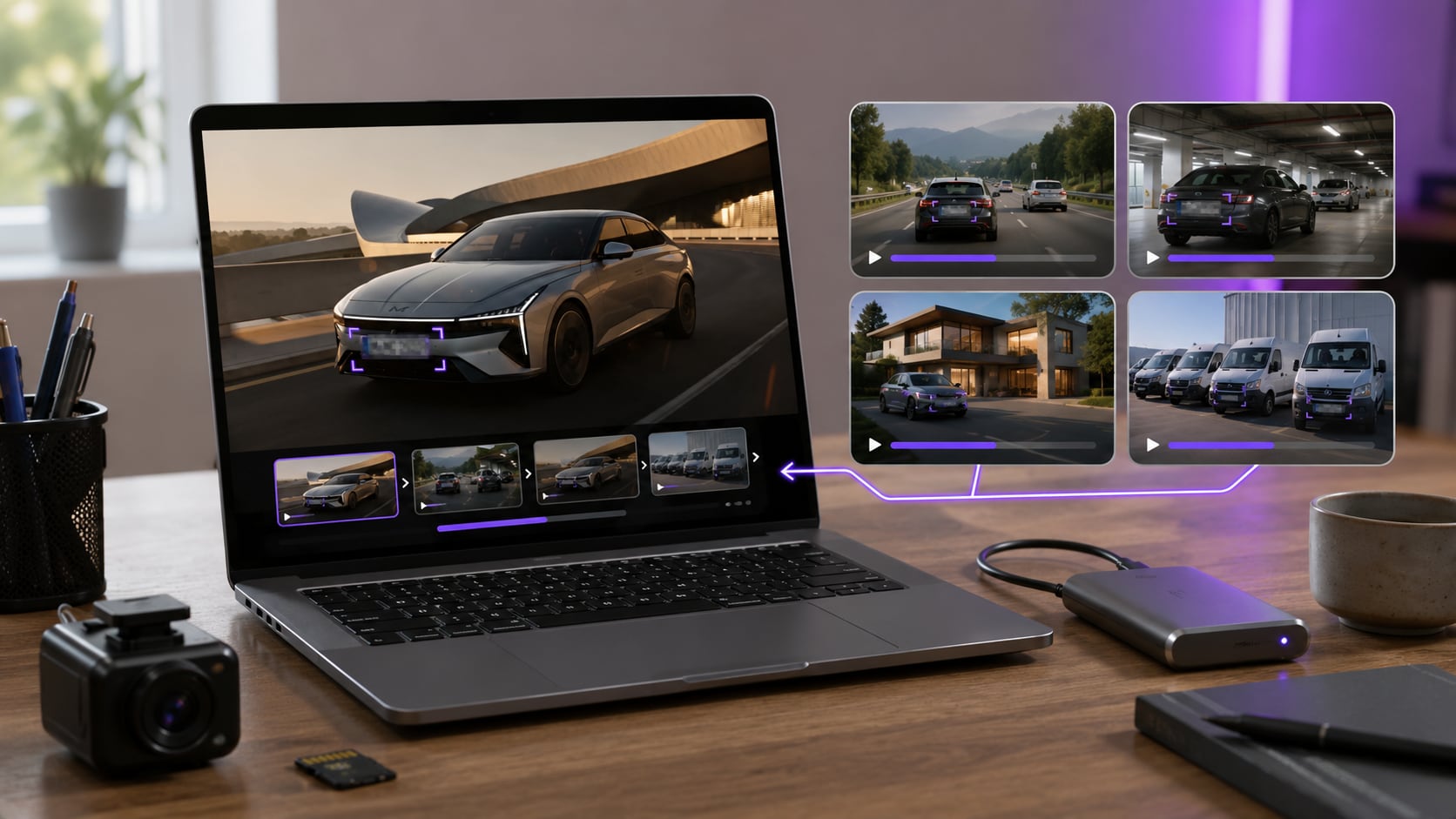
Add several video files (coming soon in V18), move between clips to configure redaction, preview each result, and process the queue without repeatedly uploading raw sensitive footage to browser tools.

  • Useful for interviews, training sessions, dashcam clips, and user research batches.
  • Keep unredacted source footage in the desktop workflow.
  • Continue converting, compressing, trimming, or enhancing after redaction.
Multiple videos prepared for local desktop redaction
Free Option

How to Try Free Video Redaction Software

UniConverter is available as a free download so you can test the AI video redaction workflow with your own footage before deciding whether it fits your project.

Try the Workflow Before You Commit

Download UniConverter, import a representative clip, test face detection or object tracking, adjust the effect, and preview the result. Current availability, export rules, and plan requirements can vary by product version, so confirm them in the app before starting a production batch.

What to Check in Any Free Video Redaction Tool

TrackingCoverageExportPrivacy

Check whether the tool can follow moving targets, whether the effect makes details unreadable, what the free export includes, and whether sensitive source footage must be uploaded.

Video Redaction Use Cases

Prepare Sensitive Footage for Safer Sharing

Use the video redaction software to prepare shareable copies of vlogs, interviews, dashcam clips, training videos, and screen recordings while retaining the original according to your own workflow.

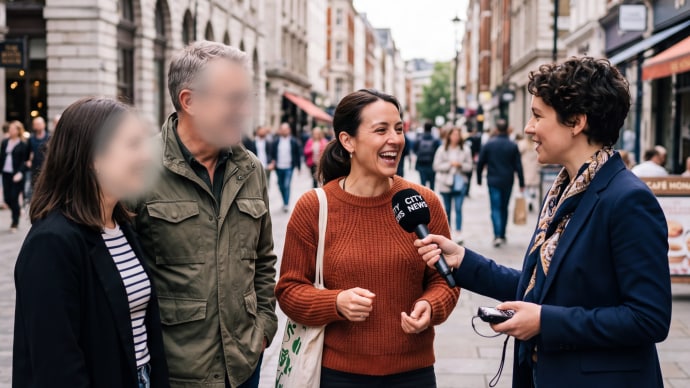
Interview video with a source face visually redacted

Interviews & Journalism

Conceal sources, witnesses, bystanders, badges, documents, or location clues before footage is published or shared outside the reporting team.

Choose the Right Software

UniConverter vs. Online & Enterprise Video Redaction Software

The right choice depends on whether you need quick visual redaction, browser convenience, or a regulated evidence workflow with administrative controls.

CapabilityUniConverter AI Video BlurTypical Online Video Redaction ToolEnterprise Video Redaction Platform
Automatic face detection✓ Detect and select facesVaries by provider✓ Commonly included
Track a selected non-face object✓ AI object trackingAvailable in some tools✓ Commonly included
Visual targetsFaces plus user-selected plates, screens, text & objectsOften faces or manual regionsOften multiple automated detection categories
Process without browser upload✓ Local desktop workflowUsually browser/cloud basedCloud, on-premises, or hybrid options vary
Multiple source videos✓ Multi-file workflowOften file or plan limited✓ Bulk automation and queues
Audio-PII redactionNot part of AI Video BlurUsually not includedOften available in dedicated platforms
Audit logs, case management & approvalNot designed for thisUsually not includedOften built for regulated workflows
Continue editing after redaction✓ Convert, compress, trim & enhanceUsually focused on one browser taskRedaction and evidence workflow focused
Best fitCreators, educators, teams & visual privacy tasksQuick low-complexity browser editsGovernment, legal or high-volume regulated operations

Use UniConverter when: you need face redaction, selected-object tracking, local visual processing, multiple clips, and an accessible desktop workflow. Consider an enterprise platform when: your process requires audio-PII redaction, audit trails, role-based approvals, evidence integration, or formal chain-of-custody controls.

Review & Formats

Export a Redacted Copy You Have Checked

Format support makes footage easier to import; careful review determines whether the visual redaction is complete.

Common Video Formats

Work with MP4, MOV, AVI, MKV, M4V, WMV, FLV, MTS, TS, 3GP, and other commonly used formats supported by AI Video Blur.

MP4MOVAVIMKVM4VWMVFLVMTSTS3GP

Final Redaction Checklist

Watch the first and last frame of every target, fast movement, turns, camera pans, overlap, partial obstruction, reflections, and moments when new people or details enter the scene. Pause and zoom in to confirm that names, numbers, and identifying features remain unreadable.

DetectSelectTrackReviewExport Copy
Video Redaction FAQ

Frequently Asked Questions

Clear answers about AI video redaction, face detection, object tracking, free access, local processing, and enterprise requirements.

Video redaction means visually concealing sensitive or identifying content—such as faces, license plates, screens, documents, names, or badges—in a copy of the footage before it is shared, published, presented, or released.

UniConverter automatically detects faces in AI Face Blur mode. In Object Tracking Blur mode, you draw a box around a non-face target and AI tracks that selected area as it moves. You then review the coverage before export.

No. Faces are detected automatically. License plates, screens, documents, badges, text, and other non-face details must be selected by the user before AI tracks them. Always review the complete video for missed targets.

Yes. After faces are detected, you can choose a specific person, several people, or all detected faces. The applied effect follows the selected faces through the footage.

UniConverter is free to download and try. Current feature access, export rules, and plan requirements can vary by version, so confirm them in the app before starting a production workflow.

No. AI Video Blur runs in the UniConverter desktop workflow for Windows and macOS, so you can visually redact sensitive source footage without uploading it to an unfamiliar online redaction site.

AI Video Blur is a visual redaction feature. Do not treat it as an automatic audio-PII redaction system. Review the audio separately when spoken names, addresses, account details, or other sensitive information may be present.

Yes. Add multiple videos, move between clips to select targets and check settings, then process the files as part of the same desktop queue.

UniConverter can visually conceal faces and user-selected details in common video files, including incident footage. However, AI Video Blur is not an evidence-management system and does not provide case management, approval workflows, audit logs, or chain-of-custody controls. Use software that meets your organization's formal requirements.

Review every target from its first visible frame to its last. Check fast movement, turns, camera shake, overlap, temporary obstruction, reflections, and newly appearing people or details. Pause and zoom in to confirm identifying information remains unreadable.

Redact the Details—Keep the Value of the Video

Detect faces, track selected private details, customize the effect, review the coverage, and export a redacted copy with UniConverter AI Video Blur.

UniConverter AI video redaction desktop workflow