UniConverter
UniConverter Online Free
Converter video, audio & image free
Free Try
UniConverter AI License Plate Blur

How to Blur a License Plate in a Video with UniConverter AI

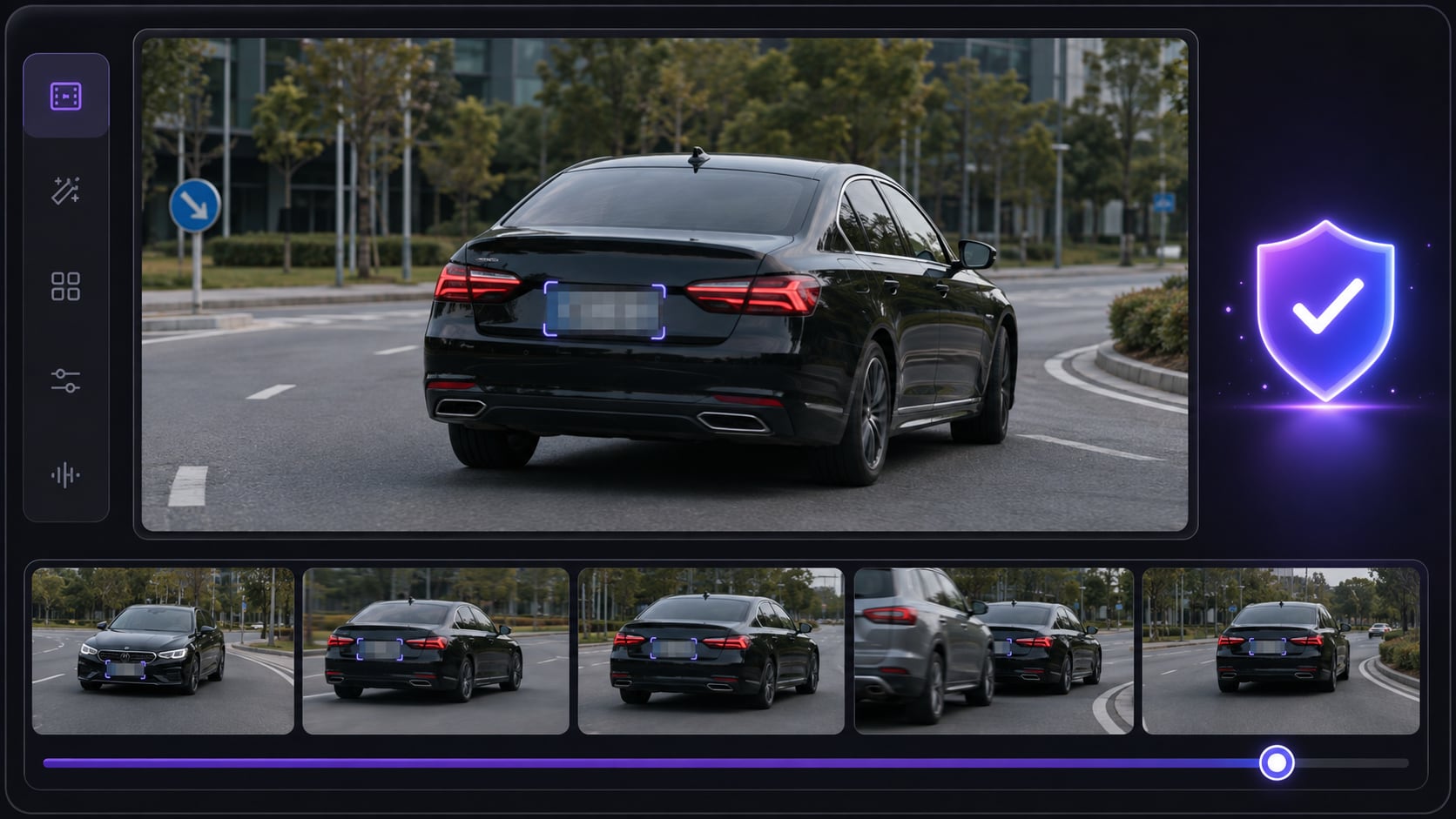
Wondering how to blur a license plate in a video without manual keyframes? UniConverter's AI Video Blur lets you select a car number plate once, track it as the vehicle or camera moves, customize the effect, and export from a private desktop workflow.

  • Select a license plate once; AI tracks it as it moves
  • Choose Blur, Mosaic, or 8 more styles and fine-tune the effect
  • Handle multiple sensitive videos locally on Windows or Mac
Available on:

For Windows 11/10/8/7

For macOS 10.13 or later

4.7Rated on Trustpilot
Quick Answer

How to Blur a Number Plate in Video with UniConverter

Use Object Tracking, Not a Stationary Blur Box

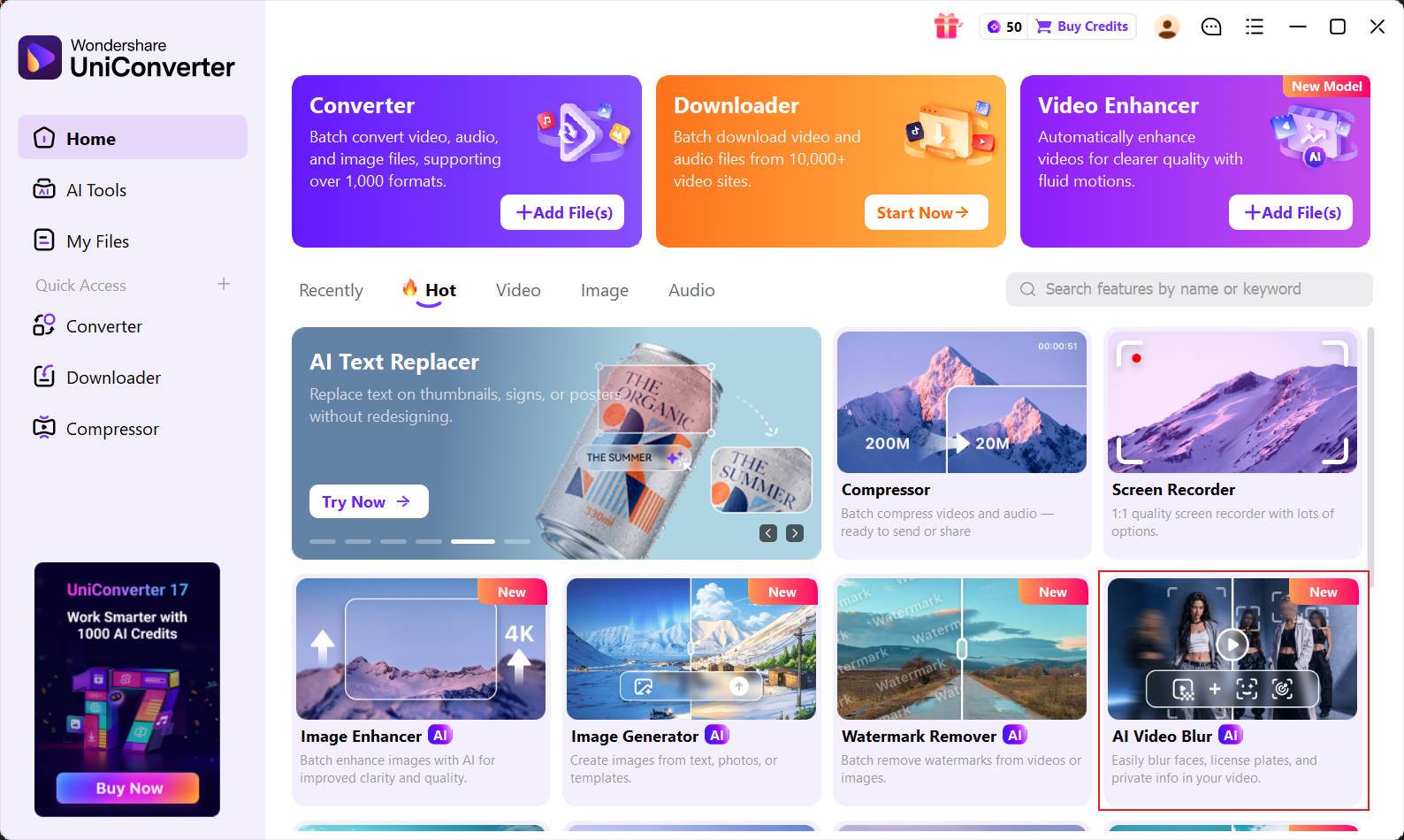
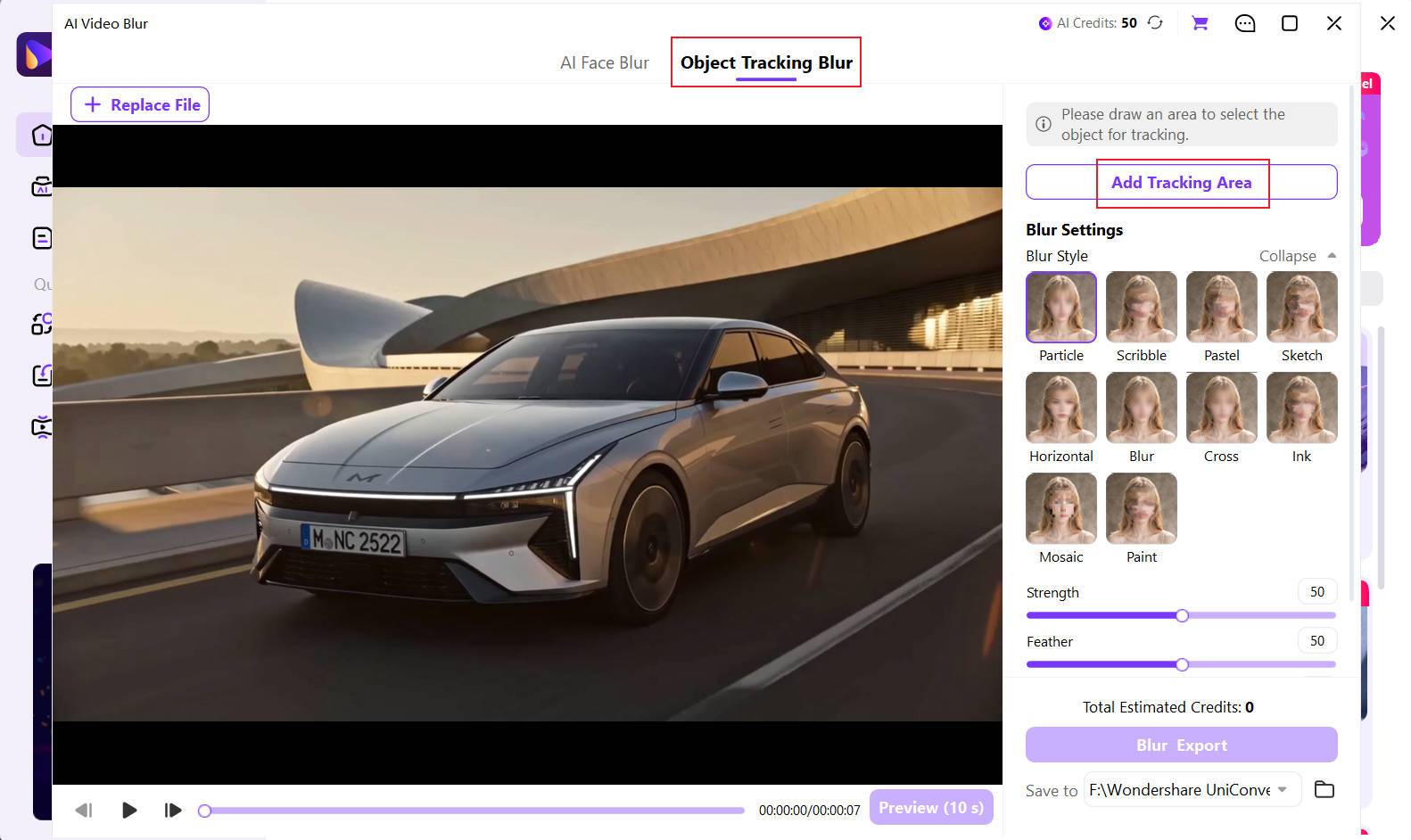
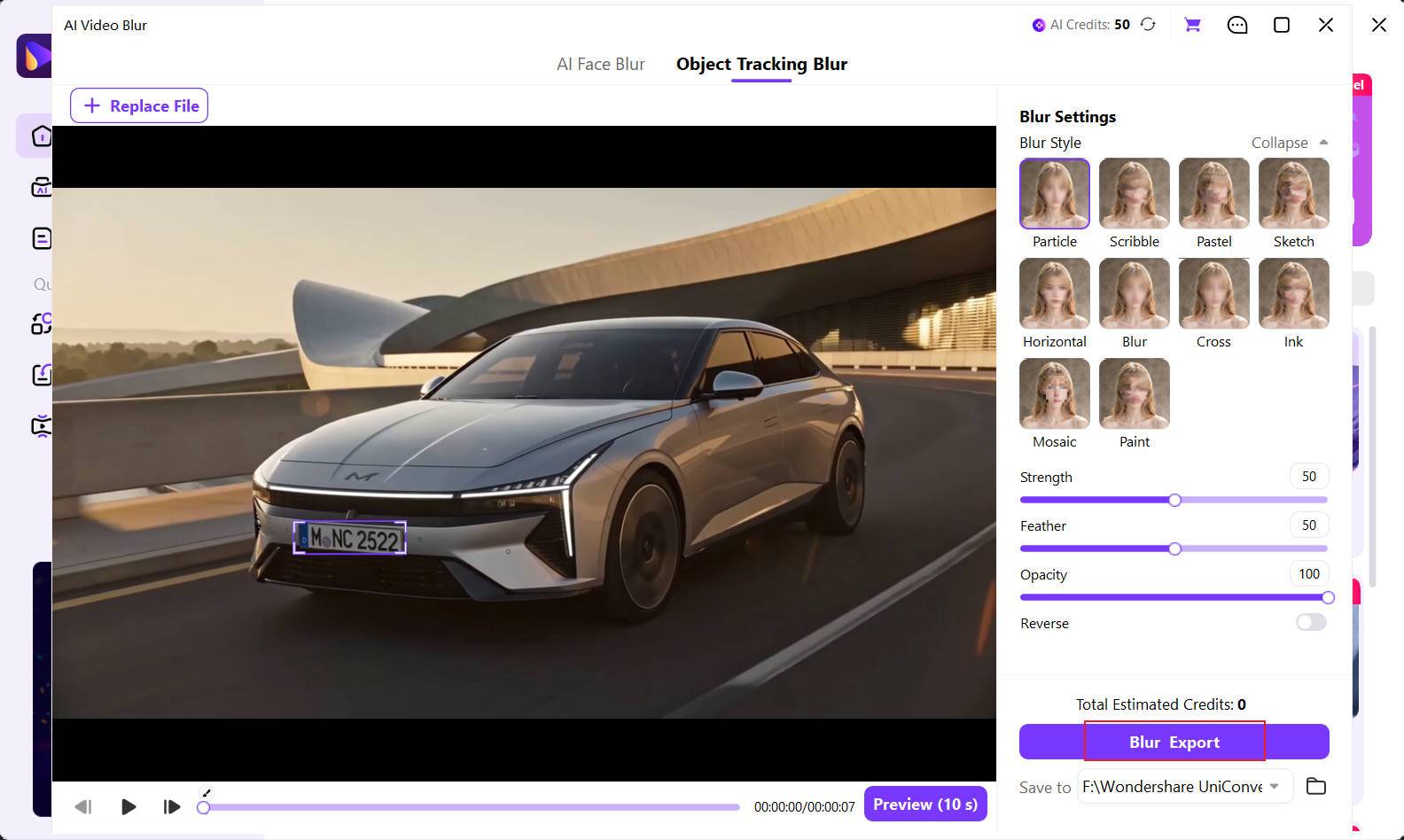
To blur a number plate in video footage, open AI Video Blur in UniConverter, choose Object Tracking Blur mode, and draw a box around the visible plate. AI follows the selected plate through the clip. Choose a Blur Style, adjust the coverage, preview the result, and export.

Important: UniConverter automatically detects faces. For license plates and other non-face objects, you select the target first; AI then tracks that selection. This is the same workflow whether you call it a license plate, number plate, or car registration plate.
Best for Moving Plates

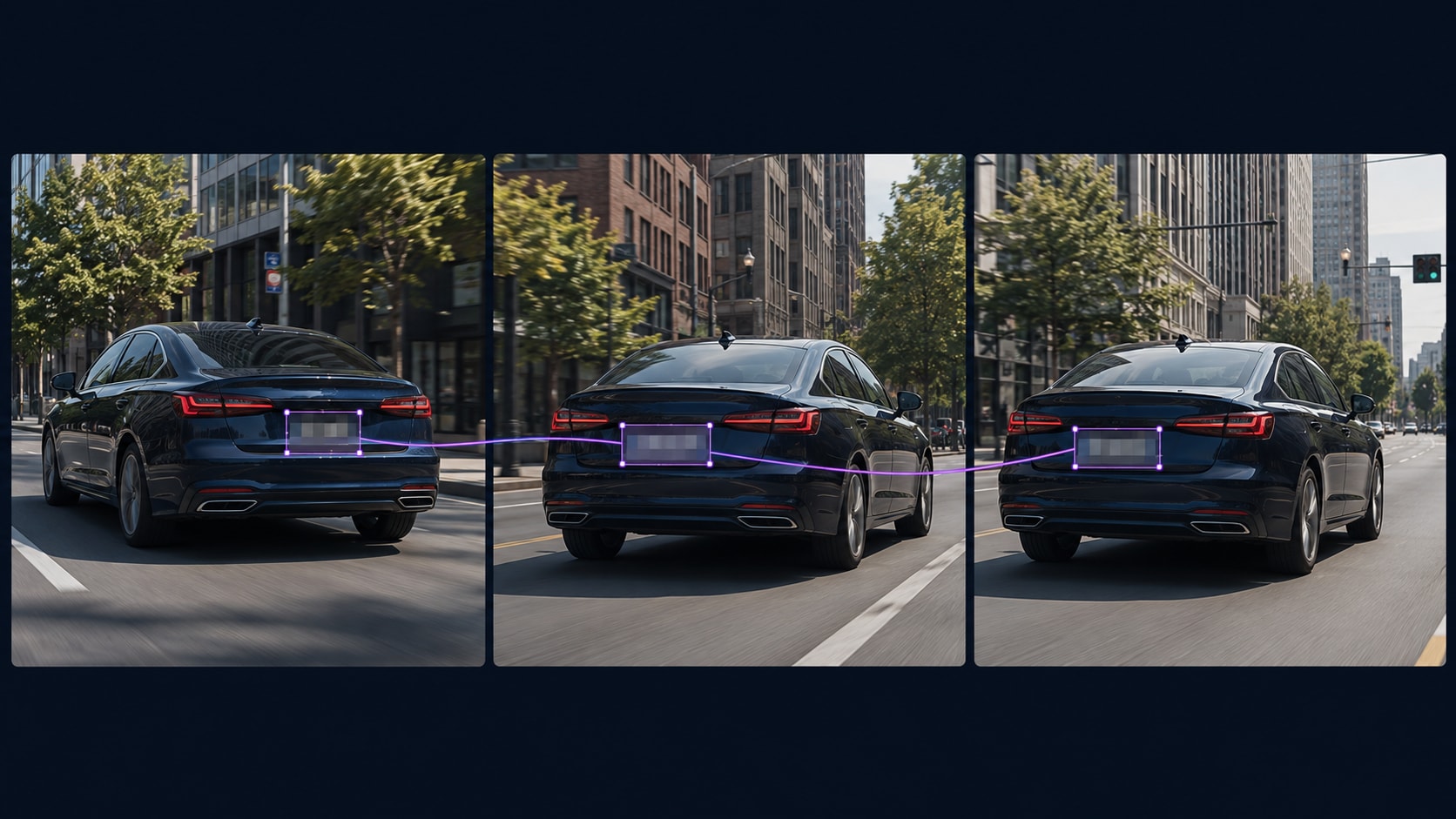
A static mask may work when the camera and vehicle do not move. For dashcam footage, drive-by shots, parking-lot videos, and street vlogs, tracking keeps the blurred area aligned as the plate changes position, size, or angle.

SelectTrackAdjustPreviewExport
Why AI Tracking

Keep the Blur on a Moving Number Plate

The difficult part is not placing the first blur—it is keeping the plate covered after the car moves, the camera pans, or the framing changes.

AI blur tracking a moving license plate across video frames

Follow Motion Automatically

Draw one selection around the plate and let object tracking move the blur with the target instead of repositioning it frame by frame.

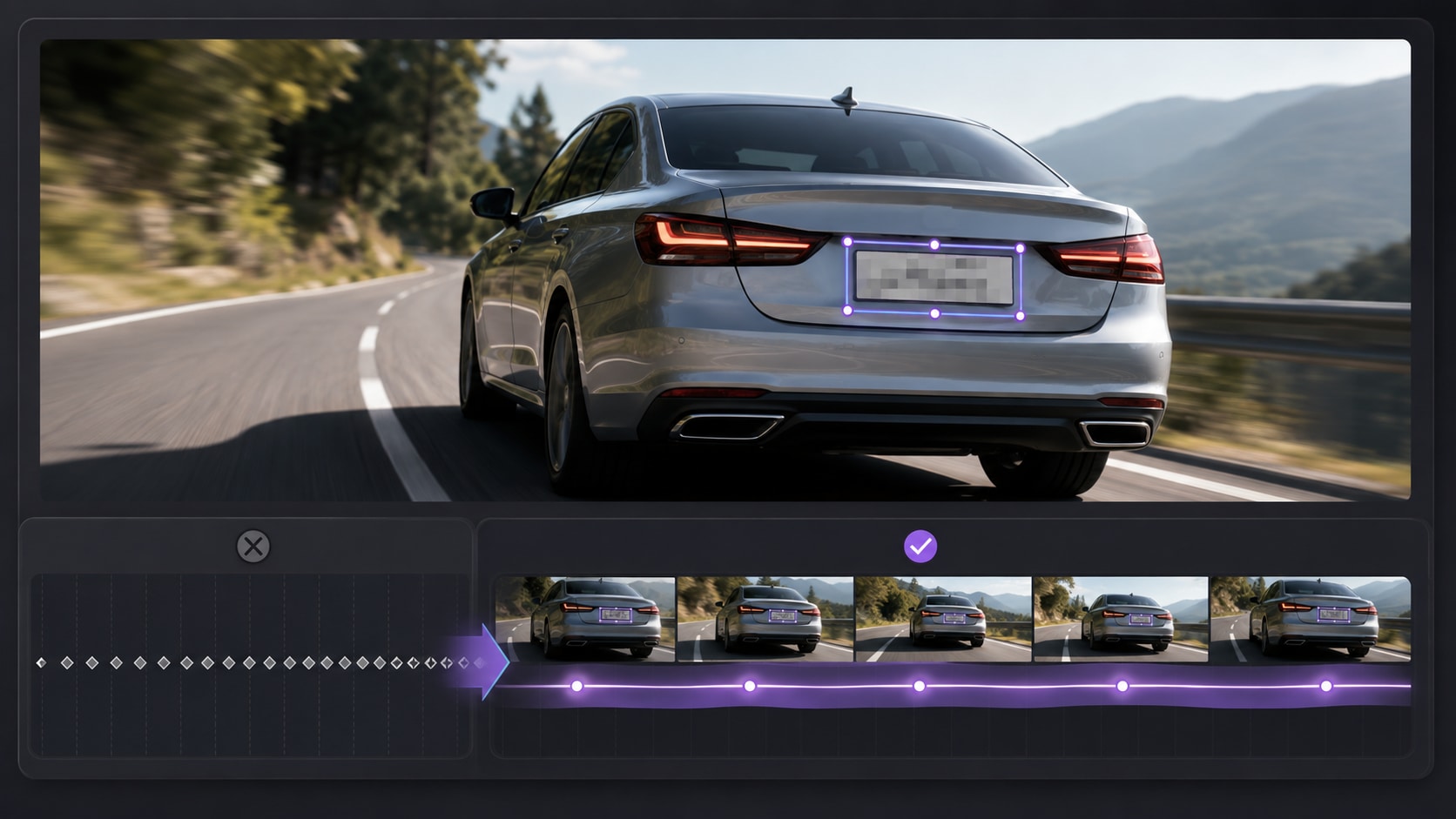
License plate blur applied without manual frame-by-frame keyframes

Skip Manual Keyframing

Avoid building a long chain of keyframes just to cover one car number plate in a moving shot.

Preview checking complete number plate blur coverage before export

Review Before Export

Preview the tracked area and check entrances, exits, fast motion, turns, and partial obstructions before sharing the final video.

Blur Controls

Make the Plate Unreadable Without Blurring the Whole Video

Keep the effect limited to the selected registration plate and tune its appearance for privacy, clarity, and the visual style of the footage.

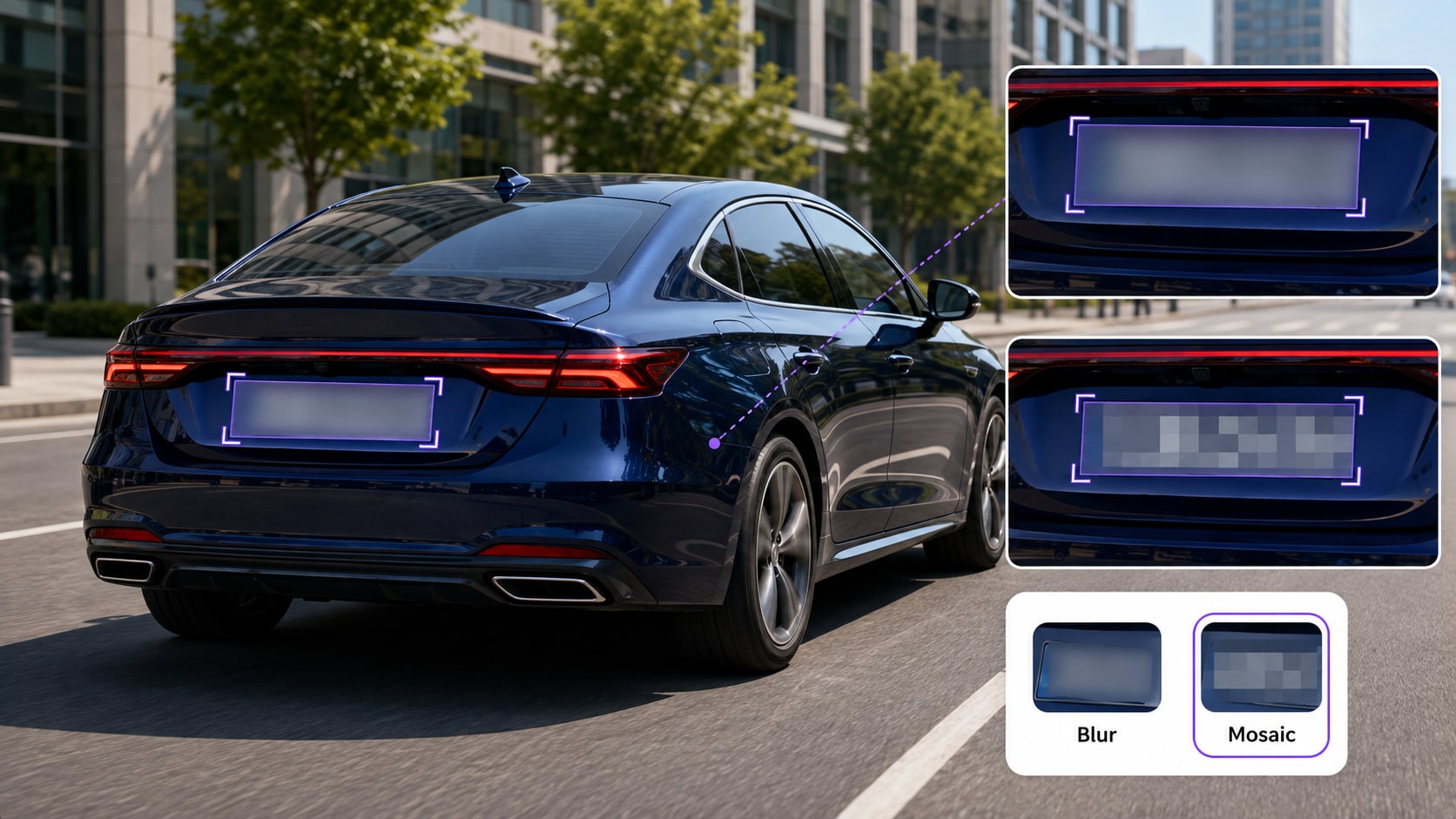
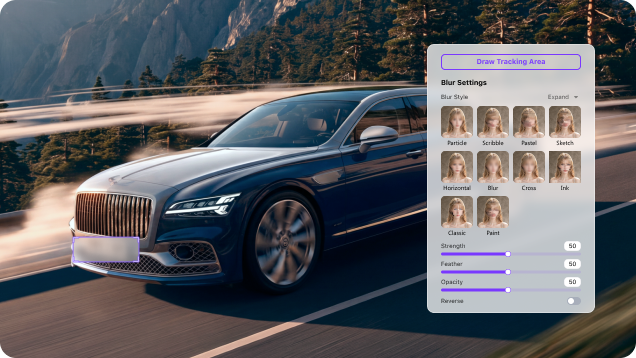
Choose Blur or Mosaic for Clear Censorship

Blur creates a softer cover that can blend into vlogs and edited content. Mosaic creates a visibly censored, block-style area that makes the privacy edit easy to recognize.

  • Use stronger coverage when plate characters must not remain readable.
  • Resize the selected area so the entire plate stays inside the effect.
  • Other styles include Particle, Smear, Pastel, Sketch, Horizontal, Cross, Ink, and Paint.
Blur and mosaic styles used to conceal a vehicle number plate

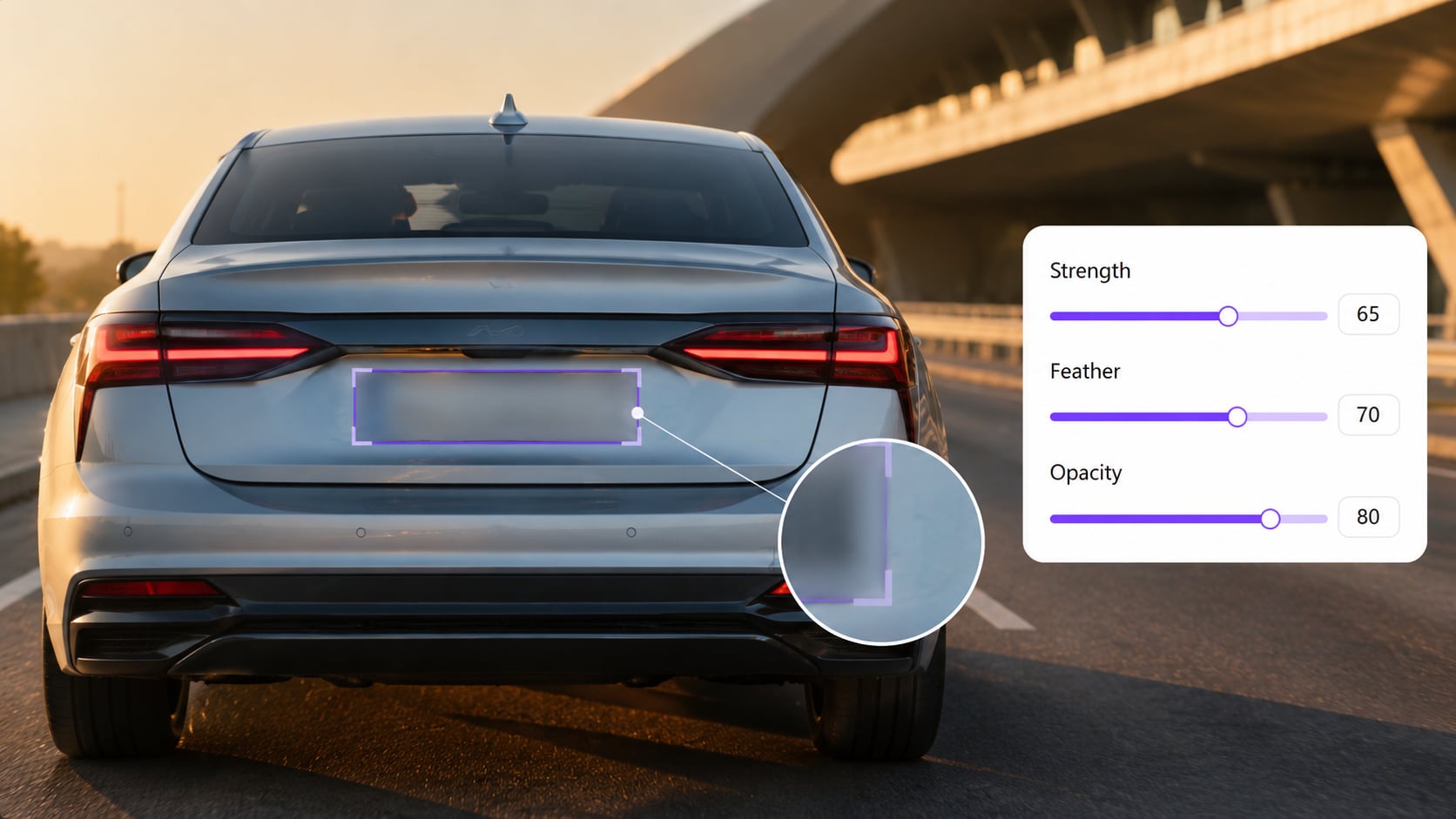
Fine-Tune Strength, Feather, and Opacity

Strength controls how heavily the plate is obscured, Feather softens the effect boundary, and Opacity controls how visible the applied style appears.

  • Zoom in during preview to check whether characters can still be read.
  • Use Feather to prevent a harsh edge when a softer look is preferred.
  • Recheck coverage after changing the size, style, or opacity.
Controls for adjusting number plate blur strength feather and opacity

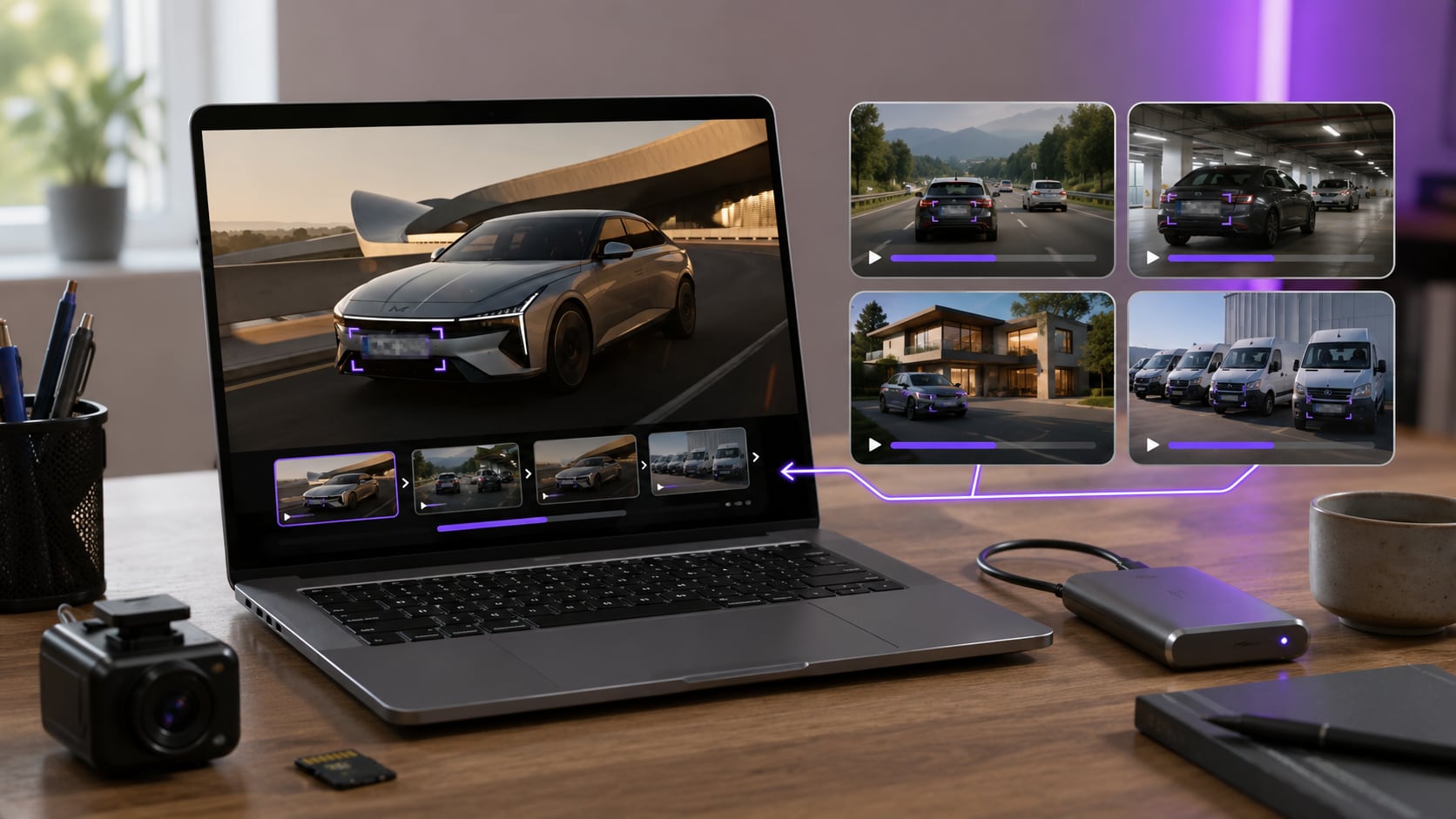
Handle Multiple Clips in One Desktop Workflow (Coming Soon in V18)

Add several source videos, switch between clips to configure the plate blur, preview each result, and export the queue. This is useful when one drive, property shoot, event, or fleet session produces many files.

  • Avoid repeatedly opening a separate browser tool for every clip.
  • Keep original sensitive footage in a local desktop workflow.
  • Continue converting, compressing, trimming, or enhancing after blurring.
Batch workflow for blurring number plates in multiple videos
Before You Export

Check Every Moment the License Plate Is Visible

AI tracking reduces manual work, but the final privacy check still matters—especially with fast vehicles, camera shake, low light, and temporary obstruction.

Plate Entrance & Exit

Check the first frame where the plate appears and the last frame before it leaves the shot.

Turns & Size Changes

Confirm the effect still covers the plate as the vehicle turns, approaches, or moves away.

Obstructions

Review moments when another car, person, sign, or object briefly passes in front of the plate.

Camera Pans & Shake

Scrub through rapid camera movement to ensure the selection does not drift away from the target.

Every Visible Plate

Look for additional front, rear, parked, or background plates that need their own selection.

Final Readability

Pause and zoom in. Increase the strength or resize the covered area if any characters remain readable.

Real-World Footage

When to Blur a Car Number Plate in Video

Prepare a shareable version of vehicle footage while retaining a separate original when your evidence, reporting, or internal process requires one.

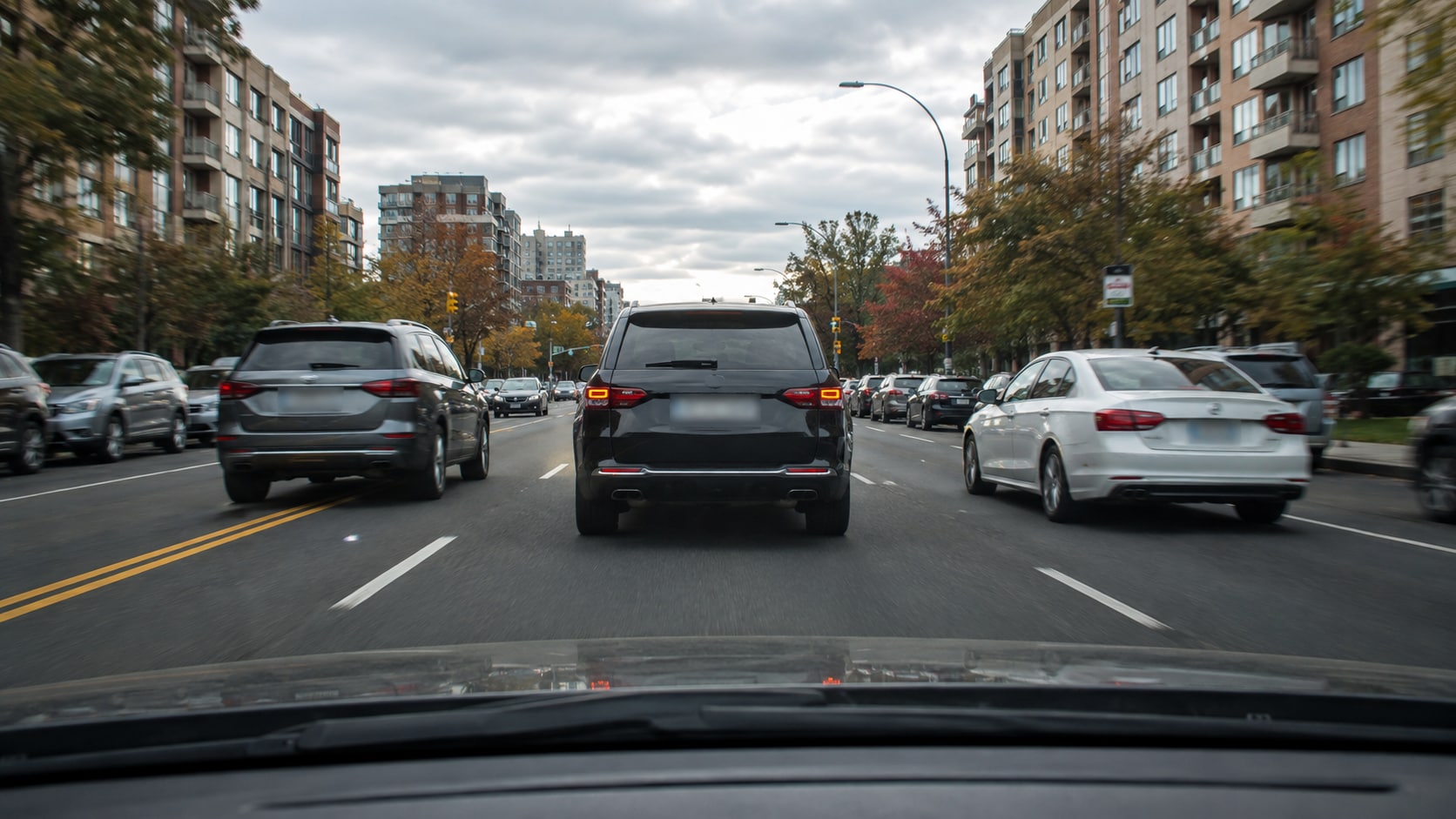
Blurred moving license plates in dashcam footage

Dashcam & Road Footage

Blur moving number plates before posting road trips, traffic incidents, driving reviews, or street footage publicly.

Choose the Right Workflow

AI License Plate Blur vs. Static Masks & Manual Keyframes

A stationary blur is suitable only when the plate does not move. Tracking is the more practical choice when the vehicle, camera, or both change position.

CapabilityUniConverter AI Video BlurBasic Online Blur ToolTraditional Video Editor
Keep blur aligned with a moving plate✓ AI tracks the selected plateVaries; some use a stationary overlayPossible with tracking or keyframes
Need to select the license plate✓ Select once, then trackUsually requires manual placementRequires a mask or tracked selection
Frame-by-frame keyframingNot required for the tracked targetMay be required if tracking is unavailableOften used for manual correction
Process unblurred footage without browser upload✓ Local desktop workflowCommonly browser/cloud based; varies by provider✓ With desktop software
Blur appearance controls✓ Style, Strength, Feather, OpacityOften limited; varies by toolUsually flexible, with more setup
Handle several source videos✓ Multi-file workflowOften processed one upload at a timePossible; workflow varies
Continue other video tasks✓ Convert, compress, trim, enhanceUsually focused on one browser task✓ Editing-focused workflow
Best fitMoving plates and repeat privacy workQuick static edits on short clipsDetailed manual production work

Bottom line: Use UniConverter when you want the blur to follow a selected plate automatically, need to keep sensitive source footage on your desktop, or have multiple clips to prepare. Always preview the output because difficult motion and visibility can affect tracking.

Supported Workflow

From Raw Vehicle Footage to a Share-Ready Copy

Use the same desktop application for privacy blurring and the common video tasks that come before or after it.

Common Video Formats

Work with MP4, MOV, AVI, MKV, M4V, WMV, FLV, MTS, TS, 3GP, and other commonly used formats supported by AI Video Blur.

MP4MOVAVIMKVM4VWMVFLVMTSTS3GP

One Practical Privacy Workflow

Trim unnecessary footage, blur the selected plates, preview the complete clip, and then compress or convert the shareable copy if required.

ImportTrimTrack & BlurPreviewExport

If people are also identifiable, use automatic face blurring as part of the privacy review.

License Plate Blur FAQ

Frequently Asked Questions

Direct answers about how to blur number plates in video, AI tracking, effects, local processing, and final checks.

Use Object Tracking Blur mode in UniConverter AI Video Blur. Draw a box around the visible plate, let AI track that selection, choose a blur style, preview the complete clip, and export. This avoids manually repositioning a mask on every frame.

No. UniConverter automatically detects faces. For a license plate, number plate, logo, screen, or another non-face object, first draw a box around the target in Object Tracking Blur mode. AI then follows that selected target through the video.

Yes. After you select the visible plate, AI object tracking keeps the blur aligned as the target moves. Preview the entire clip and check fast movement, turns, camera pans, entrances, exits, and obstructions before export.

Blur creates a softer look, while Mosaic creates a more obvious censored effect. Whichever style you choose, adjust Strength and Opacity until the characters are unreadable, and resize the selected area so it covers the full plate.

Yes. Object Tracking Blur mode applies the effect to the selected target area rather than the whole frame. Keep the selection tight enough to preserve the surrounding footage but large enough to cover the plate throughout its movement.

Yes. Add multiple source files to the desktop workflow, configure the target in each clip, preview the results, and process the queue. This is useful for dashcam journeys, property shoots, event footage, and fleet videos.

No. AI Video Blur runs in the UniConverter desktop workflow for Windows and macOS, so the sensitive source video does not need to be uploaded to an unfamiliar browser-based blur site.

UniConverter provides AI Face Blur mode for automatically detected faces and Object Tracking Blur mode for user-selected plates and other details. Review every identifying element in the source footage and apply the appropriate mode before sharing.

Preview the full clip, pause when the plate is largest or clearest, and zoom in. Check that no characters remain readable and that the effect covers the plate during turns, size changes, camera movement, and partial obstruction.

Blur the Plate—Keep the Rest of the Video

Use UniConverter AI Video Blur to select a moving number plate, track it automatically, customize the effect, preview the coverage, and export a share-ready copy from your desktop.

UniConverter AI Video Blur tracking and concealing a selected license plate