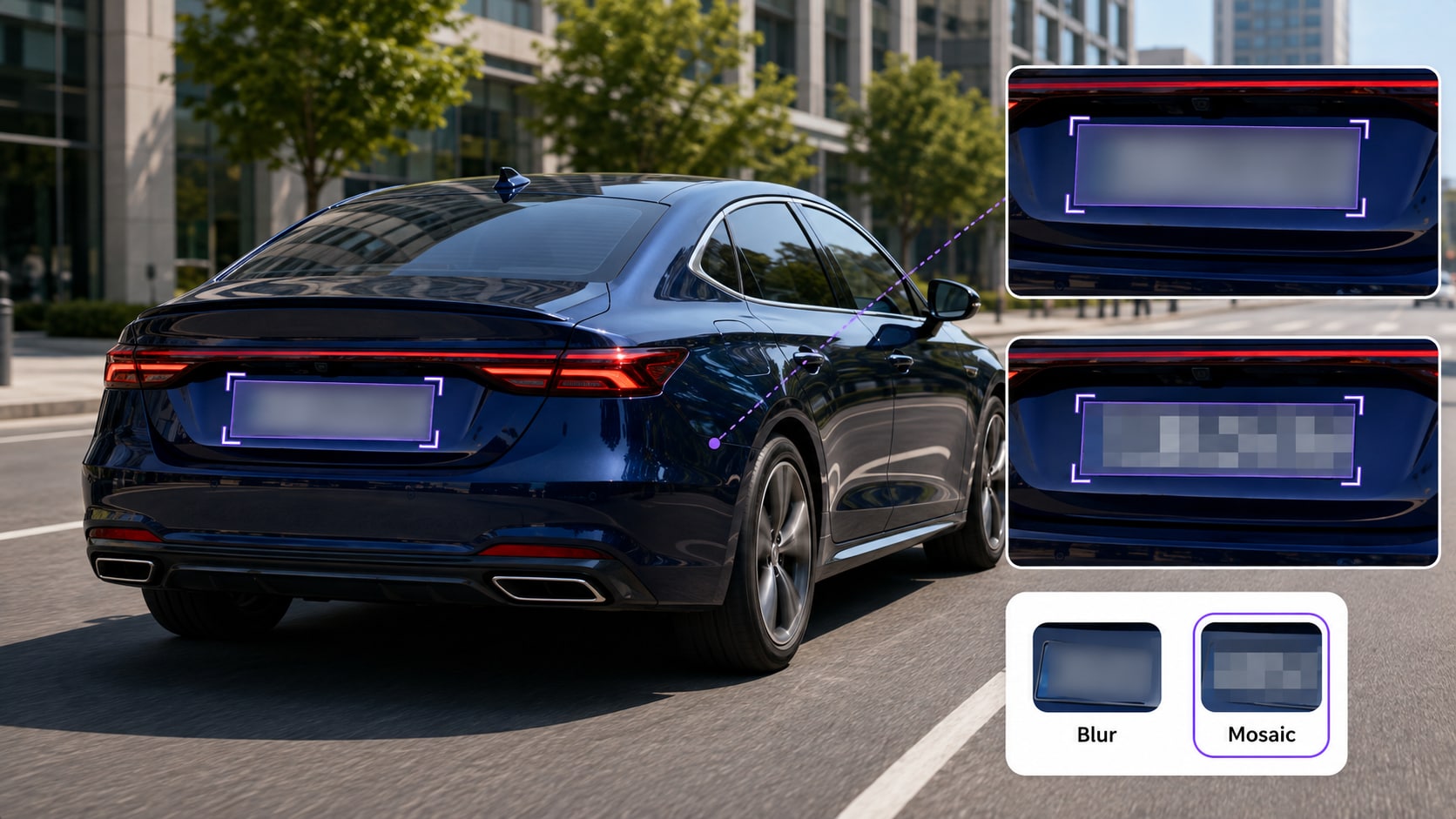
Keep the Source
Preserve the original recording according to your evidence, retention, or records policy. Perform redaction on a working copy.
CCTV redaction conceals identifiable or sensitive visual information in surveillance footage before a copy is disclosed, published, used for training, or shared outside the original handling team. With UniConverter AI Video Blur, common targets include faces, license plates, badges, screens, documents, addresses, and location clues.
Preserve the original recording according to your evidence, retention, or records policy. Perform redaction on a working copy.
Use face detection for people and selected-object tracking for plates, screens, signs, and other visible details.
Check that every intended target stays covered through movement, cuts, occlusion, and changes in lighting before release.
Combine automatic face detection with object tracking to cover the visual information that should not appear in the released copy.
Scan the footage for faces, review the generated thumbnails, and redact selected people or everyone detected.
Draw a box around a visible plate and let Object Tracking Blur follow the selected plate as the vehicle moves.
Hide dispatch screens, security monitors, mobile devices, dashboards, or other displayed information.
Cover ID badges, reports, forms, notepads, labels, or other readable material captured in the frame.
Redact house numbers, street signs, storefront details, room numbers, or location information where necessary.
Reverse the selection to keep a relevant subject clear while blurring the surrounding scene and private context.
AI handles repetitive detection and tracking work. You decide who or what is hidden, how the redaction looks, and whether the result is ready to export.
AI Face Blur mode scans the clip and presents detected face thumbnails. Choose a witness, officer, child, customer, bystander, or every detected person instead of drawing a new mask on each frame. See the dedicated workflow to blur faces in a video.
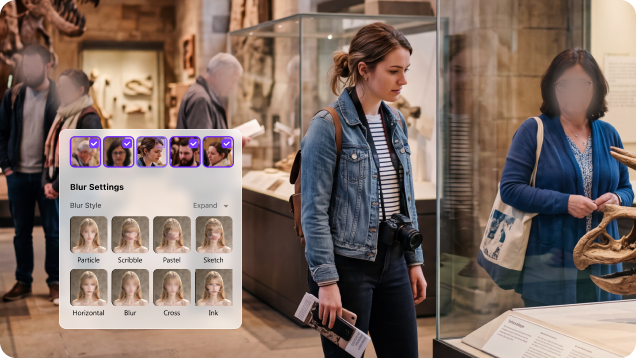
Use Object Tracking Blur mode for non-face information. Draw a box around the target once, then let AI follow it through the video without manually repositioning the redaction frame by frame. This is the same workflow used to blur a part of video.
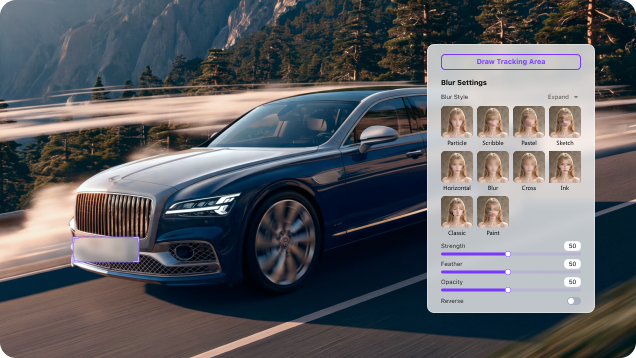
Use Blur or Mosaic for recognizable privacy masking, then adjust Strength, Feather, and Opacity. Preview the processed segment and confirm that movement and scene changes do not expose the target.
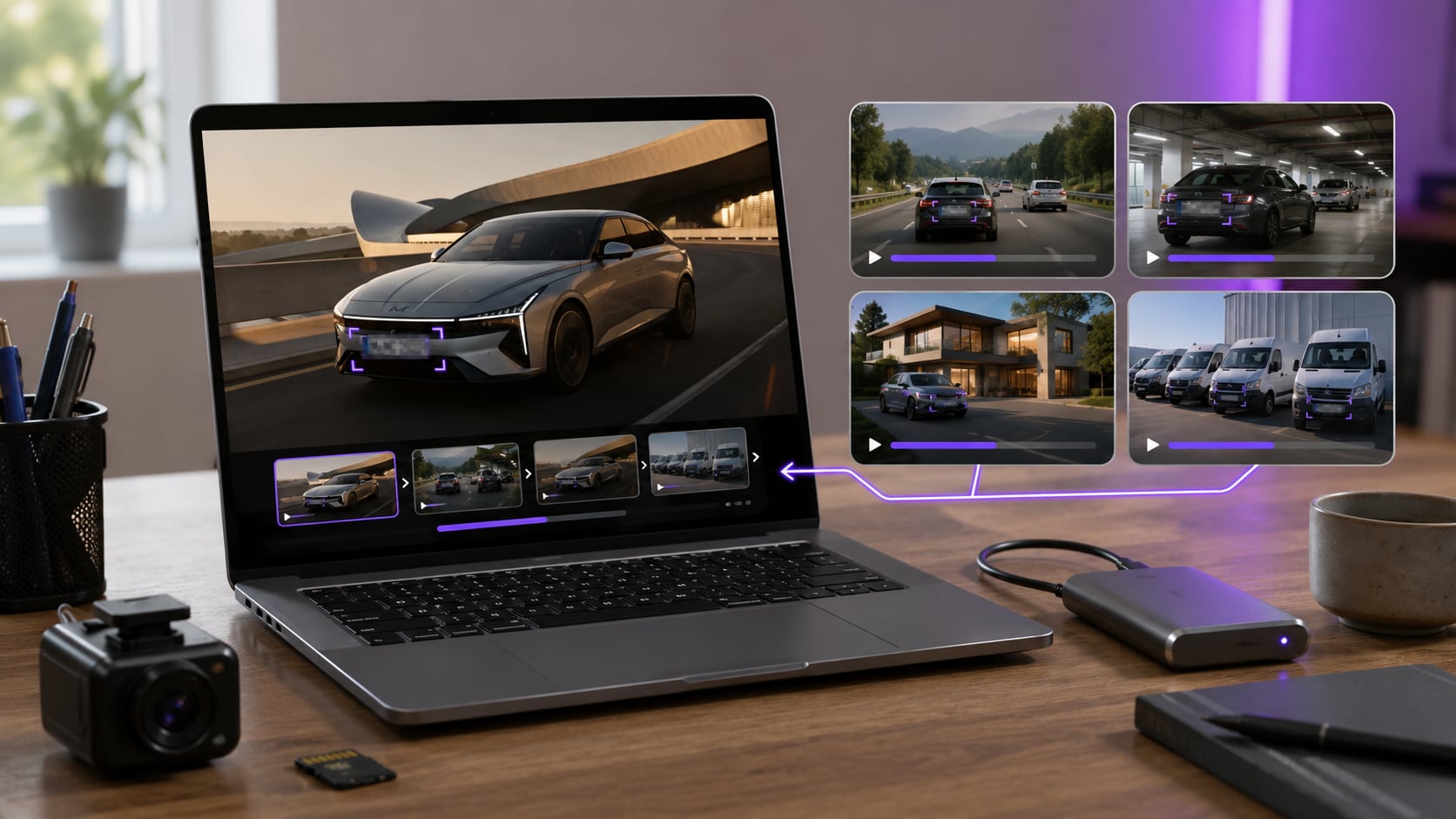
Work with CCTV and police video files in UniConverter on Windows or macOS instead of uploading unredacted source material to an unfamiliar browser tool. Add multiple clips, review each file, and export redacted copies as one batch workflow.
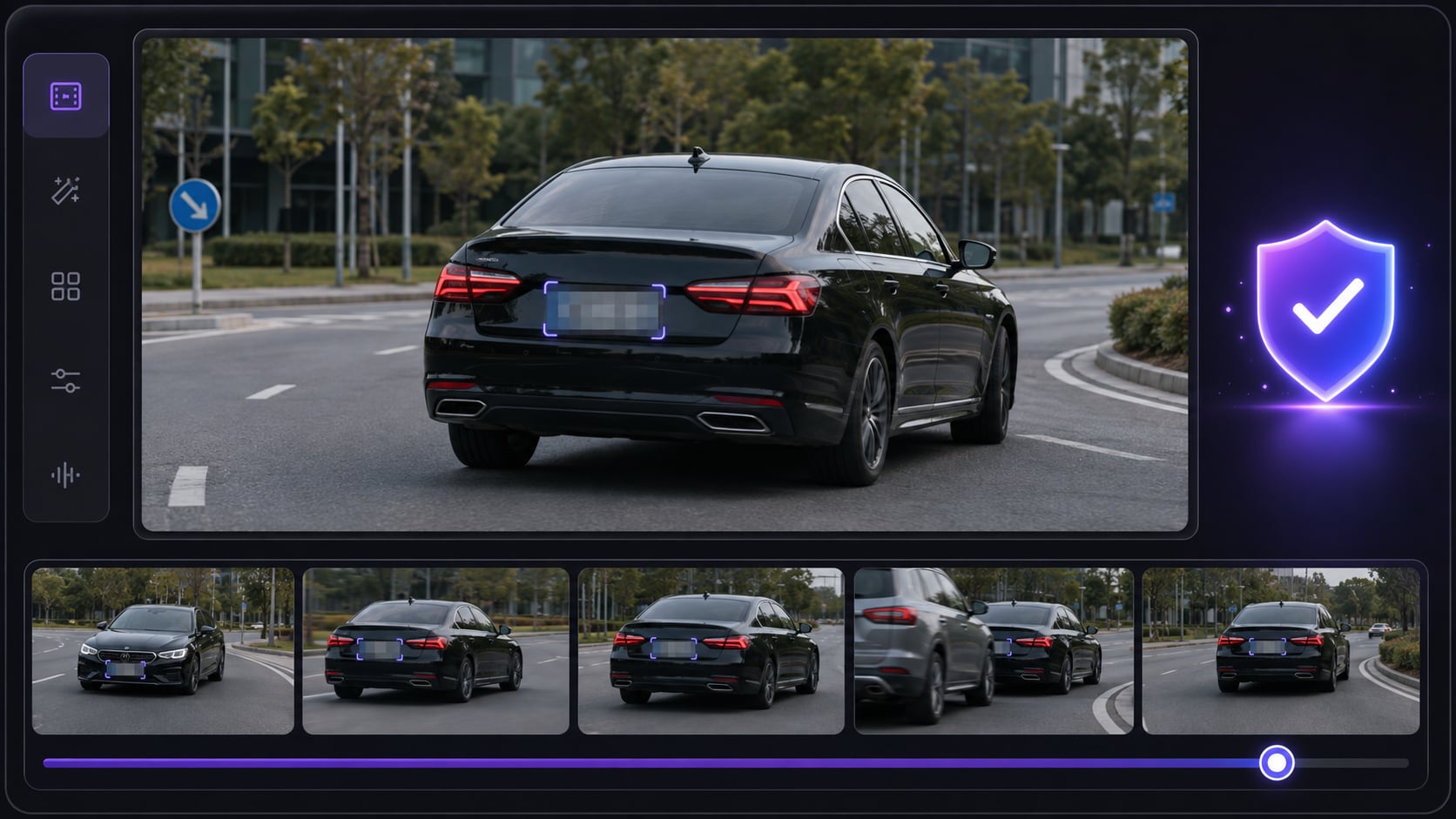
Preserve the original, work on a copy, apply visual redactions, and review the entire output before it is shared.

Retain the original recording according to your policy. Open AI Video Blur and add the copy or copies you are authorized to process.

Use AI Face Blur mode to select detected people, or Object Tracking Blur mode to box a plate, screen, badge, document, sign, or other detail.

Preview the full coverage, correct missed or weak areas, and export a separately named redacted copy. Record the review outside UniConverter if your process requires an audit trail.
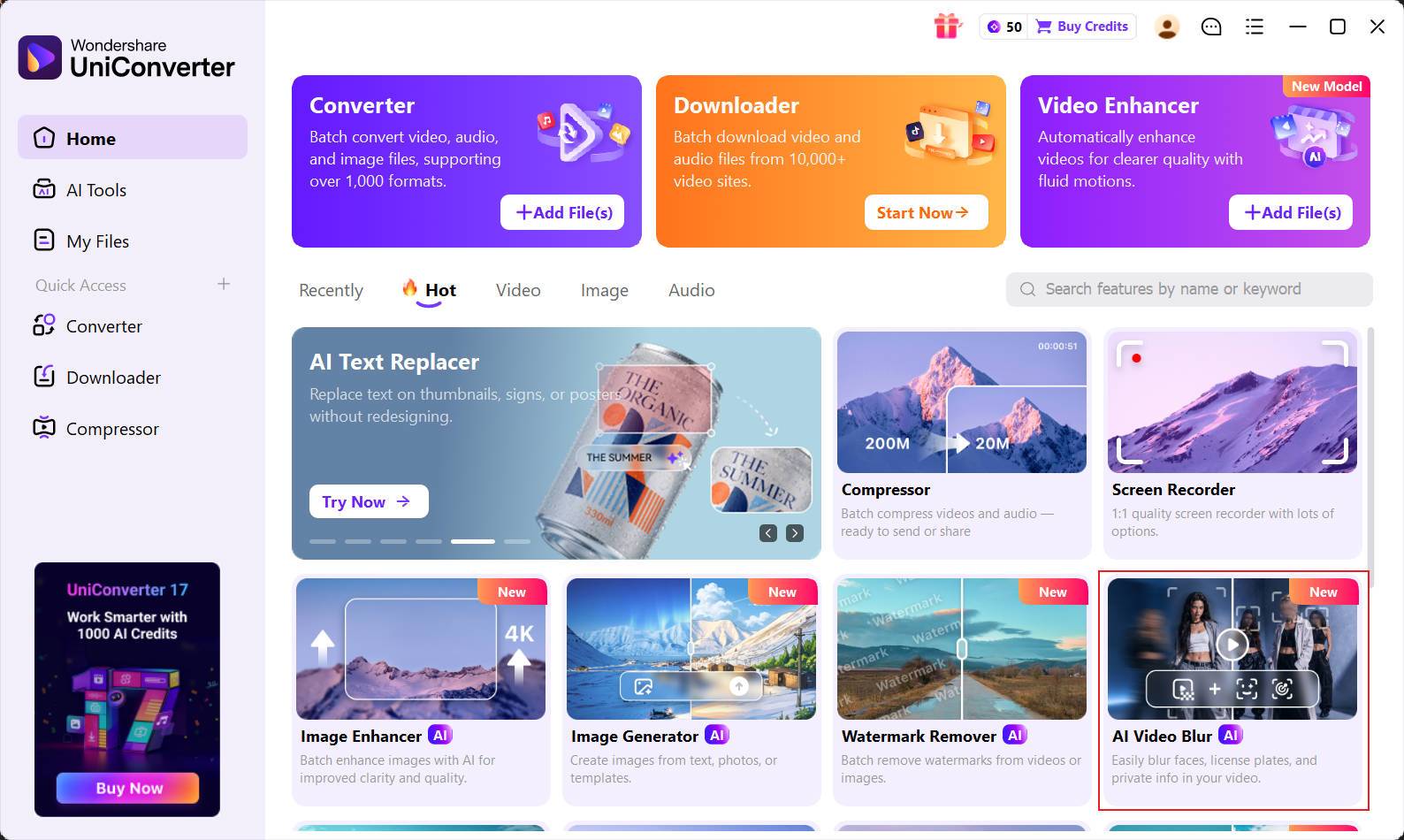
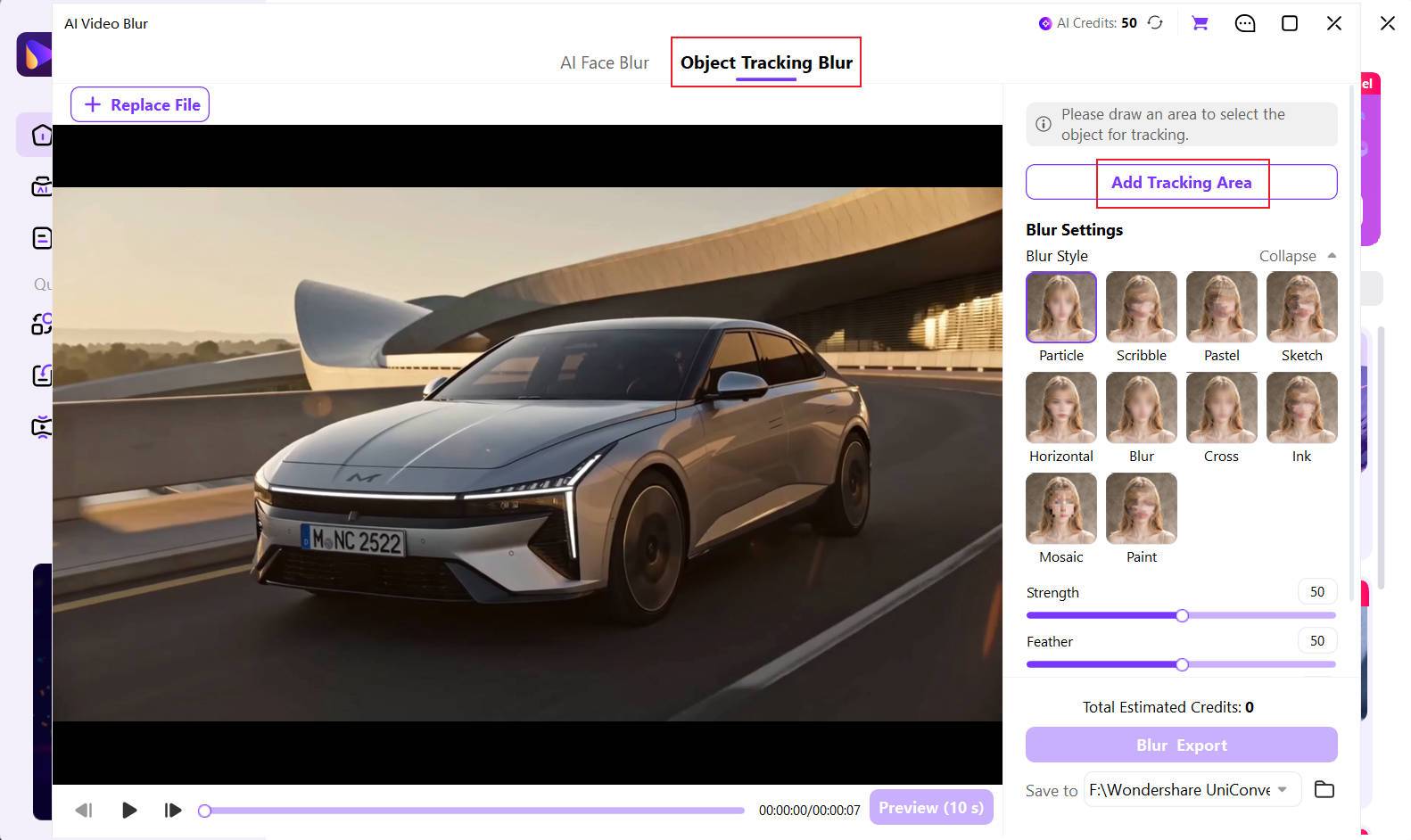
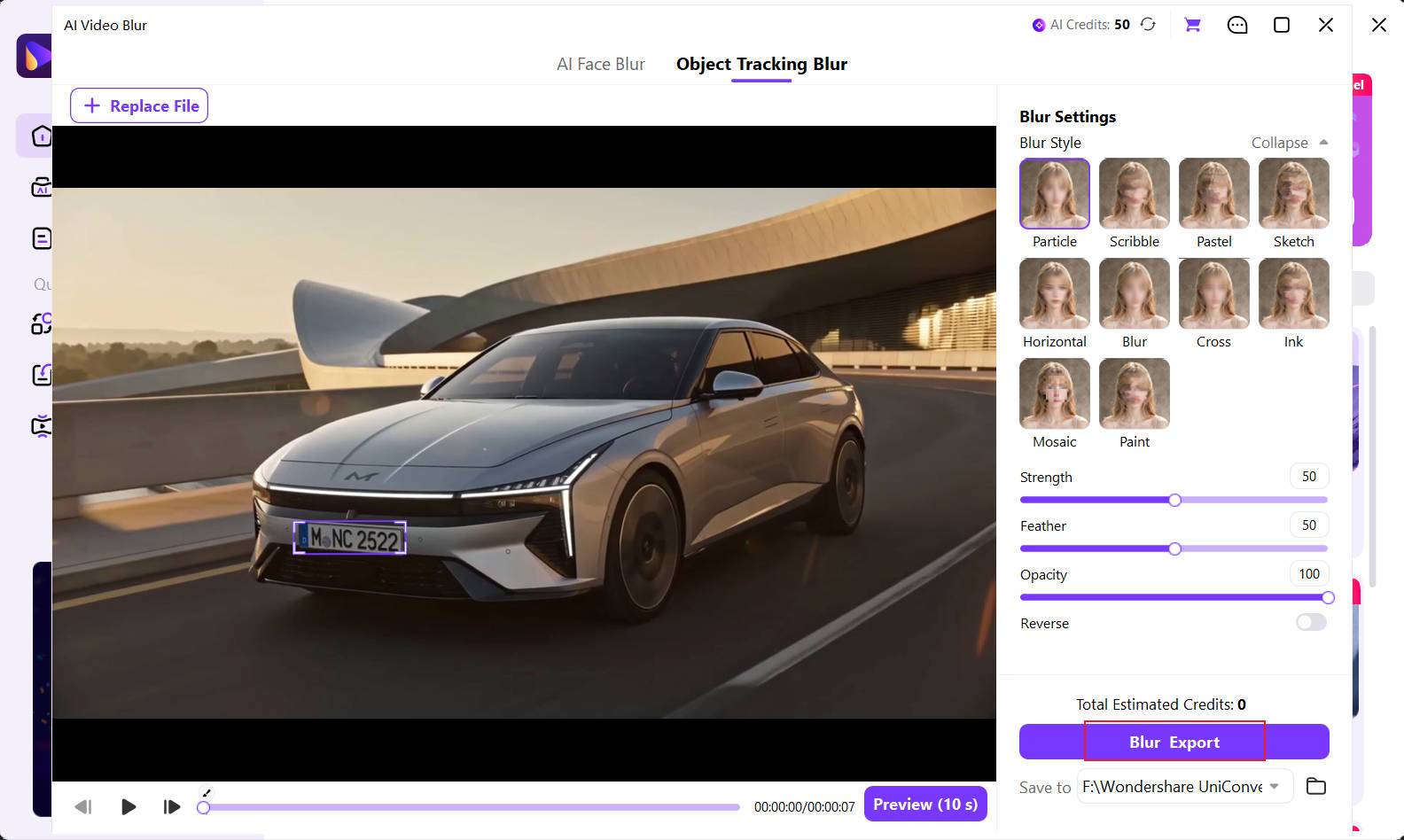
Software speeds up masking, but the operator remains responsible for deciding what should be redacted and confirming that the released copy is complete.
Identify the people, plates, documents, locations, screens, and other details that must be concealed under the applicable request or policy.
Do not overwrite the source evidence. Use a separately named working copy and keep output files distinct from the original.
Check entries and exits, fast movement, cuts, reflections, low-light frames, partial occlusion, and moments when tracking may lose the target.
UniConverter AI Video Blur masks visible content only. Use an approved audio-redaction process if names or other sensitive information can be heard.
If your organization requires a review log, exemption reason, approval, or chain-of-custody record, capture it in the authorized evidence system.
Deliver the redacted copy through the channel required by your organization, request type, jurisdiction, and recipient.
Prepare visual redactions for release, review, training, research, and internal sharing without changing the retained source recording.
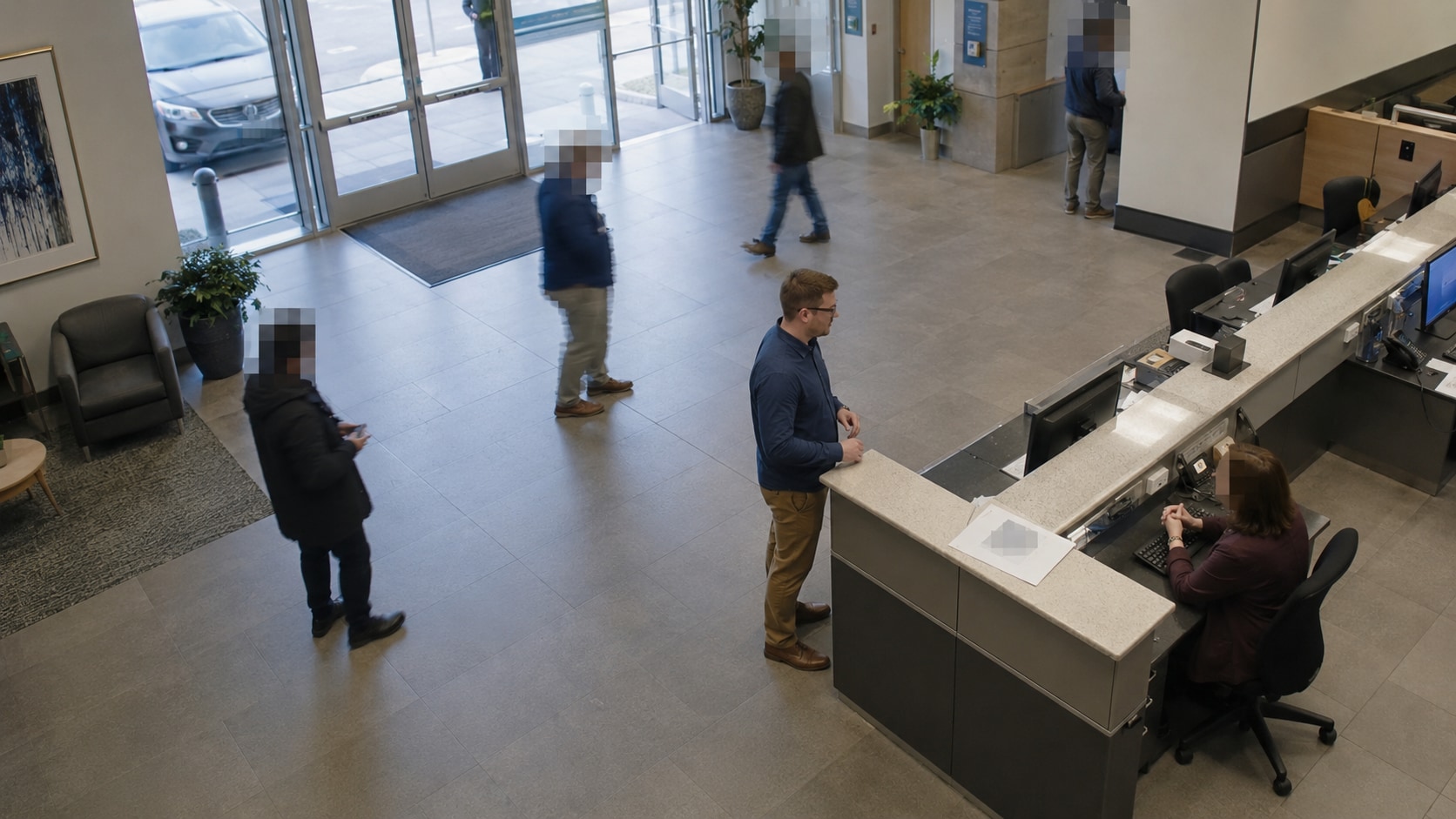
Conceal third-party faces, plates, screens, addresses, or documents in a copy prepared for an authorized access or public-records response.
If you are evaluating video redaction software for law enforcement, separate the visual editing task from the wider evidence workflow. UniConverter covers standalone visual redaction; a dedicated evidence platform is the better fit when you also need audio redaction, case access controls, audit reports, legal exemptions, or chain-of-custody records.
| Capability | UniConverter AI Video Blur | Dedicated Evidence Redaction Platform | Traditional Video Editor |
|---|---|---|---|
| Automatic face detection | ✓ Select one, several, or all detected faces | Commonly available; exact targets vary | Feature or plugin dependent |
| Moving visual target tracking | ✓ Track a user-selected object | Commonly available with specialized detectors | Possible, often with more setup |
| Automatic license plate detection | No; select the plate first, then track it | Available in some platforms | Usually manual selection |
| Local desktop visual processing | ✓ No browser upload required | Varies: on-premises, cloud, or hybrid | ✓ With desktop editors |
| Multiple-video workflow | ✓ Add and process multiple clips | Often supports high-volume queues | Depends on editor and setup |
| Blur and mosaic controls | ✓ Styles, strength, feather, opacity | Usually focused on masking and redaction presets | ✓ Highly configurable |
| Audio redaction | Not part of AI Video Blur | Available in many evidence platforms | Possible with separate audio editing |
| Case management and role-based review | Not included | Core capability in many platforms | Not usually included |
| Audit trail, exemption report, chain of custody | Not included | Available in specialized systems; verify the vendor | Not usually included |
| Best fit | Visual redaction of standalone CCTV and video copies | Agency-scale evidence and disclosure workflows | Complex manual editing and custom effects |
Capabilities vary by product, plan, deployment, and jurisdiction. Verify security, retention, audit, accessibility, procurement, and compliance requirements before using any software for official evidence.
Use commonly exported video files, verify visual coverage, and keep the redacted output separate from the retained source.
Work with MP4, MOV, AVI, MKV, M4V, WMV, FLV, MTS, TS, 3GP, and other commonly used formats supported by UniConverter.
Keep the source evidence unchanged, create a working copy, apply and review visual redactions, then export a separately named release copy. Store any required review or disclosure record in your authorized system.
Direct answers about CCTV redaction software, police video, visual evidence, face detection, object tracking, and workflow limits.
CCTV redaction is the process of concealing identifiable or sensitive information in surveillance footage before a copy is disclosed or shared. Visual targets commonly include faces, license plates, screens, badges, documents, addresses, and signs.
UniConverter scans the video for faces and creates thumbnails of detected people. You can choose one person, several people, or all detected faces. Always review the complete result because footage quality, lighting, distance, occlusion, and camera angle can affect detection and tracking.
No. Automatic detection applies to faces. For a license plate, use Object Tracking Blur mode to draw a box around the plate; AI then follows the selected target as it moves.
You can use it to create a visually redacted copy of supported video files, provided your organization authorizes the workflow. Preserve the original evidence separately and follow the applicable rules for access, review, logging, disclosure, and storage.
It can visually redact faces and user-selected details in police, bodycam, dashcam, interview, and incident videos. It is not a law-enforcement evidence management system and does not include chain-of-custody logging, case access controls, exemption reports, or legal review.
No. AI Video Blur covers visible information. If sensitive details are audible, use an approved audio-redaction process or a dedicated multimedia evidence platform and review the audio separately.
Yes. Add multiple supported video files, switch between clips to set and review the visual redactions, and process them as part of the same batch workflow.
No. UniConverter AI Video Blur is a Windows and macOS desktop workflow, so unredacted CCTV or police video does not need to be uploaded to an unfamiliar browser-based redaction site.
No. Software performs the editing task; it does not decide what the law, a court order, an access request, or an agency policy requires. Confirm the scope with the responsible records, legal, privacy, or evidence professional and review the output before release.
No. Keep the original file unchanged according to your organization’s retention and evidence policy. Redact a working copy and export the result as a separately named release copy.

Detect faces, track selected visual details, preview the coverage, and export a privacy-protected copy of CCTV or video evidence in a local desktop workflow.