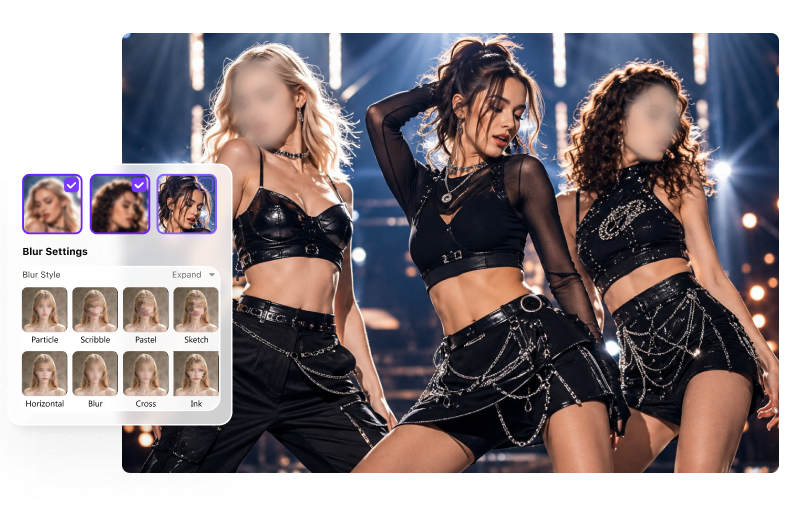
Make a Person Unrecognizable
Cover facial features consistently from the first visible frame to the last. For a dedicated workflow, see how to blur a face in a video.
The best setup depends on whether you need privacy, information redaction, visual focus, or a creative censor effect. Define the outcome before choosing the style and strength.
Cover facial features consistently from the first visible frame to the last. For a dedicated workflow, see how to blur a face in a video.
Cover text, addresses, IDs, account details, screens, or documents with enough strength that viewers cannot reconstruct the content.
Soften distracting surroundings while retaining a clear subject. See the focused guide to blur background in a video.
Select a plate, badge, logo, label, or device screen and keep the covered area aligned as the camera or target moves.
Use pixelation, mosaic, or a sticker when the edit should look intentionally censored rather than naturally softened.
Use a desktop workflow when the unedited clip contains children, customers, internal screens, evidence, or confidential business material.
The practical workflow is select, tune, and verify—not simply switch on a video blur filter.

Open AI Video Blur, add the clip, and decide whether the target is a detected face, a manually selected object, or the area outside the subject.

Choose soft blur, mosaic, pixelation, or a sticker. Adjust strength, opacity, and feathering so the effect hides enough without covering unnecessary parts of the frame.

Watch the clip at normal speed and inspect difficult moments such as turns, overlaps, fast motion, and scene edges. Export only after the target remains covered.
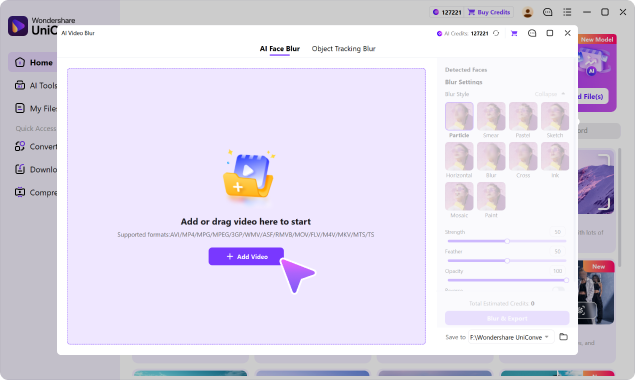
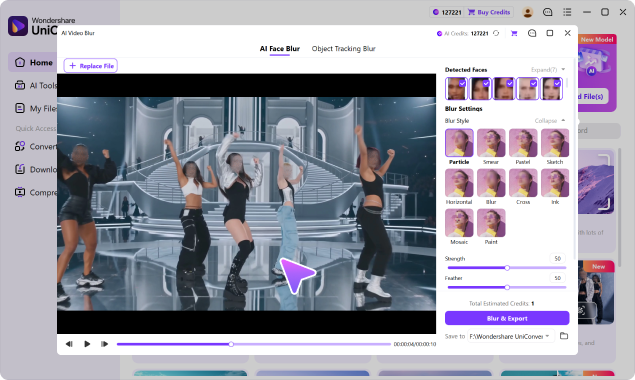
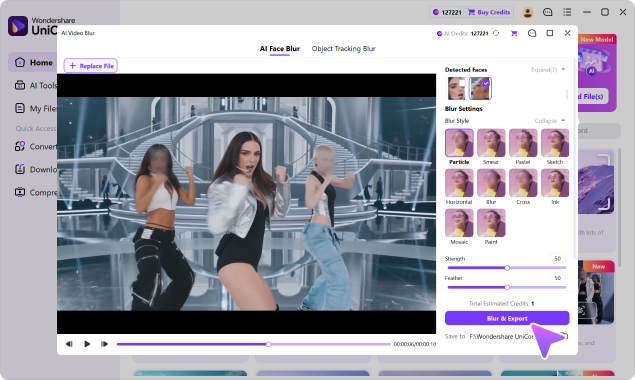
When you blur video, the effect should match the concealment goal and visual tone. Soft blur, mosaic, pixelation, and stickers communicate different things, so test the exported frame instead of relying only on the effect name.
| Effect | Best Used For | Visual Result | What to Check |
|---|---|---|---|
| Soft blur | Natural-looking privacy edits, backgrounds, visual focus | Edges and detail blend smoothly into the scene | Low strength may leave facial structure or text readable |
| Mosaic | Faces, plates, IDs, documentary-style censorship | Large blocks make the redaction obvious | Use blocks large enough to remove identifying detail |
| Pixelation | Digital screens, usernames, labels, intentional censor styling | Fine detail becomes a visible pixel grid | Small text may remain guessable when pixel size is too fine |
| Sticker | Casual videos, children’s content, playful social posts | The target is covered rather than optically blurred | Confirm the sticker stays large enough during head turns or scale changes |
No visual effect guarantees anonymity by itself. The result depends on coverage, strength, motion tracking, surrounding context, and whether other identifying details remain visible.
Switch between soft blur, mosaic, pixelation, and stickers without rebuilding the project in different tools. Fine-tune strength, feathering, and opacity, then preview the result before export.
UniConverter combines a batch video blur workflow with local desktop processing—useful when one project contains several clips or footage that should not be sent through an unfamiliar online editor.
Add multiple clips, move between files to select targets and adjust effects, then process and export the queue together. This reduces repeated importing and exporting for vlog series, lessons, interviews, dashcam clips, surveillance footage, and customer videos.
Process original clips in UniConverter on Windows or macOS instead of uploading them to a browser-based blur website. This is especially relevant for footage involving children, customers, employees, internal screens, incident records, or confidential interviews.
A blur can look correct in one paused frame and still fail during motion. Review these four points before publishing privacy-sensitive footage.
The blurred region should include the full identifying area, including edges that become visible when a head turns, a plate tilts, or an object changes size.
Watch entry and exit frames, rapid movement, camera cuts, overlaps, and temporary occlusion. These are the moments when a tracked region is most likely to slip.
Pause at several frames and ask whether a viewer can still recognize a face, read text, infer a plate number, or identify a logo from shape and context.
Review the exported file—not only the editor preview. Compression, resizing, and platform processing can change how strong or visible the blur appears.
The best video blurring software depends on footage sensitivity, target movement, desired control, device, clip length, and how much editing you plan to do afterward.
| Decision Factor | UniConverter Desktop AI | Online Blur Editor | Professional Timeline Editor | Mobile Editing App |
|---|---|---|---|---|
| Best fit | Sensitive footage, tracked targets, repeatable desktop work | Short, low-sensitivity clips and quick access | Complex compositing and precise manual control | Fast social edits captured on a phone |
| Where source footage is handled | Desktop workflow; no browser upload required | Usually uploaded to a browser or cloud service | Typically processed on the desktop | Processed in-app; cloud behavior varies |
| Starting a selective blur | Choose detected faces or draw around another target | Upload, select a region, layer, or AI option | Create a mask and configure the effect | Tap a filter, shape, keyframe, or tracking option |
| Following a moving target | AI tracks the selected face or object | Automatic tracking in some tools; limits vary | Tracking or keyframes, often with manual correction | Basic tracking or manual keyframes in supported apps |
| Finding multiple faces | Automatic face detection with selectable results | Available in some AI-first services | Feature, plugin, or manual-mask dependent | Often limited or app dependent |
| Effect choices | Soft blur, mosaic, pixel, and sticker | Often blur and pixelation; varies by service | Broad effect and compositing libraries | Common social filters and overlays |
| Fine control | Strength, feathering, opacity, and style controls | Basic-to-moderate controls depending on the editor | Highest control over masks, keyframes, and layers | Optimized for touch; advanced controls may be limited |
| Long or high-resolution footage | Designed for a desktop video workflow | May face upload, file-size, duration, or plan limits | Strong choice with suitable hardware and storage | Constrained by phone storage, heat, and processing time |
| Multiple-video workflow | Add, configure, and export multiple clips as a batch | File count and queue support vary | Possible through projects, queues, or automation | Usually handled one project at a time |
| Editing after blur | Continue trimming, converting, compressing, or enhancing | Convenient basic edits; scope varies | Full professional post-production environment | Strong for quick captions, music, and social formatting |
| Learning curve | Low: select, adjust, preview, export | Low for basic effects | Medium to high | Low for basic edits |
| Meaning of “free” | Free download and trial; AI processing may use credits | Free tiers may limit resolution, duration, watermark, or AI use | Trials or free products vary widely | Free exports may include ads, watermarks, or feature limits |
Online and mobile capabilities vary by provider and plan. Check upload handling, export limits, watermark rules, and tracking support before using any tool for confidential footage.
It offers a faster path than manual masks for tracked faces and objects, more privacy control than uploading raw footage to an online editor, and a more practical workflow when several videos need the same type of preparation.
Keep an untouched original, create a separate working copy, apply the blur, and review the exported result before distributing it.
AI Video Blur works with commonly used formats including MP4, MOV, AVI, MKV, M4V, WMV, FLV, MTS, TS, and 3GP.
Preserve the source, make privacy edits on a copy, inspect coverage, and export a separate shareable version. You can then continue other post-production tasks in UniConverter.
For the complete feature specification, visit UniConverter AI Video Blur.
Practical guidance on local areas, effect strength, privacy, free access, movement, and final output.
Select Face mode for a detected person, or use Object mode to draw around another region. The rest of the frame remains clear unless you reverse the selection to blur the surroundings.
It depends on strength and coverage. Mosaic and coarse pixelation make censorship more obvious, while soft blur blends naturally. Any effect can be too weak, so test whether facial structure, text, or numbers remain identifiable.
No blur should be treated as an absolute guarantee. Weak blur may leave recognizable patterns, and contextual clues can reveal identity. Use stronger coverage, review the final export, and remove other identifying details when privacy matters.
Select the detected face or draw a box around the object. AI follows the target through the clip, but you should still review fast movement, overlaps, turns, and entry or exit frames before export.
Yes. Reverse the selected region so the chosen subject stays clear while the surrounding background receives the blur effect.
You can download UniConverter and start to blur video for free. AI Video Blur may use AI Credits, and the estimated amount appears before processing. Availability and export limits can vary by version or plan.
Yes. Add multiple clips, review the target and effect settings for each file, then process and export them as part of the same batch workflow.
The chosen region intentionally loses detail. Overall output quality also depends on export resolution, bitrate, format, and later platform compression. Review the exported copy at the size where it will be watched.
No. UniConverter uses a Windows and macOS desktop workflow, so you can apply the blur without sending the unedited source clip through a browser-based blur website.

Choose the target, match the effect to your purpose, let AI follow motion, and review the exported result before you publish or share.