Choose the Right WorkflowUniConverter Text Blur vs. Online Tools & Traditional Editors
The key differences are how the selected words are tracked, where the original footage is processed, and how much setup is required before you can verify the result.
| Capability | UniConverter AI Video Blur | Typical Online Blur Tool | Traditional Video Editor |
| Blur text already visible in footage | ✓ Select any text region | Varies by tool | ✓ Usually possible with masks |
| Keep blur on moving words | ✓ AI tracks the selected target | AI tracking or keyframes vary | Often requires tracking setup or keyframes |
| Automatic text detection | No—select the text area first | Varies by tool | Usually no |
| Process sensitive footage without browser upload | ✓ Local desktop workflow | Commonly browser/cloud based; policies vary | ✓ With desktop software |
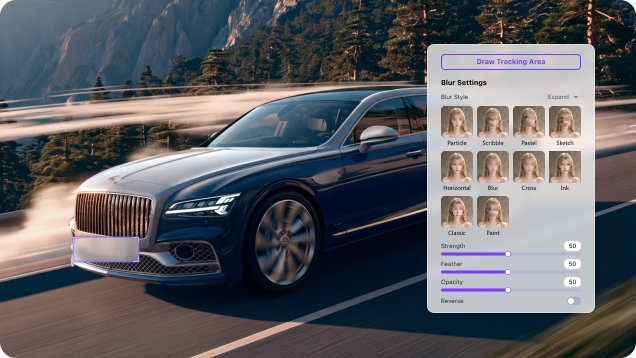
| Adjust coverage | ✓ Strength, Feather & Opacity | Varies by tool | ✓ Usually extensive |
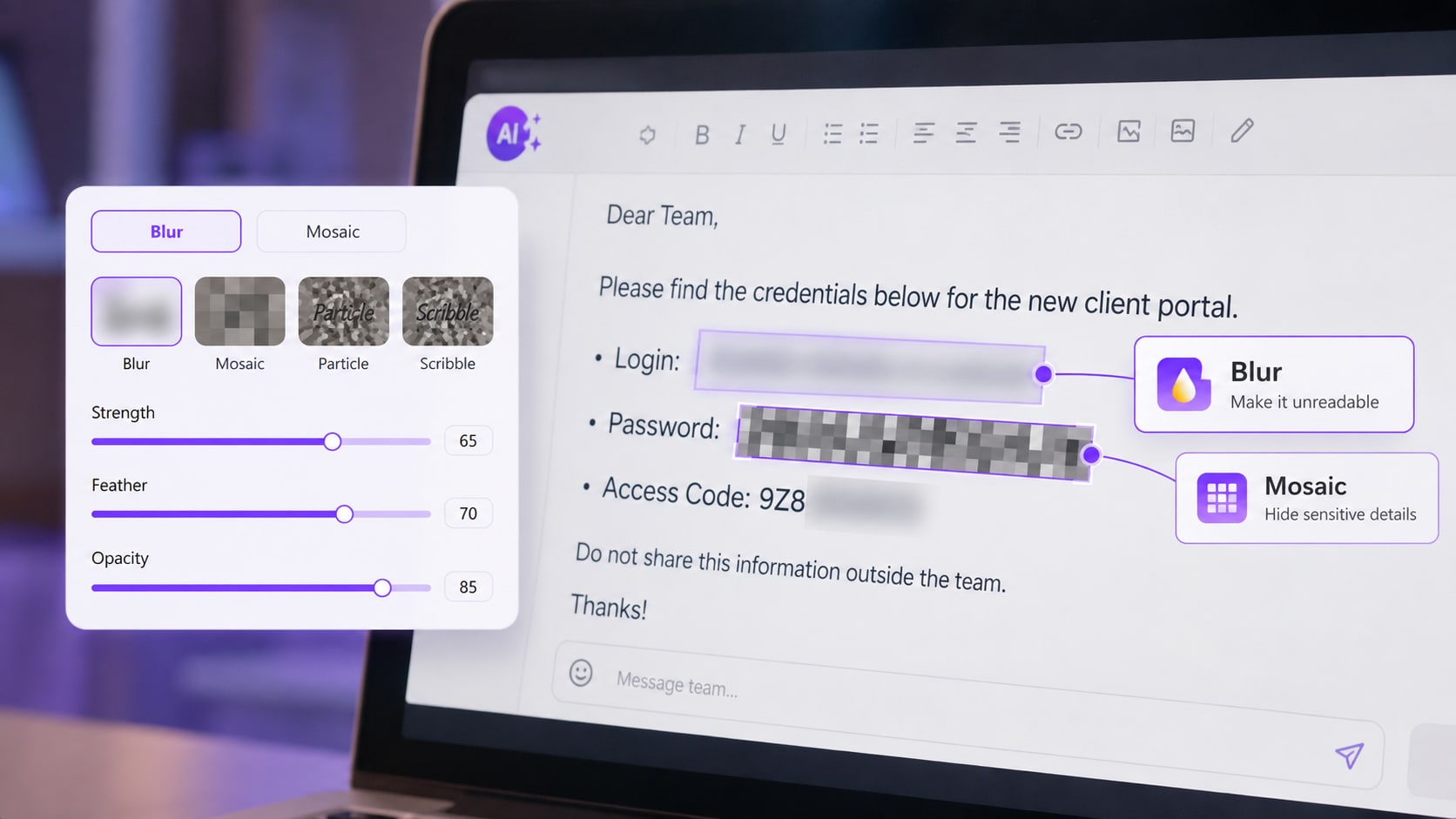
| Blur styles | ✓ 10 current styles | Often one or several effects | Depends on effects and plugins |
| Batch video workflow | ✓ Add and process multiple videos | Often limited by tool or plan | Depends on the editor |
| Continue media processing | ✓ Convert, compress, trim & enhance | Often focused on one browser task | ✓ Editing-focused workflow |
| Learning curve for a quick text blur | Low | Low to medium | Medium to high |
“Typical Online Blur Tool” describes common browser workflows. Upload handling, AI tracking, effect controls, file limits, and pricing differ by provider.
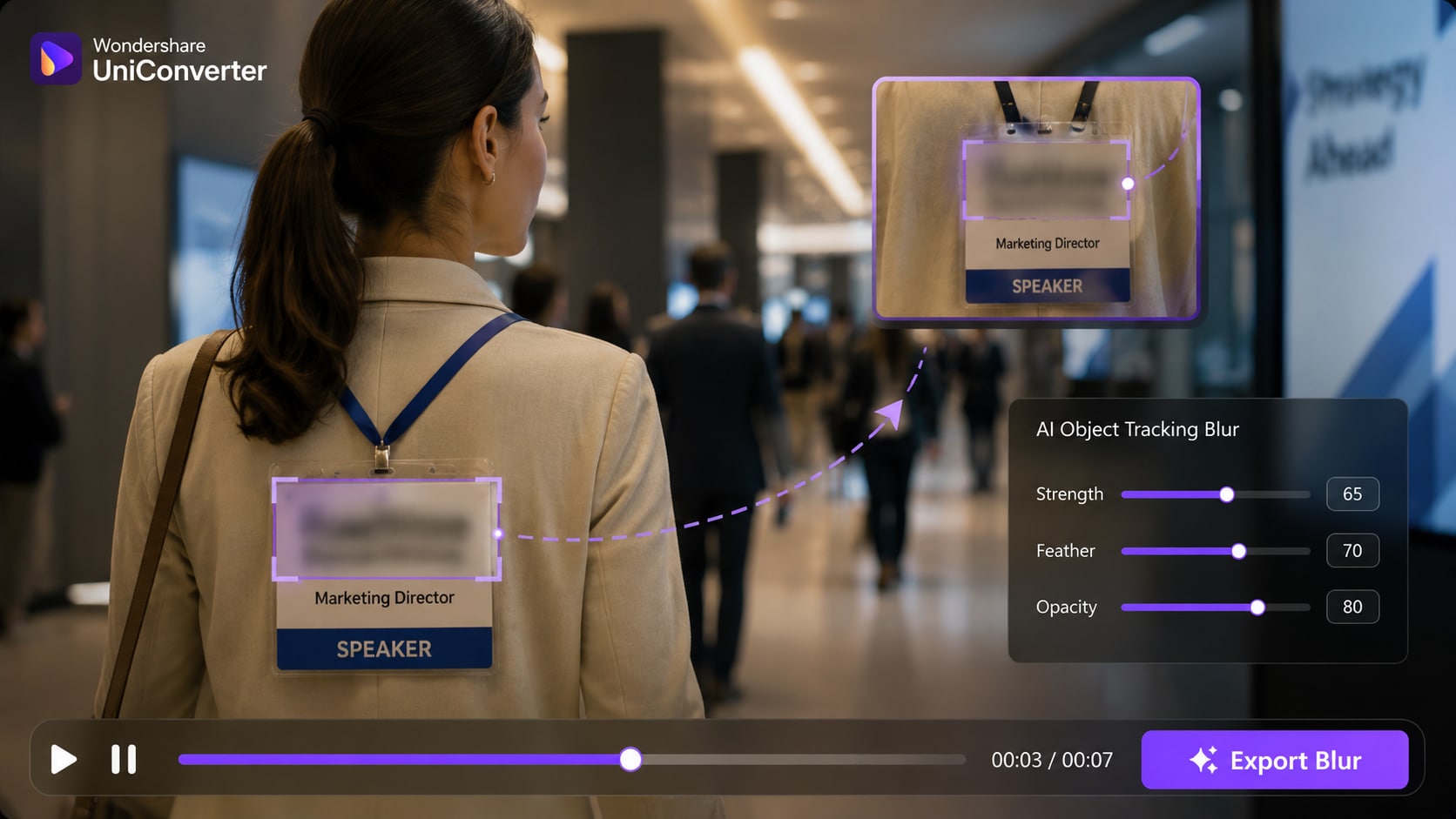
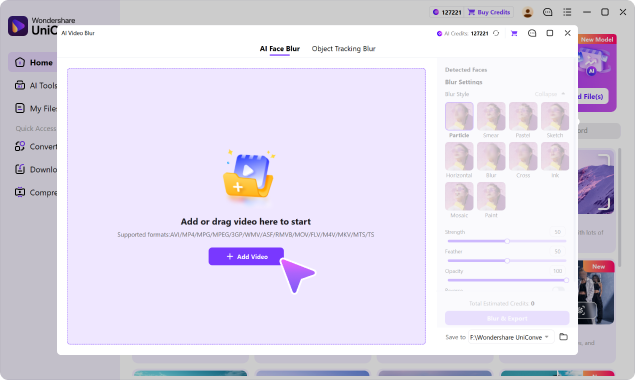
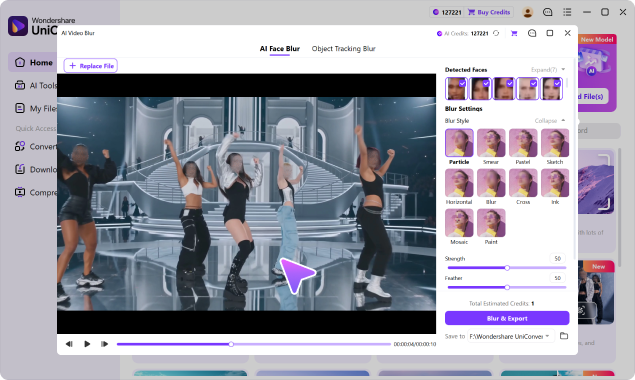
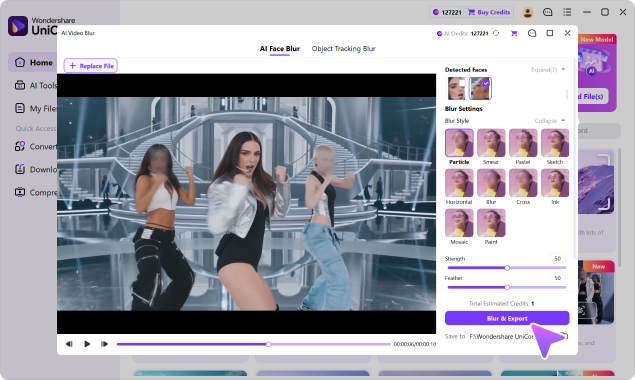
Important product fact: UniConverter automatically detects faces, but it does not claim automatic text recognition. For words, subtitles, signs, and documents, first select the target area in Object Tracking Blur mode; AI then follows that selection when it moves.