UniConverter
UniConverter Online Free
Converter video, audio & image free
Free Try

Find a Remove BG Alternative Before the December Switch

Quick Answer
  • For a quick remove bg alternative, try UniConverter Online in the tool beside this summary: add an image, remove its background, and check the result before saving.
  • Remove.bg is moving its background-removal functionality into Canva around December 1, 2026; its API announcement points developers to Leonardo.Ai.
  • Compare Adobe Express and BGClear for free cutouts, Canva for design work, Photoroom for product catalogs, and Slazzer for API integration.
  • Online trials, full-size downloads and bulk exports have different conditions. Test the downloaded PNG, then choose the workflow you actually need.
Need a replacement for a quick photo cutout? Start with UniConverter’s online image background remover here, then compare five other options for free downloads, design, e-commerce and automation.

Start online with one representative image:

  • Use Add File or drag in a JPG, JPEG or PNG.
  • Keep the upload below the tool’s current 50MB limit.
  • Inspect hair, product edges and transparent areas.
  • Follow the live allowance; online access is limited.

UniConverter Online Background Remover

Online image tool. The live controls show remaining uses and upload conditions. If the tool cannot load, open the online background remover.

Start online
One image before a larger workflow
Compare the export
Transparency, dimensions and edges
Plan the switch
Website, desktop and API needs differ

Why Look for a Remove BG Alternative Now?

Remove.bg’s official migration FAQ says its background-removal functionality is moving into Canva and addresses access after December 1, 2026. This is a change to the standalone workflow, rather than the disappearance of background removal as a capability. Its API announcement separately directs developers toward Leonardo.Ai from that date. Check the notice that applies to your account or contract.

If you usually upload a portrait or product photo and download a cutout, a browser tool may be enough. If your job depends on a catalog queue, invoice history, an API key or a Photoshop integration, make a separate migration checklist. A working upload button does not establish compatibility with those other tasks.

This Wondershare-published comparison uses current vendor pages and an inspection of the UniConverter online entry screen. It is not a head-to-head accuracy benchmark. Keep source files and completed cutouts, and review account, credit and integration instructions in remove.bg’s FAQ before the transition.

How UniConverter Fits the Background-Removal Workflow

Use the online tool for an individual cutout. Move to a larger workspace only when the job calls for it.

1. Try a cutout in your browser

The online tool above is the closest starting point for the upload-and-remove job. Choose Add File, use a supported original, and let the tool process it. A browser trial lets you evaluate a real task before installing an application.

  • Online inputs currently shown: JPG/JPEG/PNG below 50MB.
  • The inspected session displayed three online experience opportunities.
  • Use the live counter; this is not an unlimited-free promise.

Official illustration of subjects isolated from their backgrounds
Product illustration, not an accuracy test or a screenshot of the online uploader.

2. Save a usable transparent asset

A transparent cutout can be reused in a listing, presentation or social layout. Compare the saved image with the original: the outline, small lettering and holes through handles matter more than a convincing thumbnail.

  • Use transparent PNG when the next layout needs transparency.
  • A white background is a visible backdrop, not transparent pixels.
  • Keep the original so you can retry a difficult subject.
Product-photo background removal illustration
Official example illustration; actual output depends on the uploaded image.

3. Consider Desktop for a repeated folder job

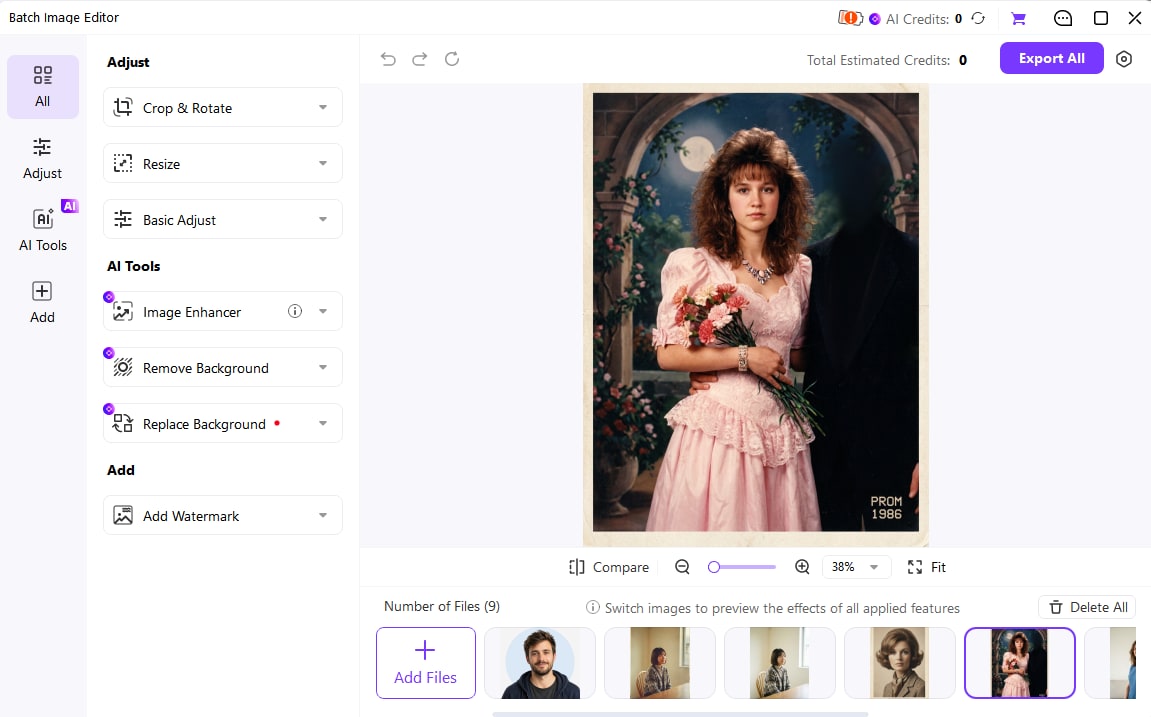
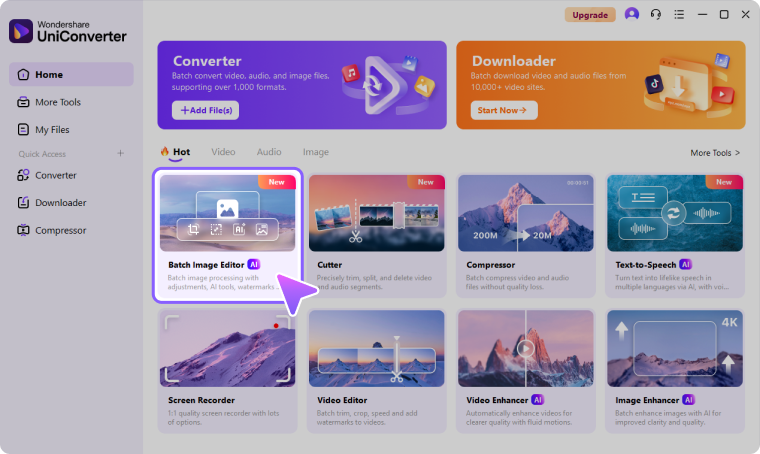
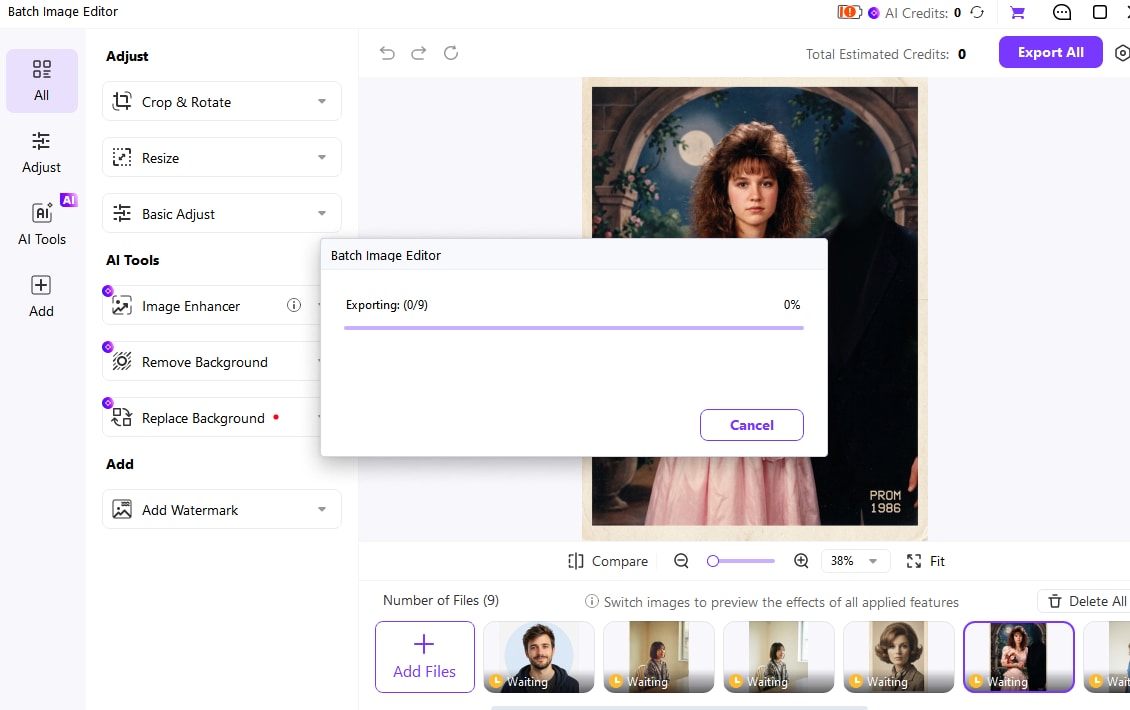
For multiple local images, UniConverter’s separate Batch Image Editor offers a queue, Compare and Export All. This is a desktop workflow with its own trial, plan and AI Credit conditions; it is not a capability promised by the online uploader.

  • Review each image in the queue before exporting the set.
  • Check estimated AI Credits and export settings.
  • Keep a transparent master and a separate listing-ready copy.
UniConverter Desktop Batch Image Editor showing the file queue and Compare
Real desktop interface. Online and Desktop capabilities and allowances are separate.

What Your Replacement Needs to Keep—and What to Recheck

Keep these essentials

  • A cutout with the complete subject and usable fine edges.
  • A saved file that fits the dimensions and background your project needs.
  • A repeatable process for your actual weekly image workload.

Recheck these conditions

  • Free processing, free previews and free full-size exports are different offers.
  • Website access, a desktop application and an API are separate migration paths.
  • Bulk editing may require a paid export plan or AI Credits.
  • Automatic segmentation can miss hair, glass, thin straps and low-contrast edges.

Compare 6 Remove BG Alternatives by Task

AlternativeChoose it forFree access and main limitation
UniConverter OnlineA quick browser cutout, with a separate Desktop route for larger local queues.Limited online experience; the current tool displays the remaining allowance. Desktop is separate.
Adobe Express / BGClearAdobe Express: free cutouts with a path into design editing. BGClear: a standalone browser option without a required account.Adobe advertises free removal and PNG download. BGClear advertises free use without an account or watermark. Check the downloaded size and current access conditions.
Canva / PhotoroomCanva: continue into a full design and follow remove.bg’s named platform migration. Photoroom: prepare product imagery and repeat catalog edits.Canva’s access depends on the current offer and plan. Photoroom offers a free start; high-resolution exports and Batch exports have paid-plan conditions.
SlazzerBuild background removal into an application through a documented API.Successful API requests consume account credits. Review authentication, request fields, output handling and current pricing before migrating.

Which free alternative should you try first? Start with the embedded UniConverter trial if you want to evaluate a cutout here. Compare Adobe Express’s free background remover or BGClear’s no-required-account tool if ongoing free access is the deciding factor. Compare the actual download, not just the free label.

For catalogs or code: Photoroom’s Batch documentation says Batch exports require Pro, Max or Ultra. Slazzer’s API documentation specifies a separate endpoint, authentication and request format. Neither a browser remover nor a desktop download automatically replaces an existing API integration.

Remove.bg Migration vs. UniConverter Online: Key Differences

Separate the announcement from the image task you need to complete today.

What to compare
Current transitionremove.bg
Browser alternativeUniConverter Online
Main purpose
Automated photo background removal
Automated image background removal
Where to start
Review the official migration FAQ
Use the online tool at the top of this page
December change
Functionality moving into Canva
A separate Wondershare online tool
Free access
Review current credit and account notices
Limited experience; check the live counter
Input check
Check the destination service’s current requirements
JPG/JPEG/PNG below 50MB in the inspected tool
Larger jobs
Check the relevant bulk or migration route
Evaluate the separate Desktop Batch Image Editor
API users
The official announcement points to Leonardo.Ai
The embedded browser tool is not an API migration

Choose Your Alternative by the Work You Do

The right replacement depends on what happens after the background disappears.

An occasional portrait or logo

Try the online uploader, then check fine outlines and transparency. A downloaded logo with the correct alpha channel is more useful than a larger preview with a white rectangle.

Product photos for a storefront

Compare Photoroom’s product workflow with a Desktop batch workspace. Test consistent framing, backgrounds and final dimensions across a small set before applying the process to a catalog.

Designs or an automated pipeline

Canva fits a cutout that continues into a design. For code-driven processing, evaluate Leonardo.Ai’s migration route and specialist APIs such as Slazzer; test requests and billing separately.

How to Switch: Online First, Desktop When You Need a Queue

Online: use Add File in the tool above, wait for processing, inspect the cutout and save the available result. Check its dimensions and transparency in the destination layout. The three illustrated steps below show the separate Desktop batch workflow.

Need only one cutout? Stay with UniConverter Online. The Desktop batch-removal guide documents the larger queue workflow. Online uses and Desktop AI Credits are different allowances; neither a free download nor an online trial promises unlimited free batch exports.

Three checks for a downloaded background-removal result

Common Problems When Replacing Remove.bg

The edge has a halo

Inspect against light and dark backgrounds. If the outline still carries old background color, try a clearer source or a tool with Erase and Restore controls, such as Canva. Compare the same original rather than repeatedly compressing an export.

The PNG still looks white

A viewer may display transparency on white, or the file may contain a solid white background. Place it over a colored layer to check. Keep PNG for transparent output; a JPEG cannot retain an alpha channel.

The free download is too small

Compare pixel dimensions with the space where the image will appear. A preview can look sharp at thumbnail size and fail in a larger listing. Check the export offer before uploading a whole catalog.

The upload or API fails

For the online tool, check format, file size, connection and remaining uses. For an API, test the new provider’s authentication, fields, response and error handling. A successful browser cutout does not validate an integration.

Final Verdict: Which Remove BG Alternative Should You Choose?

For an individual photo, start with UniConverter Online and judge the saved result. Compare Adobe Express or BGClear when free access is the priority; choose Canva, Photoroom or an API provider when the larger workflow makes that choice useful.

Start with UniConverter Online

For a quick photo cutout

  • Try a representative original in the embedded tool.
  • Check the live online allowance and saved output.
  • Use the separate Desktop workspace only if a queue is needed.
Choose a specialist workflow

For designs, catalogs or integrations

  • Canva: a cutout that continues into design work.
  • Photoroom: product imagery and paid Batch export options.
  • API users: test the official migration route or another documented API.

Before December 1, check remove.bg’s current notices for the services you use. Keep original files and useful exports, and finish a representative replacement job before changing a recurring process.

FAQs About Remove BG Alternatives

UniConverter Online is a practical starting point for a supported individual image. Try the embedded tool, then check edges, dimensions and transparency in the downloaded result. Adobe Express and BGClear are other browser options; the right choice depends on the output and access conditions you need.
Remove.bg says it is migrating its background-removal functionality into Canva, and its FAQ addresses access after December 1, 2026. Its API announcement points to Leonardo.Ai from that date. Check the official notice for your account, subscription, contract or integration instead of assuming every service has identical terms.
Adobe Express advertises a free background remover and transparent PNG download. BGClear advertises free browser removal without a required account or watermark. UniConverter Online offers limited experience opportunities. Compare the downloaded file and current conditions; a free preview, a free full-size export and a free unlimited workflow are different offers.
Yes. The tool at the top of this page is UniConverter’s online image background remover. Its inspected entry screen accepts JPG, JPEG and PNG below 50MB and shows the remaining online uses. It is separate from the Desktop Batch Image Editor and its plan or AI Credit conditions.
Compare a dedicated catalog workflow such as Photoroom with a desktop queue such as UniConverter Batch Image Editor. Photoroom’s Batch exports require Pro, Max or Ultra; UniConverter Desktop has its own export and AI Credit conditions. Test a small, varied set and inspect each output before processing a whole catalog.
The official announcement directs API users toward Leonardo.Ai from December 1, 2026. A specialist API such as Slazzer is another option to evaluate. Check authentication, required fields, returned formats, errors and usage charges. The UniConverter browser widget is not an API replacement or a drop-in endpoint.
Some viewers display transparent areas over white. Test the PNG on a colored layer. If white remains part of the image, choose transparent output rather than a white backdrop. JPEG cannot preserve transparency, so retain a PNG master when you need to place the cutout over other backgrounds.
Use community comments to identify possible tools and difficult use cases, then verify the current official offer. Run the same original through your shortlist and compare the downloaded dimensions, fine edges, transparency and cleanup required. An older Reddit recommendation may describe a different free tier or product version.

Try Your Next Background-Removal Workflow Online

Start with a supported portrait, product photo or logo. Remove its background online, inspect the saved cutout, and choose a larger workflow only when you need it.
Choose online, batch or API background removal by the task