How to Convert a Still HEIC Photo to MP4 Online
Online method: HEICX still-to-MP4 tool. This is a separate service from UniConverter Desktop.

Choose the still-photo route
Open the dedicated HEIC-to-MP4 tool at HEICX and add the still HEIC photo. This third-party workflow creates a clip from a photo; it is separate from exporting an iPhone Live Photo.

Set the clip duration and picture size
Choose the available duration and video settings. Keep the original proportions, or fit the photo inside the intended video frame. A single still photo does not contain a camera recording or an audio track to recover.

Create and inspect the MP4
Create the timed clip and save it. Play the result to check duration, orientation, and borders. If you expected moving camera footage, return to the original Live Photo rather than repeatedly converting its still image.
Convert the Exported Local Video to MP4
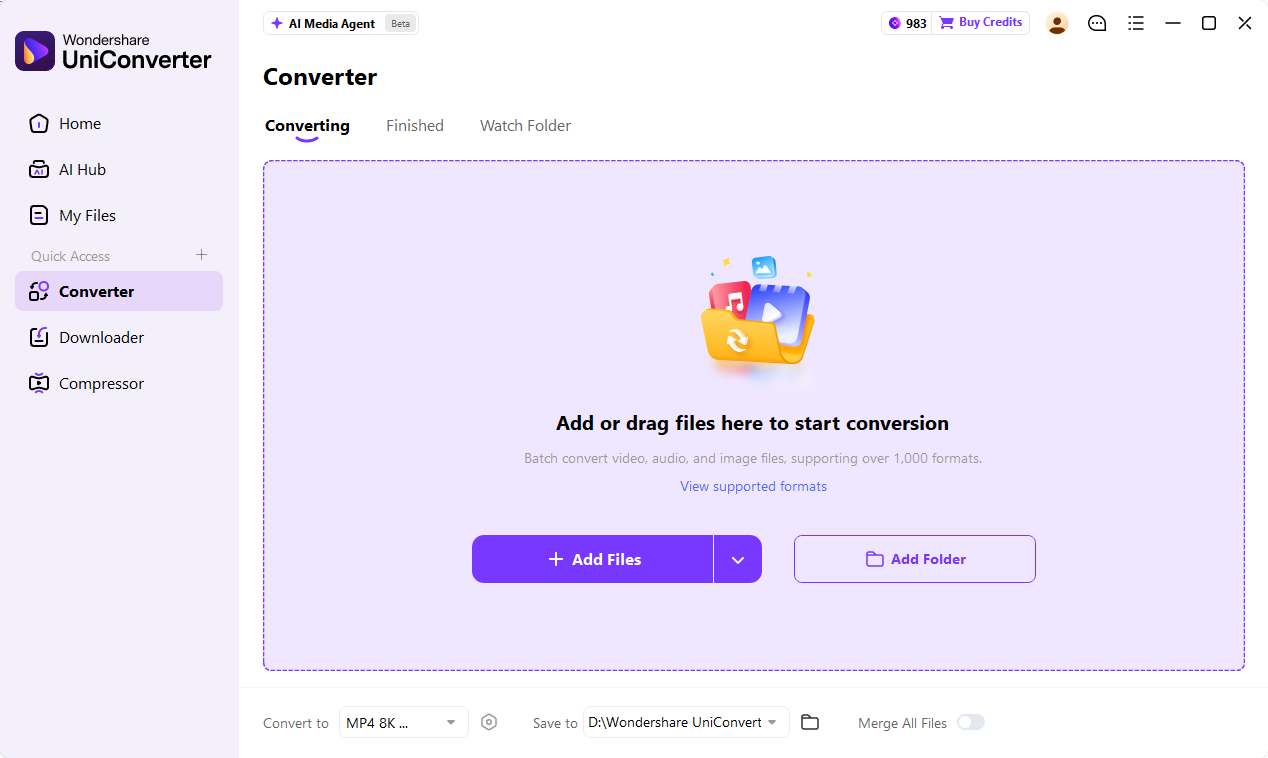
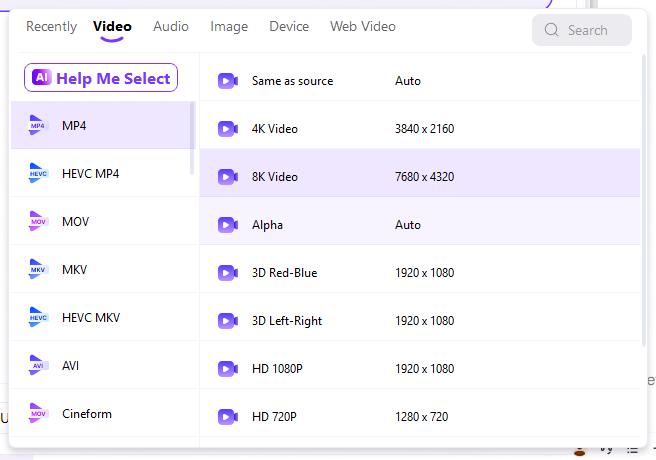
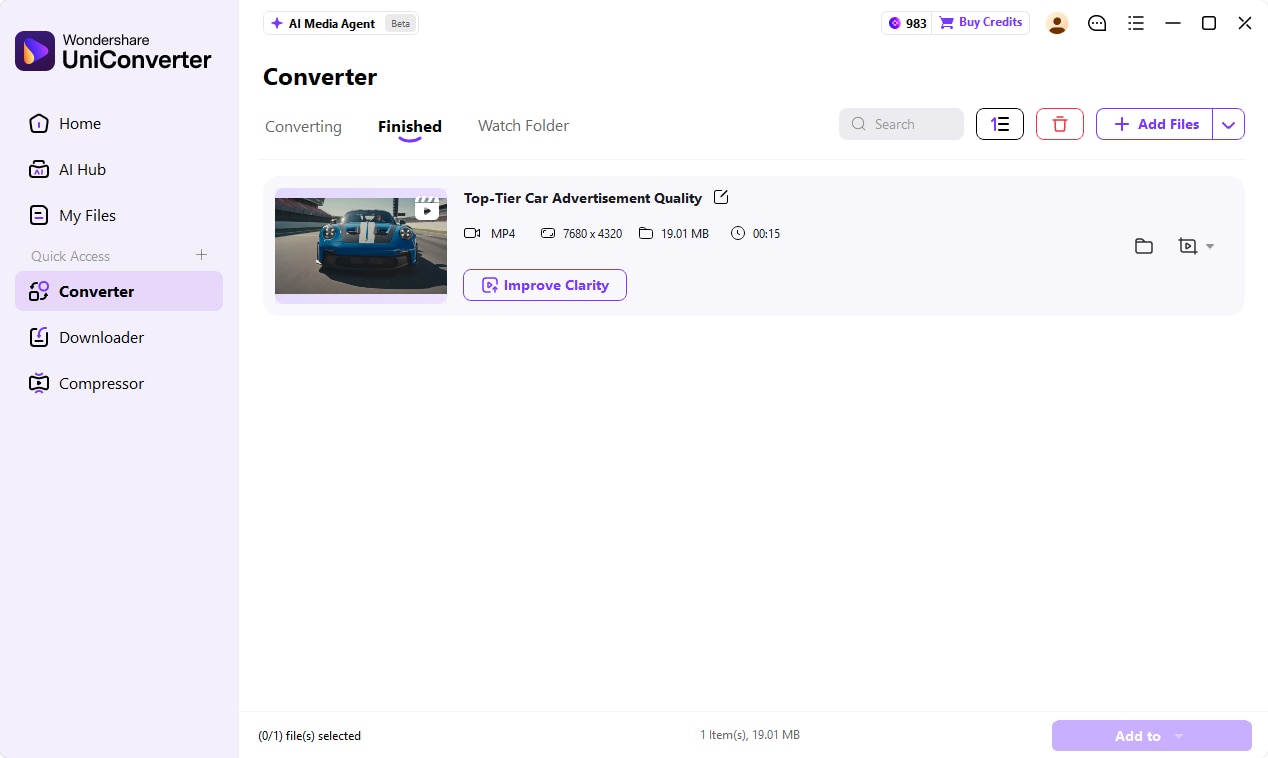
Follow the official UniConverter desktop workflow. These illustrations show desktop controls; sample files and selected formats may differ from this task.
Import the video export
After using Save as Video or a photo-to-video editor, open UniConverter Desktop Converter and add that complete local video. This stage starts with a video, not a standalone HEIC photo.
Select a compatible MP4
Choose MP4 in Convert to. Select H.264 video when the receiving app needs broad compatibility. Keep the intended proportions and choose a suitable audio setting if the source has sound.
Save and check the MP4
Choose Save to and run Convert All. Confirm duration, orientation, sound, and playback in the target app. Keep the original photo or Live Photo alongside the delivery video.
HEIC to MP4: Choose the Correct Route
| Item | Source or workflow | Result or limit |
|---|---|---|
| Still HEIC photo | Create a timed photo clip | No original motion or sound is recovered |
| Live Photo | Save as Video in iPhone Photos | Requires the original Live Photo, not only its still image |
| HEVC MOV/MP4 | Convert video codec/container as needed | HEVC is a codec, not a HEIC filename |
| Several photos | Build a slideshow in a video editor | Set ordering and display duration |
| Portrait photo in a wide frame | Fit or crop intentionally | Choose borders or loss of edge content |
| Finished video needs compatibility | Use H.264 MP4 when appropriate | Check the receiving application |
References: HEICX still-to-MP4 tool · Apple Live Photo video export · HEVC to MP4 · Desktop video conversion guide · Image conversion guide
Practical Answers for HEIC to MP4
Export the motion from a Live Photo
On iPhone, open Photos, find the Live Photo, tap More, and choose Save as Video. Keep the Live Photo as your original. If only a standalone HEIC image was transferred to another device, obtain the original Live Photo or its video component instead of expecting a still-image converter to reconstruct it.
Use HEVC conversion for an actual video
If the file is a MOV or MP4 containing HEVC/H.265 video, the task is video compatibility. Select a suitable MP4 output with H.264 video when the receiving app needs it. Changing a filename from .heic to .mp4 does not change an image into a video container.
Make a photo clip rather than a recovered recording
A photo-to-video converter displays the picture over time. It cannot restore movements or sounds that were never stored in that photo. Pans, zooms, transitions, and generative animation are additional editing operations. Keep those separate from a simple still-photo MP4 export.
Prepare HEIC images for another video editor
UniConverter Image Converter can prepare supported HEIC images in a format accepted by the next editor, such as JPG or PNG. Import the prepared images into a video editor, set their display duration, and export the slideshow. Image-format conversion alone is not slideshow creation.
Choose fit or crop intentionally
A portrait photo placed in a landscape frame may have side borders. Fitting preserves the entire image; cropping fills the frame but cuts away content. Pick the approach that keeps important faces, text, and objects visible, then check the export in the destination player.
Check the saved video before sharing
Review the beginning and end, orientation, duration, and whether any audio exists. A static HEIC clip is normally silent unless you add a separate soundtrack. An MP4 filename alone does not specify its video codec, so use a compatible codec when playback is the real problem.
HEIC to MP4 FAQs
Can I convert HEIC to MP4 online?
Is HEIC a video format?
How do I turn a Live Photo into an MP4?
What is the difference between HEIC and HEVC?
Can I just rename HEIC to MP4?
Why is my converted MP4 still or silent?
Can UniConverter convert HEIC to MP4 on Windows or Mac?
Which settings should I use for a HEIC photo video?
What Customers Say About UniConverter
Related Media Workflows

Convert the Exported Local Video to MP4