UniConverter
UniConverter Online Free
Converter video, audio & image free
Free Try
Vovsoft Batch Image Resizer Review

Vovsoft Batch Image Resizer: A Practical Review and Resizing Guide

Quick Answer
  • Vovsoft Batch Image Resizer is a Windows desktop tool for resizing multiple images, with installer and portable editions listed by the developer.
  • It provides percentage and pixel width-height methods, a Keep aspect ratio option, and several interpolation choices. It is free to try, rather than an unrestricted free product.
  • For a separate resizing workflow with fit modes and related image edits, the UniConverter Batch Image Editor tutorial appears below.

Vovsoft Batch Image Resizer is a Windows utility for changing the dimensions of groups of image files. Its appeal is a focused offline workflow, with percentage and pixel-based resizing. Choose it for straightforward dimension changes; evaluate a broader editor when the job also needs composition, background, or branding work.

UniConverter desktop:

UniConverter for Windows

UniConverter for Mac

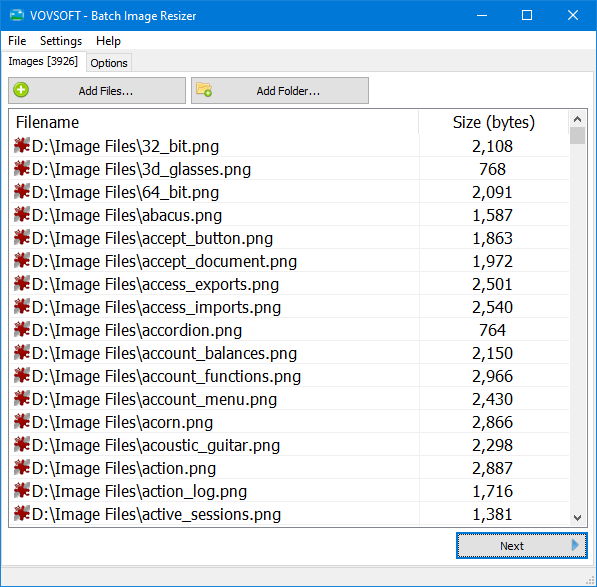
Vovsoft Batch Image Resizer source-image list
ChooseMatch the method
PrepareReview source files
PreviewCheck the result
SaveKeep useful copies

Is Vovsoft the Right Fit for Your Image Batch?

Choose from the actual work the images need. A focused resizer can be enough when the only required change is pixel dimensions.

Your requirement
Focused Windows resizingVovsoft Batch Image Resizer
A broader image workflowUniConverter Batch Image Editor
Main task
✓Resize image collections by percentage or pixel dimensions.
Resize supported images and continue with related editing controls.
Proportions
✓Use Keep aspect ratio when proportions should stay intact.
Choose the available canvas and fit behavior, then inspect composition.
Repeated work
✓Use the simple file-list and resizing workflow.
Keep a collection in one queue for resizing, review, and finishing.
Best reason to choose
✓A compact, dedicated resizing task on Windows.
A job that also needs crop, basic adjustment, or watermarking.
Simple decision:
Choose Vovsoft when its focused resizing controls meet the task. Choose UniConverter when preparing the same images also requires a wider set of batch edits.
Follow the UniConverter Steps

Vovsoft Batch Image Resizer Features and Native Workflow

Vovsoft Batch Image Resizer is a Windows utility for changing the dimensions of groups of image files. Its appeal is a focused offline workflow, with percentage and pixel-based resizing. Choose it for straightforward dimension changes; evaluate a broader editor when the job also needs composition, background, or branding work.

What Vovsoft Does Well

The developer describes a local desktop workflow: add images, choose the resizing method, and create the resized outputs. Installer and portable downloads give Windows users a choice of deployment style.

  • A focused interface is useful for recurring dimension changes.
  • The resizing task does not require uploading the source collection to a browser service.
  • Use the developer’s download page and avoid unrelated license-key or repack sites.
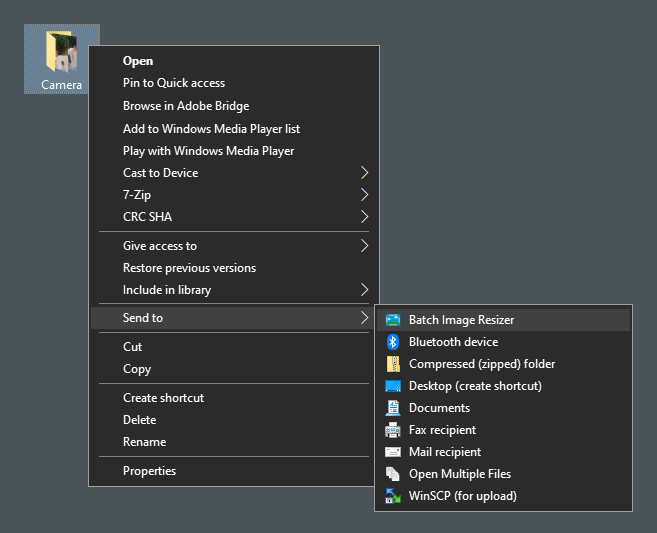
Vovsoft Send To integration in Windows Explorer

How to Resize Images in Vovsoft

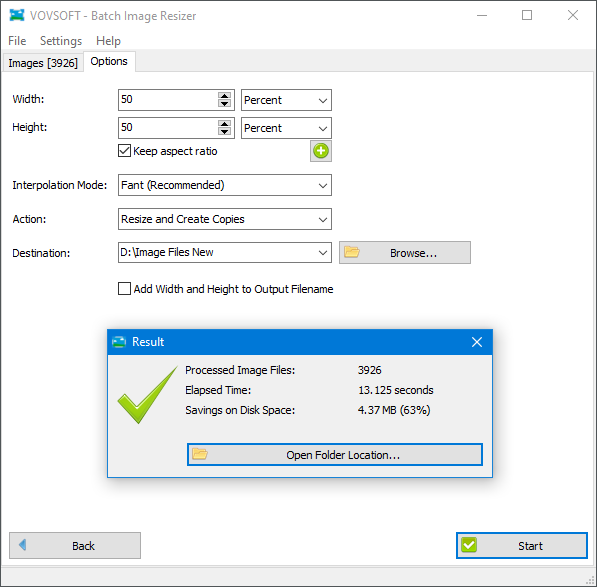
Add the source images by browsing or dragging them into the application. Select percentage resizing when each image should be scaled proportionally, or pixel width-height resizing when the delivery calls for specific dimensions.

  • Enable Keep aspect ratio when the subject must not stretch.
  • Choose the output location and naming options offered by the installed version.
  • Process a few mixed-orientation examples first and inspect the saved dimensions.
Vovsoft file list with image dimensions

Interpolation, Multiple Sizes, and Quality Limits

The developer lists several interpolation methods and a multiple-output-size workflow. These control how resizing is performed; they do not make an ordinary resize equivalent to AI detail restoration. Enlarging a small source can still reveal softness.

  • Use a standard method as a starting point and compare fine text and edges.
  • Test pixel-art sources separately when interpolation changes their intended appearance.
  • For multiple sizes from one image, keep filenames or folders clear enough to distinguish the outputs.

Vovsoft’s standard resizing controls should not be described as its separate AI Image Upscaler product. More pixels do not guarantee recovered photographic detail.

Vovsoft resizing settings and completed resize result

When UniConverter Is a Useful Alternative

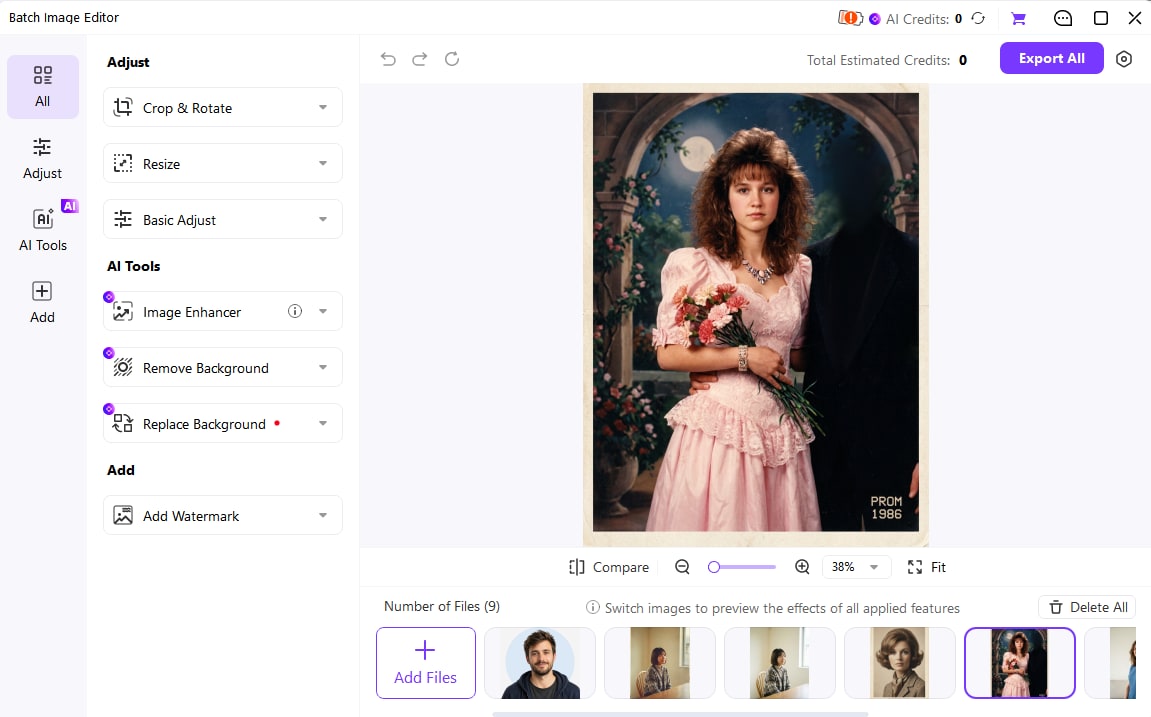
Use the independent UniConverter tutorial when you want resizing inside a broader Batch Image Editor workflow. Its available fit choices and related edits can be useful for a collection that also needs cropping, basic adjustment, or a visible watermark.

  • Choose Custom Size or a relevant available delivery preset.
  • Review how each source fits the target canvas.
  • Keep related image edits separate and intentional.
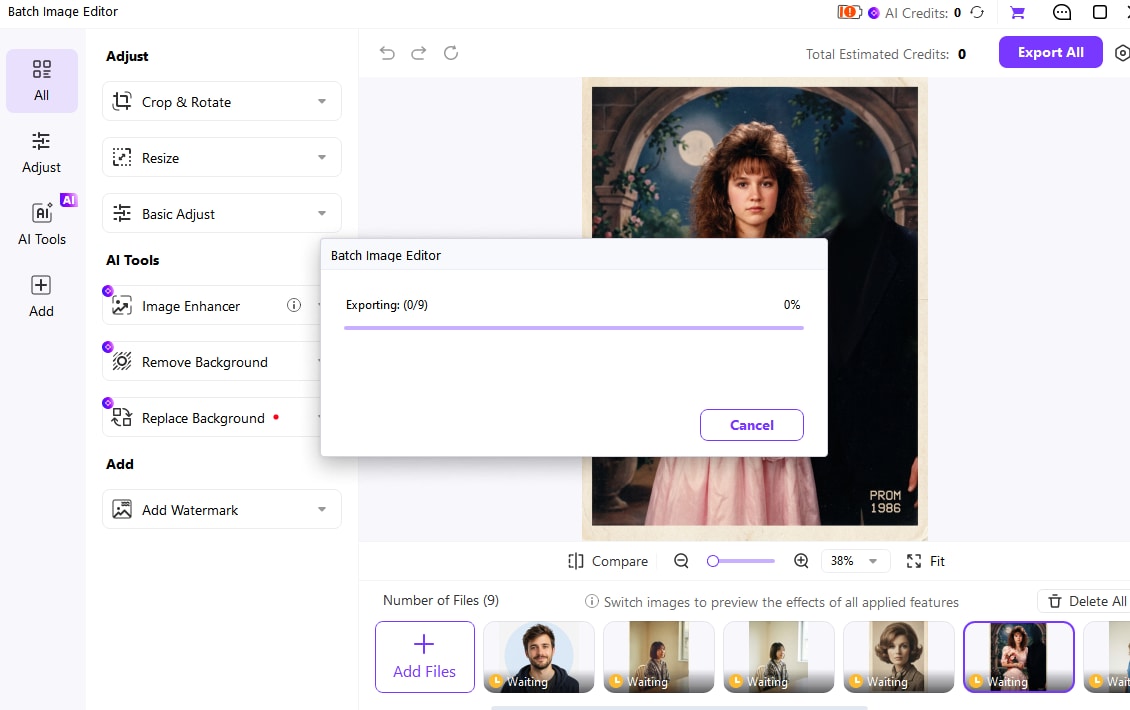
  • Use Export All after reviewing the prepared collection.

Keep aspect ratio preserves proportions; it does not guarantee that every source will fill the same target canvas without padding or cropping.

Batch Image Editor with the image queue, Resize, Add Watermark, Compare, and Export All

Vovsoft Resize Methods: What They Mean

Use the table to choose the correct action, then check the delivered files against the final column.

Choose a resizing method for the delivery requirement

Choose the action from the source problem, then use the final column to review the result.

Choose a resizing method for the delivery requirement
ChoiceWhy use itWhat to inspect
PercentageReduce or enlarge each source relative to its existing dimensions.The resulting pixel dimensions fit the destination.
Pixel width-heightStart from an explicit delivery-size requirement.Aspect-ratio handling prevents unwanted stretching.
InterpolationControl how pixels are resampled during resizing.Text, edges, gradients, and fine texture remain acceptable.
Multiple sizesCreate several dimension variants from a source.Outputs are clearly named and easy to identify.

Technical references: Vovsoft official product page and Vovsoft resizing tutorial.

DimensionsProportionsQualityLicensing
PercentagePercentage checkScale relative to each original.
PixelsPixels checkStart from the required output dimensions.

Preview a representative sample, check exceptions, and keep the original files for revisions. Interface labels can vary between platforms and versions.

Where Each Resizing Workflow Fits

Choose the example that matches the source files and the intended delivery.

A folder of smaller email copies

A focused percentage reduction can be sufficient. Check readability and retain the originals.

Website dimension variants

Use a clearly named multiple-size workflow and verify each delivered pixel size.

Mixed product-photo orientations

Review canvas handling carefully so products are not stretched or unintentionally cropped.

Resize plus branding

Use an editor workflow when the images also need watermarks or composition changes before delivery.

Common Vovsoft Resizing Questions and Problems

Compare the affected output with its source and review the selected file’s settings. Test the correction on a representative sample before repeating the job.

01

Images look stretched

Inspect Keep aspect ratio and the selected width-height settings. A source with different proportions cannot fill every fixed rectangle unchanged.
Check 1Proportions
02

Enlarged photos still look soft

Resampling adds pixels but does not recreate all missing detail. Use a higher-resolution original or evaluate a separate enhancement workflow.
Check 2Source quality
03

The download is described as free but asks for a license

The developer lists the product as free to try. Installer or portable availability does not imply an unrestricted free license.
Check 3Trial licensing

Consult the official guides for the relevant controls and keep separate tools’ instructions separate.

Vovsoft Batch Image Resizer Review FAQs

01

Is Vovsoft Batch Image Resizer free?

Vovsoft offers a free trial. The official product page lists a $19 paid license as of October 21, 2026; pricing can change. Installer and portable downloads are available.
Vovsoft Batch Image Resizer is a Windows application. For a Mac resizing workflow, use the separate UniConverter tutorial below.
Yes. The developer documents percentage and pixel width-height resizing methods. Choose based on whether you need relative scaling or specific delivery dimensions.
Use Keep aspect ratio when proportions should be preserved. Check how the output dimensions fit the delivery requirement, especially with mixed portrait and landscape images.
The ordinary resizer is separate from Vovsoft’s Batch Image Upscaler product. Do not assume standard interpolation restores detail that is missing from a small source.
Use UniConverter Batch Image Editor when resizing is one part of a broader supported image workflow, such as resizing followed by cropping, basic adjustment, or watermarking. Follow its independent tutorial rather than mixing its controls into Vovsoft steps.
Wondershare UniConverter

Resize and Finish an Image Collection with UniConverter

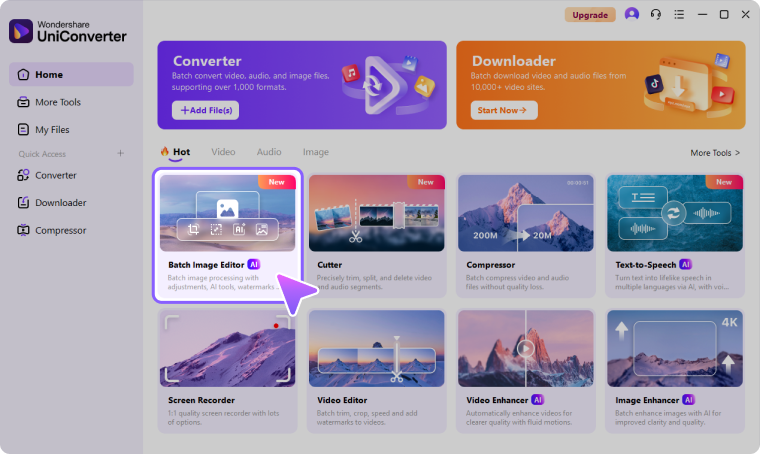
Use Batch Image Editor when the same collection needs resizing plus related finishing edits. Test the fit behavior, review different source proportions, and Export All.

Batch Image Editor exporting the prepared image collection