UniConverter
UniConverter Online Free
Converter video, audio & image free
Free Try
Make spoken content easier to follow

Improve Speech in Multiple Videos with Batch Vocal Enhancement

Quick Answer
  • To improve speech in multiple videos, import the videos into UniConverter Video Editor, open Audio, use the available voice adjustment or Vocal Enhancement option, and preview representative speech.
  • Review each prepared clip before export. Use Apply to All only for the audio adjustments explicitly supported by the current panel, then check exceptions.
  • Vocal enhancement aims to improve voice clarity. Vocal Remover separates vocals and accompaniment; noise reduction addresses unwanted background sound. They are different jobs.

Speech can be difficult to follow even when a video is loud enough. A distant microphone, competing background sound, or an uneven voice recording can all affect clarity. UniConverter Video Editor includes voice-related audio adjustments and Vocal Enhancement, allowing spoken-video collections to be prepared in one editing workflow.

UniConverter desktop:

UniConverter for Windows

UniConverter for Mac

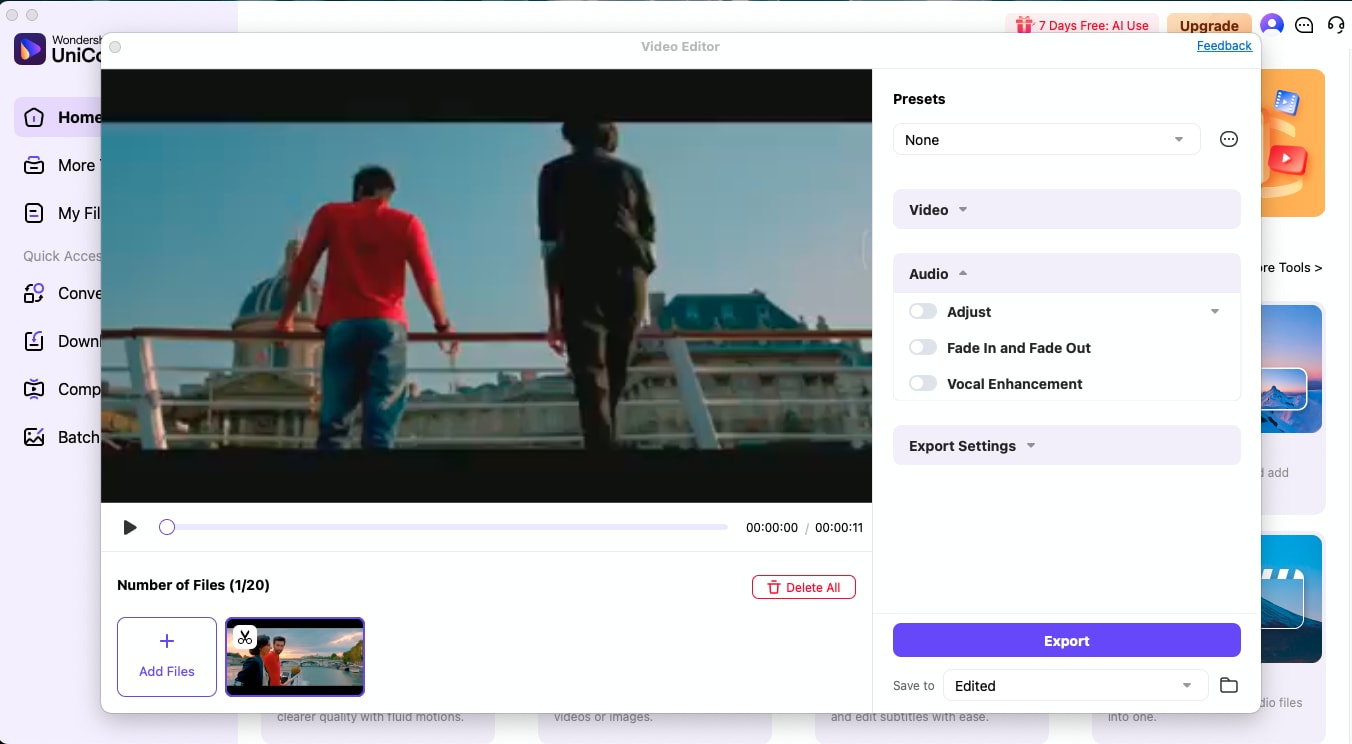
UniConverter Video Editor audio controls with Fade In and Fade Out and Vocal Enhancement
DiagnoseClarity, level, or noise
EnhanceChoose voice controls
ListenCheck natural speech
ExportReview saved dialogue

Voice Enhancement, Volume, or Noise Reduction?

Choose the tool according to why the speaker is difficult to hear. Enabling several processes at once makes it harder to know which one helped.

Your requirement
The voice needs clarityVoice enhancement
Another audio problemA different first step
Quiet but clear speech
✓Compare enhancement only if clarity also needs work.
A modest Volume adjustment may be sufficient.
Dull or distant dialogue
✓Test the editor’s voice controls and compare a full sentence.
Severely missing detail may require a cleaner source.
Distracting background sound
✓Check whether voice processing preserves natural speech.
Evaluate Noise Remover when unwanted sound is the main issue.
Separating a song
✓Do not use a speech-clarity workflow as a separation tutorial.
Use Vocal Remover when the actual goal is vocals and accompaniment.
Simple decision:
Start with the smallest useful intervention: volume for audibility, voice enhancement for clarity, or noise reduction for distracting background sound.
Follow the UniConverter Steps

Enhance Dialogue While Preserving Natural Speech

A strong batch workflow produces understandable speech without treating every recording as identical. Group comparable sources and judge the voice itself, not only its loudness.

Diagnose Why the Speech Is Hard to Follow

Listen at a comfortable playback level. Decide whether the main issue is low volume, poor clarity, background sound, or source distortion. This prevents a voice enhancer from becoming the default answer to every audio problem.

  • Use a clear, quiet passage to judge the speaker’s natural tone.
  • Compare another passage with background sound or a second speaker.
  • Separate severely distorted clips and recordings with competing voices for individual review.
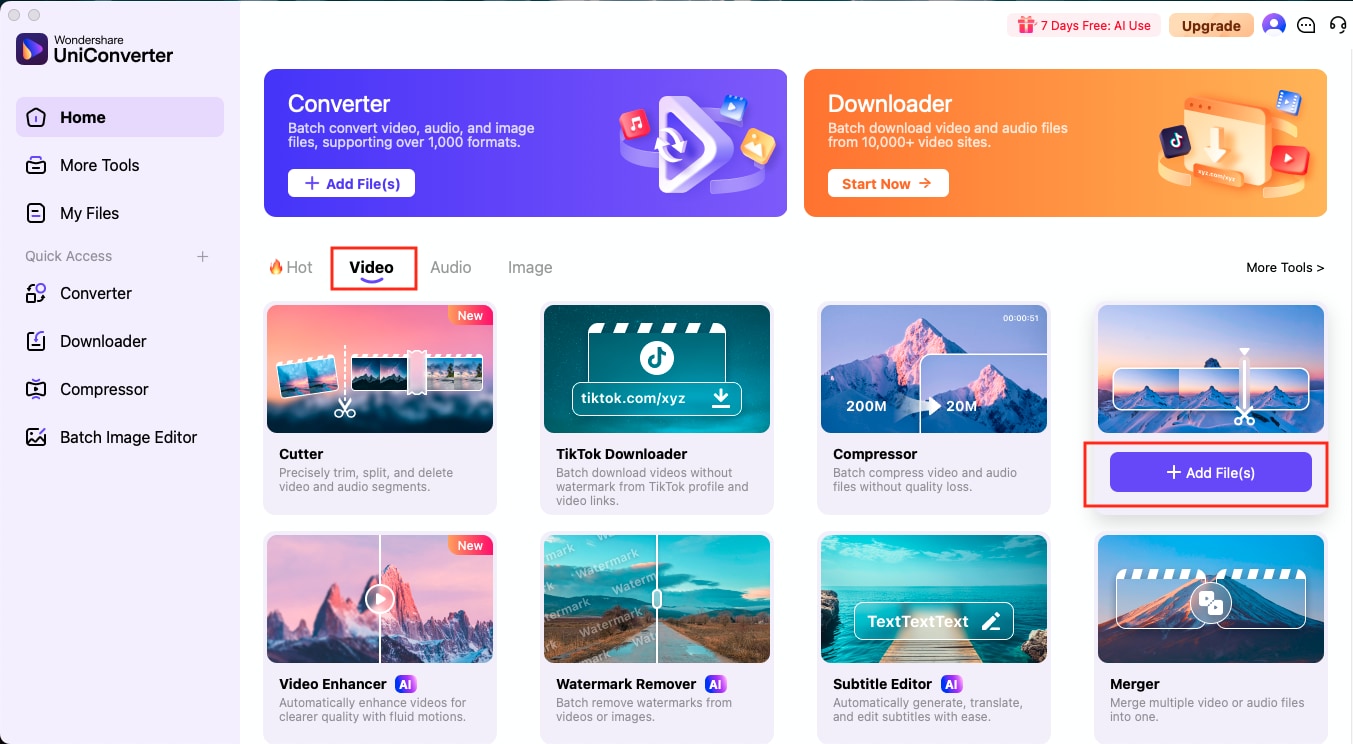
UniConverter Home with Video Editor in the Video tools

Choose the Available Voice Controls in Audio

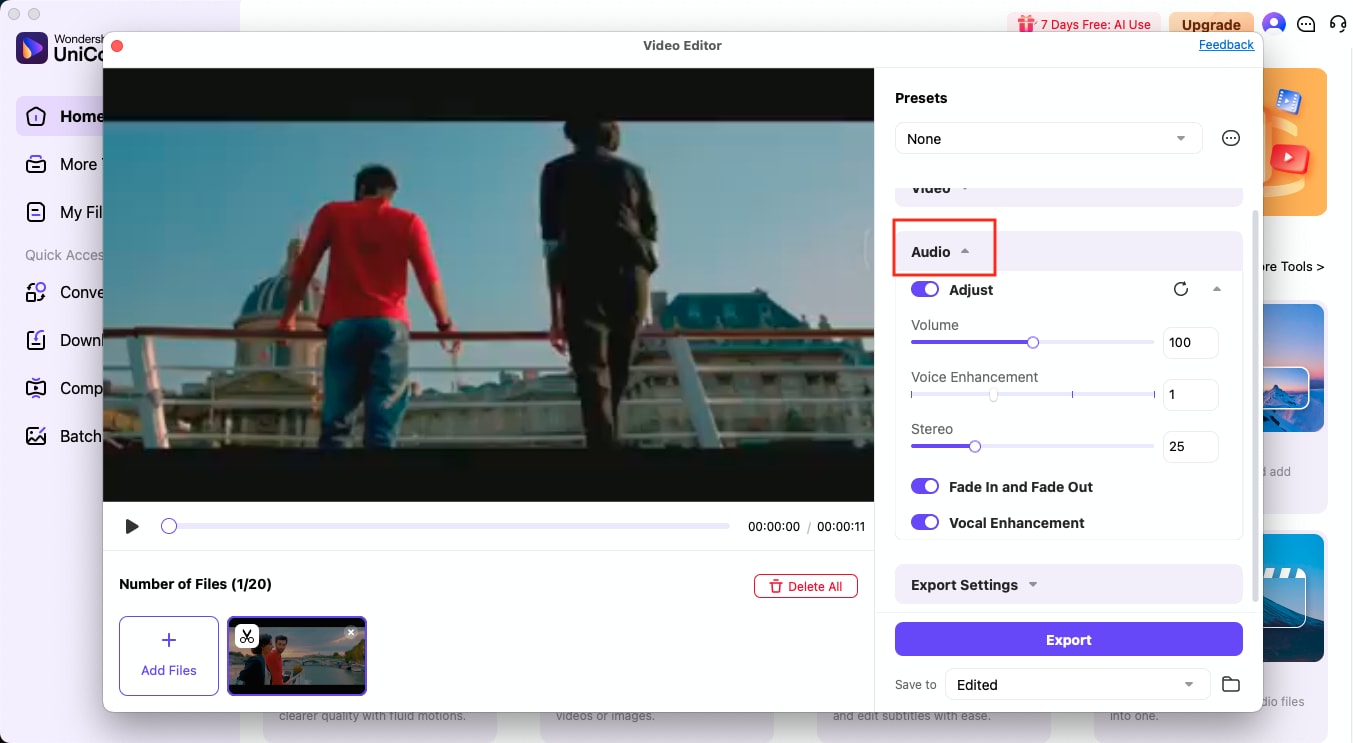
Open Audio in UniConverter Video Editor. Adjust contains volume and voice-related controls in documented interfaces; Vocal Enhancement is also shown as an audio option. Use the controls your version provides, preview one change, and compare it before adding another.

  • Begin with a representative spoken passage rather than a silent section.
  • Listen for clearer words without harsh consonants or an unnatural voice quality.
  • Leave stereo and unrelated edits alone unless the recording needs those changes.
UniConverter Video Editor audio controls with Fade In and Fade Out and Vocal Enhancement

Prepare Comparable Videos Together

Videos recorded with the same microphone, room, and speaker position are the best starting group. The Windows audio guide documents Apply to All for multiple files; use it for supported audio adjustments when present, and verify the selected clips afterward.

  • Inspect different speakers even when they appear in the same project.
  • Adjust exceptions separately if a shared treatment makes them harsh or thin.
  • Keep noise cleanup as a distinct decision instead of repeatedly processing an already altered copy.

A louder voice can seem clearer during comparison. Match the listening level as closely as practical before deciding whether enhancement improved intelligibility.

A video imported into UniConverter Video Editor with its Audio section visible

Export and Judge Intelligibility in the Results

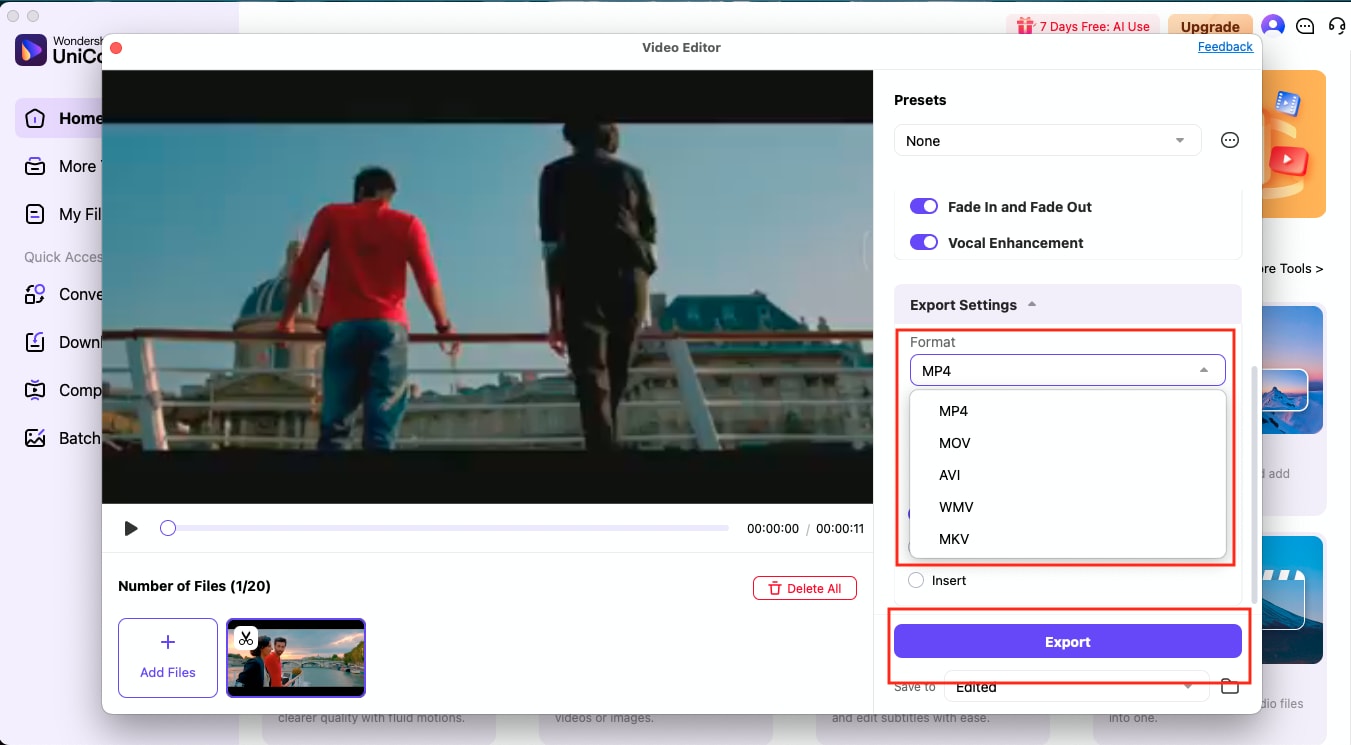
Choose the available export settings and Save to location, then click Export. Listen to the saved dialogue on headphones and a typical playback device when practical. The goal is a voice the audience can follow comfortably.

  • Check soft words, names, technical terms, and phrase endings.
  • Compare the original and enhanced voice at similar playback levels.
  • Check the picture and speech synchronization on the saved video.
  • Retain the original whenever enhancement introduces more distraction than it removes.

Voice enhancement cannot guarantee recovery of words that are missing, severely clipped, or buried beneath overlapping sound.

UniConverter Video Editor output format choices and Export button

Choose an Audio Treatment from the Speech Problem

Use a simple decision table before preparing the batch. Several similar-sounding product names serve different purposes.

Speech improvement tools and what to check

Choose the action from the source problem, then use the final column to review the result.

Speech improvement tools and what to check
Recording problemUseful starting pointResult check
Voice is clear but too quietVolume in Audio > Adjust.Comfortable level without excessive noise or rough peaks.
Words sound dull or distantAvailable voice adjustment or Vocal Enhancement.Better intelligibility with a natural tone.
Noise masks the speakerNoise reduction or the dedicated Noise Remover.Useful syllables survive the cleanup.
Vocals must be separated from musicA separate Vocal Remover workflow.The desired separated material is actually produced.

Technical references: Voice and audio controls guide and AI Audio Enhancer overview.

Speech clarityVolumeBackground soundResult checks
WordsWords checkCompare a full sentence before and after.
ToneTone checkReject harsh, thin, or artificial results.

Preview a representative sample, check exceptions, and keep the original files for revisions. Interface labels can vary between platforms and versions.

Useful Batch Speech-Enhancement Workflows

Match the treatment to the voice and environment. A recurring project name does not guarantee that all its recordings need the same settings.

Tutorial collections

Use clear technical terms and quiet explanations as the review sample. Check microphone changes between recording sessions.

Interview excerpts

Evaluate each speaker and microphone independently. A treatment that helps one voice can make another too sharp or unnatural.

Recorded presentations

Check the presenter during ordinary speech and emphasized points. Room sound and microphone distance may change within the same talk.

Training and onboarding videos

Review names, numbers, and final instructions carefully. Preserve intelligibility over a merely louder or brighter sound.

Fix Common Batch Vocal Enhancement Problems

Return to the original recording and the selected file’s settings to identify the cause. Test a correction on a small group before repeating the job.

01

Speech is louder but no easier to understand

Compare at similar playback levels and listen to difficult words. If the improvement disappears, investigate the actual clarity or noise problem rather than increasing the setting again.
Check 1Loudness bias
02

The voice becomes sharp or unnatural

Reduce or disable the applied voice treatment and compare the original. Separate that speaker from the shared setup instead of forcing the same adjustment across every source.
Check 2Overprocessing
03

Background speech still masks the speaker

Competing voices overlap the desired speech and can remain difficult to separate. Test a noise-cleanup route cautiously, keep the original, and use a cleaner recording when available.
Check 3Overlapping sound

Consult the official guides for the relevant controls and keep separate tools’ instructions separate.

Batch Vocal Enhancement FAQs

01

How can I improve speech in multiple videos?

Import related videos into UniConverter Video Editor, open Audio, and preview the available voice adjustment or Vocal Enhancement option. Prepare the clips, check different speakers and noisy exceptions, then export and compare the saved dialogue.
No. A volume change raises or lowers the existing soundtrack. Voice enhancement aims to improve the presentation or clarity of the voice. Compare at similar listening levels to judge whether the words are actually easier to follow.
Vocal Remover is intended for separating vocals and accompaniment. For this speech-improvement task, start with Video Editor audio controls or a suitable enhancement workflow rather than assuming separation is necessary.
Choose the first step from the main defect. If background sound masks the speaker, test noise reduction. If the voice is already clean but dull, test enhancement. Compare each change and avoid stacking processes without checking their effect.
Not reliably. Voices, microphones, distances, and rooms vary. Use shared adjustments only for comparable sources, then inspect exceptions and prepare them separately when the same treatment sounds unsuitable.
No. Severe clipping, missing detail, and overlapping voices can limit the result. Keep originals, compare representative passages, and use a better source when processing cannot make the speech acceptably intelligible.
Wondershare UniConverter

Prepare Clearer Spoken Videos with UniConverter

Test the available voice controls on a representative clip, review different speakers, and export the prepared collection. Keep only results that make the words easier to follow.

UniConverter Video Editor output format choices and Export button