UniConverter
UniConverter Online Free
Converter video, audio & image free
Free Try
Repeat a tested setup, then review the new footage

Use Video Editing Presets for Repeated Batch Workflows

Quick Answer
  • To apply a video editing preset in UniConverter, import videos into Video Editor, select a saved entry from Presets, and inspect the enabled settings before export.
  • On Mac, the official audio guide documents the three-dot menu > Save as New Preset for the current adjustments. Confirm the options offered by your installed version.
  • Editing presets and export presets serve different purposes. Reusing a preset does not prove that every setting fits every video or that it transfers between computers.

A video editing preset is a saved starting configuration for repeated work. It can reduce the time spent rebuilding settings, but the next folder still needs a content check. UniConverter Video Editor includes a Presets selector; its Mac audio guide also documents saving current adjustments as a new preset.

UniConverter desktop:

UniConverter for Windows

UniConverter for Mac

UniConverter Video Editor Audio Adjust controls for volume, voice enhancement, and stereo
SelectStart from saved settings
InspectCheck active operations
TestReview new source footage
RepeatReuse a proven setup

Editing Presets or Export Presets: Which Do You Need?

The word preset appears in several video workflows. Start by deciding whether you want to repeat an edit or repeat a delivery configuration.

Your requirement
Changes to the contentEditing preset
How a file is deliveredExport preset
Primary purpose
✓Start from saved editing adjustments in the editor.
Choose a reusable output configuration where the export tool offers one.
What to inspect
✓Enabled operations, slider values, framing, and audio.
Container, codec, resolution, frame rate, and other available output settings.
Mixed source footage
✓Check selected files and correct unsuitable settings.
Check that delivery settings fit the source and destination.
Reuse boundary
✓Confirm the preset’s actual stored settings in your version.
Do not assume a format preset also saves the editing operation list.
Simple decision:
Use editing presets to start a repeated treatment. Review export settings separately and test new footage before preparing the rest of the batch.
Follow the UniConverter Steps

Build a Repeatable Editing Routine Around UniConverter Presets

The useful part of a preset is the tested decision it preserves. Keep that decision narrow enough to fit the next recording session.

Choose One Recurring Job for Each Preset

A recurring task might be an audio adjustment for a course-recording setup or a particular starting look for a product-video session. Define the source conditions and delivery goal before saving settings.

  • Use a name that identifies the source and purpose, such as Course Mic A – Starting Audio.
  • Avoid an all-purpose preset for unrelated phones, cameras, lighting conditions, and microphones.
  • Write down the assumptions that make the setup appropriate for the next folder.
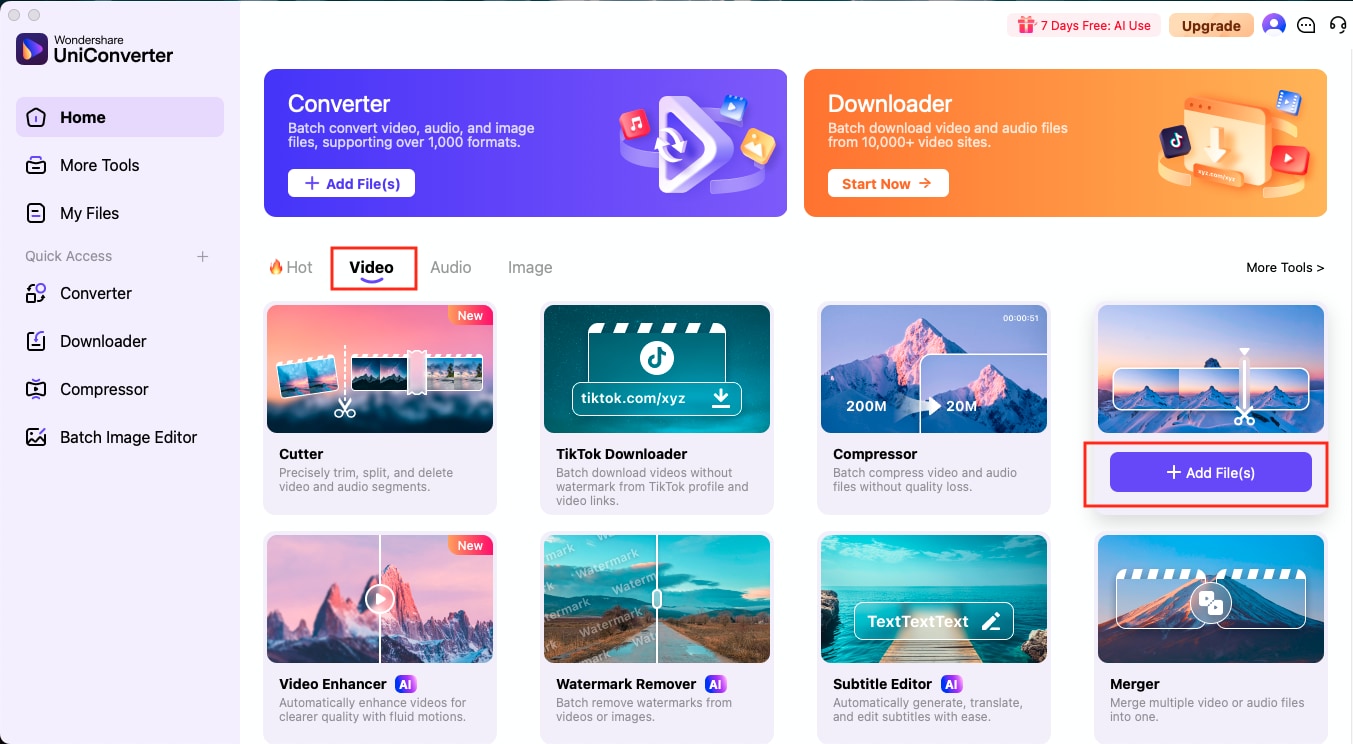
UniConverter Home with Video Editor in the Video tools

Select Saved Settings and Inspect What Changes

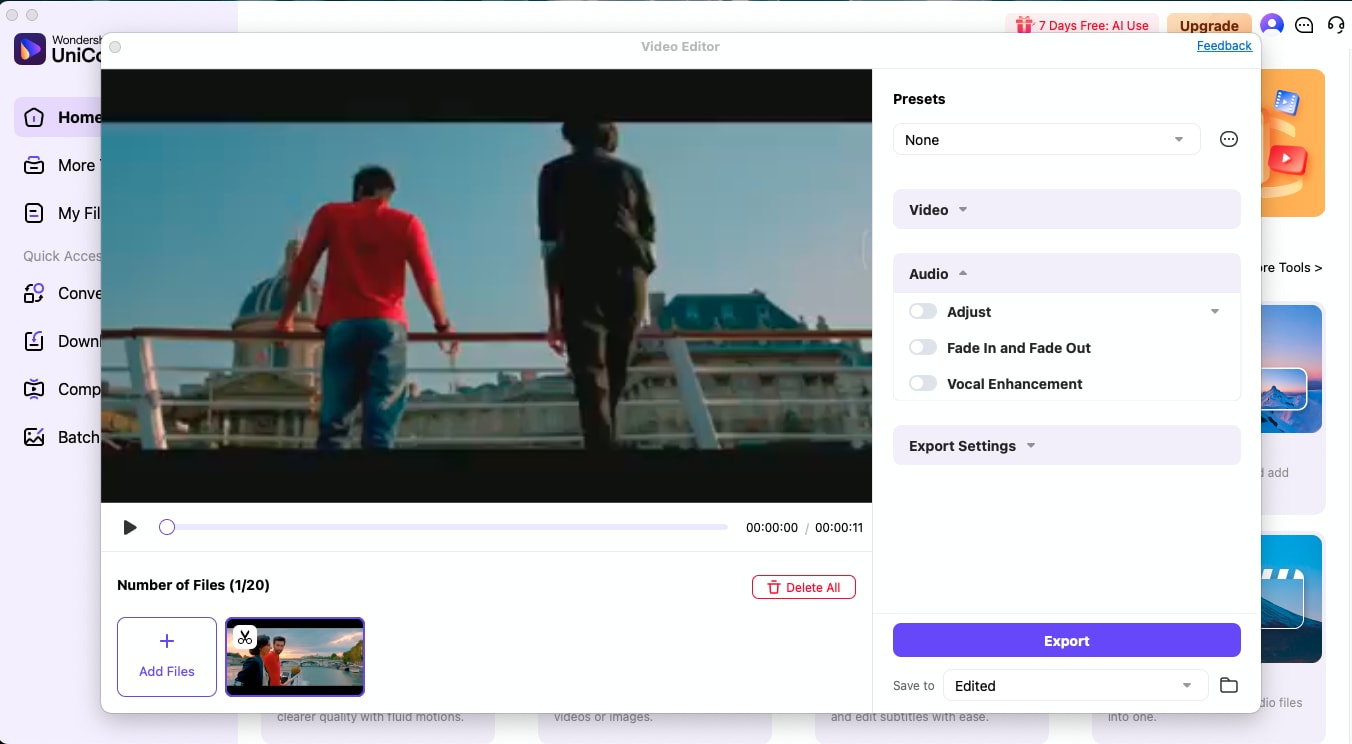
Import a representative video, open Presets, and choose the relevant saved entry. Expand the Video and Audio sections to inspect enabled operations and values. A preset should make the starting point visible, not hide the editing decision.

  • Check framing and orientation when a preset affects the picture.
  • Listen to the audio after loading a sound-related preset.
  • Turn off unrelated operations before accepting the setup for the selected file.
UniConverter Video Editor Audio Adjust controls for volume, voice enhancement, and stereo

Save a New Preset Where the Interface Supports It

The official UniConverter Mac audio guide describes saving current adjustments through the three-dot menu and Save as New Preset. Set the intended adjustments first, use that option, then select the saved preset to inspect the result.

  • Treat this menu label as the documented Mac procedure; confirm the corresponding options in another version.
  • Test saved settings on a second representative clip before treating them as reusable.
  • Verify what is actually recalled rather than assuming every edit, file path, or export setting is included.

A Presets selector is not evidence of preset-file import/export, synchronization between computers, or a full project-template system. Do not plan a workflow around those assumptions.

A video imported into UniConverter Video Editor with its Audio section visible

Review the Batch Before Exporting

Select the new source clips and confirm that the intended settings are active on each prepared file. A batch output is a collection of edited files, so exceptions remain important even when the starting configuration is reusable.

  • Check the shortest clip, a visually different clip, and one with unusually loud or quiet audio.
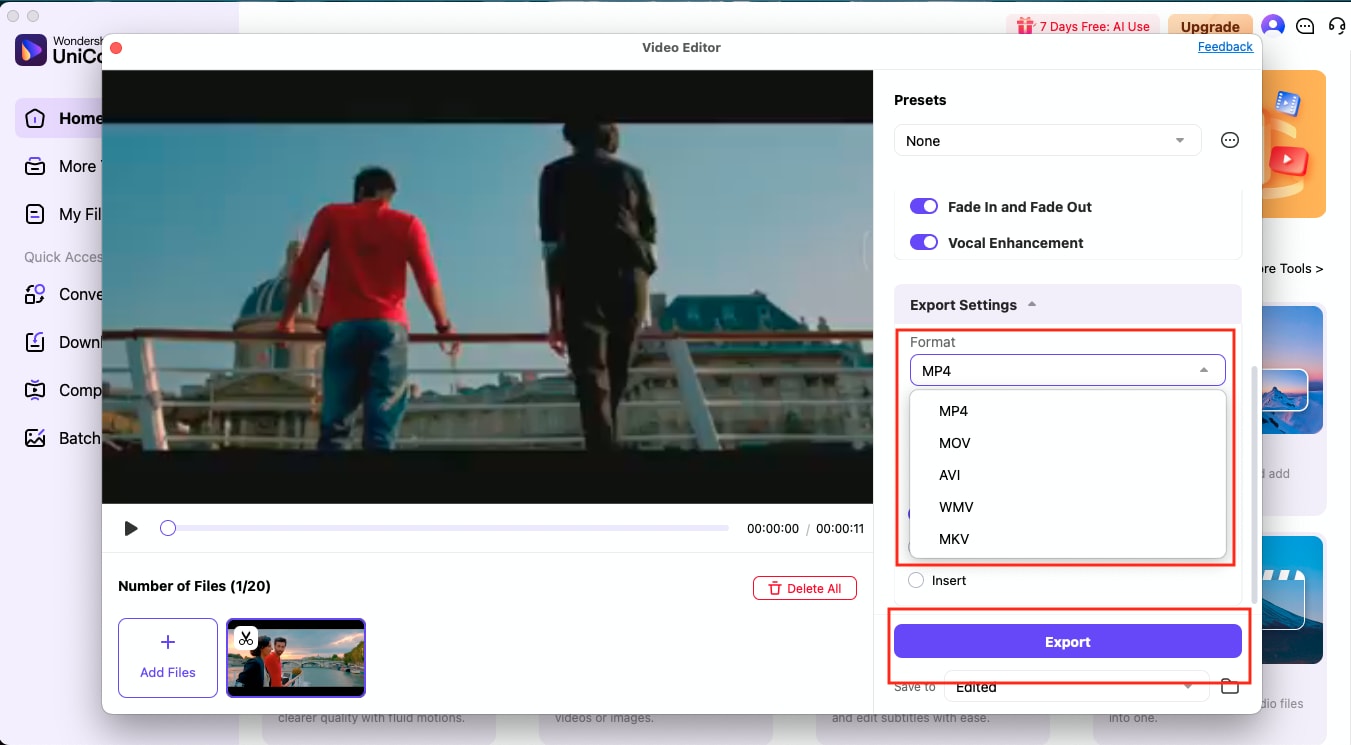
  • Review Save to and export options separately from the editing preset.
  • Use a separate output folder and inspect sample results in a player.
  • Keep a version note when you change a preset’s intended purpose.

A saved setup repeats settings; it does not automatically identify every clip that needs a different correction.

UniConverter Video Editor output format choices and Export button

What to Check Before Reusing an Editing Preset

Use a short validation pass whenever the source conditions change. These checks make a preset more useful without turning it into an unattended editing promise.

Preset validation checklist for recurring video jobs

Choose the action from the source problem, then use the final column to review the result.

Preset validation checklist for recurring video jobs
CheckWhy it mattersPractical action
Enabled operationsAn unrelated crop, speed, or audio edit can change the result.Expand the relevant sections and disable unwanted operations.
Source conditionsNew framing, lighting, or microphones can invalidate an old setup.Test a representative clip from the new folder.
Recall scopeA preset may not store every setting or destination.Reload it and inspect the actual recalled values.
Output configurationEditing and delivery decisions are separate.Review export settings and Save to before processing.

Technical references: Mac preset-saving instructions and Mac editing and export guide.

Starting pointPictureAudioExport
PurposePurpose checkKeep a preset tied to a recurring job.
ScopeScope checkVerify which adjustments are recalled.

Preview a representative sample, check exceptions, and keep the original files for revisions. Interface labels can vary between platforms and versions.

Practical Preset Ideas for Repeated Work

These examples describe ways to organize a workflow. Store only the settings that your installed editor actually saves and recalls.

A course recording setup

Keep a starting audio configuration for a recurring microphone and room. Recheck it after equipment, distance, or recording-level changes.

A product-video series

Use a tested starting treatment for footage shot under comparable conditions. Review reflective surfaces and different lighting before accepting a shared look.

A regular social-video batch

Separate the editing setup from the delivery format. Confirm framing and speech after selecting the preset for new material.

A team handoff checklist

Record the preset name, intended source conditions, and output checks. Confirm settings manually when another device or app version cannot recall the same setup.

Fix Common Video Editing Preset Problems

Return to the original recording and the selected file’s settings to identify the cause. Test a correction on a small group before repeating the job.

01

A preset changes something unexpected

Expand every enabled section and inspect its controls. Disable unrelated operations, test another clip, and save a more narrowly defined setup if the current interface supports it.
Check 1Unexpected edits
02

The export looks different from the preview

Check both the editing configuration and the output settings. Resolution, codec, or compression choices can alter delivery independently of the preset used for editing.
Check 2Delivery settings
03

The preset is missing on another computer

Do not assume automatic syncing or portable preset files. Recreate the documented settings in that environment unless the installed version explicitly offers a supported transfer feature.
Check 3Reuse scope

Consult the official guides for the relevant controls and keep separate tools’ instructions separate.

Video Editing Preset FAQs

01

What are video editing presets?

They are saved starting settings for repeated editing work. In UniConverter Video Editor, use the Presets selector to choose a saved setup, then inspect the enabled operations and preview the new footage before exporting.
The official Mac audio guide documents setting the adjustments, opening the three-dot menu, and selecting Save as New Preset. Use the options actually shown in your installed version and check which settings are recalled.
Use a saved setup as the starting point for a multi-file job, then select and verify the prepared files before batch export. Do not assume that every setting is automatically shared with every imported video.
No. Editing settings change the content or its treatment. Export settings determine how the result is encoded and delivered. Review both; a format preset does not establish that the editing settings were saved.
This workflow does not assume portable preset files or automatic synchronization. Check whether the installed version explicitly provides a supported transfer option. Otherwise, use a written settings checklist to recreate the setup.
A preset repeats a configuration, while new footage can have different framing, lighting, audio levels, and duration. A short review catches exceptions before they become a folder of unsuitable outputs.
Wondershare UniConverter

Reuse a Tested Setup for Your Next Video Batch

Choose a relevant UniConverter Video Editor preset, inspect its settings, and test the new footage. Review delivery options separately before exporting the prepared collection.

UniConverter Video Editor output format choices and Export button