UniConverter
UniConverter Online Free
Converter video, audio & image free
Free Try
A dedicated batch workflow for noisy soundtracks

Batch Remove Background Noise from Videos and Audio

Quick Answer
  • To remove background noise from multiple videos or audio files, open UniConverter Desktop Noise Remover, add the files, choose File Location, and click Start All.
  • Use the dedicated Noise Remover for the batch tutorial below. Video Editor > Noise Reduction is a separate editing route with its own controls.
  • Compare the original and cleaned recordings. Noise reduction cannot guarantee complete removal without affecting speech, music, or overlapping sounds.

When several recordings share fan noise, hiss, or distracting background sound, processing them in one queue can reduce repetitive work. UniConverter Desktop Noise Remover accepts video and audio files directly. The important final check is whether the useful speech or music survives the cleanup.

UniConverter desktop:

UniConverter for Windows

UniConverter for Mac

UniConverter Noise Remover processing a queue of recordings
ImportVideo and audio files
QueueOrganize the collection
ProcessUse Start All
ComparePreserve useful sound

Desktop Batch Noise Removal or a Quick Online Cleanup?

Choose the route around the number of files and the recording problem. The desktop queue is the relevant UniConverter workflow for this multi-file task.

Your requirement
Several recordingsDesktop Noise Remover
A quick single fileOnline Noise Remover
File collection
✓Add supported video and audio files to the processing queue.
Use the browser route for an eligible individual file.
Repeated work
✓Run the prepared queue with Start All.
Do not assume the online tool offers the desktop batch workflow.
Existing video sound
✓Process the video directly rather than extracting audio first.
Check current upload and format requirements before using a browser tool.
Review
✓Check representative files and difficult exceptions.
Compare the result with the original before downloading or delivering.
Simple decision:
Choose UniConverter Desktop for multiple recordings. Start with a representative sample and judge speech preservation before processing the rest of the folder.
Follow the UniConverter Steps

Clean Up Multiple Recordings with a Dedicated Noise Queue

A batch noise remover is useful when the collection needs the same broad task: reduce unwanted sound. The quality decision still depends on each recording.

Identify Noise Before Choosing the Tool

Listen to a pause and a spoken passage. Hiss, hum, fan noise, background voices, reverberation, and overload distortion are different problems. A tool that improves one recording may leave another with audible artifacts.

  • Separate steady room noise from speech that overlaps competing voices or music.
  • Keep distorted or severely overloaded recordings in a separate review group.
  • Use the original recording as the comparison reference, not a previously processed copy.
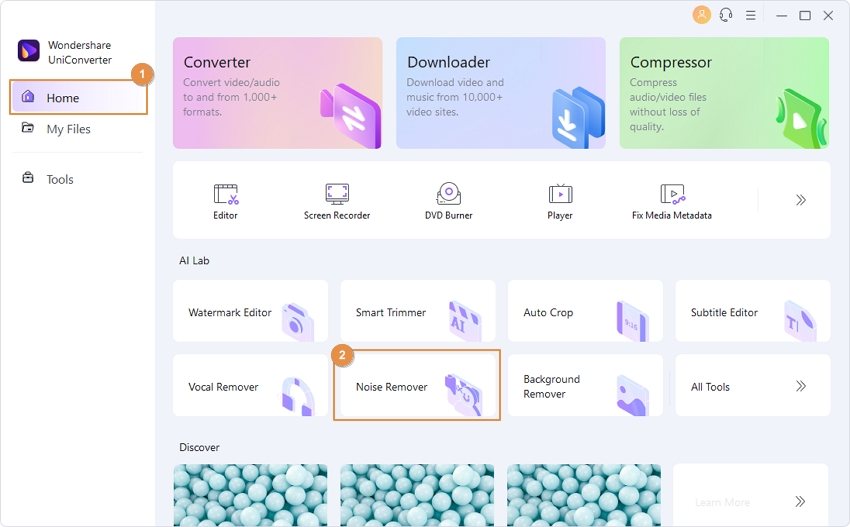
Noise Remover tool highlighted in UniConverter Home

Import Videos and Audio into Noise Remover

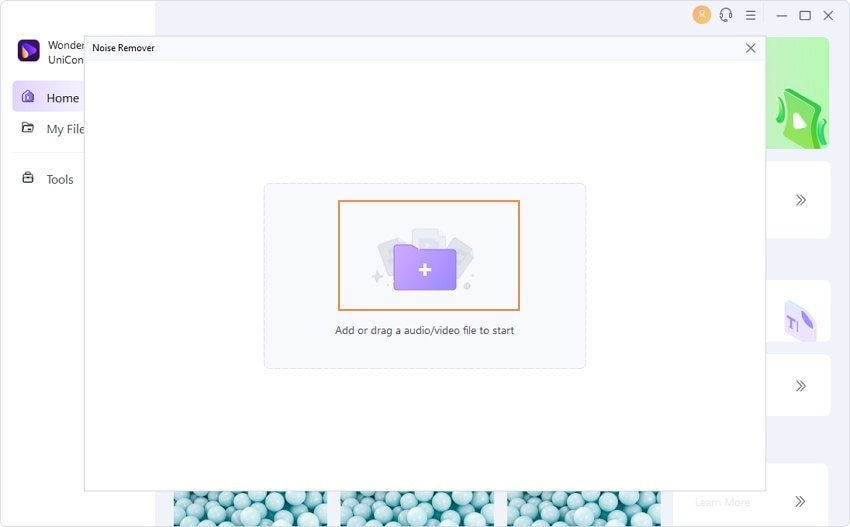
Open the dedicated Noise Remover from UniConverter Home or its tools area. Add supported recordings with the import control or drag them into the workspace. This keeps the soundtrack inside its video when the source is a video file.

  • Use the actual queue contents to confirm that all intended files were imported.
  • Start with a small group containing an easy recording and a difficult one.
  • Choose File Location before processing so the results are easy to identify.
Dedicated UniConverter Noise Remover import workspace

Run the Batch and Preserve the Main Recording

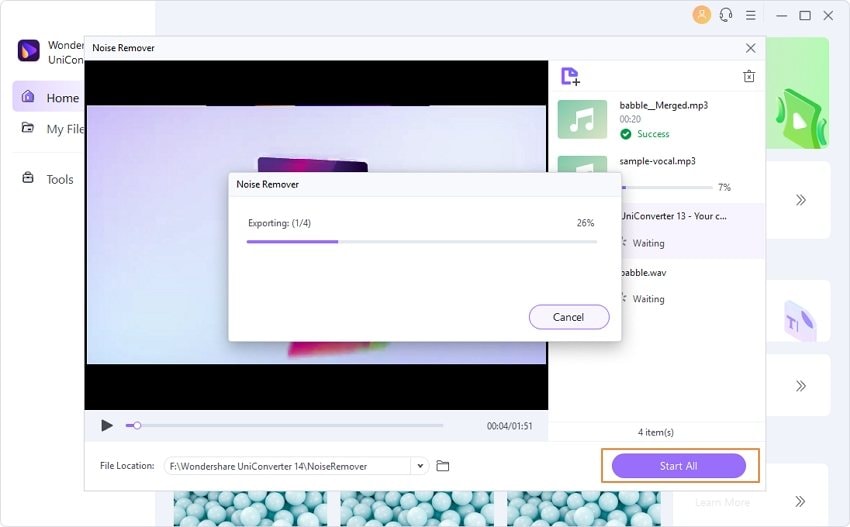
Click Start All in the dedicated Noise Remover. Wait for processing to finish, then compare the cleaned files with their originals. Listen to the voice itself as well as the quieter gaps between sentences.

  • Check consonants, soft words, breaths, and the ends of phrases for loss of detail.
  • For music, check sustained notes, percussion, and quiet passages rather than judging silence alone.
  • Keep exceptions separate when the cleanup changes the desired sound too much.

Noise reduction addresses unwanted sound. Video denoising that reduces visible grain is a different operation and does not clean the soundtrack.

UniConverter Noise Remover processing a queue of recordings

Review Results Before Delivering the Folder

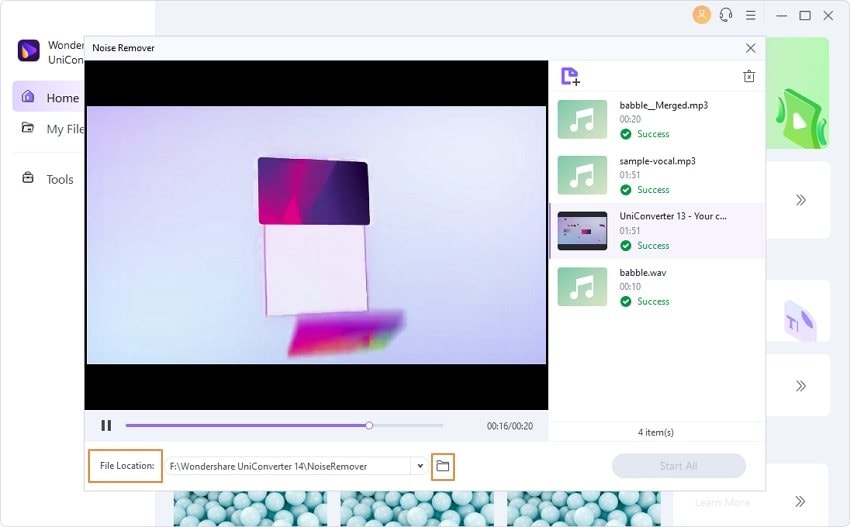
Open the destination from File Location or the folder control. Match each result with its source and listen at a comparable playback level. Quieter background noise is useful only if the main content remains understandable.

  • Check the output count and that every expected file can be opened.
  • For videos, verify the picture, soundtrack, and speech synchronization.
  • Retain an untreated copy when ambience or music is important to the recording.
  • If processing cannot separate overlapping sounds acceptably, seek a cleaner source or make a targeted edit.

Use Start All in the dedicated Noise Remover workflow. Do not substitute the Video Editor Export button into those instructions.

Completed Noise Remover files and File Location folder control

Match the Cleanup to the Recording Problem

These are listening and routing decisions, rather than claims that one automatic process can repair every sound defect.

Noise reduction decisions and acceptance checks

Choose the action from the source problem, then use the final column to review the result.

Noise reduction decisions and acceptance checks
What you hearPractical routeAcceptance check
Steady hiss or fan soundTest Noise Remover on representative material.Speech remains natural during words and pauses.
Competing voices or musicEvaluate carefully and keep a fallback copy.The intended speaker is clearer without unacceptable artifacts.
Strong room reverberationTreat as a room-sound problem and test cautiously.Word endings remain understandable; do not expect a dry studio recording.
Clipping or overloadFind a cleaner recording when possible.Do not mistake quieter distortion for restored detail.

Technical references: Desktop Noise Remover guide and Noise Remover feature and online scope.

SpeechVideo filesMusicDifficult noise
PausesPauses checkCheck whether the background becomes less distracting.
WordsWords checkProtect soft syllables and phrase endings.

Preview a representative sample, check exceptions, and keep the original files for revisions. Interface labels can vary between platforms and versions.

Where Batch Noise Removal Is Useful

Start with collections that share a recording environment, then review sources that depart from that environment.

Lessons recorded near a fan

Test whether steady fan sound becomes less distracting while quieter explanations remain intact. Group lessons from the same room and microphone.

Remote interview recordings

Review each participant’s source. Background chatter and room sound can vary considerably, so one acceptable result does not validate every guest file.

Outdoor video collections

Compare speech against wind and traffic in several clips. Keep especially windy sections separate because a clean moment does not represent the whole recording.

Archived spoken audio

Process supported audio files directly and check soft words in older recordings. Retain the originals for future cleanup or restoration attempts.

Fix Common Batch Noise Removal Problems

Return to the original recording and the selected file’s settings to identify the cause. Test a correction on a small group before repeating the job.

01

Speech becomes metallic or watery

Compare an untreated source at a similar level. If the artifact is more distracting than the original noise, keep that file outside the batch result and try a more targeted cleanup or a better source.
Check 1Processing artifacts
02

Noise is quieter but still audible

That can be an acceptable result when it preserves speech. Judge intelligibility and listener distraction rather than requiring complete silence between every word.
Check 2Residual noise
03

The wrong noise-removal tool was opened

For this tutorial, use the dedicated Noise Remover with File Location and Start All. Visible-grain reduction in Video Enhancer and the editor’s audio toggle are different workflows.
Check 3Tool selection

Consult the official guides for the relevant controls and keep separate tools’ instructions separate.

Batch Noise Removal FAQs

01

Can I remove background noise from multiple videos at once?

UniConverter Desktop Noise Remover provides a multi-file processing queue. Add supported videos, set File Location, and click Start All. Check representative results and difficult clips before delivering the collection.
Yes. The dedicated Noise Remover accepts supported audio as well as video inputs. Confirm that the intended files appear in the queue, then compare the cleaned sound with the originals.
No separate extraction is required for supported videos in the Noise Remover workflow. Process the video input directly and check the saved video’s picture, sound, and synchronization afterward.
It is a separate route. Video Editor has its own audio controls and export process. The dedicated Noise Remover used here imports a queue, uses File Location, and starts processing with Start All.
No. Results depend on the source and the overlap between unwanted sound and useful content. Competing voices, severe wind, reverberation, and distortion can remain difficult. Keep originals and reject results with distracting artifacts.
Visual denoising reduces grain or noise in the picture. Audio noise reduction treats unwanted sound in the soundtrack. Choose the tool according to which part of the recording has the problem.
Wondershare UniConverter

Clean Up Your Next Recording Collection with UniConverter

Add a representative group to the desktop Noise Remover, compare the cleaned sound, and process the remaining recordings when the results preserve what matters.

Completed Noise Remover files and File Location folder control