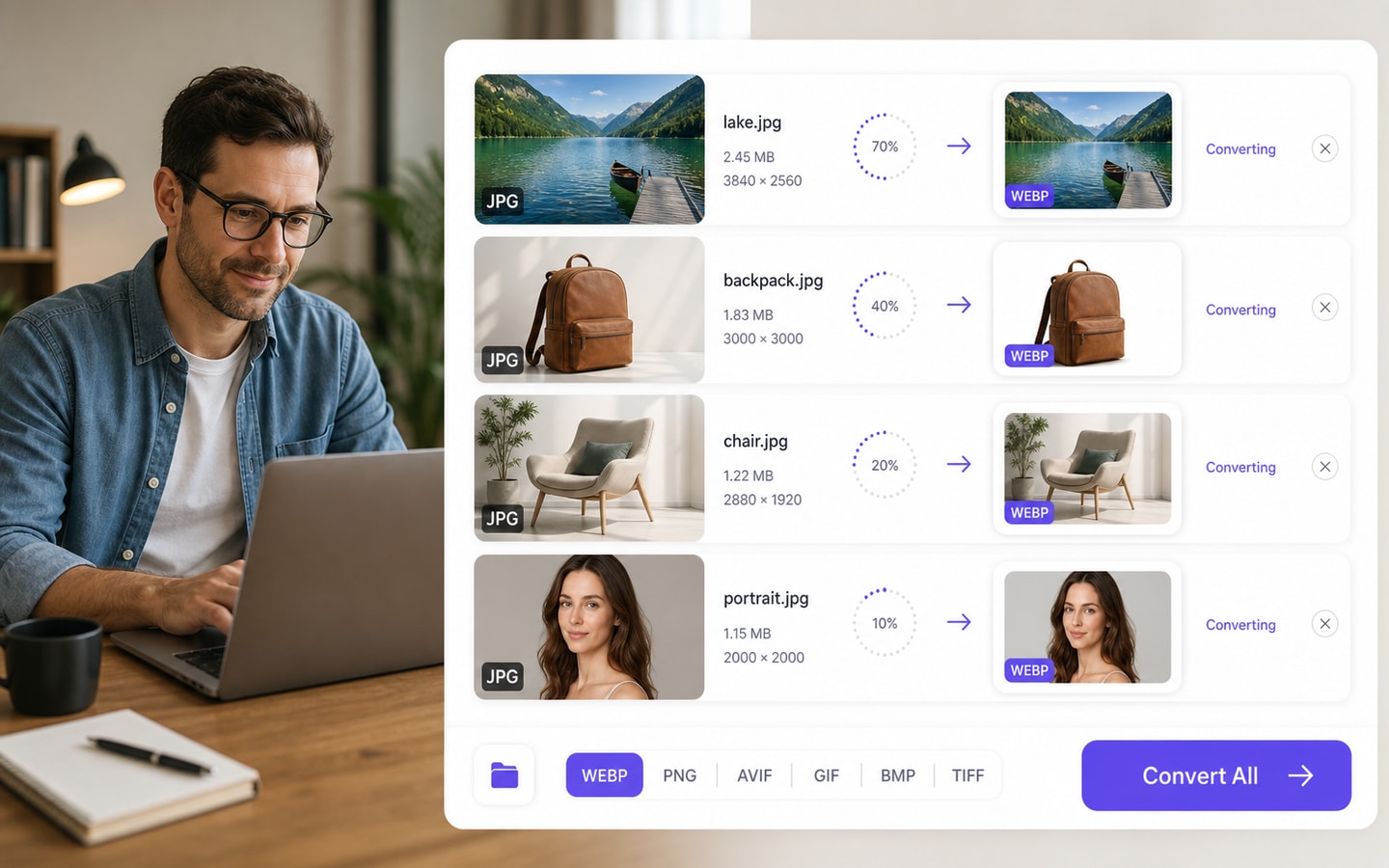
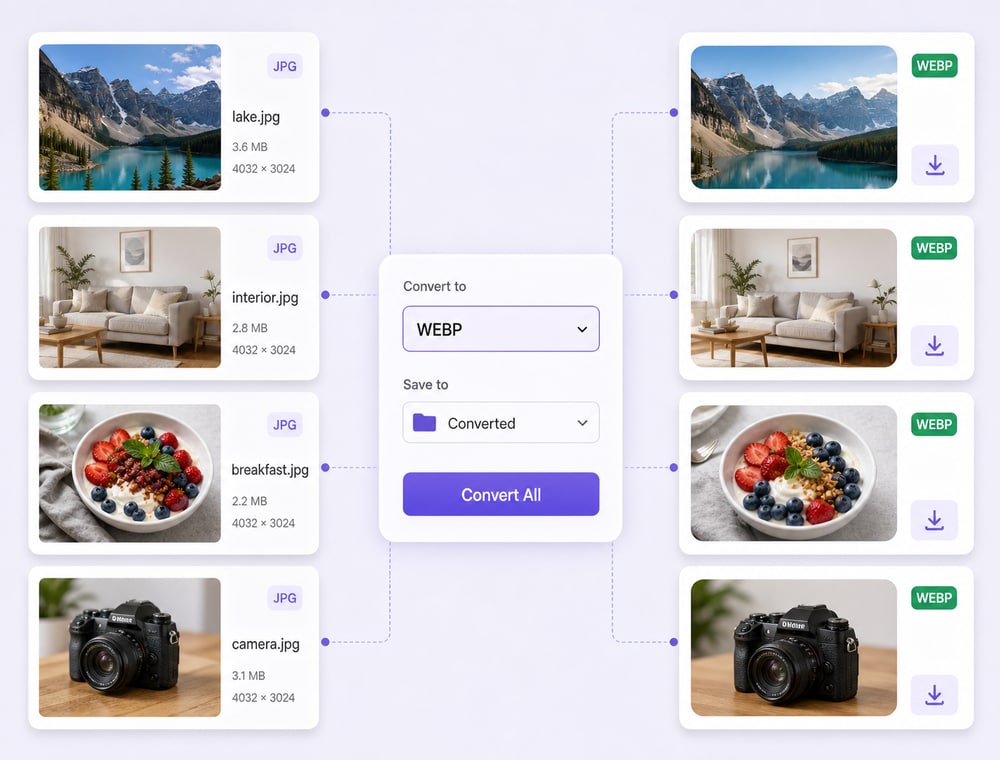
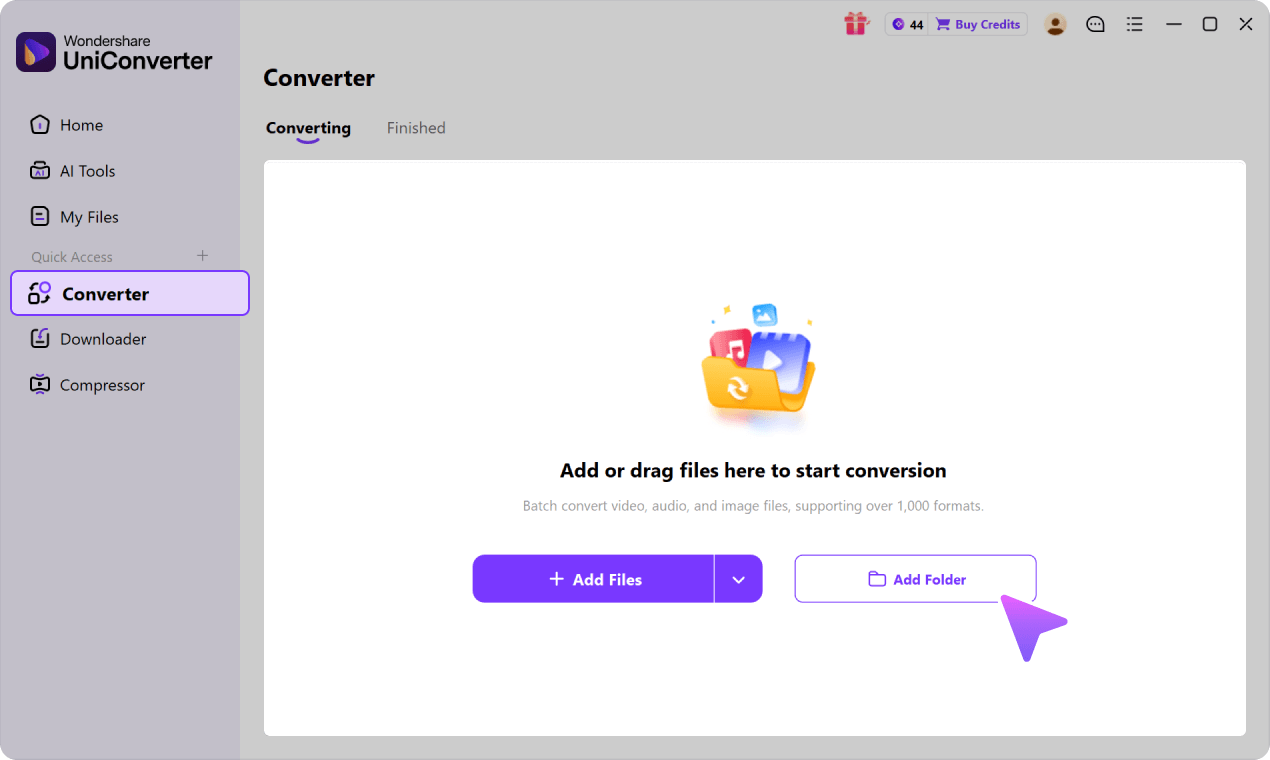
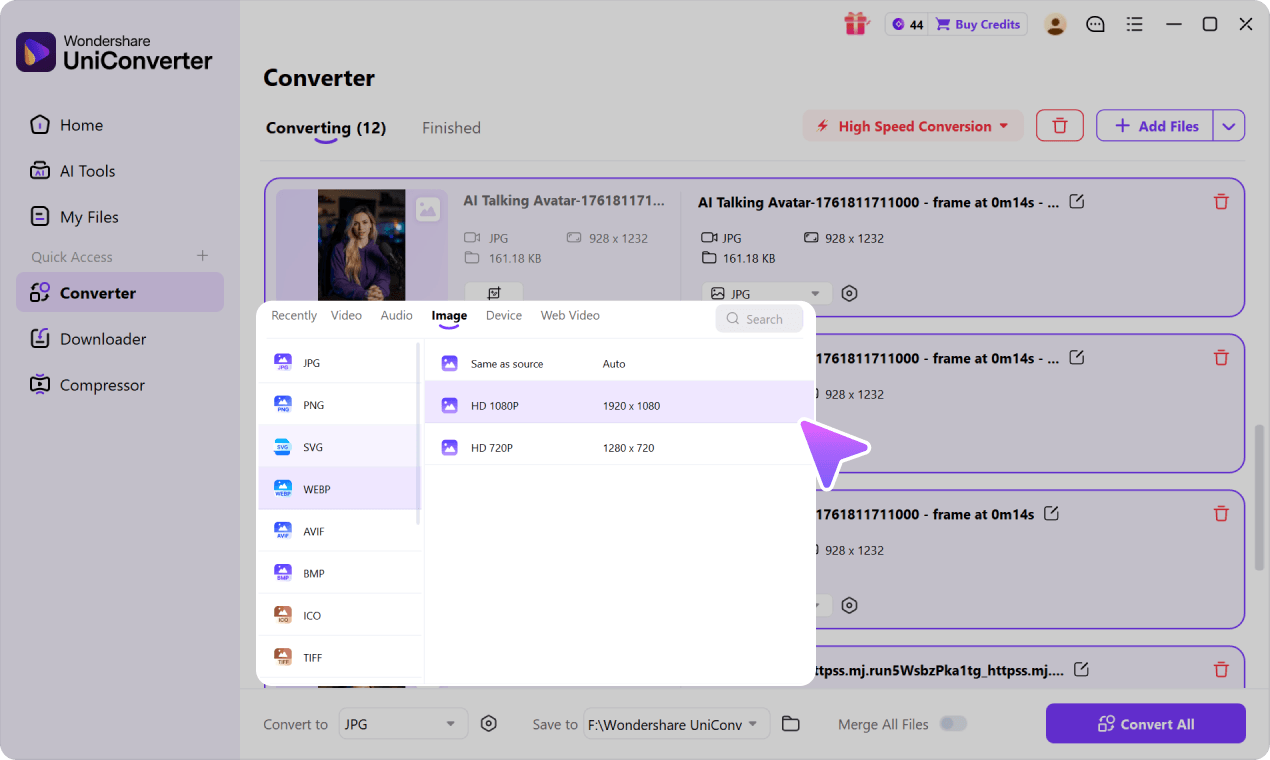
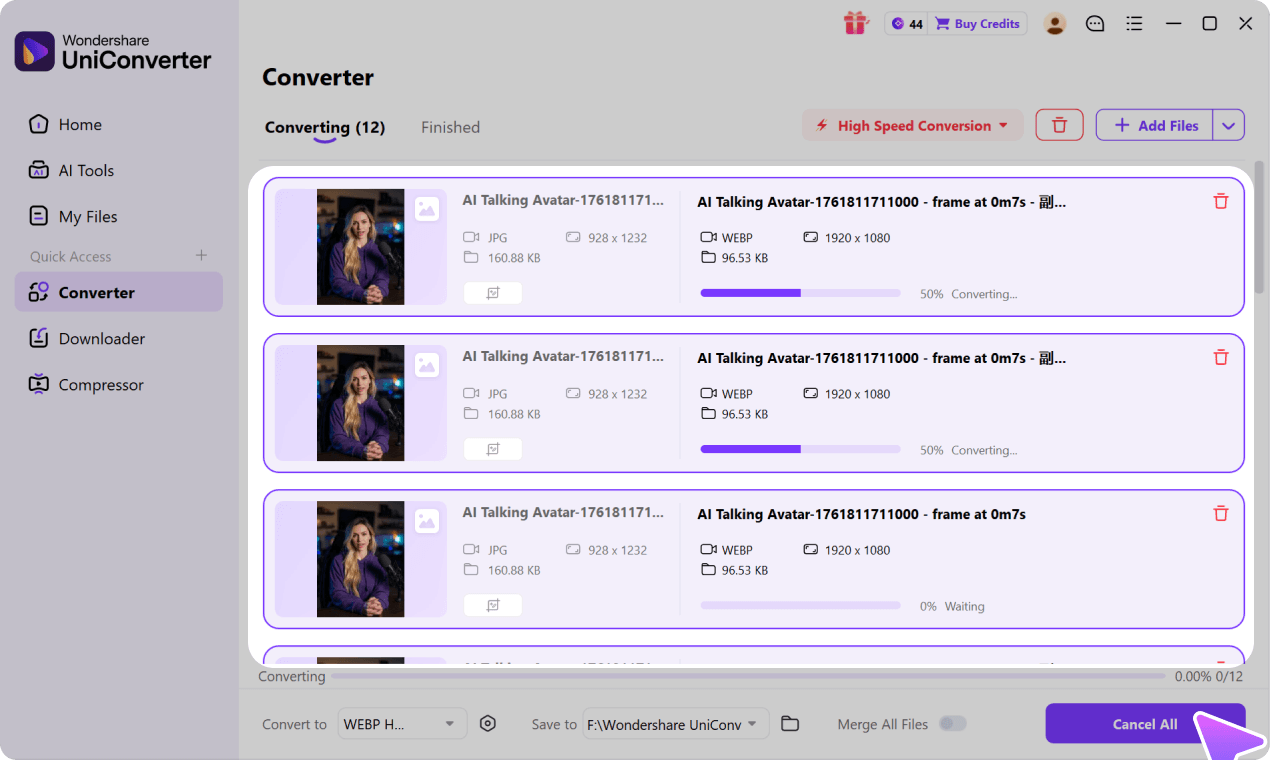
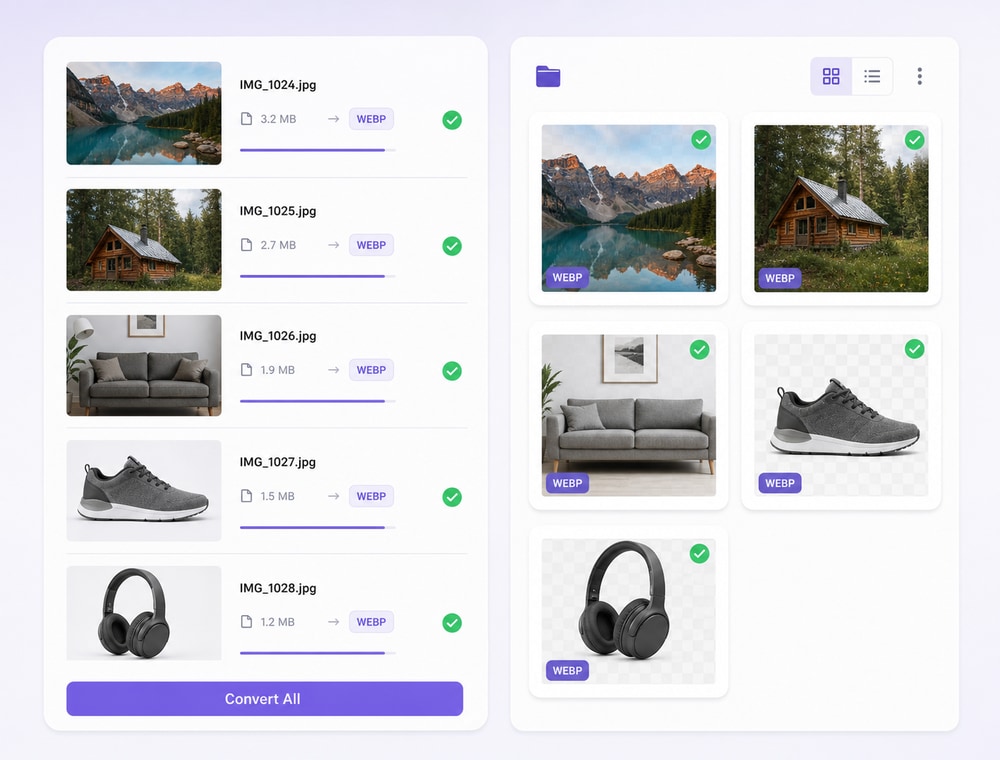
Convert a supported JPG/JPEG collection to WebP in one desktop workflow. Add files or a folder to the UniConverter Image Converter queue, choose a shared WebP output and destination folder, then review available per-image settings before processing.
Add multiple supported JPG/JPEG files or folders to one queue
Set shared Convert to and Save to options for the collection
Use available per-file output selections when an image needs an exception
Desktop vs. Online for JPG-to-WebP Publishing Batches
JPG-to-WebP conversion often supports campaign production, design handoffs, or website publishing. Compare how each option manages photo collections, transfer stages, recurring output work, and supported local acceleration.
Compare the workflow
Recommended for larger jobsUniConverter Desktop
Convenient browser accessOnline Batch Tools
Publishing Delivery Assets
✓Manage supported JPG/JPEG photo collections, campaign images, and publishing assets in one Desktop queue when the workflow requires WebP copies.
A browser tool can handle a small export, but the selected JPG/JPEG assets must be uploaded before the WebP results are downloaded.
Upload & Download
✓Start with local JPG/JPEG photo and campaign folders and export the WebP results directly to a chosen destination without uploading the full collection first.
Total turnaround includes uploading the JPG/JPEG sources, waiting for server processing, and downloading the WebP results.
Repeatable Batch Setup
✓Reuse the Desktop queue for campaign refreshes, publishing batches, and recurring JPG-to-WebP asset delivery.
Queue size, per-job limits, retained settings, and repeat-job convenience for JPG-to-WebP conversion vary by service and plan.
Local Acceleration
✓Use Ultra-fast Speed and available GPU acceleration for supported JPG-to-WebP conversion when compatible local hardware is detected.
Browser processing depends on connection speed, server load, and the provider's current processing conditions.
Simple decision:
Choose Desktop when JPG/JPEG assets repeatedly move into a managed WebP publishing workflow.
Wondershare UniConverter Image Converter is designed for site owners, ecommerce teams, publishers, and designers preparing JPG/JPEG collections for a WebP-ready destination. Add supported images or a supported folder to one queue, apply shared output and save-location choices, and use available per-file options only where needed. This is a desktop workflow; supported JPG/JPEG input and WebP output can vary by operating system and UniConverter version.
Build one queue for a JPG collection
Bring a selected set of web, campaign, product, or editorial images into one place before conversion. This helps you review the collection instead of repeating the same setup for every file.
Add multiple supported image files
Add a supported folder for collection-based work
Review and organize queued items before processing
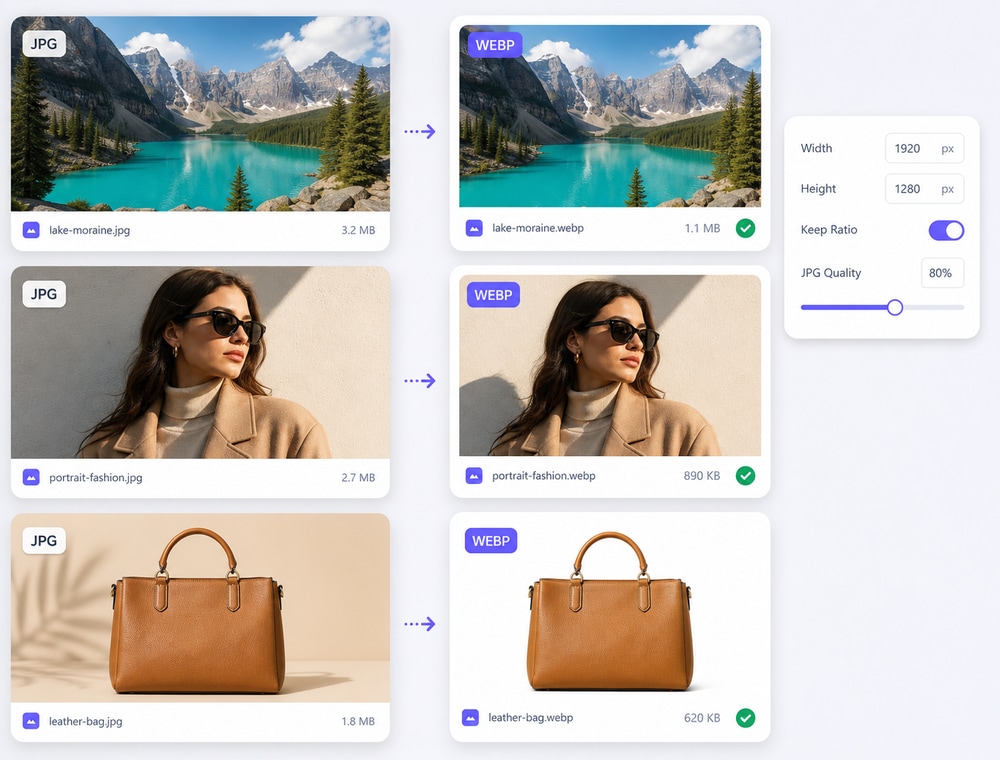
A shared setup does not have to prevent exceptions. Queued images can use available per-file output choices, while the Quality Setting panel provides size-related options in the current interface.
Use available per-file output-format selections
Keep original size or enter custom pixel dimensions where available
Keep aspect ratio when the current setting is available
Input support is broader than output support and can differ between
Windows, Mac, Online, and product versions.
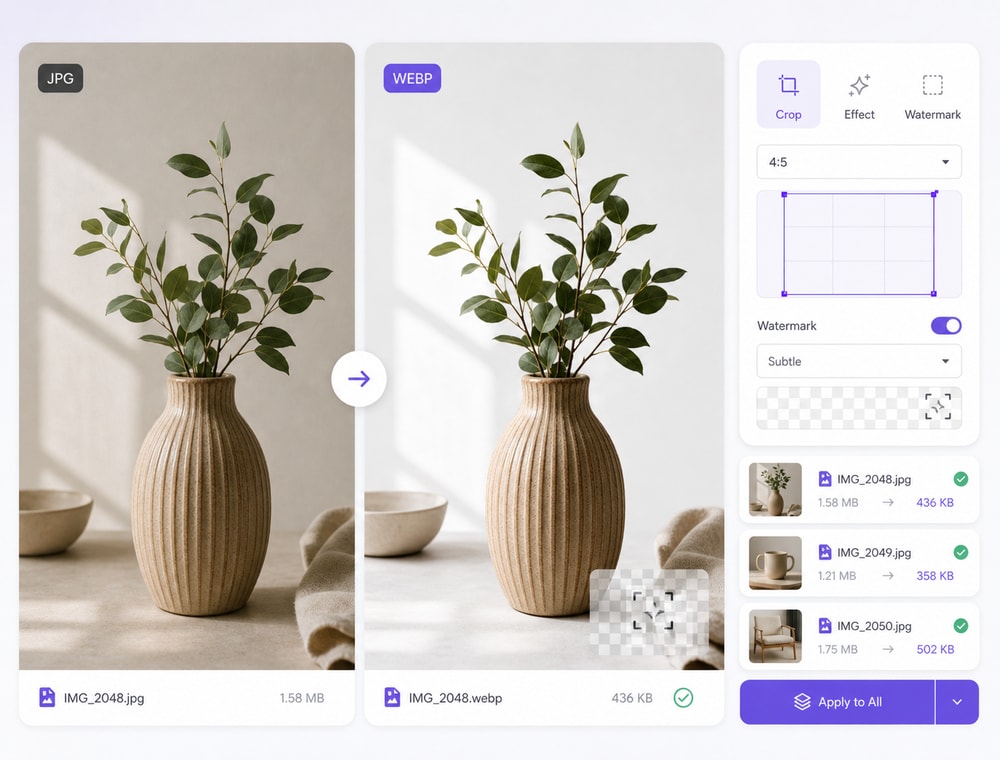
Image Converter handles format conversion first. Use its available lightweight Crop, Effect, and Watermark entry when appropriate, and move to the dedicated UniConverter workflows when the task requires more than conversion.
Use Image Converter for JPG/JPEG-to-WebP format conversion
Use available lightweight Crop, Effect, and Watermark controls when needed
Use Batch Image Editor for resize, background, and broader editing work
Use Batch Image Enhancer for separate enhancement or restoration tasks
Image Converter handles format conversion. These additional
operations
belong to Batch Image Editor.
What the Batch JPG-to-WebP Workflow Lets You Set Up
In Wondershare UniConverter Image Converter, you can apply one shared supported output format and one shared Save to destination folder across a JPG/JPEG queue, while using available per-file output choices for exceptions. Per-image Quality Setting options include keeping original size, entering custom pixel dimensions, and keeping aspect ratio where available; quality adjustment is currently described only for JPG in the verified UI, not as a WebP claim. This Desktop workflow requires confirmation that JPG/JPEG input and WebP output are supported by your operating system and installed UniConverter version.
Common ImagesModern
& WebCamera RAWDesign &
Pro
Format availability may vary by operating system and UniConverter version. See the
UniConverter Tech Specs
for current image format support and system requirements.
How to Batch Convert JPG to WebP
Use Wondershare UniConverter Image Converter as a three-step desktop JPG to WebP bulk converter workflow. Before conversion, confirm that your installed version supports the required JPG/JPEG input and WebP output.
A bulk JPG to WebP converter is useful when the target workflow accepts WebP and you need a separate delivery set from an existing local JPG/JPEG library. Conversion results depend on the source images, available settings, and the receiving destination.
Prepare website image folders for WebP delivery
Create WebP copies from a supported JPG website-asset folder when a site build or publishing workflow accepts the format. Review representative files before replacing or uploading delivery assets.
Standardize ecommerce product-image handoff
Prepare a consistent WebP delivery set from supported JPG product images when the commerce platform or receiving team requests WebP. Confirm format acceptance before processing the full catalog.
Create WebP copies for a CMS update
Convert selected editorial, blog, and campaign JPG images to WebP for a content-management workflow that supports the format. Keep originals available for other channels that require JPG.
Process recurring local web-asset collections
Use a repeatable desktop queue when campaigns or content teams regularly prepare supported JPG assets for WebP-based delivery. Use a separate editing workflow if resizing, background work, or broad adjustments are also required.
What UniConverter Users Are Saying
These reviews describe users' experience with Wondershare UniConverter as a broader conversion and editing product, rather than feedback specifically limited to the Batch Image Converter. Review sources and publication dates are shown where available.
★★★★★
“Very configurable for the exact result you need.”
Its flexible conversion controls make it easier to prepare files for different output and delivery requirements.
Johnson
★★★★★
“The files can be used across IT platforms so easily!”
This kind of compatibility is useful when converted media needs to move between common systems and delivery workflows.
Williams
★★★★★
“Wondershare UniConverter is incredibly versatile.”
The broader conversion and editing toolkit supports users who need to complete more than one isolated media task.
Olivia
Explore UniConverter reviews and independent coverage across trusted software platforms.
A batch JPG to WebP converter converts multiple JPG or JPEG files to WebP through one workflow. Wondershare UniConverter Image Converter is a desktop multi-file conversion workflow that lets you add supported files or folders to a queue, choose shared output and save-folder settings, and use available per-file choices.
02
How do I batch convert JPG to WebP in Wondershare UniConverter?
Open Wondershare UniConverter Image Converter, add supported JPG/JPEG files or a supported folder, select WebP output where available, choose a Save to folder, review available per-image settings, and process the queue. Confirm JPG/JPEG input and WebP output support for your installed operating system and product version first.
03
Can I convert a folder of JPG images to WebP?
Image Converter can add supported image folders for collection-based conversion work. Before converting a folder, confirm that JPG/JPEG input and WebP output are supported in your current UniConverter version for your operating system.
04
Can I choose different output settings for individual JPG files?
Queued images can use available per-file output-format selections rather than relying only on the shared queue setting. In the current interface, Quality Setting includes Keep original size, custom pixel dimensions, and Keep aspect ratio where available. Output-specific controls can differ, so review the settings for the selected format.
05
Will converting JPG to WebP reduce file size or preserve quality?
Results depend on the source JPG, selected output settings, image content, and intended destination. JPG-to-WebP conversion does not inherently guarantee a smaller file, identical appearance, no quality loss, or improved website performance. Test representative images, inspect the results, and retain original JPG files when needed.
06
Can I resize, remove backgrounds, or enhance JPG images while converting them to WebP?
Image Converter is primarily for format conversion. Its lightweight Image Edit entry includes Crop, Effect, and Watermark tabs in the current UI. Use Batch Image Editor for resize, broader adjustments, background tasks, and full batch watermark work; use Batch Image Enhancer for separate enhancement or restoration needs.
Create WebP Delivery Copies From Your JPG Collection
Download Wondershare UniConverter and use Image Converter to organize supported JPG/JPEG files in one desktop queue, set a WebP output workflow where available, and review the resulting files before delivery.