UniConverter
UniConverter Online Free
Converter video, audio & image free
Free Try
Smoother soundtrack beginnings and endings

How to Fade Audio In and Out in Multiple Videos

Quick Answer
  • To fade audio in multiple videos, import them into UniConverter Video Editor, expand Audio, enable Fade In and Fade Out for the selected clip, and review its beginning and end.
  • Prepare and check each video before exporting the collection. Do not assume a fade setting is shared simply because several files are in the editing list.
  • An endpoint fade changes sound at a video’s start or end. It does not create a crossfade between separate clips or automatically lower music under speech.

A sudden soundtrack entrance or stop can make a short video feel unfinished. Audio fades gradually change the sound at a clip boundary. For a folder of independently delivered videos, UniConverter Video Editor provides a Fade In and Fade Out option alongside its other audio controls.

UniConverter desktop:

UniConverter for Windows

UniConverter for Mac

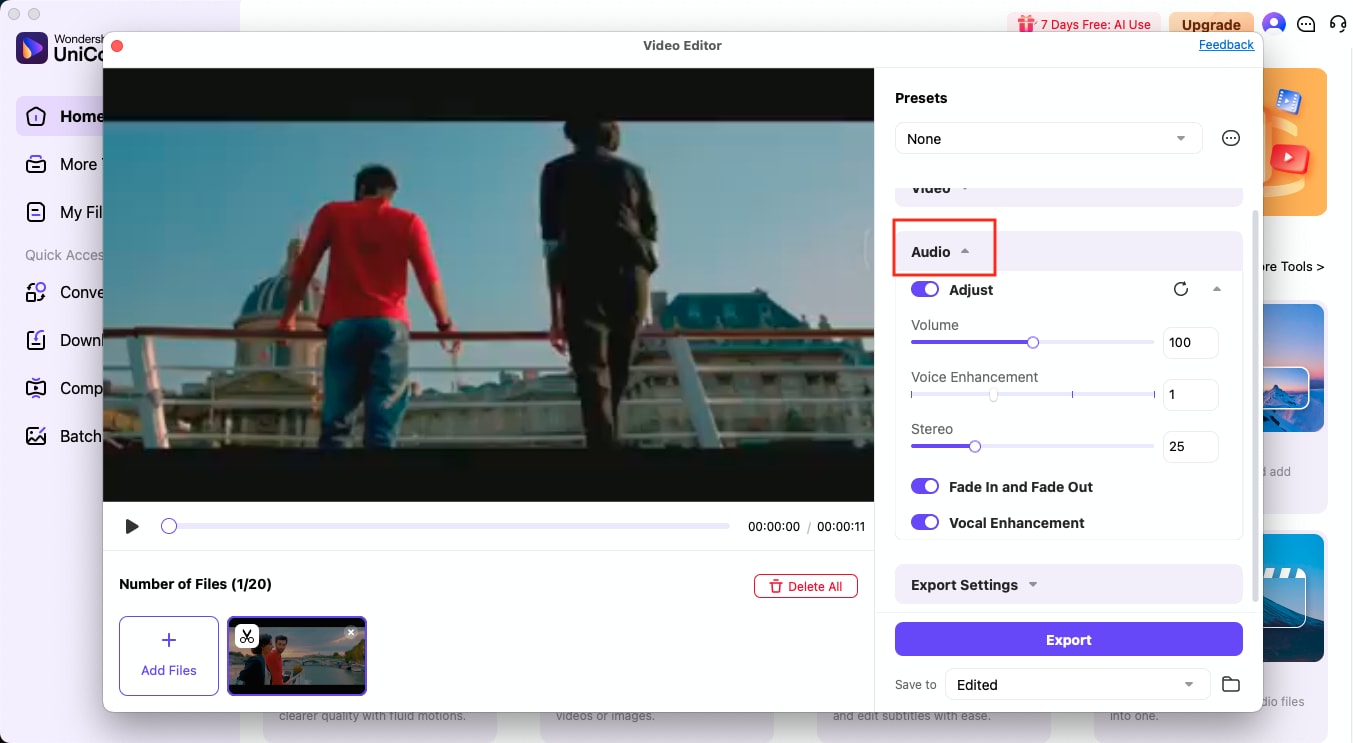
UniConverter Video Editor audio controls with Fade In and Fade Out and Vocal Enhancement
StartCheck the first sound
EndProtect the final words
ReviewListen to each boundary
ExportKeep individual videos

Which Kind of Audio Transition Do You Need?

Searches for batch audio fades can describe several different editing tasks. Choose the method from what should happen to the sound, rather than treating every transition as the same effect.

Your requirement
Separate video filesEndpoint fades
A combined timelineTransitions and mixing
Opening and closing
✓Use Fade In and Fade Out to soften each video’s own boundaries.
Use timeline fades when a transition must occur at a chosen internal point.
Joining two clips
✓Keep each output independent in the batch workflow.
A crossfade overlaps the sound of neighboring clips.
Speech over music
✓Check whether a whole-track fade would hide the opening words.
Use separate-track mixing or ducking when music must move under narration.
Different durations
✓Inspect short clips individually before export.
Use timeline control for detailed timing and overlapping material.
Simple decision:
Use UniConverter for endpoint fades on independent videos. Choose a timeline editor when the job requires overlapping transitions, keyframes, or separate music and speech tracks.
Follow the UniConverter Steps

Prepare Multiple Videos for Smoother Audio Edges

A useful batch fade workflow begins with listening, because the same opening treatment can suit a music-led clip and weaken a speech-led one.

Check Where Important Sound Begins and Ends

Before enabling a fade, listen from the very start of each video and through its final sentence or musical note. Decide whether the boundary contains silence, music, ambience, or speech that must remain immediately audible.

  • Group music-led clips separately from videos that begin with spoken instructions.
  • Look for a final word or reaction that reaches the end of the file.
  • Keep the original versions so a fade can be revised without working from an already edited copy.

UniConverter Home with Video Editor in the Video tools

Enable Fade In and Fade Out in Video Editor

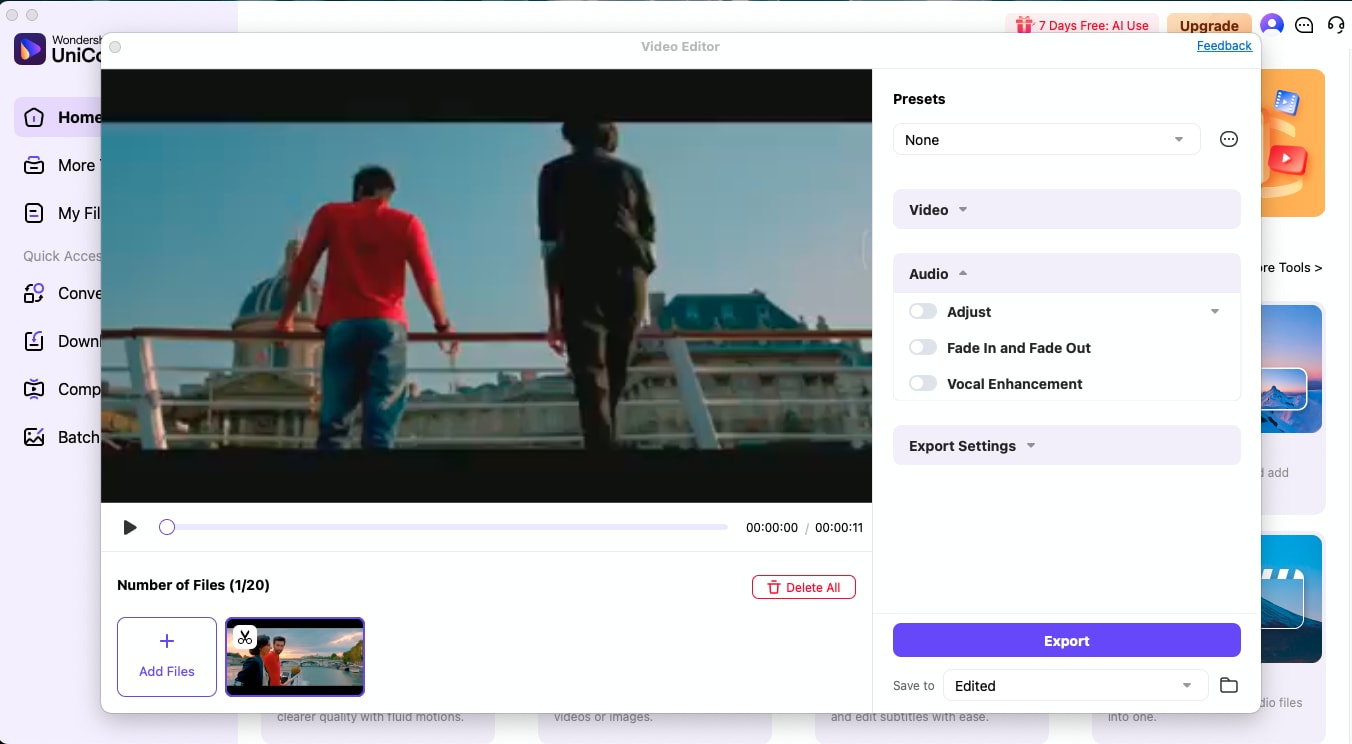
Open the Audio section for the selected video and enable Fade In and Fade Out. Preview the opening and closing with the effect active, then compare with the original listening impression. Use the controls actually offered by your version.

  • Check that the first important sound remains easy to hear.
  • Listen to the last complete sentence or note rather than only the final instant.
  • If a version exposes additional fade controls, judge them against the content instead of copying one timing value across every clip.
UniConverter Video Editor audio controls with Fade In and Fade Out and Vocal Enhancement

Prepare Each File in the Batch List

Move through the imported videos and inspect the fade state and boundary playback for each selected file. The multi-file list helps organize the job, while batch export saves the prepared clips together.

  • Keep a short review list for files that need a different opening or ending.
  • Check very short videos separately because a fade can occupy a large share of their useful audio.
  • Use a shared-setting control only when it is explicitly offered for the fade operation in the current panel.

The visible Fade In and Fade Out control confirms endpoint editing. It does not establish a universal fade duration, curve, or automatic clip-length adaptation.

A video imported into UniConverter Video Editor with its Audio section visible

Export Independent Videos and Recheck Their Edges

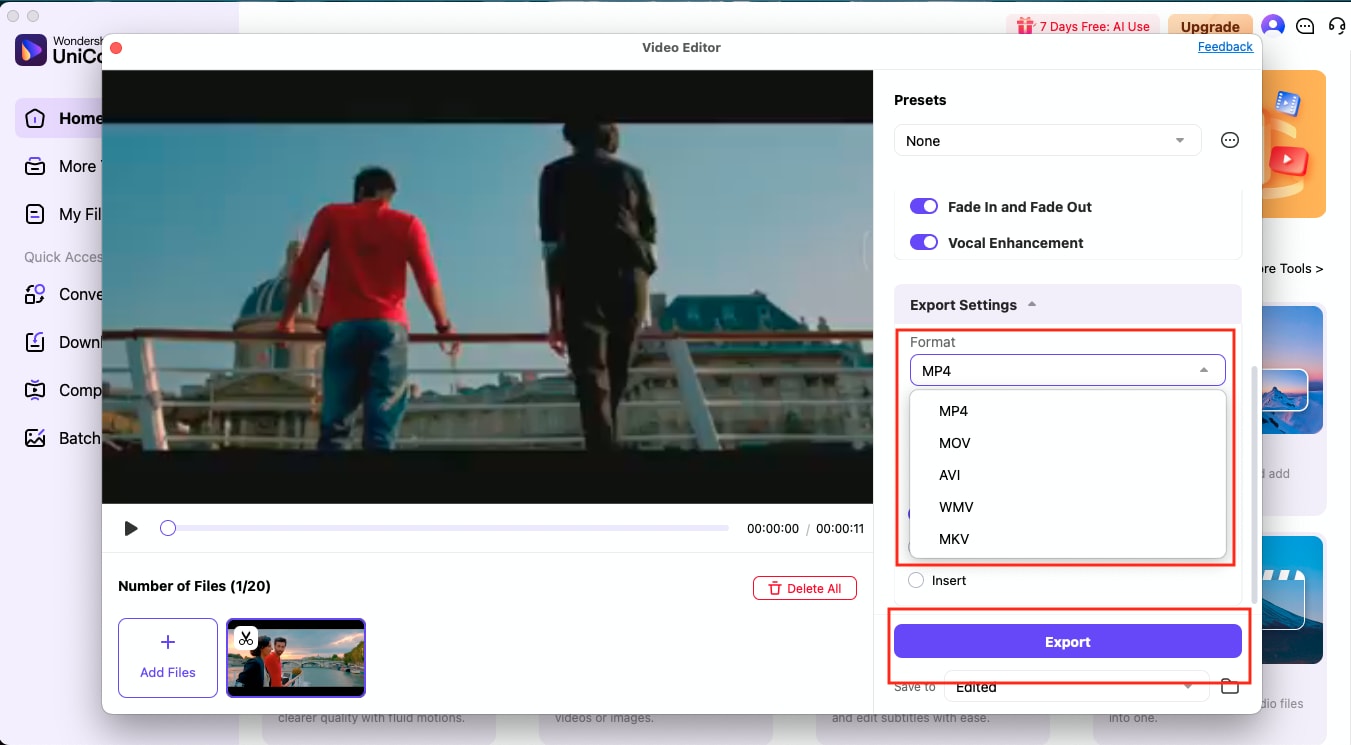
Set Save to and the available output options, then click Export. Open the saved videos and listen from the start, without skipping forward, so you hear the same entrance as the audience.

  • Confirm that a fade has not hidden a spoken hook, instruction, or name.
  • Check the final word and the end of a musical phrase.
  • Make sure the outputs remain separate files if the delivery requires a collection of clips.
  • Use a timeline editor for a joined sequence with overlapping audio transitions.

Fades can soften an abrupt edge, but they do not repair every click, clipped recording, or intrusive sound inside a video.

UniConverter Video Editor output format choices and Export button

Choose Audio Fades Around the Actual Content

These checks help decide whether an endpoint fade improves a clip. Suggested listening tests are editorial checks, rather than fixed product timing presets.

Endpoint fade decisions for different video openings and endings

Choose the action from the source problem, then use the final column to review the result.

Endpoint fade decisions for different video openings and endings
Clip boundarySuggested approachListen for
Music-led openingTry a fade-in and compare the entrance.The rhythm still begins in a useful way.
Speech at the first framePreview carefully before keeping a fade-in.The first word and consonants remain audible.
Speech at the final frameProtect the full sentence before accepting a fade-out.The final word is complete and understandable.
Very short videoCheck the whole clip with the fade enabled.Useful audio is not quiet for most of the clip.

Technical references: Mac audio and fade guide and Video Editor audio example.

OpeningsEndingsShort clipsDelivery
MusicMusic checkListen for a natural entrance.
SpeechSpeech checkProtect the first important word.

Preview a representative sample, check exceptions, and keep the original files for revisions. Interface labels can vary between platforms and versions.

Where Batch Audio Fades Can Help

The strongest candidates have boundaries that benefit from a gradual sound change without concealing useful content.

Music-led social clips

Preview a gentler music entrance across a collection of standalone clips. Keep a spoken hook audible when narration starts immediately.

Event highlight clips

Check whether crowd ambience can enter and leave more comfortably. Preserve reactions or announcements that run to the boundary.

Product showcase videos

Use fades where soundtrack music begins abruptly. Check each edit because a visual opening does not guarantee an audio-safe fade.

Training video outros

Listen through the last instruction before accepting a fade-out. An attractive ending should still communicate the complete message.

Fix Common Audio Fade Problems

Return to the original recording and the selected file’s settings to identify the cause. Test a correction on a small group before repeating the job.

01

The opening word sounds missing

Disable the fade for comparison and listen from the first frame. If the instruction begins immediately, use a more suitable edit or timing in a timeline editor rather than hiding essential speech.
Check 1Opening speech
02

Only some videos have the intended effect

Select the affected files and inspect their Audio settings. Preparing several files in one list does not prove that the fade option was applied globally.
Check 2File scope
03

The transition between two clips is still abrupt

Endpoint fades on independent outputs do not create an overlapping crossfade. Assemble the clips in a timeline editor when their audio needs to overlap across an edit.
Check 3Crossfade needed

Consult the official guides for the relevant controls and keep separate tools’ instructions separate.

Batch Audio Fade FAQs

01

How do I fade audio in multiple videos?

Add the videos to UniConverter Video Editor, expand Audio, enable Fade In and Fade Out for a selected clip, and preview its boundaries. Prepare the remaining clips, choose Save to, and Export the collection.
Do not assume that. Confirm the fade state and preview for each selected file. Use a shared-setting control only if it is explicitly available for that operation in the current interface.
That depends on the controls in your installed version and on the content. Check short videos and videos that begin or end with speech individually. This workflow does not assume a universal duration control or a fixed best value.
No. A fade-out lowers one clip’s sound toward its end. A crossfade overlaps audio from neighboring clips. Use a timeline workflow when an edit requires that overlap.
An audio fade changes the soundtrack’s level. A visual fade is a separate editing effect. Check the exported video rather than assuming an audio control also changes the picture.
A fade changes the level near a boundary, so it also lowers noise there. It does not clean unwanted sound throughout the recording. Use noise reduction for that separate task.
Wondershare UniConverter

Give Your Video Collection Smoother Audio Boundaries

Use UniConverter Video Editor to prepare fade effects on independent videos. Listen to the first and last important sounds, review exceptions, and export the prepared collection.

UniConverter Video Editor output format choices and Export button