UniConverter
UniConverter Online Free
Converter video, audio & image free
Free Try
Multiple videos, clearer volume decisions

How to Batch Adjust Audio in Multiple Videos

Quick Answer
  • To change volume in multiple videos, add them to UniConverter Video Editor, open Audio > Adjust, set the volume, and review the remaining clips before Export.
  • Use Apply to All for audio adjustments when that control is available in your editing panel. Otherwise, select and prepare each file in the same editing list.
  • The same volume increase does not make recordings equally loud. Separate sources with different microphones or recording levels before applying shared settings.

A folder of videos can share one delivery goal while still needing different audio corrections. UniConverter Video Editor lets you prepare multiple clips, adjust their sound, and export the prepared videos together. Start with a representative clip, then check the quietest and loudest recordings before repeating the adjustment.

UniConverter desktop:

UniConverter for Windows

UniConverter for Mac

Official Windows audio guide
UniConverter Video Editor Audio Adjust controls for volume, voice enhancement, and stereo
ImportCollect related clips
AdjustSet the listening level
PreviewCheck loud and quiet parts
ExportSave prepared videos

Shared Volume Adjustment or Individual Corrections?

Choose the scope of the adjustment before changing the slider. Batch processing is most useful when the clips were recorded under similar conditions; mixed sources deserve separate checks.

Your requirement
Similar recordingsReuse an adjustment
Mixed recordingsPrepare each clip
Same microphone
✓A modest shared change can be a useful starting point.
Check exceptions such as a speaker moving away from the microphone.
Different devices
✓Group clips by device and recording session.
Choose each correction from the actual speech and loud passages.
Already loud clips
✓Leave enough room for louder words and sound effects.
Lower a loud clip instead of raising every quiet clip aggressively.
Delivery consistency
✓Listen to sample outputs consecutively at one playback volume.
Use a measured loudness workflow if the delivery requires a specified target.
Simple decision:
Use shared settings for comparable sources. Treat mixed recording levels separately, then review the batch as a sequence of listening experiences.
Follow the UniConverter Steps

Change Video Volume Without Repeating the Whole Workflow

UniConverter combines a multi-file editing list with audio controls and batch export. Use the tools that address the recording problem, rather than enabling every audio option.

Organize the Videos Before Adjusting Sound

Import related videos with Add Video or Add Folder. Keeping a recording session together makes it easier to choose a sensible starting adjustment and identify clips that need a different treatment.

  • Separate phone recordings from camera or screen-recorded clips when their sound levels differ.
  • Include one quiet clip and one loud clip in the test group so the settings are not based on an unusually easy example.
  • Keep the original files and choose a separate output folder for the edited copies.
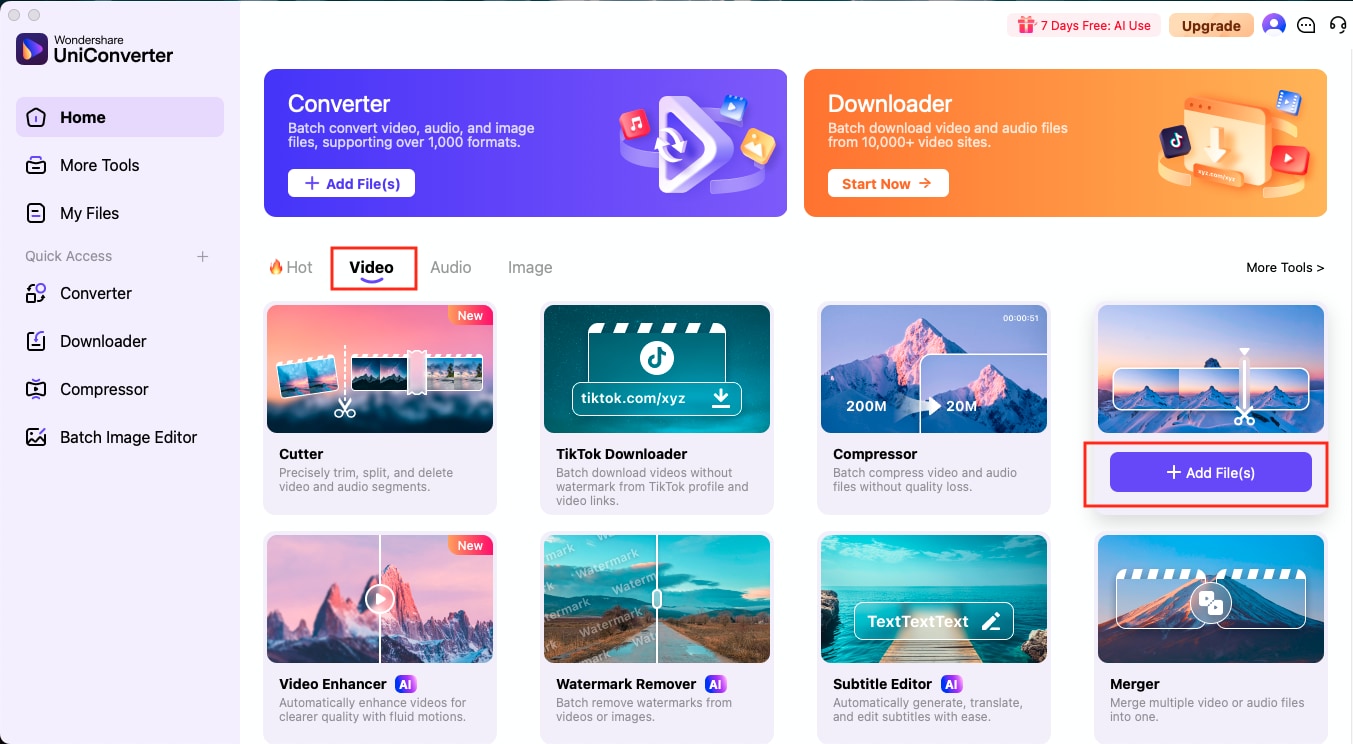
UniConverter Home with Video Editor in the Video tools

Set Volume in Audio > Adjust

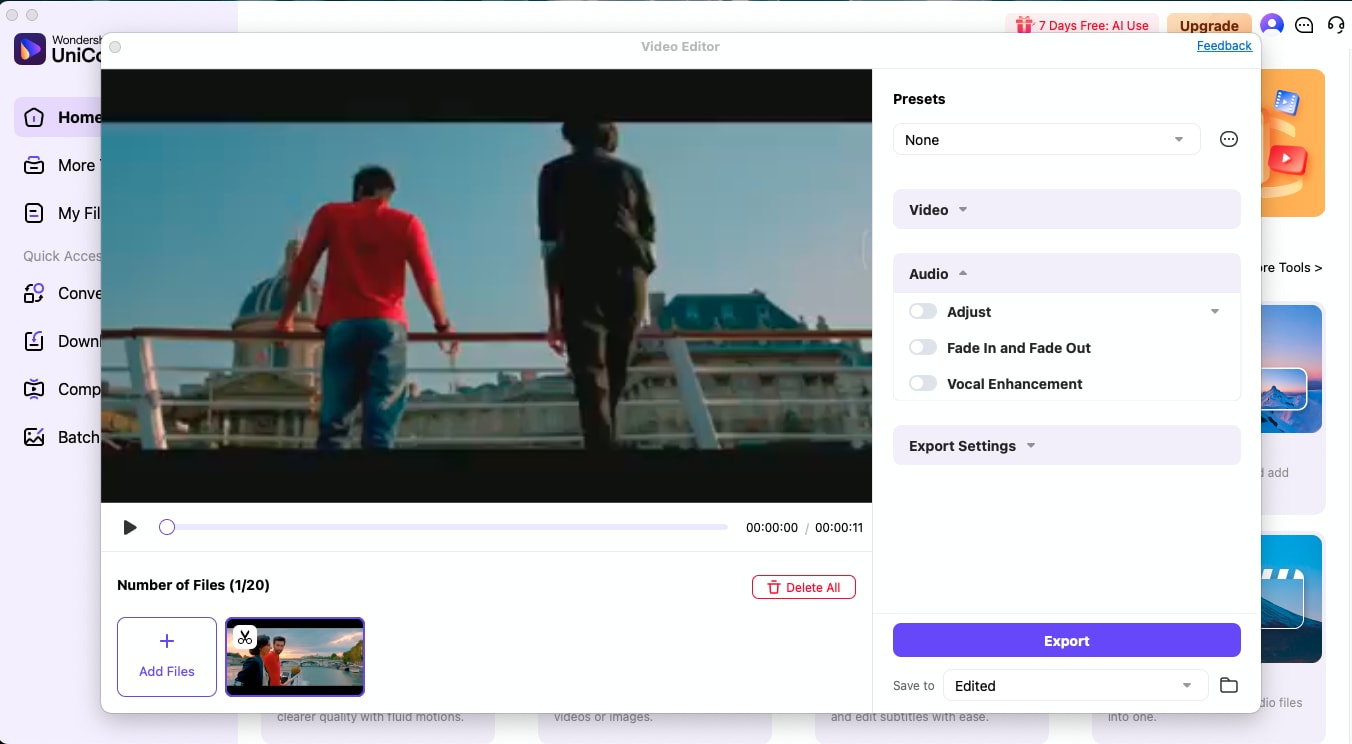
Select a video, expand Audio, enable Adjust, and change Volume while listening to the preview. Aim for comfortable speech with clear loud passages. Raising the slider also raises noise already present in the soundtrack.

  • Use a small initial change and compare a full sentence before and after it.
  • Check laughter, emphasized words, music hits, and other peaks before accepting a boost.
  • Leave Voice Enhancement and Stereo unchanged unless the clip has a separate clarity or channel-related problem.
UniConverter Video Editor Audio Adjust controls for volume, voice enhancement, and stereo

Reuse Settings Only Where They Fit

The official Windows audio guide documents Apply to All for multiple imported files. Use that control when present in the audio panel, then select other videos to confirm the intended settings. In an interface without it, prepare the selected files individually before the shared export.

  • Verify the quietest and loudest clips after any shared adjustment.
  • Split out clips that become harsh, noisy, or still too quiet rather than compromising the whole group.
  • Do not treat a batch volume change as proof of a measured loudness target.

Applying one gain change preserves the original level differences between recordings; it does not analyze and match their perceived loudness.

A video imported into UniConverter Video Editor with its Audio section visible

Export and Check the Actual Delivery Copies

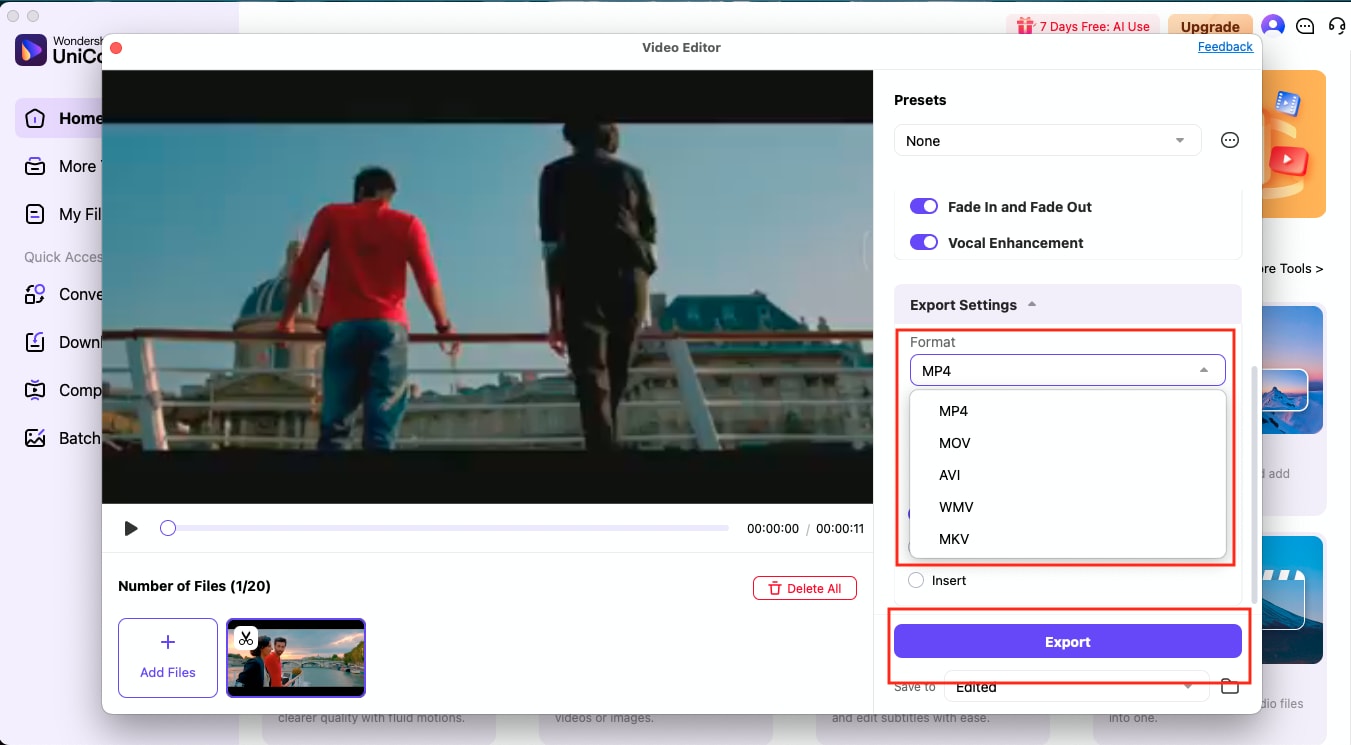
Choose the available export settings, set Save to, and click Export after the clips are prepared. Check the exported sound in a player as well as in the editor, because the audience receives the saved file.

  • Compare several outputs at the same device playback volume.
  • Confirm that the intended audio track is present and that speech stays synchronized with the picture.
  • Check the beginning, a loud section, a quiet section, and the end of representative videos.
  • Keep a short note of the adjustment used for each recording group.

If boosting mainly makes hiss or room noise louder, investigate noise reduction or a cleaner source before adding more gain.

UniConverter Video Editor output format choices and Export button

Volume Settings and Result Checks for a Batch

Use the controls for specific jobs. A better result is a comfortable, intelligible recording, rather than simply a higher volume setting.

What to change when several videos sound wrong

Choose the action from the source problem, then use the final column to review the result.

What to change when several videos sound wrong
ProblemUseful actionWhat to verify
Quiet but clear speechIncrease Volume gradually in Audio > Adjust.Louder words remain clean and comfortable.
A few clips are too loudReduce those clips separately.The rest of the collection is not made unnecessarily quiet.
Noise rises with the voiceTry an appropriate noise-reduction workflow.Speech detail survives the cleanup.
A required loudness targetUse measurement and a suitable normalization workflow.The exported files meet the actual delivery specification.

Technical references: Windows audio guide and Mac audio guide.

Quiet speechLoud clipsMixed sourcesFinal checks
PreviewPreview checkListen to ordinary speech before changing volume.
PeaksPeaks checkInclude the loudest passage in the test.

Preview a representative sample, check exceptions, and keep the original files for revisions. Interface labels can vary between platforms and versions.

Useful Batch Volume Workflows

Group videos by the conditions that produced their audio, then choose a correction that serves the intended audience.

Course lessons

Prepare lessons recorded with the same microphone together. Check whether later lessons became quieter as the speaker moved or changed recording distance.

Product demonstrations

Raise clear narration cautiously and check tool noises or handling sounds so an otherwise useful boost does not make those moments uncomfortable.

Interview clips

Review each microphone and speaker separately. A quiet guest and a loud host can require different treatment even within one recording session.

Screen recordings

Check both narration and computer sound. A volume boost affects the mixed soundtrack and may also raise notifications or software sound effects.

Fix Common Batch Volume Problems

Return to the original recording and the selected file’s settings to identify the cause. Test a correction on a small group before repeating the job.

01

The files are louder but still uneven

One gain change carries the original differences forward. Separate recording groups or adjust exceptions individually; use measured normalization when a delivery target requires it.
Check 1Uneven levels
02

The boosted voice sounds rough

Compare the original. If the source is already distorted, lowering volume may make it less loud but cannot recover the missing waveform detail. Try a cleaner recording.
Check 2Distorted source
03

Another clip did not receive the edit

Return to that selected file and inspect Audio > Adjust. A batch export processes prepared files; it does not establish that every edit was shared automatically.
Check 3Application scope

Consult the official guides for the relevant controls and keep separate tools’ instructions separate.

Batch Video Volume FAQs

01

How can I change volume in multiple videos?

Add the videos to UniConverter Video Editor, enable Audio > Adjust, set Volume, and review the other clips. Use the audio panel’s Apply to All control where available, or prepare each file, then choose Save to and Export.
No. A shared gain change retains the relative differences between the recordings. Similar sources may work well together, but mixed sources need separate checks. A specified loudness target requires suitable measurement and normalization.
Yes. Use a lower Volume setting for the clips that need it, review a representative group, and export the prepared videos. Leave clips that already sound appropriate outside that shared correction.
Yes. Gain raises sound already in the recording, including unwanted noise. If hiss, hum, or room sound becomes distracting, evaluate noise reduction and compare speech quality before applying a larger boost.
For this Video Editor workflow, no separate audio extraction is needed. Edit the soundtrack within the video, then export the video copies and check their sound and synchronization.
Check that every expected output exists, the intended audio track plays, speech remains synchronized, and both quiet and loud passages sound comfortable. Compare several clips at the same playback volume.
Wondershare UniConverter

Prepare Your Next Video Folder with Better Volume

Open the clips in UniConverter Video Editor, test a sensible volume adjustment, and export the prepared collection. Review the extremes before repeating the settings across a recording session.

UniConverter Video Editor output format choices and Export button