UniConverter
UniConverter Online Free
Converter video, audio & image free
Free Try
Adobe Bridge Batch Watermark Photos

Batch Watermark Photos from Adobe Bridge: Actions and PDF Output

Quick Answer
  • For individual photo files, record a watermark Action in Photoshop, select the images in Bridge, and run Tools > Photoshop > Batch with that Action.
  • Bridge Output can add text or image watermarks to a PDF contact sheet. It does not produce a folder of individually watermarked JPEGs through that PDF workflow.
  • For a separate photo-watermarking workflow without a Photoshop Action, use UniConverter Batch Image Editor; its tutorial is provided below.

Adobe Bridge helps select and organize the photo set, while Photoshop can apply a recorded watermark Action to the selected files. Bridge also has watermark settings in its Output workspace, but those belong to PDF contact sheets. Choose the route based on whether you need separate watermarked images or a watermarked proof document.

UniConverter desktop:

UniConverter for Windows

UniConverter for Mac

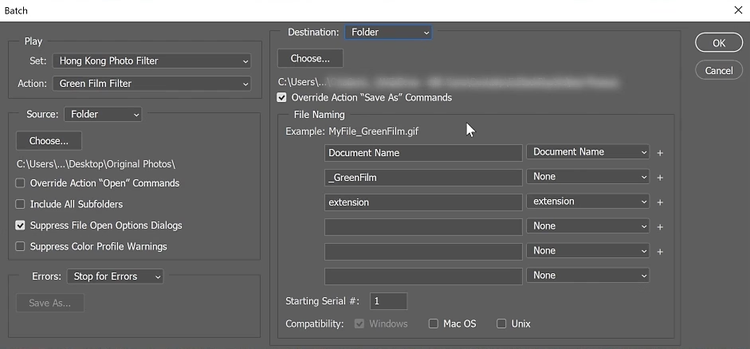
Photoshop Batch dialog with Action, source, destination, and naming controls
ChooseMatch the method
PrepareReview source files
PreviewCheck the result
SaveKeep useful copies

Separate Watermarked Photos or a PDF Contact Sheet?

This distinction explains why some Bridge watermark tutorials produce the wrong type of output for your project.

Your requirement
Individual image copiesBridge + Photoshop Action
A proof documentBridge Output PDF
Expected result
✓A set of photo files saved by the recorded Action and Batch options.
A PDF containing the selected images and watermark.
Where the mark is added
✓Photoshop performs the image-editing operation.
Output settings place a watermark in the contact-sheet layout.
Setup
✓Record and test the watermark and saving sequence.
Configure the document, layout, and watermark settings.
Best fit
✓Branded delivery images or web proofs.
A contact sheet for review, selection, or presentation.
Simple decision:
Use Bridge + Photoshop for separate photo files. Use Output for a PDF. Choose the UniConverter tutorial when you want to watermark supported images in a dedicated batch editor.
Follow the UniConverter Steps

How to Batch Watermark Photos Selected in Adobe Bridge

Adobe Bridge helps select and organize the photo set, while Photoshop can apply a recorded watermark Action to the selected files. Bridge also has watermark settings in its Output workspace, but those belong to PDF contact sheets. Choose the route based on whether you need separate watermarked images or a watermarked proof document.

Step 1: Record a Watermark Action in Photoshop

Open a representative copy in Photoshop and open Window > Actions. Create an Action, begin recording, and add the intended text or placed logo. Set its position and appearance, then record an appropriate saving sequence for the output you need.

  • Use a transparent logo asset when the design should not include a rectangular background.
  • Decide whether the watermark size should be based on a standardized output size.
  • Stop recording and test the Action on a second image with different dimensions or orientation.
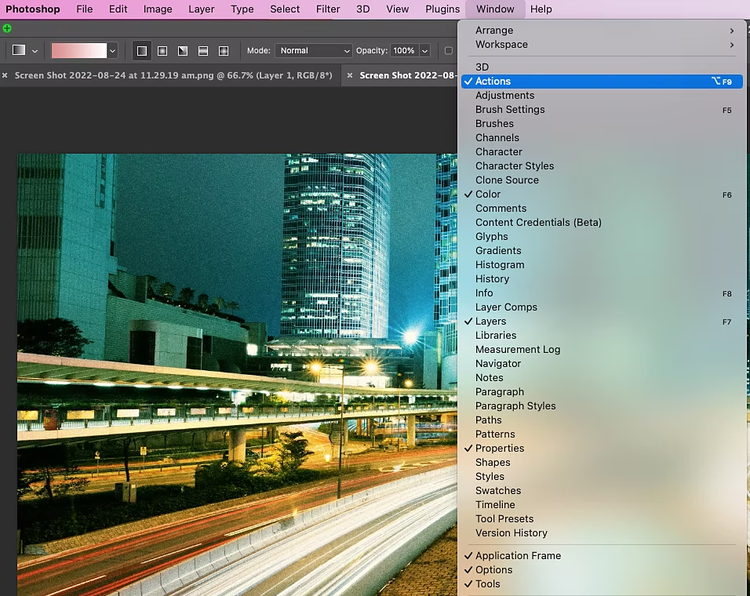
Photoshop workspace and Actions panel for recording a repeated operation

Step 2: Select the Photos and Open Batch from Bridge

In Adobe Bridge, select the intended images and choose Tools > Photoshop > Batch. Choose the recorded Set and Action. The Bridge source uses the selected files, so confirm that the selection matches the delivery collection before proceeding.

  • Process a small test set before running a large folder.
  • Keep portrait and landscape sources separate if the Action relies on fixed positions.
  • If the Photoshop submenu is missing, check the installed Bridge and Photoshop integration rather than using PDF Output as a substitute.
Photoshop Batch dialog with Action, source, destination, and naming controls

Step 3: Set Safe Saving Rules and Inspect the Photos

Choose a separate output folder and a naming rule that keeps the files unique. Review the Action’s recorded saving command and the Batch save options. Run the test set, then open the resulting image files and inspect the mark near the edges and over different backgrounds.

  • Avoid overwriting originals while developing the Action.
  • If Batch should control a recorded Save As location, inspect the appropriate override option; an override does not create a missing save command.
  • Check logo placement and text size on both orientations before processing the collection.

A Photoshop Action that works on one size can place a watermark poorly on another. Standardize dimensions or separate source groups before repeating fixed-position edits.

Photoshop Batch dialog with Action, source, destination, and naming controls

Alternative: Watermark Photos with UniConverter

Use UniConverter Batch Image Editor when you need an independent text or image watermark workflow. Import supported photos, open Add Watermark, place the mark, review the queue, and use Export All. The dedicated tutorial below is separate from the Bridge and Photoshop instructions.

  • Use text for a studio name or a short copyright line.
  • Use an image watermark for a supplied logo graphic.
  • Review the mark over light and dark compositions.
  • Keep editable masters and export watermarked delivery copies.

Bridge copyright metadata is not a visible watermark. Add metadata when useful, but use an actual image overlay when the delivery requires a visible mark.

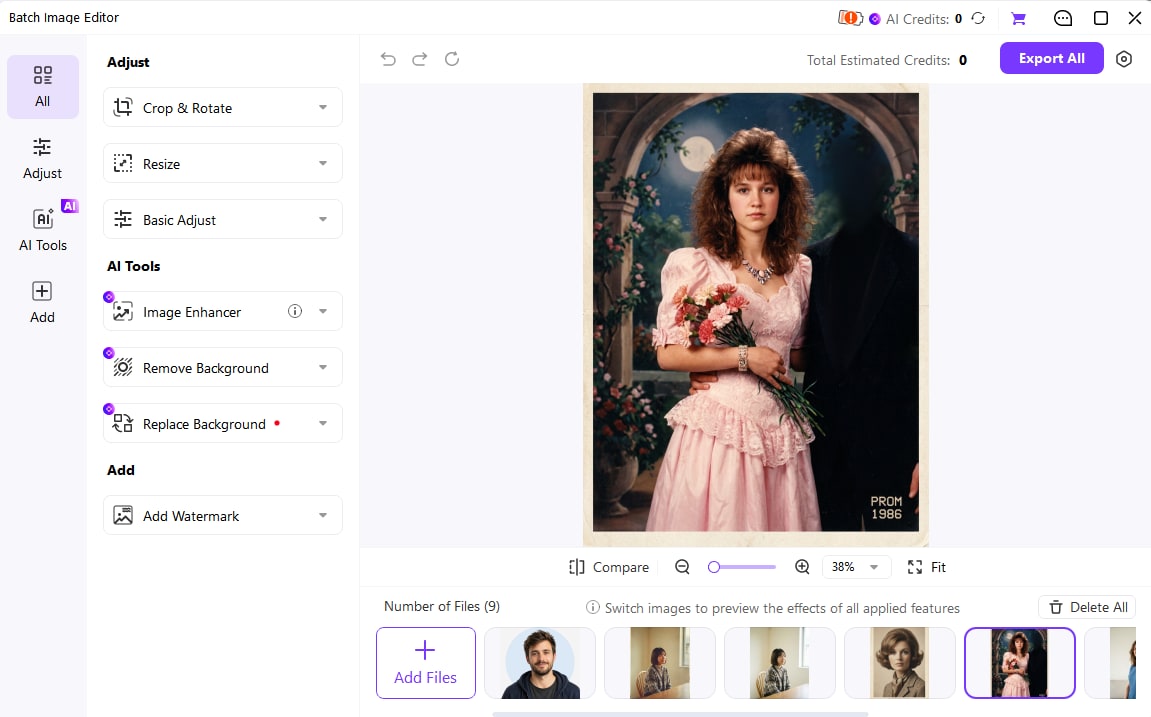
Batch Image Editor with the image queue, Resize, Add Watermark, Compare, and Export All

Bridge Watermark Settings and Saving Decisions

Use the table to choose the correct action, then check the delivered files against the final column.

Which Adobe workflow produces the required result?

Choose the action from the source problem, then use the final column to review the result.

Which Adobe workflow produces the required result?
RequirementCorrect routeCheck before delivery
Visible marks on separate photosBridge selection + Photoshop watermark Action.Each output is an image file with the mark in place.
Watermarked proof sheetBridge Output workspace and PDF watermark settings.The exported document is the intended PDF layout.
Copyright informationMetadata fields or a metadata template.Do not mistake invisible metadata for a visible overlay.
Mixed image orientationsSeparate Action tests or a suitable independent batch editor.Placement remains readable and inside the image bounds.

Technical references: Adobe Bridge Output and PDF guide and Adobe Photoshop Batch guide.

Photoshop ActionBridge selectionPDF outputPhoto review
RecordRecord checkBuild the watermark on a test copy.
ReplayReplay checkTest a second source before running the batch.

Preview a representative sample, check exceptions, and keep the original files for revisions. Interface labels can vary between platforms and versions.

Choose a Watermark Workflow for the Photo Job

Choose the example that matches the source files and the intended delivery.

Web proof photos

Create separate watermarked image copies. Keep the unmarked masters available for approved final delivery.

A client selection sheet

Use Bridge Output when the deliverable is a PDF contact sheet rather than many image files.

Mixed-orientation collections

Test the Action on both orientations or use a batch editor with file-by-file placement review.

A supplied brand logo

Use a suitable transparent asset and inspect its edges, scale, and contrast on different backgrounds.

Fix Adobe Bridge Watermark Problems

Compare the affected output with its source and review the selected file’s settings. Test the correction on a representative sample before repeating the job.

01

Bridge exported a PDF instead of photos

That is the Output contact-sheet workflow. Use a Photoshop Action through Bridge Batch for individual watermarked image files, or the independent UniConverter tutorial.
Check 1Wrong output type
02

The watermark moves outside some photos

The Action may use fixed coordinates or dimensions that do not suit the collection. Separate orientations, standardize sizes, and retest.
Check 2Mixed dimensions
03

Files save to the wrong location

Inspect the recorded save command and Batch destination settings. Use a separate folder and unique names during testing.
Check 3Action saving

Consult the official guides for the relevant controls and keep separate tools’ instructions separate.

Adobe Bridge Batch Watermark Photos FAQs

01

Can Adobe Bridge batch watermark photos?

Bridge can select the photo set and send it to a recorded Photoshop Action through Tools > Photoshop > Batch. Photoshop performs the visible watermark edit for the individual image files.
The Output watermark settings apply to PDF contact sheets. Use a Photoshop Action for separate edited images rather than expecting the PDF workflow to export individual watermarked JPEGs.
Yes. This method uses an Action executed in Photoshop, with Bridge supplying the selected files. The independent UniConverter tutorial uses a different editor and does not depend on Photoshop Actions.
Yes. Record the appropriate logo-placement operation in Photoshop and test its scale and placement. In UniConverter Batch Image Editor, use the image watermark option for a supplied logo asset.
Fixed positions or dimensions recorded from a landscape sample may not suit portrait sources. Standardize the outputs or separate the orientations and test the Action on each group.
Copyright metadata stores information about the image. A visible watermark changes the displayed picture. Use the method that matches the actual delivery requirement.
Wondershare UniConverter

Watermark Your Photo Collection with UniConverter

Prefer an independent image workflow? Add the photos to Batch Image Editor, place a text or image watermark, review the collection, and Export All.

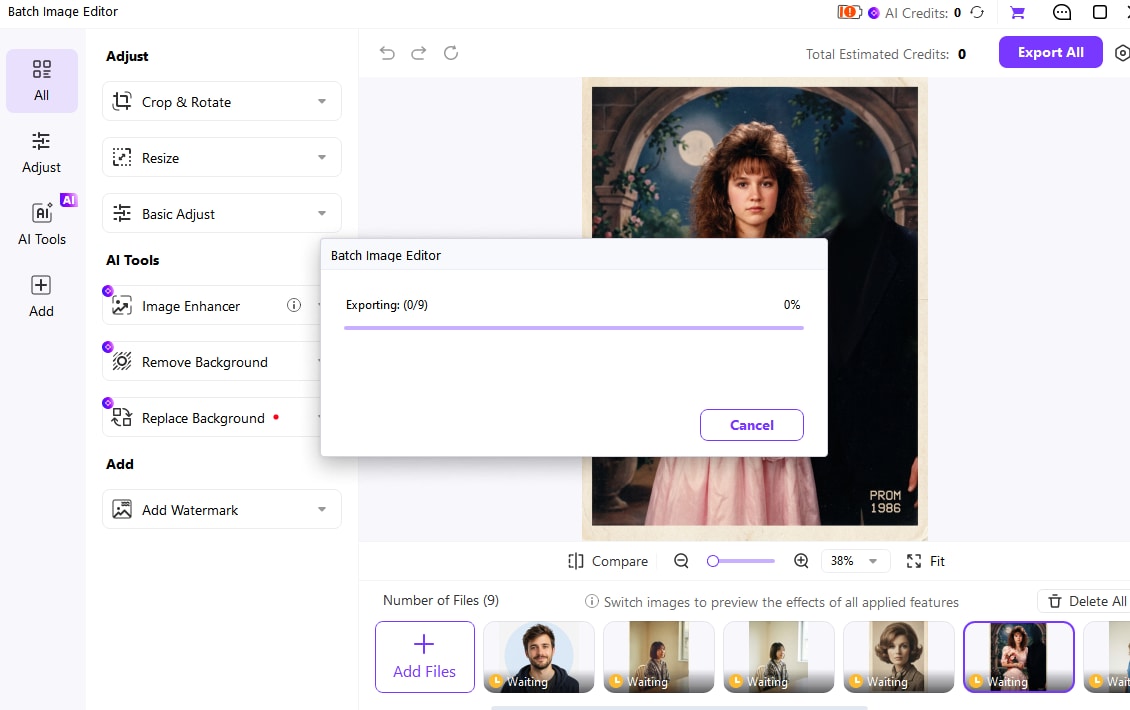
Batch Image Editor exporting the prepared image collection