UniConverter
UniConverter Online Free
Converter video, audio & image free
Free Try
Practical batch workflows

Able Batch Image Converter: Review, Workflow, and Alternatives

Able Batch Image Converter is a Windows utility for converting collections of images and applying repeatable actions. Its workflow separates the input list, optional actions, and result settings. It is worth considering when you want a dedicated image queue with explicit processing controls rather than editing each file individually. The independent UniConverter tutorial below provides an alternative image-conversion workflow.

  • Add individual images or a folder to the input list.
  • Combine the required actions with a chosen output format.
  • Save copies separately and inspect a sample before a large run.

This guide covers Able’s native workflow and practical fit. The download buttons are for UniConverter, a separate option for image conversion and other media tasks on Windows and Mac.

Able Batch Image Converter interface
Quick Answer
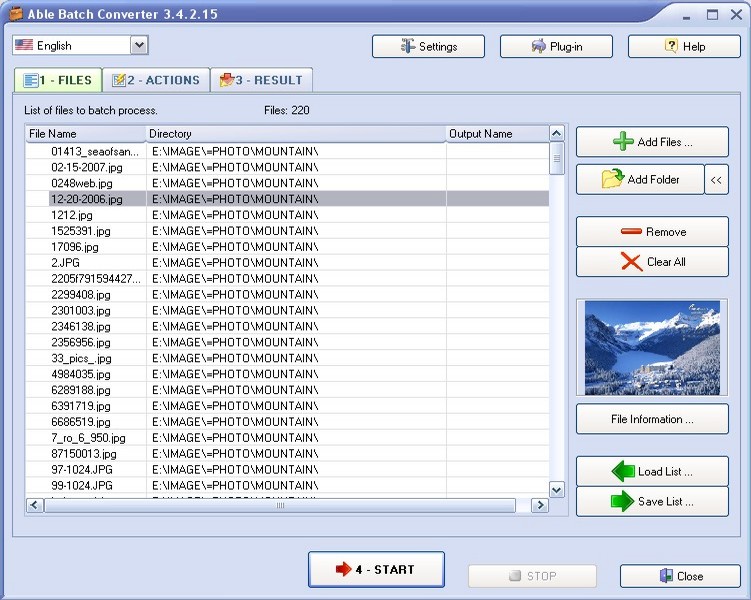
  • To use Able Batch Image Converter, add files or folders, configure optional actions, open the Result settings, choose the output folder and type, then click Start.
  • Able Batch Image Converter is a Windows image-processing application. Check its supported formats against your actual source files before committing a large archive.
  • Actions such as resizing or watermarking are separate from the format choice. Add only the actions needed for your delivery.
  • Use a small representative test set to check orientation, dimensions, transparency, and image quality before converting the whole collection.
  • For an alternative conversion workflow, follow the UniConverter Image Converter tutorial below.

Is Able Batch Image Converter Right for Your Task?

Judge a converter by the files you have and the output you need. A long format list alone does not settle workflow fit.

Your task
WorkflowAble Batch Image Converter
WorkflowWhat to check
Dedicated Windows image batch
✓An input list, Actions tab, and Result settings keep the job in a focused workflow.
Test your exact input and output formats, including multi-page files if relevant.
Repeatable image operations
✓Configure actions before processing the collection.
Review action order and exceptions such as mixed orientations.
Images plus audio or video
✓UniConverter offers separate tools for several media tasks.
Choose the correct module; do not assume all media share one batch queue.
Batch rule:
Test the most difficult files first. A successful conversion of one simple JPG does not prove that transparency, unusual color, or multi-page inputs will behave as required.
See the Three-Step Workflow
Native workflow and the UniConverter alternative

How to Batch Convert Images with Able

Able separates the input list, optional actions, and output settings. Follow these native stages, then compare the separate UniConverter conversion workflow below.

Add Files or Folders to the Able Input List

Open Able Batch Image Converter and use Add Files or Add Folders to collect your source images. Review the file list and remove duplicates, unintended files, or images that need different output settings. Begin with a small sample that includes your most demanding source types.

  • Start with copies of valuable source images.
  • Include several representative formats in the test set.
  • Avoid mixing unrelated delivery requirements.
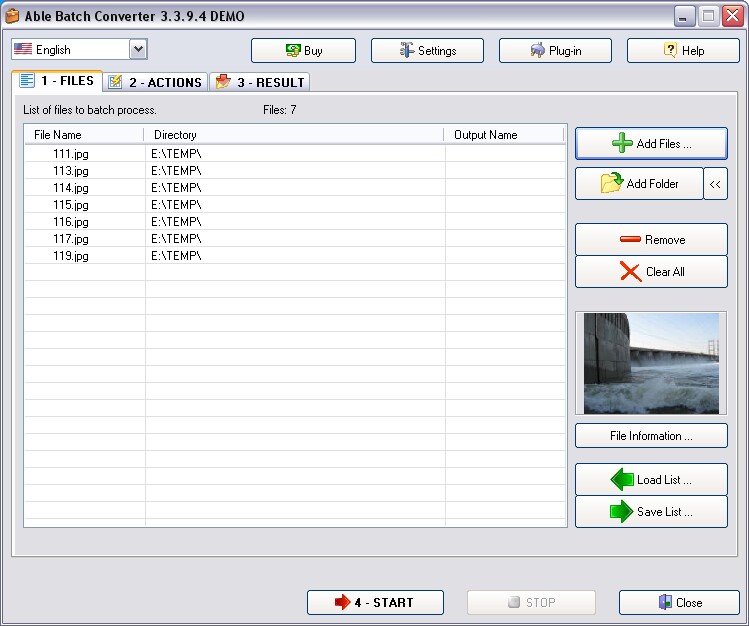
Able Batch Image Converter source file selection

Add the Required Actions

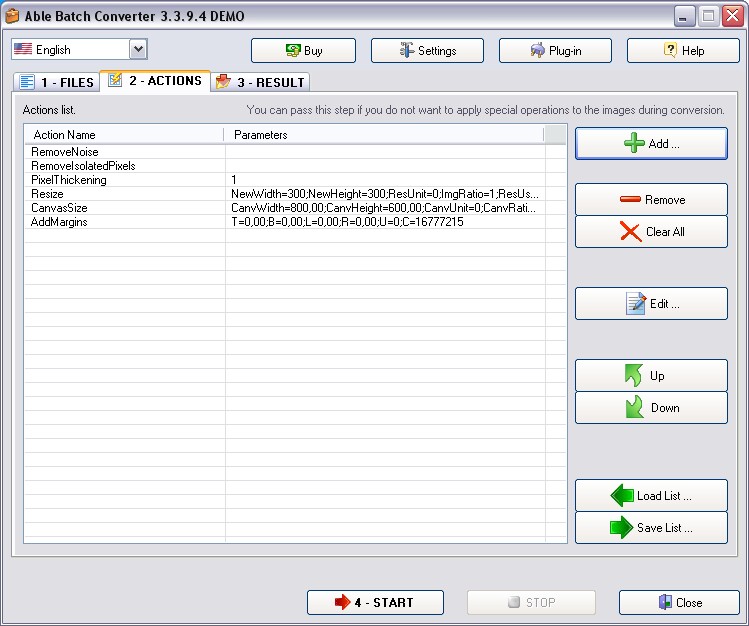
Open the Actions list tab and use Add to insert the operations needed for the job, such as resizing, rotation, or watermarking. Review the action list and its order. Skip optional actions when you only need a format change, and separate portrait and landscape images when one treatment would not suit both.

  • Check how portrait and landscape images behave.
  • Preview or inspect samples after combining actions.
  • Remove an action when its effect is unnecessary.

For photographs and graphics in the same collection, use separate jobs when the same dimensions, compression, or watermark placement would not suit both.

Able Batch Image Converter workflow settings

Choose Result Settings and Start Conversion

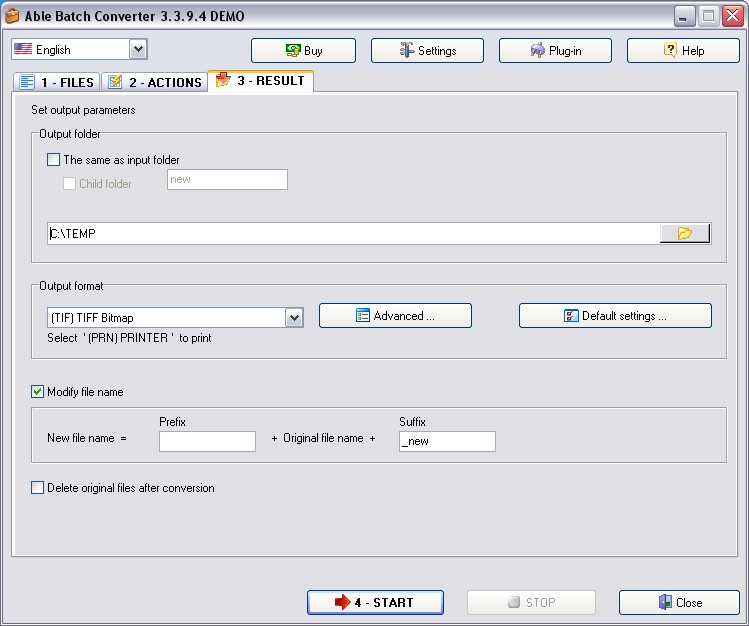
Open the Result tab, browse to a separate output folder, and choose the destination format under Save as type or Output Format. Review relevant Advanced options, then click Start. Open representative results to check dimensions, orientation, transparency, compression, and file count before running the same setup on a larger collection.

  • Use a format suited to the destination.
  • Check transparency when converting graphics.
  • Compare quality and file size after compression.
Able Batch Image Converter Result settings

Consider UniConverter for a Broader Media Workflow

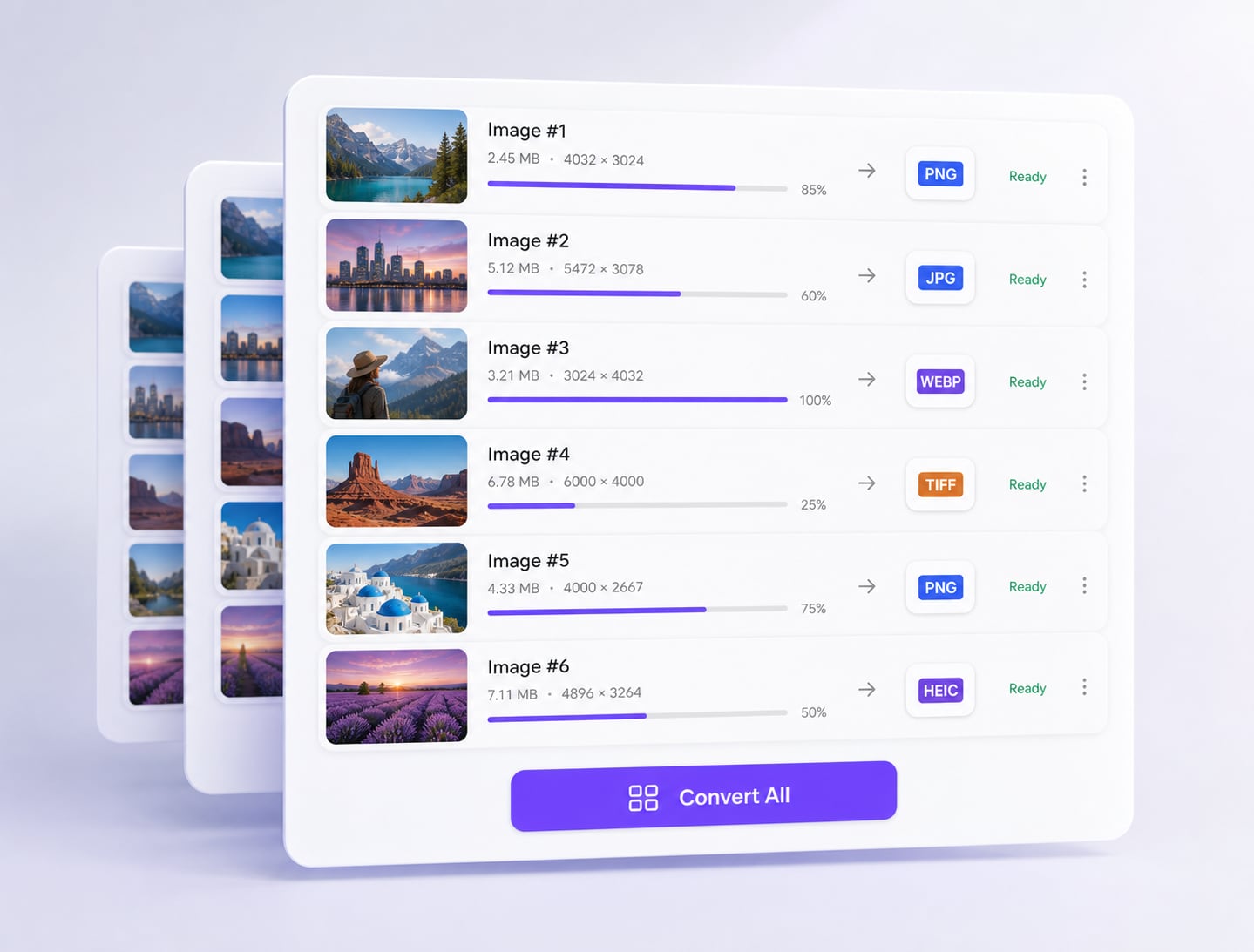
UniConverter is an alternative when your work extends from image conversion to separate audio or video tasks. Use Image Converter for format changes and Batch Image Editor for appropriate image edits. Keep native Able actions when those controls best fit your job.

  • Choose the module by the required operation.
  • Test the intended input format before a full run.
  • Keep source files and output copies clearly separated.
UniConverter Batch Image Converter alternative

Able Batch Image Converter Workflow Controls

These are the decisions to review before clicking Start. Exact output options depend on the selected format.

What Each Control Does

Control or choice Purpose Recommended check
Add Files Adds selected source images. Check that all expected inputs are present.
Add Folders Collects images from a directory. Review the resulting file list.
Remove / Clear All Edits or resets the input queue. Remove unrelated or duplicate files.
Actions / Add Adds an image-processing operation. Only include required changes.
Resize Changes image dimensions. Check proportions and target size.
Rotate or watermark actions Changes orientation or adds a mark. Inspect placement and mixed orientations.
Result / Output folder Defines the destination. Choose a separate folder for the first run.
Save as type / Advanced Sets the output format and its options. Inspect compression and transparency in a sample.
Start / Stop Runs or stops processing. Review completion and any failed items.

Before the full batch: Keep the original files until the converted collection has been reviewed. A format change can affect transparency, compression, or multi-page behavior even when the file opens successfully.

Where This Batch Workflow Helps

Choose a group with a shared output requirement. Separate files that need different handling before applying one configuration.

Website image preparation

Create a consistent delivery set while checking dimensions and the balance between quality and file size.

Product catalogs

Process images with shared requirements, separating exceptions that need different framing or mark placement.

Archive migration

Test unusual formats and multi-page documents before standardizing a larger archive.

Branded image delivery

Apply a required mark to working copies, then inspect placement on both portrait and landscape images.

Check the Finished Batch Before Delivery

Processing a collection is only complete when its outputs are usable. Inspect a small sample from each source group.

Count the outputsCompare the expected file count and investigate missing results.
Inspect dimensionsCheck width, height, proportions, and orientation.
Check transparent areasConfirm that the destination format preserves the appearance you need.
Inspect compressionView fine detail, text, and gradients at normal size.
Keep the originalsRetain source files until the collection is accepted.

Frequently Asked Questions

01

What is Able Batch Image Converter?

It is a Windows application for converting collections of images and applying selected processing actions. Its workflow uses an input file list, optional Actions, and Result settings.
Add files or folders, configure optional actions, choose the output folder and format in the Result settings, and click Start. Inspect a sample before processing a large collection.
The Able product covered here is a Windows application. Mac users should choose a compatible alternative and verify that it supports their source and destination formats.
Able provides processing actions that include resize and watermark operations. Configure only the required actions and inspect results on images with different sizes and orientations.
JPG is often appropriate for photographic delivery when lossy compression is acceptable. PNG is useful for graphics and transparency. Choose according to the image and destination rather than using one format for every source.
No. Check transparency, page count, color appearance, dimensions, and metadata requirements on representative files. Format conversion can change properties beyond the filename extension.
Use Add Folders to collect source images, then inspect the resulting input list. Remove unrelated files and test representative images before running the entire collection.
Consider it when you need a compatible image-conversion workflow alongside separate audio or video tools. Test your actual formats and choose the module that matches the task.

Convert Your Image Collection with UniConverter

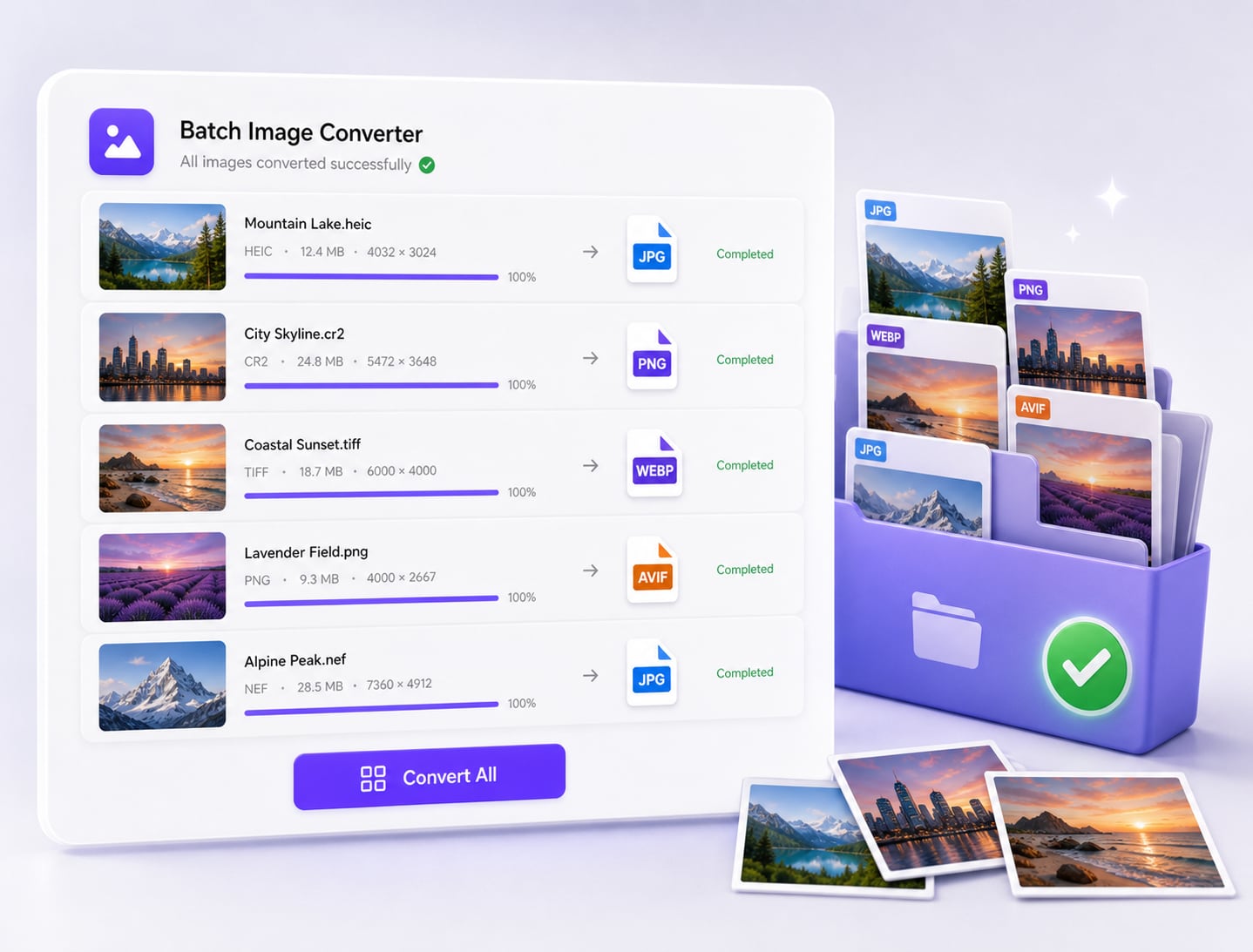
Open UniConverter Image Converter, import the supported image collection, choose the output format, and review a converted sample. Keep the sources while you prepare the final delivery folder.

UniConverter Batch Image Converter workflow