UniConverter
UniConverter Online Free
Converter video, audio & image free
Free Try
Wondershare UniConverter AI Video Blur

Video Anonymization Software to Blur Faces & Private Details

Use this video anonymization software before footage is shared, published, reviewed, or released. UniConverter automatically detects faces and tracks license plates, screens, badges, documents, addresses, and other visual identifiers after you select them—all in a local desktop workflow.

  • Detect one, multiple, or all visible faces automatically
  • Track selected non-face identifiers without frame-by-frame keyframing
  • Review and batch-process pre-recorded videos on Windows or macOS
Available on:

For Windows 11/10/8/7

For macOS 10.13 or later

4.7Rated on Trustpilot
Quick Answer

What Is Video Anonymization?

Video Anonymization, Explained

Video anonymization—also described as visual video de-identification—is the process of concealing information that could identify a person or reveal private details in recorded footage. Common targets include faces, license plates, names, addresses, screens, documents, badges, tattoos, and recognizable locations.

How Video Anonymization Software Works

UniConverter AI Video Blur detects faces automatically. For plates and other non-face details, draw a box around the target and AI tracks the selection as it moves. Choose a masking style, preview coverage, and export a share-ready copy.

Important scope: Blurring visible identifiers can support a privacy-protection workflow, but it does not automatically guarantee legal anonymization or regulatory compliance. Review the exported video for missed frames and consider audio, metadata, clothing, tattoos, location clues, and surrounding context that could still identify someone.
Visual Identifiers

What Can You Anonymize in a Video?

Use automatic face detection for people, or Object Tracking Blur mode for other visible information that should not appear in the copy you plan to share.

Faces & Bystanders

Detect faces first, then conceal one person, several people, or everyone detected in the footage.

License Plates

Box a visible plate and let AI keep the masking effect attached as the vehicle moves.

Screens & Records

Hide emails, account details, dashboards, API keys, forms, contracts, or customer records.

Names & Addresses

Mask signs, door numbers, shipping labels, whiteboards, usernames, and other readable details.

Badges, Labels & Tattoos

Track selected employee badges, product labels, logos, or distinctive marks that could reveal identity.

Backgrounds & Locations

Use Reverse to keep a selected subject clear while obscuring rooms, displays, or location clues around it.

Purpose-Built Privacy Workflow

Video Anonymization Software Without Frame-by-Frame Editing

The right video anonymization software should reduce repetitive masking while keeping each privacy decision reviewable. Combine automatic face discovery, selected-object tracking, effect controls, local processing, and batch export in one desktop workflow.

Find People Before You Apply the Blur

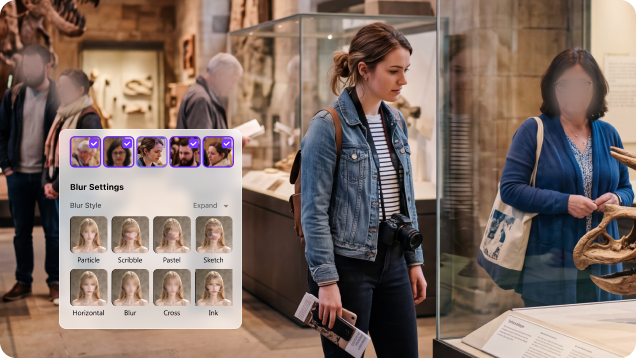
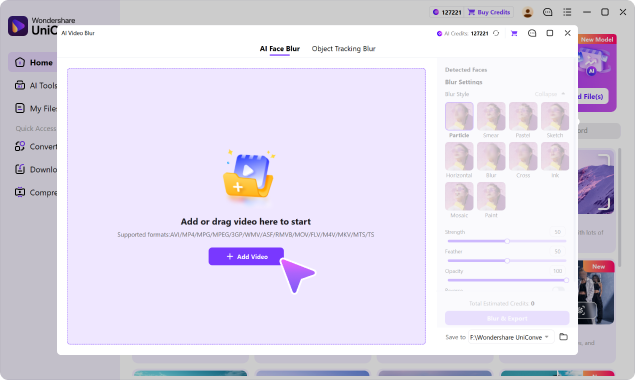
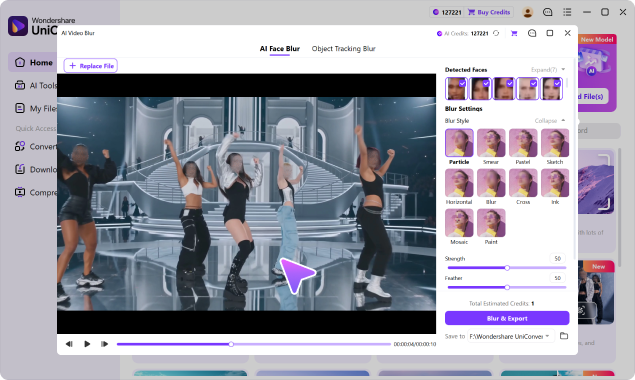
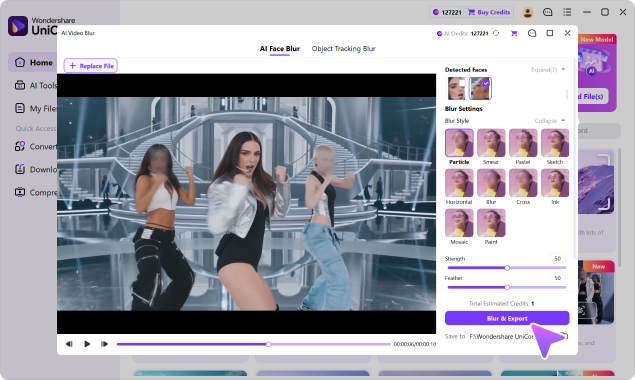
UniConverter scans the footage for faces and presents detected face thumbnails for review. Choose exactly who should be concealed instead of drawing a new mask each time a person reappears.

  • Anonymize one person, multiple selected people, or all detected faces.
  • Keep the effect attached while selected people move through the scene.
  • Useful for bystanders, minors, witnesses, customers, and employees.

For a focused workflow, see how to blur faces in a video.

AI face detection for video anonymization

Track Non-Face Identifiers You Select

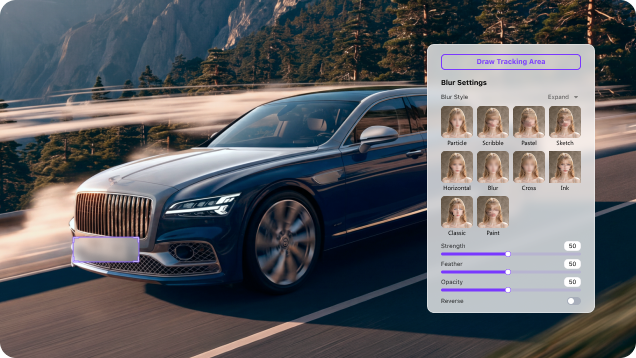
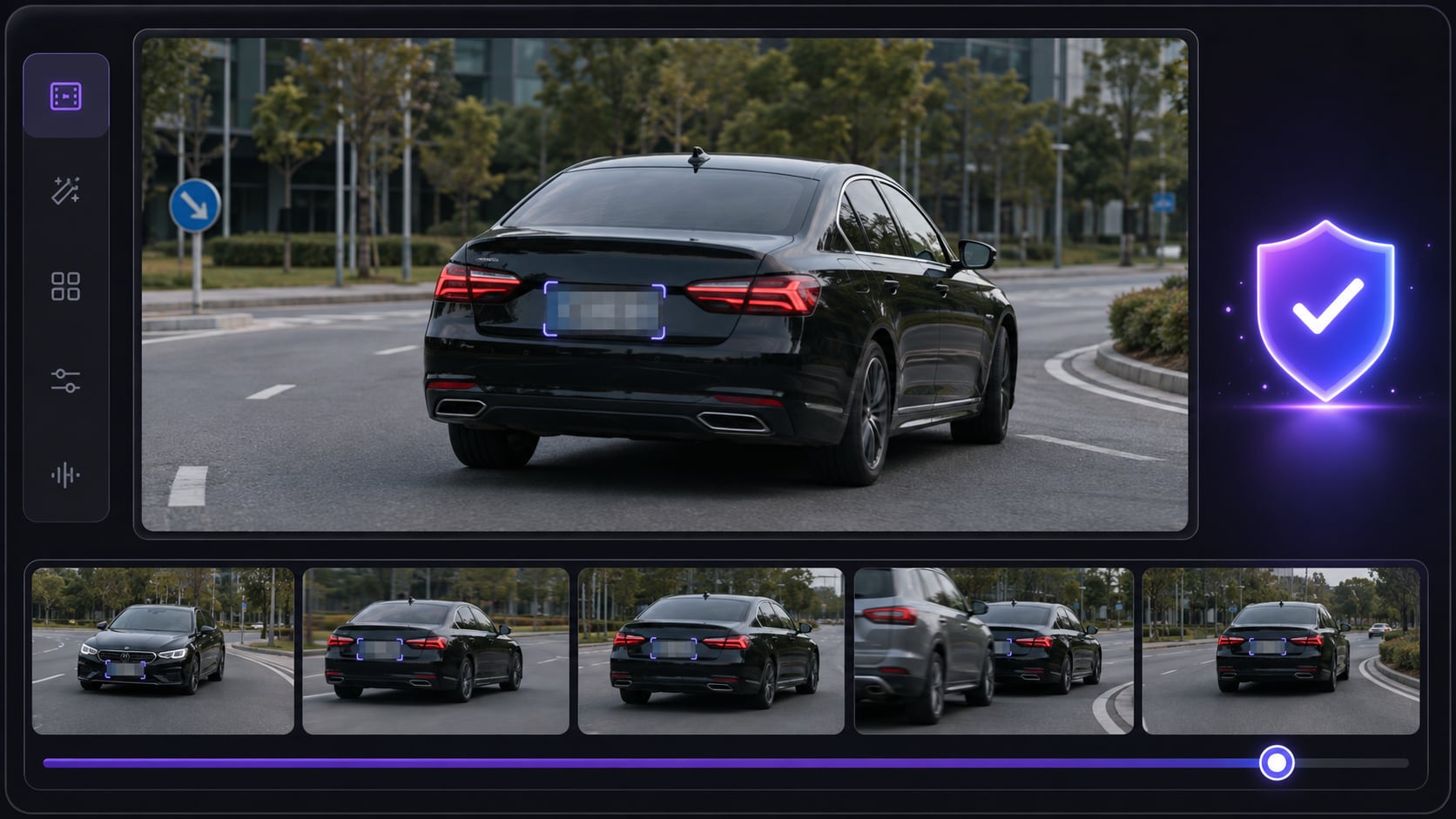
License plates are not detected automatically by this feature. Use Object Tracking Blur mode to draw a box around a plate, screen, badge, name, document, sign, or another detail; AI then follows that selection through the clip.

  • Avoid repositioning the masking box frame by frame.
  • Cover moving or stationary details in the same workflow.
  • Preview tracking continuity before committing to export.
selected object tracking for video anonymization

Process Sensitive Source Files Locally

AI Video Blur runs in the UniConverter desktop app, so unedited source footage does not need to be sent to an unfamiliar browser-based blur website. Add multiple pre-recorded videos (coming soon in V18), review each file, and export them in one batch workflow.

  • Suitable for CCTV clips, dashcam files, interviews, classes, and internal recordings.
  • Work with 4K footage and common formats without a browser upload step.
  • Keep repetitive anonymization jobs together in one file queue.
local batch video anonymization software workflow

Control Coverage, Then Inspect the Result

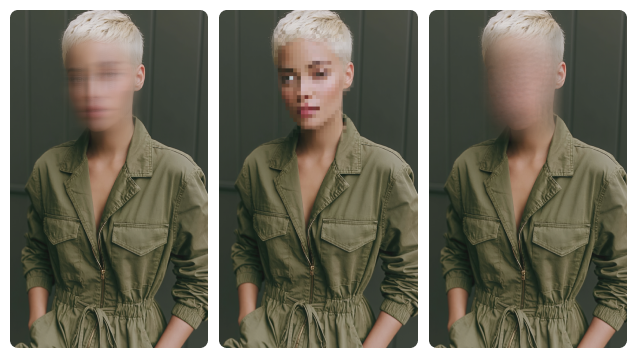
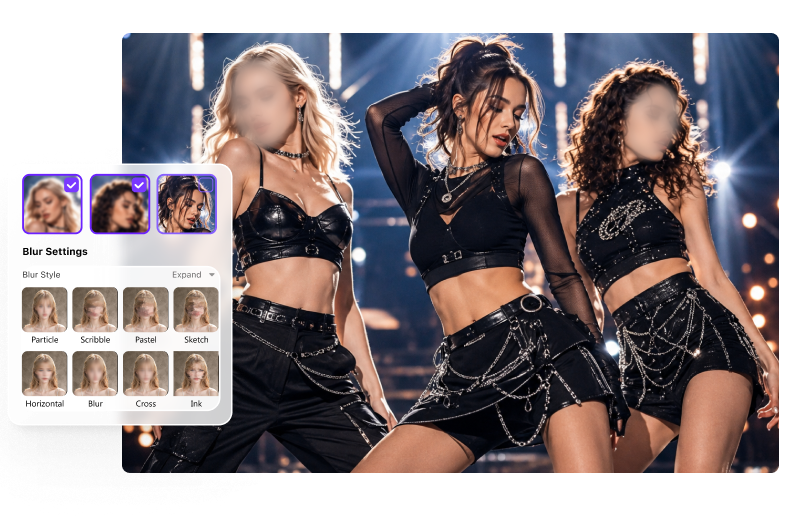
Select from Particle, Smear, Pastel, Sketch, Horizontal, Blur, Cross, Ink, Mosaic, and Paint. Adjust Strength, Feather, and Opacity to change how the selected region is concealed, then preview before export. Sticker is planned for V18.

  • Use Blur or Mosaic for familiar privacy masking.
  • Increase coverage and strength when identity must be harder to recognize.
  • Check entrances, exits, occlusions, fast movement, and scene cuts before sharing.
video anonymization blur styles strength feather and opacity controls
Review Before Release

Video Anonymization Checklist

A masking effect is only useful when it covers every identifying detail for the entire time that detail is visible.

1. Inventory Identifiers

List faces, plates, screens, documents, names, addresses, badges, tattoos, reflections, and location clues that appear in the footage.

2. Choose the Right Mode

Use AI Face Blur mode for people. Use Object Tracking Blur mode for any non-face identifier you select manually.

3. Check Coverage

Make the selected region large enough to cover the identifier as it turns, changes size, becomes partly hidden, or reaches a frame edge.

4. Inspect Transitions

Review the start and end of each appearance, fast motion, scene cuts, camera shake, reflections, and re-entry after occlusion.

5. Review Other Channels

Visual masking does not itself remove a spoken name, identifying audio, file metadata, subtitles, or contextual clues outside the selected region.

6. Keep the Original Separate

Export a new protected copy and preserve the unedited original according to your access, retention, and evidence-handling requirements.

Video Anonymization Use Cases

Prepare Footage for Safer Sharing and Review

Conceal unnecessary identities and private details while keeping the surrounding event, explanation, or evidence visible.

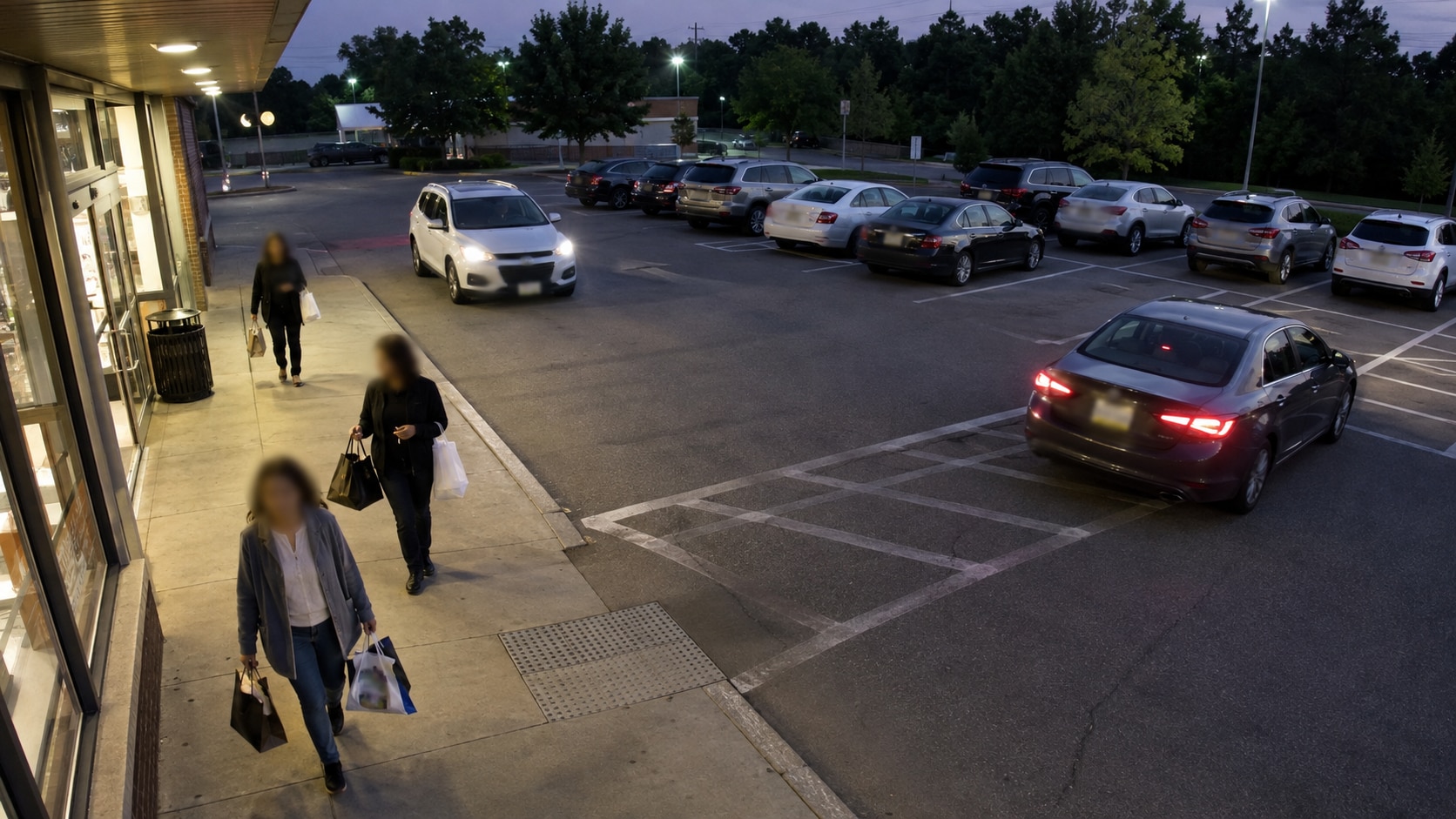
CCTV video anonymization concealing third-party faces and private details

CCTV & Access Copies

Conceal third-party faces, plates, screens, documents, or addresses in a copy prepared for authorized review or a records response.

Choose the Right Workflow

Compare Video Anonymization Software for Different Workloads

See where UniConverter, typical online anonymizers, and enterprise or technical platforms fit according to footage sensitivity, volume, implementation needs, and whether you are processing pre-recorded files or a live operational stream.

Decision PointUniConverter AI Video BlurTypical Online AnonymizerEnterprise / Technical Platform
Best fitPre-recorded files for creators, educators, teams, and everyday privacy editingQuick, low-volume browser tasksLarge archives, APIs, managed policies, or live camera pipelines
Face handlingAutomatic face detection; choose one, multiple, or all detected peopleVaries by providerOften automatic with configurable models or rules
Non-face identifiersSelect plates, screens, badges, documents, signs, or other targets; AI tracks the boxMay require manual masking or offer limited target typesMay include dedicated face and plate models plus custom detectors
Moving-target continuityAI tracking after face or object selectionVaries; some tools require repeated adjustmentUsually designed for automated, high-volume processing
Sensitive source footageDesktop workflow; no browser upload requiredUsually uploaded to a web service; handling variesMay offer private cloud, on-premise, or controlled infrastructure
Multiple pre-recorded filesBatch import, review, processing, and exportOften limited by file count, size, time, or planBuilt for scale, but setup and procurement may be substantial
Mask appearance10 current styles plus Strength, Feather, Opacity, and Reverse controlsOften a smaller set of effectsUsually policy-driven; creative styling may not be the priority
Work after anonymizationContinue converting, compressing, trimming, editing, or enhancing in UniConverterUsually a single-purpose browser exportDepends on the integration and downstream pipeline
Implementation effortLow: desktop interface, no code requiredLow for simple filesMedium to high: configuration, infrastructure, or integration

“Typical Online Anonymizer” and “Enterprise / Technical Platform” describe common workflow patterns. Exact detection, upload, storage, deployment, and review capabilities vary by provider.

Practical choice: Use UniConverter when you need a no-code desktop tool to anonymize pre-recorded videos, review individual targets, process multiple files, and continue editing afterward. Evaluate a dedicated enterprise platform if your project requires real-time streams, APIs, centrally enforced policies, audit controls, or infrastructure deployment.
Supported Desktop Workflow

From Identifiable Source to Reviewed Video Copy

Keep anonymization inside a broader post-production workflow instead of moving sensitive footage between separate upload and download tools.

Common Video Formats

Work with MP4, MOV, AVI, MKV, M4V, WMV, FLV, MTS, TS, 3GP, and other common formats supported by the feature.

MP4MOVAVIMKVM4VWMVFLVMTSTS3GP

One Connected Post-Production Flow

Prepare the source, mask visible identifiers, verify the result, and continue working in UniConverter when the export also needs conversion, compression, trimming, editing, or enhancement.

ImportIdentifyTrack & MaskPreviewEdit / ConvertExport Copy
Video Anonymization FAQ

Frequently Asked Questions

Direct answers about anonymizing faces, license plates, sensitive details, multiple videos, and privacy-sensitive footage.

To anonymize a video means to conceal visual information that could identify a person or expose private details. This commonly includes faces, license plates, names, addresses, screens, documents, badges, tattoos, and recognizable locations. A complete review should also consider identifying audio, metadata, and context.

Import the video into AI Video Blur. Use AI Face Blur mode to select detected people, or Object Tracking Blur mode to box a plate, screen, document, or another identifier. Choose a masking style, preview the complete clip, correct any missed coverage, and export a new copy.

Yes. UniConverter scans the footage for faces and generates detected face thumbnails. You can choose a specific person, several people, or all detected faces, and the effect follows selected faces through the video.

UniConverter automatically detects faces, not license plates. To anonymize a plate, draw a box around it in Object Tracking Blur mode. AI then tracks that selected plate as it moves, so you do not have to reposition the box on every frame.

Yes. You can combine selected faces with tracked plates, screens, usernames, addresses, documents, badges, signs, tattoos, and other visible targets. Review the result carefully when identifiers overlap, leave the frame, or reappear after a cut.

AI Video Blur runs in the UniConverter desktop app on Windows and macOS. You can process sensitive pre-recorded footage without uploading the unblurred source to an unfamiliar online blur website.

Yes. Add multiple videos to the file queue, switch between files to check targets and settings, then process and export them as one batch workflow.

No software effect alone can guarantee compliance. The required protection depends on the footage, purpose, jurisdiction, re-identification risk, and handling process. Check whether faces or other identifiers remain visible, and consider audio, metadata, clothing, tattoos, location, and contextual information. Seek qualified legal guidance for compliance decisions.

AI Video Blur is designed to conceal selected visual regions. Do not assume that applying a blur removes spoken names, other identifying audio, subtitles, or file metadata; review and handle those elements separately when your project requires it.

Watch the exported copy from beginning to end. Check the first and last frame of every appearance, fast motion, scene cuts, occlusion, reflections, frame edges, and any moment when a mask may drift. Also verify that the masking strength and area prevent the detail from remaining recognizable.

Anonymize the Details—Keep the Video Useful

Detect faces, track selected identifiers, review every mask, and export a protected video copy in one local desktop workflow.

UniConverter anonymizing faces and private details in a video