
UniConverter
UniConverter Online Free
Converter video, audio & image free
Free Try

Convert PSD to BMP on Windows and Mac

Convert Adobe Photoshop PSD files to BMP with UniConverter Desktop on Windows or Mac. Use Image Converter when you need a flattened bitmap copy for apps or workflows that do not require editable Photoshop layers.

For PSD-to-BMP conversion, UniConverter Desktop gives you the supported workflow:

  • Import supported PSD files locally in Image Converter
  • Create flattened BMP raster copies for compatible workflows
  • Convert multiple PSD files in one desktop queue
  • Use the workflow on Windows or macOS
Platforms
WindowsmacOSDesktop App
4.7/5 Rated on Trustpilot
Independent review and software platforms: G2 Crowd, CNET, Capterra, Uptodown, Software Advice, and Trustpilot
120+Countries
7M+Satisfied Users
1.4M+Subscribers
21M+Downloads

How to Convert PSD to BMP with UniConverter Desktop

Add your PSD files
Step 1

Add your PSD files

Open UniConverter Image Converter on Windows or Mac and use Add Files to import one or more supported PSD files into the local conversion queue.

Choose BMP as the output
Step 2

Choose BMP as the output

Open the Convert to menu and choose BMP. A BMP output is a raster copy; it does not preserve the editable Photoshop layer stack, masks, adjustment layers, or other PSD document structure.

Choose a save folder and convert
Step 3

Choose a save folder and convert

Set the Save to folder and run Convert All. Open the finished BMP files and check the flattened appearance, background, dimensions, and colors before replacing or archiving anything.

PSD vs BMP: Layered Photoshop Document vs Raster Bitmap

PSD
BMP
File Extension .psd .bmp
Full Name Photoshop Document Windows Bitmap Format
Format Type Adobe Photoshop native document format Raster bitmap image format
Structure Can store layers, masks, channels, effects, and other Photoshop document data Stores rendered bitmap pixels rather than a Photoshop layer stack
Transparency PSD can preserve transparency and masks as editable document data BMP transparency behavior depends on the BMP variant and software support; do not rely on it to preserve PSD transparency workflows
Editing Use Best when you need to continue layered Photoshop editing Useful when you need a flattened bitmap for compatible raster or legacy workflows
Conversion Result Keep the PSD as the editable master Creates a flattened raster copy; conversion cannot reconstruct PSD layers later
Developer / Standard Adobe Photoshop file format Microsoft Windows bitmap format

Why Use UniConverter for PSD to BMP Conversion

Desktop PSD Input Support

Open PSD files in UniConverter Desktop on Windows or Mac and export BMP copies locally. BMP is useful when the next app or workflow needs a simple raster bitmap instead of an editable Photoshop document.

Flatten PSD for Bitmap Workflows

BMP is useful when another application expects a Windows bitmap or a simple raster image. Converting PSD to BMP creates a rendered bitmap copy rather than another layered design file.

Preserve the PSD as Your Editable Master

A BMP cannot carry the Photoshop layer stack, masks, adjustment layers, and edit history in the same way as PSD. Keep the original PSD when future design changes may be needed.

Local Windows and Mac Processing

Add PSD files from your computer, choose BMP, set the destination folder, and convert them in the desktop app.

Batch Convert Multiple PSD Files

Use one Image Converter queue for repeated PSD-to-BMP jobs. The shared Convert to and Save to controls help keep the output format and destination consistent across the queue.

Review the Flattened Result

Check the BMP background, dimensions, colors, and visible composite after conversion. Transparency and document-specific PSD information should not be assumed to survive as editable data.

FAQs About PSD to BMP

Open Image Converter in UniConverter Desktop, add the PSD file, choose BMP in Convert to, select the Save to folder, and run Convert All. The workflow is available on supported Windows and Mac versions.
Use UniConverter Desktop for PSD-to-BMP conversion. Open the PSD file in Image Converter, choose BMP as the output, and convert it on Windows or Mac.
Yes. BMP is a raster bitmap format and does not preserve the Photoshop layer stack as editable layers. Keep the PSD master if you still need layers, masks, effects, or adjustment data.
Do not assume that it will. PSD can store transparency and masks as document data, while BMP transparency support varies by BMP version and application. Review the converted background and edges in the software where the BMP will be used.
Yes. UniConverter Desktop supports a multi-image conversion queue. Add the supported PSD files, choose BMP as the shared output, set the destination folder, and process the queue with Convert All.

“Wondershare Video Converter is hands down one of the best tools I’ve added to my creative toolkit. It’s fast, easy to use, and incredibly powerful. Whether I need to convert large video files into different formats, compress them without losing quality, or even edit and trim clips, this software handles it all with ease.”

— TG

“I have been using Wondershare UniConverter for many years. It has been one of the best ways to download, screen capture and convert videos. It has been my go to for video download and conversion.”

— Alan Horner

“Wondershare has so many assets, not just for downloading media. You can convert to other formats. You can create GIFs and clean up videos. There are way too many assets you can use with WonderShare UniConverter that it's a MUST for any video editor or graphics designer. It's worth every penny.”

— P.rajotte

“Simple to use, music, pic, video, all can edit or convert, Make my work faster and easy”

— gyn

“Over the years, Wondershare Uniconverter has really transformed into a powerhouse of tools. You can download, convert, crop, compress, enhance the quality, remove the background and do ton of other useful ops. We can do it for Video, Audio, and images, either individually or in batches.”

— Sura Mukkavilli

“Wondershare UniConverter has completely exceeded my expectations! The software is incredibly fast, easy to use, and supports a wide range of file formats. I was able to convert large videos in just minutes without losing quality. The interface is clean and intuitive, making it beginner-friendly while still offering advanced features for power users. ”

— CHEUNG SIN LIM

“Wondershare Video Converter is hands down one of the best tools I’ve added to my creative toolkit. It’s fast, easy to use, and incredibly powerful. Whether I need to convert large video files into different formats, compress them without losing quality, or even edit and trim clips, this software handles it all with ease.”

— TG

“I have been using Wondershare UniConverter for many years. It has been one of the best ways to download, screen capture and convert videos. It has been my go to for video download and conversion.”

— Alan Horner

What Users Say About UniConverter

These comments describe UniConverter as a broader multimedia product; they are not reviews of this specific format-pair workflow.

★ ★ ★ ★ ★
Rated 4.7/5

Convert PSD to BMP with UniConverter Desktop
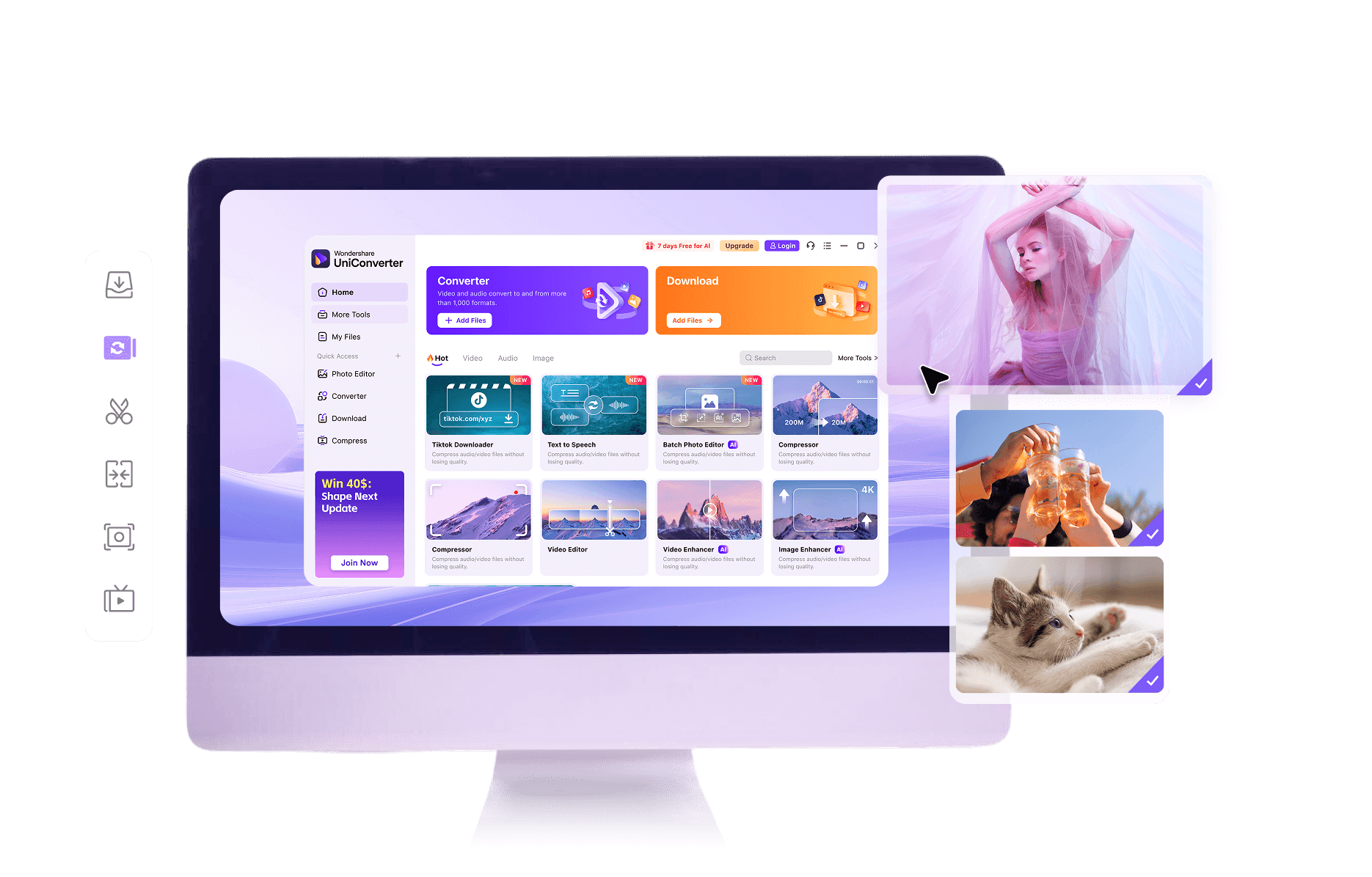
Use Image Converter on Windows or Mac to turn supported PSD files into flattened BMP copies. Keep the PSD originals for layered editing, and review each BMP before using it in a legacy or raster-only workflow.
UniConverter PSD to BMP Converter


