How to Convert Your Video Source to FLAC

Choose the best authorized local source
Use the original audio or video master when you still have it. For your own upload, YouTube Studio provides an MP4 copy through Content and the video menu. Google Takeout is another official route for your own uploaded media.

Select FLAC in the desktop Converter
Open UniConverter Desktop Converter and add the local media file. In Convert to, choose the Audio category and FLAC. Select the intended audio track where available and avoid unnecessary resampling or channel changes.

Convert and listen to the result
Choose Save to and run Convert All. Check the duration, beginning, ending, intended track, and audible defects. Keep the original master or source file. A larger FLAC file does not establish that the audio gained detail.
Create FLAC from a Local Video or Audio File
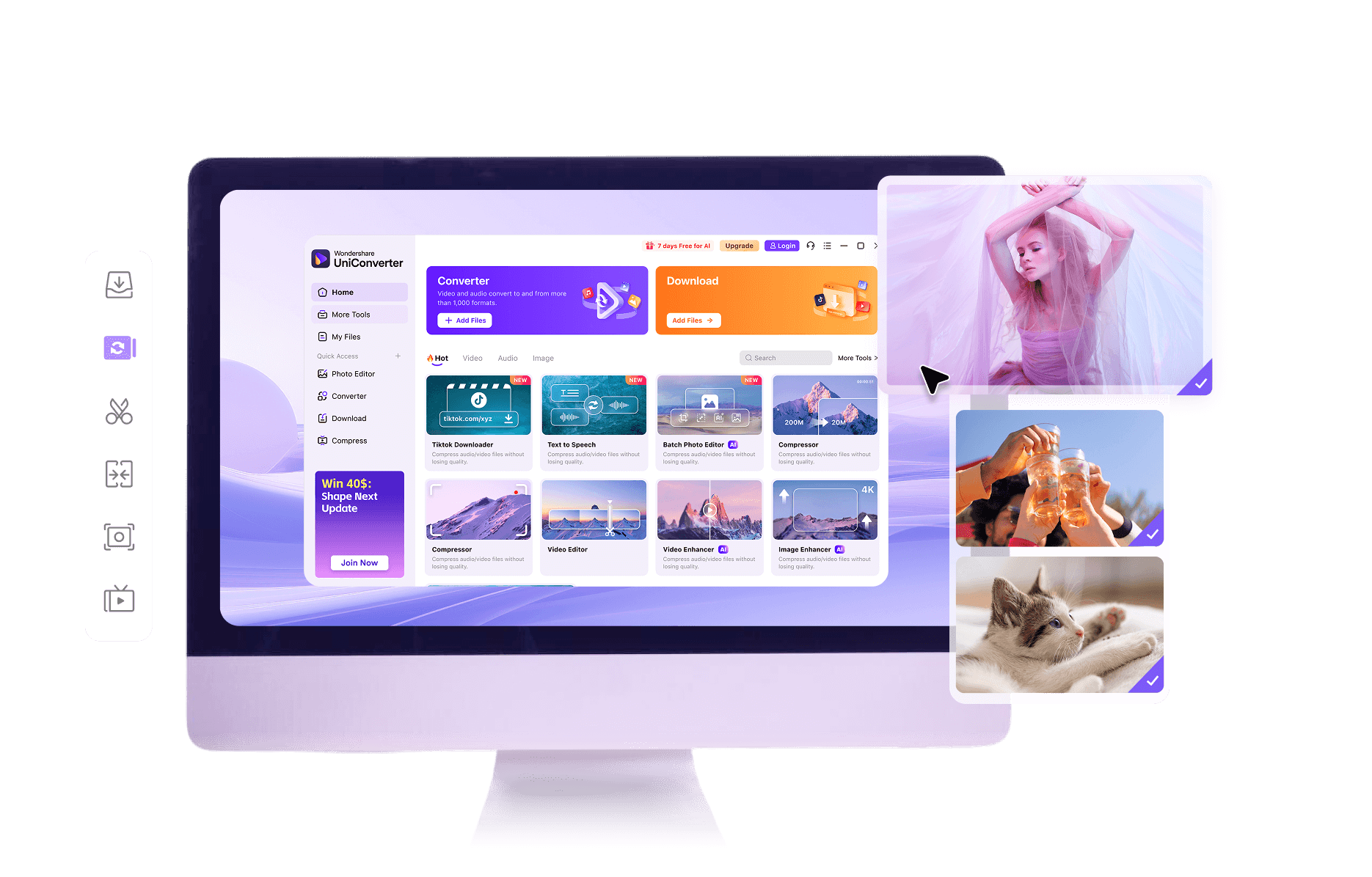
Follow the official UniConverter desktop workflow. These illustrations show desktop controls; sample files and selected formats may differ from this task.
Import the authorized source
Open UniConverter Desktop Converter and use Add Files to add the local media. Prefer the original production master when it is available.

Choose Audio and FLAC
Open Convert to, select Audio, and choose FLAC. Select the intended source track and review available audio settings. Avoid unnecessary changes made only to increase a displayed quality number.

Save and inspect the FLAC
Choose Save to and run Convert All. Listen to the exported file, compare duration and channels, and keep the original. The output format alone is not evidence of restored audio detail.

YouTube to FLAC: Source Quality vs Output Format
| Item | Source or workflow | Result or limit |
|---|---|---|
| Original lossless master | Best available production source | Preserve it before creating delivery copies |
| Previously lossy audio | Already lacks some original information | FLAC cannot reconstruct discarded detail |
| FLAC output | Lossless encoding of its input samples | May be much larger than a compressed source |
| Sample-rate increase | Adds a resampling stage | Does not prove improved source fidelity |
| Local file workflow | Import media and select Audio > FLAC | Different from a web-link processing service |
| Quality check | Listen and compare the intended source | Do not rely on extension, bitrate, or size alone |
References: FLAC format FAQ · Official options for your own uploads · Audio conversion guide · Video-to-audio guide · Supported formats
Practical Answers for YouTube to FLAC
Understand what lossless means here
FLAC preserves the PCM audio presented to its encoder. If the source was previously compressed with a lossy codec, the decoded samples already reflect that loss. Encoding those samples as FLAC avoids an additional lossy codec stage but cannot recover the discarded original information.
Prefer the local master to a platform copy
For your own production, use the original WAV, FLAC, or video project export when available. A platform copy may have been transcoded. Choose the source based on its actual history rather than assuming a page title promising lossless audio identifies an original studio recording.
Use official access for your own uploaded media
YouTube Studio documents a route to obtain an MP4 of your own uploads, and Google Takeout can export your uploaded videos. Availability has conditions, so retain your production originals. This page’s UniConverter steps begin with a local file, not an unsupported promise about processing any web URL.
Keep sample rate and channel choices intentional
Raising sample rate or bit depth does not restore missing content. Match the useful characteristics of the source unless a delivery requirement calls for a change. Check the selected audio track and channels so the FLAC contains the intended language or mix rather than merely the first available stream.
Compare FLAC, WAV, and an existing compressed file
FLAC is useful when you want lossless storage of decoded audio and compatible playback. PCM WAV is common for editing handoffs. Keeping an existing AAC or Opus source may avoid a large redundant copy when the goal is only listening. Choose a format for the next task, not for a larger bitrate number.
Check conversion separately from audio enhancement
A format conversion does not remove clipping, rebuild missing frequencies, or fix every noisy recording. Any enhancement is a separate signal-processing choice that can alter the sound. Preserve an untouched source and compare edited audio before using it as a production asset.
YouTube to FLAC FAQs
Does YouTube to FLAC conversion create true lossless audio?
How can I convert my own YouTube video to FLAC?
Can I paste a YouTube URL into UniConverter Converter for this workflow?
Is FLAC better than MP3 for this task?
Will 24-bit or 192 kHz FLAC sound better?
Why is the FLAC much larger than the source audio?
Can I convert an app offline copy to FLAC?
Can UniConverter batch convert local files to FLAC?
What Customers Say About UniConverter
Related Media Workflows

Create FLAC from a Local Video or Audio File