
UniConverter
UniConverter Online Free
Converter video, audio & image free
Free Try

Convert AAC to WAV Online Free

Convert AAC to WAV online for free with no signup. Upload an AAC audio file, choose WAV, and download the converted file in your browser. WAV is a practical choice for editing, audio production, and workflows that prefer uncompressed audio. For multiple files, larger local jobs, or repeated conversions, use UniConverter Desktop.

Need to convert more than one AAC file? UniConverter Desktop is built for larger and repeated conversion workflows:

  • Batch convert multiple AAC files to WAV in one workflow
  • Get conversion speeds of up to 130× faster with desktop acceleration
  • Work with 1,000+ audio, video, and image formats
  • Keep conversion, editing, enhancement, and other media tasks in one desktop app
Platforms
Windows macOS Online
4.7/5 Rated on Trustpilot
Independent review and software platforms: G2 Crowd, CNET, Capterra, Uptodown, Software Advice, and Trustpilot
120+Countries
7M+Satisfied Users
1.4M+Subscribers
21M+Downloads

How to Convert AAC to WAV Online

Upload an AAC file
Step 1

Upload your AAC file

Choose an AAC audio file from your device and upload it to the online converter. If you need to process several AAC files, open UniConverter Desktop and add them to the same conversion queue.

Choose WAV as the output format
Step 2

Select WAV as the output format

Choose WAV as the target audio format. WAV files are usually larger than AAC files because WAV commonly stores uncompressed PCM audio, which makes the format convenient for editing and production workflows.

Download the converted WAV file
Step 3

Convert AAC to WAV and download

Start the conversion and download the finished WAV file when processing is complete. On desktop, you can convert multiple AAC files in a queue and save the results to your selected folder.

AAC vs WAV: Which Audio Format Should You Use?

AAC is designed for smaller files and efficient playback, while WAV is commonly used as an uncompressed working format for editing and production. Converting AAC to WAV changes the file format, but it does not restore audio detail already lost during AAC compression.

AAC
WAV
File Extension .aac .wav
Full Name Advanced Audio Coding Waveform Audio File Format
Description AAC uses lossy compression to reduce file size while maintaining good perceived audio quality. WAV is an audio container commonly used with uncompressed PCM audio for editing, production, and archival workflows.
Associated Programs VLC, foobar2000, compatible media players and devices Audacity, Adobe Audition, VLC, DAWs
Compression Lossy compression Usually uncompressed PCM
Typical File Size Smaller Larger
Common Use Cases Streaming, mobile playback, music libraries, and storage-efficient distribution Audio editing, DAWs, production handoff, sound effects, and archiving
Best Choice When You want smaller files and efficient playback You want an editing-friendly, uncompressed workflow format

Why Use UniConverter as an AAC to WAV Converter?

Free AAC to WAV Converter Online

Convert AAC to WAV online for free without creating an account. It is a simple option when you only need to change one AAC file to WAV in your browser.

WAV Output for Editing Workflows

WAV is widely used in audio editors and DAWs. Converting AAC to WAV gives you an uncompressed working format that is easier to use in many editing and production workflows.

No False Quality Upgrade

Converting AAC to WAV does not restore audio detail already removed by AAC compression. The benefit is an editing-friendly WAV file that avoids another lossy encoding step in your next workflow.

Batch AAC to WAV on Desktop

Convert multiple AAC files to WAV in one desktop queue when you are processing an audio folder, repeated jobs, or larger local files.

Up to 130× Faster Conversion

UniConverter Desktop supports accelerated conversion speeds of up to 130× faster, helping reduce waiting time on larger or repeated conversion jobs.

1,000+ Formats Supported

Beyond AAC and WAV, UniConverter supports more than 1,000 audio, video, and image formats for broader media conversion workflows.

AAC to WAV Converter FAQs

Upload your AAC file, select WAV as the output format, start the conversion, and download the WAV file when it is ready. For multiple AAC files or repeated local jobs, use UniConverter Desktop for batch conversion.
No. AAC is typically a lossy format, so converting it to WAV cannot restore audio information that was removed during AAC encoding. The WAV file can still be useful for editing because it avoids adding another lossy compression stage to the next part of your workflow.
WAV is often more convenient for editing because uncompressed PCM WAV is widely supported by audio editors and DAWs. AAC is better when smaller file size and efficient playback matter more. Keep in mind that converting an AAC source to WAV does not make the original recording higher quality.
Yes. You can use the online AAC to WAV converter for a free browser-based conversion without signup. Upload the AAC file, choose WAV, and download the converted audio when processing is complete.
Yes. Use UniConverter Desktop when you need to batch convert multiple AAC files to WAV, process larger local files, or repeat the same conversion across an audio collection.

“Wondershare Video Converter is hands down one of the best tools I’ve added to my creative toolkit. It’s fast, easy to use, and incredibly powerful. Whether I need to convert large video files into different formats, compress them without losing quality, or even edit and trim clips, this software handles it all with ease.”

— TG

“I have been using Wondershare UniConverter for many years. It has been one of the best ways to download, screen capture and convert videos. It has been my go to for video download and conversion.”

— Alan Horner

“Wondershare has so many assets, not just for downloading media. You can convert to other formats. You can create GIFs and clean up videos. There are way too many assets you can use with WonderShare UniConverter that it's a MUST for any video editor or graphics designer. It's worth every penny.”

— P.rajotte

“Simple to use, music, pic, video, all can edit or convert, Make my work faster and easy”

— gyn

“Over the years, Wondershare Uniconverter has really transformed into a powerhouse of tools. You can download, convert, crop, compress, enhance the quality, remove the background and do ton of other useful ops. We can do it for Video, Audio, and images, either individually or in batches.”

— Sura Mukkavilli

“Wondershare UniConverter has completely exceeded my expectations! The software is incredibly fast, easy to use, and supports a wide range of file formats. I was able to convert large videos in just minutes without losing quality. The interface is clean and intuitive, making it beginner-friendly while still offering advanced features for power users. ”

— CHEUNG SIN LIM

“Wondershare Video Converter is hands down one of the best tools I’ve added to my creative toolkit. It’s fast, easy to use, and incredibly powerful. Whether I need to convert large video files into different formats, compress them without losing quality, or even edit and trim clips, this software handles it all with ease.”

— TG

“I have been using Wondershare UniConverter for many years. It has been one of the best ways to download, screen capture and convert videos. It has been my go to for video download and conversion.”

— Alan Horner

What Users Say About UniConverter

These reviews refer to UniConverter’s broader conversion and media-processing experience rather than this AAC-to-WAV format pair specifically.

★ ★ ★ ★ ★
Rated 4.7/5

Convert AAC to WAV Online or in Batch
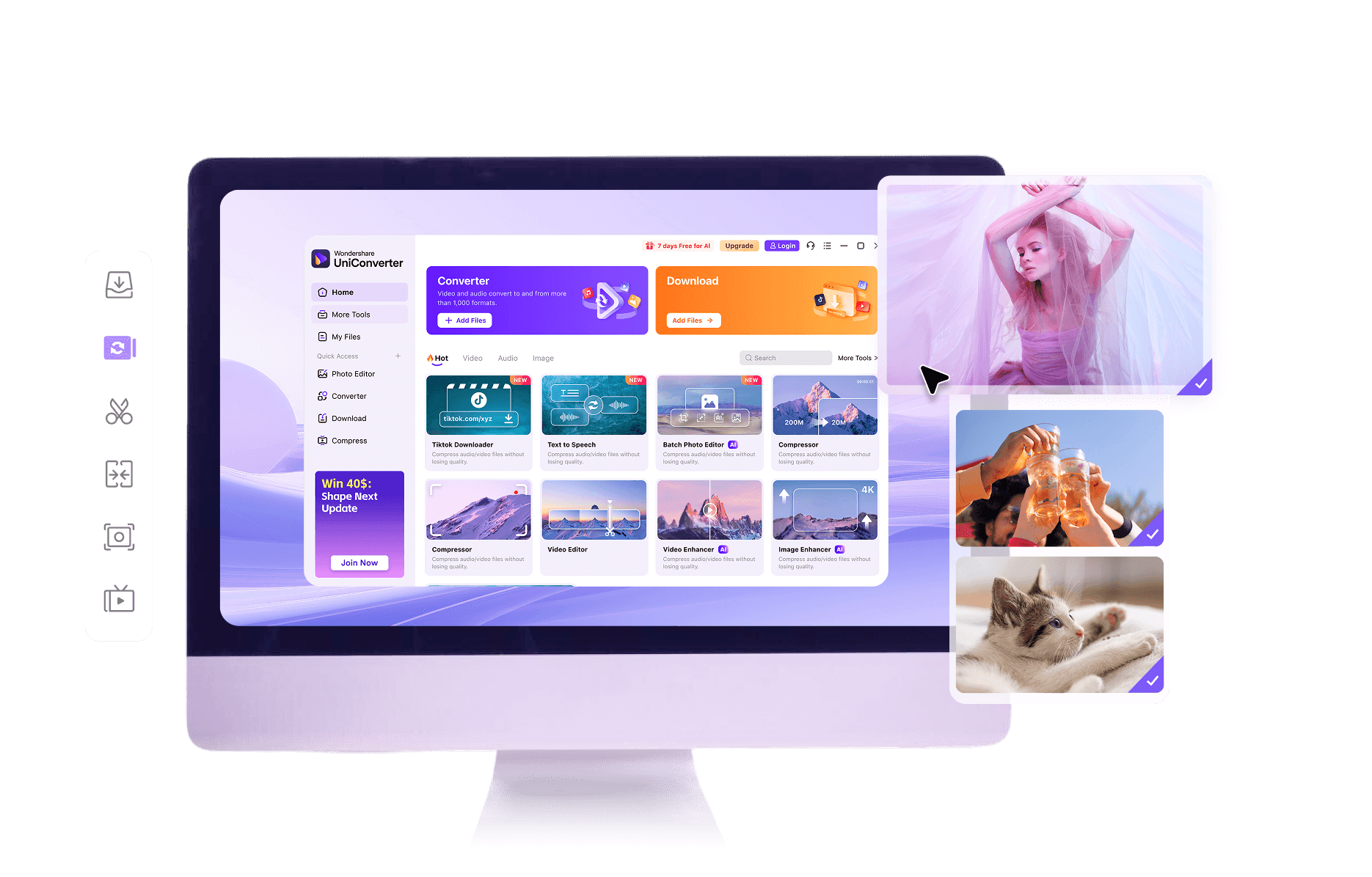
Use the online AAC to WAV converter for a quick single-file conversion, or switch to UniConverter Desktop to batch convert multiple AAC files, handle larger local jobs, and manage repeated conversion workflows.
UniConverter AAC to WAV converter


